
How to Set Up Smart Home Control on the Galaxy F70 Pro
A dated, settings-level walkthrough for smart home control on the Galaxy F70 Pro: SmartThings app setup, adding devices, and building the one-swipe Quick Settings panel — with a clear line drawn between what works from the phone alone and what still requires a SmartThings hub or Thread border router.
Last updated
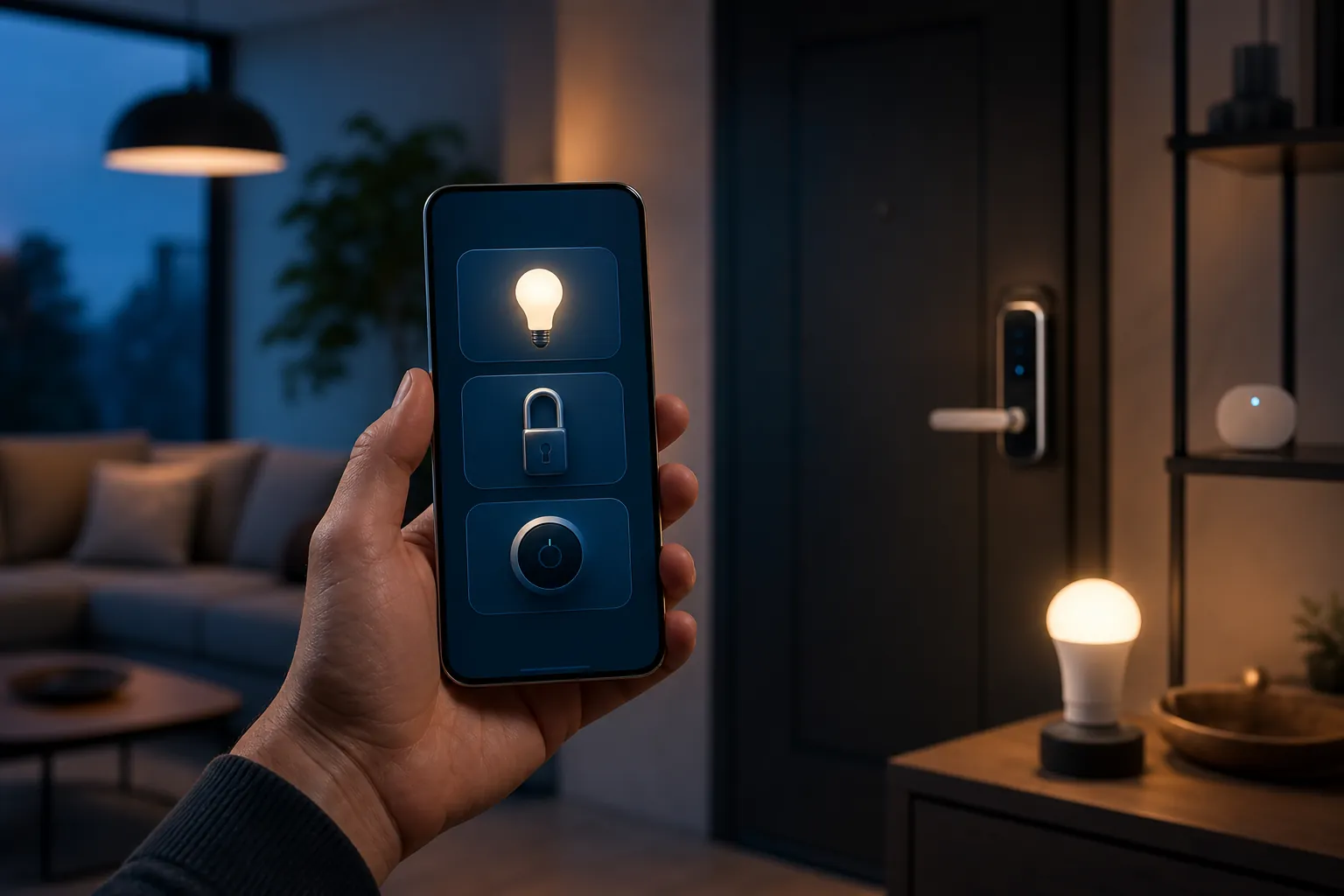
You want the Galaxy F70 Pro to be the screen you can reach in one swipe: lights, lock, plug, sensor, maybe a thermostat tile if your home already has one. That part is the right expectation. The part to settle before pairing anything is where the actual smart-home radio lives.
As of July 31, 2026, the Galaxy F70 Pro clears the documented SmartThings app requirements on paper. Samsung’s India page lists the phone with Android 16, One UI 8.5, and 8GB of RAM; SmartThings’ own support material lists an Android 8.0-or-later floor, while Samsung’s US SmartThings page lists Android 9 or later with at least 3GB of RAM.[1][2][3] That makes the setup path an app-and-settings job, not a “will this phone even run SmartThings?” gamble.
The boundary matters more than the green checkmark: treat the F70 Pro as controller and Matter commissioner hardware, not as a SmartThings hub. The phone can run SmartThings, let you sign in to your Samsung account, scan QR codes, onboard supported devices, and expose chosen controls in Quick Settings. It should not be treated as the place where Zigbee, Z-Wave, or Thread radios magically appear.
This is the setup layer. If you still need the pre-purchase verdict, use NestGrid’s Galaxy F70 Pro 5G SmartThings compatibility check and the broader F70 Pro smart-home control verdict. Here, the job is getting the app running, adding devices correctly, and building the one-swipe panel without buying the wrong accessory first.
Before you start: this is confirmed on paper, not retail-device tested
The Galaxy F70 Pro launch is listed for August 3, 2026, so this guide should not be read as a hands-on confirmation from a retail unit. It is a dated compatibility-and-setup read based on Samsung’s published phone specs and Samsung/SmartThings setup documentation available on July 31, 2026.
There is also no good reason to build this setup guide around a conflicting third-party spec table. The useful baseline is Samsung’s own F70 Pro page, with broader launch/spec reporting treated only as context where it aligns with the official page.[1][4][5] If a source says the phone has a completely different processor, memory tier, display type, or battery class than Samsung’s page, that is a warning label, not setup material.
One more practical caveat: One UI 8.5 changes the Quick Settings surface compared with older Samsung phones. The control entry may appear as “Device control,” “Devices,” or a nearby equivalent on the retail F70 Pro. The existence of Samsung’s phone-level smart-home control surface is well documented; the exact label and position still need to be checked on the shipping build.
The three roles that decide whether a device appears
Most failed smart-home setups are not caused by the phone being too weak. They happen because a bulb, lock, sensor, or switch is speaking to a radio the phone does not have. SmartThings can make this look deceptively simple because the same app handles Wi-Fi devices, cloud-linked devices, Matter devices, Zigbee devices, and Z-Wave devices. They do not all reach the phone the same way.
| Role | What the F70 Pro can do | Where setup can stop |
|---|---|---|
| Controller surface | Show SmartThings devices and run controls from the app or Quick Settings. | Only devices already available to SmartThings can be shown. |
| Matter commissioner | Use the phone app to scan a Matter QR code or enter a setup code and help add the device. | Commissioning is not the same thing as being the always-on Matter controller. |
| Hub / radio bridge | Not documented as built into the F70 Pro as of July 31, 2026. | Zigbee, Z-Wave, and Matter-over-Thread need the right network hardware. |
SmartThings’ Matter documentation makes the role split unusually plain: the mobile app can act as a commissioner during onboarding, while the Matter controller role belongs to a hub-class device in the SmartThings setup.[6] That single distinction explains why scanning a code on the F70 Pro does not mean the phone has become a hub.
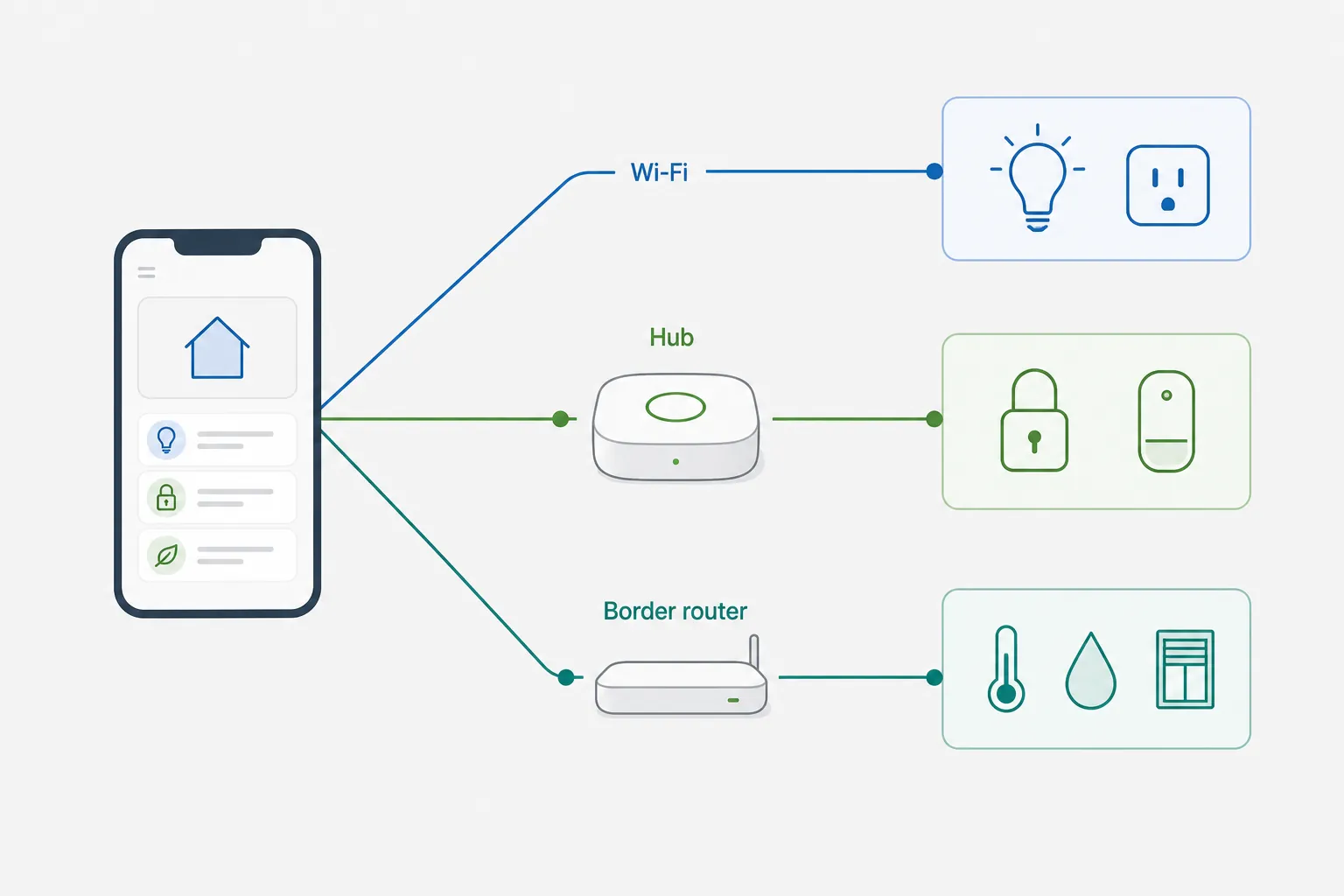
For a normal owner, the test is simple: if the device is supported by SmartThings over Wi-Fi, cloud linking, or Matter-over-Wi-Fi, the F70 Pro and the app may be enough. If the box says Zigbee or Z-Wave, expect a SmartThings 2018/Aeotec-class hub. If the box says Matter-over-Thread, expect a Thread border router. The phone is still useful in all three lanes, but it is not doing the same job in each lane.
Get SmartThings ready on the Galaxy F70 Pro
Start with the boring part, because it prevents the most annoying half-paired-device cleanup later.
- Update the phone before you pair anything. On the F70 Pro, check Settings for system updates and Galaxy Store or Play Store updates for SmartThings. The app should already be comfortably inside Samsung’s documented requirement range, but first-run setup is easier when the app is current.[1][2][3]
- Open SmartThings and sign in with the Samsung account you actually want tied to the home. If someone else in the household owns the existing SmartThings Location, ask them to invite this account instead of creating a second home by mistake.
- Allow the permissions that match what you are doing. Camera access is needed for QR codes. Nearby-device and Bluetooth-style prompts help with discovery. Location prompts may appear because Android ties some Wi-Fi and Bluetooth discovery behavior to location permission.
- Check that the phone is on the same home Wi-Fi network you intend to use for Wi-Fi devices, hubs, and Matter setup. Guest networks and isolated router modes are a common reason a device is powered on but invisible.
If you are setting up the F70 Pro for someone else, do not use your Samsung account just to get through the screen faster. Smart-home ownership becomes messy later: routines, room assignments, shared access, and device removal all follow the account and Location choices you make now.
Add devices without guessing
In SmartThings, the add-device flow is usually reached from the Devices area with an Add control, plus button, or Scan nearby option. Samsung documents several paths, including searching by device type or model, scanning a QR code, and scanning for nearby devices.[7][8] Use the path that matches the device in your hand; do not keep retrying the same method if the device is clearly from a different lane.
Use model-number search when compatibility matters
For appliances, cameras, robot vacuums, plugs, switches, and branded smart-home gear, start with in-app search. Search the exact model number from the box or device label, not just the marketing family name. A “works with SmartThings” line on a retailer page is less useful than finding the device in SmartThings’ own add-device list.
Samsung’s support guidance is blunt here: if the device does not appear when searched in SmartThings, you should not treat it as compatible through that path.[7] That does not mean the device is bad. It means this is no longer a phone setup problem. It may need a different integration, a hub, a Matter path, or it may simply not be supported.
Use QR or setup-code onboarding for Matter devices
For Matter devices, look for the Matter QR code or numeric setup code on the device, card, manual, or inside the manufacturer’s app. In SmartThings, choose the add-device flow, scan the code with the F70 Pro camera, and follow the prompts. This is where the phone is doing commissioner work: it helps introduce the new device to the smart-home fabric.[6]
Before you add the same Matter device to every ecosystem in the house, note SmartThings’ documented multi-admin limit: a Matter device can be shared with up to five services.[6] That limit changes the order of operations. If the household uses SmartThings, Google Home, and another platform, decide which services actually need control before you fill the available slots with test pairings.
The QR path also does not erase the radio boundary. Matter-over-Wi-Fi can be reachable through the phone-and-app setup lane if SmartThings supports that device. Matter-over-Thread needs Thread network hardware. If the app asks for a hub or border router, that is not a nuisance prompt; it is the missing network piece.
Use nearby scan for devices already advertising themselves
Nearby scan is useful when a device is powered on, reset, and actively broadcasting for setup. It is the fastest route for many Samsung devices and some smart-home accessories. Keep the F70 Pro close to the device, keep Bluetooth and Wi-Fi enabled, and do not skip the permission prompts if you expect discovery to work.
If nearby scan finds nothing, reset the accessory once and try the model-number or QR path before blaming the phone. A device that is already paired to someone else’s account, stuck on a guest Wi-Fi network, or waiting for a hub radio will not become visible just because the F70 Pro has enough RAM.
Put the useful devices into the one-swipe panel
Once devices are visible in SmartThings, the payoff is the phone-level control surface. Samsung and SmartThings have supported switching between SmartThings and Google Home from the Quick Settings menu since the One UI 3.1/Android 11 generation, and independent walkthroughs have shown the same basic phone-level device-control idea on Samsung phones.[9][10] On the Galaxy F70 Pro’s One UI 8.5 build, verify the final label and placement instead of assuming an older screenshot matches exactly.
- Swipe down from the top of the F70 Pro screen to open Quick Settings. If the device-control entry is not visible, swipe again, expand the panel, or open the edit/customization view.
- Look for the entry Samsung labels on your retail build as Device control, Devices, or a similar smart-home control tile.
- Open that entry and check the service selector if more than one provider is available. Choose SmartThings if you want the panel to use the devices you just added there. If Google Home is selected, switch providers where the interface allows it.
- Choose which devices should appear. Put everyday controls first: the main room lights, a frequently used plug, the lock you are allowed to control from the phone, or a camera shortcut if it is supported.
- Test each tile from the panel while standing near the device the first time. You are checking two things: whether the tile is visible and whether the command actually reaches the device.
Do not crowd this panel with every sensor in the home. A contact sensor that only reports open or closed may be valuable in SmartThings but useless as a Quick Settings tile. The one-swipe surface is for controls and status checks you will actually use while the phone is locked in your hand and someone is waiting at the door.
If a device works inside SmartThings but does not appear as a selectable Quick Settings tile, check whether the device type is eligible for that surface and whether it is assigned to the correct Location or room. The Quick Settings panel is not a full duplicate of the SmartThings app; it is a shortcut surface fed by supported controls.
Where the F70 Pro setup stops
This is the part product pages often blur. The F70 Pro can be an excellent control screen and setup phone while still being the wrong place to look for Zigbee, Z-Wave, or Thread radio coverage.
| Device or protocol | Phone-only SmartThings setup on F70 Pro | Extra hardware boundary |
|---|---|---|
| SmartThings-supported Wi-Fi or cloud device | Usually the cleanest lane: add in SmartThings, sign in or pair as prompted, then expose useful controls in Quick Settings. | No SmartThings hub required just because the phone is doing the control. |
| Matter-over-Wi-Fi device | Use the F70 Pro to scan the Matter QR/setup code in SmartThings. | Still follow SmartThings support status for the specific device; multi-admin sharing is limited to five services.[6] |
| Zigbee device | The F70 Pro can control it after SmartThings has it through a hub. | Needs a SmartThings 2018/Aeotec-class hub or equivalent SmartThings-compatible Zigbee hub path. |
| Z-Wave device | The F70 Pro can control it after SmartThings has it through a hub. | Needs a SmartThings 2018/Aeotec-class hub or equivalent SmartThings-compatible Z-Wave hub path. |
| Matter-over-Thread device | The F70 Pro can help with onboarding, but the Thread network has to exist. | Needs a compatible Thread border router / Matter controller path documented for SmartThings.[6] |
The practical operating rule is narrow and safe: Wi-Fi/cloud and supported Matter-over-Wi-Fi devices are the phone-and-app setup lane; Zigbee and Z-Wave require a SmartThings 2018/Aeotec-class hub; Matter-over-Thread requires a border router; and the Galaxy F70 Pro’s role is to commission and control, not to replace those radios.
If that boundary is the thing blocking your setup, use the hub-pairing guide for the hub side, compare the same controller pattern in the Galaxy Z Fold 8 setup guide, or use the phone-is-not-a-hub explanation if the ecosystem vocabulary is the part getting in the way.
References
- Galaxy F70 Pro, Samsung India
- Using the SmartThings App, SmartThings Support
- Samsung SmartThings, Samsung US
- Samsung Galaxy F70 Pro key specs emerge via Geekbench, GSMArena
- Galaxy F70 Pro launch appears just around corner, SamMobile
- SmartThings x Matter Integration, SmartThings Support
- How to add devices to SmartThings, Samsung Support
- How to scan nearby devices in SmartThings, Samsung Support
- Easily switch between SmartThings and Google Home from the Quick Settings menu of your phone, SmartThings Blog
- How to Control Your Smart Home from Samsung Quick Settings, How-To Geek
Known issues with this device / protocol
Spec-version history
For active regressions on this protocol, see Update Watch.
No linked Update Watch entries yet.