
Reboot order for smart home devices after a T-Mobile outage
Smart-home devices offline after T-Mobile outage; gateway connected but no internet; phone shows SOS Only
Last updated
Verified status and the stop rule
Verified July 31, 2026. This playbook is for a T-Mobile 5G Home Internet or same-network household where the gateway looks connected but has no usable internet, smart-home apps show devices offline, and a phone may still say SOS Only. The short version: do not start with the lock, bulb, camera, or Matter bridge. Start with the carrier path.
| Status | What it means for this fix |
|---|---|
| Confirmed | T-Mobile’s own outage guidance says a severe outage can affect 5G Home Internet until the outage is resolved, and customers may need to power cycle a device after resolution. |
| Workaround | Gateway-first, then hub, then Wi-Fi devices is the recovery order used here because it restores the upstream path before waking cloud-dependent smart-home gear. |
| Investigating | Direct first-party reporting that this specific July 2026 outage broke particular smart-home brands is scarce, so device-level behavior should not be treated as a universal failure pattern. |
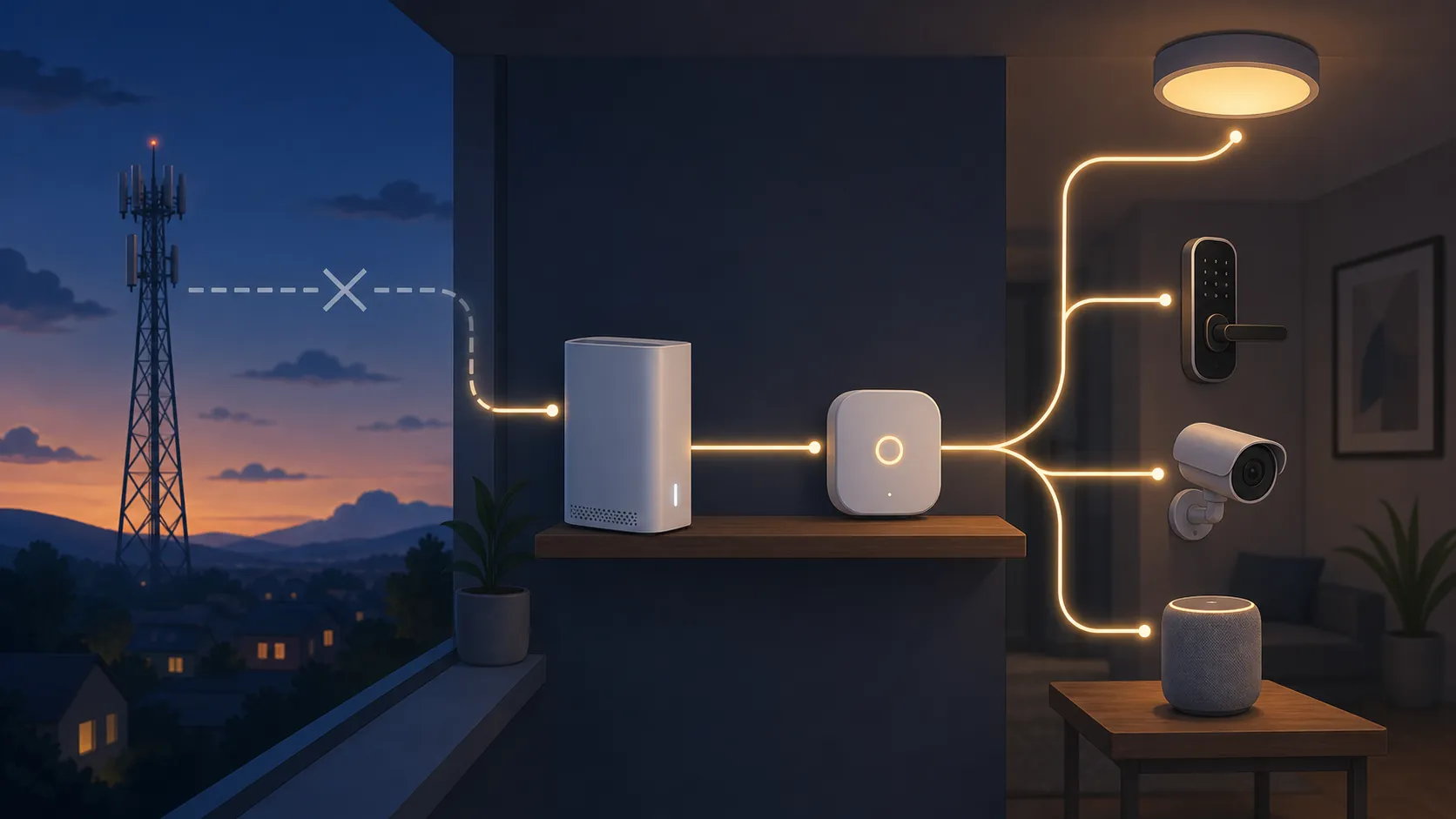
Here is the stop rule: if the T-Mobile gateway still cannot regain connectivity after its own restart, stop troubleshooting the smart home. T-Mobile’s outage page says that after an outage is resolved, users may need to power cycle their device, and that severe outages can take 5G Home Internet down until service is restored; that puts the first responsibility on the network path, not on the bulb in the hallway. [1]
The July 27–30 outage context, without guessing the cause
The timing matters because it tells you whether your symptoms fit a known carrier event. Reuters reported that T-Mobile service problems began around 4 p.m. ET on July 27, 2026, with roughly 60,000 to 64,000 user reports at the Downdetector peak, and that T-Mobile later said service was fully restored after 11 p.m. ET. Those figures are user-reported outage indicators, not a technical root-cause report. [2]
TechTimes reported that the disruption also affected users on same-network brands including Mint, Boost, and Google Fi, pegged full restoration around 1:57 a.m. ET on July 28, and described complaint totals past 140,000. It also noted that the root cause had not been disclosed, which is the right place to stop speculating. [3]
Then, on July 30, Men’s Journal reported fresh user complaints, including around 1,000 reports and symptoms involving 5G Home Internet and SOS across cities such as Chicago, Atlanta, Dallas, New York City, Boston, Houston, and parts of Hawaii. Treat that as corroborating context for why some homes may still have been unstable, not as proof that any individual smart-home device failed. [4]
That distinction prevents a lot of damage. A smart lock tile that says offline during a carrier outage is usually reporting the condition it can see: its hub or cloud path is unavailable. It is not telling you that the lock’s radio, the hub’s Thread border router, or the bulb’s Wi-Fi chip has died.
Reboot in this order
Use this sequence only after T-Mobile service is plausibly back in your area or your gateway has at least started showing signs that it can reconnect. If the gateway is still in a no-service state, leave the smart-home apps alone.
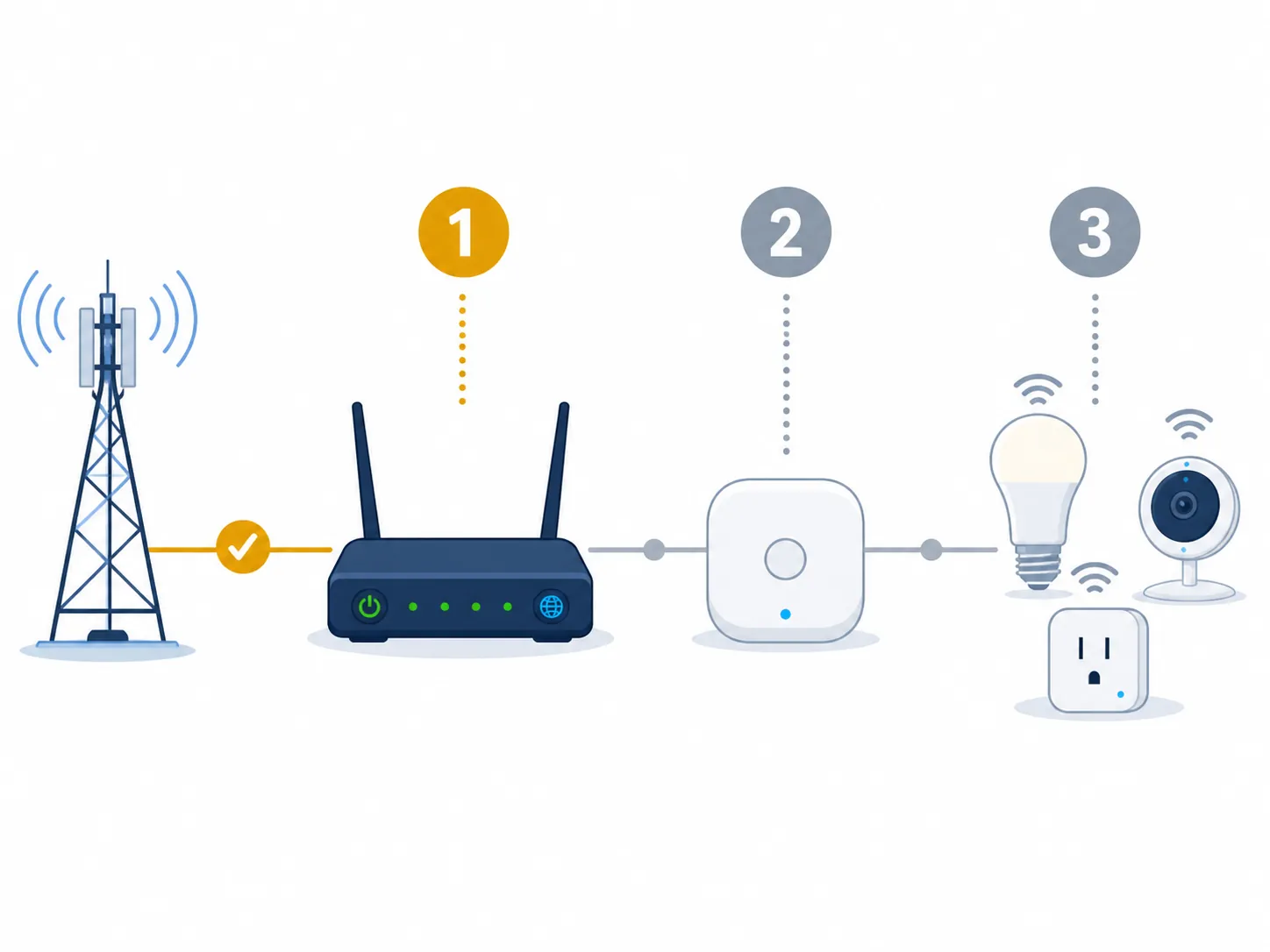
- Confirm the carrier path first. Check whether the T-Mobile gateway has usable internet before touching smart-home devices.
- Restart the T-Mobile 5G Home Internet gateway. T-Mobile’s official instruction is to unplug the gateway for 30 seconds, plug it back in, and allow about two minutes for it to reconnect. [5]
- If you use a separate router or mesh system behind the gateway, restart that after the gateway has begun reconnecting.
- Restart the smart-home hub, bridge, or controller after the WAN path is back.
- Restart individual Wi-Fi devices last: cameras, plugs, bulbs, speakers, displays, robot vacuums, and appliances.
- Only remove and re-add a device after the gateway, router, and hub have been stable and that specific device still will not rejoin.
Before touching anything, make the gateway prove the outage is over
A smart-home recovery should not begin inside the smart-home app. It begins at the device that gives the house its WAN path. Open the T-Mobile Home Internet app or check the gateway’s display, then test from a device connected to that gateway’s Wi-Fi. Load a normal webpage, not just a vendor app that may be caching an old offline state.
If the gateway says connected but pages do not load, that is still a gateway or carrier-path problem for your purposes. Do not factory reset a bridge, do not delete the lock, and do not start pairing bulbs again. Those steps create new work while the upstream connection is still unable to carry the old configuration.
If you need the longer, non-carrier-specific version of this logic, NestGrid’s internet-outage smart-home recovery sequence follows the same rule: restore the network chain before blaming endpoint devices.
Restart the T-Mobile gateway first
For T-Mobile 5G Home Internet, use the carrier’s timing: unplug the gateway, wait 30 seconds, plug it back in, and give it roughly two minutes to reconnect. That two-minute window matters because many smart-home apps will keep showing stale offline tiles while the gateway is still negotiating service. [5]
Use a plain power cycle, not a reset button unless T-Mobile support specifically tells you to. A factory reset can wipe local gateway settings and turn a carrier recovery into a home-network rebuild. If the gateway comes back with usable internet, then continue down the chain. If it does not, stop here and return to T-Mobile status checks or support.
Then wake the hub, bridge, or controller
Once the gateway has usable internet, restart the smart-home hub or bridge that other devices depend on. That may be a SmartThings hub, a Hue Bridge, a Home Assistant box, an Apple TV or HomePod acting as a home hub, a Matter controller, or another vendor bridge. The point is not the brand; the point is that the hub should come online after the upstream connection exists.
There is old but useful evidence for this behavior pattern: in a 2016 SmartThings community thread, a user described a hub that stayed offline after an internet outage until it was manually rebooted. That is not evidence that every hub after the July 2026 T-Mobile outage needs manual intervention. It is a reminder that some hubs fail to rejoin cleanly after the internet path returns. [8]
Give the hub a few minutes after power returns. Cloud-backed platforms may need time to refresh device presence, rebuild secure sessions, and update their app status. If automations depend on that hub, test one simple action first, such as turning on a light or reading one sensor, before you start editing routines.
Restart Wi-Fi devices last
Individual Wi-Fi devices are the last layer. Power-cycle cameras, plugs, bulbs, displays, and speakers only after the gateway and hub are stable. A camera that boots while the gateway is still flapping may decide the network is missing, retry poorly, or keep reporting offline to its cloud service even after the rest of the house has recovered.
For battery devices, avoid repeated wake-and-pair attempts. Wake them once after the hub is online, let the app refresh, and check whether they report naturally. Door locks and sensors are exactly the devices people are tempted to delete first, and they are often the devices that punish that choice with tedious access-code, room, routine, or automation cleanup afterward.
About the 60-second gateway restart advice
You may see a longer power-down recommendation elsewhere. HighSpeedInternet.com calls a gateway restart “the single most effective way to flush out internet connection issues” and gives a 60-second unplug variant for T-Mobile Home Internet troubleshooting. Use that as a reasonable secondary workaround if the official 30-second restart does not clear a local gateway hang, but keep the distinction straight: 30 seconds plus about two minutes to reconnect is T-Mobile’s own published instruction. [6][5]
Do not turn the timing difference into a ritual. The more important point is that the gateway gets a clean restart before the hub and before endpoint devices. A perfect camera reboot during a dead WAN path is still a perfect camera reboot into nowhere.
Clear SOS Only after service is plausibly back
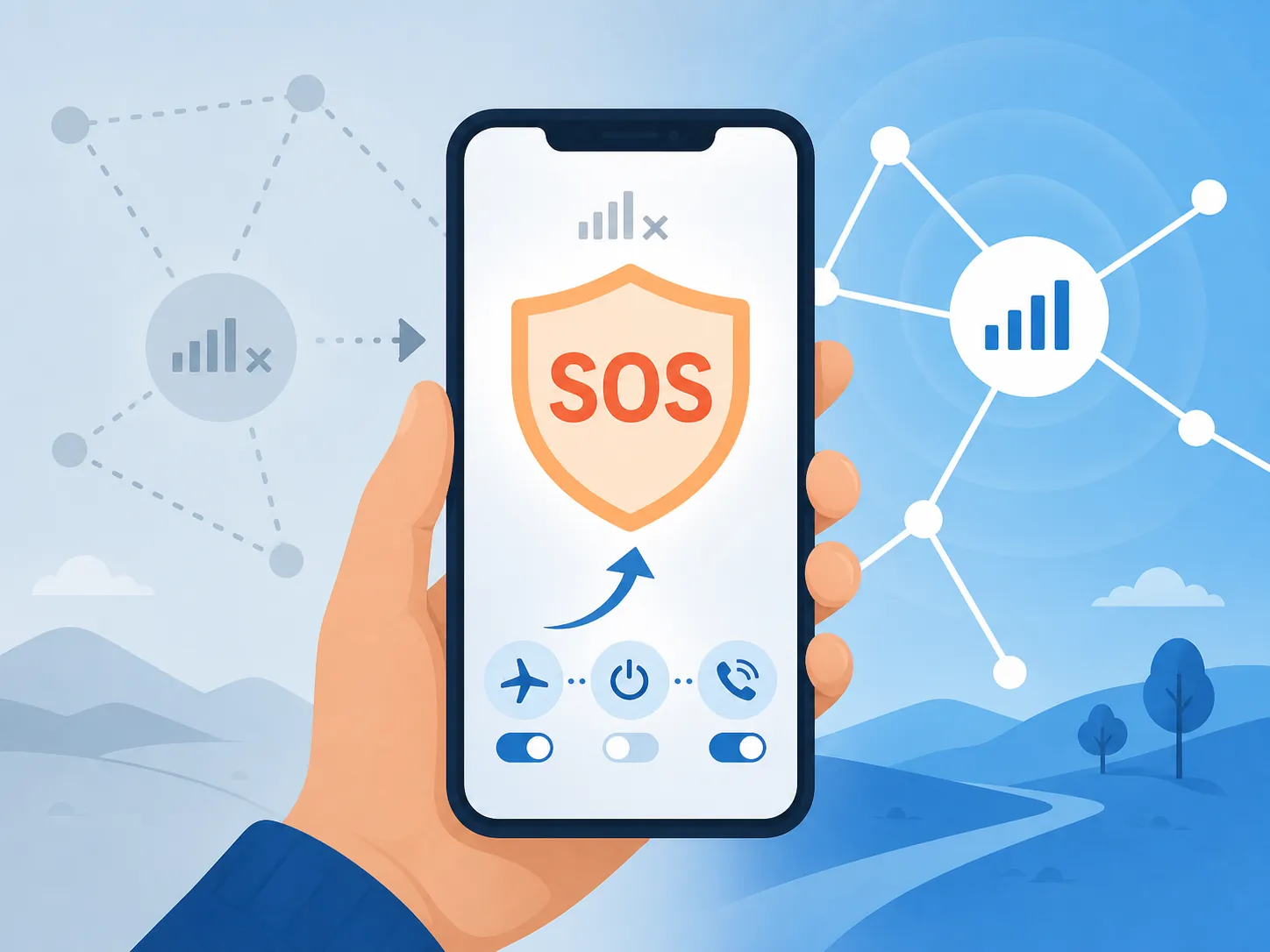
SOS Only is loud, and it makes the whole account feel broken. Treat it as a failsafe state after cellular service loss, not as proof that the phone is damaged. How-To Geek describes SOS Only on iPhone as a state where emergency calling remains available while normal cellular service is unavailable, and recommends toggling Airplane Mode for about 15 seconds or restarting once service has returned. [7]
- Wait until T-Mobile service is plausibly restored in your area. If everyone around you is still out, the phone is not the first thing to fix.
- Toggle Airplane Mode on, wait about 15 seconds, then turn it off. [7]
- If SOS Only remains after service is back, restart the phone. [7]
- If your T-Mobile Home Internet is working but cellular is still unstable, enable Wi-Fi Calling as an interim path for calls and texts where supported. [7]
Same-network customers should apply the same patience before blaming the handset. During the July event, reporting included symptoms among Mint, Boost, and Google Fi users as well as T-Mobile customers, which fits a shared-network disruption better than a sudden wave of damaged phones. [3]
When remove-and-re-add is finally allowed
Removing and re-adding a device is allowed only after the boring checks pass: the gateway has usable internet, any downstream router or mesh is stable, the hub or bridge is online, and other devices on the same platform have recovered. At that point, a single device that still will not rejoin may have a local pairing or credential problem.
Even then, choose the least destructive option first. Restart the device, confirm it still has power, check whether the app offers a refresh or reconnect action, and look for signs that only that one device is affected. Re-pairing should be the last resort because it can break room assignments, automations, access codes, camera zones, notification rules, and voice-assistant names.
If the outage was paired with a household power event, use NestGrid’s smart-home reconnect guide after a power outage instead, because device behavior after a power loss can differ from behavior after a WAN-only outage. If you are comparing carrier-specific recovery patterns, the Spectrum outage smart-home fix follows the same upstream-first discipline.
If the gateway still cannot reconnect
If the T-Mobile gateway cannot regain usable internet after the official restart window, keep the next checks carrier-side. You can document symptoms, check T-Mobile’s outage page, test from another connection, and contact carrier support, but do not spend that hour deleting bulbs or rebuilding rooms. The house is waiting on its WAN path.
That boundary is especially important for T-Mobile 5G Home Internet homes because the gateway is not just another gadget on the shelf; it is the home’s upstream internet source. NestGrid’s T-Mobile 5G Home Internet vs. Starlink smart-home guide covers that WAN-backbone role in more detail. For this recovery, the rule is simpler: once the gateway is online and stable, proceed down the chain; if the gateway cannot reconnect, further smart-home troubleshooting is wasted motion.
References
- Network Outages, T-Mobile
- T-Mobile down for thousands of users in US, Downdetector shows, Reuters, July 27, 2026
- T-Mobile Outage Drags Down Mint, Boost, Google Fi; Root Cause Still Hidden, TechTimes, July 28, 2026
- T-Mobile Users Say Service Is Down Again Days After Major Outage, Men’s Journal, July 30, 2026
- Customer Support, T-Mobile
- T-Mobile Internet Troubleshooting Guide, HighSpeedInternet.com
- How to Fix “SOS Only” on an iPhone, How-To Geek
- Hub stays offline after internet outage, requires reboot (AT&T U-verse), SmartThings Community, 2016
Corroborating context
For protocol background on why this failure happens, see Compatibility & Protocols.
Not currently linked to a known regression. Background on the underlying protocol lives in Compatibility & Protocols.