
Smart home automations for elderly heat dome safety
Elderly not responding to heat alerts - needs automated cooling triggers
Last updated
The dangerous part of a heat dome is not always the moment an older adult says, “I feel sick.” It is often the quieter stretch before that, when the bedroom or living room has already climbed into a risky range and the person sitting there still feels normal enough to leave the AC off.
For adults 65 and older, that self-check can be a bad safety mechanism. The CDC notes that older adults may sweat less, move less blood to the skin, and take medications such as beta-blockers, diuretics, or anticholinergics that interfere with heat regulation.[1] In practical smart-home terms, “they’ll turn on the AC when they need it” is not a rule. It is a hope.
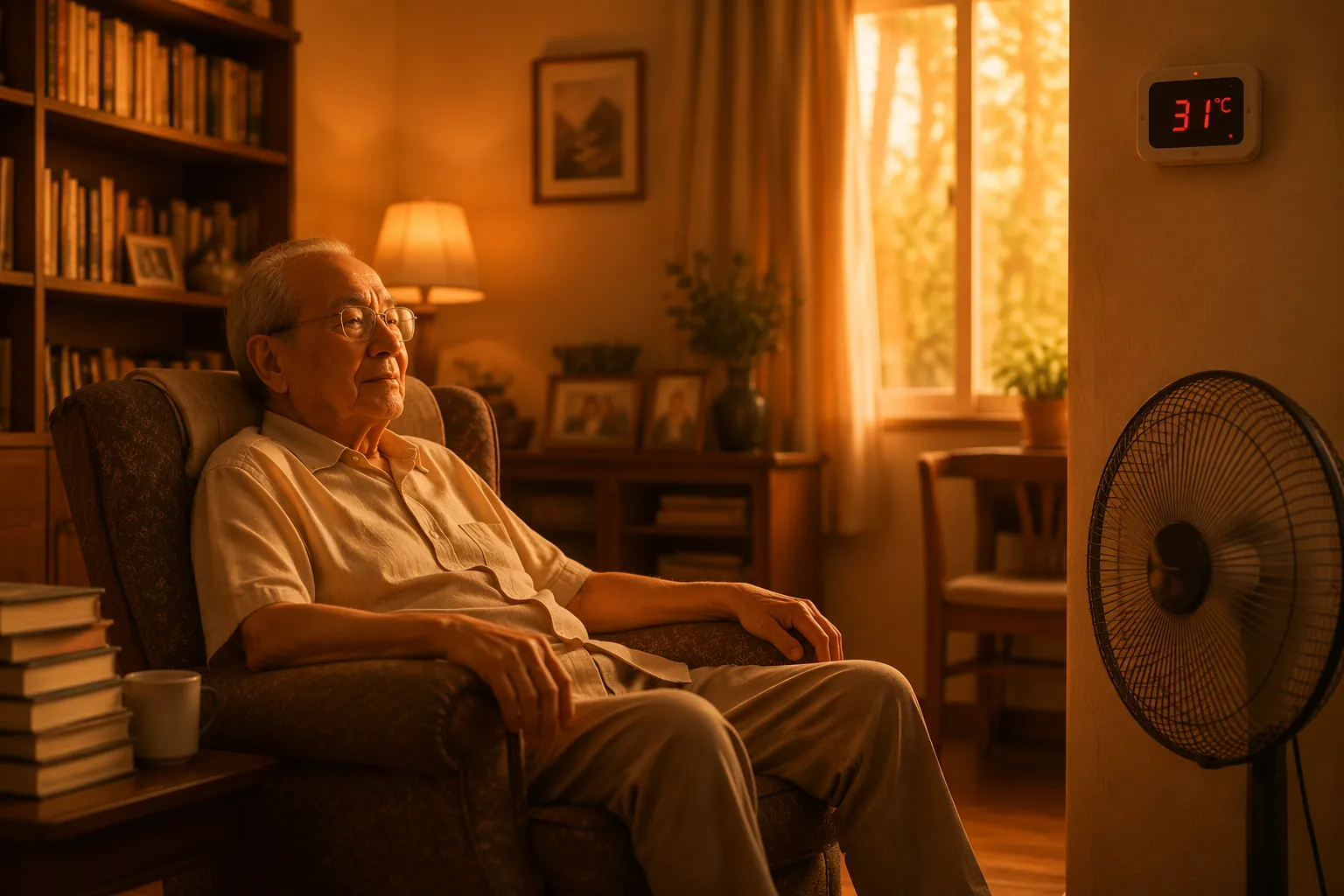
That gap shows up in behavior, not just physiology. In a study cited by the Ethos heat-alert researchers, elderly residents used air conditioning only 26% of the time even though outdoor temperatures exceeded 35°C for 19 days, and one-third never used AC during that intense heat period.[2] A smart home recipe for heat dome safety should be built around that failure point: the room gets hot, the resident does not respond, so the home must.
The three-tier rule set
The best starting framework is the Ethos study, a proof-of-concept trial in 78 older adults’ homes in Southeast Queensland, Australia. It used four sensor points — bedroom, living room, outside, and a wearable proxy — and issued green, yellow, and red heat-risk alerts over three months. The system generated 2,346 yellow alerts and 88 red alerts; 90% of yellow alerts and 94% of red alerts prompted cooling action, and education plus alerts increased preparedness 3.4 times.[2]
For a home automation setup, the useful part is not the branding. It is the graduated action. A yellow alert should make the home easier to cool before the resident has to decide anything. A red alert should switch from nudging to direct cooling and caregiver notification. A critical state should treat sustained heat plus no motion as a welfare problem, not a dashboard event.
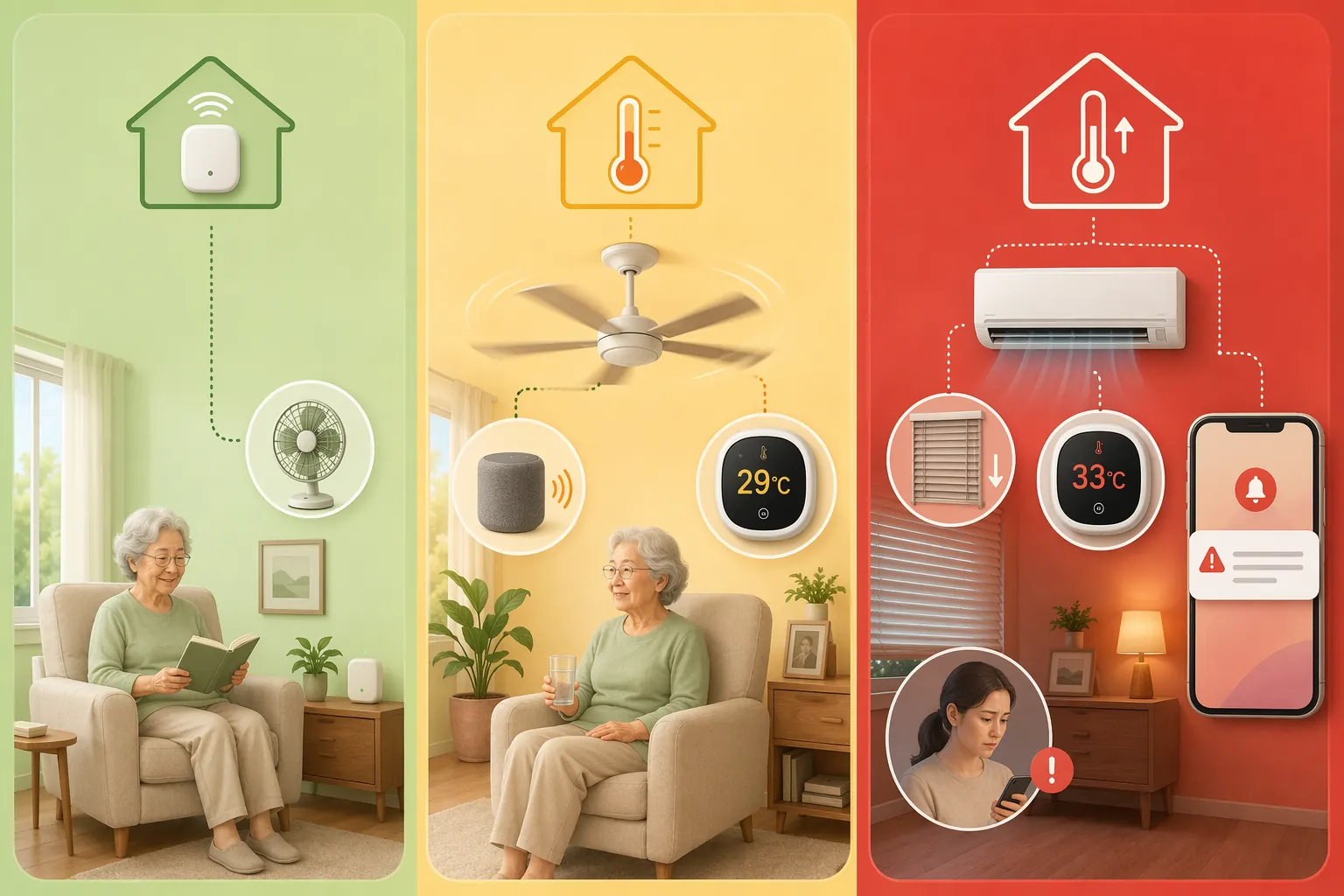
| Tier | Trigger to automate | What happens automatically | Who gets notified |
|---|---|---|---|
| Green | Indoor temperature remains below 28°C / 82°F in the main occupied rooms | Monitor bedroom and living room sensors; keep normal thermostat schedule; no alert noise | No caregiver alert |
| Yellow | Bedroom or living room rises above 28°C / 82°F for a short sustained period | Turn on fan or local cooling; optionally close sun-facing blinds; trigger an in-home cue such as a lamp, chime, or speaker announcement | Resident-facing notification first; caregiver notification optional if the resident is frail or lives alone |
| Red | Bedroom or living room rises above 32°C / 90°F, or yellow persists without cooling improvement | Set AC or heat pump to cooling mode; close blinds or shades; keep fan running if appropriate; send caregiver alert | Caregiver receives phone notification immediately |
| Critical | Red-level heat continues and no motion or response is detected | Repeat cooling actions; escalate outside the home instead of waiting for the next scheduled check | Caregiver calls resident; if unreachable, contacts neighbor, building staff, local welfare check, or emergency services according to the prewritten plan |
The 28°C and 32°C cut points are not magic personal safety guarantees. They come from a tested alert framework, and they are much better than vague “keep cool” advice, but they still need judgment. A person with heart disease, poor mobility, cognitive impairment, or heat-sensitive medication may need earlier escalation. The right way to use the thresholds is to make them conservative, automatic, and easy to test.
Place sensors where the person actually overheats
A thermostat in a hallway is usually not enough. Heat risk lives in the chair by the window, the bedroom after the afternoon sun, or the room where the resident naps with the door half closed. The Ethos model used multiple sensor locations because one reading can miss the place that matters.[2]
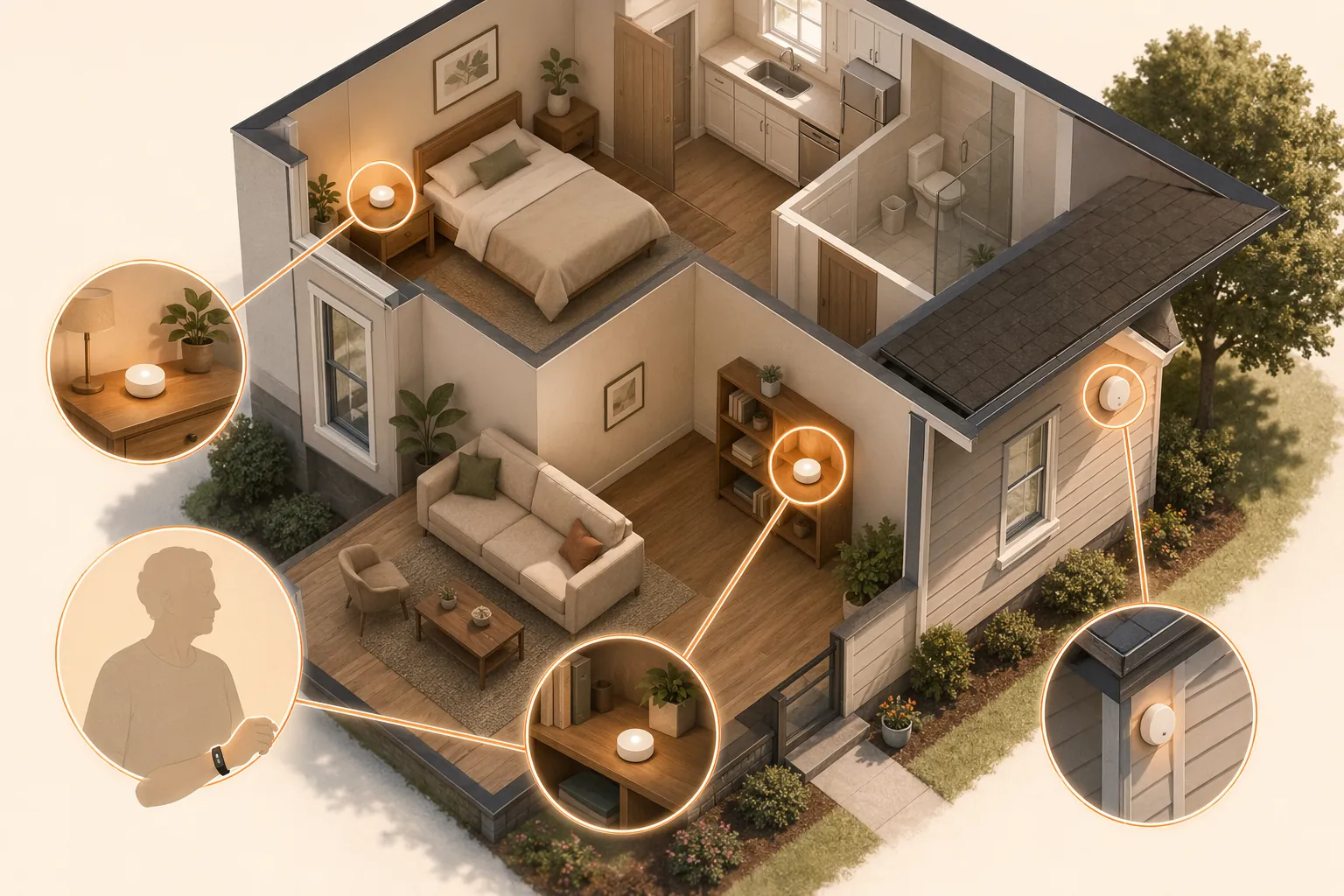
- Bedroom sensor: place it near sleeping height, away from direct sun, vents, heated electronics, and windows. Night heat matters because the resident may be asleep and less able to respond.
- Living room sensor: place it near the usual chair or sofa, not on the thermostat wall unless that is where the person spends time.
- Outdoor sensor: place it in shade, such as under an eave, so the system can distinguish an ordinary warm room from a heat dome pattern. Do not put it in direct sun and then let that false reading drive panic alerts.
- Motion or presence sensor: use it only for escalation logic. Motion does not prove someone is safe, and no motion does not prove an emergency, but no motion during sustained red-level heat deserves a faster human check.
- Optional wearable proxy: treat it as a convenience signal, not as a core body temperature monitor. If a bracelet or watch can add presence or activity context, fine. Do not make it the only trigger for cooling.
If you are starting from nothing, a basic temperature and humidity sensor is enough for the first version. Wirecutter’s 2026 sensor recommendations include the TP-Link Tapo T310 and Aqara Temperature and Humidity Sensor as accessible options with broad smart-home compatibility, but the deciding question is simpler: can your hub use the sensor temperature as an automation trigger?[3]
For Home Assistant users who still need pairing help before writing rules, start with this sensor setup walkthrough: add a temperature sensor to Home Assistant. If your thermostat ecosystem uses remote sensors, this comparison of smart thermostat remote sensors is the better place to check room-by-room support.
Map each risk level to an action that changes the room
The yellow tier should not be theatrical. A light turning amber is useful only if something else also starts cooling the person. In a 2024 study of local cooling devices for older adults, fans, evaporative devices, and air jackets reduced skin temperature by 0.5°C to 3.4°C, which supports using local cooling before the home reaches the red tier.[4]
| Device | Best tier | Automation role | Caution |
|---|---|---|---|
| Pedestal fan, tower fan, ceiling fan, or smart plug controlling a fan | Yellow | Starts airflow before the resident decides the room is uncomfortable | Use a smart plug only with a fan that safely resumes after power loss and stays within the plug’s electrical rating |
| Smart thermostat, mini-split controller, heat pump controller, or AC-compatible IR blaster | Red | Switches active cooling on when indoor temperature reaches the high-risk tier | Test the exact mode. Some thermostats accept a temperature setpoint but do not change from heat/off to cool unless told |
| Smart blinds, shades, or curtain motor | Yellow or red | Reduces solar gain, especially before afternoon heat peaks | Do not block a window that must remain accessible for emergency ventilation or egress |
| Smart speaker, chime, lamp, or display | Yellow | Gives the resident a simple in-home cue without asking them to interpret a phone app | Keep the message concrete: fan is on, drink water, cooling is starting |
| Caregiver push notification, SMS bridge, or phone call automation | Red and critical | Moves responsibility outside the overheated room | Test notification delivery with the caregiver’s phone locked and on cellular data |
If there is no AC in the home, the yellow tier becomes even more important, but the red tier should still alert a caregiver because the house has run out of automatic cooling capacity. For a fan-and-blinds setup without mechanical cooling, use this companion recipe on how to survive a heat wave without AC and add the caregiver escalation rules from this guide.
Build it in Apple Home
Apple Home is good at running scenes from sensor triggers when the devices expose temperature properly to HomeKit or Matter. It is weaker as a standalone caregiver-alert system, so do not assume that a Home automation equals a reliable remote notification until you test it on the caregiver’s phone.
- Create a scene named Heat Yellow. Add: fan plug on, sun-facing blinds closed if they are part of your system, and a visible cue such as a lamp set to warm yellow.
- Create a scene named Heat Red. Add: thermostat or AC controller set to cooling mode, preapproved cooling setpoint, blinds closed, fan on, and a red lamp or chime if useful.
- In the Home app, create an automation from the bedroom temperature sensor: when temperature rises above 28°C, run Heat Yellow. Repeat for the living room sensor.
- Create a second pair of automations: when bedroom or living room temperature rises above 32°C, run Heat Red.
- For caregiver alerts, use the device maker’s app, a compatible security sensor notification, or a Home Assistant bridge if Apple Home cannot send the exact push alert you need. The red tier is not complete until the caregiver receives an alert outside the home.
If an Ecobee thermostat is the AC controller in an Apple household, pair and verify it first; the separate Ecobee HomeKit setup guide covers that foundation. After pairing, test the red scene from outside the home network, not just from the couch.
Build it in Google Home
Google Home support depends heavily on whether your temperature sensor appears as an automation starter. If it does, keep the routine simple. If it does not, use the sensor manufacturer’s app or Home Assistant for the trigger and let Google handle announcements or device actions.
| Routine | Starter | Actions |
|---|---|---|
| Heat Yellow - Bedroom | Bedroom temperature rises above 28°C | Turn on bedroom or living-room fan; close configured blinds; announce: “The room is getting hot. Cooling has started.” |
| Heat Yellow - Living Room | Living room temperature rises above 28°C | Turn on nearby fan; close sun-facing blinds; show or announce the same short cooling message |
| Heat Red - Any Main Room | Bedroom or living room temperature rises above 32°C | Set thermostat or AC to cooling; close blinds; turn on fan; send caregiver notification if supported |
| Critical Heat Check | Red-level temperature remains active and no motion is detected | Send urgent caregiver alert; optionally trigger a smart display or speaker message asking the resident to respond |
The critical routine should not be your only notification path. If Google Home cannot combine temperature, duration, and no-motion conditions reliably with your devices, put that logic in Home Assistant or the sensor vendor app and use Google only for announcements and appliance control.
Build it in Alexa
Alexa routines are often the fastest version for a caregiver to build because many Echo devices and compatible sensors can trigger routines from temperature. The tradeoff is that complex “temperature stayed high and no motion happened” logic can get clumsy.
- Create Routine: Heat Yellow Bedroom. Trigger: bedroom sensor temperature above 28°C. Actions: fan plug on, blinds close, Alexa says “Cooling has started in the bedroom.”
- Create Routine: Heat Yellow Living Room. Trigger: living-room sensor temperature above 28°C. Actions: nearby fan on, blinds close, Alexa announcement in the main room.
- Create Routine: Heat Red. Trigger: either main room temperature above 32°C. Actions: thermostat or AC controller to cool, fan on, blinds close, send push notification to caregiver’s Alexa app.
- Create Routine: Critical Heat No Motion, if your motion sensor supports no-motion triggers. Trigger: no motion for your chosen check window while a separate red heat routine is active. Action: urgent caregiver notification and, if appropriate, an announcement asking the resident to press a button or call.
Alexa’s strength here is immediate appliance action. Its weakness is verification. After setup, trigger each routine with a temporary lower threshold and confirm that the caregiver sees the alert when the phone is locked, Do Not Disturb is on, and Wi-Fi is off. Heat dome safety should not depend on the phone being in the perfect state.
Build it in Home Assistant
Home Assistant is the cleanest place to build the full Ethos-style logic because it can combine multiple sensors, duration, motion, helper states, and notifications. Use helpers instead of hardcoding everything: an input boolean for heat-dome mode, an input number for the AC cooling setpoint, and a group for caregiver notification targets.
alias: Heat Dome - Yellow Cooling
mode: single
trigger:
  - platform: numeric_state
    entity_id:
      - sensor.bedroom_temperature
      - sensor.living_room_temperature
    above: 28
    for: "00:10:00"
condition:
  - condition: state
    entity_id: input_boolean.heat_dome_mode
    state: "on"
action:
  - service: switch.turn_on
    target:
      entity_id:
        - switch.living_room_fan
        - switch.bedroom_fan
  - service: cover.close_cover
    target:
      entity_id: cover.sun_facing_blinds
  - service: notify.in_home_speaker
    data:
      message: "The room is getting hot. Cooling has started."
For yellow, the important line is the duration. A short sustained period filters out a sensor spike without waiting so long that the room keeps climbing. If the resident is medically fragile, shorten the delay or lower the threshold after discussing the plan with the clinician or care team.
alias: Heat Dome - Red Cooling and Caregiver Alert
mode: single
trigger:
  - platform: numeric_state
    entity_id:
      - sensor.bedroom_temperature
      - sensor.living_room_temperature
    above: 32
    for: "00:05:00"
condition:
  - condition: state
    entity_id: input_boolean.heat_dome_mode
    state: "on"
action:
  - service: climate.set_hvac_mode
    target:
      entity_id: climate.main_ac
    data:
      hvac_mode: cool
  - service: climate.set_temperature
    target:
      entity_id: climate.main_ac
    data:
      temperature: "{{ states('input_number.heat_dome_cooling_setpoint') | float }}"
  - service: cover.close_cover
    target:
      entity_id: cover.sun_facing_blinds
  - service: switch.turn_on
    target:
      entity_id:
        - switch.living_room_fan
        - switch.bedroom_fan
  - service: notify.caregivers
    data:
      title: "Red heat alert"
      message: "Indoor temperature is above 32°C. AC, fans, and blinds have been activated. Please check in now."
Do not bury the caregiver alert after three optional actions that might fail. If your AC service call is flaky, send the notification first, then attempt cooling. If the thermostat supports setpoint limits or adaptive recovery, configure those in the thermostat app as a backstop rather than relying only on automations.
alias: Heat Dome - Critical No Motion Escalation
mode: single
trigger:
  - platform: numeric_state
    entity_id:
      - sensor.bedroom_temperature
      - sensor.living_room_temperature
    above: 32
    for: "00:30:00"
condition:
  - condition: state
    entity_id: input_boolean.heat_dome_mode
    state: "on"
  - condition: state
    entity_id: binary_sensor.recent_motion_main_rooms
    state: "off"
    for: "00:30:00"
action:
  - service: notify.caregivers
    data:
      title: "Critical heat check needed"
      message: "Temperature has remained above 32°C and no motion has been detected. Call now. If unreachable, follow the welfare-check plan."
  - service: notify.in_home_speaker
    data:
      message: "This is a heat safety check. Please call your caregiver or press your check-in button."
A no-motion rule must be written with humility. The resident may be asleep, the sensor may be aimed badly, or the person may be sitting still in exactly the chair you forgot to cover. That is why the action is not “declare emergency”; it is “force a human check now.”
Set the escalation plan before the first heat alert
A caregiver alert that says “hot” is not enough. The person receiving it needs a short decision tree written before the heat dome arrives, while nobody is panicking.
- Yellow alert: no call required unless yellow repeats, the resident is high-risk, or the home has no AC. Check the dashboard later to confirm the room cooled.
- Red alert: call or message the resident promptly. Ask for observable facts: Is the AC running? Are blinds closed? Are they dizzy, confused, nauseated, or unusually weak?
- Red alert with no answer: contact the next local person on the list — neighbor, building manager, nearby family member, or care aide.
- Critical alert: if the resident is unreachable and the room remains hot, escalate according to the welfare-check or emergency plan for that location.
Write the escalation contacts into the automation note, not in a separate document someone has to search for. Include address, apartment access instructions, medication concerns if relevant, and which door or lockbox a responder should use.
Use wearables as a side channel, not the trigger of record
Wearable monitoring is attractive because it feels closer to the body than a room sensor. Cities are experimenting with that idea: Rome used smart bracelets in a municipal heatwave program for elderly residents in June 2026.[5] That is useful validation that heat monitoring has moved beyond hobby projects, but it does not turn a consumer wearable into a complete heatstroke-prevention system.
For a home setup, make the room sensor the trigger of record. A wearable can add context — presence, activity, a check-in button, or a caregiver notification path — but the AC should not wait for a watch to infer distress. If the living room is 32°C, cooling should start even if the bracelet is charging on the dresser.
Test without making the house dangerous
Do not wait for the first heat dome day to learn that the bedroom sensor reports in Fahrenheit, the AC scene only changes the setpoint, or the caregiver’s phone suppresses the notification. Test the whole chain with temporary lower thresholds, then put the real thresholds back.
- Temporarily set yellow to just above the current room temperature. Confirm the fan starts, blinds move, and the in-home cue is understandable.
- Temporarily set red just above the current room temperature. Confirm the AC changes to cooling mode, not merely a lower setpoint in the wrong mode.
- Confirm the caregiver alert arrives on the correct phone when the screen is locked and the caregiver is not on the home Wi-Fi.
- Walk through the no-motion area. Sit in the usual chair. Lie on the bed. Make sure the motion sensor’s blind spots do not create constant false critical alerts.
- Restore the real thresholds and label every automation clearly: Heat Yellow, Heat Red, Critical Heat Check.
This pattern is the same reason threshold automations work for other environmental hazards, such as wildfire smoke purifier rules: the sensor should cause the protective action directly, not merely decorate an app screen.
The finished automation plan
A practical smart home setup for elderly heat dome safety has two indoor temperature sensors, one shaded outdoor sensor if possible, local cooling for the yellow tier, active AC and shade control for the red tier, and a caregiver alert that has been tested outside the home. Motion or wearable signals can improve escalation, but they should not be allowed to delay cooling.
The final standard is plain: when the room crosses the threshold, something physical changes. A fan starts. Blinds close. AC switches to cooling. A caregiver gets the red alert before the call becomes a panic call.
References
- Heat and Older Adults Aged 65+, CDC, 2024, https://www.cdc.gov/heat-health/risk-factors/heat-and-older-adults-aged-65.html
- The Ethos study, PMC, 2025, https://pmc.ncbi.nlm.nih.gov/articles/PMC11840092/
- The Best Smart Home Sensors for Alexa, Wirecutter, 2026, https://www.nytimes.com/wirecutter/reviews/best-smart-home-sensors-for-alexa/
- Local cooling device effectiveness, PMC, 2024, https://pmc.ncbi.nlm.nih.gov/articles/PMC12656532/
- Heatwave watch: Smart tech helps keep Rome's elderly safe, Reuters, June 28, 2026, https://www.reuters.com/world/heatwave-watch-smart-tech-helps-keep-romes-elderly-safe-2026-06-28/
Corroborating context
For protocol background on why this failure happens, see Compatibility & Protocols.
Not currently linked to a known regression. Background on the underlying protocol lives in Compatibility & Protocols.