The Home Assistant Matter integration is finally in a place where I would set it up in a normal home without treating the whole afternoon as disposable. The reason is not that Matter has become magically simple. It is that Home Assistant Matter Server 9.0, released in June 2026, moved the server from Python to matter.js, added Matter 1.5.1 support, introduced a network visualization, and kept existing Matter devices through the migration without requiring recommissioning.[1]
That still leaves a practical rule: do the boring checks before you open a pairing screen. A working Home Assistant Matter setup needs an IPv6-capable LAN, a phone running the Home Assistant Companion app for Bluetooth commissioning, enough RAM for the new Matter Server, and a Thread border router if the device is Matter-over-Thread rather than Matter-over-Wi-Fi.[1][2]
Matter is also no longer a niche corner of Home Assistant. Home Assistant usage analytics list Matter at 38.8% adoption among instances that opted into analytics, making it the 12th most-used integration in that dataset.[3] That number should not be read as a global smart-home market share figure, but it does explain why the setup experience now matters to ordinary HA users, not just protocol collectors.
Before Pairing Anything, Check These Four Things
Most failed Matter attempts in Home Assistant do not fail because the final pairing button was wrong. They fail because the network, phone, hardware, or Thread path was assumed to be ready when it was not. This is the part worth slowing down for.
| Prerequisite | What to check | Why it matters |
|---|---|---|
| IPv6 on the local network | Your LAN must support IPv6 for Matter communication. | Matter relies on IPv6 locally; a router or VLAN setup that breaks it can make devices appear impossible to add. |
| Home Assistant Companion app | Use Android 8.1+ or iOS 16+ with Bluetooth enabled on the phone. | The phone handles Bluetooth commissioning; Home Assistant’s own Bluetooth adapter is not used for that step. |
| Enough RAM | Treat 4 GB RAM as the practical recommendation for Matter Server 9.0. | Server 9.0 roughly doubled the recommended RAM compared with the earlier server. |
| Thread border router | Required only for Matter-over-Thread devices. | A Thread sensor, bulb, lock, or plug cannot join just because Home Assistant has Wi-Fi or Bluetooth. |
IPv6 Is Not Optional
Matter uses IPv6 on the local network, so “my Wi-Fi works” is not a complete readiness test.[2] If Home Assistant, your phone, and the device are separated by VLANs, guest Wi-Fi, multicast filtering, or router settings that interfere with local discovery, pairing can fail before the Matter device ever has a fair chance.
For a first setup, keep the phone and Home Assistant on the same trusted local network. If you intentionally run segmented networks, prove that IPv6 and local discovery work across that design before blaming the bulb, plug, or sensor.
The Phone Does the Bluetooth Part
This is the unintuitive bit: commissioning through Home Assistant uses the Home Assistant Companion app on your phone, and the phone provides Bluetooth for the initial handoff. The official integration requires Android 8.1 or newer, or iOS 16 or newer, for commissioning Matter devices.[2]
So if you are staring at a brand-new Matter sensor and wondering why your Home Assistant box’s Bluetooth adapter is not doing the job, that is expected. Keep Bluetooth enabled on the phone, keep the phone near the device during commissioning, and use the Companion app flow rather than trying to solve this from the server hardware side.
Plan for the Server 9.0 RAM Jump
Matter Server 9.0’s move to matter.js is the upgrade that makes Matter worth revisiting in 2026, but it also raises the practical hardware floor. Home Assistant now recommends about 4 GB of RAM for the Matter Server, roughly double the earlier recommendation.[1]
That does not mean every 2 GB Raspberry Pi will explode the moment a Matter device appears. It does mean low-RAM installs are no longer where I would choose to start a fresh Matter build. If you are still deciding what to run, the hardware discussion in Best Matter Hardware for Home Assistant in 2026 is the better place to compare hubs, dongles, and small boxes before buying another adapter for the parts drawer.
Thread Devices Need a Border Router
Matter-over-Wi-Fi devices join your Wi-Fi network. Matter-over-Thread devices join a Thread mesh, and that mesh needs a Thread border router to connect it back to the IP network Home Assistant can reach.[4] Home Assistant can use its OpenThread Border Router path with compatible hardware, or you may already have a border router in the house through an Apple, Google, or similar ecosystem device.
If your first Matter device is a Thread door sensor, do not start by scanning the QR code and hoping the missing mesh appears. Set up the border router first. For the Home Assistant route, use How to Set Up a Thread Border Router in Home Assistant. If you are choosing between ecosystem devices, Best Thread Border Router for Your Smart Home Platform in 2026 is the more useful buying guide.
Install or Verify the Matter Server
On Home Assistant OS and Home Assistant Supervised installs, the Matter integration uses the Matter Server add-on path described in the official integration documentation.[2] If you are starting fresh, add the Matter integration from Settings, then let Home Assistant guide you through installing the server component if it is not already present.
- Open Home Assistant and go to Settings.
- Go to Devices & services.
- Add the Matter integration if it is not already listed.
- Install or start the Matter Server when Home Assistant prompts you.
- Wait for the server to finish starting before opening the commissioning flow.
If you upgraded an existing Matter setup to Server 9.0, give the first startup time. The migration may take several minutes while the database migrates and devices are rediscovered, and existing devices should not need to be recommissioned after the migration.[1] This is one of those rare moments where impatience creates the problem: restarting during the first boot can make a normal migration look like a failure.
For a deeper look at what changed under the hood, use What Home Assistant's Matter Server 9.0 Means for You. For setup purposes, the important point is simpler: do not wipe working devices, do not recommission them preemptively, and do not judge the migration by the first quiet minute.
Commission a New Matter Device
Once the prerequisites are handled, adding the device is refreshingly ordinary. Keep the Matter setup code or QR code available, put the device into pairing mode, and start from the Home Assistant Companion app on the phone that has Bluetooth enabled.
- Power the Matter device and reset it only if the manufacturer’s instructions say it is already paired elsewhere.
- Open the Home Assistant Companion app on Android or iOS.
- Use the Matter device commissioning flow and scan the QR code or enter the setup code.
- Keep the phone close to the device while Bluetooth commissioning happens.
- Choose the target room, area, and device name in Home Assistant once the device appears.
The path diverges at the radio layer. A Matter-over-Wi-Fi bulb or plug needs your Wi-Fi credentials and then communicates over the LAN. A Matter-over-Thread device needs the Thread network credentials from the border router path. If the phone can see the device over Bluetooth but Home Assistant cannot complete the join, the problem is often not Bluetooth anymore; it is the Wi-Fi, IPv6, or Thread side of the handoff.
If you are buying a first test device, choose something boring and visible, like a Matter smart bulb or plug, rather than a lock you need to trust immediately. The device notes in Which Matter Smart Bulb Should You Buy? are a safer starting point than trying to debug a battery sensor hidden behind furniture.
Adding a Device That Already Lives in Apple Home or Google Home
Matter’s multi-fabric support is one of the parts that actually feels elegant in daily use. A Matter device can be joined to up to five controllers, so the same device can exist in Home Assistant and another ecosystem without being factory-reset each time.[2]
In practice, you usually generate or expose a new pairing code from the controller that already owns the device, then add that device to Home Assistant using the Companion app. The exact labels differ by ecosystem, but the principle is the same: do not reset the device if you are trying to add another controller. Put it into multi-admin or sharing mode from the existing controller.
This is also where mixed homes become easier to live with. A household can keep a light in Apple Home for voice control, Google Home for a display, and Home Assistant for automations. The useful test is not ideological purity; it is whether each controller keeps seeing the device after the novelty of setup day is over.
Use the Server 9.0 Network Visualization After Setup
The new network visualization is the Server 9.0 feature that changes troubleshooting from guesswork into inspection. Home Assistant can now show the Matter and Thread topology, including Thread border routers and Matter-over-Thread devices, so you can see how the network is actually connected instead of inferring it from which light failed to turn on.[1]
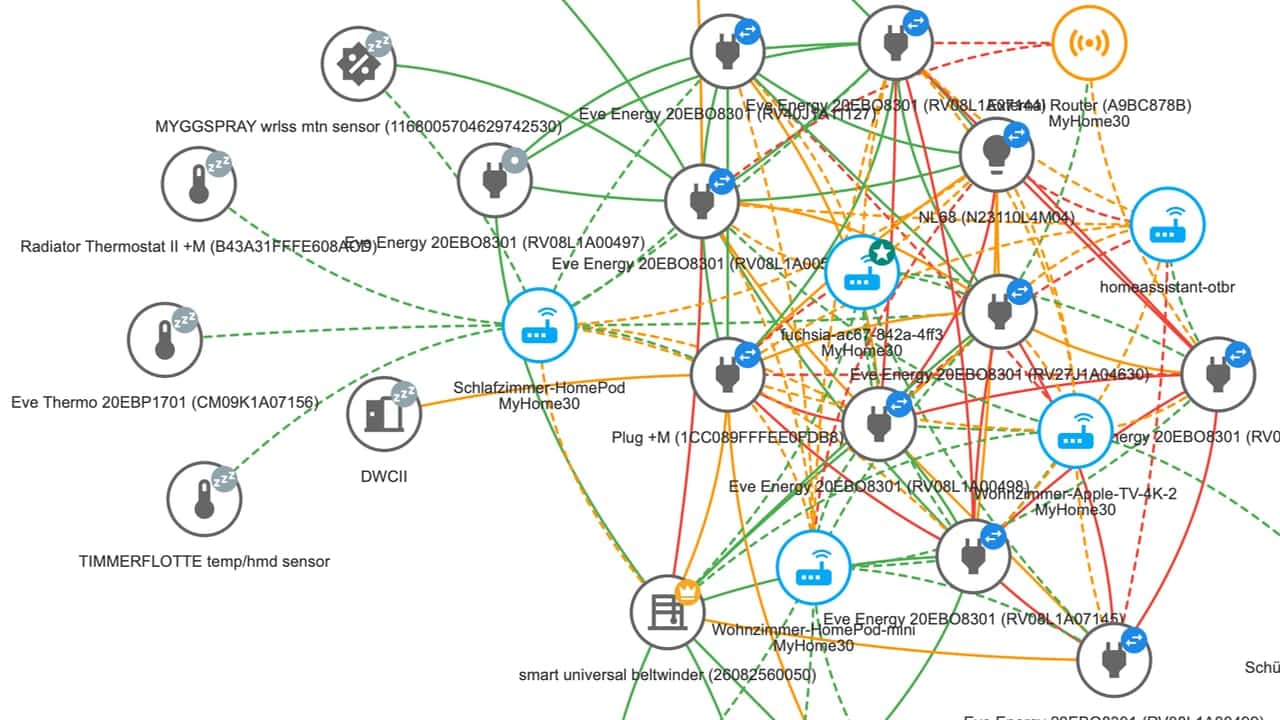
After commissioning, open the Matter integration’s device view and look for the topology or network visualization exposed by the new server. For a Wi-Fi device, you are mostly confirming that Home Assistant sees the node and that the device stays reachable. For Thread, the visualization becomes more useful: it can show whether the device is attached through the expected border router and whether the mesh looks plausible.
A simple reading pattern is enough at first. If a Thread device appears far from the border router in the topology or shows a weak path, move the device temporarily closer and see whether the route improves. If several devices seem to cling to the wrong border router, or if reliability changes after adding another ecosystem hub, you may be dealing with a multi-border-router mesh problem rather than a bad end device.
That is the moment to use a focused troubleshooting guide such as Fix Unstable Thread Mesh with Multiple Border Routers. The topology view will not make every vendor decision sensible, but it does stop the network from being invisible.
The Caveats That Still Matter
A good Home Assistant Matter setup in 2026 still has edges. They are manageable, but they are the sort of thing that should be known before the device is stuck to a wall.
- Apple border routers have an OTA limitation: Home Assistant-initiated OTA updates do not work through Apple border routers because of an mDNS forwarding issue.[2]
- Low-RAM Home Assistant hardware is a poor place to begin a new Matter build now that Server 9.0 recommends about 4 GB RAM.[1]
- Matter bridges are useful but uneven. Aqara M2/M3, IKEA Dirigera, Philips Hue, and SwitchBot Hub 2 can expose supported devices through Matter, but each bridge decides which device types and features actually cross over.
- Multi-fabric is helpful, not a guarantee that every controller will expose the same controls or update behavior.
- Thread reliability depends on the real mesh, not the logo on the box. Border router placement and mixed-vendor behavior still matter.
Matter bridges deserve a little restraint in expectations. They can be a tidy way to bring existing Zigbee devices into Home Assistant through Matter, especially if you already own the bridge. They are not the same as native device support, and they do not erase the bridge vendor’s own compatibility matrix. If a bridge does not expose a particular sensor, button behavior, or advanced feature, Home Assistant cannot automate what never arrives.
A Clean First Setup Flow
For a first Home Assistant Matter integration, I would run the setup in this order rather than improvising from the pairing screen.
- Confirm Home Assistant is on hardware with enough RAM for Server 9.0.
- Confirm IPv6 works on the local network where Home Assistant and the phone live.
- Install or verify the Matter integration and Matter Server.
- If the device is Matter-over-Thread, set up the Thread border router before commissioning.
- Use the Home Assistant Companion app on Android 8.1+ or iOS 16+ with Bluetooth enabled.
- Commission the device, then check Home Assistant’s Matter device view and network visualization.
- Only then place the device permanently, especially if it is battery-powered or installed behind a cover.
That order is less glamorous than “scan the code and go,” but it matches how Matter actually fails in real homes. Server 9.0 gives Home Assistant a better foundation and a much better diagnostic view. The setup becomes straightforward when IPv6, the phone commissioning path, RAM, and Thread are handled before pairing starts.
References
- The Matter upgrade you’ve been waiting for, Home Assistant, June 23, 2026
- Matter, Home Assistant
- Home Assistant Analytics, Home Assistant
- Thread, Home Assistant
Updates & Corrections
Protocol specifications and platform features change rapidly — especially with Matter version evolution. Report version changes, certification count updates, or platform policy changes that have occurred since the last editorial review.
Comments
Join the discussion with an anonymous comment.