Z-Wave Smart Switch Not Working? Diagnose and Fix Common Failures
Z-Wave smart switch not working – common failures
Last updated
When a Z-Wave smart switch stops behaving, the fastest repair is usually not the fastest-looking one. Do not start by ordering another switch. Start by naming the failure. A device that will not pair is in a different category from one that clicks like a metronome, drops offline from the far end of the house, flickers on one LED bulb, or goes dead after an outage.
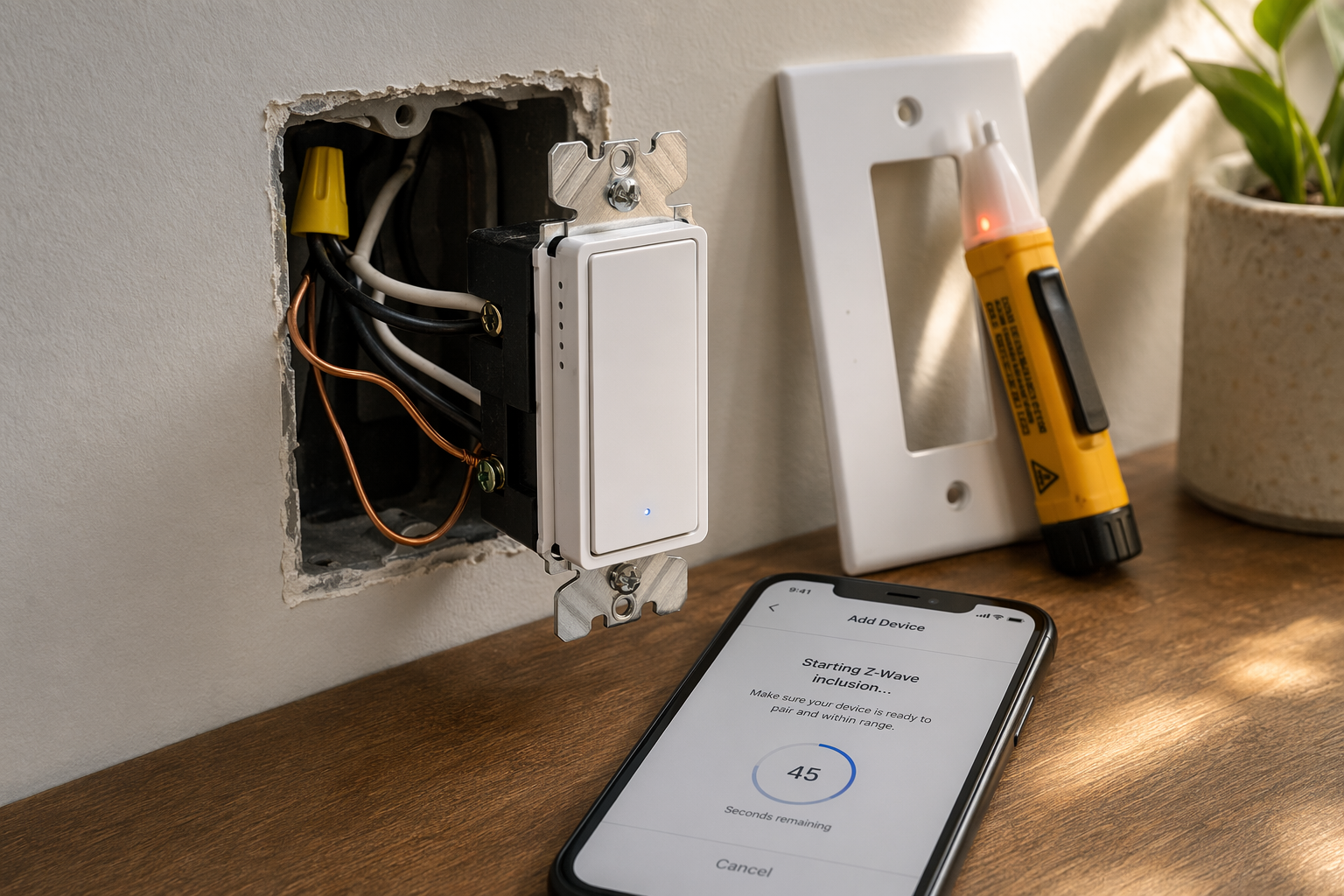
Use the symptom to choose the next test. If the switch is still installed and you are not trained to work inside an energized electrical box, keep the cover on until there is a reason to open it. Network checks, hub checks, exclusion, and load tests can often tell you where the problem lives before anyone touches a conductor.
| What you see | Most likely problem | First safe test |
|---|---|---|
| Switch will not include, pairs halfway, or appears as an unknown device | Old Z-Wave association, failed inclusion, or distance during pairing | Run exclusion first, then include again with the hub close to the switch |
| Relay clicks repeatedly or the switch clicks but will not control the light | Possible GE/Jasco internal capacitor failure, especially on older models | Cut power and compare the symptom to the documented click-of-death pattern |
| Works locally but goes offline in the app | Weak mesh path or edge-device problem | Check nearby mains-powered repeaters and run a Z-Wave repair/heal |
| No power, no LED indicator, wrong load turns on, or breaker trips | Line/load mistake, missing neutral, or wiring fault | Stop and verify wiring against the model manual; call an electrician if uncertain |
| Flicker, glowing when off, buzzing, or failure with one LED bulb | Dimmer/load incompatibility or minimum-load problem | Test with a known compatible bulb or higher load |
| Stopped responding after a power outage | Hub/network state, mesh route loss, or hardware damaged during power event | Reboot hub, restore power cleanly, then run network repair |
1. Pairing failure: exclude it before you try to include it
Pairing trouble is the failure that makes good hardware look haunted. The switch is powered. The LED blinks. The hub searches. Nothing useful happens. Sometimes it appears, disappears, or joins with missing controls. The boring fix is also the one that prevents a lot of returns: run Z-Wave exclusion first, even if the switch is brand new.
Samsung’s Z-Wave troubleshooting guidance tells users to remove or exclude the device before adding it again, and Zooz support gives the same kind of practical pairing advice for switches that refuse to join cleanly. Samsung also recommends keeping the hub and device within 10 ft during setup, which matters because initial inclusion is less forgiving than normal day-to-day routing after the mesh is built.[1][2]
The sequence should be plain:
- Put the hub into Z-Wave exclusion mode.
- Tap the switch paddle or follow the manufacturer’s exact exclusion gesture.
- Wait for the hub to confirm that a device was removed or excluded. It may not show the device name.
- Factory reset the switch only if exclusion does not clear it or the manual requires it.
- Move the hub close to the switch, or use a long Ethernet cable/temporary hub location if the hub allows it.
- Start inclusion and perform the switch’s inclusion gesture once, then wait.
Do not mash the paddle ten times while the hub is thinking. That can turn one failed inclusion into several partial attempts. If the switch supports security options, let the hub finish negotiation before deciding it failed. If it joins without controls, exclude and include again rather than trying to repair a bad interview forever.
Stop the pairing path when the switch will not exclude, will not factory reset, or shows no sign of power. At that point, it is no longer a pairing diagnosis. Move to wiring/power checks or the hardware-failure section.
2. Repeated clicking: the GE/Jasco “click of death” is a real hardware pattern
A relay click when a switch turns on or off is normal. Repeated clicking is not. The GE/Jasco failure people call the “click of death” is distinctive: the switch clicks again and again, often like a little metronome in the wall, and the load may not stay on. This is the point where pretending every Z-Wave problem is a mesh problem wastes time.
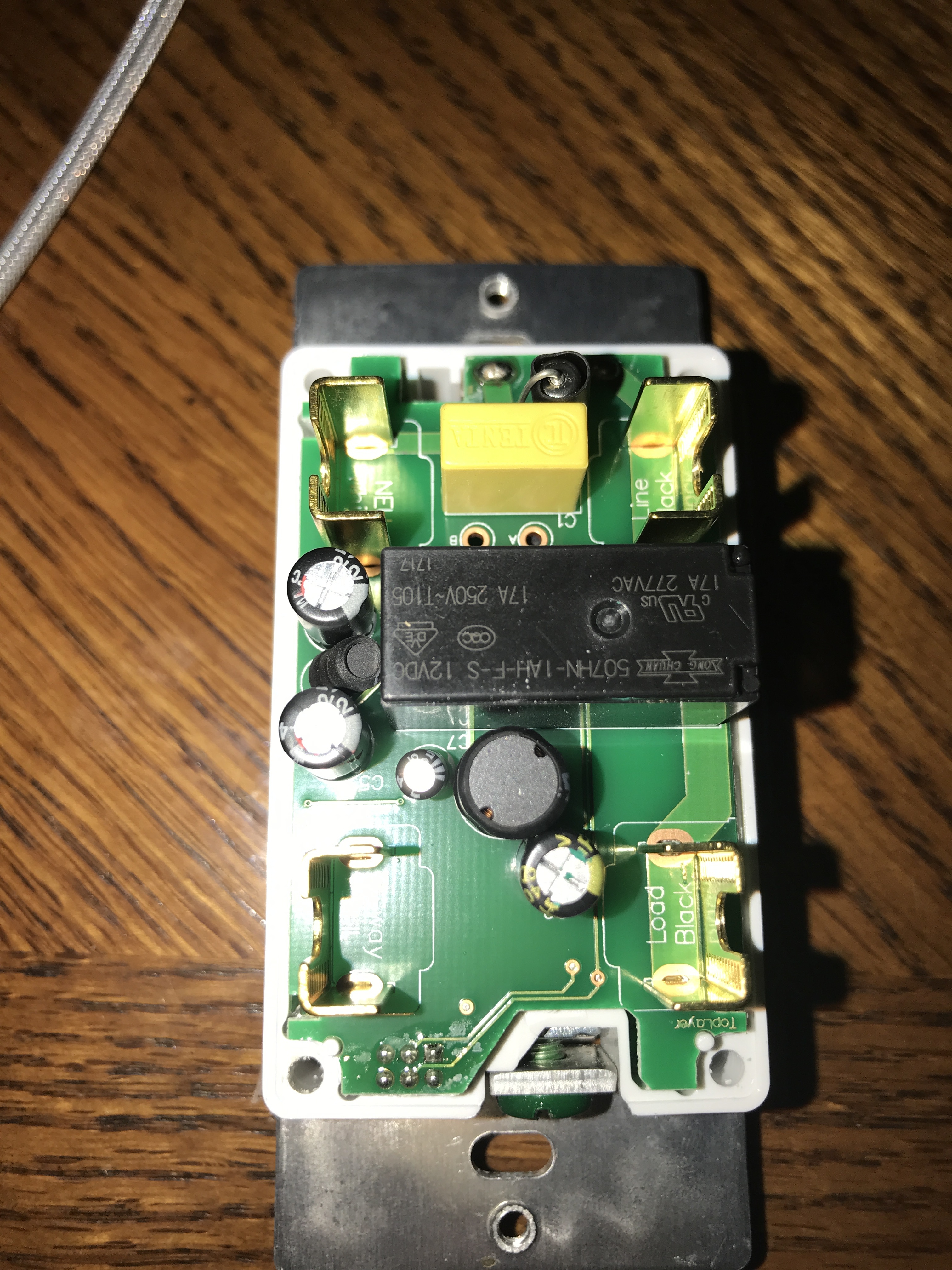
The best-documented version involves older GE/Jasco switches such as the GE 12727, ZW4005, and similar first-generation units. A PartOfTheThing teardown identified a failed C7 10µF 25V electrolytic capacitor as the culprit and documented a repair using a replacement tantalum capacitor costing about $1.50. A long SmartThings Community thread reports the same clicking behavior and component-level repair path across related GE/Jasco models.[3][4]
That does not make the capacitor swap a normal homeowner troubleshooting step. It is community-verified, not manufacturer-approved. Jasco’s official position in this situation is replacement, not board repair.[4]
Use this section to decide whether the switch is worth further diagnosis:
- If the switch clicks only once when toggled and otherwise works, this is probably normal relay behavior.
- If it clicks repeatedly with the load disconnected or after a power event, treat it as possible internal hardware failure.
- If it is an older GE/Jasco model matching the community reports, the C7 capacitor pattern is plausible.
- If there is heat damage, burning odor, arcing, or breaker trouble, stop using the switch and replace it or call an electrician.
A competent electronics repairer may choose to desolder and replace the failed capacitor after removing the switch from power. That is not the same risk class as excluding a device from a hub. It involves line-voltage equipment, disassembly, soldering, and judgment about whether the rest of the board is safe. For most homeowners, the practical fork is simple: confirm the symptom, document the model, then choose official replacement or a clearly unofficial component repair by someone qualified to do it.
3. Offline dropouts: fix the mesh path, not the switch first
A switch that works from the wall but drops offline in the app is usually telling you something about the route back to the hub. Z-Wave is a mesh, but only mains-powered Z-Wave devices normally act as repeaters. Battery sensors are not the backbone. A switch at the far end of the house, in a metal box, behind masonry, or down in a basement can be perfectly functional and still have a poor network path.
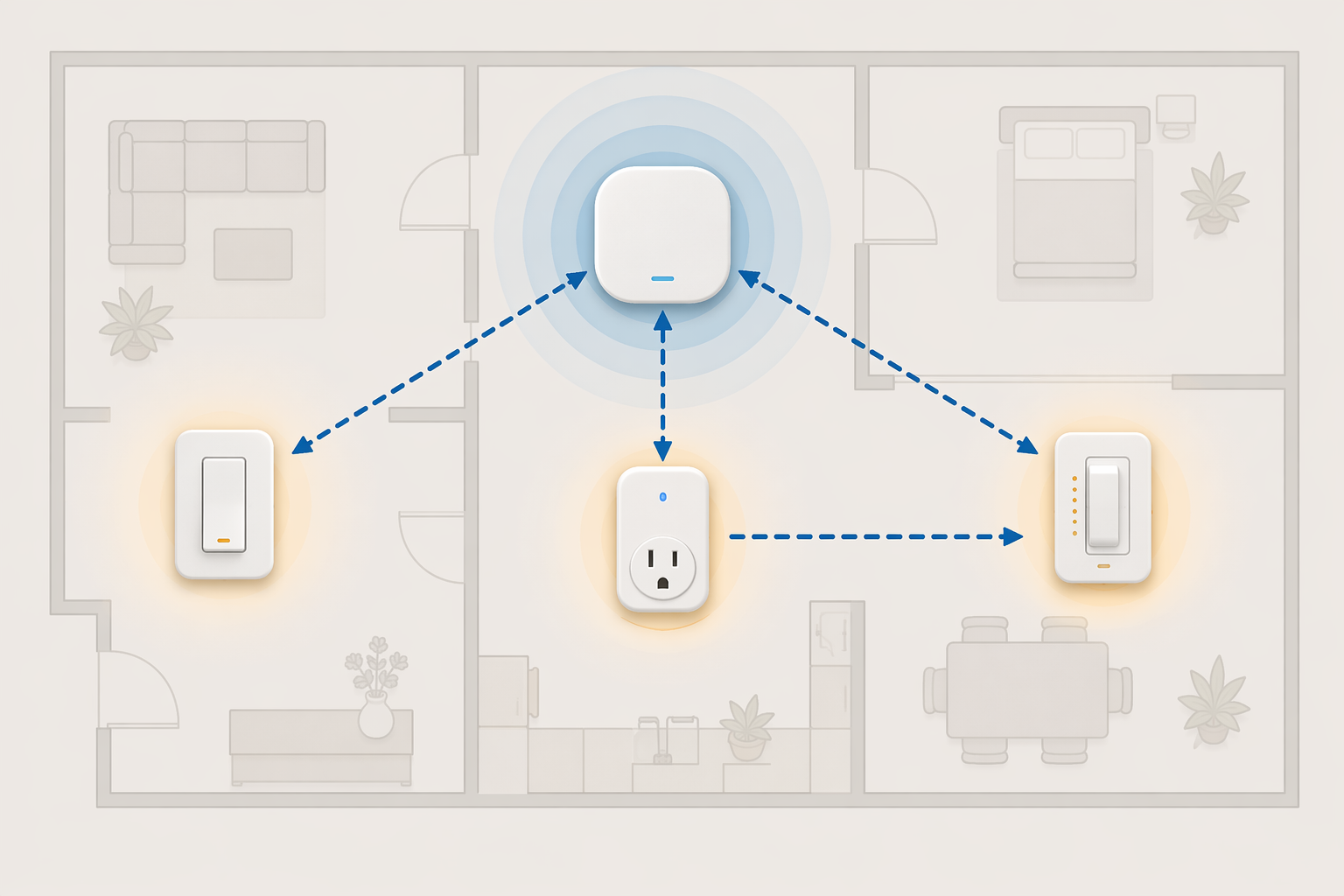
Zooz describes offline Z-Wave devices as often being too far from the hub or missing a reliable repeating path, and recommends adding mains-powered Z-Wave devices between the hub and the problem device. Stacey on IoT makes the same practical point: Z-Wave flakiness is often a coverage and routing problem, not proof that the protocol is broken.[5][6]
Range estimates should be treated as estimates, not promises. One guide cites about 30 ft indoors as a practical Z-Wave planning number, while Vesternet gives a typical indoor range of 15–30 m depending on construction and interference. Walls, metal boxes, appliances, concrete, and hub placement can make either number optimistic.[6][7]
The repair path is mechanical:
- Confirm the switch works locally at the paddle. If it does not, leave the mesh alone and inspect power, wiring, load, or hardware failure.
- Check whether other Z-Wave devices near the same area are also slow or offline. A cluster of failures points to mesh coverage.
- Add or move a mains-powered Z-Wave repeater between the hub and the problem switch. A plug-in module is useful because it can be tested without opening a wall box.
- Run the hub’s Z-Wave repair, heal, or rebuild function after the repeater is powered and included.
- Give the network time to settle, then test from the app and from automations.
Many hubs perform some form of automatic healing over time, but a manual repair is faster when you have moved devices, added repeaters, or replaced a switch. Z-Wave also has practical routing limits: the cited sources note a 4-hop maximum and a 232-device network cap, though hub behavior and newer Z-Wave generations can affect how those limits feel in a real installation.[5][7]
If only one switch is offline and it sits at the edge of the home, do not replace it until you have tested a repeater nearby. If the same switch drops even when a known-good repeater is close and other devices are stable, then replacement becomes more reasonable.
4. Wiring and neutral problems: stop before the guessing starts
Wiring errors do not always announce themselves dramatically. Sometimes the switch LED never turns on. Sometimes the wrong light is controlled. Sometimes the switch pairs but the load behaves badly. Sometimes the breaker trips, which is the house doing you a favor.
The Smartest House wiring guide states that all Jasco/GE in-wall Z-Wave switches require a neutral wire except the 1000W dimmer model 14299. The same guide notes a minimum 20W resistive load requirement, which means a single 5W LED bulb may not be enough load for some installations.[8]
Those details prevent a lot of bad troubleshooting. A neutral-required switch installed in a box without neutral is not a hub problem. A line/load reversal is not a firmware problem. A switch trying to power itself through a tiny LED load can look defective when it is simply outside the conditions it was designed for.
Before pulling the switch out again, collect the basics:
- Exact switch model number, not just the brand.
- Whether the box has a neutral bundle.
- Which conductor is always-hot line and which goes to the load.
- Whether the circuit is single-pole, 3-way, or part of a more complex multi-way setup.
- Load type and wattage: incandescent, LED, fixture driver, fan, transformer, or mixed load.
If those terms are not familiar, pause the repair and use a broader smart light switch troubleshooting guide or a neutral wire guide before continuing. If the box truly has no neutral, look at a no-neutral smart switch installation instead of trying to make a neutral-required device behave.
The firm stopping points are heat, arcing, a burning smell, repeated breaker trips, unidentified conductors, aluminum wiring, crowded boxes, or multi-way wiring that does not match the manufacturer diagram. At that point, an electrician is not a luxury; they are the diagnostic tool that keeps the repair from becoming damage.
5. LED flicker and low-load behavior: test the bulb before blaming the radio
LED problems are good at impersonating switch problems. A dimmer may flicker, buzz, fail to turn fully off, glow faintly, or refuse to turn on a very small load. The app may work. The paddle may work. The light still misbehaves.
TRIAC-style dimmers and some smart switches need a compatible load. The Smartest House warns about minimum-load requirements, and Jasco’s Z-Wave FAQ also points users back to compatibility between the switch, dimmer, and connected lighting load.[8][9]
The useful test is not subtle. Temporarily replace the questionable LED with a known compatible bulb or a higher-load lamp that fits the device rating. If the behavior disappears, the switch was not necessarily bad. It was being asked to control a load it did not like.
- For flicker at low dim levels, raise the minimum dim level if your hub or switch supports that parameter.
- For glowing when off, check whether the switch model requires a bypass, neutral, or different bulb type.
- For a single low-watt bulb, verify the switch’s minimum load in the product manual.
- For fans, transformers, and fixtures with drivers, confirm the switch is rated for that load type before using it.
If swapping to a compatible load does not change anything, return to wiring and hardware checks. If it fixes the problem, replace the bulb or choose a switch designed for that load rather than replacing the whole Z-Wave network around it.
6. After a power outage: restart the system in the right order
A post-outage failure is messy because the outage can disturb several things at once: the hub may boot slowly, routes may be stale, repeaters may return in a different order, or a weak component may finally fail. Start with the low-risk recovery steps.
- Confirm the circuit is powered and the switch works locally.
- Reboot the smart home hub.
- Wait for all mains-powered Z-Wave devices to come back online.
- Run a Z-Wave repair, heal, or network rebuild from the hub.
- Test the switch from the app, then from an automation.
Zooz’s offline-device guidance supports the same basic recovery path: restore a reliable network route and use repair/heal tools when a device keeps dropping offline.[5]
If the switch now clicks repeatedly, especially if it is an older GE/Jasco unit, do not keep power-cycling it all evening. Tie that symptom back to the documented capacitor-failure pattern instead of treating the outage as a separate mystery.[3][4]
When replacement is the right answer
Replacement is sensible when the switch has confirmed internal failure, visible damage, unsafe electrical symptoms, repeated dropouts even with a good nearby repeater, or load requirements that do not match the fixture you need to control. It is also sensible when the device is old enough that spending another evening on it is worth more than the switch.
If the whole installation is unreliable, do not replace one wall switch at random. Look at the hub and mesh design. A smart home hub troubleshooting pass may find the actual bottleneck. If the hub is old or poorly supported, a current Z-Wave hub comparison may be more useful than swapping switches one by one.
Prevent the next failure before the wall plate goes back on
Before buying another Z-Wave smart switch, verify neutral, load type, wattage, box depth, and multi-way wiring. Match dimmers to LED bulbs instead of assuming every LED marked “dimmable” will behave on every smart dimmer. If you are planning more than one room, treat the installation as a mesh layout, not a pile of isolated devices.
For coverage, distribute mains-powered Z-Wave devices so the hub is not trying to reach every switch directly. The cited sources recommend adding powered repeaters near problem areas. A practical whole-home target is at least 2–3 mains-powered devices per floor.[5][6]
If range and reliability keep coming up, consider newer 700- or 800-series Z-Wave switches when you replace older hardware. That does not excuse bad wiring or a missing neutral, but it can give a well-built mesh more margin. For a larger lighting plan, step back to a whole-home smart lighting installation guide before the next switch box is open.
Most Z-Wave switch failures leave tracks. Pairing failures leave inclusion history. Mesh failures show up at the edge. Load problems follow the bulb. Wiring problems follow the box. The GE/Jasco click-of-death pattern even announces itself out loud. Follow the symptom in that order, and replacement becomes a decision instead of a reflex.
References
- Samsung Z-Wave pairing guide, Samsung, samsung.com/us/support/troubleshooting/TSG01109890/
- Zooz full switch guide, Zooz, support.getzooz.com/kb/article/900-full-guide-to-zooz-smart-switches/
- PartOfTheThing GE 12727 teardown, PartOfTheThing, partofthething.com/thoughts/my-ge-12727-z-wave-smart-toggle-switch-started-clicking-like-a-metronome-and-died-after-5-years/
- SmartThings Community GE/Jasco clicking thread, SmartThings Community, community.smartthings.com/t/ge-jasco-switch-clicking/166573
- Zooz offline troubleshooting, Zooz, support.getzooz.com/kb/article/1407-my-device-keeps-going-offline/
- Stacey on IoT Z-Wave flakiness guide, Stacey on IoT, staceyoniot.com/how-to-fix-z-wave-flakiness-in-your-smart-home/
- Vesternet mesh range guide, Vesternet, vesternet.com/blogs/smart-home/mesh-network-range-how-far-can-zigbee-and-z-wave-reach
- The Smartest House wiring guide, The Smartest House, thesmartesthouse.com/blogs/the-smartest-blog/114982596-wiring-z-wave-switches-do-s-and-don-ts
- Jasco Z-Wave FAQ, Jasco, byjasco.com/pages/z-wave-faq
Corroborating context
For protocol background on why this failure happens, see Compatibility & Protocols.
Not currently linked to a known regression. Background on the underlying protocol lives in Compatibility & Protocols.