
Why Smart Home Schedules Run an Hour Off After DST
Smart home schedules run exactly one hour off after DST change
Last updated
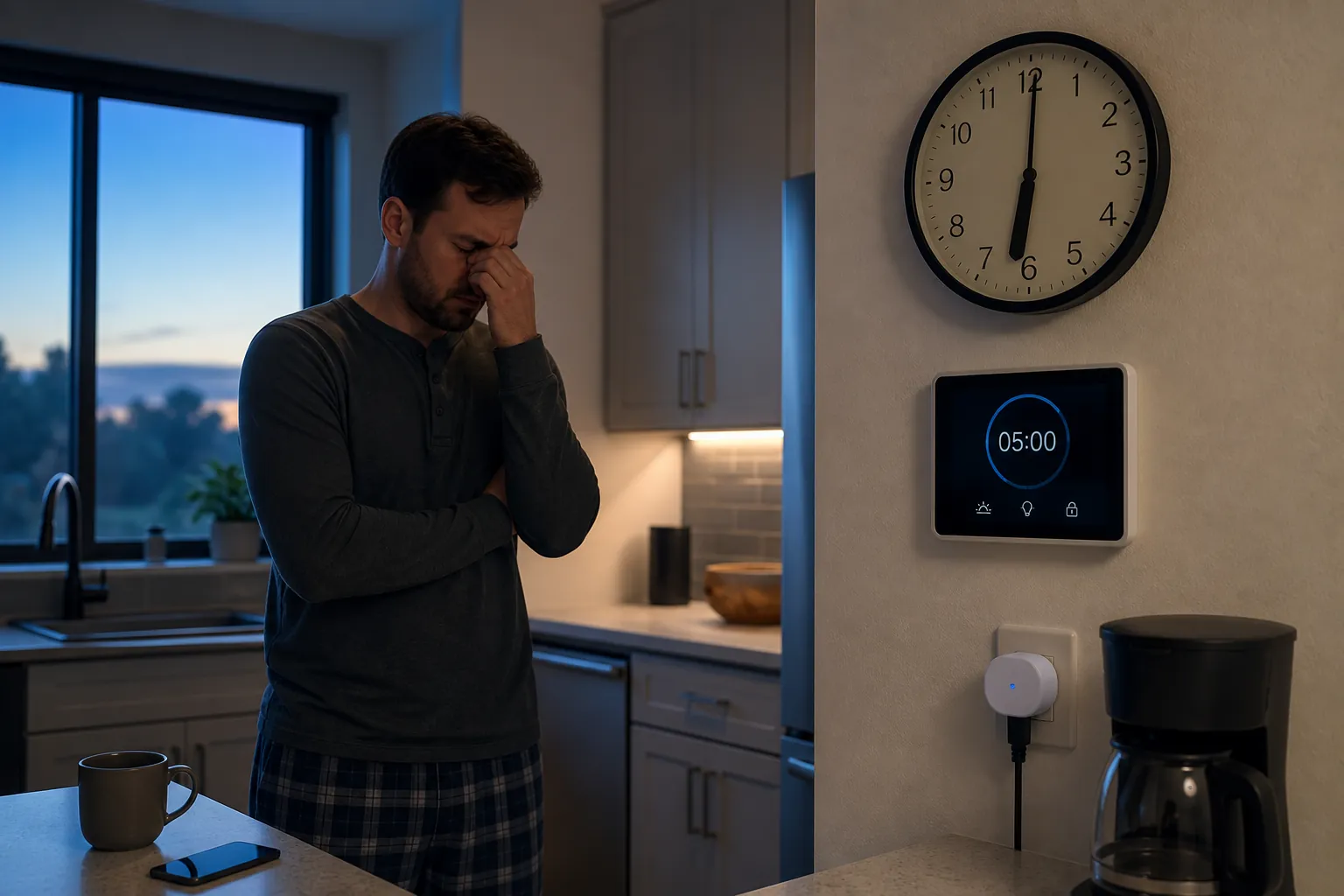
When smart home schedules go wrong after a daylight saving time change, the useful clue is usually the boring one: they are not random. The porch light, heater, coffee plug, or blind routine is exactly one hour early or late. That tells you to stop treating it like a flaky automation and start looking for the clock layer that failed.
The same kitchen-level symptom can come from three different places: a device timer that kept counting locally, a hub whose timezone rules are stale, or a schedule object that was saved with the wrong timezone context. Those failures look identical at 6:00 a.m. They do not take the same fix.
First isolate which clock is lying
A smart home schedule is rarely just “8:00 means 8:00.” Somewhere, that wall-clock time is turned into an execution time. Sometimes the device does that conversion. Sometimes the hub does. Sometimes the app stores the schedule with a timezone or offset that later becomes stale.
| Failure layer | What it usually looks like | The fix it points toward |
|---|---|---|
| Local device timer | One device or one class of timers stays one hour off, especially for timers stored on the device | Re-save, shift, or recreate the device timer; prefer cloud, sunrise/sunset, or hub-managed schedules where available |
| Hub or bridge timezone database | Many schedules controlled through the same hub are wrong after a regional rule change or clock change | Update hub or bridge firmware; enable automatic updates if the platform supports it |
| Stale timezone-stamped schedule | A routine created before the home location/timezone was corrected keeps behaving as if it belongs to the old zone | Correct the home location/timezone, then recreate the affected schedule instead of only toggling it off and on |
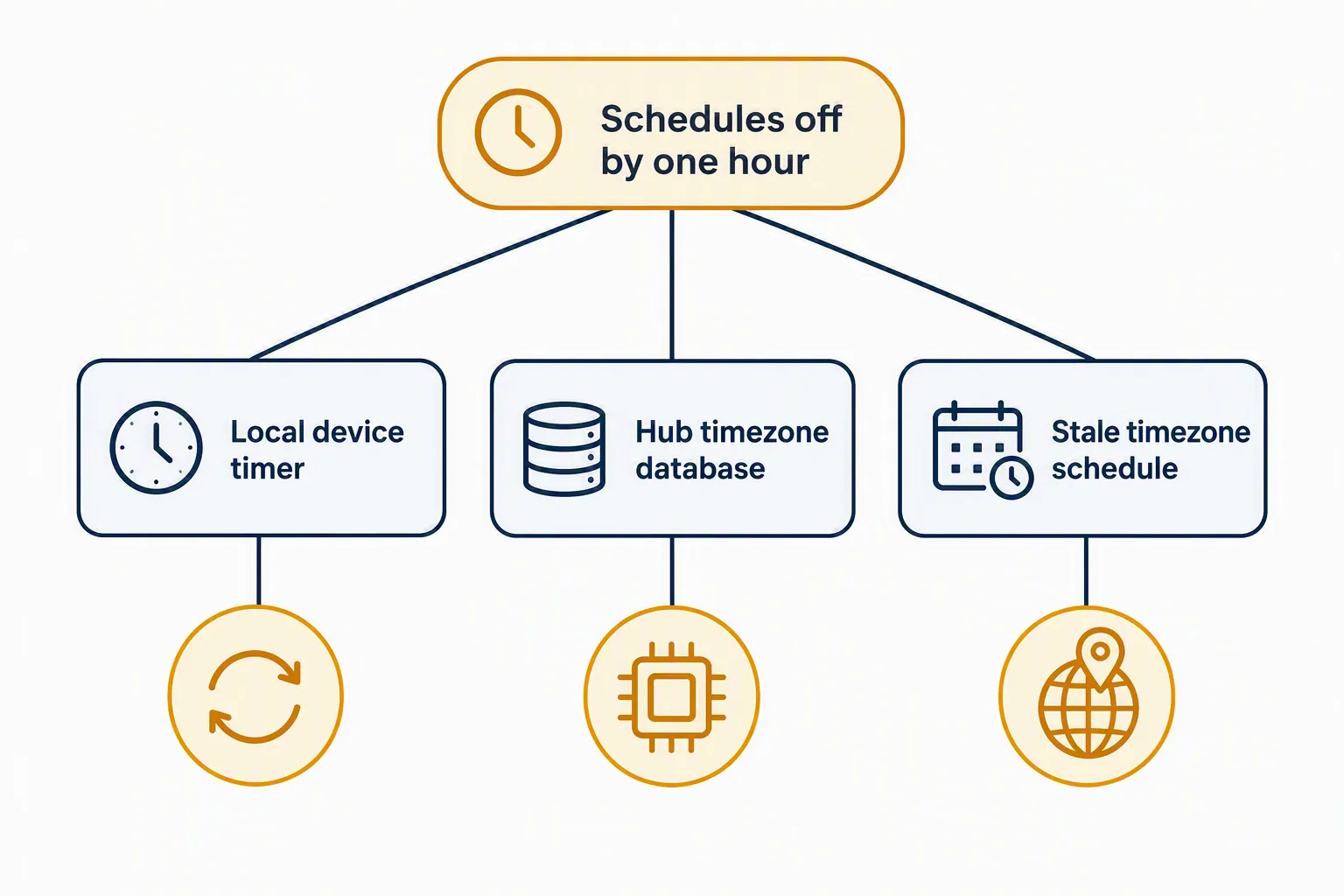
That table is the part worth keeping open while you troubleshoot. If you jump straight to “reset the hub,” you may erase a working setup while leaving the bad schedule object intact. If you only edit the schedule time, you may be compensating for a hub that needs corrected timezone rules. The fix follows the layer.
Local timers: the device kept counting from the old offset
The cleanest explanation comes from eWeLink’s own forum discussion of why timers can go off schedule when daylight saving time ends. eWeLink separates local timers from cloud timers: a local timer may be saved to the device using the initial UTC time and timezone context, then run from the device’s internal oscillator. A cloud timer, by contrast, can be recalculated by the cloud service when the timezone offset changes. [1]
That distinction explains why the same brand can look inconsistent. A cloud-run schedule may land correctly after the clock change while a local timer on a plug, relay, or controller fires one hour off. The app and the device are not necessarily using the same clock after daylight saving time changes.
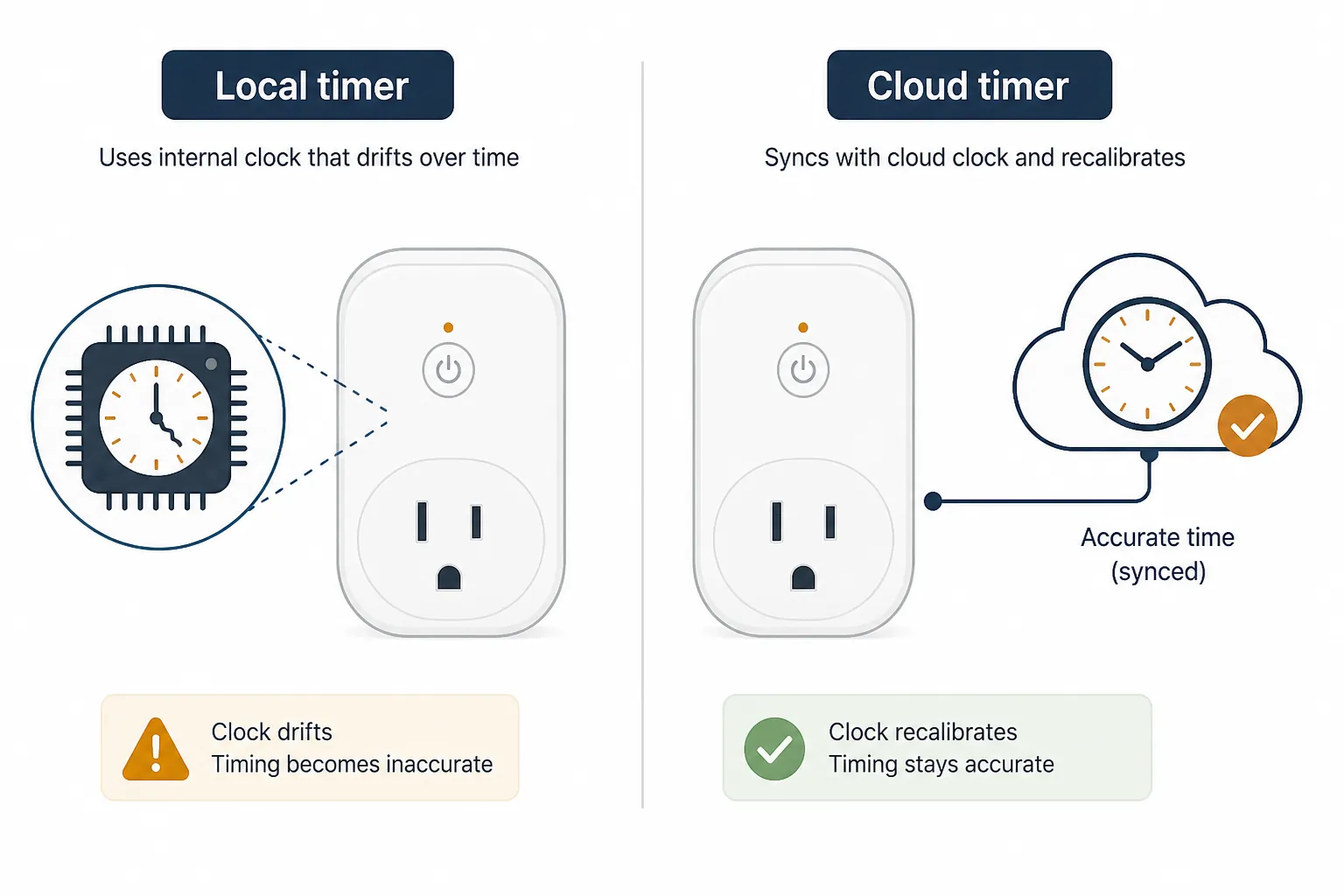
This is where advice that sounds like superstition starts to make sense. Re-saving a timer is not magic; it can force the app to write the timer again using the current timezone offset. Shifting timer times by one hour is not a cure for daylight saving time; it is a compensation when the timer storage layer will not reinterpret the schedule automatically. Deleting and re-adding a timer is crude, but it may be necessary when the stored object itself is the stale part.
eWeLink’s forum material also describes practical fixes around this mechanism: an “Edit Timers” bulk one-hour shift, plus delete-and-re-add cases for certain devices such as TRVZB and GTTA127. Those details should not be stretched into a universal rule for every smart plug. They do show the important mechanic: if the timer lives locally, the repair often has to rewrite the local timer rather than merely reassure the app that the time is correct. [1]
A quick field test is to compare timer types. If fixed clock timers are wrong but cloud-derived sunrise/sunset automations are right, suspect the local timer. If a device fires correctly only after the schedule is edited and saved again, that also points toward stored timer state rather than a household-wide timezone problem.
Hub firmware: timezone rules are shipped like any other maintenance data
The second layer is less visible because it feels too mundane to be the cause: the hub needs a current timezone database. Daylight saving time is not only “spring forward” and “fall back.” Different countries and regions change dates, cancel changes, or handle exceptions. A hub that schedules lights has to know those rules.
Philips Hue Bridge release notes are useful here because they show timezone maintenance as a real firmware responsibility. The bridge notes include an April 2019 fix for a daylight saving time issue affecting light schedules in Ireland, a January 2021 update to the timezone database so the Hue Bridge could handle daylight saving time correctly around the globe, and an April 2024 update to time zones and daylight saving time settings. [2]
That release history is the antidote to generic “keep firmware updated” advice. The point is not that updates are morally good. The point is that corrected daylight saving time rules may arrive through bridge firmware. If the bridge is the layer calculating schedule execution, an old firmware build can be the thing converting 7:00 into the wrong real moment.
This failure usually has a wider blast radius than a single device timer. If multiple schedules managed by the same bridge are off by one hour while devices outside that bridge behave normally, do not start by rebuilding every scene. Check whether the bridge has pending updates, whether automatic updates are disabled, and whether the hub rebooted into the correct time after the update.
There is an uncomfortable older-device version of the same problem. Honeywell documents that pre-2007 VisionPRO thermostats do not contain the daylight saving time dates introduced after the 2005 U.S. law change. Honeywell’s recommendation for those units is not a clever automation workaround; it is to disable automatic daylight saving time and change the clock manually twice a year. [3]
That example should stay model-specific. It does not prove every thermostat with a clock issue is obsolete. It does prove that sometimes the timezone rule table inside a device is no longer trustworthy, and no amount of app tapping will teach old firmware a rule it does not contain.
Stale timezone-stamped schedules: the routine remembers where it was born
The third mechanism is subtler: the schedule object itself may have been created with the wrong timezone context. In that case, the app can now show the correct home location and the hub can have the right current time, while an older routine still behaves as if it belongs to the earlier timezone or offset.
A SmartThings Community analysis from April 2024 proposed one version of this mechanism: routines may store times as offsets from midnight along with their own timezone, so a routine created before the location/timezone was configured could remain tied to UTC and then appear one hour wrong after the daylight saving time transition. [4]
That should be treated as a power-user synthesis, not a vendor-confirmed universal model. But it matches a class of repairs that experienced troubleshooters run into: changing the home timezone fixes newly created automations, while old routines keep drifting until they are recreated.
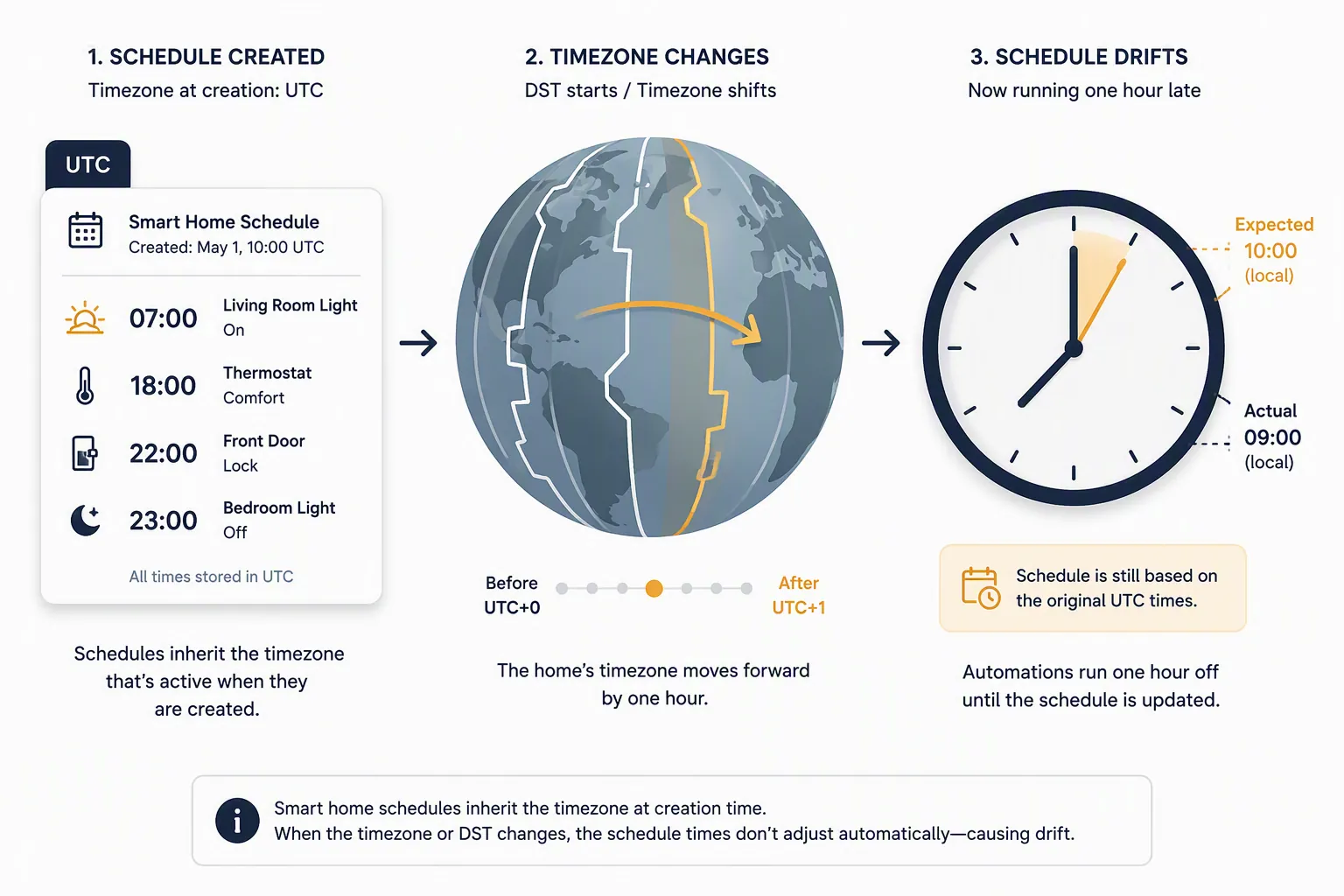
The targeted fix is therefore different from the local-timer fix. First correct the home location and timezone. Then recreate the affected routine so the new schedule object is born under the correct timezone context. Merely opening the routine and backing out may not rewrite the stored fields that matter.
Use Home Assistant as the clock bench
Home Assistant is useful here less as another platform to blame and more as a diagnostic bench. It forces the clocks into view: system timezone, host time, UTC storage, local rendering, and automation trigger time. Home Assistant documents the timezone setting under Settings > System > Home information > Region, and notes that if the timezone field is grayed out, it is being set in configuration.yaml. [5]
For a quick sanity check, compare local time and UTC in Developer Tools > Templates:
{{ now() }}
{{ utcnow() }}
You are not looking for the two values to match. You are checking whether the local value reflects your actual wall-clock time and whether the UTC offset makes sense for your region after the daylight saving time change. If Home Assistant itself is one hour off, fix the host clock, NTP, container timezone, or Home Assistant timezone before editing individual automations.
This also helps avoid false blame. If Home Assistant displays the right local time and new automations trigger correctly, but one imported or integration-backed schedule remains wrong, the broken state is probably lower down: in the device, the integration, or the schedule object that integration created.
For ecobee users working through Home Assistant, there is an integration-level action named ecobee.set_dst_mode with a dst_enabled boolean. That is useful to know, but it is not the same as confirmed ecobee app menu guidance; any app-specific path should be verified on the device or app before calling it a confirmed fix. [6]
What to try first when schedules are already one hour off
If the house is already misbehaving, start with the smallest test that identifies the layer. Do not wipe scenes, hubs, and integrations just to prove that clocks are annoying.
- Check the controller’s current time and timezone first. If the hub, bridge, Home Assistant host, or app home location is one hour wrong, fix that before touching individual schedules.
- Update the hub or bridge firmware if several schedules under the same controller are wrong. A timezone database update can be the actual daylight saving time fix.
- Test whether new schedules behave correctly. If new ones are right and old ones are wrong, recreate the affected routines instead of only toggling them.
- For a single device timer that is wrong, re-save it, shift it by the missing hour if the app provides that tool, or delete and recreate it. Prefer cloud-managed, hub-managed, or sun-time schedules where they fit the use case.
- If an older device has documented obsolete daylight saving time rules, disable its auto-DST behavior and manage the clock manually or replace the scheduling layer.
If you need the symptom-by-symptom repair path while something is actively firing at the wrong time, use the smart home DST troubleshooting fix index. If you are rebuilding the automation so this hurts less next time, move fixed clock events that do not truly need clock time to a sun-time smart home schedule.
The practical rule is simple enough: local timer, rewrite the timer; stale hub rules, update firmware; stale schedule timezone, recreate the schedule after correcting the home settings. Resetting everything is usually what happens before the failed layer has been identified.
References
- Why do eWeLink timers go off schedule when DST ends?, eWeLink Forum, Oct–Nov 2024
- Philips Hue Bridge release notes, Philips Hue
- All New VisionPRO Thermostats, Honeywell Home
- No transition to daylight saving time in the Netherlands, SmartThings Community, Apr 2024
- Basic information, Home Assistant
- ecobee.set_dst_mode, Home Assistant
Corroborating context
For protocol background on why this failure happens, see Compatibility & Protocols.
Not currently linked to a known regression. Background on the underlying protocol lives in Compatibility & Protocols.