
How to Prep Your Smart Home for Tucson Monsoon Storms
Devices offline or unresponsive after Tucson monsoon power restoration
Last updated
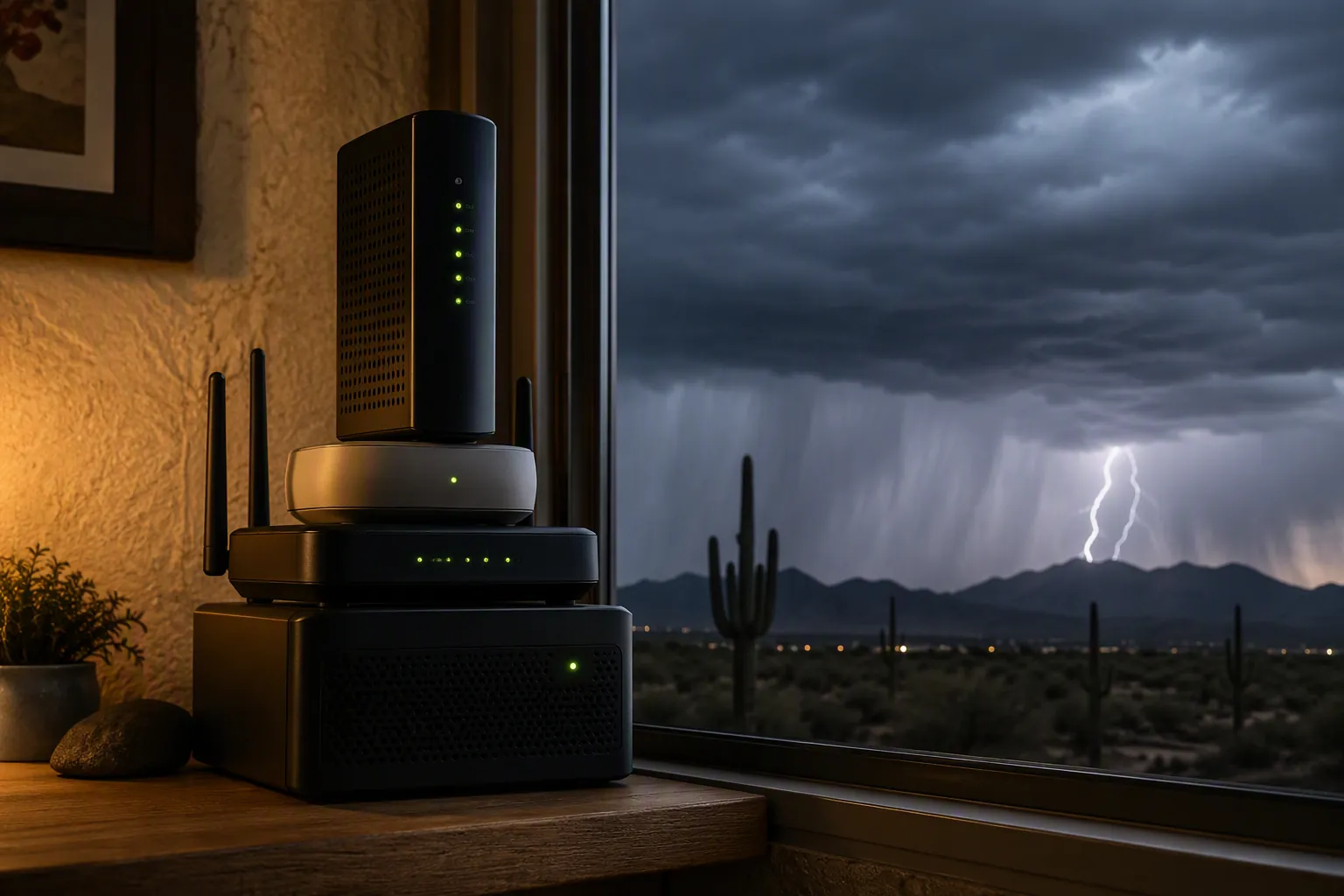
The annoying part of a Tucson monsoon outage is not always the dark room. It is the ten minutes after power returns, when the lights are on but the router is still negotiating, the hub booted before the LAN existed, half the Zigbee mesh is pretending it has never met the coordinator, and the thermostat is deciding whether the AC should join the stampede.
That is why preparing a Tucson smart home for monsoon storms needs to start with restoration, not just storm warnings. The National Weather Service defines the Tucson monsoon season as June 15 through September 30, lists Tucson’s average monsoon rainfall at 5.69 inches, and notes roughly 1.5 million lightning strikes annually across Arizona and New Mexico.[1] In July 2026, KOLD reported a peak of 8,769 Tucson Electric Power customers experiencing outages on July 12, while KGUN reported more than 10,000 customers out on July 11 in a service area of about 458,000 customers.[2][3] Those are news-reported figures, not final TEP outage totals, but they are enough to make the smart-home risk concrete.
The season can be uneven, too. The NWS Tucson monthly review listed 1.75 inches of monsoon rainfall at Tucson International Airport through July 2026, which is a measured airport figure, not a neighborhood guarantee.[4] A house in Midtown, Marana, Vail, or Oro Valley may have a different evening entirely. The smart-home plan has to work for short interruptions, brownout-ish flickers, and full outages that end with everything in the house trying to restart at once.
Think in three phases, not one storm checklist
A generic monsoon checklist will tell you to avoid flooded roads, secure outdoor items, and keep emergency supplies. Fine. Do that. But a smart home has a narrower failure chain: surge exposure before and during the storm, restart load while service is being restored, and network timing after the utility side is back.
TEP’s own monsoon guidance is unusually relevant here because it tells customers to turn off air conditioners during an outage to help prevent a demand surge when power is restored.[5] That one instruction says a lot about the real problem: restoration is an event. Your AC compressor, router, hub, cameras, smart speakers, chargers, and mesh repeaters all experience it as a race unless you make it boring.
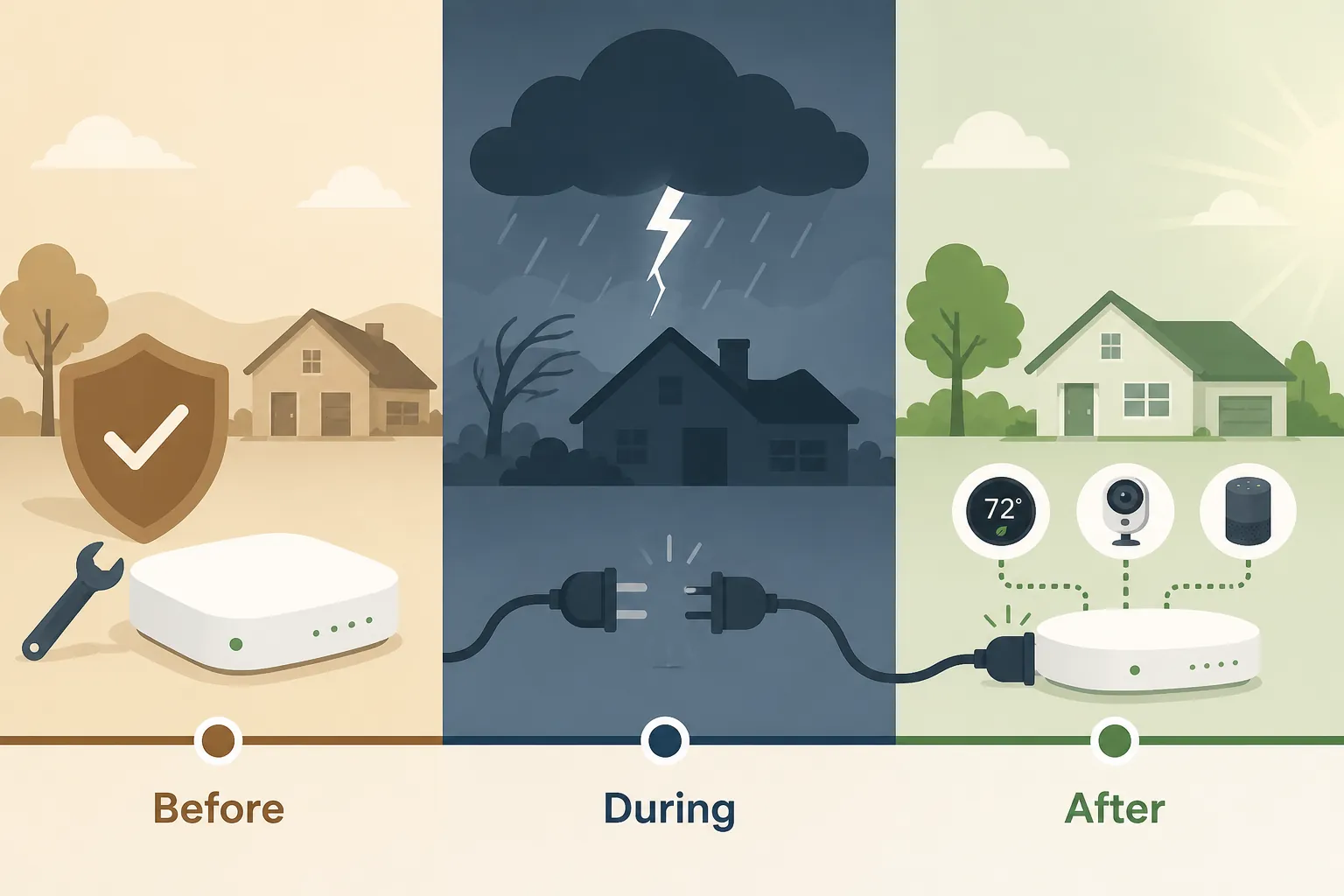
| Phase | What you are trying to prevent | The smart-home move |
|---|---|---|
| Before monsoon season | Surge damage, dead network gear, cloud-only automations failing when internet drops | Layer surge protection, put modem/router/hub gear on a UPS, and decide which routines must run locally |
| During the outage | Unnecessary restart load and avoidable electronics exposure | Turn off AC as TEP advises, unplug sensitive electronics where practical, and do not waste the first minutes power-cycling random devices |
| After restoration | Hubs and device meshes coming back in the wrong order | Restart modem/router first, then hub or coordinator, then let end devices rejoin before declaring anything broken |
Before June 15: harden the recovery path
The best time to work on monsoon resilience is before the first serious outage, not while standing in front of a blinking hub at 10 p.m. Put a reminder on the calendar in late May or early June and treat the smart home like a small network closet: power protection, runtime, boot order, and local control.
If you already use a broader storm-prep routine, keep it, but make sure it covers the network layer. A recipe like smart home storm prep with surge protection and backup power is useful as a general checklist; Tucson monsoon prep adds the local timing and the restoration discipline.
Layer surge protection, and be honest about what it can do
Whole-home surge protection is not a force field. It is a way to reduce the odds that a transient arriving at the service entrance becomes an expensive tour through your router, TV, PoE switch, hub, and thermostat transformer. Eaton’s complete-home surge protection material points to UL 1449 and the NEC 230.67 service-entrance context for surge protective devices, but that is still vendor material, not proof that any one installation will survive a nearby strike.[6]
Point-of-use surge strips still matter because many smart-home devices are connected at the ends of long little branches: a camera power adapter, a bridge behind the TV, a desktop hub, a charger near a window. The uncomfortable reality is scale. CNET’s thunderstorm explainer frames household electronics around 120-volt design and roughly 169-volt withstand context, while lightning can involve millions of volts.[7] That does not make surge strips useless. It does mean the goal is risk reduction, not invincibility.
Restoration can add its own stress. Alpine Intel, an assessment firm, describes voltage spikes after power returns as one mechanism behind electronics damage and discusses lightning-claim context from insurance data.[8] Treat that as claims and mechanism context, not a scientific frequency estimate for Tucson smart homes. The operational takeaway is simpler: give sensitive gear fewer chances to absorb ugly power transitions.
- Ask a licensed electrician about a service-panel surge protective device if your panel does not already have one.
- Use quality point-of-use surge protection for the network shelf, entertainment gear, desktop computers, and hubs.
- Do not plug a UPS into a cheap surge strip unless the UPS manufacturer allows that configuration.
- Label which plugs belong to modem, router, hub, PoE switch, camera NVR, and smart-home bridges so you are not guessing in the dark.
Put the modem, router, and hub stack on a UPS
A UPS for smart-home gear is not about running the house. It is about keeping the network brain alive through a short outage and letting you shut down or restart deliberately during a longer one. HomeTechHacker’s UPS sizing guide estimates a typical modem/router/hub stack around 25 to 40 watts, with example component loads of about 8 to 12 watts for a modem, 10 to 15 watts for a router, and 3 to 6 watts for a hub; it also points to an 850 to 1000VA UPS as a practical planning range for roughly 30 to 60-plus minutes, depending on load and battery condition.[9]
Do the math with your actual gear. A cable modem, Wi-Fi router, Home Assistant box, Zigbee coordinator, Z-Wave stick, small Ethernet switch, and bridge stack will not draw the same as a single eero and a SmartThings hub. Plug only the devices that decide whether the smart home can coordinate: modem or ONT, router, main switch if needed, hub, coordinator, and any bridge that your critical devices require.
Then test it before the season. Pull utility power from the UPS, not from the wall behind the router where you can accidentally loosen three other cables. Watch what stays up. Confirm the hub does not reboot, the LAN remains reachable, and your phone can still reach the local dashboard while on Wi-Fi. If the UPS drops in a few minutes, you have found the problem in daylight.
Decide which automations must be local
The internet is not the same thing as the smart home, at least not if you built some of it locally. HomeTechHacker’s outage-prep testing distinguishes local-control Zigbee and Z-Wave devices, which can keep operating through a local hub when internet access drops, from cloud-dependent voice or app control that stops when the cloud path is unavailable.[10]
That distinction matters in Tucson because a short outage can leave your LAN alive on UPS while the ISP path is down, or power can return before internet service is stable. Local automations are the ones worth trusting for the first recovery minutes: a leak sensor turning off a valve, a temperature rule that does not need a cloud round trip, or a basic lighting scene that runs inside the hub. Voice assistants and cloud dashboards can come back later.
- Mark critical routines as local where your platform allows it.
- Keep at least one non-cloud way to control essential lights and climate settings.
- Replace weak batteries in sensors before monsoon season; sleepy devices with marginal batteries are worse after an outage.
- Export or back up hub configurations before the season, especially for Home Assistant, Hubitat, Zigbee2MQTT, and any system where rebuilding pairings would be painful.
During the outage: make restoration easier on the house
Once the power is out, the job changes. You are no longer optimizing; you are reducing the number of devices that will slam back online at the same instant. TEP’s AC-off guidance belongs at the top of the list: turn off air conditioning during an outage to help avoid demand surge when service is restored.[5] If your thermostat is still powered by batteries or the hub is reachable on UPS, set the system mode to Off. If the thermostat is dark and you are not comfortable with HVAC controls, do not start opening panels in a storm.
Ready.gov also advises unplugging appliances and other electric devices during thunderstorms to protect them from power surges.[11] In a smart home, that does not mean crawling behind every bookshelf while lightning is active. It means unplugging the obvious sensitive and nonessential loads if you can do it safely: TVs, game consoles, desktop computers, spare smart speakers, chargers, and decorative bridges that do not need to be alive.
The refrigerator is usually less urgent than the electronics shelf. TEP notes that a closed refrigerator should keep food cold for about four hours.[5] That buys time. Do not trade that time for a frantic round of power-cycling the hub, router, and mesh devices while the utility power is still unstable.
- Leave the network UPS alone unless you are shutting it down intentionally.
- Turn AC off if you can do it safely.
- Unplug sensitive electronics that are easy to reach and not needed during the outage.
- Avoid repeated manual reboots while power is flickering.
- Wait for stable power before judging which smart devices are actually offline.
After restoration: restart in the order the smart home actually needs
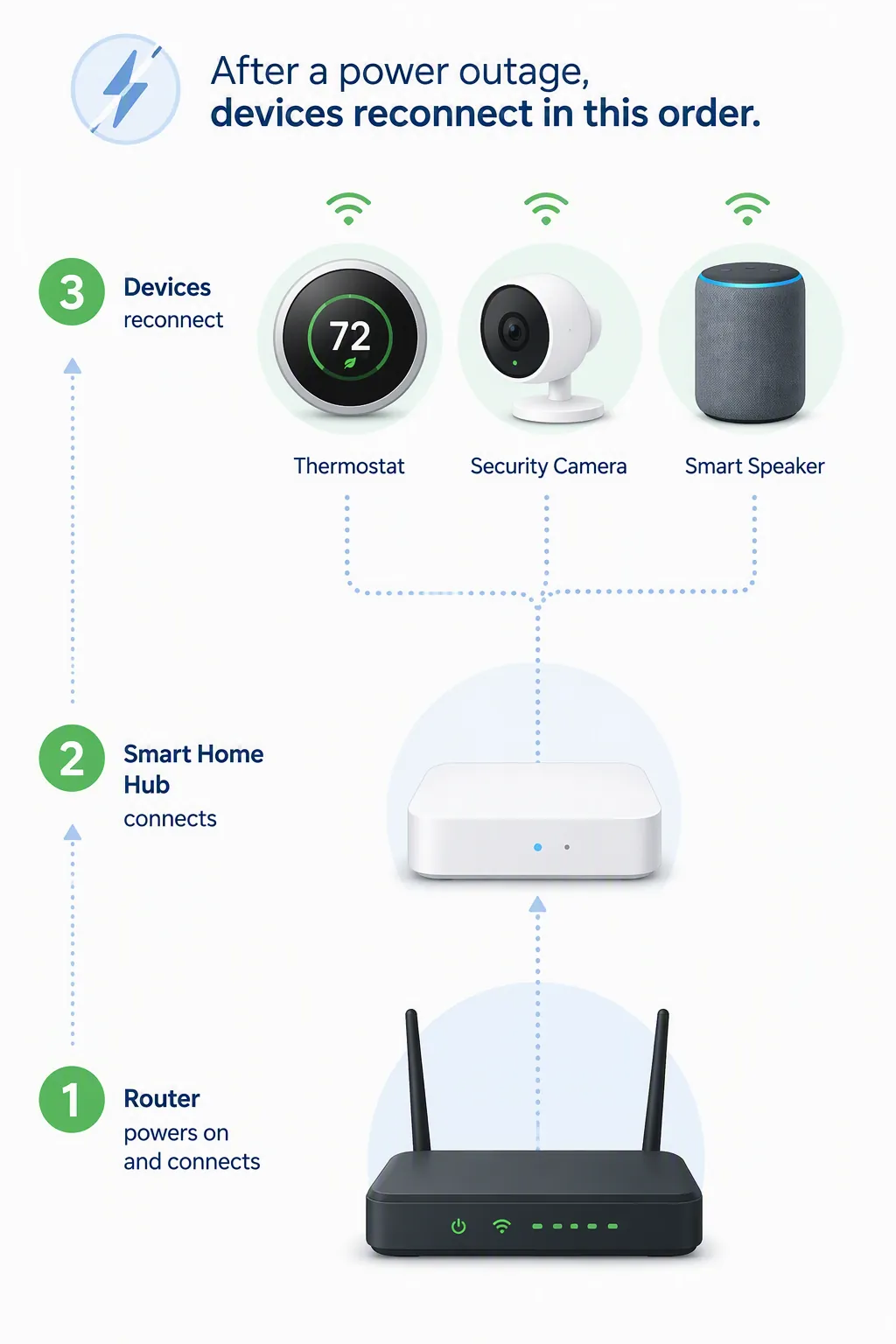
When power returns, do not start with the device that is yelling the loudest in the app. Start with the path every other device depends on. If the router is confused, the hub will look confused. If the hub or coordinator comes up before the network is ready, battery sensors and mesh repeaters may waste their first rejoin attempts. If the thermostat is allowed to call for cooling immediately, it joins the restoration load you were trying to avoid.
- Confirm utility power is stable for a few minutes. If lights are still flickering, wait.
- Bring up the modem or fiber ONT first. Give it time to lock service before touching the router.
- Restart the router or main gateway next. Wait until Wi-Fi and LAN clients can get addresses.
- Bring up the smart-home hub, Home Assistant host, SmartThings hub, Hubitat hub, or other controller.
- Bring up Zigbee or Z-Wave coordinators, Thread border routers, Matter bridges, and vendor bridges if they are separate from the hub.
- Wait for powered mesh devices to rejoin before judging battery sensors. Smart plugs, in-wall switches, bulbs used as repeaters, and wired sensors often rebuild the path that sleepy devices need.
- Turn the thermostat back to its normal mode only after the network and hub layer are stable.
- Check cameras, locks, garage controllers, and alarms last, because those failures are easier to misread while the network is still settling.
If your outage involved fiber or a separate ONT, the same ladder applies: provider box, router, hub, mesh, then devices. The recovery sequence in Recover Your Smart Home After a Spectrum Fiber Line Cut is useful when you need a more general network-first recovery path.
Give thermostats a separate check
Many thermostat settings are not as fragile as people fear. Honeywell Home says its thermostat settings are saved during a power outage.[12] That does not mean the whole HVAC system is ready the instant the screen lights up. Check the mode, setpoint, schedule, and whether the system is in a compressor-protection delay. Then bring cooling back deliberately instead of letting it be the first major load after restoration.
If Matter, Zigbee, or SmartThings devices stay missing
Post-outage device weirdness is real enough to plan for, but the public reports are not universal defects. A Home Assistant Core GitHub issue reported Matter devices unavailable after a power cycle.[13] A SmartThings Community thread described roughly half of Zigbee devices gone after an outage.[14] A Zigbee2MQTT GitHub issue reported all devices gone until a reset.[15] Treat each as an investigating/workaround signal: a reported behavior to reproduce and rule out, not proof that your platform will fail the same way.
Use them as a watch list. If Matter devices stay unavailable, check whether the controller, Thread border router, and Wi-Fi/LAN layer came back in the right order. If Zigbee devices are missing, verify that the coordinator is running before resetting end devices. If SmartThings shows devices gone, wait for the hub and powered repeaters to settle before excluding and re-pairing anything. Re-pairing too early can turn a temporary rejoin problem into an afternoon of rebuilding automations.
| Symptom after power returns | Check before resetting devices |
|---|---|
| Hub app loads, but many devices are unavailable | Router DHCP, hub online status, coordinator connection, and whether bridges came up after the LAN |
| Only battery sensors are missing | Powered Zigbee/Z-Wave repeaters, weak batteries, and whether the mesh has had time to rebuild |
| Matter devices stay unavailable | Controller health, Thread border router status, Wi-Fi/LAN stability, and whether the device was power-cycled before the controller was ready |
| Cameras show offline | PoE switch or camera power supply, router leases, NVR status, and whether the camera subnet or VLAN recovered |
| Thermostat is online but AC is not running | System mode, setpoint, schedule, compressor delay, and whether AC was intentionally left Off during restoration |
Do not call it recovered when the lights come back
A Tucson smart home is back when the network is stable, the hub is reachable, the coordinator is attached, the thermostat is in the intended mode, cameras are recording, and the mesh has had time to rejoin. The lights returning are only the utility side of the story.
The repeatable plan is plain: review the hardware and local-control setup before June 15, follow TEP’s AC-off guidance and unplug what you safely can during the outage, then recover in order after restoration. Modem or ONT first. Router second. Hub and coordinator third. Mesh and end devices after that. Only then is it worth deciding that something is actually broken.
References
- Monsoon Safety — National Weather Service Tucson
- Over 8,000 TEP customers experiencing outages — KOLD 13 News, July 12, 2026
- Over 5,000 TEP customers out of power — KGUN 9
- 2026 Monthly Reviews — National Weather Service Tucson
- Safety Tips for Monsoon Season — Tucson Electric Power
- Complete Home Surge Protection — Eaton
- Should You Unplug During a Thunderstorm? Fact or Myth — CNET
- Surge and Lightning Damage to Electronics — Alpine Intel
- How to Choose the Right UPS for a Smart Home — HomeTechHacker
- Preparing Your Smarthome for Outages — HomeTechHacker
- Thunderstorms & Lightning — Ready.gov
- Are settings saved during a power outage? — Honeywell Home
- home-assistant/core Issue #161886 — GitHub
- Half of my devices gone after power outage — SmartThings Community
- zigbee2mqtt Issue #11759 — GitHub
Corroborating context
For protocol background on why this failure happens, see Compatibility & Protocols.
Not currently linked to a known regression. Background on the underlying protocol lives in Compatibility & Protocols.