
Why Your Smart Home Fails on Starlink (and How to Fix It)
Smart-home devices fail to pair, show No Response, are unreachable remotely, or burn unexpected data on Starlink
Last updated
A healthy Starlink speed test does not prove your smart home is healthy. The usual failure is narrower: a 2.4GHz-only plug will not pair, Home Assistant cannot be reached from outside the house, HomeKit or Google Home flips to “No Response,” or a Roam/Mini setup starts chewing through data while nobody is watching Netflix. Those are different failures. Treating all of them as “satellite internet is too slow” is how people end up changing the wrong setting at 10 p.m.
Use the symptom first. The fix that helps a smart plug join Wi-Fi will not make IPv4 port forwarding work. The workaround that makes Home Assistant reachable may do nothing for HomeKit tiles during short link drops. And a data cap problem is not a Wi-Fi problem at all.
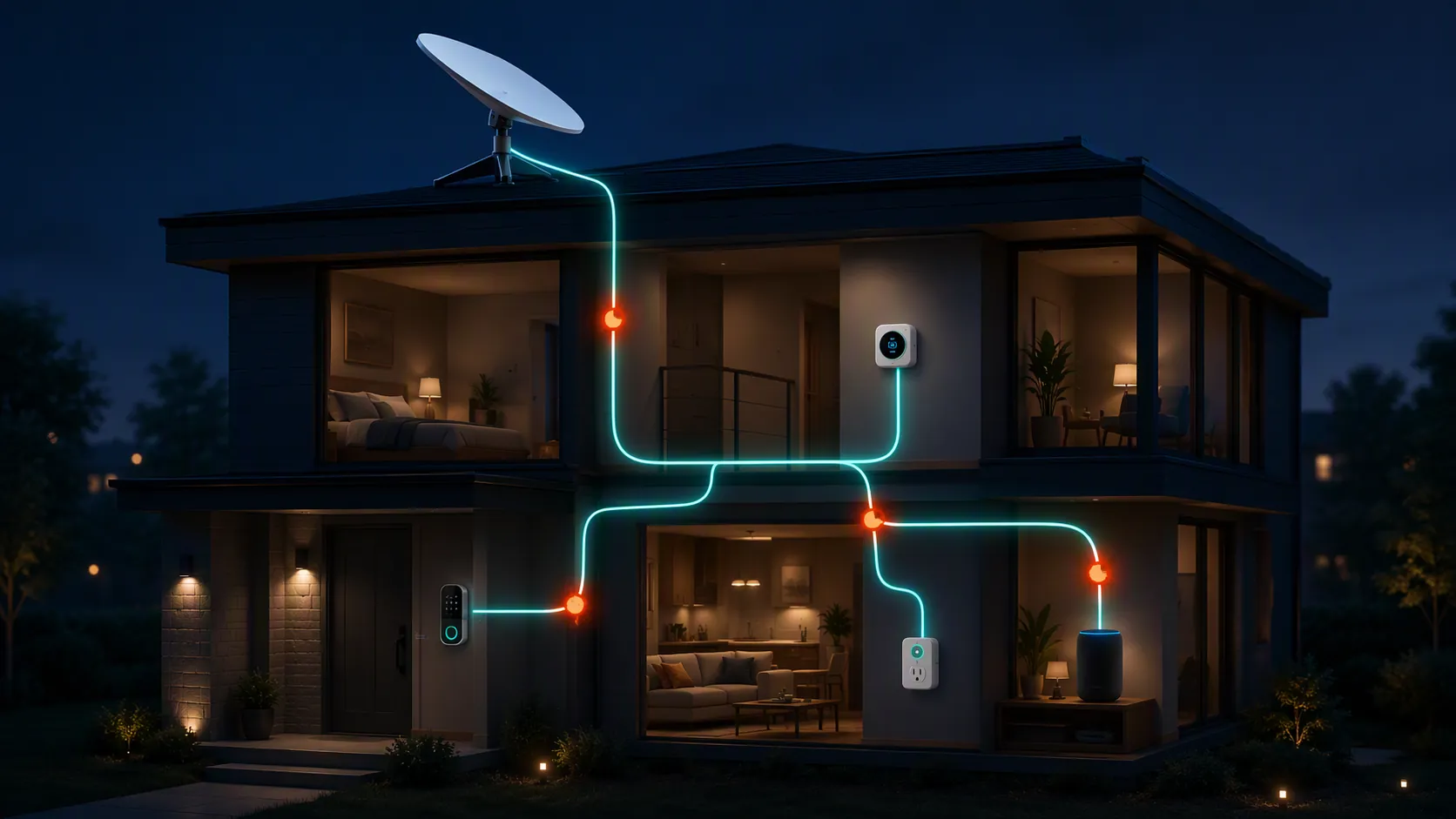
| Symptom you see | Likely Starlink-side behavior | Fix path | Status label |
|---|---|---|---|
| A smart plug, bulb, lock, or sensor refuses to join Wi-Fi, often during first pairing | Single SSID band steering puts 2.4GHz-only IoT gear in a pairing path it cannot handle cleanly | Split 2.4GHz and 5GHz names in the Starlink app, temporarily pair near the router, or use a third-party router with a dedicated IoT SSID | Workaround / Investigating — forum-corroborated and operationally reasonable, but not treated as confirmed without hands-on reproduction on the exact router/app version |
| Port forwarding fails; Home Assistant, Homey Pro, cameras, or self-hosted dashboards are unreachable from outside the home | Starlink IPv4 runs behind CGNAT, so unsolicited inbound IPv4 connections do not reach your router | Stop trying ordinary IPv4 port forwarding. Use an outbound tunnel, a managed cloud relay, or a dated IPv6 path where your router receives delegated IPv6 and the device has a reachable global IPv6 address | Confirmed for CGNAT mechanism; Confirmed for UniFi UDM SE + Homey Pro IPv6 direct access in a Dec 2025 reproduction; Workaround for Home Assistant via Tailscale or Nabu Casa [1][2][3] |
| HomeKit, Google Home, or voice control intermittently says “No Response,” then recovers without you changing anything | Brief service interruptions during satellite handoffs, obstruction events, or firmware updates can look like device failure to cloud-backed smart-home platforms | Check whether the device works locally, whether the hub stayed powered, and whether the status cleared after the short outage window. Do not factory-reset the device until the pattern is proven device-specific | Mechanism supported / Investigating — a 90-day Starlink test reported 99.1% uptime, about 13 minutes of daily downtime mostly in 2–15 second micro-outages, and one 22-minute firmware-update outage [4] |
| A Roam, Mini, or other mobile-style home setup burns more data than expected even when the house feels idle | Polling, telemetry, camera uploads, cloud integrations, and router/device monitoring can become visible when the plan has a tighter data budget | Audit integrations and cameras before blaming Starlink. Disable noisy polling integrations first, then recheck data use over a clean window | Single user report — one Home Assistant issue reported about 40MB/hour, roughly 29GB/month, from the Starlink integration with one entity enabled on core-2025.2.5 / integration 2.0.5 [5] |
If devices will not join Wi-Fi, start with the 2.4GHz path
The most common-feeling Starlink smart-home failure is the least glamorous one: the internet works, phones work, the TV streams, and a cheap plug or sensor refuses to pair. That usually points away from satellite backhaul and toward the local Wi-Fi association step.
Many IoT devices still expect a plain 2.4GHz Wi-Fi network during setup. If the phone is on a band-steered single SSID and the device can only speak 2.4GHz, the vendor app may misread the failure as a bad password, poor signal, or “check your Wi-Fi.” It may never say the useful thing: the device did not complete the pairing path it expected.
The practical workaround is to make the 2.4GHz network boring and obvious while pairing:
- In the Starlink app, use Wi-Fi configuration to split the 2.4GHz and 5GHz networks if that option is available on your router/app combination.
- Give the 2.4GHz network a distinct name, then put the phone on that same 2.4GHz SSID before starting device setup.
- Pair near the router first. Move the device only after it joins and receives updates.
- If the device still will not join, try a third-party router or access point with a dedicated IoT SSID instead of continuing to reset the smart device.
This is a Workaround / Investigating path, not a universal confirmed diagnosis. It fits the symptom and it is consistent with how many 2.4GHz-only devices behave, but it should not be sold as proof that Starlink Wi-Fi is defective. If one plug brand fails and another joins the same 2.4GHz SSID, you have a device/app pairing problem. If every 2.4GHz-only device fails until the network is split, the Wi-Fi path becomes the leading suspect.
For a clean setup sequence rather than a symptom index, use the companion recipe: How to Set Up Smart Home Gear on Starlink. This troubleshooting page is for deciding which failure you actually have before changing more settings.
If remote access is dead, do not keep fighting IPv4 port forwarding
Remote-access failures are where Starlink differs most sharply from the cable/fiber assumptions built into a lot of smart-home advice. On many home connections, you can forward a port from the router to a local service and reach it from outside. On Starlink IPv4, that expectation runs into CGNAT.
CGNAT means your router is not holding a normal publicly reachable IPv4 address. Starlink places customer connections behind carrier-grade NAT, commonly involving the 100.64.0.0/10 shared address space, so unsolicited inbound IPv4 traffic stops before it ever reaches your router’s port-forward rule [1].
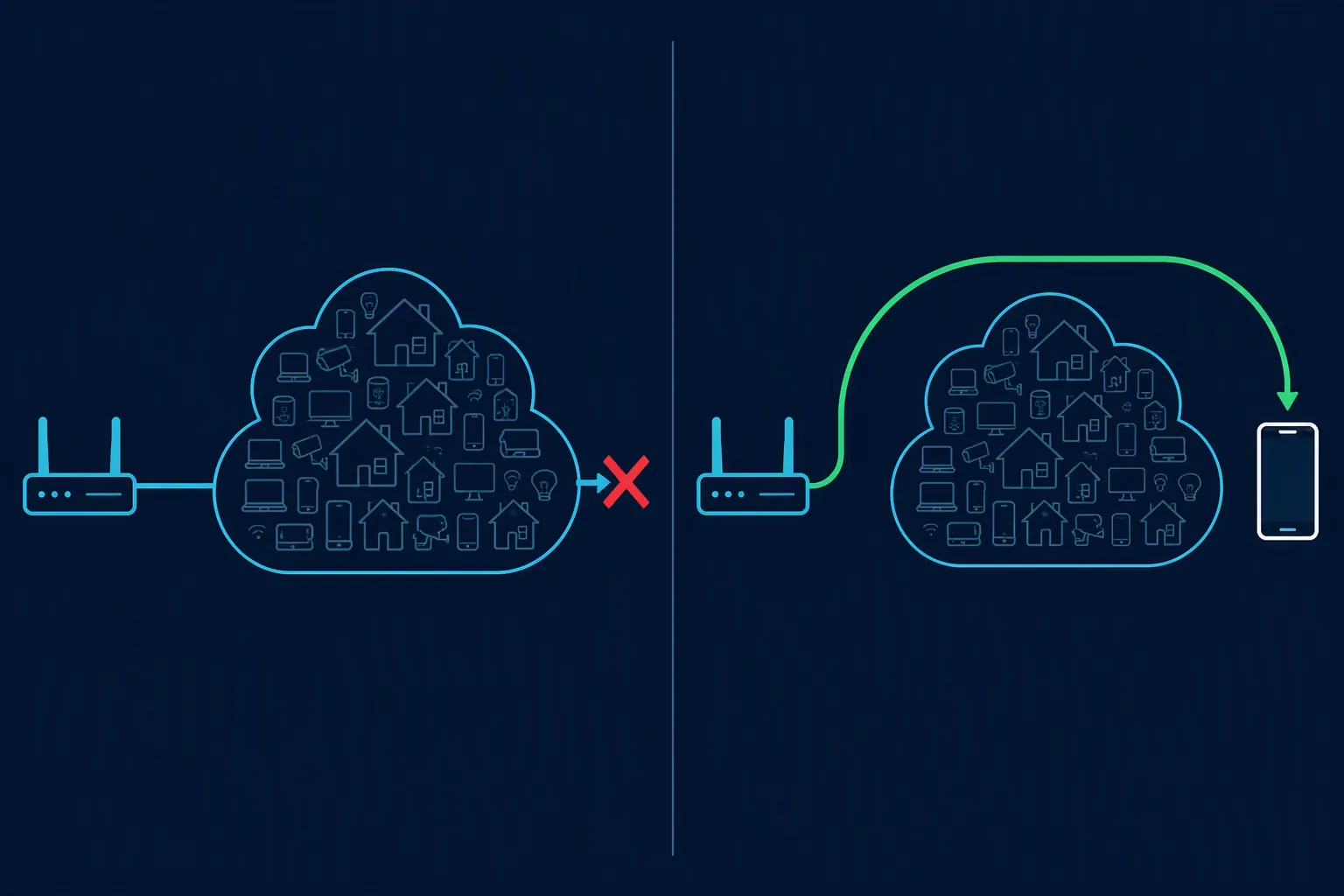
That is why a port-forward screen can look perfectly configured and still fail from a phone on cellular. The router can only forward traffic it receives. Under IPv4 CGNAT, the inbound request never arrives at your router in the first place.
What to try instead
Pick the remote-access path based on what you are exposing, how much you want to maintain, and whether your Starlink/router combination currently gives you usable IPv6.
| Remote-access need | Better path on Starlink | Why |
|---|---|---|
| Home Assistant dashboard from outside the house | Tailscale or Nabu Casa | Both avoid ordinary inbound IPv4 port forwarding. A Home Assistant community thread reports Tailscale built into Home Assistant and Nabu Casa working through Starlink, while remote.it failed with Home Assistant websockets in that same discussion [3]. |
| Homey Pro direct connection with a capable third-party router | IPv6 with DHCPv6 prefix delegation and a narrow firewall rule | A Dec 2025 Homey community tutorial reproduced this with Starlink Residential, UniFi UDM SE, and Homey Pro, using DHCPv6 prefix delegation size 56 or 64 and an external port checker against the Homey Pro global IPv6 address [2]. |
| Cameras, dashboards, or services you do not want publicly exposed | Outbound VPN-style tunnel | The service initiates the connection outward, so CGNAT does not need to pass unsolicited inbound IPv4 traffic. |
| A random port-forward guide copied from a fiber/cable router | Stop and replace the design | The IPv4 mechanism is wrong for a CGNAT connection, even if the local router UI accepts the rule. |
The IPv6 path deserves its status label. In the Homey case, the setup was concrete: Starlink Residential service, a UniFi UDM SE, Homey Pro, IPv6 enabled with DHCPv6, prefix delegation set to 56 or 64, and a firewall rule opened to the Homey Pro’s global IPv6 address. The result was checked externally, not just inside the LAN [2]. That is the kind of reproduction worth trusting.
It still should not be generalized into “IPv6 always fixes Starlink remote access.” IPv6 availability and behavior on Starlink have changed over time. One 2026 guide describes Starlink IPv4 CGNAT and says residential IPv6 was not available as of early 2024, while the Dec 2025 Homey reproduction shows a working residential IPv6 setup in that specific router/device combination [1][2]. If your router does not receive a delegated IPv6 prefix, or your smart-home hub does not hold a stable global IPv6 address, the Homey path has not been reproduced in your house.
For Home Assistant, the most practical answer is often less heroic. If the goal is simply to reach the dashboard and automations remotely, Tailscale or Nabu Casa avoids the inbound IPv4 problem without requiring you to publish a local service directly to the internet. That is usually a better first fix than spending another night trying to make a dead port-forward rule come alive.
If HomeKit or Google Home says “No Response,” look for short outages before blaming the device
A “No Response” tile is not a diagnosis. It can mean the device is offline, the hub is unreachable, the cloud path is delayed, the phone cannot see the controller, or the internet link briefly dropped. On Starlink, the last one deserves a real check before you delete and re-add half the house.
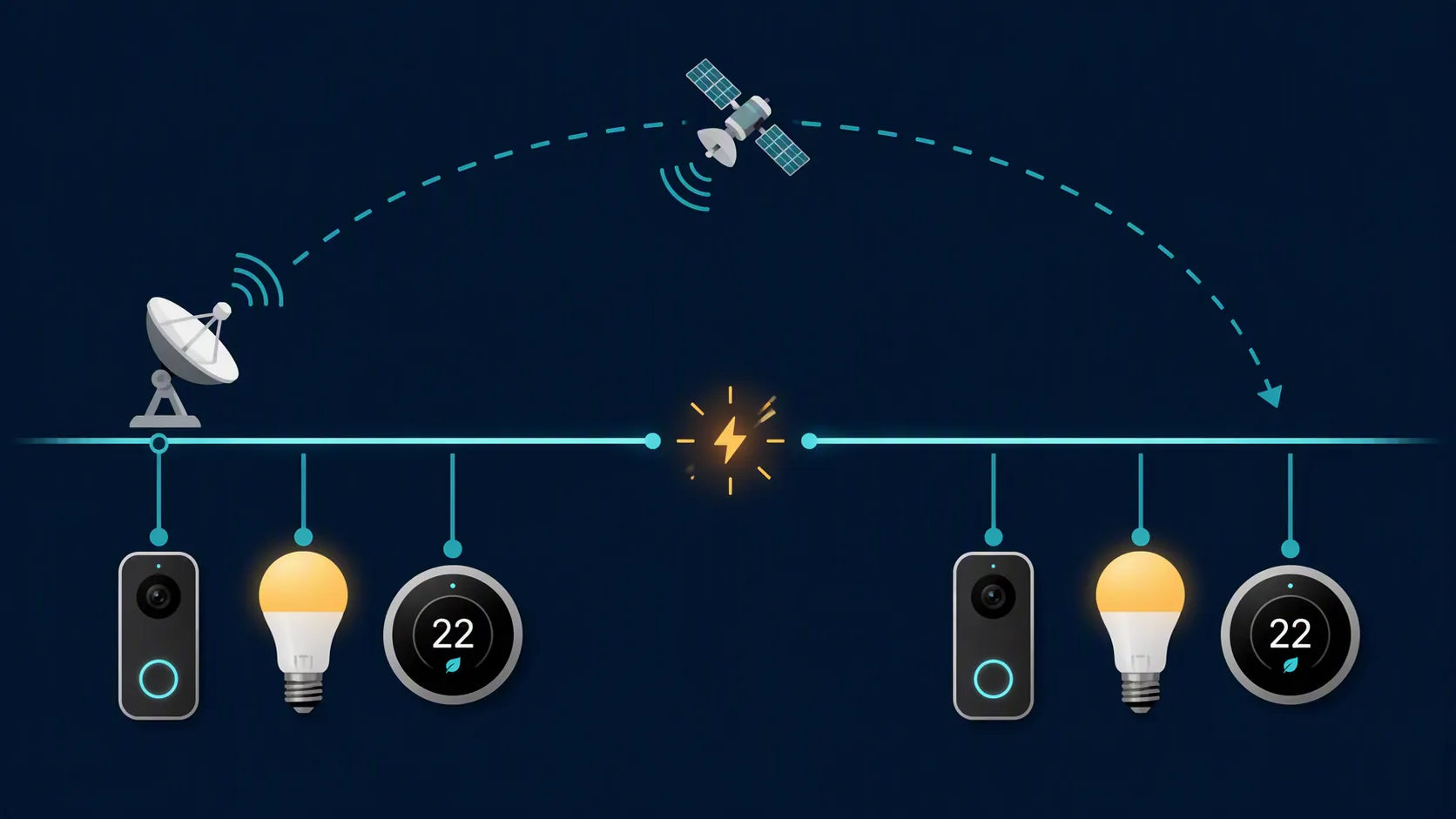
A March 2026 US Mobile Starlink review reported 99.1% uptime across a 90-day test, with about 13 minutes of daily downtime mostly occurring as 2–15 second micro-outages. The same test recorded a longest single outage of 22 minutes during a firmware update and 4 weather-related outage events [4].
Those numbers explain a very specific smart-home pattern: devices appear dead, then recover before you can finish troubleshooting. A lock, thermostat, or light that works locally but briefly disappears from Apple Home, Google Home, Alexa, or a cloud app may not be failing. The platform may simply be strict about short reachability gaps.
The check is simple, and it should happen before a factory reset:
- Open the Starlink app or router logs and look for a recent obstruction, network issue, or update window.
- Try the same device locally if your platform allows it. A local Zigbee, Z-Wave, Thread, or LAN device that still responds inside the house is not the same problem as a dead Wi-Fi device.
- Check whether multiple ecosystems failed at the same time. If HomeKit, Google Home, and a vendor cloud app all hiccup together, the shared path is more suspicious than any one bulb.
- Wait through the short window before resetting. If the tile recovers on its own, write down the time instead of destroying the pairing history.
This matters especially in Matter and Thread houses, where the controller, border router, device, app, and cloud path can all be involved. A Google Nest display acting as a Matter controller is not the same thing as a Matter device, and that distinction affects where you look when a tile says “No Response.” For ecosystem context, see Google Nest Matter Controllers vs Devices.
Short Starlink interruptions do not excuse every “No Response” state. A device that stays offline for hours, only fails at the edge of Wi-Fi coverage, or drops whenever a specific automation runs should be treated as a device, mesh, hub, or power problem. The micro-outage evidence is useful because it prevents overreaction to brief, shared, self-healing failures.
If a Roam or Mini setup burns data, audit polling and cameras
When Starlink is used like fixed home internet, unlimited-style behavior can hide a lot of background traffic. On a mobile-style or capped setup, the quiet devices finally become visible: cameras uploading clips, hubs checking cloud services, integrations polling hardware, phones backing up photos, speakers pulling updates, and monitoring tools sampling more often than anyone intended.
The sharpest smart-home example in the current material is a single Home Assistant report, not an official Starlink or Home Assistant measurement. The user reported about 40MB/hour, roughly 29GB/month, from the Home Assistant Starlink integration with only one entity enabled, on Home Assistant core-2025.2.5 and Starlink integration 2.0.5. The issue was closed as “not planned” [5].
Do not turn that into a universal claim that the integration always uses that much data. Use it as a warning about what to measure first. If your Roam/Mini setup is burning through data, disable high-frequency polling integrations, cloud camera uploads, continuous diagnostics, and automatic media backups one at a time. Then compare the Starlink data graph across clean windows instead of guessing from a single day when everything was updating.
Which fix should you try first?
Start where the symptom starts. If the device never joins Wi-Fi, stay local: 2.4GHz SSID, phone band, distance, and router choice. If the device works at home but disappears from outside the house, move to CGNAT, IPv6, tunnels, or cloud relay. If multiple platforms briefly show “No Response” and then recover, check the Starlink event window before resetting devices. If the house works but the plan usage looks wrong, audit polling and uploads.
| Your first observable failure | Do first | Do not waste time on |
|---|---|---|
| New IoT device will not pair | Split or isolate the 2.4GHz Wi-Fi path, then retry pairing with the phone on the same SSID | Port forwarding, IPv6 firewall rules, or Starlink speed tests |
| Remote dashboard will not load off-site | Assume IPv4 CGNAT until proven otherwise; choose Tailscale, Nabu Casa, another outbound tunnel, or a verified IPv6 route | Ordinary IPv4 port forwarding |
| Intermittent “No Response” across several devices | Check for short Starlink outages, firmware updates, weather, and whether local control still works | Factory-resetting every device after one short outage |
| Unexpected data use on Roam/Mini | Disable or slow polling integrations and camera/cloud uploads, then remeasure | Changing SSIDs or replacing smart plugs |
Starlink is not inherently bad for smart homes. It is unforgiving of assumptions borrowed from cable and fiber networks. The right repair depends on matching the exact symptom to the actual behavior: band-steered 2.4GHz pairing, IPv4 CGNAT, brief link interruptions, or data-budget exposure. Trust the fixes whose status label, setup, and verification date match your house.
References
- How to Port Forward on Starlink and Bypass CGNAT (2026), rsinc.com
- Starlink + UniFi + Homey Pro: How to Enable Direct Connection via IPv6 (Bypassing CGNAT), Homey Community, Dec 2025
- How to reach Home Assistant through Starlink, Home Assistant Community
- Starlink Review, US Mobile, Mar 2026
- Starlink integration uses 40MB/h, 29GB/mo for a single entity, GitHub
Corroborating context
For protocol background on why this failure happens, see Compatibility & Protocols.
Not currently linked to a known regression. Background on the underlying protocol lives in Compatibility & Protocols.