
Fix Spotify on Your Smart Speaker After an Outage
Spotify works on phone but not on smart speaker after outage
Last updated
Use this fix only when Spotify works on your phone but not on the speaker
Use this guide for one very specific mismatch: Spotify plays normally on your phone, the outage appears to be over, and the same speaker that worked before the outage now says the account needs to be linked, refuses Spotify Connect, skips silently, or does nothing when you ask for music.
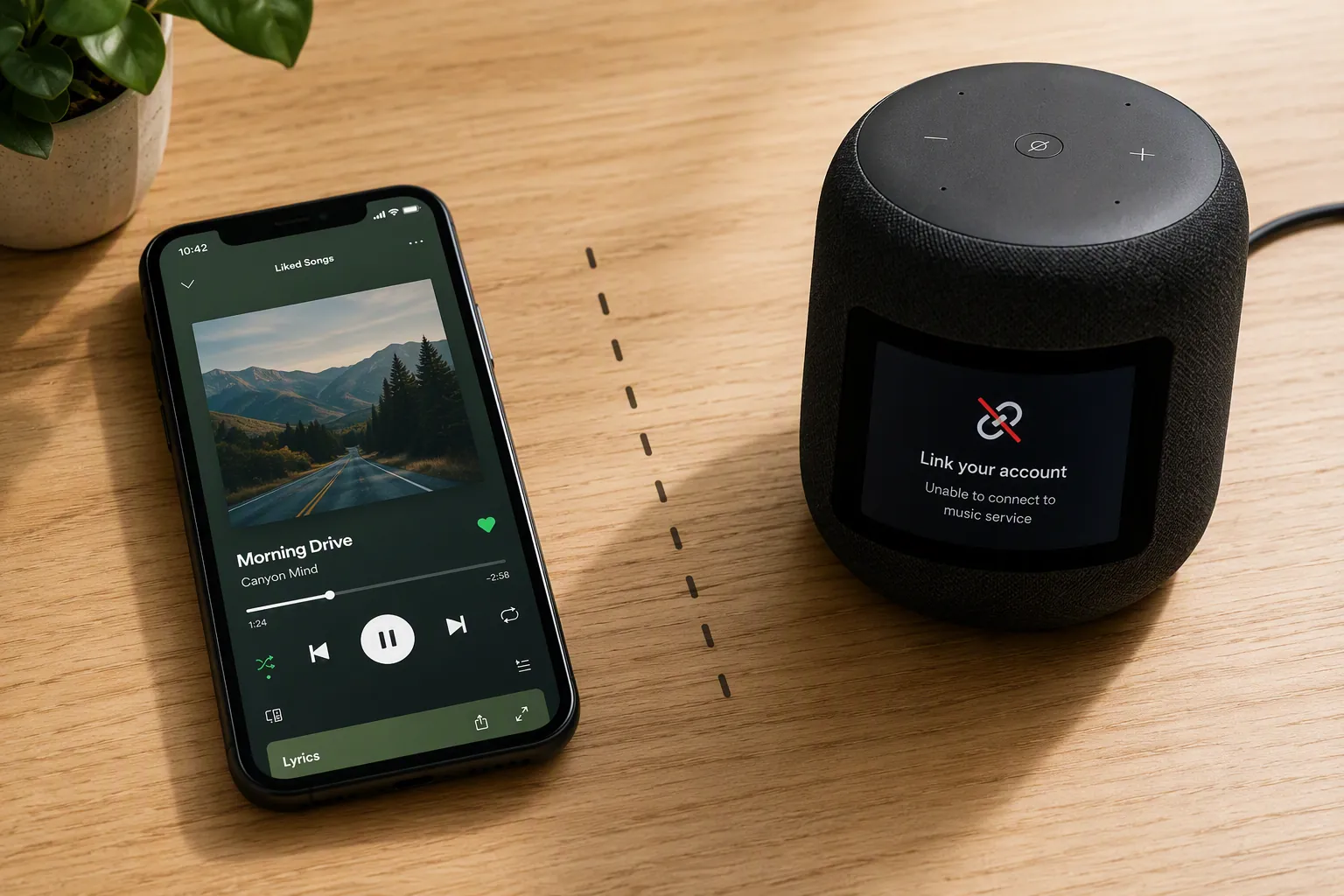
Before you touch settings, make sure you are not still in the outage. Check more than one signal: @SpotifyStatus, Downdetector, and Spotify’s Community Ongoing Issues board. Treat them as cross-checks, not courtroom evidence. A status page can look calm while user reports are still climbing, and user reports can lag after a service is already recovering.
- Use this guide if Spotify was working on this speaker before the outage.
- Use it if the speaker can still get online and other audio services or assistant features work.
- Use it if Spotify works in the phone app but breaks only when routed through Sonos, Google Nest/Home, Amazon Echo, or Bose.
- Do not start here if the speaker disappeared from Wi-Fi entirely. That is a connectivity branch, not a Spotify authorization branch.
The short version: once the speaker’s Spotify authorization is invalid or orphaned, waiting is usually done helping. The fix is to remove the Spotify integration, clear the stale account session where that platform allows it, restart only the device layer that needs to renegotiate, then link Spotify again and test from the speaker path—not just from the phone.
Why the outage ended but your speaker did not recover
A smart speaker usually does not play Spotify by holding your password. It holds an authorization relationship: the speaker platform, Spotify, and your account agree that this hardware or service may request playback. When that authorization token is stale, expired, or stuck behind an old session, the phone app can look perfectly healthy while the speaker path fails.
The timing in 2026 matters. Spotify announced refresh-token expiration on June 18, 2026, with enforcement beginning July 20, 2026; under that policy, refresh tokens issued before January 20, 2026 are expired by the new six-month rule. Spotify did not state that this policy caused post-outage speaker failures, so that connection should be treated as a likely mechanism, not a confirmed incident explanation. Still, it is exactly the kind of policy change that can turn an old, quiet authorization problem into a visible speaker failure after a service disruption. [1]
That is also why the best clue is not “the speaker is broken.” It is account behavior. In Sonos reports, one Spotify account could work on the same Sonos system while another account failed. That single test rules out the router, the speaker amplifier, and most household Wi-Fi explanations; it points back to the Spotify account authorization attached to the speaker system. [2]
The July 14 and July 27 Spotify disruptions are useful context because users saw speaker-specific symptoms after phone playback started to look normal again. They are not a reason to skip the status check. As of July 30, 2026, the right order is still: confirm the outage is not active, confirm the speaker is online, then rebuild the Spotify link.
Choose the reauthorization path for your speaker
| Platform | Start with | Restart timing | Test from |
|---|---|---|---|
| Sonos | Remove Spotify as a music service in the Sonos app, then clear the Spotify account session | After removal and sign-out, before or during re-add if the app still shows stale state | Sonos app and Spotify Connect |
| Google Nest/Home | Unlink Spotify in Google Home > Settings > Music | Unplug the speaker for 2–3 minutes before relinking | Voice command, Google Home music setting, and Spotify Connect |
| Amazon Echo | Disable the Spotify skill in the Alexa app | Wait briefly, then unplug the Echo for 30–60 seconds before enabling the skill again | Alexa voice command and Spotify Connect |
| Bose | Power cycle the speaker first | If needed, power cycle the router, then re-add Spotify in Bose Music | Bose Music app and Spotify Connect |
Do not do all four paths. Pick the one that owns your speaker’s Spotify integration. A Sonos authorization problem is not fixed inside Alexa just because an Echo also lives in the house.
Sonos: remove Spotify, clear the account session, then add it back
Sonos is the cleanest place to diagnose this because it exposes account-level failure so plainly. If another Spotify account can play on the same Sonos speakers and yours cannot, stop rebooting the router. The network has already testified.
- Open the Sonos app.
- Go to the services or music services area and remove Spotify from Sonos.
- Open your Spotify account page in a browser and use the sign-out-everywhere option.
- Close and reopen the Sonos app. If Spotify still appears as a half-present service, remove it again before continuing.
- Add Spotify back as a music service in Sonos and complete the account authorization in the browser or Spotify app when prompted.
- Test playback from the Sonos app first. Then test Spotify Connect from the Spotify app.
The important part is the order. Removing Spotify from Sonos before signing out everywhere prevents the Sonos app from clinging to the old integration while Spotify is trying to clear the account session. Sonos Community users have documented successful recovery with this remove-session-readd sequence after Spotify Connect failures on Sonos speakers. [2]
If Sonos asks you to choose a default service again, do it. If it offers the same Spotify account but never opens a fresh authorization page, do not accept that as a completed relink; remove the service once more and force a new login.
Google Nest and Google Home: unlink in Music settings before the reboot
On Google speakers, the familiar failure is a voice response along the lines of “Your Spotify account needs to be linked first,” even though Spotify is already installed on your phone. Spotify’s Google-device support route is built around the Google Home account link, so start there instead of reinstalling Spotify on the phone. [3]
- Open the Google Home app with the Google account that manages the speaker.
- Go to Settings, then Music.
- Unlink Spotify. If another service is selected temporarily, that is fine.
- Unplug the Nest or Google Home speaker for 2–3 minutes.
- Plug it back in and wait until it is fully online.
- Return to Google Home > Settings > Music, link Spotify again, and set it as the default music provider if that is how you normally use it.
- Ask the speaker to play a specific song, album, or playlist on Spotify. Then try casting from the Spotify app.
The reboot belongs between unlink and relink. Rebooting first often just brings the speaker back with the same bad account relationship. Unlinking first gives Google Home something real to rebuild when the device comes back online.
Amazon Echo: rebuild the Spotify skill authorization
Echo speakers sit behind the Alexa skill layer, so the repair is a skill reauthorization. Keep it short and deliberate.
- Open the Alexa app.
- Find the Spotify skill and disable it.
- Wait about 30 seconds.
- Unplug the Echo for 30–60 seconds, then plug it back in.
- Enable the Spotify skill again.
- Sign in to Spotify when Alexa prompts you, even if the app previously claimed the account was already linked.
- Check Alexa’s music settings and set Spotify as the default again if that setting was cleared.
- Test with a voice command, then test from the Spotify app by choosing the Echo as the playback device.
If the skill re-enables without asking for a Spotify login, be suspicious. The goal is not to toggle a switch; it is to force Alexa and Spotify to agree on a fresh authorization.
Bose: power cycle first, then re-add Spotify in Bose Music
Bose is the one path where the speaker power cycle belongs before removing the music service, because Bose music-service recovery can depend on the speaker refreshing its cloud-service state first. At writing time, direct verification of the Bose support page’s full step text was limited by the page load, so treat this as a conservative sequence aligned with Bose’s music-service-unavailable support route rather than a confirmed post-Spotify-outage bulletin. [4]
- Unplug the Bose speaker for about 30 seconds.
- Plug it back in and wait for the speaker to finish reconnecting.
- Try Spotify once from the Bose Music app.
- If Spotify is still unavailable, disconnect router power for about 30 seconds, reconnect it, and wait until the network is stable.
- Open the Bose Music app and remove Spotify if it is listed but failing.
- Add Spotify again and complete the account sign-in.
- Test from Bose Music first, then from Spotify Connect.
If Bose Music cannot see the speaker at all, leave this Spotify path and solve the network problem first.
Do not troubleshoot the wrong failure
A Spotify outage can happen on the same day as a router reboot, ISP problem, speaker firmware update, or voice-assistant glitch. The symptom decides the branch.
- If the speaker cannot reconnect to Wi-Fi or is missing from its own app, use NestGrid’s smart-home power-outage recovery guide instead.
- If the outage was your internet provider and multiple smart-home devices are half-recovered, start with the Spectrum outage smart-home fix.
- If Spotify broke immediately after a speaker firmware or app update, use the smart-speaker update Spotify fix rather than assuming an outage-token problem.
- If Spotify never worked reliably on this speaker, go to NestGrid’s general Spotify smart-speaker fixes for the baseline platform checks.
- If Spotify plays when selected manually but fails only when you speak a command, follow the voice-assistant pipeline instead of relinking Spotify repeatedly.
Verify from the path that actually failed
A phone-only test is not enough. After relinking, run three checks if your platform supports them: ask the speaker by voice to play Spotify, start Spotify from the speaker’s own control app, and use Spotify Connect from the phone to send playback to the speaker.
- If all three work, the stale or invalid authorization token was the likely cause.
- If the speaker app works but voice fails, fix the assistant account, default music provider, or voice-command routing.
- If voice works but Spotify Connect does not, remove the Spotify integration again and make sure the relink opens a fresh Spotify login.
- If one Spotify account works and another fails on the same speaker system, escalate from the failing Spotify account rather than replacing hardware.
- If no services work on the speaker, stop treating this as a Spotify problem and go back to network recovery.
The fix is successful only when the speaker can request Spotify on its own again. The phone playing music was never the broken part.
References
- Refresh Token Expiration — Spotify Developer Blog, June 18, 2026.
- Issues with Spotify Connect on Sonos Speakers — Sonos Community.
- Spotify on Google devices — Spotify Support.
- Wireless music service is unavailable — Bose Support.
Corroborating context
For protocol background on why this failure happens, see Compatibility & Protocols.
Not currently linked to a known regression. Background on the underlying protocol lives in Compatibility & Protocols.