
How to Fix Spotify After Updating Your Smart Speaker
Spotify fails to play or is silent on smart speaker after update
Last updated
If Spotify stopped working on a smart speaker after an update, start with the platform that owns the speaker link. Google Home/Nest, Amazon Echo, and Sonos can all fail in ways that look identical from the couch — Spotify says it is playing, the room is silent — but the useful fix is not identical.
Start with the speaker, not the router
| Platform | Most recognizable symptom after an update | Do this first | If that fails | Confidence as of Q3 2026 |
|---|---|---|---|---|
| Google Home / Nest | Spotify appears connected, but the speaker is silent, stuck on “Connecting…,” or playback starts only on the phone. | Unlink Spotify in the Google Home app, then link it again under Music. Spotify documents Google-device setup and account linking through its Google devices support path.[1] | If all Cast devices vanished from Spotify on Android, use the separate Cast-device branch below instead of repeating relinks. | High for the normal Google Home/Nest playback failure; also corroborated by May 2026 user reports where relinking restored playback.[2] |
| Amazon Echo | Alexa accepts the request, but Spotify does not play correctly, or the Spotify skill looks present but behaves as if authorization is stale. | Disable the Spotify skill in the Alexa app, enable it again, and re-link your Spotify account.[3] | Set Spotify as the default music service again after relinking. | High for Echo skill-link failures; this is the cleanest official-support-aligned path.[3] |
| Sonos | Spotify Connect sees the Sonos system inconsistently, or playback fails after the Sonos firmware 82.2-59204 update on reported Beam Gen2, Arc, and Play:5 systems. | Ask Google Assistant or Alexa on the Sonos speaker to play a specific Spotify song, then check Spotify Connect again. | Remove Spotify access at the account level, power-cycle, then consider whether you are already at the factory-reset stop sign. | High for matching reported Sonos cases as a workaround, not as a vendor-confirmed root-cause fix.[4] |
That table is the short version. The important detail is the symptom. If Spotify says it is playing but the Google speaker is silent, use the Google relink. If every Cast device disappeared from the Spotify app on Android, treat that as a Spotify app/Cast visibility bug. If Sonos broke after firmware 82.2-59204, do not waste the first ten minutes rebooting mesh nodes; wake the voice assistant and force the music-service handoff.
Google Home and Nest: refresh the Spotify link
Use this path when Google Home or Nest still appears in your home, Spotify still appears as a music service, but playback fails, hangs, or lands on the wrong device. The app can show Spotify as connected while the actual playback handoff is no longer clean. That does not prove a particular token failure; it only means the visible account status is not enough.
- Open the Google Home app.
- Go to Settings, then Music.
- Select Spotify.
- Tap Unlink account.
- Return to Music, choose Spotify again, and link the account back in.
- Ask the speaker for a specific track, artist, or playlist instead of starting with a vague “play music” command.
Spotify’s Google-device support page covers using Spotify with Google speakers and linking the account through the Google path.[1] The May 2026 r/googlehome thread is useful because the failure description is the one people actually see at home: Spotify looks connected, but the Nest or Google Home device will not play until the service is unlinked and linked again.[2]
After the relink, test from both directions. First use voice: “Hey Google, play [song name] on Spotify.” Then open Spotify on the phone and choose the speaker from the device picker. If voice works but the phone picker does not, you are no longer looking at the same failure.
If Cast devices vanished from Spotify on Android
Do not keep unlinking Google Home if the real symptom is that every Cast or Chromecast target disappeared from the Spotify Android app. In May 2026, Android users on Spotify 9.1.44.2120 reported losing all Cast devices from the app, and a Spotify Community moderator acknowledged the bug while pointing to force-quitting Spotify as a temporary fix.[5] Reddit users in r/Chromecast also documented rolling back to Spotify 9.1.42.2058 as a workaround.[6]
- Force-quit Spotify on Android.
- Reopen Spotify and check the device picker again.
- If the devices are still gone and you are comfortable managing app versions, consider the documented rollback workaround rather than changing every speaker setting in the house.
- Use voice control or another Spotify device temporarily if those still reach the speaker.
This branch matters because the phone app is the broken surface. A Google Home relink can fix a stale Google music-service connection; it will not necessarily repair a Spotify Android build that is failing to display Cast targets.
There is also a separate class of Google-side breakage where no local fix deserves much confidence. In October 2024, 9to5Google reported that Spotify support for Google Home abruptly broke for many users, with some users seeing the issue resolve without a durable local repair.[7] If your setup matches a live service regression — many devices affected at once, reports appearing at the same time, and relinking changing nothing — stop treating the speaker as the culprit.
Amazon Echo: disable and re-enable the Spotify skill
Echo failures after updates usually deserve a skill refresh before anything else. If Alexa recognizes the command but Spotify does not start, starts on the wrong device, or behaves as though the Spotify account is half-attached, rebuild the skill link.
- Open the Alexa app.
- Go to More, then Skills & Games.
- Find Spotify.
- Tap Disable Skill.
- Enable the Spotify skill again.
- Sign in to Spotify when prompted and approve the link.
- In Alexa app settings for Music & Podcasts, set Spotify as the default service again if it was changed or cleared.
Spotify’s Alexa support path points users through Spotify on Alexa devices, and the skill disable/re-enable flow is the least destructive way to force a new account handshake.[3] It is also fast enough that it should happen before router restarts, speaker deregistration, or resetting an Echo.
Test with a specific command: “Alexa, play [playlist name] on Spotify.” If Alexa says Spotify is not linked, the re-link did not complete. If Alexa plays from Amazon Music or another service instead, the account may be linked but the default music service is wrong.
Sonos: use the voice-assistant wake-up before you reset anything
Sonos needs more care because the best-known fix does not look like the obvious one. The Sonos Community thread for “Spotify Connect not working after last Sonos firmware update (82.2-59204)” identifies the firmware build and includes reports involving Beam Gen2, Arc, and Play:5 systems.[4] The repeated workaround is to ask a configured voice assistant on Sonos — Google Assistant or Alexa — to play a specific Spotify song. After that voice request succeeds, Spotify Connect often starts seeing and controlling the Sonos zones again.
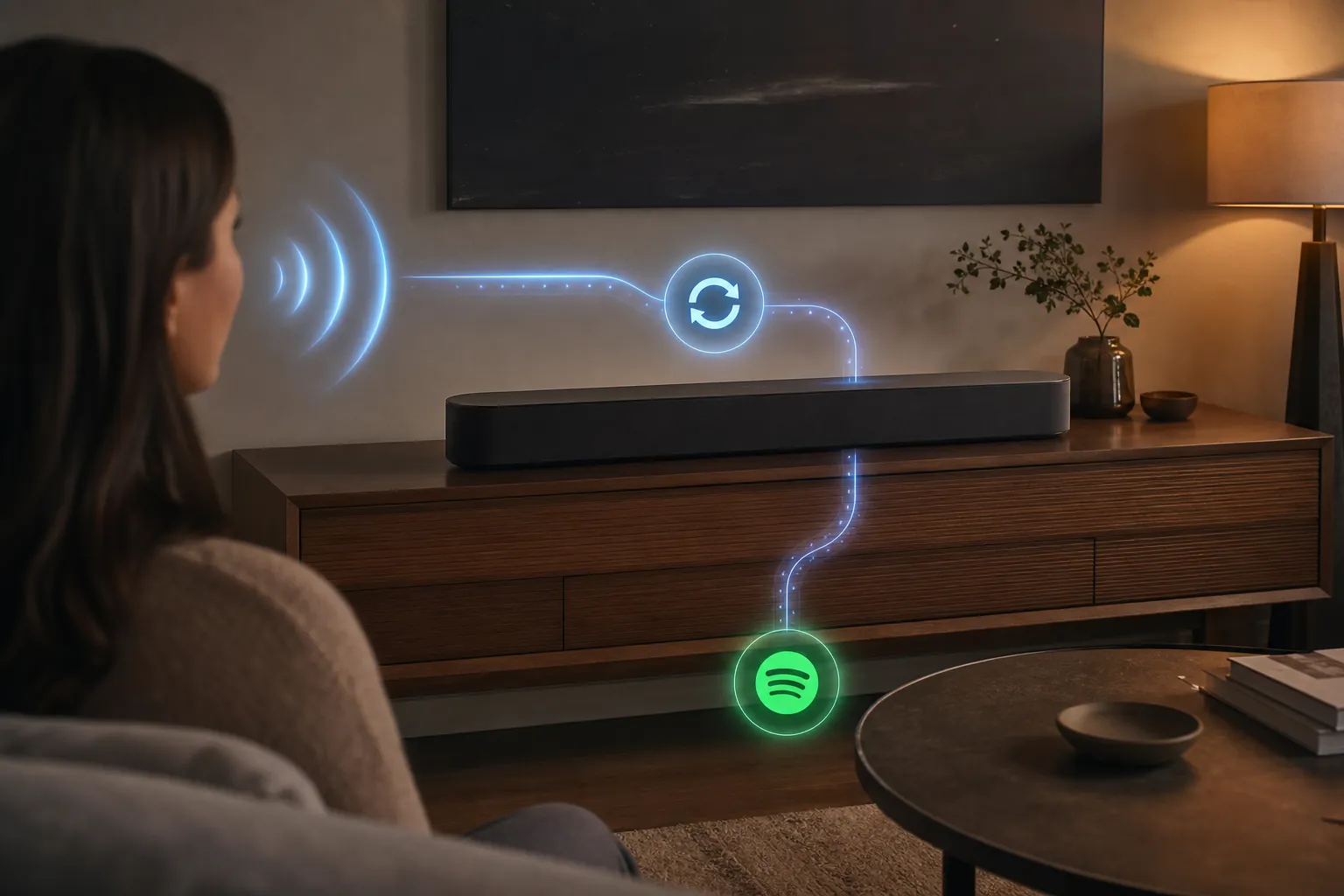
Run the Sonos voice-assistant handshake
- Stand near the Sonos speaker or room that has Google Assistant or Alexa already configured.
- Ask for something specific on Spotify: “Hey Google, play [song name] on Spotify,” or “Alexa, play [song name] on Spotify.”
- Let the track actually start on the Sonos speaker. Do not stop after the assistant merely acknowledges the command.
- Open Spotify on your phone or desktop.
- Open the device picker and check whether the Sonos room or grouped zones are back.
- If the room appears, start playback from Spotify Connect and leave the system alone.
What this appears to do is push Sonos, the assistant platform, and Spotify through a fresh authorization path. That is a practical description, not a vendor-confirmed diagnosis. Neither Spotify nor Sonos has published a post-mortem saying that firmware 82.2-59204 broke OAuth in exactly that way, so it is better to call this a confirmed community workaround for a narrow symptom set.
The fix status is uneven. Some Sonos Community users reported that later firmware 91.0-70070 resolved the issue for them, while others continued to report trouble, so there is not enough public evidence to call that firmware a universal repair.[4] One user described spending two months in support loops before resolving the issue through a factory reset, but Sonos Community posts also note that factory reset can remove Google Assistant from the Sonos setup.[4] That is why reset belongs at the end, not the beginning.
If the platform fix fails, use the short escalation ladder
Once you have tried the platform-specific fix, there are a few second-line moves worth doing. Keep them in order. The point is to refresh the Spotify authorization path without destroying the speaker setup.
- Remove speaker-platform access from your Spotify account. Go to account.spotify.com, open Apps, remove the relevant Google, Alexa, or Sonos access, then re-authenticate through the speaker platform.
- Unplug the smart speaker for 60 seconds, plug it back in, and wait until it is fully online before testing Spotify again.
- Restart the router only after the service link has been refreshed. Spotify’s general playback support still includes basic playback and connection checks, but for these post-update speaker failures, router-first troubleshooting is usually the slow way around.[8]
- Test from voice and from the Spotify device picker. Those are different control paths, and knowing which one fails is useful.
A factory reset is the stop sign. It may be reasonable if the speaker is already half-broken, no assistant link works, the device cannot be removed cleanly, and the vendor support path has run out. It is not a harmless refresh. On Sonos especially, it can strip out assistant configuration and still may not fix a live Spotify Connect regression.
Know when the local fix has ended
Stop troubleshooting when the matching fix restores playback. If Google Home works after unlinking and relinking Spotify, do not keep clearing caches. If Echo works after the skill is disabled and enabled again, do not deregister the speaker. If Sonos comes back after the voice-assistant request, do not factory-reset the room because the workaround felt too easy.
Keep going only when the symptom changes. “Spotify says it is playing but the speaker is silent” is not the same as “all Cast devices disappeared from Android.” A Sonos room missing after firmware 82.2-59204 is not the same job as an Echo skill that silently lost authorization. The fix for Spotify not working on a smart speaker after an update is usually a relink, but it has to be the right relink.
If devices are still missing during a known app or backend regression, the honest options are temporary workarounds, monitoring vendor/community updates, or using another control path until the service side settles. Resetting every speaker in the house rarely improves that situation.
References
- Spotify on Google devices — Spotify Support
- Spotify stopped working on my Google Home / Nest — Reddit r/googlehome, May 2026
- Spotify on Alexa devices — Spotify Support
- Spotify Connect not working after last Sonos firmware update (82.2-59204) — Sonos Community
- Spotify Connect is broken for Android users, but there is a temporary fix — Android Police
- All cast devices gone from Spotify — Reddit r/Chromecast
- Spotify support for Google speakers abruptly breaks for many — 9to5Google, 2024-10-25
- Spotify not playing — Spotify Support
Corroborating context
For protocol background on why this failure happens, see Compatibility & Protocols.
Not currently linked to a known regression. Background on the underlying protocol lives in Compatibility & Protocols.