
How to Fix Samsung Galaxy S25 Ultra Battery Drain After July Update
Battery drain 5-7% per hour idle after July 2026 update
Last updated
If your Galaxy S25 Ultra started losing 5–7% per hour on standby after the July 2026 security patch, check WhatsApp backup first. The pattern being reported is not normal post-update settling: phones on the July build are dropping hard while idle, getting warm without active use, and in some cases showing Samsung Device Care warnings that apps or processes are overloading the CPU.[1][2]
The strongest documented trigger so far is a stuck WhatsApp encrypted backup loop. Several users reported that canceling the backup immediately brought idle drain back under control, though neither Samsung nor Meta has confirmed this as the official root cause. Treat it as the highest-yield workaround, not as a closed case.[1][3]
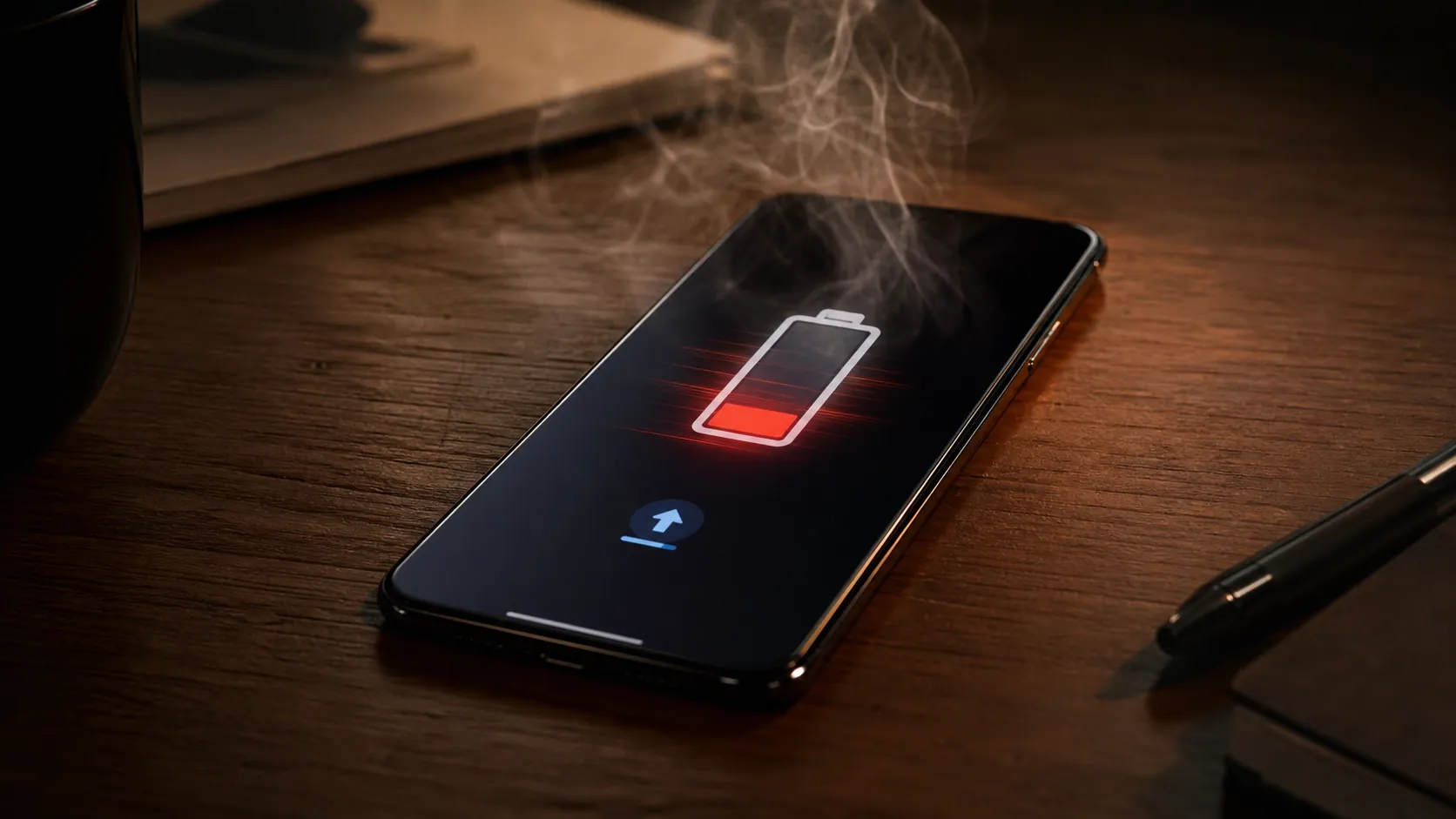
First, Make Sure Your Symptoms Match the July Regression
The reported issue is tied to the July 2026 security update for Galaxy S Ultra devices, with TechTimes and TelecomTalk citing build S938BXXSBCZG3 / CZG3 in affected reports.[2][4] Android Central described affected units losing 5–7% battery per hour while idle, including one reported drop from 85% to 5% in about 12 hours with only 2 hours and 9 minutes of screen-on time.[1]
That matters because standby drain is a different complaint from “my battery life feels worse.” If the phone is sitting on a desk, screen off, radios normal, and still burning battery like it is navigating, filming, or gaming, something is keeping the system awake.
- Strong match: 5–7% battery loss per hour while idle after the July 2026 update.
- Strong match: warmth or heat while the phone is not being used.
- Strong match: Device Care says “Some apps or processes are overloading the system (CPU). Your device needs to restart.”[2]
- Possible match: charging feels unusually slow, though the most specific charging slowdown report cited so far comes from an S24 Ultra user, not a broad S25 Ultra sample.[5]
- Weak match: battery drain only during gaming, camera use, hotspot use, or poor mobile signal.
PCMag and 9to5Google have also reported that the post-update battery complaints are not isolated to one person’s device, with affected Galaxy S24 and S25 Ultra owners appearing across community reports.[3][6] NotebookCheck separately tracked overheating and drain complaints around the same update window.[7]
What Appears to Be Happening
The leading explanation is a stuck partial wakelock: a background process keeps the CPU awake even when the screen is off. TechTimes described the issue as a CPU loop or wakelock condition, and TelecomTalk linked the overheating reports to a WhatsApp backup bug in affected cases.[2][4]
The important distinction is scope. A stuck WhatsApp encrypted backup is the most useful documented lead because users have reported immediate relief after canceling it. That does not prove every affected S25 Ultra is draining because of WhatsApp, and it does not prove Meta caused the July regression. It gives you a fast test with a clear outcome.
| Rank | Fix | Why it is ranked there |
|---|---|---|
| 1 | Cancel stuck WhatsApp encrypted backup | Most directly tied to reported immediate recovery |
| 2 | Boot into Safe mode | Separates third-party app behavior from system-level drain |
| 3 | Reset battery stats with *#9900# | Strong remaining system-level reset after cache partition wipe removal |
| 4 | Force-stop and clear cache for backup apps | Targets the same class of stuck background job |
| 5 | Put nonessential apps into Deep Sleeping | Reduces background activity while waiting for a patch |
| 6 | Disable RAM Plus and Nearby Device Scanning | Removes two optional background features |
| 7 | Use Power saving mode | Containment only, not a diagnosis |
1. Cancel the Stuck WhatsApp Encrypted Backup
Start here because it is the one workaround repeatedly associated with immediate improvement. Android Central and PCMag both reported Samsung Community cases where users found WhatsApp encrypted backup stuck and saw normal idle behavior return after canceling it.[1][3]
- Open WhatsApp.
- Go to Settings > Chats > Chat backup.
- Look for an encrypted backup that is stuck, endlessly preparing, retrying, or failing.
- Cancel the backup if WhatsApp allows it.
- Restart the phone.
- Leave the phone idle for at least one hour and check the battery percentage again.
Do not immediately restart the backup just to “finish the job.” If the phone cools down and standby drain falls after canceling it, the backup job was at least part of your active problem. You can try a manual backup later, preferably on Wi-Fi and power, but the immediate goal is to stop the CPU from being held awake.
If WhatsApp shows no active backup, no stuck encrypted backup, and no retry loop, move on. The wakelock pattern can still be real even if your trigger is not WhatsApp.
2. Use Safe Mode as an Isolation Test
Safe mode is not a fix you live in. It is a clean test: Samsung loads the phone without third-party apps running normally. If idle drain calms down in Safe mode, your evidence points toward an app or app-triggered background job. If it keeps draining, the problem is more likely in the system layer or update state.
- Press and hold the power button or open the power menu from Quick Settings.
- Touch and hold Power off until Safe mode appears.
- Tap Safe mode and let the phone restart.
- Charge or note the current battery level, then leave the phone idle.
- Compare one hour of idle drain in Safe mode against one hour in normal mode.
A clean Safe mode result does not name the offender. It tells you where to spend your time. Start with apps that sync, back up, scan media, move files, manage cloud storage, or run encrypted background tasks. WhatsApp is the first one to inspect because it appears most often in the documented cases, but it should not be the only one.
3. Reset Battery Stats with the *#9900# Menu
This is the strongest remaining system-level reset to try before you start making broad compromises. TechTimes reported that Samsung removed the cache partition wipe option from recovery mode in the February 2026 patch, which is why older “wipe cache partition” advice is now low-value or simply unavailable on updated phones.[2]
- Open the Phone app.
- Dial *#9900#.
- In the system dump menu, choose Batterystats reset if the option appears.
- Exit the menu.
- Restart the phone.
- Let the phone idle and recheck standby drain.
This does not replace the battery, recalibrate the cell chemistry, or undo the July update. It resets battery statistics that can get messy after an update or runaway background state. If your idle drain returns to normal afterward, that is another sign you are dealing with a software condition rather than sudden hardware failure.
4. Force-Stop and Clear Cache for Backup Apps
If WhatsApp was not visibly stuck, widen the search to apps that can run heavy background jobs: WhatsApp, Google Photos, Google Drive, Samsung Cloud, OneDrive, file managers, password managers, and messaging apps with cloud backup. The point is not to punish every app. It is to stop a backup or sync process that may be looping after the update.
- Open Settings > Apps.
- Select the backup or sync-heavy app.
- Tap Force stop.
- Open Storage.
- Tap Clear cache, not Clear data.
- Restart the phone and test idle drain again.
Be careful with “Clear data.” For messaging and cloud apps, that can sign you out, remove local state, or force a new sync. Clear cache is the safer first pass.
5. Put Nonessential Apps into Deep Sleeping
Deep Sleeping apps are useful when the phone is usable but still not trustworthy on standby. This is containment: you are reducing the number of apps allowed to wake in the background while Samsung and app developers sort out the trigger.
- Go to Settings > Battery > Background usage limits.
- Open Deep sleeping apps.
- Add apps that do not need timely notifications or background sync.
- Leave messaging, work, banking, ride-share, alarm, health, and security apps out unless you accept delayed behavior.
Do not use this step to bury WhatsApp if you rely on it for messages. If WhatsApp is the culprit, canceling the stuck backup is cleaner than making the app unreliable.
6. Disable RAM Plus and Nearby Device Scanning
These settings are not the headline cause in the reports. They are optional background features worth disabling if the phone still runs warm after the higher-yield fixes.
- RAM Plus: Settings > Device care > Memory > RAM Plus, then turn it off if your build allows it and restart.
- Nearby Device Scanning: Settings > Connections > More connection settings > Nearby device scanning, then turn it off.
The reason to keep this step late is simple: if the phone is losing 5–7% per hour while idle, toggling small convenience features should not be treated as the primary repair. Use them to reduce background churn, then keep measuring.
7. Use Power Saving Mode Only as a Last Resort
Power saving mode can get you through a workday, but it does not identify the stuck process. Use it if you need the phone to survive until evening, especially if you are traveling or cannot keep a charger nearby.
- Turn it on from Quick Settings or Settings > Battery > Power saving.
- Avoid stacking too many restrictions at once if you need notifications.
- Turn it off later and retest idle drain after applying the earlier fixes.
If Power saving mode is the only thing keeping the phone usable, submit logs rather than silently accepting it. Samsung’s own tooling is already warning some affected users about CPU overload, which is the kind of evidence support needs.
What to Send Samsung if the Drain Continues
As of July 31, 2026, Samsung has not issued an official public statement for this issue. Android Central and PCMag reported that a Samsung Community moderator acknowledged a “software optimisation issue” and directed users to submit logs through Samsung Members.[1][3]
- Your phone model and region.
- The July build shown in Settings > About phone > Software information.
- Battery drop per hour while idle.
- Whether the phone gets warm while unused.
- Whether Device Care shows the CPU overload warning.
- Whether canceling WhatsApp backup, Safe mode, or *#9900# changed the result.
Send the report soon after reproducing the drain. A vague “battery bad after update” complaint is easy to bury. A log attached to a one-hour idle drain window, a CPU overload warning, and a failed backup state is harder to dismiss.
Is a Permanent Fix Coming?
There is reason to expect a software fix, but not enough to promise one on a specific date. Android Central described this as at least the fifth documented Samsung security-patch battery regression in three years, citing earlier regressions around One UI 5.1 keyboard drain, One UI 7 on S24 and Z Fold 5, One UI 8 on S23, and One UI 8.5 on Z Fold 7.[1] Android Police has also reported recent S Ultra update bugs in this broader window.[8]
That history suggests Samsung can resolve this kind of regression in a later patch cycle. The August 2026 patch is the obvious one to watch, but that is an expectation based on precedent, not a confirmed fix schedule.
If canceling the WhatsApp backup or resetting battery stats brings standby back to normal, the phone is probably not suffering sudden battery hardware failure. Keep tracking idle drain after each workaround, watch whether Device Care still reports CPU overload, and check the next Samsung update notes before re-enabling any backup job that appeared to trigger the loop.
References
- Galaxy S25 Ultra July 2026 battery drain reporting, Android Central
- Galaxy S25 Ultra CZG3 battery drain and CPU overload reporting, TechTimes
- Galaxy S24 and S25 Ultra battery drain after July update reporting, PCMag
- WhatsApp bug link to overheating after Samsung July update, TelecomTalk
- S24 Ultra charging slowdown report after update, Tech Advisor
- Galaxy owners report battery drain after July 2026 update, 9to5Google, July 30, 2026
- Galaxy S25 Ultra and S24 Ultra overheating and drain reports, NotebookCheck
- S Ultra devices hit with bugs after recent update, Android Police
Corroborating context
For protocol background on why this failure happens, see Compatibility & Protocols.
Not currently linked to a known regression. Background on the underlying protocol lives in Compatibility & Protocols.