
Galaxy S25 Ultra Overheating After Update? Fix It Now
Overheating and slow charging after July update
Last updated
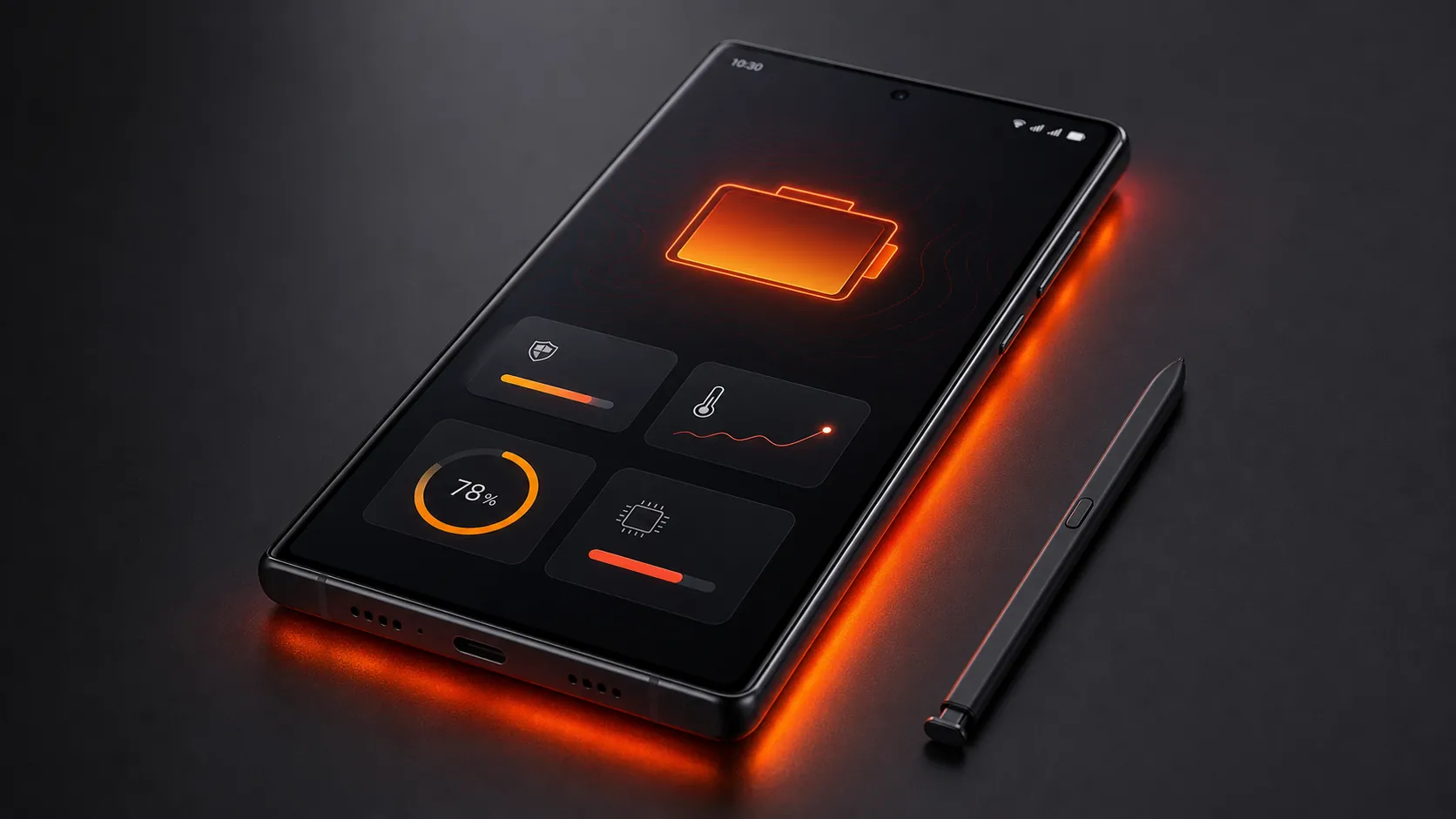
If your Galaxy S25 Ultra started getting hot, losing charge while sitting idle, and taking much longer to charge after the July 2026 One UI 8.5 update, first check whether you are on build CZG3. That build is the one repeatedly linked to affected S25 Ultra reports, including idle drain around 5–7% per hour and one case where a phone fell from 85% at midnight to 5% by midday with only 2 hours 9 minutes of screen-on time.[1]
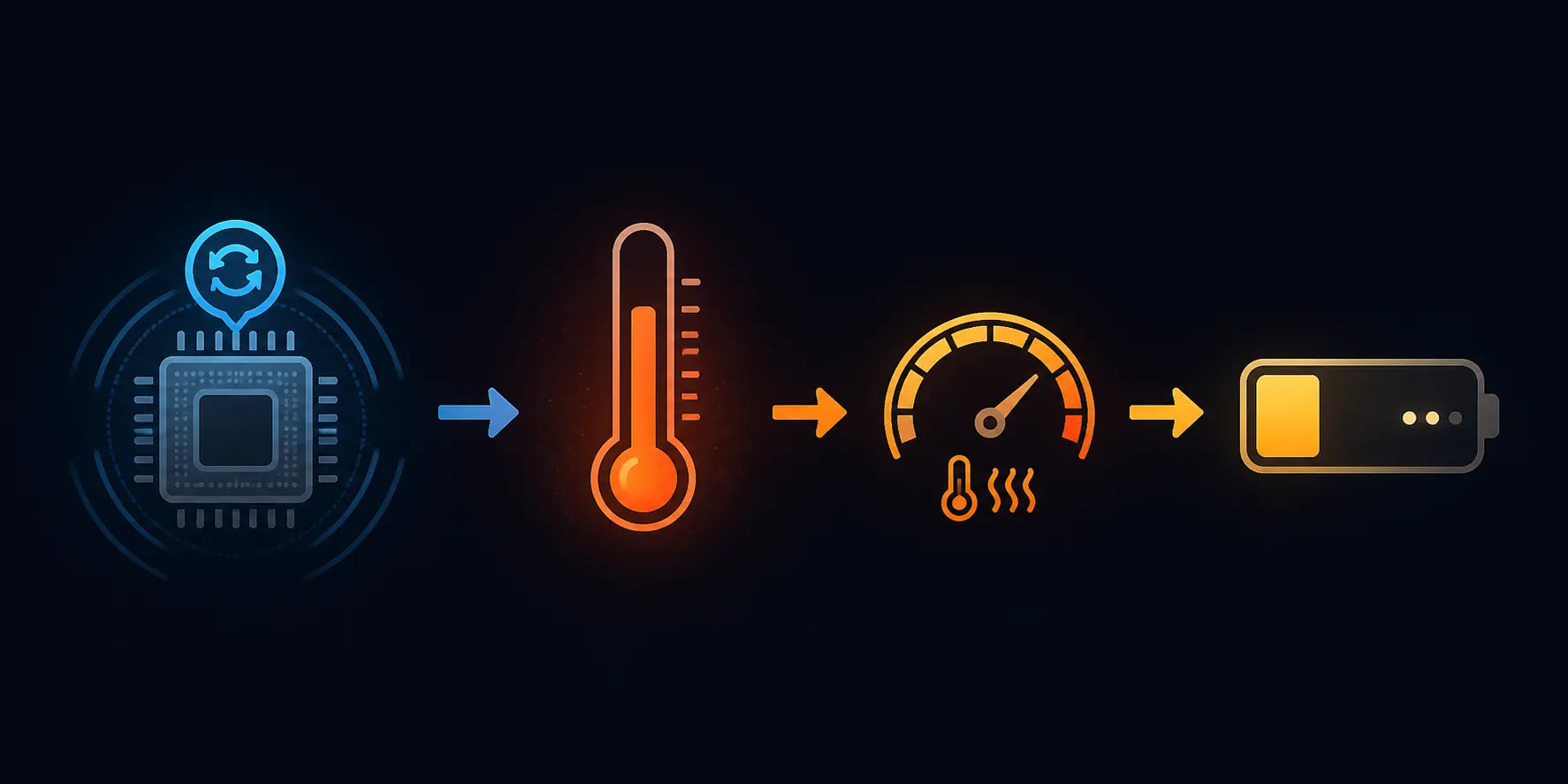
The working diagnosis is simple enough to act on: a likely stuck CPU wakelock keeps the processor awake, heat rises, and thermal protection slows charging. Samsung has not publicly confirmed that root cause as of July 31, 2026, so treat this as the best practical explanation for the shared symptom pattern, not as a confirmed engineering finding.
Try These Fixes In This Order
| Order | Fix | Why it goes here |
|---|---|---|
| 1 | Disable WhatsApp encrypted backup | Most specific reported trigger, low-risk, reversible |
| 2 | Wipe the cache partition | Clears system cache conflicts after the update, if the option is available |
| 3 | Reset battery stats with *#9900# | Useful if battery reporting or thermal interpretation looks confused |
| 4 | Use Thermal Guardian | Shows heat sources and lets you lower the thermal threshold |
| 5 | Check fast charging toggles | The update may have changed charging settings |
| 6 | Try a 3A cable | Can help if charging negotiation is misbehaving |
| 7 | Test Safe mode | Confirms whether another third-party app is keeping the phone awake |
1. Disable WhatsApp Encrypted Backup
Start here, even if WhatsApp does not look like the obvious battery hog. Multiple users across Samsung Community and Reddit threads identified WhatsApp encrypted backup as a background process that can get stuck after the July update, and that trigger was separately reported by TechTimes and Android Police.[1][2]
- Open WhatsApp.
- Go to Settings > Chats > Chat backup.
- Open End-to-end encrypted backup.
- Turn it off temporarily.
- Restart the phone, then leave it locked and unused for 30–60 minutes.
You are looking for a boring result: the phone cools down while idle, the battery stops dropping in chunks, and charging no longer feels capped. If that happens, leave encrypted backup off until Samsung or WhatsApp ships a fix, then re-enable it and watch the phone for another idle period.
This step does not delete your chats. It changes whether future cloud backups are protected by WhatsApp’s end-to-end encrypted backup feature. If you rely on that protection, the tradeoff is real, but the test is still reversible and much less disruptive than a factory reset.
2. Wipe The Cache Partition, If Your Recovery Menu Still Has It
A cache partition wipe is the next sensible move because it targets system leftovers from the update without erasing your photos, apps, or accounts. The catch: Samsung removed this recovery option from some S25-series devices in the February 2026 security patch, so not seeing it does not mean you entered the menu wrong.[1]
- Power the phone off.
- Connect it to a computer with a USB-C cable.
- Hold Volume Up and Power until the recovery menu appears.
- Use the volume keys to highlight Wipe cache partition, then confirm with Power.
- Choose Reboot system now.
If Wipe cache partition is missing, back out and move to the next fix. Do not choose factory reset just because the cache option is gone; that is a much bigger step and it is not justified this early.
3. Reset Battery Stats With *#9900#
The dialer-code step looks odd if you have never used Samsung’s hidden system menus, but the goal is narrow: clear battery usage records so the phone can rebuild its battery and charging picture after the update.
- Open the Phone app.
- Dial *#9900#.
- Choose Batterystats reset or a similarly named battery stats option.
- Exit the menu and restart the phone.
This is not a magic cooling switch. It is useful when the update has left battery reporting, heat behavior, and charge estimates out of sync. Judge it by what happens afterward: idle temperature, hourly drain, and whether charging speed improves once the phone is cool.
Why Heat And Slow Charging Are Happening Together
Some affected phones show Samsung’s Device Care warning that “Some apps or processes are overloading the system (CPU). Your device needs to restart,” which fits the wakelock explanation better than a charger-only problem.[2]
Once the phone is already warm, charging slows because the device protects the battery. Reports around this regression cite thermal throttling once internal temperature exceeds roughly 38°C, and one charging-time example described a full charge stretching from about 70 minutes to about 3 hours. That charging-time number comes from a single cited S24 Ultra owner, so use it as an example of the slowdown pattern, not as a guaranteed S25 Ultra measurement.[1]
4. Use Thermal Guardian To See What Is Heating The Phone
Thermal Guardian, part of Samsung’s Good Guardians suite, is worth using before you start uninstalling random apps. It gives you a clearer view of heat sources and lets you adjust the thermal threshold so the phone behaves more conservatively while you wait for a patch.
- Install Good Guardians from the Galaxy Store if it is available in your region.
- Open Thermal Guardian.
- Check which apps or system components appear around the heat spike.
- Lower the thermal threshold if the phone keeps warming while idle.
If WhatsApp keeps appearing around the heat events, go back to the first fix and leave encrypted backup disabled for longer. If another app appears consistently, do not guess; update it, restrict its background battery use, or uninstall it temporarily and retest.
5. Verify Super Fast Charging And Fast Wireless Charging
After a system update, check the charging toggles before blaming the brick or cable. Go to Settings > Battery > Charging, then make sure Super Fast Charging and Fast Wireless Charging are enabled if you normally use them.
This will not fix a hot CPU by itself. It only removes one easy variable: a setting reset that makes normal charging look broken even after the heat problem calms down.
6. Try A 3A Cable
If the phone is cool but still negotiates charging badly, try a known-good 3A USB-C cable. This workaround comes from earlier S25-series charging trouble, where changing the cable helped some devices complete charging more normally.
Do this as a quick A/B test: same charger, different cable, phone below its heat limit. If charging only improves once the phone cools, the real problem was still thermal throttling, not the cable.
7. Use Safe Mode To Catch Another App
Safe mode is the broader isolation test. It disables user-installed apps, so it can tell you whether WhatsApp or another third-party app is keeping the phone awake after CZG3.
- Hold the Power button or open the power menu from Quick Settings.
- Touch and hold Power off.
- Tap Safe mode.
- Leave the phone locked and unused long enough to compare idle drain.
If idle drain drops sharply in Safe mode, a third-party app is involved. Reboot normally, then remove or restrict recently updated apps one at a time, starting with messaging, backup, security, and automation apps that run in the background.
What To Do If None Of This Works
A Samsung Community moderator reportedly said the behavior “may be related to a software optimisation issue introduced with the update rather than an individual device problem,” but that is not the same as a public Samsung engineering confirmation.[3][4]
There is at least a reasonable patch precedent. Similar wakelock-style battery regressions have appeared around earlier One UI updates, including One UI 5.1 keyboard drain, One UI 7 reports affecting S24 and Z Fold 5, One UI 8 reports affecting S23, and One UI 8.5 reports affecting Z Fold 7; coverage of those incidents says Samsung resolved them with follow-up monthly patches.[2][5]
If all seven workarounds fail, submit diagnostic logs through Samsung Members while the phone is hot or shortly after the drain event. Include the build number CZG3 if that is what your phone shows, the approximate idle drain per hour, whether Device Care showed a CPU overload warning, and which of the fixes you already tried. Then keep the phone updated and watch for the expected August 2026 patch; as of July 31, 2026, Samsung has not publicly guaranteed that patch as the fix.
References
- Galaxy Ultra Battery Drain After July Patch Traced to CPU Loop, Samsung Silent, TechTimes
- Galaxy S25 and S24 Ultra owners report overheating and battery drain after Samsung's latest update, Android Police
- Battery Problems on Your Samsung Phone After July Update? You're Not Alone, PCMag
- Samsung's July patch causes problems for Galaxy S24, S25 Ultra, and users have proof, Android Central
- Galaxy S25 Ultra and S24 Ultra owners report severe battery drain and overheating issues after July update, Notebookcheck
Corroborating context
For protocol background on why this failure happens, see Compatibility & Protocols.
Not currently linked to a known regression. Background on the underlying protocol lives in Compatibility & Protocols.