Which Smart Home App Should You Use on Galaxy Watch 8?
This article compares the three smart home control pathways on the Galaxy Watch 8 — SmartThings, Google Home, and Home Assistant — to help you decide which works with your existing devices and hub before you buy.
- Symptom
- Unable to control smart home devices from Galaxy Watch 8
- Affected ecosystem
- SmartThings, Google Home, Home Assistant
- Protocol
- Matter, Zigbee, Z-Wave, Thread, Wi-Fi
- Status
- Workaround
- Difficulty
- Easy
- Last verified
Before buying a Galaxy Watch 8 for smart home control, the useful question is not whether the watch has “smart home control.” It does. The useful question is which control path can actually reach the devices, rooms, hubs, scenes, and scripts you already use.
On Galaxy Watch 8, the serious choices are SmartThings, Google Home, and Home Assistant. They overlap at the surface — lights, switches, tiles, quick controls — but they do not inherit one another’s ecosystems. A home that feels complete in Google Home may look thin in SmartThings. A Home Assistant dashboard that exposes every relay and helper will not magically appear inside Samsung’s native watch app. That difference matters more than the watch hardware.
The Compatibility Matrix That Actually Matters
| Watch app | Best fit | Setup requirement | Control depth on watch | Custom tile support | Known limits |
|---|---|---|---|---|---|
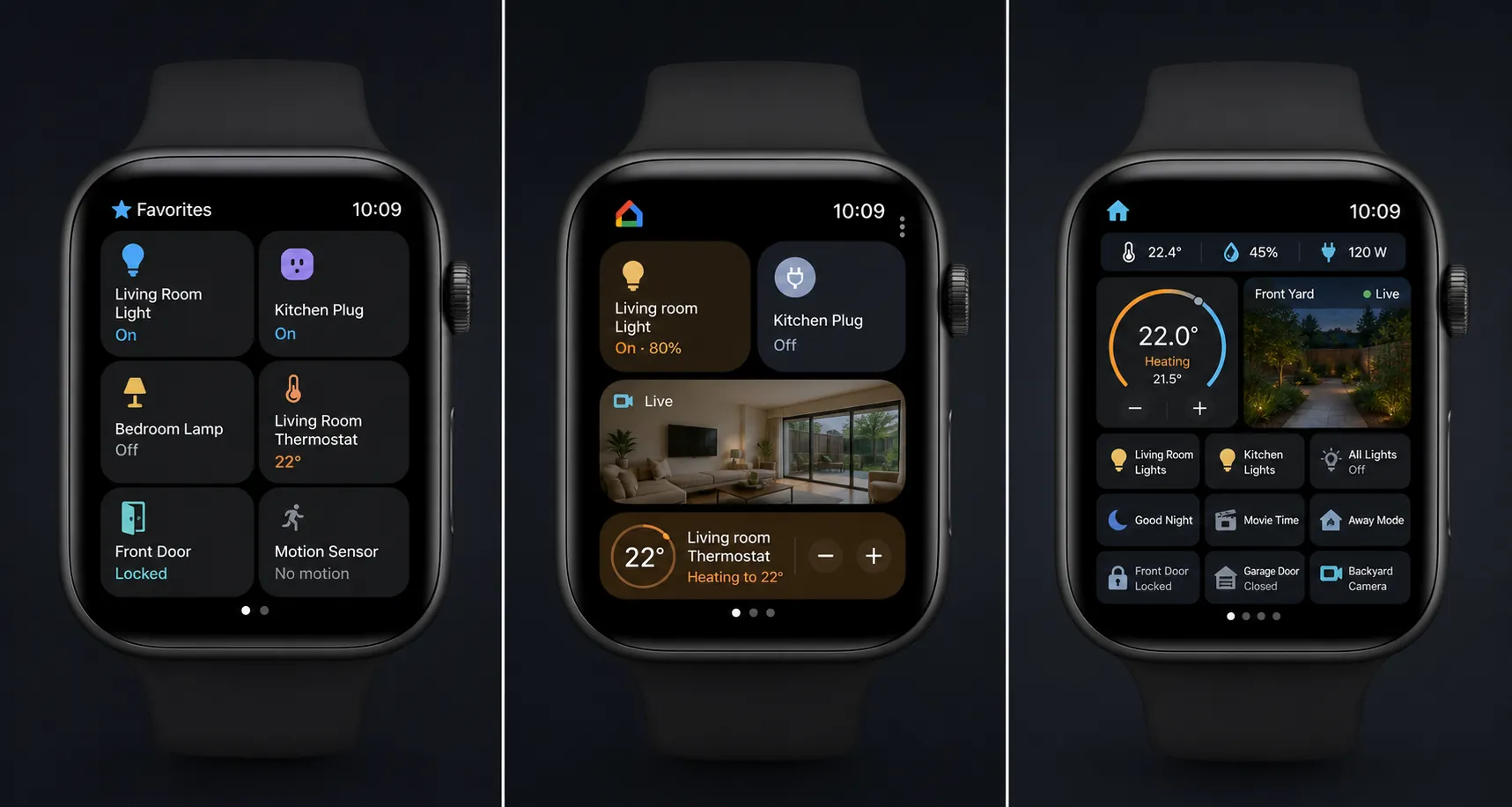
| SmartThings | Homes already organized in SmartThings, especially Samsung-heavy or SmartThings-hub setups | Requires a Samsung Account and devices added from the phone first; the watch controls existing SmartThings devices rather than commissioning a new home from your wrist [1][2] | Controls supported SmartThings device categories, including TVs, speakers, air conditioners, robot vacuums, lights, air purifiers, thermostats, blinds, and supported camera livestreams [5] | Uses the SmartThings watch app and synced favorites-oriented control surfaces; not a free-form custom tile builder | Deepest Samsung-native path, but phone-first setup and Favorites-style organization are practical boundaries, not small-print details |
| Google Home | Homes where the devices you care about are already in Google Home Favorites | Requires Wear OS 3 or later, Android 9.0 or later, and the latest Google Home app on both watch and phone [3] | Favorites tile supports up to 5 devices; the Wear OS app also supports complications, camera and doorbell livestreaming, and certain device controls such as fan speed, TV input, robot vacuum dock, AC modes, and volume [3][6] | Tile is Google’s Favorites surface, not a custom automation dashboard | Good for basic Google Home control; some Galaxy Watch users have reported blank tiles or home-selection loops, but those reports are anecdotal rather than an official platform defect |
| Home Assistant | Existing Home Assistant households that want granular wrist control | Requires a working Home Assistant setup and the Wear OS companion app; features are documented by Home Assistant for Wear OS, but Galaxy Watch 8-specific Wear OS 6 behavior has not been independently verified in the available material [4] | Supports buttons, covers, fans, lights, locks, scenes, scripts, switches, custom tiles, camera tiles, thermostat tiles, Assist, and complications [4] | Yes: shortcuts, template, camera, Assist, and thermostat tiles are supported in the Wear OS companion app [4] | Most flexible path, but only sensible if you can maintain the Home Assistant system behind it |
That table is the decision. If your house already lives in SmartThings, use SmartThings first. If your wrist needs are mostly “turn off these few Google Home favorites” and “peek at a doorbell or camera,” Google Home is enough to test before getting more elaborate. If your home already runs through Home Assistant and you care about scripts, entities, helper-driven logic, or custom surfaces, Home Assistant is the only one of the three that behaves like a real extension of an advanced setup.
SmartThings: The Native Galaxy Path, With Phone-First Rules
SmartThings is the app many Galaxy Watch 8 buyers will assume is the default answer, and in Samsung homes that assumption is often reasonable. The Galaxy Watch 8 runs Wear OS 6 with One UI 8, and Samsung’s support material points users to install SmartThings from Google Play on the watch [1]. Samsung also documents SmartThings support for Galaxy Watch models from the Watch 4 generation onward, which puts the Watch 8 safely inside the supported family [2].
The catch is where setup happens. SmartThings on the watch is not a tiny replacement for the phone app. Devices need to be in your SmartThings account first, with the phone doing the normal setup and organization work [2]. Once that is done, the watch becomes a controller for those existing devices. That distinction is easy to miss on a product page and very obvious when you are standing in a hallway trying to add a new sensor from a one-inch screen.
The supported device list is not trivial. Samsung’s own SmartThings watch-control material includes TVs, speakers, air conditioners, robot vacuum cleaners, and several lighting categories, and a later Galaxy Watch update added air purifiers, thermostats, blinds, and camera livestreaming, including Ring and Nest camera support through SmartThings [5]. For a house already centered on SmartThings, that covers many of the controls people actually want from a wrist: turn off a light, change the thermostat, pause a vacuum, check a camera, or adjust an appliance without pulling out a phone.
SmartThings also has the strongest Samsung ecosystem logic behind it. If your phone, watch, TV, appliances, and SmartThings hub are already tied to the same Samsung Account, the watch feels less like a bolt-on remote and more like another surface for the same home. That is the good version of ecosystem lock-in: fewer translation layers, fewer duplicate device names, and fewer mystery rooms called “Home” because three apps all imported the same bulb differently.
But the same ecosystem advantage can create a false expectation. SmartThings can control Matter and Zigbee devices through the SmartThings ecosystem, but the watch is not the place where that ecosystem is built [2]. A Matter device that lives only in another app does not become a fully useful SmartThings watch device just because Matter exists as a standard. A Zigbee sensor paired to a non-SmartThings coordinator does not become visible to the Galaxy Watch because the watch is nearby. The route matters: device to hub or platform first, watch second.
That makes SmartThings the right answer when your existing home is already shaped around SmartThings Favorites and supported device categories. It is the wrong answer if what you really mean is, “I have devices scattered across Google Home, Alexa, Home Assistant, a vendor app, and a Zigbee coordinator, and I want Samsung’s watch app to unify all of it.” It will not do that cleanly by itself.
Google Home: Useful Favorites Control, Not a Whole-House Console
Google Home on Wear OS is the straightforward choice if the devices you want on your wrist are already in Google Home and you mostly need quick access. Google documents a Favorites tile with up to 5 devices, watch face complications, camera and doorbell livestreaming, and app-based controls for supported devices [3]. Google’s Wear OS support requirements are also clear: Wear OS 3 or later, Android 9.0 or later, and the latest Google Home app on both the watch and phone [3]. The Galaxy Watch 8 clears the Wear OS side of that requirement.
The practical ceiling is the Favorites model. Five devices on a tile is fine for a front-door lock, a couple of lights, a camera, and maybe a thermostat shortcut. It is not a serious navigation structure for a large mixed home. You can still open the app for more, and Google has expanded deeper controls such as fan speed, TV input, robot vacuum dock, AC modes, and volume, but the watch experience is still organized around quick access rather than custom control design [3][6].
There is also a rough-edge note worth keeping separate from official documentation. Some Galaxy Watch users have reported Google Home tile problems such as a blank tile or a loop that asks them to select a home. Those reports are useful buying-context warnings, especially if your whole plan depends on a tile behaving cleanly every day. They are not, from the available material, confirmed Samsung or Google defects with a single documented cause.
So the Google Home answer is narrow but respectable: choose it if your daily watch controls fit inside Google’s Favorites idea and you are not expecting a full dashboard. If your home is already in Google Home and your wrist use is mostly lights, cameras, doorbell checks, and a few device adjustments, it is the lowest-effort path to try.
Home Assistant: The Best Wrist Controller If You Already Live There
Home Assistant is the most capable option in this comparison because it is not trying to be only a brand ecosystem remote. The Wear OS companion app supports common domains such as buttons, covers, fans, lights, locks, scenes, scripts, and switches, and it adds watch-specific surfaces including shortcuts, template tiles, camera tiles, Assist tiles, thermostat tiles, and complications [4]. That is a different class of control from a fixed favorites tile.
This matters if your smart home has already moved beyond device toggles. In Home Assistant, a wrist button can point at a scene, a script, or an entity exposed exactly the way you want it. A tile can show a camera or a thermostat control. A complication can put a status or shortcut on the watch face. The watch does not need to understand every vendor ecosystem separately because Home Assistant has already done the aggregation work.
The companion app documentation also says the Wear OS app can work over Wi-Fi or LTE without a phone [4]. That is a real advantage for a watch controller. If the phone is charging in another room, the watch can still be useful as long as the Home Assistant connection path is available. For LTE watch owners, that changes the watch from a Bluetooth accessory into a more independent control surface.
The responsible caveat is that the available Home Assistant documentation is Wear OS companion documentation, not a Galaxy Watch 8-specific validation report. The Watch 8 runs Wear OS 6, but the research here does not independently verify every Home Assistant Wear OS feature on Galaxy Watch 8 hardware. If Home Assistant is the reason you are buying the watch, check current companion app reports from users on the same watch generation before treating every documented Wear OS feature as guaranteed on day one.
That caveat does not make Home Assistant a weak option. It makes it an advanced option. If your household already depends on Home Assistant, this is the path that can expose the controls you actually built instead of forcing you back into a vendor’s idea of favorites. If you do not already run Home Assistant, buying a Galaxy Watch 8 is not a good reason to casually start maintaining a server, integrations, remote access, backups, and automations.
Matter 1.6 Is Not Yet a Watch-Buying Reason
Matter deserves one clarification because it is easy to overread. SmartThings currently supports Matter 1.5, while Matter 1.6 was announced by the Connectivity Standards Alliance in June 2026 with features including two-way NFC setup, Joint Fabric for multi-platform control, and Thread Direct for NFC-only device setup without a border router [7]. Those are relevant developments for smart home setup in general.
They are not, yet, a reason to assume the Galaxy Watch 8 will solve cross-platform smart home control through SmartThings. The available reporting frames SmartThings support for Matter 1.6 as possible rather than confirmed, and no SmartThings timing is established in the material [7]. For a pre-purchase decision, treat Matter 1.6 as pending context, not a feature you can count on from the watch today.
Do Not Count on NFC Tag Automations
There is one shared gap that cuts across all three app paths: NFC tag automations. A July 2026 How-To Geek report says Galaxy Watch 8 NFC is restricted to Samsung Pay and Google Wallet, citing Samsung’s security position, and therefore cannot be used for smart home NFC tag automation in the way some other Wear OS watches can [8].
That should be treated as an attributed limitation rather than an official Samsung support-page quote, because the available research did not include a Samsung page explicitly documenting the restriction for smart home use. Still, if your plan is to tap the watch to NFC tags around the house to trigger scenes, do not build the buying decision around that working on Galaxy Watch 8.
Which App Should You Use?
Use SmartThings if your smart home is already organized there and you want the most Samsung-native wrist control. It is the best fit for supported SmartThings devices, Samsung Account-based setup, and a home where the phone app has already done the pairing and organization work. Just do not expect the watch to commission new devices or absorb every device from other ecosystems on its own.
Use Google Home if your needs are basic and your most-used controls already sit in Google Home Favorites. It is a sensible path for quick lights, cameras, doorbells, and selected device adjustments, especially if you want something simple. Test the tile behavior early, because user-reported rough edges matter most when a tile is the thing you expected to use every day.
Use Home Assistant if your home already runs through Home Assistant and you want the watch to reflect that custom setup. It is the strongest route for scripts, scenes, entities, custom tiles, complications, and more independent Wi-Fi or LTE control. It is also the one option here that assumes you are comfortable owning the maintenance burden behind the interface.
The Galaxy Watch 8 can be a good smart home controller, but it is not one controller for every smart home. Match the app to the system that already runs your house: SmartThings for a SmartThings home, Google Home for a small set of Google Favorites, and Home Assistant for an HA-managed home that needs custom wrist control. And leave NFC tag automations out of the plan.
References
- Use the SmartThings app on your Samsung smart watch, Samsung US
- About SmartThings for the Galaxy Watch, Samsung Singapore
- Control Google Home devices from your watch, Google Home Help
- Wear OS, Home Assistant Companion Docs
- Samsung Galaxy Watch Update Offers New Smart Home Controls, Samsung Newsroom US, January 2023
- Google Home for Wear OS is getting new smart home controls, SamMobile, July 2024
- SmartThings could get these new Matter 1.6 features, SamMobile, June 2026
- The Galaxy Watch 8 Has One Big NFC Limitation, How-To Geek, July 2026
Did this fix work for you?
Report whether this fix resolved your case, or flag a correction if firmware or app behavior has since changed.