
Fix your smart home app after a Galaxy S27 Ultra update
SmartThings crashes, white screen, missing or offline devices, routines missing after a Samsung Galaxy update
Last updated
If you searched for a “Samsung Galaxy S27 Ultra software update smart home app fix,” start with the status problem: as of Aug. 4, 2026, the Galaxy S27 Ultra is not in general release. Early One UI 9.5 development for the S27 Ultra has been reported, but that is not the same thing as reproducible retail-hardware testing in a kitchen full of actual devices.[1][2]
So the fixes below use two labels. Confirmed means Samsung documents the fix, or it was reproduced on the Galaxy S26 Ultra setup used here as the current flagship proxy. Workaround means the recovery action is useful enough to try before destructive steps, but the evidence is thinner. Investigating means projected to the Galaxy S27 Ultra but not independently reproduced on S27 Ultra hardware yet.
The fastest useful question is not “Which cache should I clear?” It is: which layer updated — the phone OS, the SmartThings app, or the SmartThings hub firmware? Those three failures look similar when you are staring at offline lights, but they do not recover the same way.
First, identify the update surface
| What changed | Typical symptom | Best first move | S27 Ultra status |
|---|---|---|---|
| Galaxy phone OS / One UI update | SmartThings crashes at launch, permissions behave oddly, several apps are unstable | Use Samsung’s app-after-update ladder: update app, check permissions, force stop, clear cache before data, update Google Play system, reboot, reinstall, safe mode.[3] | Investigating — not reproducible on S27 Ultra retail hardware yet |
| SmartThings app update, including 1.8.45.24 or 1.8.47.24-era builds | App opens to a white screen, Scan nearby crashes, devices or routines appear missing | Treat SmartThings itself as the suspect before rebuilding the hub or home layout.[4][5] | Investigating — S26 Ultra findings only |
| SmartThings hub firmware, including 0.60.12 or 0.61.6-era reports | Devices show offline, wrong status, or Matter/Zigbee devices behave differently while the phone app still opens | Check hub health, hub firmware, device class, and battery-powered sensor recovery before reinstalling the phone app.[6][7] | Investigating for S27 Ultra; hub-side behavior is not phone-model-specific in the same way |
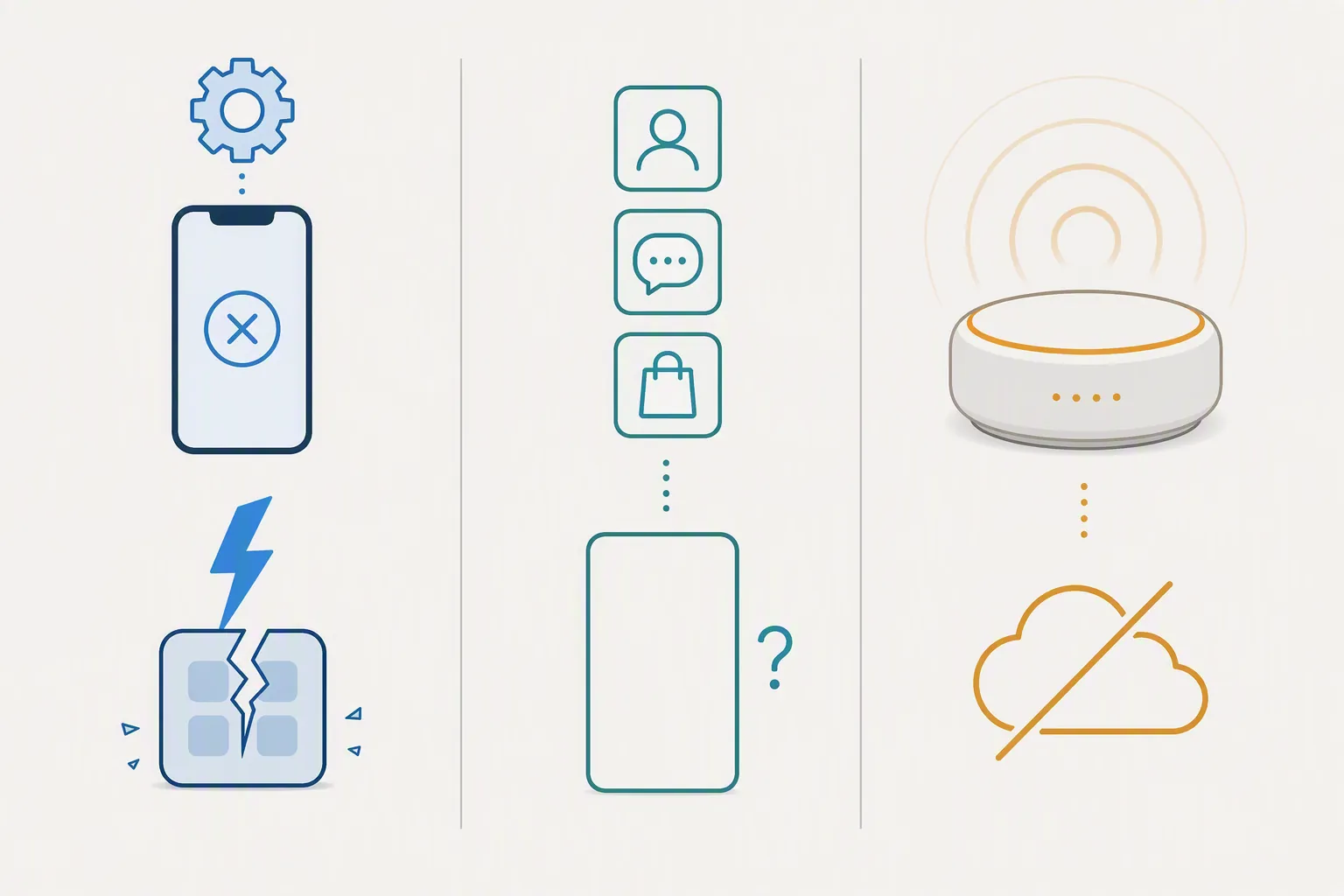
Do not start by factory resetting the phone or deleting your SmartThings home. Those are recovery actions with a cleanup bill attached: accounts, rooms, device assignments, routines, and household members may all need attention afterward. Start with the surface that changed.
Symptom-to-fix map
| Symptom after update | Likely surface | Try first | Status |
|---|---|---|---|
| SmartThings crashes as soon as it launches | Phone OS or SmartThings app | Force stop SmartThings, clear cache, update SmartThings, reboot. If still broken, continue through Samsung’s documented ladder before clearing data.[3] | Confirmed baseline (Samsung) |
| SmartThings crashes when entering Scan nearby | SmartThings app plus Location setting | Turn Location on, update SmartThings, then restart the phone.[8] | Confirmed by Samsung for SmartThings 1.8.45 |
| White screen after SmartThings app update | SmartThings app | Force stop, reopen, wait briefly, and try tapping through only if the UI is responsive. If not, clear cache, then consider reinstalling. | Workaround — not independently reproduced on S27 Ultra |
| Devices are missing but the app opens | SmartThings account sync or app state | Confirm the right Samsung account, sign out/in only after checking the app version, then use Samsung’s device-not-recognized troubleshooting path.[9] | Workaround / Samsung baseline |
| Devices show offline or wrong status after hub firmware update | SmartThings hub firmware or device network | Check hub status, hub LED, firmware version, and device class. For affected battery Zigbee sensors, a battery pull may be faster than app reinstall.[6][10] | Confirmed/Workaround depending on device class |
| Routines appear gone | SmartThings app state or account sync | Check account and home first, then force stop and clear cache. Clear data or reinstall only after confirming routines are absent from the same account on another device. | Workaround |
The table is deliberately uneven. A crash at launch belongs to Samsung’s phone-side app troubleshooting flow. A Scan nearby crash has a specific Samsung-documented cause. A hub firmware status problem should not be treated like a bad phone install just because it appeared the same week.
If SmartThings crashes at launch
A launch crash is where Samsung’s official ladder is most useful. It is also where people waste the most time by jumping straight to “clear data,” which is not the same as clearing cache. Cache is disposable. Data can force you back through sign-in and app setup.
- Open Settings > Apps > SmartThings. Tap Force stop.
- Open Storage. Tap Clear cache, not Clear data.
- Update SmartThings from the Galaxy Store or Play Store. Samsung’s general SmartThings update guidance treats app currency as an early check, not a last resort.[11]
- Check permissions, especially Location, Nearby devices, Bluetooth, and Notifications where available.
- Check Settings > Security and privacy > Updates > Google Play system update, then restart if prompted.
- Run Device care > Optimize now, then reboot the phone.
- If SmartThings still crashes, uninstall and reinstall the app.
- If the crash survives reinstall, boot into Safe mode to check whether another app is interfering. This is part of Samsung’s documented escalation path for app problems after update.[3]
Only after those steps does Clear data become reasonable. Use it when the app opens inconsistently, gets stuck after sign-in, or keeps loading stale state. Before tapping it, confirm you know the Samsung account used for the home and, if possible, check the same home from another phone or tablet. The goal is to reset a bad local app state, not discover afterward that you were looking at the wrong account.
If Scan nearby crashes
This is the cleanest current SmartThings crash path because Samsung documents a specific version-and-setting interaction: SmartThings 1.8.45 can crash when entering Scan nearby with Location turned off. The fix is to enable Location, update the app, and restart.[8]
- Swipe down and turn on Location.
- Go to Settings > Apps > SmartThings > Permissions and allow the location-related permissions SmartThings needs for discovery.
- Update SmartThings.
- Restart the phone.
- Open SmartThings > Devices > Add device > Scan nearby again.
If Scan nearby works after Location is enabled, do not keep clearing storage or rebuilding devices. You found the failure class. If it still crashes, move back to the launch-crash ladder and note the SmartThings version before changing anything else.
If the app opens to a white screen
A white screen after an app update usually points more toward SmartThings app state than hub firmware. The hub may be fine; the phone app just is not rendering the home view correctly.
- Wait 30 seconds once. Do not repeatedly back out and relaunch while the app is trying to refresh account state.
- Force stop SmartThings.
- Clear cache.
- Relaunch on Wi-Fi, then on mobile data if Wi-Fi fails.
- If the app becomes tappable but blank, try opening a deep link from a SmartThings notification or widget only as a temporary path into the app.
- If the white screen persists, reinstall SmartThings.
A tap-through or notification-entry trick is not a fix; it is a way to get one urgent action done, such as turning off a plug or checking a lock. After that, still capture the app version and update surface, because Samsung support cannot do much with “it went white after the update.”
If devices are missing
Missing devices are different from offline devices. Missing means the app is not showing the device list you expect. Offline means the app knows the device exists but cannot reach it or does not trust its current state.
Start with account and home selection. SmartThings homes can sit under different Samsung accounts, and a post-update sign-in prompt can quietly put a non-enthusiast into the wrong account. Before deleting anything, check the profile icon, selected Location/Home, and whether another household member still sees the devices.
- Confirm the Samsung account.
- Confirm the selected SmartThings Location/Home.
- Check SmartThings app version under Menu > Settings > About SmartThings.
- Force stop and clear cache.
- Sign out and sign back in only after noting the account and app version.
- If a newly added device is not recognized, follow Samsung’s device-not-recognized troubleshooting before assuming the whole home is corrupt.[9]
The sign-out/sign-in step is a workaround, not proof of root cause. It is worth trying because it refreshes account state without deleting the home. It is not strong enough evidence to label a current S27 Ultra account-sync bug.
If devices show offline or wrong status after hub firmware
When the app opens normally but devices are offline or reporting the wrong state, stop working the phone-app checklist and look at the hub side. SmartThings hub firmware 0.61.6 release notes and community discussion include Zigbee health-algorithm changes and battery-sensor offline reports; that is a different class of failure from an Android app crash.[6]
- Check whether the hub itself is online in SmartThings.
- Check the hub LED. If the hub is in an abnormal LED state, fix hub connectivity before touching individual devices.
- Check hub firmware in the SmartThings Advanced Web App under Hubs. Record the full string, such as 000.060.00012 or 000.061.00006.
- Reboot the hub once.
- For battery-powered Zigbee sensors that went offline after a hub update, pull the battery, wait briefly, reinstall it, and let the sensor check back in.
- For powered devices, power-cycle the device rather than deleting it from SmartThings.
- If a Matter bridge or bridged endpoint changed behavior after 0.60.12-era firmware, treat it as a Matter interview or bridge issue first, not as a Galaxy phone problem.[7]
Samsung’s offline-device troubleshooting remains the baseline when a device is visible but unreachable: check power, network, hub state, and device-specific recovery before deleting and re-adding.[10] Deleting a device is expensive because automations, scenes, and voice-assistant links may depend on that device ID.
There is no useful dated Z-Wave-specific regression evidence in the current material, so do not generalize the Zigbee battery-sensor workaround into a Z-Wave claim. If the affected devices are Z-Wave, stick to Samsung’s generic offline-device flow and record the device type when reporting.
If routines appear gone
Routines disappearing is the symptom where a rushed fix can do the most collateral damage. A routine list can look empty because the app is signed into the wrong account, because the wrong home is selected, because app state is stale, or because the app is failing to render. Those do not all deserve the same recovery.
- Check the Samsung account and selected SmartThings home.
- Check from another device if one is available.
- Force stop SmartThings and clear cache.
- Update SmartThings.
- If routines are visible on another device but not on the updated Galaxy, clear SmartThings data on the affected phone.
- If clearing data fails, reinstall SmartThings from the Galaxy Store.
The key check is whether the routines are gone from the account or only from this phone’s view of the account. A local app reset can help the second case. It cannot repair an automation that was actually deleted.
Why an app update belongs on the suspect list
It is tempting to blame the big One UI update because that is the update people remember installing. SmartThings app updates can be the culprit too. In October 2024, Samsung confirmed that a SmartThings app update caused serious problems on older Galaxy S10 and Note 10-era phones, including continuous reboot loops; Samsung suspended the update, and factory reset was reported as the recovery path for affected devices.[12][13]
That incident does not prove a current Galaxy S27 Ultra problem. It involved older Android 12-era devices, not unreleased S27 Ultra retail hardware. Its value here is narrower: it proves that “SmartThings updated” is a real update surface, not a distraction from the phone OS.
There is a similar lesson from the March 2021 Android System WebView mass-crash period, when many Android apps, including SmartThings, could crash because a shared Android component failed.[14] If several unrelated apps crash after an update, widen the diagnosis beyond SmartThings before deleting your smart home data.
The S26 Ultra-to-S27 Ultra boundary
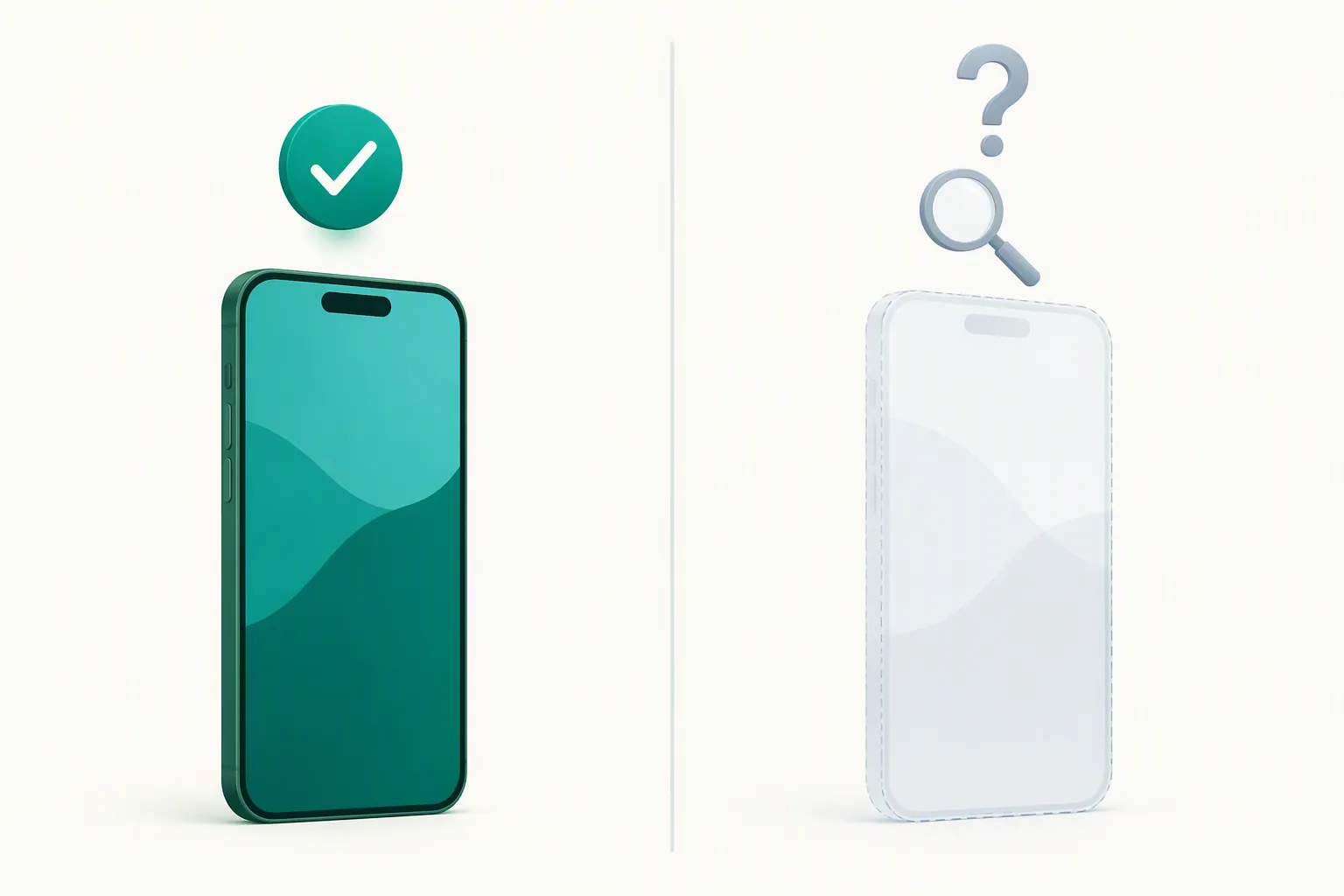
A fix verified on a Galaxy S26 Ultra with One UI 9 / Android 17 and SmartThings 1.8.45.24 or 1.8.47.24 is useful. It is not the same as a Galaxy S27 Ultra confirmation. The S27 Ultra’s expected model string, SM-S958U, belongs in reports as the target device, but until retail hardware is available, every S27-specific fix remains Investigating.[1][2]
| Device | What this guide can say | Label to use |
|---|---|---|
| Galaxy S26 Ultra, SM-S948U | Fixes can be marked Confirmed when Samsung documents them or they are reproduced on the tested S26 Ultra setup. | Confirmed or Workaround, depending on evidence |
| Galaxy S27 Ultra, SM-S958U | No independent retail-hardware reproduction is possible as of Aug. 4, 2026. | Investigating / not yet reproducible |
| Galaxy S25 or older flagships | Phone-side steps usually still apply, but version-specific claims should be checked against the installed One UI and SmartThings versions. | Model-dependent |
That boundary matters because “works on my S26 Ultra” can still save someone’s evening, while “confirmed on S27 Ultra” would be pretending to have hardware no one can yet test in normal release conditions.
What to collect before escalating
A useful Samsung report is boring and specific. It tells support which surface moved and what failed immediately afterward. Screenshot the symptom if you can, but do not let the screenshot replace the version strings.
- Device model: for example, SM-S948U for Galaxy S26 Ultra or SM-S958U for Galaxy S27 Ultra.
- One UI version and Android version.
- SmartThings app version: SmartThings > Menu > Settings > About SmartThings.
- Hub firmware: SmartThings Advanced Web App > Hubs, with the full string such as 000.060.00012 or 000.061.00006.
- Exact symptom: launch crash, Scan nearby crash, white screen, missing devices, offline devices, wrong status, or routines missing.
- What changed first: One UI update, SmartThings app update, hub firmware update, Google Play system update, or unknown.
- What you already tried: force stop, clear cache, clear data, reinstall, reboot, hub reboot, battery pull, sign out/in.
If you use Google Home or Alexa rather than SmartThings, the phone-side pieces still matter: force stop, cache, app update, permissions, Google Play system update, reboot, reinstall, and safe mode. The hub firmware, Zigbee, Matter bridge, and Edge-driver parts of this guide are SmartThings-scoped.
Most post-update smart-home failures can be narrowed before drastic recovery. Treat the update as three possible events, not one: phone OS, SmartThings app, or hub firmware. Once that is named, the fix path usually gets much shorter.
References
- One UI 9.5 spotted for Galaxy S27 Ultra, Android Authority, Aug. 3, 2026
- Samsung began One UI 9.5 development on Galaxy S27 Ultra, SammyFans, Aug. 2, 2026
- TSG10000736, Samsung Support
- Samsung SmartThings Android new update, SamMobile
- SmartThings Android app version 1.8.45.24 April 2026 / 1.8.47.24 June 2026, SmartThings Community
- Hub firmware and Edge driver release notes 0.61.6, SmartThings Community
- Issues with bridged devices April 2026, SmartThings Community
- TSG10010624, Samsung Support
- TSG10007331, Samsung Support
- TSG10007366, Samsung Support
- ANS10002641, Samsung Support
- Samsung confirms a software update wreaked havoc on older Galaxy smartphones, Engadget, Oct. 2024
- Samsung suspends SmartThings update after app bricks Galaxy devices, Korea JoongAng Daily, Oct. 2024
- Android app crashes including SmartThings please read, SmartThings Community
Corroborating context
For protocol background on why this failure happens, see Compatibility & Protocols.
Not currently linked to a known regression. Background on the underlying protocol lives in Compatibility & Protocols.