The easiest way to control a smart home with the Tecno Pova 8 5G is not to treat it like a magic hub. Treat it like three controllers in one pocket: an IR remote for older appliances, an Android Google Home controller for Wi-Fi and Matter devices, and a big-battery phone that can keep those shortcuts, widgets, Bluetooth connections, and notifications alive without becoming another thing you have to charge before dinner.
That distinction matters in a normal home. The TV may not be smart. The air conditioner may only understand infrared. The plug beside the lamp may be Matter-certified. The thermostat may live in Google Home. The lock may need its own setup flow before it appears anywhere useful. The Pova 8 5G can sit in the middle of that mess better than most phones because GSMArena lists an infrared port in its connectivity specs, FoneArena also reports an IR sensor, and the phone ships as an Android 16 device with Google Mobile Services rather than a locked-down smart home ecosystem.[1][2]
The Three Control Layers
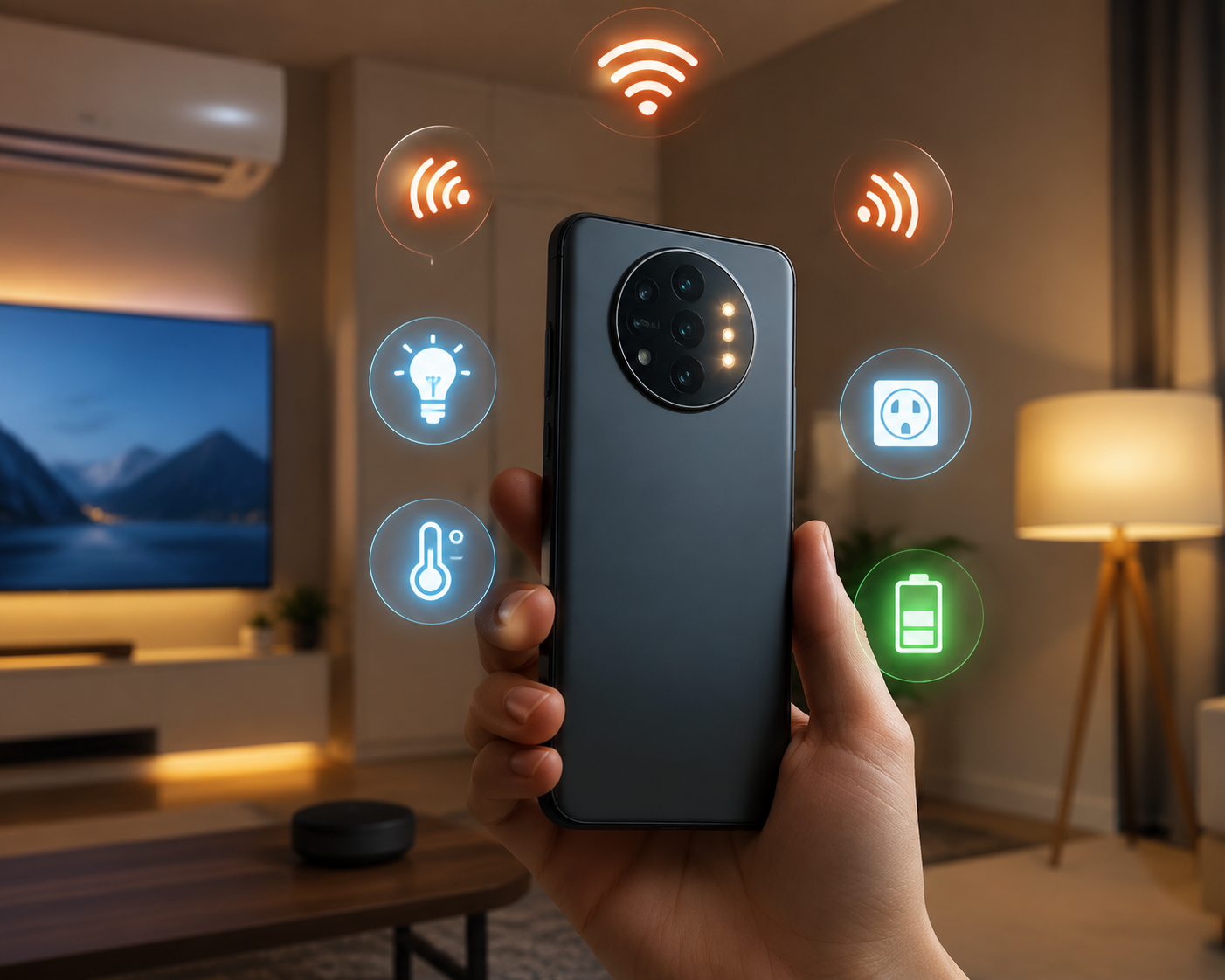
Before opening apps and pairing devices, sort the house by how each thing actually talks. The Pova 8 5G is useful because it can cover more than one control path, but the paths are not interchangeable.
| Layer | What the Pova 8 5G can do | What not to assume |
|---|---|---|
| IR blaster | Send line-of-sight infrared commands to appliances such as TVs, air conditioners, projectors, and compatible curtain controllers. | It does not make those appliances smart, networked, or automatable through Google Home by itself. |
| Google Home | Control compatible Wi-Fi devices, Bluetooth setup flows, Matter-over-Wi-Fi devices, routines, widgets, and supported locks, plugs, lights, thermostats, and sensors. | Matter-over-Thread devices still need a separate Thread Border Router. |
| Battery | Keep smart home services, widgets, notifications, Wi-Fi, Bluetooth, and repeated quick controls available through the day. | Battery size does not replace bridges, hubs, cloud accounts, or protocol radios the phone does not have. |
This is the clean mental map: IR is for the old gear across the room; Google Home is for the networked gear around the house; the 8,000mAh battery is what makes using the phone this way feel practical instead of cute for the first week.
Use The IR Blaster For The Appliances That Never Joined The Network
Start with the least glamorous win: replacing the remote that always disappears. The Pova 8 5G has the hardware for infrared control, which means it can send the same kind of line-of-sight commands used by many TVs, air conditioners, projectors, and some motorized curtain systems.[1][2] Cashify’s IR blaster guidance puts the typical useful range at about 10 to 15 feet and describes the same category of appliance support, so this is a couch-and-room control tool, not a whole-house radio system.[3]
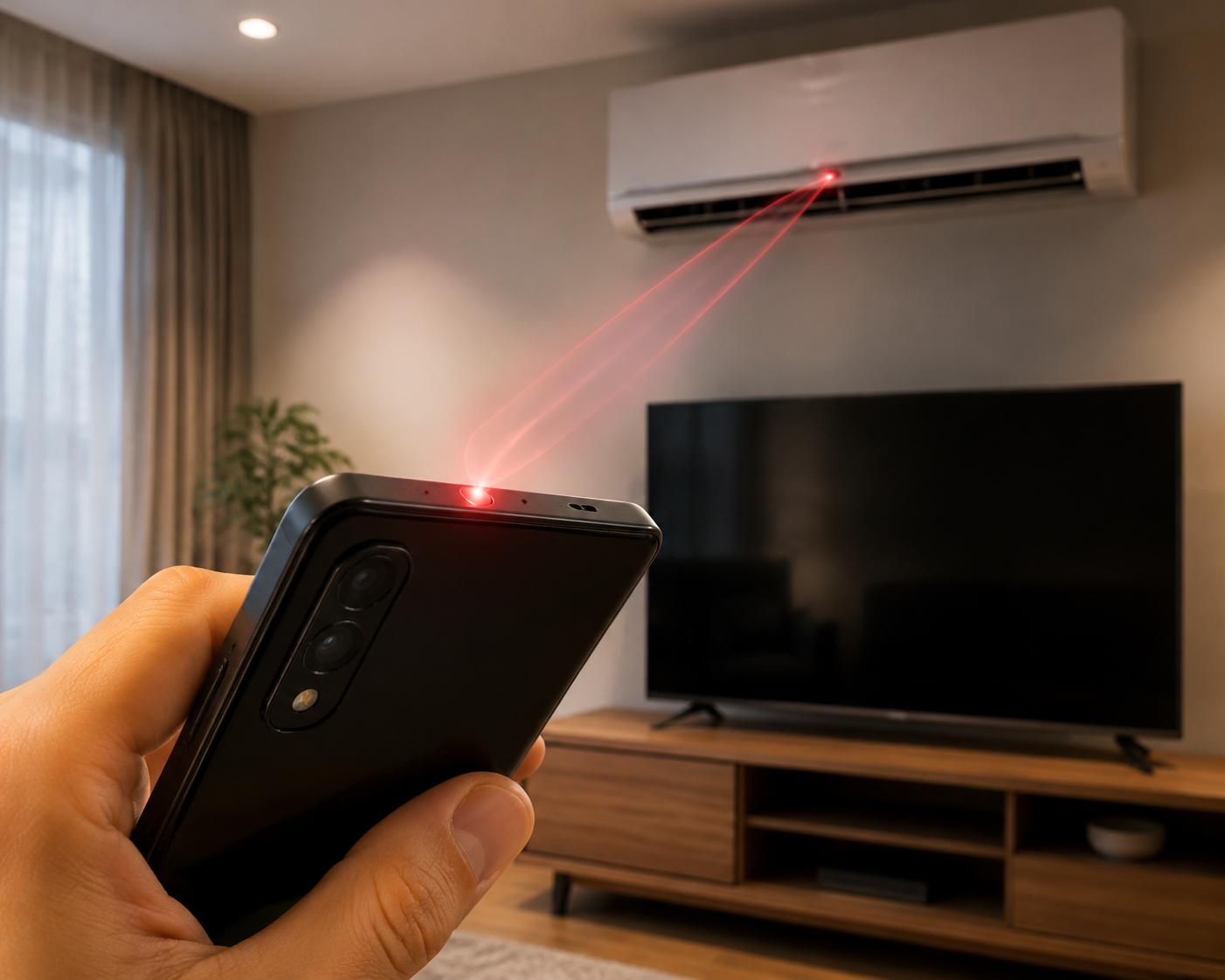
The setup is simple when the right app is present. Open the phone’s tools or utilities folder and look for a remote-control app. Tecno has shipped pre-installed remote apps on other recent models, but the available material does not explicitly confirm the exact stock IR app on the Pova 8 5G. That is a small but real caveat: the IR hardware is confirmed, while the bundled app behavior may depend on region, firmware, or retail build.[1][2]
- Open the built-in remote app if it is installed; if not, install a reputable third-party IR remote app.
- Choose the appliance type first: TV, AC, projector, set-top box, fan, or curtain controller if supported.
- Pick the brand, then test the power button while pointing the top edge of the phone directly at the appliance.
- If power works but volume, temperature, or input switching fails, try the next remote profile for the same brand.
- Save the working profile with a plain name such as Living Room TV or Bedroom AC.
Air conditioners are worth testing patiently. A TV profile can often reveal itself quickly with power, volume, and input. AC remotes may bundle mode, fan speed, swing, and temperature into one transmitted command, so a profile that turns the unit on may still be wrong if cooling mode or temperature changes behave oddly. Stand near the unit for the first setup, test the commands that matter, and only then trust it from the sofa.
IR also has a hard physical limit: the appliance has to see the phone. A pillow, cabinet edge, glass door, or the wrong angle can make a perfect setup look broken. If you want scheduled automation, remote access while away from home, or voice control through speakers, an IR blaster on a phone is usually the wrong tool. For that, you would use a networked IR bridge or replace the appliance with a smart one.
Put Wi-Fi, Matter, And Everyday Controls In Google Home
The broader smart home work happens in Google Home. On the Pova 8 5G, that path makes sense because the phone runs Android 16 with Google Mobile Services, so Google Home is the natural controller rather than a side-loaded compromise.[2] For an Android-first household, that means lights, plugs, thermostats, locks, cameras, sensors, routines, and home/away automations can live in the same place when the devices support Google Home.
The practical setup order is boring, which is exactly what you want. Connect the Pova 8 5G to the home Wi-Fi network you use for device setup. Open Google Home. Create or select the correct home. Then add devices one category at a time instead of dumping every bulb, plug, and sensor into the app in one sitting.
- For a Google-compatible Wi-Fi bulb or plug, use Add > Device in Google Home, then follow the maker’s pairing flow.
- For a Matter-over-Wi-Fi plug, switch, or sensor, scan the Matter setup code and keep the device close to the router during pairing.
- For a lock or thermostat, finish the manufacturer’s required safety or account setup before expecting full controls in Google Home.
- For Bluetooth accessories, keep Bluetooth enabled during setup even if day-to-day control later happens through Wi-Fi or the cloud.
Matter is useful here, but only in the way Matter is actually useful: it can reduce platform lock-in for supported devices. It does not guarantee that every feature from the manufacturer’s app will appear in Google Home, and it does not erase the difference between Wi-Fi and Thread. If you are shopping for switches or plugs, check the radio type before buying; our Matter smart switch buying tips are a better next stop than a generic “Matter works with everything” label.
The important caveat for the Pova 8 5G is Thread. The research materials support Wi-Fi, Bluetooth 5.4, infrared, and Matter-over-Wi-Fi use, but they do not show a Thread radio in the phone.[1] If you buy a Matter-over-Thread sensor, lock, or button, the phone cannot become the Thread Border Router. You need another device in the home, such as a compatible Nest Hub, to bridge that Thread network into the rest of your smart home.
Make The Phone Fast To Use, Not Just Capable
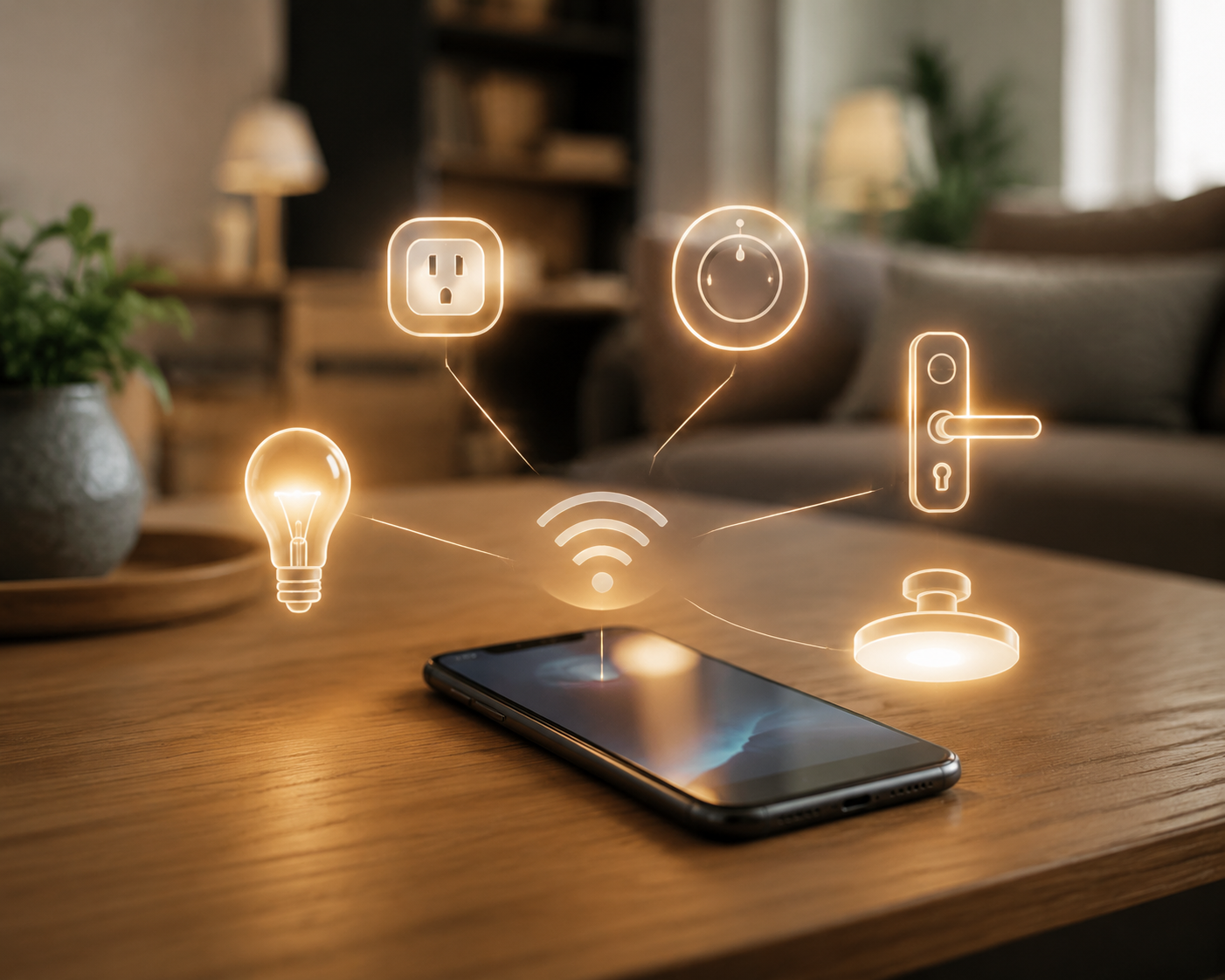
Once the devices are in Google Home, the next job is removing taps. Android Police’s Google Home widget guidance focuses on one-tap device control, which is exactly the point on a large phone that may be sitting beside the sofa or charging stand.[4] Put the devices you touch constantly on the home screen: the main lamp, the hallway light, the fan plug, the thermostat, the garage lamp, or the lock status.
- Use widgets for actions you repeat several times a day.
- Use routines for grouped actions such as movie mode, bedtime, leaving home, or morning lights.
- Use rooms carefully, because bad room names make voice and widget control harder later.
- Keep the manufacturer’s app installed for firmware updates and advanced settings that Google Home may not expose.
TheSmartDad’s 2026 smart home guide recommends Google Home with Gemini AI for Android-first households, which fits the Pova 8 5G better than trying to bend the phone around a rival ecosystem.[5] Voice and AI features are useful when they shorten a real action, such as finding a device, running a routine, or changing several lights at once. They are less useful as decoration over a badly named, badly grouped home.
If you are comparing this approach with using a different Android phone as the main controller, the setup logic is similar to our Google Pixel 11 phone-as-hub guide. The Pova 8 5G’s difference is not that Google Home behaves like a different platform; it is that this phone also brings infrared control and a much larger battery into the same daily object.
The 8,000mAh Battery Is What Makes This Setup Stick
A phone used as a smart home controller gets bothered all day. It wakes for lock alerts, keeps Wi-Fi and Bluetooth ready, shows widgets, receives camera or sensor notifications, opens Google Home for small checks, and then still has to be a phone. That is where the Pova 8 5G’s 8,000mAh battery stops being a spec-sheet flex and starts being the reason this setup is realistic.
GSMArena’s battery testing gives the Pova 8 5G an Active Use Score of more than 17 hours, while FoneArena and Tecno’s launch announcement both position the device around its 8,000mAh capacity and two-day battery claim.[6][2][7] Those figures do not prove your exact smart home runtime, because every home has different apps, signal strength, notifications, and screen habits. They do support the more practical claim: this is the kind of phone you can leave loaded with home controls without feeling as if each widget is stealing the afternoon.
That also matters during small outages and router hiccups. A charged phone with local IR control can still change the AC or TV when the internet side of the house is having a bad day, and a large battery gives you more room to keep checking cameras, hotspot settings, or battery-powered accessories. It will not keep your Wi-Fi bulbs alive if the router and lights have no power, but it is one more useful layer in the same thinking behind a smart home blackout backup plan.
What The Pova 8 5G Should And Should Not Replace
The Pova 8 5G can replace a surprising amount of coffee-table clutter. It can take over many IR remote jobs. It can become the Google Home screen you actually use. It can hold widgets for fast device control. It can pair and manage compatible Wi-Fi, Bluetooth, and Matter-over-Wi-Fi gear. Android Central’s July 2026 review also covers Tecno’s Alive Matrix Display and practical AI features, which may add small convenience touches, but those are secondary to the core smart home job.[8]
It should not be described as replacing every hub in a serious smart home. It is not a Thread Border Router. It does not turn IR appliances into networked devices. It does not remove the need for a manufacturer’s bridge where a device family requires one. It does not guarantee every feature of every Matter device will appear in Google Home. And until you check the retail software on your own unit, the safest claim is that the IR hardware is confirmed, while the exact pre-installed remote app on the Pova 8 5G is not explicitly confirmed in the available material.[1][2]
Used inside those boundaries, the answer is yes: you can control a smart home with the Tecno Pova 8 5G in a way that feels practical. Use IR for the old appliances, Google Home for the connected devices, Matter-over-Wi-Fi where it fits, and the big battery as permission to keep the controls visible and ready. Just do not buy Thread devices expecting the phone itself to be the missing hub.
References
- Tecno Pova 8 5G full specs, GSMArena, https://www.gsmarena.com/
- Tecno Pova 8 5G India launch article, FoneArena, https://www.fonearena.com/
- IR blaster guide, Cashify, https://www.cashify.in/
- Google Home widgets for one-tap device control and IR blaster remote profiles, Android Police, https://www.androidpolice.com/
- 2026 smart home guide, TheSmartDad, https://thesmartdad.com/
- Tecno Pova 8 5G battery review, GSMArena, https://www.gsmarena.com/
- TECNO POVA 8 5G official launch announcement, PRNewswire, https://www.prnewswire.com/
- Tecno Pova 8 5G review, Android Central, July 2026, https://www.androidcentral.com/
Community Tips
Share platform-specific variations, steps that have changed after app updates, or tips that helped your installation succeed.
Comments
Join the discussion with an anonymous comment.