Yes: an old iPhone can handle smart home camera use surprisingly well, as long as you treat it like a small plugged-in appliance instead of a spare phone you occasionally remember to charge. For an indoor hallway, pet crate, nursery corner, garage shelf, or front-room blind spot, the fastest path is still a camera app on the old iPhone and a viewer app on the phone you actually carry.
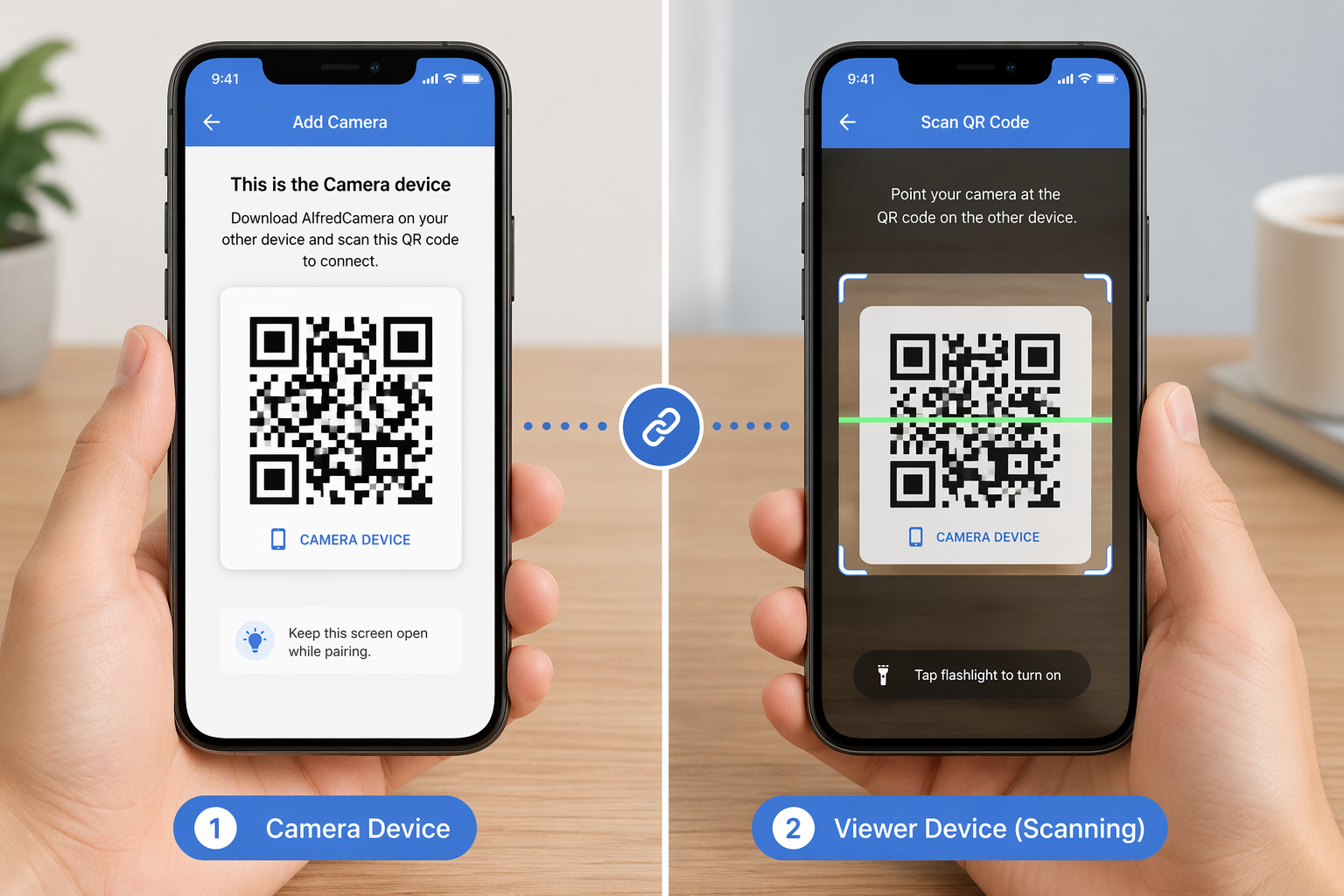
The version that is least likely to turn into a weekend project is AlfredCamera. CNET tested the setup in June 2026 and described a three-step flow that takes about 3 minutes, built around installing the app, assigning one device as the camera and another as the viewer, then pairing them with a QR code; AlfredCamera also says it has been used by more than 90 million families.[1] That does not make it magic, and it does not make it a forever security system. It does mean a normal iPhone owner can get a live feed working without Homebridge, soldering, developer tools, or buying another bargain camera with a mystery app.
The 10-Minute Setup
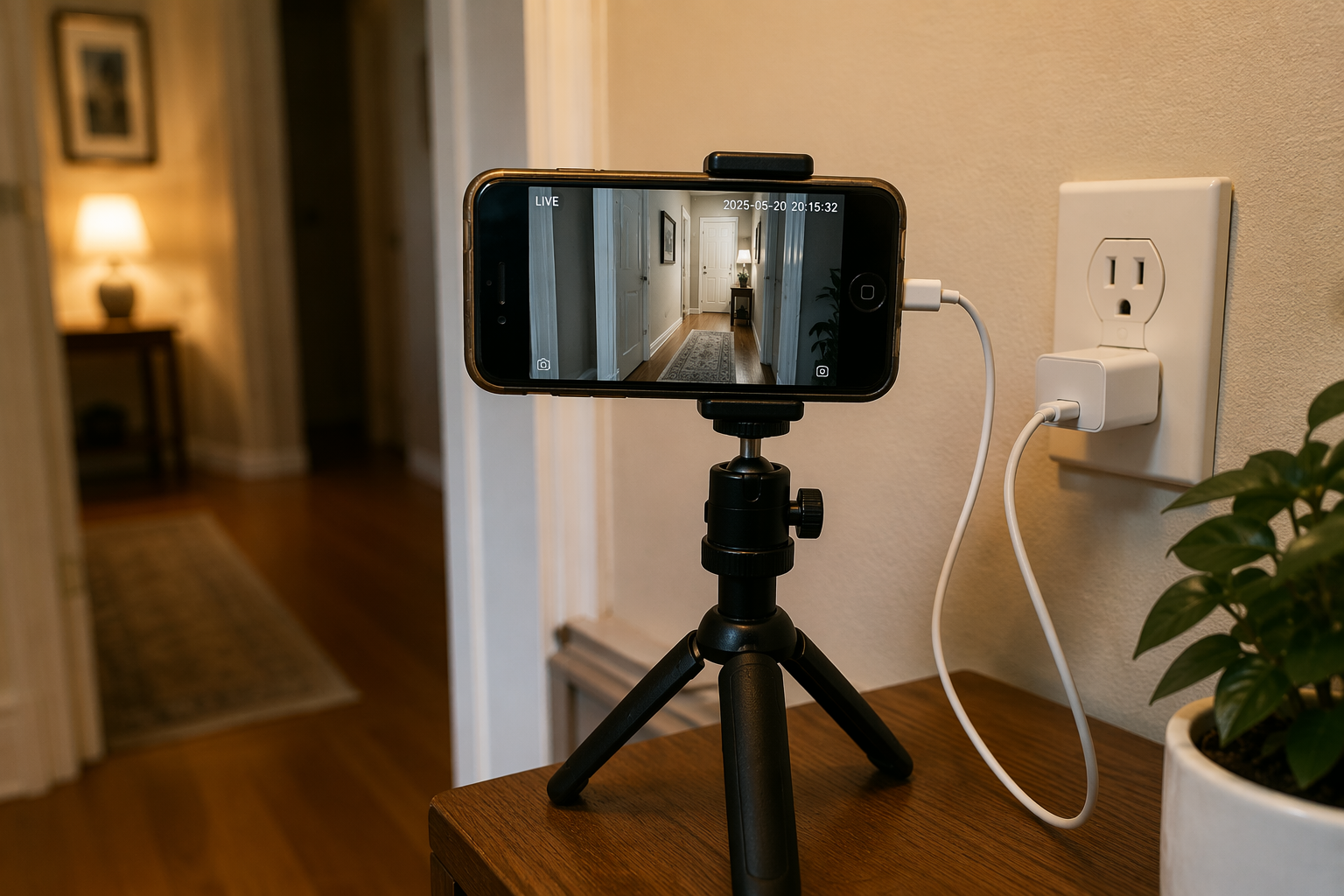
Start with two devices: the old iPhone that will sit in the room, and your current phone that will view the feed. The old iPhone does not need cellular service, but it does need Wi-Fi, a working camera, enough storage to install the app, and a charging cable that can stay connected.
- Install AlfredCamera on the old iPhone and on your current phone.
- Open the app on both devices and sign in using the same account, or follow the app's pairing flow.
- Set the old iPhone as the Camera device.
- Set your current phone as the Viewer device.
- Use the QR-code pairing screen to connect the two devices.
- Plug in the old iPhone, place it where it can see the area you care about, and check the live feed from your current phone.
Once the live view appears, do not call the project finished yet. Walk through the area being watched. Open and close the door if the camera faces an entry. Let the dog cross the frame if this is becoming a pet cam. Say something through two-way audio and listen from the room. The free AlfredCamera tier lists live streaming, motion alerts, two-way audio, and free cloud storage; its Premium plan is listed at $5.99 per month or $29.99 per year and adds HD streaming, zoom, and 30-day cloud storage, though app pricing can change.[2]
That short test matters because the first successful live feed only proves the app is connected. It does not prove the camera can see the crib through the slats, that motion alerts trigger from the hallway angle, or that the charging cable reaches without pulling the phone off a shelf. The good version of this project is boring: the phone stays put, stays powered, stays on Wi-Fi, and sends the alert you expected.
Where to Put the iPhone So It Actually Survives the Night
The camera part is easy. The placement is where most old-phone camera setups become annoying.
Do not run it on battery except for a quick test. Battery-only operation drains within hours, so the iPhone needs 24/7 power. That usually means a wall outlet nearby, a cable that is long enough without being stretched, and a USB power brick you trust to sit there indefinitely. If the phone is old enough to have a tired battery, keeping it plugged in is not optional.
Use a small tripod, clamp, or suction-cup mount instead of leaning the phone against a mug, candle, router, or stack of books. The setup may work for ten minutes balanced on a shelf; it will stop being charming when vibration, a pet, or a tugged cable changes the angle. A tripod also makes it easier to aim slightly downward, which is usually better for catching movement than pointing straight across a room.
| Use case | Better placement | What to check before leaving it |
|---|---|---|
| Hallway or entry | High shelf or tripod near an outlet | Door movement triggers an alert without pointing at a bright window |
| Pet crate | Stable side angle, not directly against the bars | Animal movement is visible and the cable cannot be chewed |
| Nursery corner | Fixed mount away from the crib | Audio is usable, but expectations stay realistic for baby-monitor features |
| Garage shelf | Dry indoor spot with strong Wi-Fi | Phone does not overheat and the feed remains stable |
Wi-Fi is the other quiet failure point. A retired iPhone may have a better camera than a cheap security camera, but it cannot stream through a weak signal forever. Before you commit to the angle, watch the feed from your current phone for a few minutes from another room. If the stream stutters, move the phone closer to the router, shift it away from metal shelving, or choose a less ambitious location.
Heat deserves a quick check too. Keep the iPhone out of direct sun, away from radiators, and off soft surfaces that trap warmth. This is especially true for a phone that is charging continuously while running the camera and Wi-Fi. Warm is normal; hot enough to make you move your hand away is a sign to change the location.
What You Get for Free, and What You Should Not Assume
For a no-new-hardware setup, the feature list is decent. Live view lets you check the room. Motion alerts tell you something changed. Two-way audio lets you speak through the old iPhone. Cloud storage gives you some event history on the free tier, while paid AlfredCamera Premium adds higher-end features such as HD streaming, zoom, and longer cloud storage as listed in the App Store entry.[2]
The iPhone camera itself is the reason this project is worth trying before buying a low-end camera. CoveSmart's comparison argues that an old iPhone camera sensor typically beats sub-$50 dedicated security cameras in low-light detail and effective resolution.[3] That is believable if you have ever compared an iPhone photo to the smeary feed from a bargain indoor cam. It is still an indoor reuse hack, not a replacement for every purpose-built camera.
Also, "free" needs a little discipline. Free can mean no new device purchase and a usable app tier. It does not mean no trade-offs, no cloud dependency, no future pricing changes, or no maintenance. If a feature becomes important to you every day, check whether it lives on the free tier or behind the paid plan before you build routines around it.
Lock Down the Camera iPhone Before You Forget About It
A phone sitting on a shelf as a camera should be boring from a privacy standpoint too. Take a few minutes to strip it down before it becomes furniture.
- Disable unnecessary notifications so private messages, calendar alerts, and app banners are not popping up on the camera phone.
- Remove apps the camera phone no longer needs, especially anything signed into personal accounts.
- Consider using a dedicated Apple ID or Guest Mode if the device does not need access to your personal iCloud data.
- Set a passcode and keep the phone physically out of easy reach.
- Retire the setup when the iPhone is too old to receive iOS security updates; the practical window is generally 5 to 7 years after the model's release.
The security-update point is the one people most often wave away because the phone is "just a camera now." That is exactly why it matters. A camera has a microphone, a lens, a network connection, and an app account. If the iPhone is far outside Apple's update support window, do not make it a permanent sensor inside your home.
If you are more privacy-sensitive, treat this as a camera-system decision rather than only an app setup. Our privacy-first smart home camera setup guide walks through the larger questions: where footage is stored, who can view it, and which rooms should not have cameras at all. Advanced users can also isolate smart home devices on a separate network; that is a bigger project, but a beginner smart home VLAN guide is the right rabbit hole if you already know you want segmentation.
What About FaceTime, HomeKit, and Other Apps?
FaceTime can be forced into camera duty: call the old iPhone, leave the call running, and look in when needed. It is useful to know in a pinch, but it is not the route to recommend. The old iPhone is locked into a continuous call, reliability depends on Wi-Fi and call stability, and you do not get the camera-app features that make this reuse project worthwhile.
Other apps exist. Manything is worth knowing about if you want a multi-camera setup. Faceter leans into surveillance and cloud features. EpocCam is more webcam-oriented. They are context, not homework. If AlfredCamera gives you a stable feed, motion alerts, and the audio you need, there is no prize for comparing every app before watching the hallway.
HomeKit is the tempting detour for Apple households. You can explore Homebridge-based integration if you are comfortable running a Raspberry Pi or Mac-based server, but that turns a simple old-iPhone camera into a platform project. For most readers, it is cleaner to use the app as designed. If native Apple smart home behavior is the real goal, start with the Apple HomeKit platform overview and decide whether you actually want HomeKit Secure Video rather than an old-phone camera.
When the Old iPhone Is the Right Camera
Keep using the iPhone setup when the job is indoor, temporary or semi-permanent, and low stakes enough that a consumer app is acceptable. It is a good fit for checking whether a pet is settling, watching a side hallway, seeing whether a delivery made it inside a shared entry, or covering a room while you decide where a permanent camera should go.
It is also useful as a trial run. A week with the iPhone will tell you whether the angle is useful, whether motion alerts are too noisy, whether anyone in the house hates having a camera in that spot, and whether you actually check the feed. Buying dedicated hardware before answering those questions is how people end up with smart home gear in drawers next to the retired phones.
When to Buy a Dedicated Camera Instead
Buy purpose-built hardware when the limits become the point. An old iPhone does not pan or tilt by itself. It is not weatherproof. It does not come with a dedicated parent-unit display. It is not designed around baby-monitor audio features such as active noise cancellation. It also removes that phone from backup-phone duty, which matters the first time someone cracks a screen and asks whether the old iPhone is still available.
Dedicated HomeKit-friendly cameras also have features the iPhone reuse setup does not neatly replicate. CNET's June 2026 HomeKit camera roundup lists options such as the Aqara Camera Hub G3 under $100 with 2K video and pan/tilt, the Eufy Security Cam E220 with 2K video and 30-foot night vision, and the Eve Outdoor Cam at $250 with a built-in LED and 10-day iCloud storage; all work with HomeKit Secure Video.[4] Those are different products for different jobs, especially outdoors or anywhere long-term patching and ecosystem integration matter more than reuse.
If avoiding cloud storage is the reason you are hesitating over camera apps, compare dedicated models built around local storage before settling on the phone. The best home security cameras without cloud storage are a better match for that priority. If you are waiting for newer smart home camera standards to settle, the Matter 1.5 camera support device tracker is the more relevant place to watch.
The practical recommendation is simple: use the old iPhone as a fast, capable indoor camera when you want low-cost coverage now and can keep it plugged in. Graduate to dedicated hardware when reliability, outdoor use, pan/tilt, native HomeKit Secure Video, baby-monitor behavior, or long-term security support becomes more important than making one more retired phone useful.
References
- Turn an Old Phone Into a Free Security Camera in Just 3 Steps, CNET, June 2026
- AlfredCamera Home Security, App Store
- How to Use Your Old iPhone as a Security Camera, CoveSmart
- Best Home Security Cameras With Apple HomeKit and Siri, CNET, June 2026
Community Tips
Share platform-specific variations, steps that have changed after app updates, or tips that helped your installation succeed.
Comments
Join the discussion with an anonymous comment.