
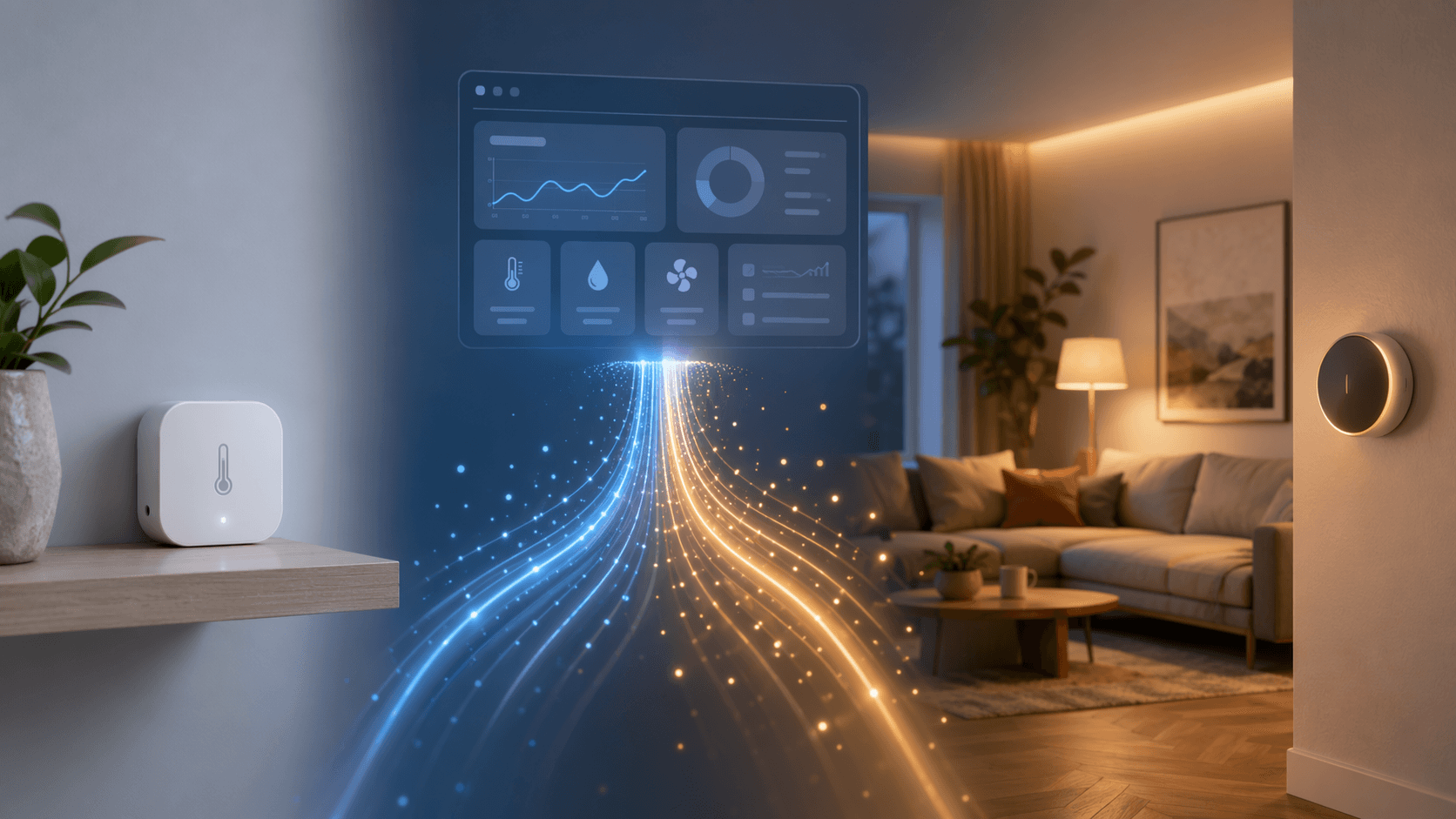
The usual Home Assistant temperature problem does not start with a missing dashboard card. It starts upstairs, where a bedroom or office is 10°F hotter or colder than the main-floor thermostat thinks the house is. The thermostat is doing exactly what it was installed to do: measure the wall it is mounted on. Unfortunately, that wall may have very little to do with the room where someone is trying to sleep or work.[1]
A temperature sensor in Home Assistant fixes that only if you finish the whole chain. Buying the sensor is step one. It still has to speak a protocol your setup can receive, pair cleanly, sit in a place that represents the room, and feed an automation or thermostat helper that actually changes something.
Start with the room, then choose the sensor
For most Home Assistant users adding a first room sensor, Zigbee is the easiest default to recommend without pretending it is perfect. The devices are cheap, widely available, battery powered, and good enough for normal comfort automations. Real-world comparisons put common Zigbee sensors such as the Aqara WSDCGQ11LM around $16–20 with ±0.3°C accuracy, and the Sonoff SNZB-02P around $19 with ±0.2°C accuracy.[2]
That does not mean Zigbee is automatically the right answer. If this sensor is watching a garage, crawlspace, freezer-adjacent area, or any place where a missed report has consequences, Z-Wave deserves a serious look. The Zooz ZSE44 costs more, around $36 in the cited comparisons, but Z-Wave avoids the busy 2.4 GHz band used by Wi-Fi, Bluetooth, and Zigbee, and it can be configured for fast reporting around 30 seconds.[2] If you want the protocol details before buying hardware, this Z-Wave explainer is worth reading before you commit to a stick and sensors.
| Path | Best fit | What to check before buying |
|---|---|---|
| Zigbee | Most rooms, bedrooms, offices, general comfort tracking | You need a Zigbee coordinator or hub supported by Home Assistant; common sensors are typically in the $15–20 range. |
| Z-Wave | Freeze alerts, garages, basements, higher-consequence reporting | You need a Z-Wave controller; expect higher sensor cost but less 2.4 GHz congestion. |
| Wi-Fi / Matter with hub | Users already invested in a specific vendor ecosystem | Some devices still need a vendor hub, such as the Tapo T310 with the H100 hub. |
| BLE | Nearby monitoring where short-range Bluetooth is acceptable | No mesh network; receiver placement matters more. |
| ESPHome | Local-control tinkerers who are comfortable building and maintaining devices | An ESP32 plus a BME280-class sensor can be inexpensive and flexible, but it is a project, not a drop-in sensor. |
Wi-Fi and Matter sensors can make sense if they fit equipment you already own, but they are not automatically simpler in Home Assistant. Wirecutter’s 2026 testing notes the Tapo T310 as a consumer-friendly option, but it requires the Tapo H100 hub.[3] That may be fine; it just means “Wi-Fi-looking” does not always mean “no hub.”
BLE sensors such as the Govee H5075 are attractive because they can be inexpensive, with reported prices around $10–15 and a 2-second sample rate in comparisons.[2] The tradeoff is range and topology. Bluetooth does not give you a Zigbee-style mesh, so the location of your Home Assistant machine, Bluetooth proxy, or receiver becomes part of the design.
ESPHome sits in a different category. An ESP32 with a BME280-class sensor can come in around $15 and gives you local control and full customization.[2] It is a good path if you already like maintaining ESPHome nodes. It is not the route I would hand to someone whose actual goal is to make the upstairs office stop roasting by next weekend.
If you are new to Zigbee, start with the basics: you need a coordinator, not just a sensor. USB coordinators such as Sonoff or ConBee-style sticks are commonly discussed in the $25–40 range, and they let Home Assistant receive and manage Zigbee devices directly.[1] For a deeper protocol primer before buying, see this Zigbee hub and device ecosystem guide.
Pair it in Home Assistant
For a first Home Assistant temperature sensor setup, Zigbee pairing usually happens through one of two paths: ZHA or Zigbee2MQTT. Both work. The better choice depends less on the sensor and more on how much control you want over the Zigbee network.
Pairing with ZHA
- In Home Assistant, go to Settings, then Devices & services.
- Open the ZHA integration.
- Choose Add device.
- Put the temperature sensor into pairing mode. For most small battery sensors, this means holding the device button until an LED flashes.
- Wait for Home Assistant to discover it, then assign it to the correct area, such as Bedroom, Office, Nursery, or Garage.
ZHA is the comfortable choice if you want everything inside Home Assistant and do not need a separate Zigbee management interface. For a simple room temperature sensor, that is often enough.
Pairing with Zigbee2MQTT
- Open the Zigbee2MQTT web interface.
- Enable Permit join.
- Put the sensor into pairing mode.
- Wait for the device to appear, then give it a readable name such as bedroom_temperature_sensor instead of leaving the factory model string.
- Confirm the temperature entity appears in Home Assistant through MQTT discovery.
Zigbee2MQTT gives you more visibility into device support, routing, link quality, and exposed attributes. That extra view is useful once your Zigbee network grows beyond a handful of sensors. It is also one reason many Home Assistant users eventually move there, even if ZHA was the simpler first setup.
Do not debug a sensor from the wrong end. If Home Assistant does not see it, first wake the sensor and try pairing close to the coordinator. If it pairs nearby but drops in the room where you actually need it, the issue is probably route quality, distance, interference, or a weak mesh. That is when this Zigbee device drop-off troubleshooting guide becomes more useful than repeatedly factory-resetting the same coin-cell sensor.
Name the entity like a device you will still understand next year
Once the sensor appears, Home Assistant will usually create entities for temperature, humidity if supported, battery, and sometimes signal quality. The important one is the temperature entity. Rename it before you build automations around it.
A name like sensor.aqara_temperature_4f2a is tolerable for five minutes. A name like sensor.office_temperature or sensor.upstairs_bedroom_temperature is still readable when you are checking an automation six months later. If you use areas in Home Assistant, assign the device to the room now; it helps dashboards, automations, and future voice or scene logic stay sane.
Placement matters more than the last decimal point
This is the part too many sensor roundups skip. A ±0.2°C sensor stuck in sun, mounted over a radiator, or sitting in the cold draft under a door is not a more accurate comfort signal. It is a precise measurement of the wrong microclimate.
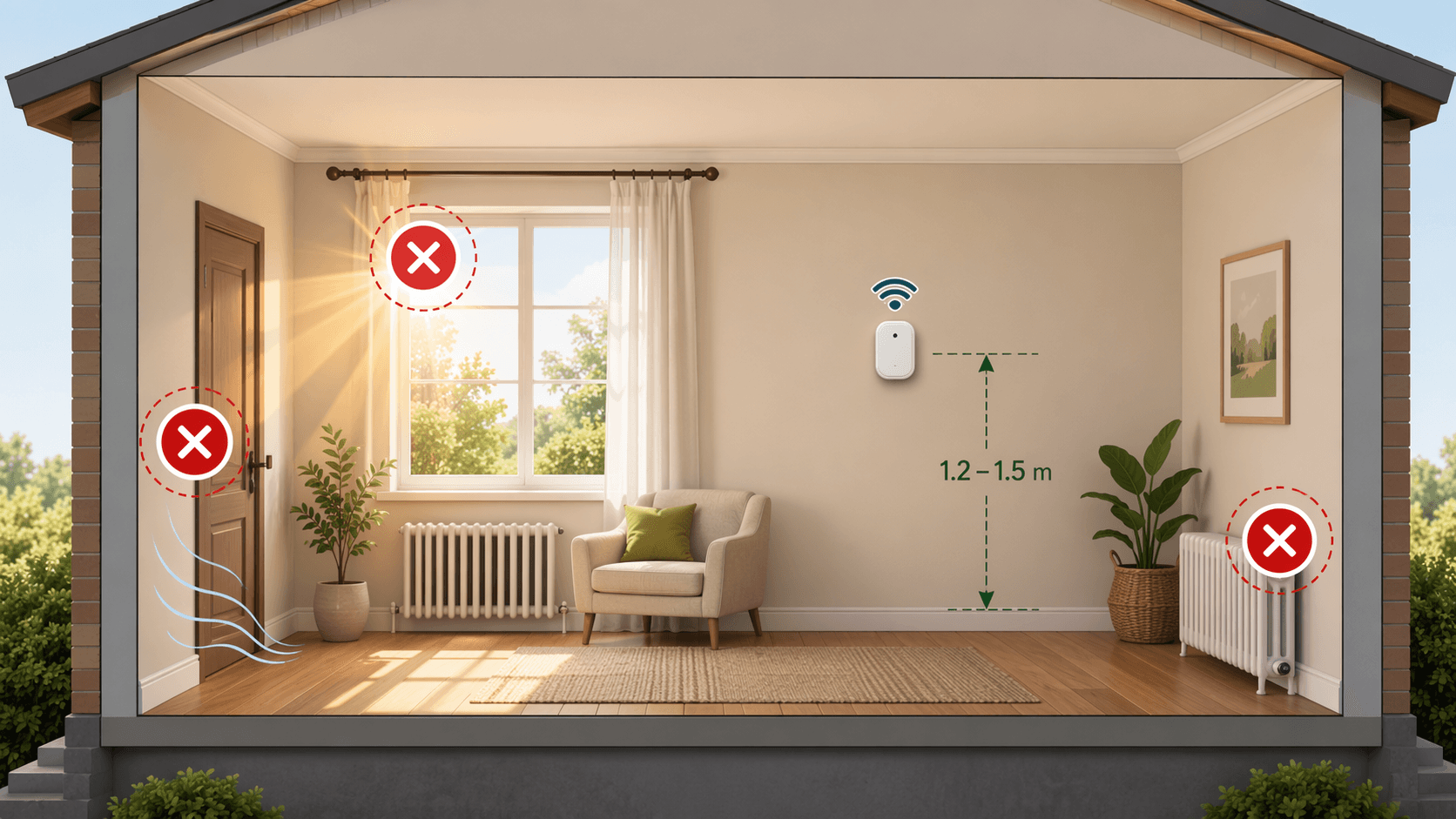
Use the boring placement rule first: mount the sensor about 1.2–1.5 m above the floor on an interior wall, away from direct sunlight, radiators, supply vents, exterior doors, drafty windows, appliances, and electronics that warm the air around them.[1] Then leave it alone for 30–60 minutes before judging the reading.[1]
A shelf can be fine for testing, but it often becomes a permanent bad habit. Shelves near windows see sun. Desks see laptops. Nightstands sit near bodies, lamps, chargers, and exterior walls. If the goal is to control the room, not admire the sensor, give it a boring wall location where the air represents the room people actually feel.
Check the readings before automating anything
Before you connect the sensor to a fan, heater, notification, or thermostat helper, watch it in Home Assistant for a short period. You are looking for three things: whether it updates, whether the values are plausible, and whether the room behavior matches what people complain about.
- If the value never changes, wake the sensor and confirm it is still connected.
- If the value jumps wildly, check placement before blaming the sensor.
- If the reading is consistently offset from another thermometer, decide whether the difference matters for the automation you are building.
- If reports are too slow for the job, reconsider the protocol and model instead of forcing a comfort automation to work with stale data.
Update behavior varies by device and protocol. Real-world comparisons have found fast configurable reporting around 30 seconds for the Zooz ZSE44, roughly 10-second reporting during active changes for some Aqara Zigbee behavior, and much slower polling in some multi-purpose devices such as Hue motion sensors at around 5 minutes.[2][4] That does not make the slower device useless. It just changes what jobs it should be given.
Make it useful with Generic Thermostat
Now the sensor gets to do something. Home Assistant’s Generic Thermostat integration creates a thermostat entity from a temperature sensor and a switch-controlled heater, fan, relay, smart plug, or other controllable device. The temperature sensor becomes the target_sensor, and Home Assistant turns the controlled device on or off based on the setpoint and tolerance rules.[5]
For many users, the UI helper is the right place to start. Go to Settings, then Devices & services, then Helpers, and create a Generic Thermostat helper if your Home Assistant version exposes the options you need. Choose the temperature sensor for the room and the switch or climate-adjacent device that should respond.
If you are integrating with a full HVAC system rather than a simple fan, heater, relay, or smart plug, step carefully. A helper is not a substitute for understanding your furnace, heat pump, compressor protection, or thermostat wiring. For that larger path, use this Home Assistant thermostat buyer guide before turning a room sensor into part of your HVAC control strategy.
A basic YAML example
The YAML path is still useful because it shows what Home Assistant is actually doing. This example uses an office temperature sensor and a smart plug connected to a small heater. Treat the entity names as placeholders and replace them with your own.
climate:
  - platform: generic_thermostat
    name: Office Heater
    heater: switch.office_heater_plug
    target_sensor: sensor.office_temperature
    min_temp: 16
    max_temp: 24
    target_temp: 20
    cold_tolerance: 0.3
    hot_tolerance: 0.3
    min_cycle_duration:
      minutes: 5
    away_temp: 16
    sleep_temp: 18
    comfort_temp: 20
The official Generic Thermostat documentation lists target_sensor, heater, cold_tolerance, hot_tolerance, min_cycle_duration, away_temp, sleep_temp, comfort_temp, and related preset parameters.[5] The default cold_tolerance is 0.3°C, which means Home Assistant waits until the measured temperature drops below the target by that tolerance before turning heat on.[5]
min_cycle_duration is the parameter people skip until a relay or heater starts clicking too often. It sets a minimum amount of time before Home Assistant changes state again, which helps avoid short cycling.[5] For a plug-in fan, this may be mostly about annoyance. For heating or cooling equipment, it can become an equipment-protection issue, so do not copy a tiny value from someone else’s configuration and assume it is safe.
What to verify after creating it
- The climate entity appears in Home Assistant with the expected room name.
- The current temperature shown by the climate entity matches the sensor entity.
- Changing the target temperature causes the controlled switch to respond in the expected direction.
- The controlled device does not turn on and off rapidly.
- The automation still behaves correctly after the sensor has been idle for a while.
A safe first test is boring on purpose. Set the target temperature a little above or below the current reading and watch the switch state. Then put it back. Do not test a heater by leaving it unattended, and do not let a comfort experiment become a safety problem.
If you only need an alert or fan automation
Generic Thermostat is the clean payoff when you want Home Assistant to behave like a thermostat. Sometimes the first useful automation is simpler: turn on a fan when an upstairs office gets too warm, send a freeze warning when a garage drops near a danger point, or notify someone when a nursery leaves a comfort band.
alias: Office too warm - turn on fan
description: Turn on the office fan when the room gets warm.
trigger:
  - platform: numeric_state
    entity_id: sensor.office_temperature
    above: 25
    for:
      minutes: 10
action:
  - service: switch.turn_on
    target:
      entity_id: switch.office_fan
mode: single
The important part is the for condition. A room can spike briefly when sunlight hits the sensor, a door opens, or someone places a warm laptop nearby. Requiring the temperature to stay above the threshold for several minutes keeps the automation from reacting to every little bump.
The sensor that makes it to automation wins
Aqara, Sonoff, Zooz, Tapo, Govee, and ESPHome builds can all be reasonable choices in the right setup. The mistake is picking from a spec table and stopping there. A cheap Zigbee sensor that pairs cleanly, sits in the right place, and drives a stable Generic Thermostat is better than a prettier device that never becomes part of the room’s behavior.
So the practical answer is this: choose the protocol that matches your network and consequence level, pair the sensor through ZHA or Zigbee2MQTT, mount it where the room can speak honestly, let it stabilize, and then use it as the input to a thermostat helper or a simple alert. That is when a temperature sensor in Home Assistant stops being another entity and starts fixing the room people were complaining about.
References
- Best Temperature Sensors for Home Assistant, Make It Work Tech
- Best Smart Home Temperature Sensors for Home Assistant, Michael Sleen
- The 7 Best Smart Sensors of 2026, Wirecutter, 2026
- ZigBee Temperature and Humidity Sensors: A Comparison, Markus Haack
- Generic Thermostat, Home Assistant Official Docs
Community Tips
Share platform-specific variations, steps that have changed after app updates, or tips that helped your installation succeed.
Comments
Join the discussion with an anonymous comment.