
Spectrum Internet Restored? Reconnect Smart Home in Order
Spectrum internet restored but smart plugs, bulbs, cameras, or hubs still show 'no response'? Most post-outage failures are a recovery-order problem, not broken hardware — follow the modem-first reconnect sequence with realistic wait times and concrete escalation steps, so a factory reset stays a last resort.
Status: Spectrum internet is back well enough that basic web pages load on Wi-Fi, but Apple Home, Alexa, Google Home, a camera app, or a hub dashboard still says “no response.” Stop resetting devices. Use the house’s recovery order: modem first, router second, hubs third, individual smart devices last.
That order matters because every later piece is waiting on something earlier. The modem needs to regain Spectrum sync. The router needs a stable WAN before it can hand out useful local addresses. Hubs need that LAN to exist before they boot cleanly. Plugs, bulbs, locks, sensors, and cameras need either a reachable hub or a reachable Wi-Fi/cloud path. If you restart everything at once, some devices do exactly what they were designed to do — try to reconnect — but they do it while the network underneath them is still half-built.
The clean reconnect sequence
Smart Home Diagnostics’ outage-recovery guidance recommends a modem-first power cycle, a 2–5 minute modem sync wait, and another 5–10 minutes for the network to settle before chasing individual devices. Treat those as practical site-authored wait windows, not a universal lab measurement for every router, hub, and device brand.[1]
| Order | What to do | What you are waiting for |
|---|---|---|
| 1 | Leave smart plugs, bulbs, cameras, and hubs alone. Power-cycle only the Spectrum modem or gateway first. | The modem finishes sync with Spectrum before anything downstream asks for a network. |
| 2 | Wait for the modem/gateway to look fully online. Smart Home Diagnostics suggests 2–5 minutes for modem sync as practical guidance.[1] | A stable WAN path, not just lights blinking in a promising way. |
| 3 | Power the router back on if you use a separate router or mesh system. | Wi-Fi returns and the router’s DHCP service is ready to issue local IP addresses. |
| 4 | Wait before opening every smart-home app. Smart Home Diagnostics suggests giving the network 5–10 minutes to settle.[1] | Phones, hubs, and endpoints stop competing to reconnect during the first boot rush. |
| 5 | Restart smart-home hubs only after the router is fully up. | The hub receives a valid LAN address and can reach its cloud or local integrations. |
| 6 | Only then nudge individual devices that still show offline. | The remaining problem is narrowed to one device, one class, or one app path. |
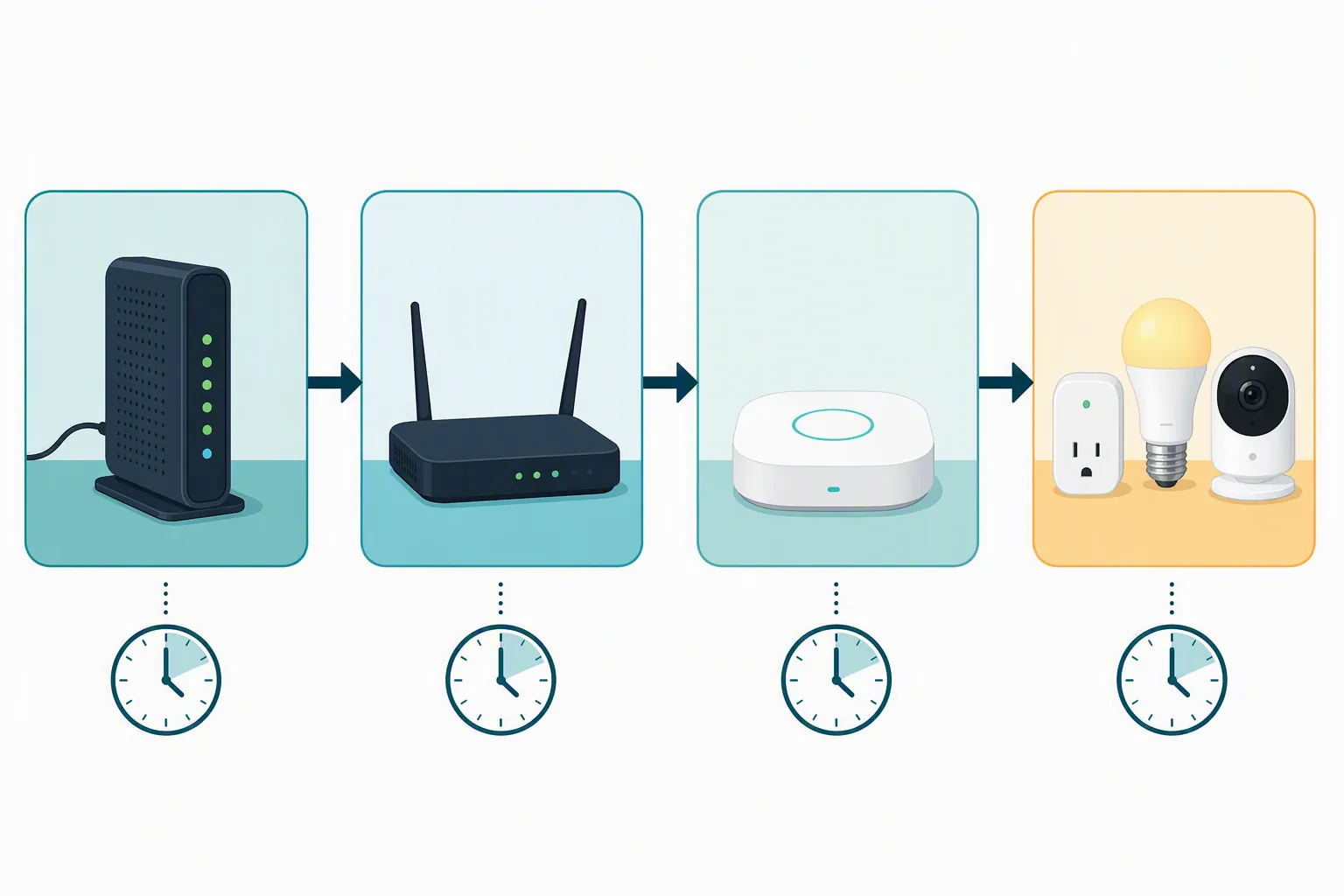
The important part is not the exact minute count. It is that you stop creating fresh boot races. Rebooting the router every time a plug says offline can knock a hub off its own recovery path. Pulling power from a camera while the router is still rebuilding Wi-Fi can turn a simple delayed cloud reconnect into a device-specific problem. Factory resetting a plug while the old app entry is still present often destroys the evidence you needed to learn whether the reconnect path, the app state, or the router lease was the real fault.
Why the order fails when everything is touched at once
A restored internet connection is not the same thing as a fully recovered smart home. The modem may be online from Spectrum’s side while the router is still negotiating WAN, rebuilding Wi-Fi, or issuing addresses. A phone can load a web page and still leave a hub in a bad state if that hub booted earlier, asked for DHCP too soon, and did not get a usable address.
Leviton’s support note for Decora Smart Wi-Fi devices describes the dependency plainly: after a power outage, devices need power, then internet/router recovery, and then they retry reconnecting over a period of time.[2] That is the useful part. Waiting is not doing nothing when the device is still inside its documented retry behavior.
The hub version is easier to miss because the box can look alive. In a Hubitat community case after a power/internet outage, the hub came up with a 169.254.x.x self-assigned address — the kind of address a device gives itself when it has not received a proper DHCP lease. A moderator-documented mitigation in that thread was to avoid letting the hub boot before the router’s DHCP service was ready.[3]

That 169.254 case is not proof that every hub will fail after a Spectrum outage. It is a concrete shape for a common recovery race: the hub is powered, the LEDs look normal, the app may even see something, but the hub is not properly back on the LAN. In that state, restarting bulbs or removing devices from apps is busywork. The dependency that failed is upstream.
Run the sequence without creating a second problem
Start with the equipment that touches Spectrum. If you have a separate modem and router, unplug the router first or leave it off, then power-cycle the modem. If you have a Spectrum gateway that combines modem and Wi-Fi, power-cycle that one unit and wait for it to finish coming back before doing anything to hubs or endpoints. Do not use a smart plug to power-cycle the router unless you are standing there and know the plug itself has local control; after an outage, the plug may be one of the devices waiting for the very network you are about to remove.
Once the modem or gateway appears online, test from an ordinary Wi-Fi device. A real web fetch is better than trusting a cached app screen. Load a page you have not opened today, or turn off cellular data on your phone and confirm Wi-Fi alone can reach the internet. If you use a separate router or mesh system, bring it back only after the modem is stable, then wait for Wi-Fi names to reappear and for the router’s client list to start filling in.
Then restart hubs, one at a time. This is where patience pays off. A Zigbee, Z-Wave, Thread, Matter, or vendor bridge may need a clean LAN address, a cloud session, and time to rediscover child devices. If you want protocol background for why some devices depend on a hub while others talk directly to Wi-Fi, use the Compatibility & Protocols guide after the house is stable, not while you are in the middle of the recovery.
Only after that should you touch endpoints. For a smart plug or bulb, a simple unplug/replug or switch-off/switch-on is a nudge. For a camera, give the app a little more time because it may need to reestablish a cloud session before the live view stops reporting offline. For battery devices, do not assume they wake instantly; many conserve power and report on their own schedule unless manually awakened.
Different device classes recover differently
Hubs and bridges
Hubs are the devices most likely to punish a bad boot order. They sit between the router and a whole group of endpoints, so one bad address or failed cloud login can make dozens of devices look broken. If the hub dashboard is reachable, check its network page before rebooting everything behind it. A valid local IP from your router is a better sign than a glowing status light.
Wi-Fi plugs and bulbs
Many Wi-Fi plugs and bulbs retry after power or internet returns, but the retry behavior is vendor-specific. Leviton documents that its devices retry over a period of time after power and internet/router service are restored.[2] That supports waiting through a clean settling window before deciding the device is stuck. It does not support a promise that every smart plug brand will reconnect in the same number of minutes.
Cameras
Cameras can be noisy during recovery because they expose several paths at once: Wi-Fi association, IP lease, vendor cloud connection, live stream, and notifications. If the router sees the camera but the app still says offline, avoid jumping straight to reset. Refresh the app, wait for the vendor cloud path to catch up, and check whether other devices from the same vendor are also delayed.
Vendor-specific expectations
Some brands document their own post-outage behavior. MOCREO says its hub will automatically reconnect after a power or internet outage.[5] CE Smart Home says devices should automatically reconnect to the router after a power interruption, but their state returns to OFF.[6] Those are not contradictions; they are reminders that “back online” and “returned to the same on/off state” are different outcomes.
There are also user-reported edge cases. A Wyze forum thread describes plugs that did not reconnect after power loss until users unplugged/replugged or reset them.[7] That is useful as a caution that some devices may need a nudge after the clean sequence. It is not enough to declare that all Wi-Fi plugs, or all Wyze plugs, will behave that way after a Spectrum outage.
If the clean sequence fails, escalate narrowly
When the ordered reboot and settling window are done, the job changes. You are no longer recovering the whole house; you are isolating the remaining failure. Work from the least destructive check to the most destructive action.
- Refresh the app path first. Force-close and reopen the smart-home app, then check the vendor app if the device is bridged into Apple Home, Alexa, Google Home, or another platform. A stale platform view can lag behind the vendor app.
- Confirm Spectrum is genuinely usable from Wi-Fi. Load a fresh web page with cellular data disabled. If your Spectrum account tools are available, use them to check or restart equipment rather than repeatedly pulling power.
- Use outage trackers only as context. StatusGator lists Spectrum as having no public official status page and logged a nationwide Spectrum event around Aug. 3–4, 2026, ending at about 3:41 AM UTC; that is third-party corroboration, not an official Spectrum acknowledgement, and it should be rechecked at publish time.[4]
- Power-cycle one affected device, not the whole room. If five plugs are offline, choose one representative plug. If it returns, you can repeat the same nudge on the others without disturbing the modem, router, or hub again.
- Check the router client list. If the device or hub appears with a normal local IP, the problem may be app, cloud, or integration state. If it does not appear at all, focus on Wi-Fi band, signal, power, or pairing. If a hub shows a self-assigned 169.254.x.x address, restart the hub only after the router is fully ready.[3]
- Use Spectrum’s temporary 2.4 GHz smart-device pairing mode only when the remaining device appears to be stuck on band selection or pairing. Independent Spectrum-user guides describe a “Set up Smart Device (2.4 GHz)” option that temporarily presents 2.4 GHz behavior and auto-reverts after 30 minutes; treat it as a pairing window, not a permanent way to force a device onto 2.4 GHz.[8][9]
- Factory reset last. Reset only after you know the router does not see the device, a normal power nudge failed, the app entry is not merely stale, and you have preserved any useful clues such as IP address, LED pattern, hub logs, or error messages.
The router client list is the most useful dividing line in that ladder. A device that has an IP address is not in the same condition as a device that never joined Wi-Fi. A hub with a bad address is not the same problem as a bulb that is waiting for the hub. A camera that appears on the router but not in the app deserves different handling from a camera that never associates with Wi-Fi at all.
If the same symptom persists after this narrow escalation, move into device-specific troubleshooting rather than widening the blast radius. The Troubleshooting index is the better next stop for persistent offline devices, weak Wi-Fi, app account issues, and hub-specific failures.
When to stop touching things
If devices come back after the modem-router-hub-device sequence and the settling window, stop. Do not reset “just in case.” Do not remove and re-add devices that are already responding. Let automations run through their next scheduled check and look for any single holdout.
If only one class remains offline, keep the repair at that class. Restart the hub if all hub-connected devices are missing. Check 2.4 GHz pairing or router visibility if only Wi-Fi plugs are missing. Give camera apps a refresh and verify whether the router sees the cameras before touching device setup.
If a hub has a bad IP, troubleshoot the hub and DHCP path. If a device never appears in the router client list, troubleshoot that device’s power, signal, band, or pairing path. A whole-home reset is unnecessary just because Spectrum returned before every endpoint finished reconnecting.
References
- How to Fix Smart Devices That Stay Offline After a Power Outage, Smart Home Diagnostics
- My Leviton Devices did not reconnect after a power outage, Leviton
- No response after power/internet outage, Hubitat Community
- Spectrum Outage History, StatusGator
- Will the device automatically reconnect after a power or internet outage?, MOCREO
- Will device automatically reconnect to router if there is a power interruption? Do devices settings get saved?, CE Smart Home Support
- Wyze Plugs Not Reconnecting to WiFi After Power Loss, Wyze Forum
- How to connect 2.4 GHz devices to Spectrum WiFi, Lynx
- How to Pair Devices on Spectrum 2.4 GHz WiFi, Emily Suess, June 8, 2024