
Which smart thermostat settings matter in extreme heat
Generic 78°F advice only gets you partway through an extreme heat wave. A model-by-model checklist for Nest, ecobee, Honeywell Home, and Sensi shows which settings actually do the work — fan AUTO, precooling, and per-brand humidity and compressor features — with availability and verification dates for each.
In an extreme heat wave, “set the thermostat to 78°F” is only the first move. It does not tell you whether the fan should run continuously, whether the thermostat is allowed to precool before the worst afternoon load, whether humidity settings are quietly changing compressor behavior, or whether the feature you just read about even exists on your model.
Use this as a dated settings check, not a universal promise. The goal is to get the important controls into a known state on Nest, ecobee, Honeywell Home, and Sensi thermostats before the house is already hot. The status labels below mean exactly what they say: “apply now” is a safe baseline when the control exists, “conditional” means the feature only helps under a specific condition, “model-limited” means do not assume your thermostat has it, and “verify in app” means the control can move or behave differently by model, wiring, or firmware.
| Setting | Heat-wave status | What to set | Model or firmware note | NestGrid verification |
|---|---|---|---|---|
| Cooling setpoint | Apply now | Start at 76–78°F, then adjust only if the system can actually hold the temperature. | Relevant across Nest, ecobee, Honeywell Home, and Sensi. The exact menu name varies, but the setpoint itself is the baseline control. | Checked 2026-08-25 |
| Fan mode | Apply now | Use AUTO for normal cooling. Avoid forcing ON during a heat wave unless you have a specific air-mixing reason. | Look for Fan, Fan Mode, or Equipment controls. If the app does not expose a separate fan setting, do not assume one is available. | Checked 2026-08-25 |
| Precooling | Apply now when you can plan ahead | Schedule a modest earlier cooling period before peak afternoon heat, then let the setpoint rise to the occupied target. | Use the native schedule on the thermostat or app. Do not create aggressive swings the system cannot recover from. | Checked 2026-08-25 |
| Nest Airwave | Conditional | Leave enabled if available and indoor humidity is low enough for it to engage. | Airwave can shut the compressor off early and keep the fan running on residual coil cooling for 5–10 minutes, but it activates only when indoor humidity is low. | Source-reviewed 2026-08-25 [1] |
| Nest Sunblock | Model-limited | Use only if the setting exists on your Nest model and the thermostat is affected by direct sunlight. | Do not look for Sunblock on the basic Nest Thermostat; availability is not universal across the Nest line. | Checked 2026-08-25 |
| ecobee eco+ | Verify in app | Review eco+ options before the heat wave instead of assuming the current behavior matches old instructions. | eco+ behavior can vary with firmware, so confirm the current menus and enabled options on the thermostat or in the app. | Checked 2026-08-25 |
| Honeywell Home humidity or dehumidification controls | Verify in app | Use only the humidity-related controls your specific model and HVAC wiring expose. | Do not assume every Honeywell Home smart thermostat has the same humidity, compressor, or comfort controls. | Checked 2026-08-25 |
| Sensi humidity or compressor-related controls | Verify in app | Check the available cooling, humidity display, and compressor protection settings before changing schedules. | Treat Sensi controls as model-specific; do not copy a setting name from another brand and expect to find it. | Checked 2026-08-25 |
Start with the boring setting that prevents the most confusion: fan AUTO
Fan AUTO is not glamorous, but it is the first setting worth checking because it changes what runs between cooling calls. In AUTO, the blower runs when the cooling system is actively cooling. In ON, the blower keeps circulating air even when the compressor is not actively cooling.
During a heat wave, forced fan ON can make the app look busy without necessarily making the house cooler. It may help with a specific hot-room mixing problem, but that is a targeted use, not a default heat-wave setting. If the hallway thermostat is satisfied while a bedroom bakes, a short fan circulation period may be worth testing. If the whole house is fighting outdoor heat, leave the fan on AUTO and focus on cooling schedule, setpoint, and humidity-related behavior.
On Nest, ecobee, Honeywell Home, and Sensi, the exact route to the fan setting varies. The useful check is simple: find the fan control, confirm it is not locked into continuous ON from an old experiment, and then leave it alone unless you are solving an air distribution problem.
Use 76–78°F as a working range, not a moral victory
A 76–78°F cooling setpoint is a practical heat-wave range because it gives the thermostat a realistic target without pretending every home, HVAC system, humidity level, and occupant has the same tolerance. The important part is not whether the number is 76, 77, or 78. The important part is whether the system can reach the setpoint and cycle in a controlled way instead of running continuously while the indoor temperature drifts upward.
If the thermostat is set to 72°F in a 95°F+ heat wave and the indoor temperature never gets close, the system is already telling you that the setting is not a command it can satisfy. Raising the target into the 76–78°F band can reduce the gap the system is trying to close. If the house is holding 78°F comfortably and humidity is under control, there is no automatic reason to chase a lower number just because the app allows it.
For households that need a cooler sleeping temperature, make that a scheduled exception instead of leaving the thermostat at the lowest acceptable number all day. A smart thermostat is useful here only if the schedule reflects the actual heat load: occupied hours, sun exposure, bedtime, and the time the system needs to recover.
Precool before the house becomes a storage battery for heat
Precooling is the setting people often discover too late. By the time the hallway is hot, the walls, furniture, upstairs rooms, and attic-adjacent spaces have already absorbed heat. A thermostat can call for cooling, but it cannot erase that stored heat instantly.
A usable heat-wave schedule usually cools a little earlier than comfort alone would require. That does not mean setting the thermostat to a dramatically low number in the morning. It means giving the system a reachable target before the hardest outdoor conditions arrive, then allowing the occupied setpoint to settle into the 76–78°F range.
- If the home is empty during the day, avoid a deep setback that forces a long recovery during peak heat.
- If the home is occupied all day, use a steady occupied setpoint and avoid repeated manual drops.
- If bedrooms overheat at night, schedule the adjustment early enough for those rooms to respond before bedtime.
- If the system cannot recover from a setback, reduce the setback before blaming the thermostat.
Nest, ecobee, Honeywell Home, and Sensi all push users toward schedules in different ways. That difference matters less than the result: during extreme heat, the schedule should not ask the system to coast all afternoon and then perform a miracle at 5 p.m.
Nest: Airwave is useful only when its condition is true
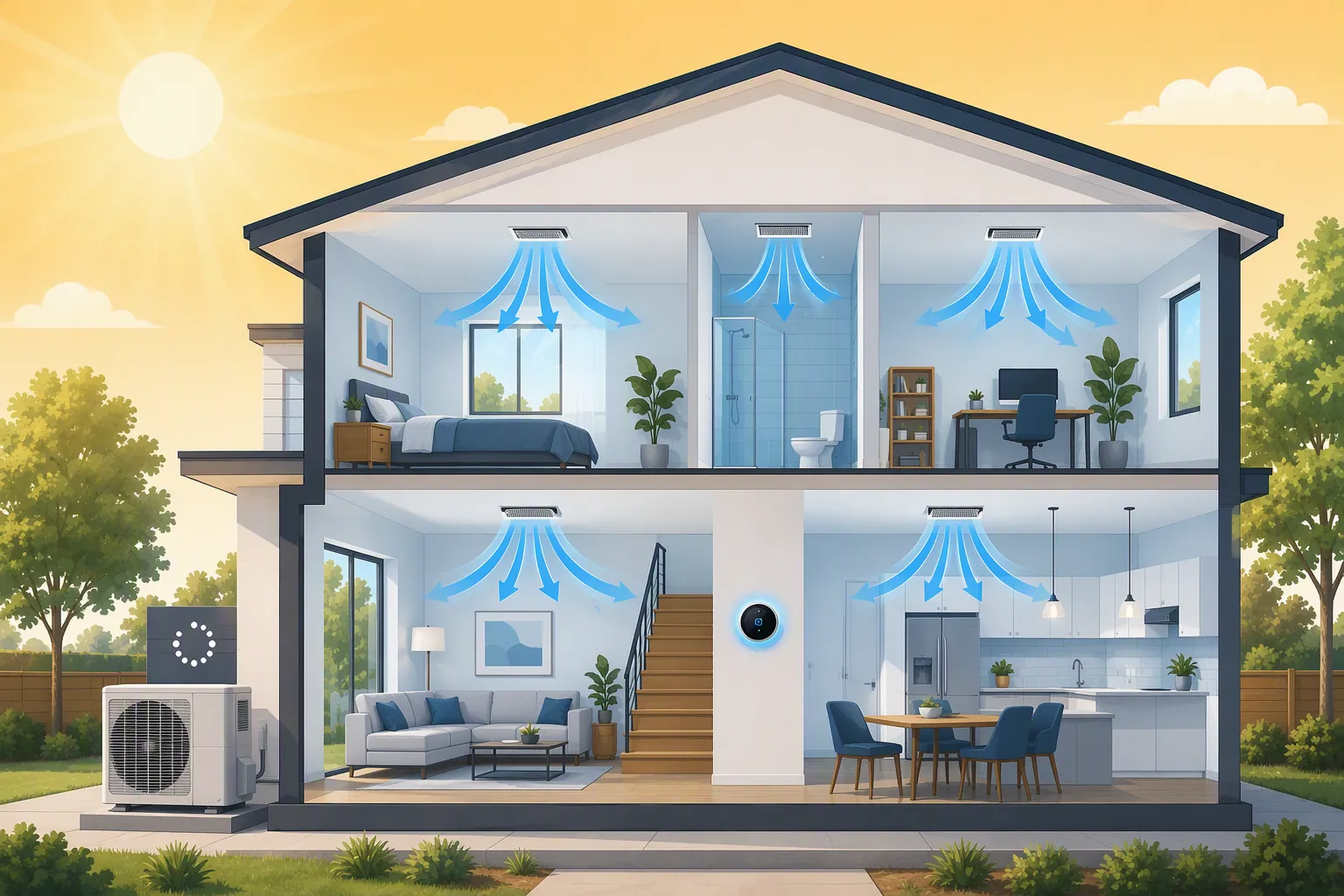
Nest Airwave is worth separating from generic “smart savings” language because it describes a specific cooling behavior. When conditions allow, Airwave shuts off the compressor before the end of the cooling cycle and keeps the fan running so the system can use residual cold from the indoor coil for another 5–10 minutes. Google’s own help material also puts a clear condition on it: Airwave only activates when indoor humidity is low enough. [1]
That humidity condition is the part to respect in a heat wave. If the air in the house is humid, do not stand in front of the thermostat waiting for Airwave as proof that Nest is saving energy. The feature may simply not be eligible to run. If indoor humidity is low and Airwave is available on the thermostat, leaving it enabled makes sense because the compressor-off, fan-on tail is exactly the kind of small controlled behavior that can help without asking the user to micromanage cycles.
Also check the model before hunting for Nest features. Sunblock is not present on the basic Nest Thermostat. If direct sun hits the thermostat and the model does not expose Sunblock, the answer is not to keep tapping through menus; it is to treat that thermostat location as a measurement problem and use the controls your device actually has.
Nest heat-wave check
- Cooling setpoint: use the 76–78°F working range unless the home needs a documented exception.
- Fan: confirm AUTO unless you are intentionally testing room-to-room circulation.
- Schedule: add modest precooling before the hottest part of the day.
- Airwave: leave enabled if present, but expect it only when indoor humidity is low.
- Sunblock: use only on Nest models that expose it; do not expect it on the basic Nest Thermostat.
ecobee: check eco+ before you rely on yesterday’s behavior
ecobee’s heat-wave setup should begin with the same hard checks: cooling setpoint, fan AUTO, and a schedule that does not depend on a late-day recovery. After that, the setting that deserves extra attention is eco+ because its behavior can vary with firmware and enabled options.
The practical move is not to turn every automation off out of suspicion. It is to open the current eco+ screen and see what is enabled now. If a comfort adjustment, time-of-use behavior, or savings feature is active, decide whether you want that behavior during the heat wave. If the app has changed since the last time you checked it, trust the current menu more than an old screenshot or a forum post.
ecobee heat-wave check
- Cooling setpoint: set the occupied target in the 76–78°F range.
- Fan: confirm AUTO unless a specific room needs temporary circulation help.
- Schedule: precool before peak heat instead of relying on a steep evening recovery.
- eco+: review the live app settings because firmware and enabled options affect behavior.
- Sensors: if remote sensors influence comfort, confirm the active comfort profile is using the rooms you actually care about during the heat wave.
Honeywell Home and Sensi: do not invent features the app does not expose
Honeywell Home and Sensi deserve the same checklist treatment, but not fake feature parity. A Nest Airwave setting is not a generic thermostat feature. An ecobee eco+ behavior does not tell you what a Sensi thermostat will do. If the app exposes humidity, dehumidification, cycle, or compressor-related controls, evaluate those controls on that model. If it does not, stay with the reliable settings you can actually verify: setpoint, fan mode, and schedule.
For Honeywell Home, the key heat-wave question is whether your installed thermostat and HVAC wiring expose humidity or dehumidification behavior. If they do, avoid changing those settings casually during the hottest part of the day. If they do not, the thermostat is still useful as a scheduler and setpoint controller; it just is not running the same feature set as a different brand’s flagship model.
For Sensi, make the same distinction. Check the cooling mode, fan mode, schedule, and any compressor protection or humidity-related display available in the app. Then stop. Copying a setting from a Nest or ecobee article into Sensi is how people end up convinced they are missing a menu that was never there.
| Brand | First checks | Second checks | What not to assume |
|---|---|---|---|
| Nest | Setpoint, fan AUTO, schedule | Airwave if available; Sunblock only where the model exposes it | Do not assume Sunblock exists on the basic Nest Thermostat. |
| ecobee | Setpoint, fan AUTO, schedule | eco+ options and active comfort behavior | Do not assume old eco+ instructions match the current firmware. |
| Honeywell Home | Setpoint, fan AUTO, schedule | Humidity or dehumidification controls if the model and wiring expose them | Do not assume every Honeywell Home thermostat has the same comfort controls. |
| Sensi | Setpoint, fan AUTO, schedule | Available humidity display or compressor-related controls | Do not assume Nest or ecobee feature names apply. |
A fast setup order when the forecast is already ugly
If the heat wave is already underway, do not spend the first ten minutes comparing every automation toggle. Put the thermostat into a stable cooling configuration first, then come back for brand-specific features.
- Confirm the system is in cooling mode.
- Set the occupied cooling target to 76–78°F.
- Set the fan to AUTO if the thermostat exposes a fan setting.
- Add or adjust precooling before the hottest part of the day.
- Check brand-specific features: Nest Airwave, Nest Sunblock where available, ecobee eco+, and any Honeywell Home or Sensi humidity or compressor controls exposed by your model.
- Watch whether the indoor temperature stabilizes. If it keeps rising, stop lowering the setpoint and look for load, airflow, filter, shading, or equipment issues.
That last step is where a lot of thermostat advice becomes misleading. A lower number in the app does not create more cooling capacity. If the system is already running and losing ground, the useful thermostat work is to avoid making recovery harder: no deep setbacks, no unnecessary fan ON habit, no blind faith in a feature whose condition is not currently true.
What to recheck after firmware or app changes
Smart thermostat advice ages badly because the plastic on the wall may stay the same while the app around it changes. Before the next heat wave, recheck the settings that are most likely to be hidden behind brand language: savings modes, comfort profiles, humidity behavior, compressor protection, and fan schedules.
- If a setting affects when the compressor runs, verify it on the current firmware.
- If a setting depends on humidity, confirm the condition rather than assuming it will engage.
- If a setting is model-limited, check the exact thermostat model before searching the app.
- If a schedule was built for mild weather, rebuild it for heat-wave recovery time.
The reliable answer for smart thermostat settings in an extreme heat wave is not one magic temperature. It is a short list of controls checked against the thermostat in front of you: fan AUTO, a realistic 76–78°F setpoint, sensible precooling, and only the humidity or compressor features your model and firmware actually support.
References
- Learn about Airwave and how to change settings — Google Nest Help