
How to Prepare Smart Home Devices for Extreme Heat
Smart home devices have narrow operating temperature ranges that are easily exceeded during heat waves. This guide explains how to prevent heat damage by relocating, ventilating, or unplugging devices—and when each action is needed.
The heat alert is active, the room is already uncomfortable, and now the smart hub is rebooting again. A camera that worked yesterday is offline. A smart plug feels warmer than usual when you reach behind the couch. Before blaming Wi-Fi, the app, or the latest firmware update, check the boring number that decides what happens next: the device’s operating temperature range.
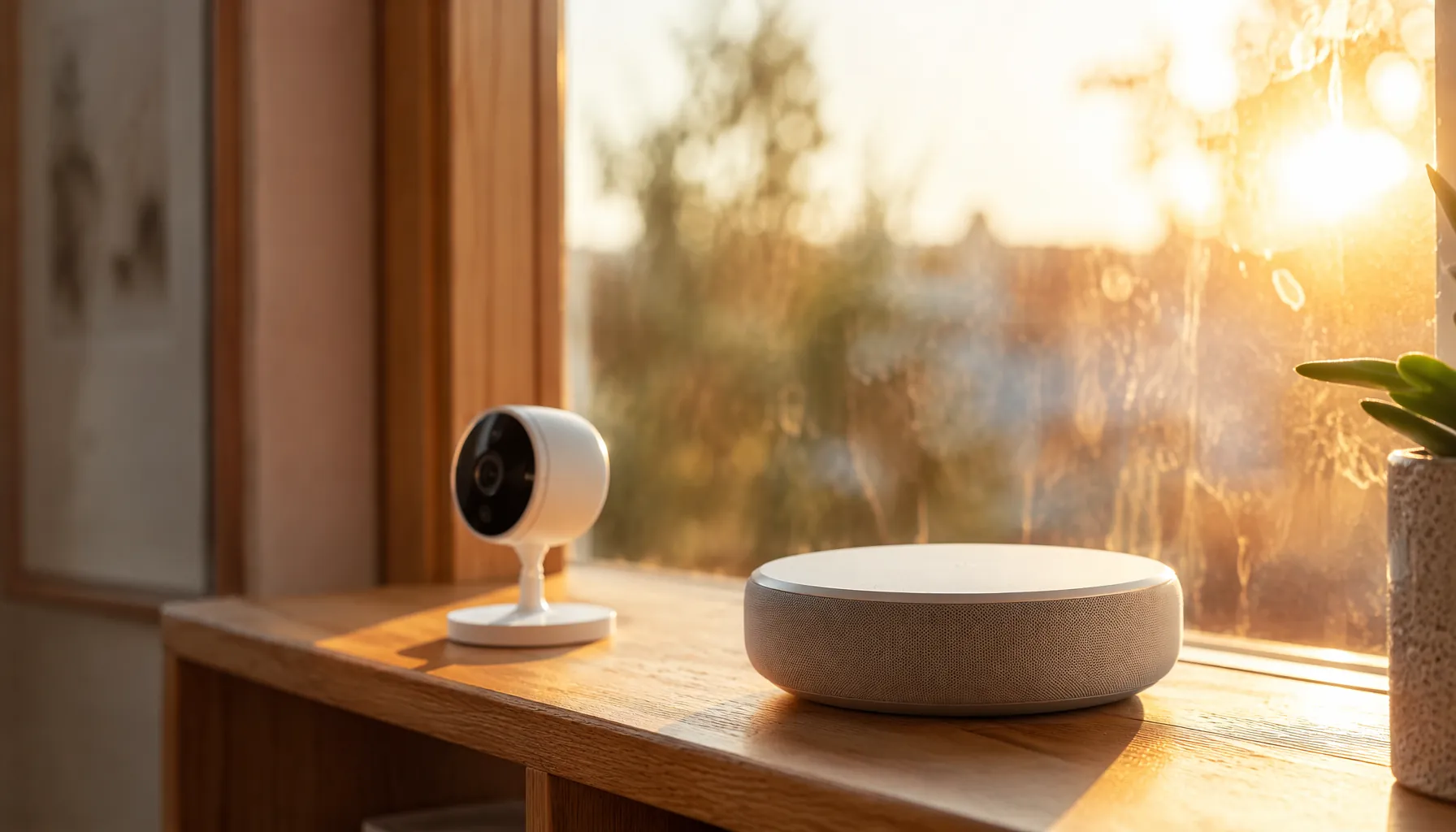
That number tells you whether the right move is to relocate the device, improve airflow around it, or unplug it until the heat breaks. For many indoor smart-home devices, the useful warning line is not far above a hot room. Repenic lists smart hubs, indoor sensors, and smart plugs with illustrative operating ranges around 32–104°F, while Toucan’s security-camera guidance shows outdoor models can vary from roughly 104°F for some budget devices to as high as 122°F for more heat-tolerant weather-rated models.[1][2]
Start With The Limit, Not The Symptom
A heat-prep routine for smart home devices should start with the spec sheet because “smart device” is too broad to be useful. A hub, a tiny contact sensor, a plug with a relay inside, and an outdoor camera mounted to brick do not shed heat the same way. They also do not necessarily share the same safe operating range.
Use these figures as benchmarks, not promises. They come from manufacturer and vendor materials for specific products or product categories, and your own model may be stricter. The point is to notice how close ordinary summer conditions can get to the limit, especially when a device is sitting in direct sun, inside a cabinet, behind furniture, or against a hot exterior surface.
| Device or placement | Illustrative heat concern | First action to consider |
|---|---|---|
| Indoor smart hub | Often listed around 32–104°F; internal heat can rise if airflow is blocked or the hub is working hard | Move out of sun, give it open air, and stop stacking it on warm networking gear |
| Indoor sensor or thermostat sensor | Often similar to indoor ranges around 32–104°F; sun can make readings useless before the device fully fails | Move away from windowsills, glass doors, lamps, and sun patches |
| Smart plug | Often similar to indoor ranges around 32–104°F; heat can build behind furniture or around adapters | Unplug nonessential loads and expose the plug to room air |
| Outdoor camera | Model-dependent; some max near 104°F while some weather-rated models are listed up to 122°F | Check the exact model rating before assuming it can handle a wall, eave, or direct sun |
| Device behind glass | Toucan warns that glass can intensify heat by 15–20°F above ambient in its camera guidance | Relocate first; ventilation may not solve direct solar heating through glass |
The table is not a ranking of tough and weak devices. It is a triage map. A 98°F room is already too close for comfort if the device is rated to 104°F and sitting in sun. If that same device is behind glass, Toucan’s warning about glass adding 15–20°F above ambient is enough reason to move it before you wait for a reboot or a dead battery compartment.[2]
Relocate When Sun Or Glass Is Doing The Heating
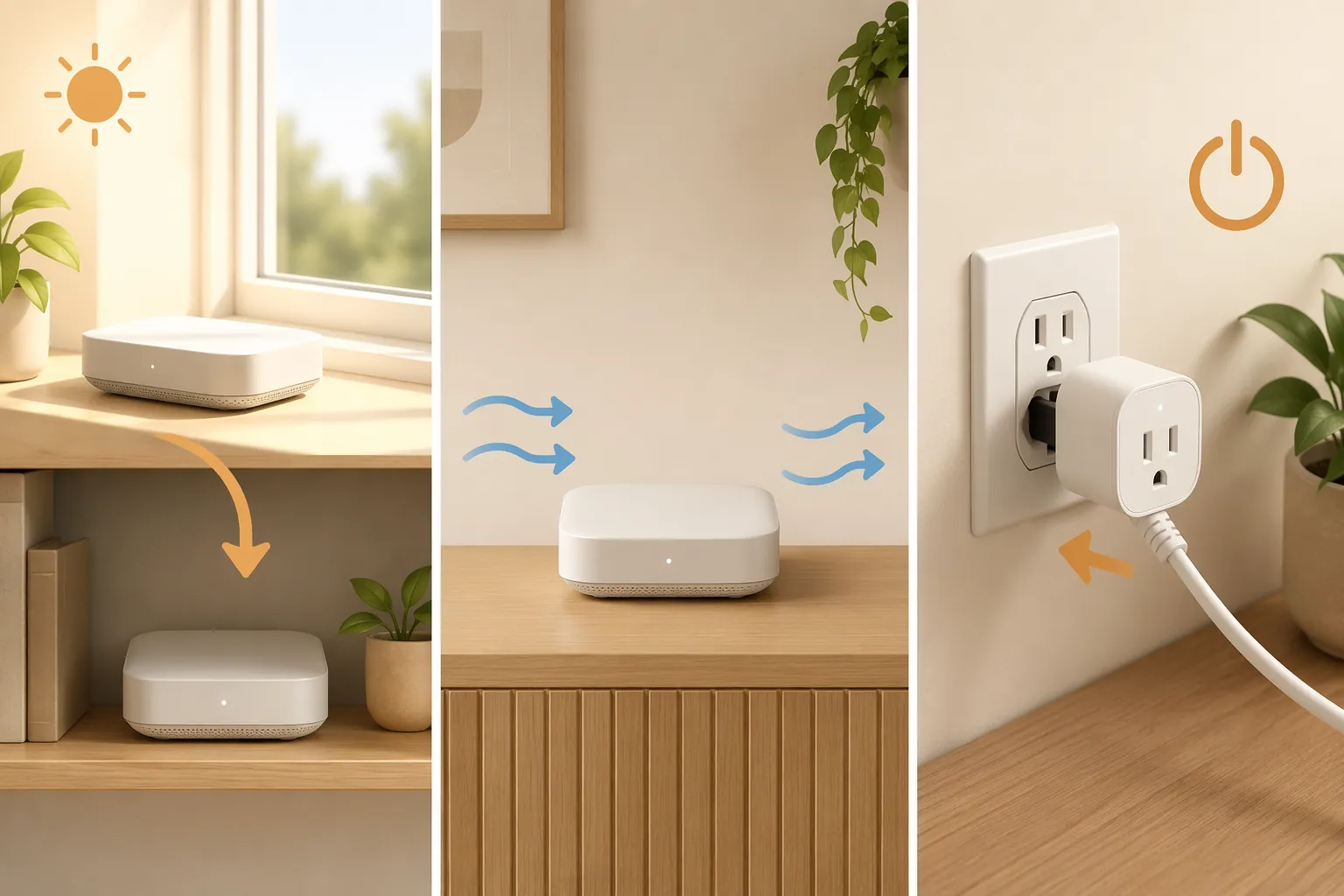
Relocation is the first move when the heat source is obvious: direct sunlight, a west-facing window, a glass door, a hot sill, or an exterior wall that bakes through the afternoon. Tom’s Guide puts moving gadgets out of direct sunlight at the front of its heat-wave advice, and that is the right order of operations because shade removes the incoming heat instead of trying to manage it after the device has absorbed it.[3]
Start with the devices that silently determine whether the rest of the home behaves: the hub, bridge, router-adjacent controller, thermostat sensor, and any camera or sensor that protects an entry point. A hub sitting on a cable modem is not just untidy; it is sharing a warm platform with another always-on box. A thermostat sensor on a sunny sill may keep reporting a room that is hotter than the space people are actually using. A camera pointed through glass may be protected from rain while still being cooked by the window setup.
For indoor sensors, do not overthink the perfect new location during an active heat wave. Move them to shade, keep them away from appliance heat, and avoid sealing them into decorative boxes or shelves with no air movement. If the sensor is part of a thermostat routine, expect the automation to behave differently after the move; that is still better than letting direct sun drive bad readings.
Outdoor cameras need a narrower judgment. A weather rating does not automatically mean high-heat tolerance, and an indoor camera placed under a porch is still an indoor-class device unless its specifications say otherwise. Toucan’s own material shows a wide spread: some camera guidance tops out around 104°F, while more weather-rated models may be listed up to 122°F.[2] The model number matters more than the word “outdoor” in a product headline.
Ventilate When Heat Is Trapped Around The Device
Ventilation helps when the problem is trapped heat rather than direct sun. That means hubs tucked into TV consoles, smart plugs pressed behind couches, power adapters buried in cord piles, and network gear stacked like a warm plastic sandwich. Tom’s Guide’s second heat-wave intervention is to ensure ventilation, and this is where small placement changes matter: a few inches of open air can be more useful than leaving the device in the same hot pocket and hoping it copes.[3]
Give hubs and bridges their own shelf space. Do not place them on top of modems, routers, set-top boxes, game consoles, or battery backups during a heat event. Those devices are often already warm under normal use, and the hub’s plastic enclosure has limited surface area to lose heat. If the hub uses radios for Zigbee, Z-Wave, Thread, Bluetooth, or Wi-Fi, moving it into open air can also improve radio conditions, which may reduce repeated connection attempts.
There is a plausible technical reason overheating hubs can look like random connectivity trouble. Whizz Experts describes a service scenario in which high heat, blocked airflow, and extra Wi-Fi or mesh retry work can raise internal temperature, trigger thermal throttling, and lead to random reboots; it also flags power adapters as heat risks when airflow is blocked.[4] Treat that as practical repair guidance rather than proof for every chipset in every hub, but the symptom pattern is familiar: the device disappears, comes back, then disappears again while everyone blames the network.
Ventilation is not a magic fix for every hot device. If a plug is hot to the touch while carrying a load, do not solve that by pointing a fan at it and walking away. If a camera is in direct afternoon sun, shade or relocation comes before airflow. If a hub is already rebooting repeatedly, open air may stabilize it, but it should be marked for later troubleshooting rather than declared fixed.
Unplug When The Device Is Unused, Hot, Or Already Unstable
Unplugging is the least elegant intervention and sometimes the correct one. Tom’s Guide includes unplugging unused gadgets among its three immediate heat-wave steps, and it is especially sensible for nonessential smart plugs, spare cameras, holiday-light controllers, voice assistants in hot rooms, and devices you do not need while the heat alert is active.[3]
- Unplug nonessential smart plugs that are behind furniture, in sun, or powering loads you are not using.
- Unplug a device that is hot to the touch, smells unusual, discolors, buzzes, or repeatedly drops offline.
- Unplug spare hubs, old bridges, test devices, and unused cameras rather than letting them add heat to a shelf.
- Do not unplug safety-critical gear without replacing its function; a security camera or leak sensor may need relocation instead.
- After the heat passes, reconnect one device at a time so you can spot the one that still reboots or fails to rejoin.
Smart plugs deserve extra suspicion because they can be both a smart-home device and a power path. A plug crammed behind a sofa has less airflow than it appears to have from the room. If it is switching a fan, lamp, dehumidifier, or other load during a heat wave, check the plug’s rating, the load, and the temperature limit rather than assuming the app-controlled part is the only fragile part.
A Copyable Heat-Prep Pass
If you are preparing before the next extreme-heat day, do one pass through the home while the devices are still behaving. The job is not to redesign the whole setup. It is to find the places where a device’s rated range and its real location no longer match.
- Look up the operating temperature range for each hub, bridge, indoor sensor, smart plug, thermostat sensor, and outdoor camera.
- Mark anything rated near indoor ranges, especially devices around windows, exterior walls, cabinets, and furniture gaps.
- Move sun-exposed indoor devices first, especially sensors and hubs on windowsills or shelves hit by afternoon light.
- Give hubs, bridges, routers, and adapters open air; stop stacking always-on electronics during the heat event.
- Unplug nonessential gear and any device that is hot to the touch or already unstable.
- After temperatures drop, troubleshoot anything that rebooted, dropped offline, or failed to reconnect.
This is also the moment to label the awkward devices: the camera on hot brick, the contact sensor in a glassy entryway, the hub sitting on network gear, the smart plug nobody can reach without moving furniture. Those are the devices that will be forgotten until the next alert unless you make their heat problem visible now.
Extreme heat preparation for smart home devices is mostly a threshold exercise. Check the rated range, compare it with the hot spot where the device actually lives, then choose the smallest intervention that removes the stress: relocate sun-heated devices, ventilate trapped electronics, and unplug gear that does not need to be running.