
Heat-Wave Thermostat Settings That Actually Save Energy
Exact heat-wave setpoints for Nest and ecobee: 76-78°F at home, 82-85°F for Eco/away hours, and no setpoint-cranking to cool faster — with humidity handling, recovery caveats, and the app-verification steps that decide whether the savings hold. Every setting block carries a dated, status-labeled verification record.
Set these numbers first
For a heat wave, start with the boring settings that are easy to check later: 76–78°F when people are home, 82–85°F during true away or Eco hours, and no dropping the setpoint to 68°F because the house feels hot. The Department of Energy has described 78°F instead of 72°F as a cooling setting that can save 6–18%, with a rough 3% change in cooling cost per degree, and Consumer Reports points readers toward the same 78°F neighborhood for central air conditioning savings logic. [1][2] CNET’s smart-thermostat heat guidance lands in the same practical range: 76–78°F when home and 82–85°F when away or sleeping. [3]
Those numbers only mean anything if the thermostat is actually in the mode you think it is in. On a Nest, the selectable cooling Eco Temperature range runs from 76°F to 90°F, so an Eco setting of 82–85°F is available inside Google’s documented range. [4] The catch is that automatic switching, humidity controls, recovery behavior, and schedule-adjustment features can keep the compressor running, delay the setback, or move your intended schedule.
| Setting block | Heat-wave value | NestGrid verification record |
|---|---|---|
| Occupied home cooling | 76–78°F | Verified 2026-07-31 UTC. Status: Use as the default heat-wave comfort range; confirm the active Home/Comfort temperature in the app. |
| Away / Eco cooling | 82–85°F | Verified 2026-07-31 UTC. Status: Fits Nest’s documented 76–90°F Eco cooling range; confirm Eco or Away is actually active before counting savings. |
| Sleep | Start at 78°F for occupied bedrooms; use 82–85°F only if your household can sleep safely and comfortably at that temperature | Verified 2026-07-31 UTC. Status: Comfort-limited setting; do not let an energy target override sleep, health, or heat-safety needs. |
| Hot-house recovery | Do not crank down to 68°F to cool faster | Verified 2026-07-31 UTC. Status: Nest support says a lower target makes the system run longer, not faster. [5] |
| Humidity features | Check before assuming the schedule is saving energy | Verified 2026-07-31 UTC. Status: Comfort/moisture feature, not a pure savings setting. |
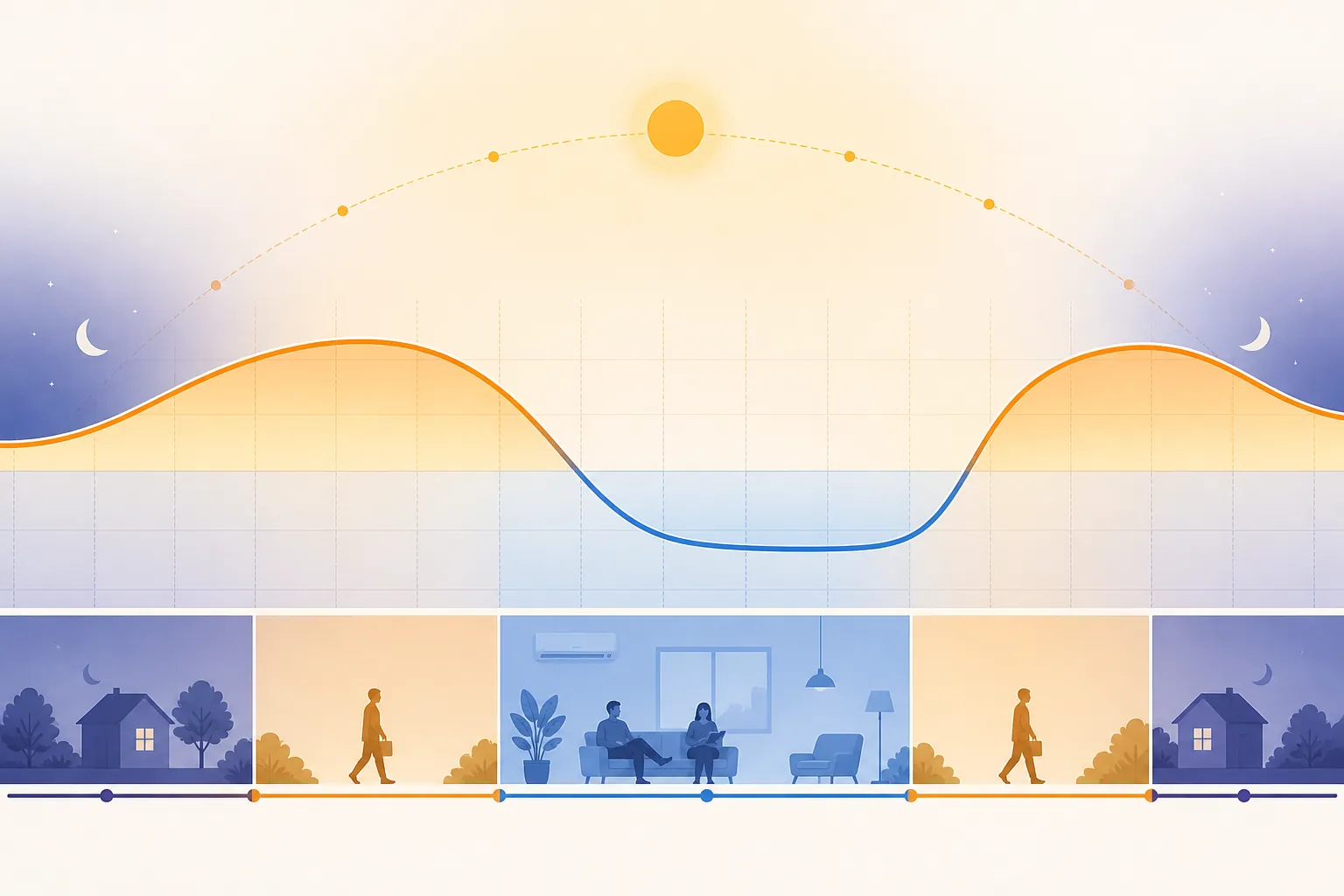
Nest heat-wave recipe
Use this as the copyable Nest setup, then check the live thermostat state from the Google Home or Nest app. The schedule is not finished when the numbers look right on one screen; it is finished when Home, Away/Eco, Sleep, humidity, and optional savings programs match the recipe.
| Nest setting | Set it to | What to verify in the app | Status |
|---|---|---|---|
| Home / occupied cooling temperature | 76–78°F | The current mode is Home, and the cooling setpoint is not lower than the intended range. | Verified 2026-07-31 UTC: Ready to apply |
| Eco Temperature for cooling | 82–85°F | Eco cooling is inside the 76–90°F selectable range, and the thermostat actually enters Eco when the home is empty. [4] | Verified 2026-07-31 UTC: Ready to apply |
| Sleep period | 78°F if bedrooms are occupied; warmer only if your household tolerates it | The overnight schedule did not inherit an old 72°F or 74°F comfort setting. | Verified 2026-07-31 UTC: Comfort check required |
| Home/Away Assist or presence sensing | Use it only if you will verify it | If relying on device sensors, Google documents that switching can take up to 2 hours, so confirm the live Home/Away/Eco state during the first heat-wave day. [4] | Verified 2026-07-31 UTC: Watch during first use |
| Manual cooling override | Do not lower the target far below the real goal | Nest support says the system will run longer, not cool faster, when you set a much lower temperature. [5] | Verified 2026-07-31 UTC: Avoid |
The most common Nest mistake in a heat wave is leaving Eco Temperatures at a value that made sense in spring, then assuming the thermostat is following the new summer plan. Open the Eco settings directly. If the cooling Eco number is 86°F or 88°F and you are comfortable with that during a short errand, fine. If someone is coming home to an upstairs bedroom that has soaked up afternoon heat, 82–85°F is a safer compromise for this recipe.
The second mistake is trusting automatic presence detection without watching it once. Google documents automatic Eco switching and also notes that, when the thermostat relies on device sensors, it can take up to 2 hours to switch. [4] During a heat advisory, that delay matters. If the house sits in Home mode for two empty afternoon hours, the setback you planned may never do much. If it stays in Eco after someone returns, the savings are real but the hallway conversation will not be pleasant.
Nest verification pass
- Open the thermostat in the Google Home or Nest app and confirm the current cooling target is 76–78°F while occupied.
- Open Eco Temperature settings and set cooling Eco to 82–85°F, not the widest default you happen to find.
- Leave the house or simulate the away condition you actually use, then check whether the app changes to Away or Eco within the window you expect.
- Check the sleep schedule separately. Old sleep settings are easy to miss because they are usually comfortable, familiar, and expensive.
- Before bedtime, reopen the app and confirm the thermostat is not still holding a temporary manual override from earlier in the day.
ecobee heat-wave recipe
For ecobee, use the same temperature recipe and put the attention on Comfort Settings and the current system state. The energy logic does not change because the wall device changes: 76–78°F is the occupied cooling target, and 82–85°F is the away setback to use when nobody needs the house held at a workday comfort temperature.
| ecobee setting | Set it to | What to verify in the app | Status |
|---|---|---|---|
| Home Comfort Setting | 76–78°F | The active Comfort Setting is Home, and the cooling setpoint matches the heat-wave target. | Verified 2026-07-31 UTC: Ready to apply |
| Away Comfort Setting | 82–85°F | Away is assigned to the hours when the home is actually empty, not merely to hours when one person is in a back room or home office. | Verified 2026-07-31 UTC: Ready to apply |
| Sleep Comfort Setting | 78°F to start for occupied bedrooms; warmer only if comfortable | Sleep did not retain an old low cooling target from normal summer nights. | Verified 2026-07-31 UTC: Comfort check required |
| Smart Home/Away or occupancy behavior | Enable only if you will check it | The app’s live state agrees with the real house: occupied when people are home, away when empty. | Verified 2026-07-31 UTC: App-state verification required |
| Recovery / pre-cooling behavior | Review before judging runtime | If the app shows a recovery feature enabled, do not assume the schedule begins exactly at the listed time. | Verified 2026-07-31 UTC: Confirm in your current app |
| Humidity / overcool controls | Inspect; do not ignore | If your ecobee setup offers a humidity-driven cooling option, decide whether comfort is worth the extra compressor runtime before the heat wave peaks. | Verified 2026-07-31 UTC: App-state verification required |
The ecobee pass is mostly about preventing a mismatch between the schedule and the living pattern. A remote worker who is home all day should not be assigned to the same Away block as an empty house. A guest room that is empty can tolerate a warmer setting than a child’s bedroom. A thermostat can only save energy from a setback that the household can actually leave in place.
Do the ecobee verification from the live app screen, not from memory. Check which Comfort Setting is active now, what cooling target it carries, whether a hold is running, and whether any humidity or recovery option is expected to change compressor behavior. If the app says the house is in Home at 76°F at noon, that is the setting you are paying for, even if the calendar block says Away should have started.
Why 76–78°F beats 72°F during a heat wave
The reason 76–78°F shows up in practical advice is not that everyone finds 78°F perfect. It is that the difference between 72°F and 78°F is large enough for the air conditioner to notice. DOE’s still-live summer savings article gives the useful rule of thumb: 78°F instead of 72°F can save 6–18% on cooling, with about 3% in cooling cost per degree. [1] Consumer Reports’ central-air guidance also treats 78°F as the sensible savings target rather than a stunt setting. [2]
That does not mean every room will feel good at 78°F. A sunny upstairs room, a west-facing office, poor airflow, medical needs, and humidity can all make the same thermostat number feel different. For this recipe, 76°F is the practical lower edge for occupied hours when 78°F will not survive contact with the people in the house. It still avoids the much heavier runtime that comes from treating 72°F as the default during the hottest part of the day.
The away setting is where the cleaner savings usually come from. If nobody is home, 82–85°F gives the system a real setback without letting the house drift toward the top end of Nest’s Eco range. CNET’s smart-thermostat heat-wave advice uses that 82–85°F range for away and sleep periods. [3] In a real house, I would treat 85°F as an empty-house number and 82°F as the safer choice when someone will return before the structure has had time to shed the afternoon heat.
Do not crank the setpoint to cool faster
If the app says the house is 83°F when you walk in, set the target you actually want: 76–78°F. Do not set 68°F as a panic button. Google’s Nest support is clear that setting a much lower temperature does not cool the home faster; the system just runs longer and uses more energy. [5]
This is where a lot of heat-wave savings disappear. Someone comes home, sees a hot hallway, drops the target to 68°F, forgets the hold, and the thermostat spends the evening chasing a number nobody meant to keep. The fix is not a lecture about discipline. The fix is to make the app easy to audit: current temperature, target temperature, active mode, and whether a temporary hold is still running.
| If the house feels hot | Use this action | Do not do this |
|---|---|---|
| Occupied room is uncomfortable | Set the occupied target to 76°F and use fans or shading if available. | Drop the thermostat to 68°F and leave a hold running. |
| Returning from Eco / Away | Set the normal Home target and let the system recover. | Cancel the schedule for the rest of the day without checking later. |
| Bedroom is too warm at night | Lower Sleep to the warmest tolerable setting, then recheck tomorrow. | Assume 82–85°F is acceptable for every occupied bedroom. |
Humidity can make the right number feel wrong

Humidity is not a footnote in a heat wave. A dry 78°F and a clammy 78°F are different rooms. The thermostat number may be correct and still feel wrong if moisture is hanging in the air, which is why humidity settings need to be checked before you decide the recipe failed.
On Nest, the feature to inspect is Cool to Dry. Google says Cool to Dry can use air conditioning to help reduce humidity, with different behavior depending on whether the home is occupied or away. The support page describes AC cycling when humidity exceeds 75% while home, and 65% when away after Eco has been active for 3 days straight; it also says Cool to Dry will not cool below 75°F. Google also warns that Cool to Dry can be expensive if the system does not have a dehumidification mode. [6]
That makes Cool to Dry a comfort and moisture-control decision, not a simple savings switch. If the house has moisture problems, turning it off just to protect a daily energy graph may be the wrong call. If you only enabled it because it sounded efficient, check whether it is causing extra cooling runtime during already expensive hours.
| Humidity setting check | Nest | ecobee |
|---|---|---|
| Find the feature | Look for Cool to Dry. | Look for any humidity, dehumidify, or overcool option shown in your current app. |
| Decide what it is for | Treat it as comfort/moisture control that may use AC runtime. | Treat any humidity-driven cooling option as a comfort tradeoff until your app proves otherwise. |
| Verify after a hot afternoon | Check whether the compressor ran because of temperature, humidity, or both. | Check whether the app shows a hold, comfort setting change, or humidity-driven action. |
Automatic features that can move the target
A smart thermostat can follow the recipe and still surprise you because another feature is allowed to edit timing or temperature. Nest Seasonal Savings is the cleanest example to check. Google says Seasonal Savings makes small schedule adjustments over about 3 weeks and that the total change is usually about 2°F, mostly while people are asleep or away. [7] That is not necessarily bad, but it can make a carefully chosen sleep or Eco setting drift from what the family remembers approving.
Recovery behavior is the other place to look. A recovery feature may start cooling before the visible schedule time so the home reaches the target by the scheduled period. For Nest, keep this separate from the setpoint-cranking myth: pre-cooling behavior changes when cooling starts; setting 68°F still does not make the equipment cool faster. For ecobee, check the current app’s recovery setting directly before assuming the exact start time of any schedule block.
Demand-response and incentive features are also separate from this heat-wave recipe. Google’s Nest support groups Rush Hour Rewards, Eco when Away, Seasonal Savings, and Nest Renew under energy-savings options, with availability depending on product and program. [8] If you are trying to estimate utility-event credits or thermostat-program payouts, use the related smart thermostat demand-response earnings breakdown instead of folding those dollars into the savings promise for this schedule.
The final app check
Do this once after setup and once after the first hot afternoon. It takes less time than explaining to someone why the house is 84°F when they expected 78°F.
- Current occupied target: 76–78°F.
- Away / Eco target: 82–85°F.
- Sleep target: warmest setting the household can actually tolerate, usually starting at 78°F for occupied bedrooms.
- Live mode: Home, Away, Eco, Sleep, or Comfort Setting matches the real situation.
- No accidental hold is still active from a hot-house panic adjustment.
- Humidity feature has been checked and understood as a possible runtime tradeoff.
- Seasonal Savings, recovery, and demand-response features are either acceptable or paused/handled separately.
If all seven are true, the thermostat is set up for modest, defensible heat-wave savings. If one is false, fix that item before changing the whole recipe.
References
- Top 11 Things You Didn’t Know About Saving Energy at Home: Summer Edition, U.S. Department of Energy, 2012
- Best Setting for Your Central Air Conditioning, Consumer Reports
- Top 5 Tips to Get Your Smart Thermostat to Beat the Summer Heat, CNET
- Learn about Eco Temperatures, Eco when away & how to change settings, Google Nest Help
- Improve energy savings with your Nest thermostat, Google Nest Help
- Learn about Cool to Dry, Google Nest Help
- Learn about Seasonal Savings, Google Nest Help
- Optimize energy savings with Nest Thermostat (Rush Hour Rewards, Eco when Away, Seasonal Savings, Nest Renew), Google Nest Help