
Nest and Ecobee Heat Wave Settings That Save Energy
A copyable heat-wave settings recipe for Nest and ecobee — exact setpoints, eco/away automations, and every savings claim tied to a dated source. It flags the DOE 78°F baseline as unstable guidance after its removal from energy.gov in July 2026, and shows when precooling or demand-response is worth enabling.
Heat Wave Mode: copy this first
If the house is already hot and you have a Nest or ecobee, do not start by chasing a universal 78°F rule. Start with the warmest occupied temperature your household can actually tolerate, then let the thermostat raise the target when the house is asleep or empty. That matches the ENERGY STAR/Consumer Reports logic: begin with a comfortable home temperature, raise it by about 4°F while sleeping, and by about 7°F when nobody is home.[1][2]
| Heat-wave setting | Copyable value | What to do in Nest or ecobee |
|---|---|---|
| Occupied cooling | Your comfortable cooling setpoint. If 76°F is comfortable, use 76°F. If 78°F is genuinely comfortable, use 78°F. | Set this as the normal Home/Comfort temperature. Do not make the house miserable just to satisfy a borrowed number. |
| Sleep cooling | Occupied setpoint + about 4°F. Example: 76°F home becomes 80°F sleep. | Put this in the nighttime schedule, Sleep comfort setting, or equivalent routine. |
| Away/Eco cooling | Occupied setpoint + about 7°F. Example: 76°F home becomes 83°F away. | Use Eco/Away automation so this happens only when the home is empty. |
| Heat-wave override | Use a temporary hold only when someone is uncomfortable, ill, working from home unexpectedly, or the home is not recovering fast enough. | Set a hold, then remove it after the heat alert or when the schedule can safely resume. |
| Precooling | Leave off unless you have time-of-use rates, a clear expensive peak window, and a home that holds temperature reasonably well. | Enable Time of Use or schedule-based precooling only after checking your electric rate. |
| Utility demand-response events | Optional. Enroll only if you accept the event rules and know how to opt out. | Use Nest utility programs or ecobee Community Energy Savings only after reading your utility’s terms. |
The old shortcut, set the air conditioner to 78°F, needs a status label in 2026. Newsweek documented that the DOE Energy Saver page carrying the thermostat guidance returned a page-not-found result after its removal from energy.gov in July 2026.[3] That does not make 78°F a bad temperature if your household likes it. It does mean it should not be presented as live federal guidance without qualification.
Savings claims also need labels. ENERGY STAR says certified smart thermostats average about 8% savings on heating and cooling bills, or about $50 per year.[4] CBS News has reported a wider public range: manufacturers claim up to 26%, while independent research tends to cluster around 10% to 15%.[5] Those numbers are not interchangeable. The conservative number is a product-certification baseline; the higher figures depend on vendor methodology, home behavior, climate, rates, and how badly the previous schedule was wasting energy.
Set Nest around the offset, not around the slogan
For Nest, the recipe lives in Eco Temperatures, presence sensing, and schedule behavior. Google says Nest cooling Eco Temperatures can be set from 76°F to 90°F, and that Eco can turn on automatically when the system determines everyone is away.[6] That range matters because the ENERGY STAR-style away target often lands in the low-to-mid 80s. If your normal occupied cooling setpoint is 76°F, an 83°F Eco cooling target is not an exotic shutdown; it is the +7°F away offset translated into Nest’s allowed Eco range.
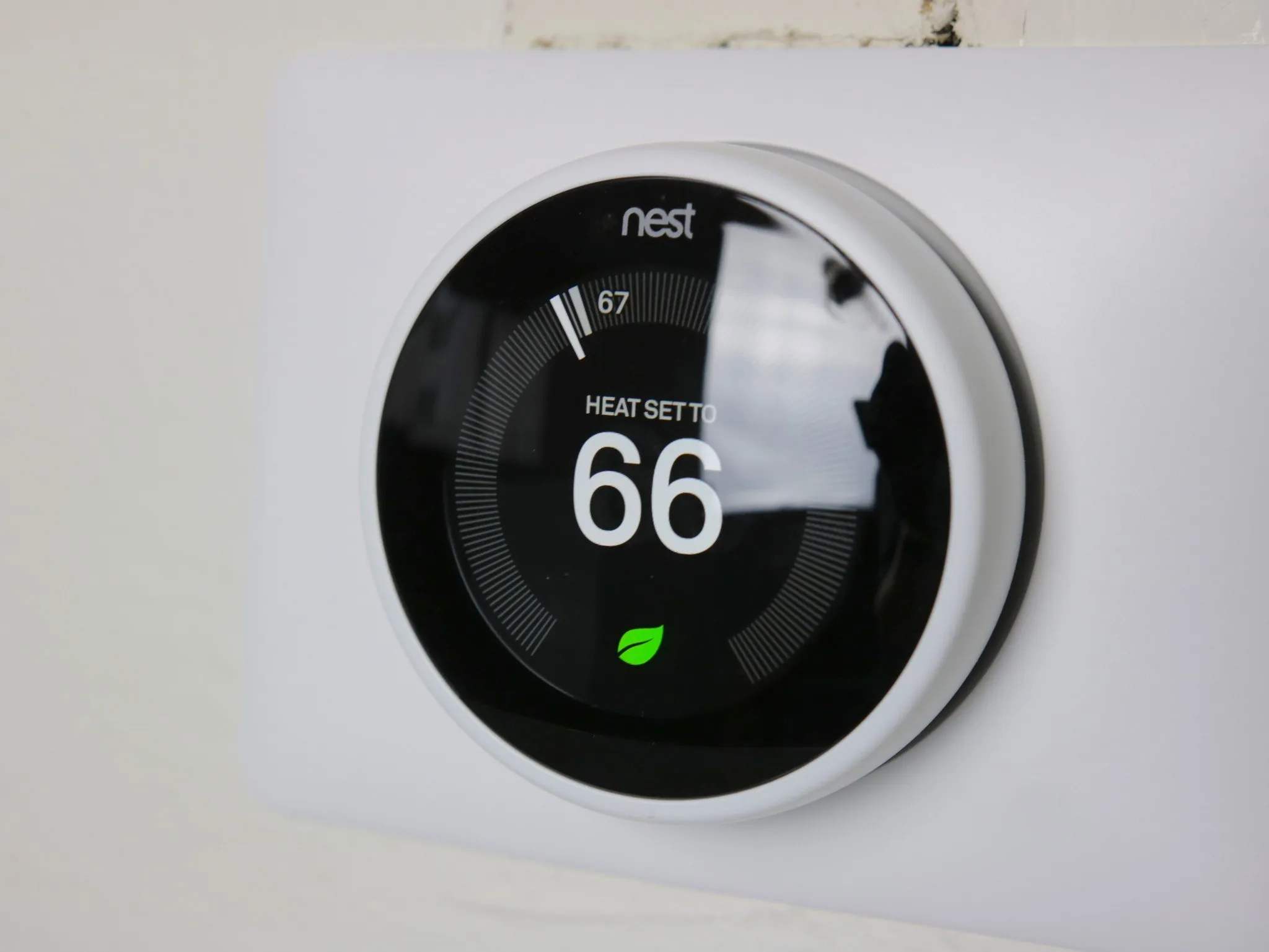
A defensible Nest heat-wave setup looks like this:
- Set your regular cooling schedule to the warmest comfortable occupied temperature, not automatically to 78°F.
- Set nighttime cooling about 4°F warmer than that occupied target.
- Set cooling Eco Temperature about 7°F warmer than the occupied target, staying inside Nest’s 76°F to 90°F cooling Eco range.[6]
- Turn on presence-based Eco/Away behavior, but do not expect instant perfection if the thermostat is relying only on device sensors. Google notes that automatic switching can take up to 2 hours when relying on thermostat and phone sensors alone.[6]
- Use Eco Hold when you want the home to stay at the Eco target for a known period, such as a full day away, instead of letting a normal schedule pull the house back down early.[6]
Nest Leaf is useful here only as a nudge, not as the authority. Google describes the Leaf as an indicator that appears when a temperature can help save energy.[7] If the Leaf appears at a setting your household can live with, fine. If it appears at a setting that makes the bedroom unusable at midnight, the icon lost the argument.
Nest Thermostat 2020 versus Nest Learning Thermostat 4th Gen
Do not assume every Nest feature name behaves the same on every Nest model. If you are not sure what you own, identify it before copying advanced settings; the model split matters for schedule learning, adaptive behavior, and which controls appear in the Google Home or Nest app. NestGrid’s Nest thermostat model guide is the safer place to sort that out before changing heat-wave automation.
For the Nest Thermostat 2020, keep the heat-wave setup plain: occupied schedule, nighttime offset, Eco cooling target, and Home/Away presence behavior. That is enough to prevent the two common heat-wave mistakes: manually lowering the thermostat all afternoon because the house feels scary-hot outside, or letting the normal schedule cool an empty home as if people were sitting in it.
For the Nest Learning Thermostat 4th Gen, review any pre-cooling or Adaptive Eco behavior exposed in your app before the heat wave peaks. Google’s support material describes schedule pre-cooling behavior that can start cooling before a scheduled temperature is needed, and says the thermostat can revert to Eco if nobody comes home.[7] That is the correct failure mode: cool early for an expected arrival, then stop treating the house as occupied if the expected arrival never happens.
Set ecobee with Comfort Settings first, eco+ second
Ecobee’s best heat-wave setup starts with ordinary Comfort Settings. Put the occupied temperature in Home, the +4°F nighttime temperature in Sleep, and the +7°F empty-house temperature in Away. Once those numbers are sane, eco+ can add automation layers on top. If the base schedule is wrong, eco+ is just decorating the wrong answer.
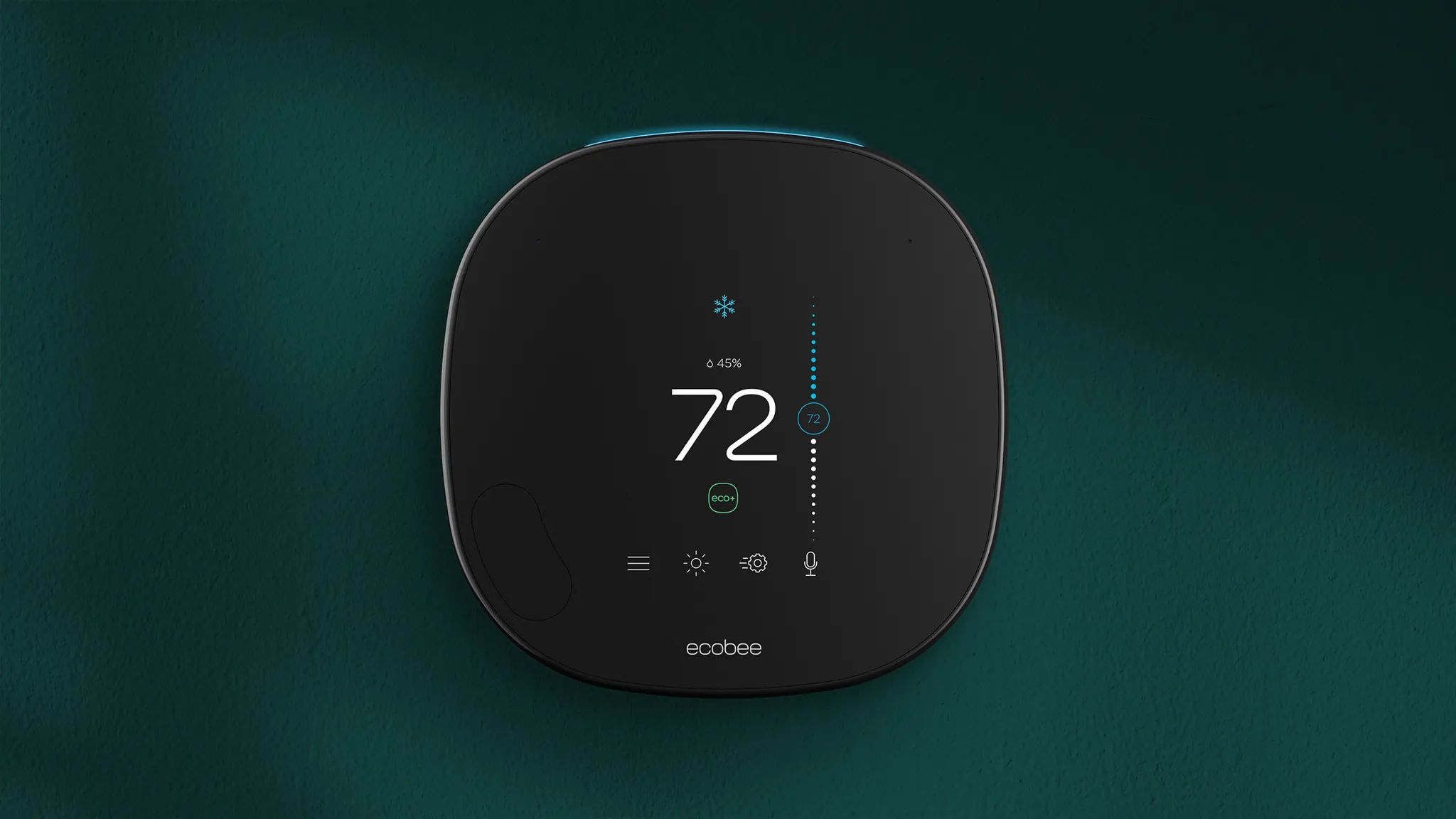
Then choose eco+ features by what problem they solve:
| ecobee feature | Use it during a heat wave when... | Be careful when... |
|---|---|---|
| Smart Home & Away | Your household has irregular occupancy and the thermostat can reasonably tell when people are home. | Someone is home quietly, sleeping, working in a room without good sensing, or relying on a remote room for comfort. |
| Time of Use | Your electric rate has cheaper and more expensive periods, and shifting some cooling earlier will actually reduce cost. | You are on a flat rate or the house heats back up so quickly that early cooling only adds runtime. |
| Community Energy Savings | You are comfortable letting ecobee respond to participating grid events and you know how to opt out. | A medically vulnerable person, pet, or heat-sensitive room cannot tolerate temporary upward adjustments. |
| Pause When Open | Doors or windows are sometimes opened long enough that cooling would be wasted. | A brief door opening would create nuisance pauses, or sensors are placed where they misread normal traffic. |
Ecobee describes eco+ as a set of energy-efficiency features that includes Smart Home & Away, Time of Use, Community Energy Savings, and Pause When Open.[8] Treat those as separate switches. Smart Home & Away is an occupancy layer. Time of Use is a rate-arbitrage layer. Community Energy Savings is a grid-event layer. Pause When Open is a waste-prevention layer. None of them cancels the need to choose livable Comfort Settings.
For grid events, the useful detail is not the marketing phrase. The Verge reported that ecobee’s heat-wave response can adjust thermostats by 1°F to 4°F for no more than 4 hours, with customer opt-out available.[9] That is a setting with a human consequence: the house may get warmer for part of the afternoon. If that is acceptable, enroll. If it is not acceptable for your household, do not pretend the opt-out button is a moral failure.
Precool only when the rate plan pays you back
Precooling is where a lot of heat-wave advice gets sloppy. Cooling a house earlier can save money if electricity is cheaper earlier and expensive later. It can also waste energy if the home leaks heat quickly, the peak window is mild, or the thermostat cools an empty house for a return that does not happen.
SMUD’s public cooling advice is a clear example of the kind of rate structure where precooling can make sense: cool in the morning, then set the thermostat to 78°F or turn it off during the 5 p.m. to 8 p.m. peak period.[10] That is not a universal physics rule. It is a utility-specific recipe tied to a defined expensive window.
Ecobee’s Time of Use feature is built for this situation. Ecobee says eco+ can preheat or precool when energy is less expensive and claims Time of Use can provide an additional 7% to 26% cooling-cost savings.[8] That is a vendor claim about additional cooling-cost savings, not an independent guarantee for every home. It becomes more believable when three conditions are true: your plan has meaningful peak pricing, the peak period is predictable, and your home can coast for a while without becoming oppressive.
Nest’s schedule pre-cooling belongs in the same conditional bucket. Google says schedule pre-cooling can start ahead of a scheduled temperature, and that the thermostat can return to Eco if nobody comes home.[7] That behavior is useful on a 100°F day if people usually arrive before the expensive or hottest window and the house needs time to recover. It is less useful if arrival times are chaotic and the thermostat keeps preparing for people who are still across town.
A simple test is better than a slogan. If you have time-of-use pricing, try one hot weekday with modest precooling before the peak window and one similar weekday without it. Watch indoor temperature at the end of the peak period, HVAC runtime, and whether anyone overrode the thermostat. A plan that survives only because everyone suffers quietly from 5 p.m. to 8 p.m. is not a good plan; it is just discomfort with a schedule.
Demand response is a contract, not just a thermostat feature
Demand response can be worthwhile, especially in a heat wave, but it should be treated as enrollment in a program with rules. Google says Nest demand-response programs include more than 110 utility partners and over 1 million enrolled customers.[11] That proves adoption, not guaranteed comfort or savings for your home.
Before enrolling, check the event temperature limits, event duration, number of events, override rules, bill credits, and whether your utility can call events during the exact hours your home is hardest to keep comfortable. Ecobee’s reported 1°F to 4°F, maximum-4-hour adjustment is useful context, but your utility’s terms are the ones that matter.[9]
This is also where remote sensing becomes more than a gadget preference. If the thermostat is in a hallway that stays cooler than the upstairs bedroom, a demand-response event may look reasonable at the wall and feel awful where someone is sleeping or working. If your thermostat uses room sensors, make sure the rooms that actually matter are represented before letting away modes, eco+ events, or utility programs make decisions. NestGrid’s remote sensor comparison is the practical follow-up if comfort is uneven across the house.
A final configuration I would actually defend
For Nest: set the occupied cooling target to the warmest comfortable value, set sleep about 4°F warmer, set Eco cooling about 7°F warmer within Nest’s 76°F to 90°F cooling Eco range, enable presence-based Eco/Away, and use Eco Hold for known absences. On Nest Learning Thermostat 4th Gen, review pre-cooling and Adaptive Eco behavior before relying on it during the hottest week; on Nest Thermostat 2020, keep the setup centered on schedule plus Eco/Away unless your app clearly exposes more advanced behavior.
For ecobee: set Home, Sleep, and Away around the same comfortable, +4°F, and +7°F pattern; then enable eco+ features selectively. Smart Home & Away is usually the first useful layer. Time of Use is worth testing only with real peak pricing. Community Energy Savings is worth enrolling in only if the event rules and opt-out mechanics are acceptable. Pause When Open is harmless only if it does not create nuisance interruptions.
The savings numbers rank like this: ENERGY STAR’s about 8% and about $50 per year is the safest baseline; the independent 10% to 15% range is plausible but still depends on the study and home; manufacturer claims up to 26%, including ecobee’s 7% to 26% additional cooling-cost claim for Time of Use, are best treated as possible upside under the right conditions, not the number to write into your budget. Demand-response event comfort and compensation remain utility-specific, so read the terms before giving the grid permission to move your setpoint.
References
- Best Setting for Your Central Air Conditioning — Consumer Reports
- Keep Your Cool AND Save Your Money this Summer — ENERGY STAR
- DoE Deletes Webpage Instructing People To Lower Thermostat to 78 — Newsweek
- Smart Thermostat FAQ — ENERGY STAR
- How much smart thermostats save during a heat wave — CBS News
- Learn about Eco Temperatures, Eco when away & how to change settings — Google Nest Help
- Improve energy savings with your Nest thermostat — Google Nest Help
- eco+ — ecobee
- Ecobee's smart thermostat can automatically respond to a heatwave — The Verge
- Heating & Cooling tips — SMUD
- Nest demand response — Google Sustainability