
Fix HomeKit After Installing iOS 27 Beta 5
Recover HomeKit after the iOS 27 beta 5 install with an ordered, status-labeled runbook: update Apple hubs and the Home app first, restart, then re-add devices through the new iOS 27 onboarding flow. Every step is marked confirmed or unverified so you know which fixes to trust before resorting to a full home reset.
If HomeKit broke right after installing iOS 27 beta 5 — No Response tiles, missing accessories, dead hubs, or devices that refuse to re-add — follow this order before resetting the Home. Start with Apple hub and Home app updates, then run Apple’s official No Response ladder, then try re-adding accessories through the iOS 27 onboarding flow. A full Home reset belongs at the end, not the beginning.
Status frame for August 4, 2026: Apple-documented recovery steps are marked Confirmed. Beta-5-specific release-note claims are Investigating or unverified because the exact beta 5 release-note contents were not available to verify as of this date. “Reset Home” is treated as a Workaround and last resort, not as Apple’s documented support flow.
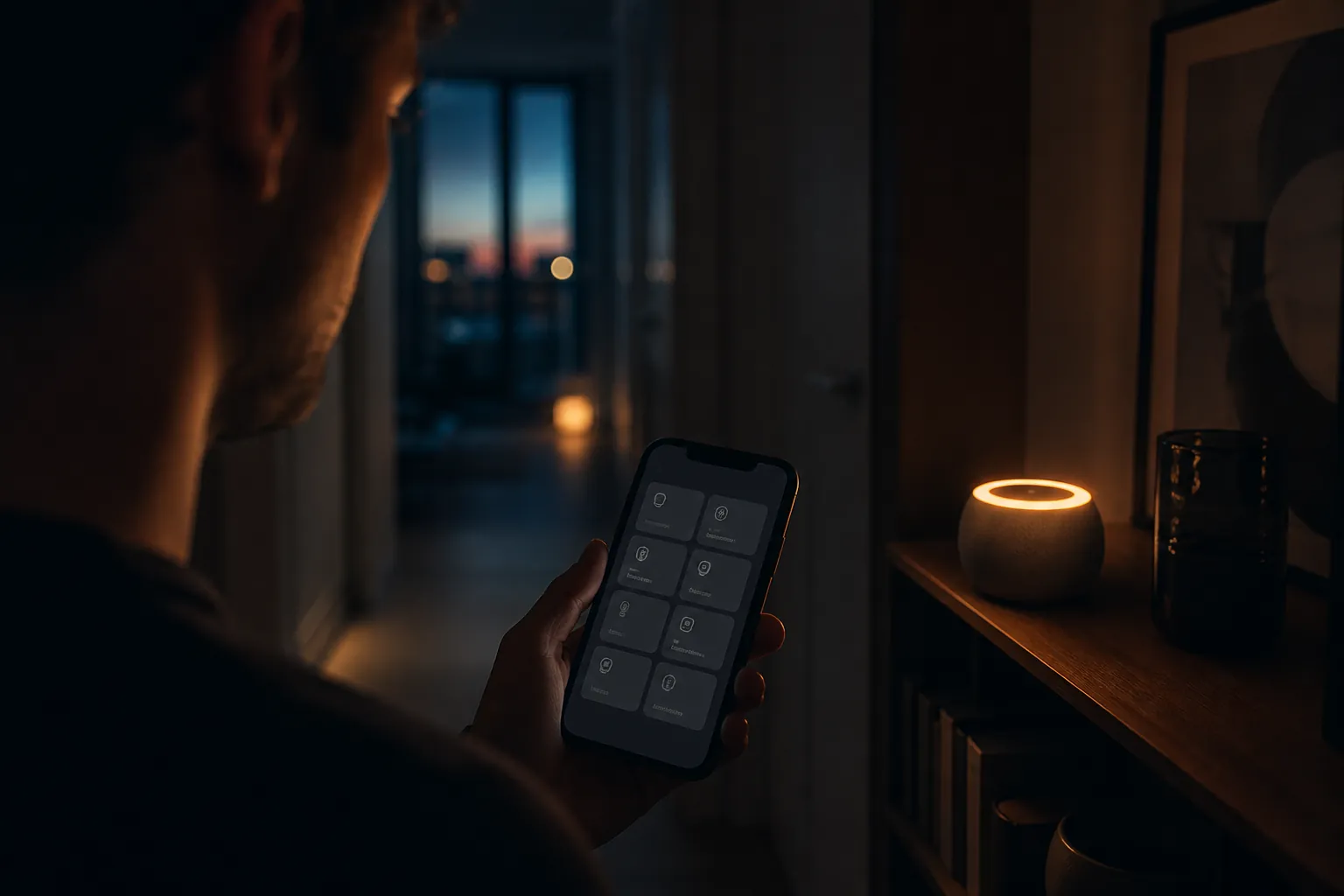
Do this first: clear hub and Home version skew
When HomeKit fails right after an iOS beta install, do not start by blaming the lock, bulb, bridge, or thermostat. The more useful first suspect is version skew: your iPhone is on the iOS 27 beta path, while the Apple TV, HomePod, bridge, or accessory firmware that Home depends on may still be behind.
| Order | Action | Status | Why it comes before resets |
|---|---|---|---|
| 1 | Update the Home app environment and active Apple home hubs. | Confirmed | Apple maps Software Update Required and Home Hub Required errors to hub and Home setup requirements. |
| 2 | Restart accessories, bridges, and Apple hubs in Apple’s documented order. | Confirmed | This clears many No Response states without destroying rooms, scenes, automations, or pairings. |
| 3 | For Thread accessories, power-cycle and wait for the mesh to stabilize. | Confirmed | Apple documents both the power-off window and stabilization wait. |
| 4 | Re-add only the accessories that still fail, using Apple’s setup-blocking checks. | Confirmed | This targets stale pairing state without wiping the whole Home. |
| 5 | If the same accessory class remains broken on beta 5, file feedback and consider waiting for the next seed. | Investigating | Earlier iOS 27 beta Home regressions were reported and later repaired, but beta 5-specific fixes remain unverified here. |
| 6 | Reset the entire Home configuration. | Workaround | Community-documented last resort after the confirmed ladder fails. |
Open the Home app, go to Home Settings, and look for Software Update Required or Home Hub Required. Apple’s support guidance treats those messages as setup-state problems: update the active home hub when software is required, and make sure the home has a supported hub when one is required. [2]
That supported-hub detail matters more in 2026 than it did in older HomeKit troubleshooting. Apple’s current Apple Home upgrade guidance says iPad is not supported as a home hub in the updated Apple Home architecture. [3] If the mental map of your house still says “the iPad in the kitchen is the hub,” stop there. Treat an Apple TV or HomePod as the hub that needs to be awake, online, and updated.
For an iOS 27 beta household, the practical target is alignment: the iPhone running iOS 27 beta, the Home app environment, and the active Apple hubs should all be on compatible current software. If your Apple TV is still on an older tvOS build or a HomePod has not taken the matching HomePod Software update, the Home app can look like the accessories failed when the real break is the coordinator in the middle.
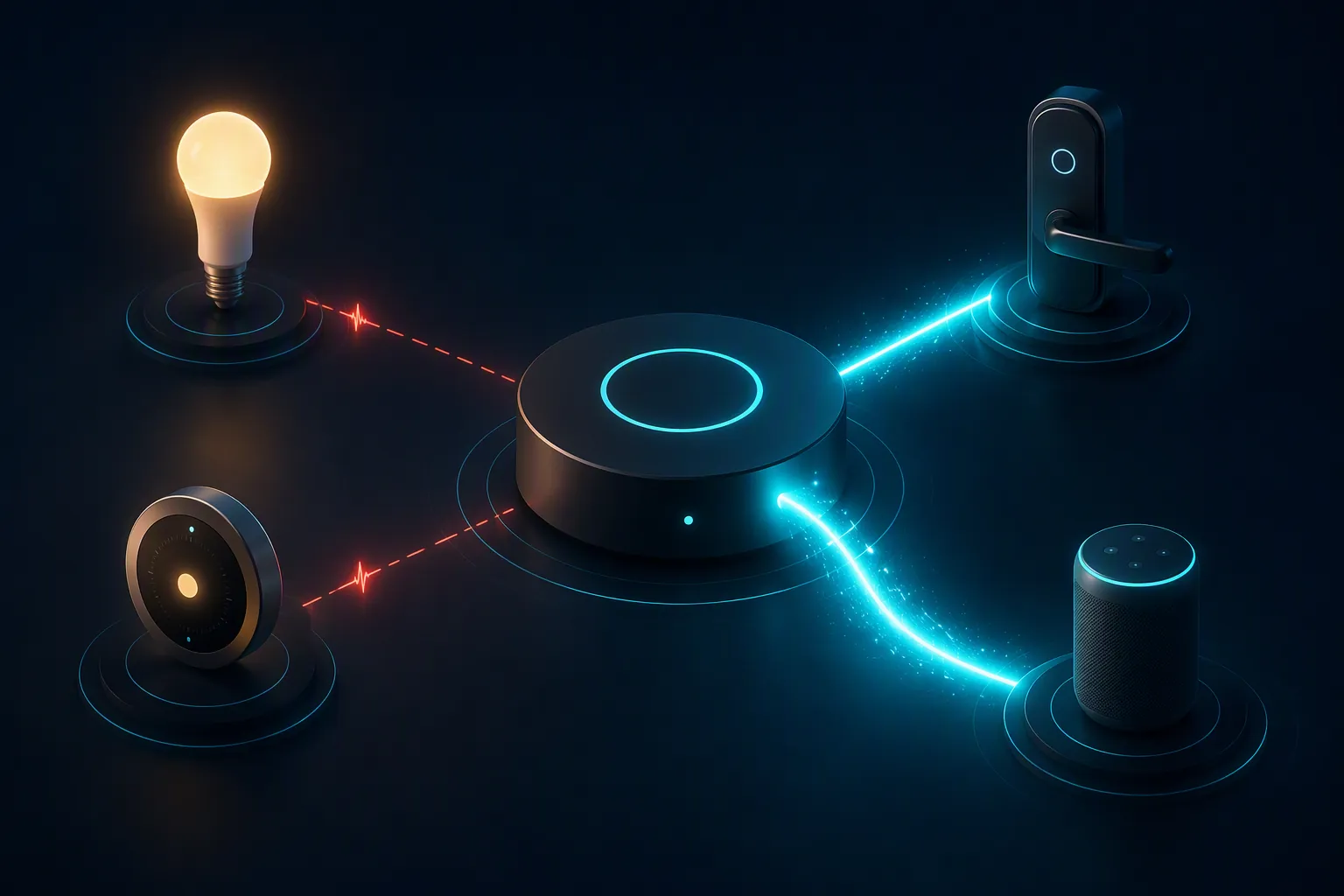
Hub-first checklist
- Confirm the iPhone is signed in with the Apple Account that owns or can manage the Home.
- Update the iPhone’s Home app environment and any active Apple TV or HomePod home hubs.
- Do not count an iPad as the current supported Apple Home hub.
- If Home Settings shows Software Update Required, update the home hub before touching accessories.
- If Home Settings shows Home Hub Required, bring a supported Apple TV or HomePod online before re-adding Matter or hub-dependent accessories.
If you want the stable-OS version of the same symptom pattern, use Fix HomeKit Devices Not Responding After iOS 26.6. This article stays on the iOS 27 beta path because the recovery decision is different when the phone, hubs, and pairing flow may be moving across beta builds.
Run Apple’s No Response ladder in order
Apple’s official No Response guidance, published March 3, 2026, gives the cleanest recovery order for HomeKit or Matter accessories that do not respond in the Home app. [1] It is not written only for iOS 27 beta 5, which is a point in its favor: these are the baseline moves to exhaust before beta folklore, bridge factory resets, or deleting the Home.
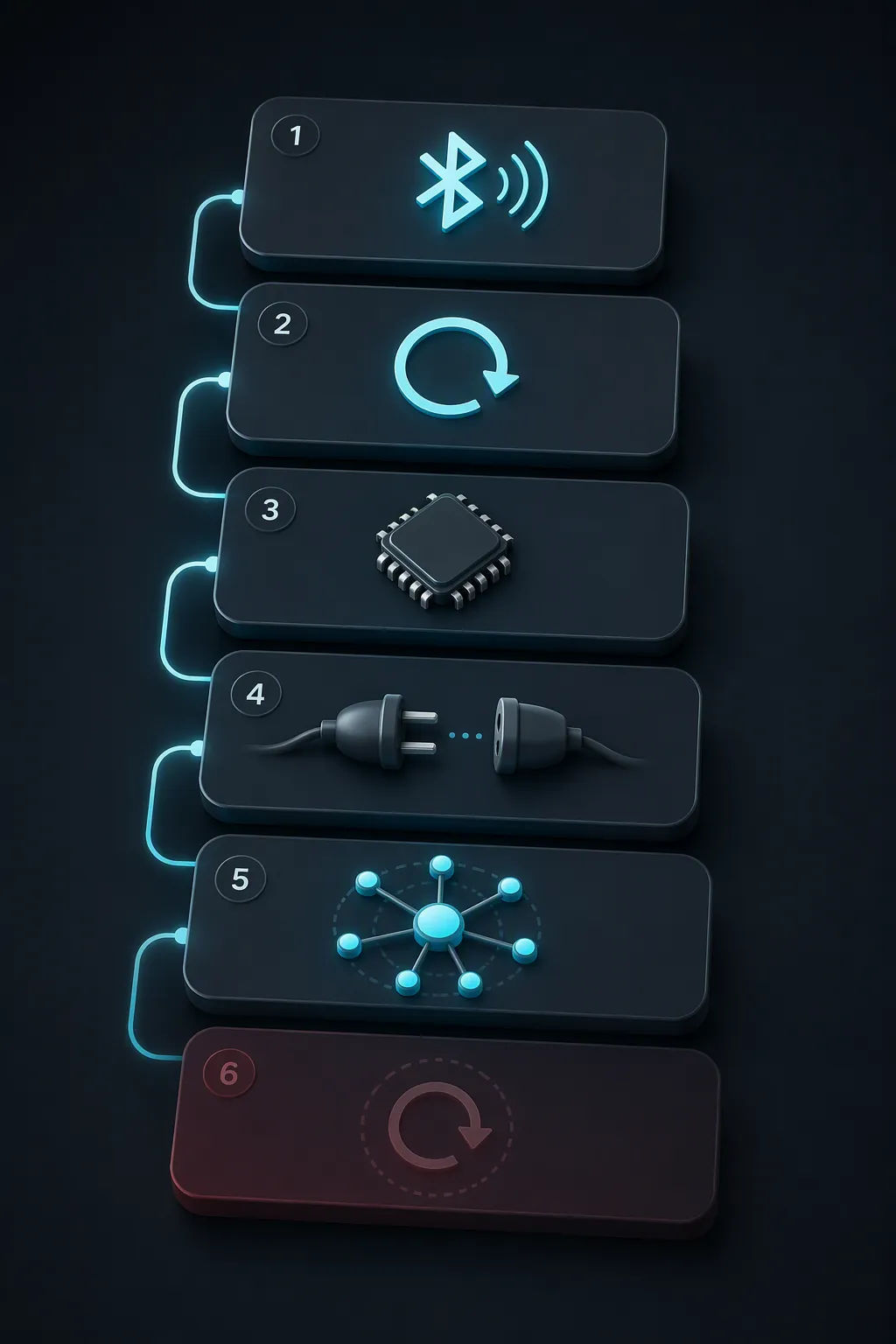
1. Turn on Bluetooth — Confirmed
On the iPhone or iPad you are using to repair the Home, turn Bluetooth on. Apple puts this first in the No Response ladder. [1] It sounds too small until you remember what you are trying to do: let the phone discover, negotiate with, or re-establish local contact with accessories and nearby setup devices. Do not skip it because Wi-Fi looks fine.
2. Restart the accessory — Confirmed
Restart the accessory that shows No Response. For a bulb, that may mean using the wall switch or lamp power. For a plug, remove it from power and plug it back in. For a lock, thermostat, camera, or sensor, use the manufacturer’s normal restart method rather than jumping straight to erase or factory reset.
Apple’s support flow says to restart the accessory before moving into app firmware checks, bridge restarts, hub restarts, or Thread-specific steps. [1] That order protects you from turning one stale device session into a whole-home repair job.
3. Check the manufacturer’s app for firmware updates — Confirmed
Open the accessory maker’s app and check for firmware updates. Apple includes this step in the No Response ladder. [1] This is especially important for bridges and multi-device ecosystems: the Home app may be showing twelve failed tiles, but the underlying repair may be one bridge firmware update or one vendor-side restart.
Do not remove and re-add every child accessory before checking the app that actually owns the bridge or device firmware. If the manufacturer app can still see the accessory, that is useful evidence. It means you may be looking at a Home integration or hub coordination problem rather than dead hardware.
4. Restart bridges and all home hubs by unplugging them — Confirmed
Apple’s next move is blunt but controlled: restart bridges and all home hubs by unplugging them, then plugging them back in. [1] In a post-beta HomeKit failure, this is the step that often matters more than tapping the same dead tile twenty times.
Do it physically. Unplug the bridge. Unplug the Apple TV or HomePod power where possible. Wait briefly, restore power, and give the Home app time to decide which hub is active again. If you have multiple Apple hubs, restart all of them rather than only the one you think is primary; Home may have failed over while you were updating.
This is also where the hallway panic usually starts to calm down. A bridge that returns after a hard power restart can repopulate a group of lights. A hub that comes back on the expected software path can make “missing” accessories visible again. None of that requires deleting rooms, scenes, or automations.
5. For third-party Thread accessories, power off for 5 minutes — Confirmed
If the failed device is a third-party Thread accessory, Apple says to remove power for 5 minutes. [1] For a battery device, that means removing the battery if the device design allows it. For a powered device, unplug it or cut power through the device’s normal method.
Thread repairs are where impatient troubleshooting gets expensive. If one node is holding stale state after the iOS beta install, repeatedly removing it from Home can create more work than letting it fully power down and rejoin cleanly.
6. Wait 10 minutes for Thread to stabilize — Confirmed
After power-cycling a third-party Thread accessory, Apple says to wait 10 minutes for the Thread network to stabilize. [1] That wait is not decorative. Thread devices may need time to choose routes, reattach, and settle behind the Home app’s simple Responding or No Response label.
During that window, do not keep removing and re-adding the same accessory. Leave the Home app alone long enough to learn whether the mesh has recovered. The person waiting for the hallway lights does not need another reset timer; they need the network to finish the repair already in progress.
If devices still will not re-add in iOS 27
Only after the hub updates, bridge restarts, accessory restarts, and Thread wait should you move into re-adding devices. At that point, you are no longer guessing wildly; you are testing whether a specific accessory is holding stale pairing state after the beta update.
Apple’s setup-blocking guidance for accessories that cannot be added to the Home app is straightforward: use the same Apple Account, keep Bluetooth on, connect to the same Wi-Fi network, use a 2.4 GHz network when the Home app says the network is incompatible, and remember that Matter accessories need a home hub. [4]
| Re-add failure | Check before resetting | Status |
|---|---|---|
| Accessory is not discovered | Bluetooth on, phone near the accessory, accessory restarted, setup mode active. | Confirmed |
| Accessory appears but setup fails | Same Apple Account, same Wi-Fi, active supported home hub available. | Confirmed |
| Home app says the network is incompatible | Try the accessory on the 2.4 GHz Wi-Fi path if the device requires it. | Confirmed |
| Matter accessory will not add | Confirm a supported home hub is online; do not rely on an iPad as the current hub. | Confirmed |
| Accessory still fails after all checks | Treat it as possible beta pairing-state trouble; file feedback and decide whether to wait for another seed. | Investigating |
The iOS 27 context does matter here, but carefully. Around the iOS 27 beta cycle, a simplified full-screen add-accessory interface, faster HomeKit pairing, and Thread connectivity improvements were reported around beta 4. Those claims are useful for understanding why re-adding may feel different from iOS 26, but they are not treated here as confirmed Apple beta 5 release-note fixes because Apple’s developer release-note body was not available to verify them.
Use the new full-screen add flow if it appears, but do not let the nicer screen talk you into repeating the same failed add ten times. If the add fails twice after the confirmed checks, change the condition: restart the hub, confirm the Wi-Fi path, power-cycle the accessory, or wait for Thread stabilization. A prettier pairing surface does not repair a stale bridge or an offline hub by itself.
Why waiting for another beta seed can be reasonable
The iOS 27 beta history gives one reason not to turn every failed tile into a demolition project. Beta 1 was reported to leave Philips Hue lights and other Home accessories unresponsive, and beta 2 was reported to fix that class of issue. Later beta 4 reporting described HomeKit pairing and Thread connectivity improvements. Those are not beta 5 guarantees, but they are enough to justify a calmer branch in the decision tree: if the confirmed recovery ladder fails and the break appeared immediately after the beta, file feedback and consider waiting for the next seed before wiping a complex Home.
That is not an argument for doing nothing. It is an argument for separating household-critical repairs from beta churn. If the front door lock, alarm-related accessory, or essential lighting circuit is affected, you may need a faster rollback or replacement plan. If the failure is a group of noncritical lights that still work in the manufacturer app, waiting for the next beta after filing feedback is a much less destructive choice than rebuilding every room and automation tonight.
When to stop troubleshooting
There are three sensible stopping points.
- Resolved after updates and restarts: stop. Do not keep “cleaning up” by removing accessories that are responding again. Let the Home stabilize.
- Still broken, but the accessories work in the manufacturer app or only fail through the beta Home path: file feedback, keep the confirmed recovery notes, and consider waiting for another iOS 27 seed.
- Unrecoverable after the confirmed ladder, hub updates, bridge restarts, Thread wait, and re-add checks: only then consider a full Home reset as a community-documented last resort.
A full reset means you are accepting the cost of rebuilding the Home: accessories, rooms, scenes, automations, permissions, and whatever undocumented quirks made the old setup work. That may be necessary for a badly corrupted test home. It is a poor first move for a household that may only have one hub behind, one bridge needing a hard restart, or one Thread accessory waiting to rejoin.
Treat most HomeKit breakage after installing iOS 27 beta 5 as hub/software skew or stale pairing state first. Exhaust the confirmed order before touching the reset option.
References
- If your HomeKit or Matter accessory isn't responding in the Home app, Apple, March 3, 2026
- If you see a Software Update Required or Home Hub Required error, Apple
- Update Apple Home, Apple
- If you can't add a smart home accessory to the Home app, Apple, May 12, 2026