If the question is whether GCI 5G Alaska coverage can power a full smart home with 20-plus devices, the short answer is yes in the places where GCI service is strong. Cameras, thermostats, lights, locks, leak sensors, plugs, speakers, and a hub do not usually fail because a home has “only” a few hundred Mbps. They fail because the device on the hallway outlet only speaks 2.4GHz Wi-Fi, the phone is sitting on 5GHz, and the app refuses to finish pairing.
That distinction matters in Alaska. GCI said in July 2026 that its 5G network reaches 83% of Alaskans across more than 125 communities, which is real scale in a state where distance and backhaul make every blanket internet claim a little suspicious.[1] In Anchorage, Ookla data from March 2025 through March 2026 put GCI’s median download performance in the 378–432 Mbps range with about 19 ms latency, depending on the dataset cut cited in the report.[2] Speedtest’s Anchorage page for January 2026 showed GCI at 401.82 Mbps median download and 18.94 ms latency.[3]
Those numbers are not a guarantee for every cabin, apartment, split-level, or house at the end of a long driveway. They are user benchmarks, not a magic shield against bad Wi-Fi placement or a weak signal in the garage. But they do show enough headroom that, in covered urban and many community settings, raw GCI speed is usually not the first thing I would blame when a smart plug will not join.
Speed Is Usually the Easy Part
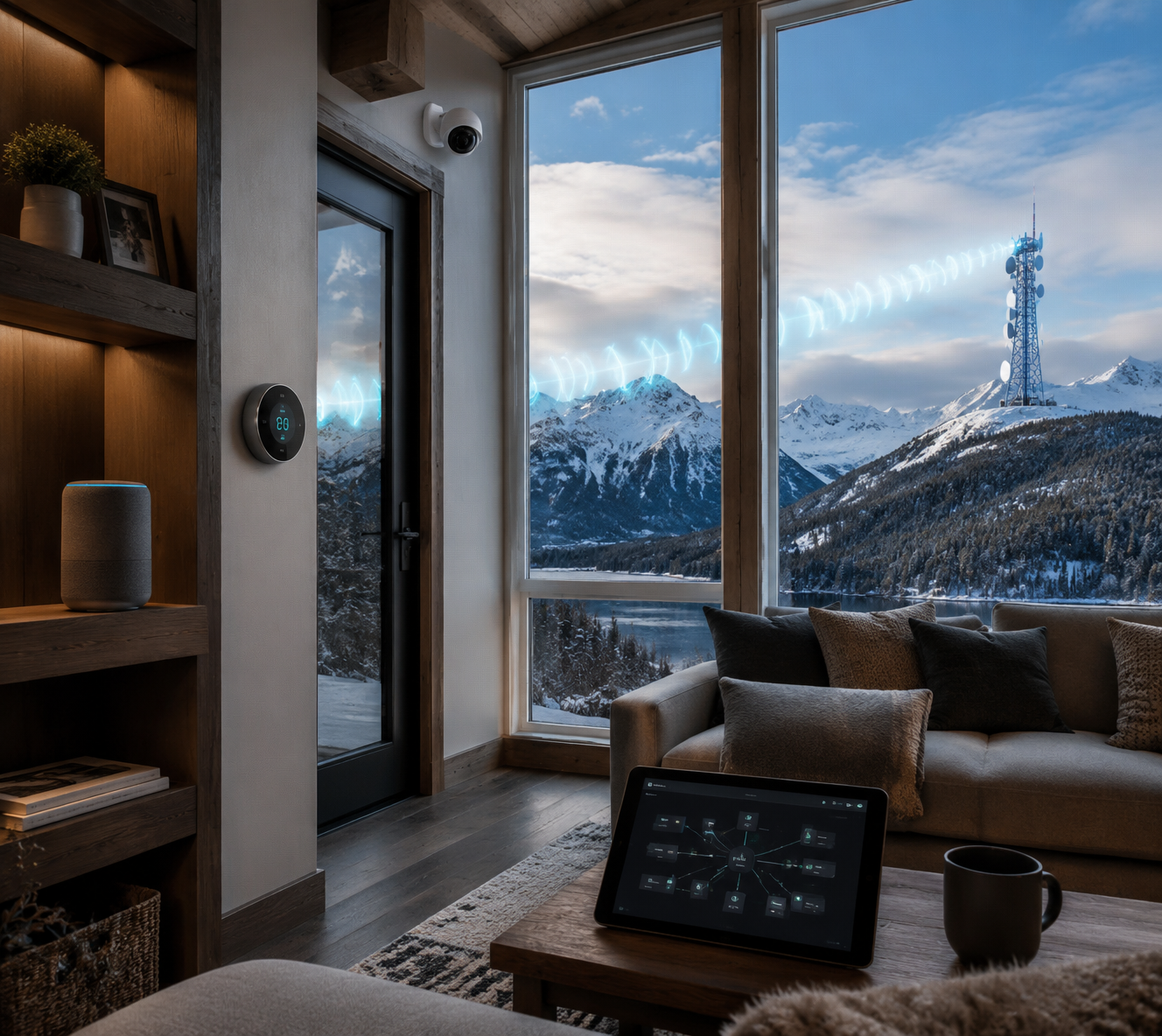
A normal smart home is lighter on bandwidth than people expect. A leak sensor sleeps most of the day. A smart lock sends tiny status updates. A thermostat is not pulling a movie stream. Smart bulbs and plugs mostly need reliable reach and a clean connection during setup. Cameras are the exception because video can run continuously or wake up often, especially if several cameras upload clips at the same time.
GCI’s AK-Fi Home tiers start with Fast at $89.99 per month for 250 Mbps and a 250 GB cap, then move up through faster and larger-cap options to Red Unlimited at $189.99 per month for 2.5 Gbps with unlimited data.[4] That top speed sounds nice, and in a camera-heavy house unlimited data can matter more than the headline number. But a home with a thermostat, locks, lights, plugs, a few sensors, and one or two cameras is not automatically a 2.5 Gbps problem.
| Smart-home load | What matters most | How to think about GCI service |
|---|---|---|
| Sensors, plugs, bulbs, thermostat, locks | 2.4GHz reach, pairing reliability, stable Wi-Fi | Speed is rarely the limiting factor if the address has solid service. |
| Mixed home with several cameras and common IoT devices | Upload consistency, in-home Wi-Fi coverage, data allowance | Mid-to-higher AK-Fi tiers are worth comparing, especially if cameras save cloud clips. |
| Camera-heavy home with outdoor coverage needs | Upload performance, unlimited data, mesh/pod placement | Plan tier and Wi-Fi design matter more than raw device count. |
The useful comparison is not “Can GCI hit a big number?” It is “Can the connection at this address keep cameras responsive while the router still reaches the doorbell, garage, crawlspace sensor, and bedroom plug?” Anchorage Ookla medians give a strong yes for speed headroom in the city, but the house still has to distribute that connection cleanly.[2][3]
The 2.4GHz Problem Is Where Setups Actually Get Annoying
A lot of inexpensive smart-home gear still uses 2.4GHz Wi-Fi only. That is not automatically bad engineering. 2.4GHz reaches farther than 5GHz through walls and floors, and a sensor sending small updates does not need a fast short-range band. The trouble starts when the home network uses one shared Wi-Fi name, or SSID, for both 2.4GHz and 5GHz.
Unified SSID is convenient after everything is working. Your phone, laptop, tablet, and streaming box can roam between bands without you thinking about it. During smart-device setup, though, the app on your phone may need to hand the network name and password to a 2.4GHz-only device. If the phone is currently riding 5GHz, some cheap devices or sloppy setup apps get confused. The failure message usually sounds vague: device not found, connection timed out, unable to join, try again.
This is why “GCI is fast” does not settle the smart-home question. A 400 Mbps median download result does not help much when a $12 plug cannot get through its first handshake. The good news is that GCI documents several ways around this specific problem instead of pretending it never happens.
Start with IoT Onboarding Mode in the AK-Fi app
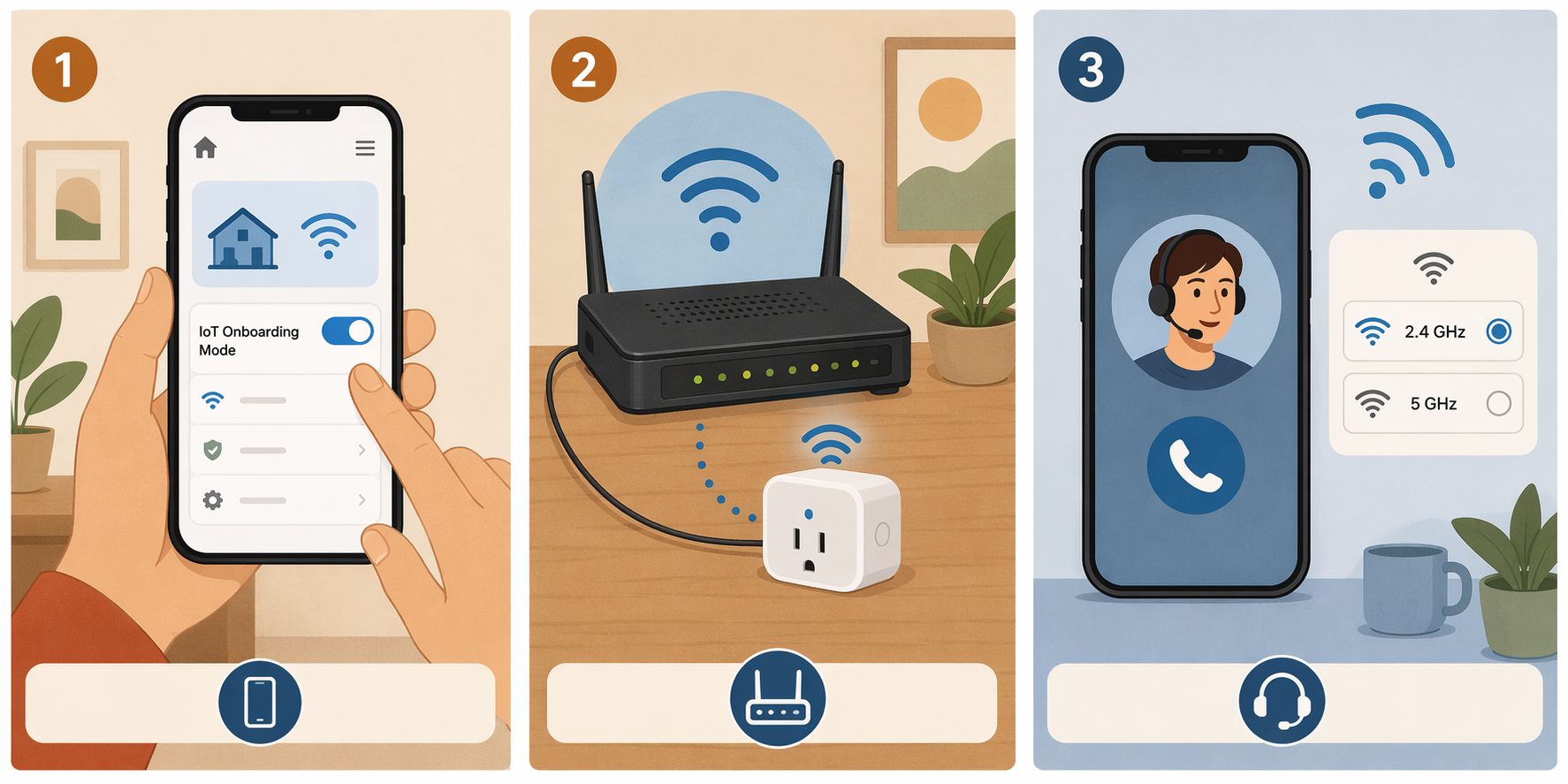
GCI’s first and most normal fix is IoT Onboarding Mode in the AK-Fi app. GCI describes it as a setup mode for connecting 2.4GHz-only IoT devices, and its support page walks users through enabling the mode in the app before pairing the device.[5] This is the fix I would try before dragging out an old router or calling support.
The practical sequence is simple: open the AK-Fi app, enable IoT Onboarding Mode, then run the smart device’s normal setup process while that mode is active. The point is not to make the home permanently slower or to split the network forever. The point is to create a temporary setup path where the 2.4GHz-only device can see what it needs to see.
That distinction is worth keeping straight. Once the plug, bulb, sensor, or camera is joined, many devices are perfectly happy living on the same unified network. The fragile part is onboarding. If the device pairs correctly and stays online after the mode ends, leave it alone. Do not keep changing network names because a setup screen made you mad for ten minutes.
Use the twin-network workaround for stubborn devices
Some devices still refuse to cooperate. GCI’s AK-Fi Work 2.4GHz guide documents a workaround using a separate 2.4GHz network, including approaches such as a phone hotspot or an old router, so the IoT device can be onboarded without fighting the main unified network.[6]
The shape of the workaround is this: create a temporary 2.4GHz-only network with the same Wi-Fi name and password the device expects, connect the device to that network, then move it back into the normal environment once the account or app registration is complete. The details depend on the device and the hardware available, so this is a place to follow GCI’s guide rather than improvise from memory.
This workaround sounds clunky because it is clunky. It is also the sort of clunky that gets a stubborn smart plug out of the box and into service. The important thing is to avoid turning a temporary setup bridge into a permanent second network unless there is a real reason. Extra networks create their own mess later, especially when family members replace phones, change passwords, or move devices between rooms.
Call GCI when the device needs forced 2.4GHz handling
If IoT Onboarding Mode and the twin-network workaround both fail, the next useful step is not buying a faster plan. It is escalation. GCI’s materials describe support paths for 2.4GHz-only IoT devices, including phone-support handling when a device needs more direct help getting onto the right band.[6]
Before calling, write down the device brand, model, whether it is 2.4GHz-only, the app being used, and the exact point where setup fails. “It does not work” burns time. “The device sees the SSID but fails after password entry while AK-Fi IoT Onboarding Mode is active” gives support something to work with.
There will still be oddball devices. Some low-cost hardware has weak radios, old firmware, or setup apps that have not kept up with modern mesh networks. That is not unique to GCI. It is just where the clean marketing version of smart homes meets the real drawer full of reset pins.
Inside the House, Placement Can Beat Plan Speed
A smart home does not care that the modem speed-tests well if the doorbell camera is mounted through an exterior wall, the leak sensor sits beside metal plumbing, and the garage plug is trying to talk through a freezer. In-home Wi-Fi design is often the weak link after the internet service itself is good enough.
GCI’s AK-Fi Pods are the relevant tool here. GCI’s Pods FAQ describes extender availability and gives placement guidance of about 50 to 80 feet, depending on the home layout.[7] That distance is a guide, not a dare. In an Alaska home with thick walls, odd additions, mechanical rooms, or a detached garage, the best pod location is the place that still has a strong signal from the main router and can pass that signal toward the weak area.
Do not put a pod in the dead zone and expect it to manufacture internet out of drywall. Put it between good coverage and bad coverage. Then test from the actual device location: stand by the doorbell, the thermostat, the crawlspace hatch, the upstairs hallway, or wherever the device lives. A phone test is not perfect, but it is better than judging coverage from the couch.
The AK-Fi app also gives household management tools such as Profiles, Focus, Timeout, and Security features.[8] Those can be useful once the network is stable: pausing a child’s tablet, grouping devices, or watching for security alerts. They are not a substitute for getting the 2.4GHz setup path and pod placement right first.
Urban Anchorage and Rural Alaska Are Not the Same Test
In Anchorage, the GCI smart-home question is fairly forgiving. Ookla’s Anchorage figures show enough median download speed and low enough latency for a large smart-home load, with the usual address-level caveats.[2][3] If a 20-device home in Anchorage is struggling, I would look at Wi-Fi coverage, camera upload behavior, data allowance, and 2.4GHz onboarding before blaming GCI’s citywide capacity.
Rural Alaska needs a more careful answer. GCI’s 5G footprint across 83% of Alaskans and 125-plus communities is impressive, but Alaska service quality still depends heavily on the exact community, backhaul, and address.[1] Ookla’s statewide analysis found that only 47.1% of Alaska Speedtest users reached 100 Mbps down and 20 Mbps up, which is a useful brake on any claim that the whole state already has urban-like broadband.[2]
That does not mean rural smart homes are out of reach. It means the device mix has to match the connection. Sensors, smart plugs, locks, thermostats, and a hub can be reasonable on modest service if the Wi-Fi is stable. Multiple cloud cameras are less forgiving. If upload is weak or data is tight, camera settings start to matter: motion zones, clip length, resolution, and whether recording is continuous or event-based.
The rural picture is improving, but it should be described as improvement, not arrival. Phase 1 of the AIRRAQ Network is delivering 2.5 Gbps service to Bethel, Eek, Napaskiak, and other villages, while BEAD-funded fiber expansions are not yet available in most rural communities.[2] GCI also announced Starlink bonded gateway work in Bethel, Sitka, Kotzebue, and Dillingham in June 2026, using hybrid connectivity to improve service resilience in those locations.[9]
That is encouraging. It is not a reason to skip the address check. A smart-home plan that works cleanly in one hub community may not behave the same way in a smaller village using different backhaul. Anyone buying cameras, locks, and Wi-Fi-only sensors for a rural home should verify the actual service available at the address before filling a cart.
What I Would Check Before Buying the Devices
The cleanest smart-home setup on GCI starts before the first device is scanned. The internet tier, router placement, pod layout, and device choices should fit the house instead of being patched together after three failed pairing attempts.
- Verify address-level service, not just GCI’s general footprint. Coverage maps and community announcements are useful, but the service available at the actual home is what matters.
- Count cameras separately from the rest of the smart home. Cameras drive bandwidth and data use in a way plugs, bulbs, locks, and sensors usually do not.
- Plan the 2.4GHz onboarding path before buying a pile of Wi-Fi-only devices. Know where IoT Onboarding Mode is in the AK-Fi app and keep GCI’s workaround guide handy.
- Place pods for relay strength, not desperation coverage. A pod needs a good enough connection back to the main network before it can help a weak room.
- Prefer devices with clear 2.4GHz and mesh-network setup instructions. A cheap sensor is not cheap if it costs an afternoon of reset cycles.
So yes, GCI 5G Alaska coverage and AK-Fi home internet can power a full smart home where coverage and in-home Wi-Fi are solid. For most covered GCI homes, especially in Anchorage and other strong-service communities, speed is not the weak link. The practical risks are narrower: weak in-home Wi-Fi, the wrong plan for a camera-heavy setup, rural variability, or a 2.4GHz-only device that needs a workaround before it behaves.
References
- GCI 5G expansion press release, GCI Newsroom, July 2026
- Closing the Gap: Alaska's Push for Statewide Connectivity, Ookla, March 2025-March 2026
- Speedtest Anchorage page, Speedtest, January 2026
- AK-Fi Home, GCI
- AK-Fi IoT Onboarding Mode, GCI
- AK-Fi Work: Connect 2.4 GHz Only IoT Devices, GCI
- AK-Fi Pods FAQ, GCI
- AK-Fi App Features, GCI
- GCI Starlink bonded gateway press release, GCI Newsroom, June 2026
Updates & Corrections
Protocol specifications and platform features change rapidly — especially with Matter version evolution. Report version changes, certification count updates, or platform policy changes that have occurred since the last editorial review.
Comments
Join the discussion with an anonymous comment.