
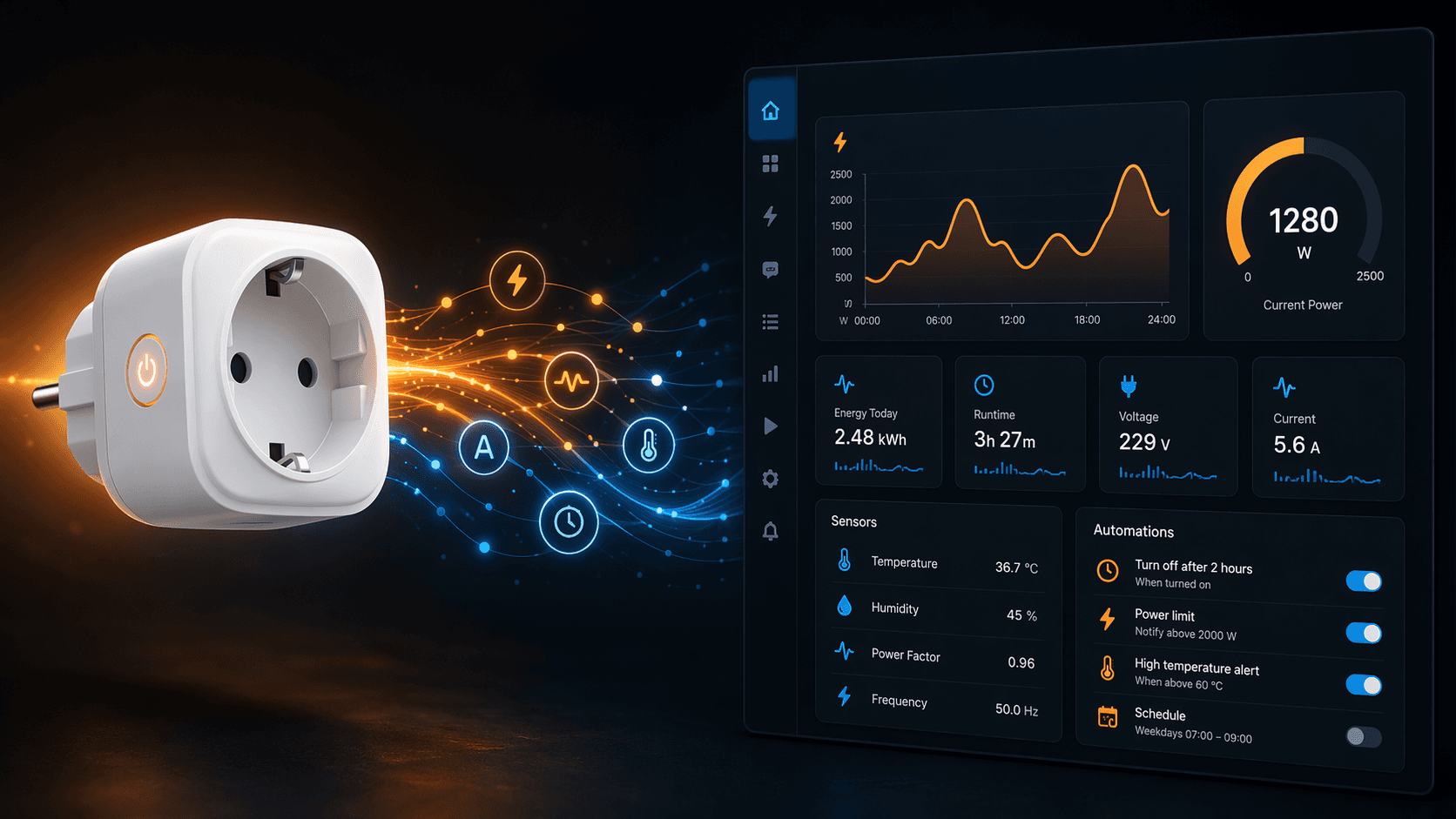
A Home Assistant smart plug gets interesting when the switch becomes the least important entity. The useful part is the power curve: watts now, kilowatt-hours over time, and enough history to see when an appliance has moved from active work to idle, from normal cycling to suspiciously long runtime, or from sleep to occupied desk.
That changes the automation design. A dishwasher is not done because it has been running for two hours. It is done because it pulled real power, then dropped to standby and stayed there. A desktop is not “occupied” because a calendar says it is a workday. It is active because the computer crossed out of sleep draw and stayed there long enough to believe it.
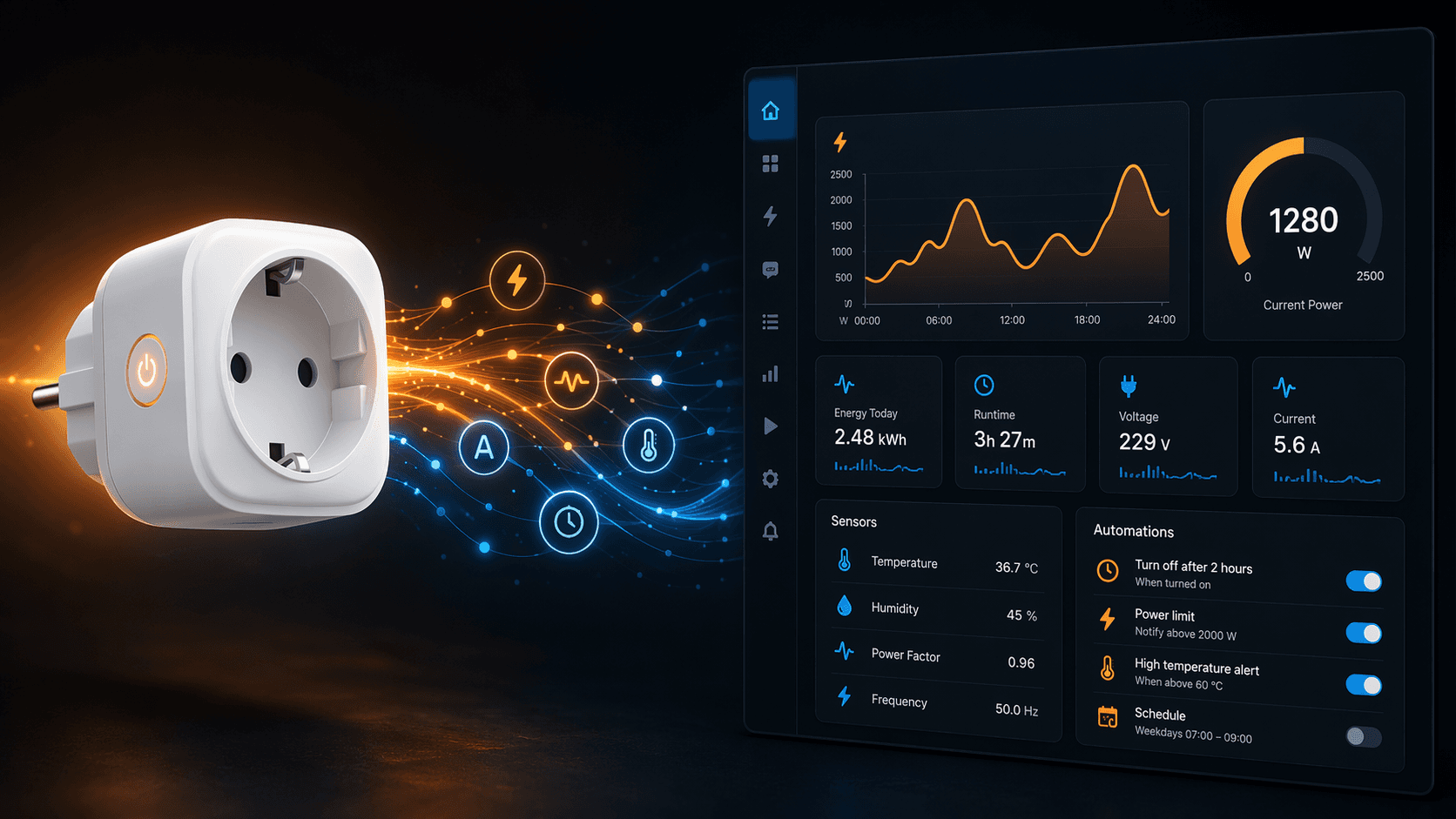
For these recipes, the minimum useful sensor set is simple: a real-time power sensor in watts for state changes, an accumulated energy sensor in kWh for longer-term patterns, and Home Assistant history or Energy Dashboard context for calibration. Home Assistant’s individual device energy documentation also matters if you want these plug-level sensors to appear cleanly in the Energy Dashboard without double-counting upstream devices in the hierarchy.[1]
Brand still matters, but mostly as plumbing. Zigbee plugs may expose voltage, current, power, power factor, and energy locally through ZHA or Zigbee2MQTT, and some also act as mesh routers.[2] Wi-Fi plugs can work well too, especially where Home Assistant has a local integration path, but the distinction between local control and cloud-dependent behavior is not cosmetic when an automation depends on timely sensor updates.[3] Matter support is improving, but some devices have needed vendor firmware updates before energy monitoring appeared properly in Home Assistant, so the integration path is still part of the purchase decision rather than a footnote.
The five recipes below assume the plug already exposes usable power and energy entities. If it only exposes an on/off switch, it belongs in a different article. An Amazon Smart Plug, for example, can be useful for basic switching, but it is the wrong tool for these sensor-driven recipes because the power curve is the input.
Read the Curve Before Writing the Automation
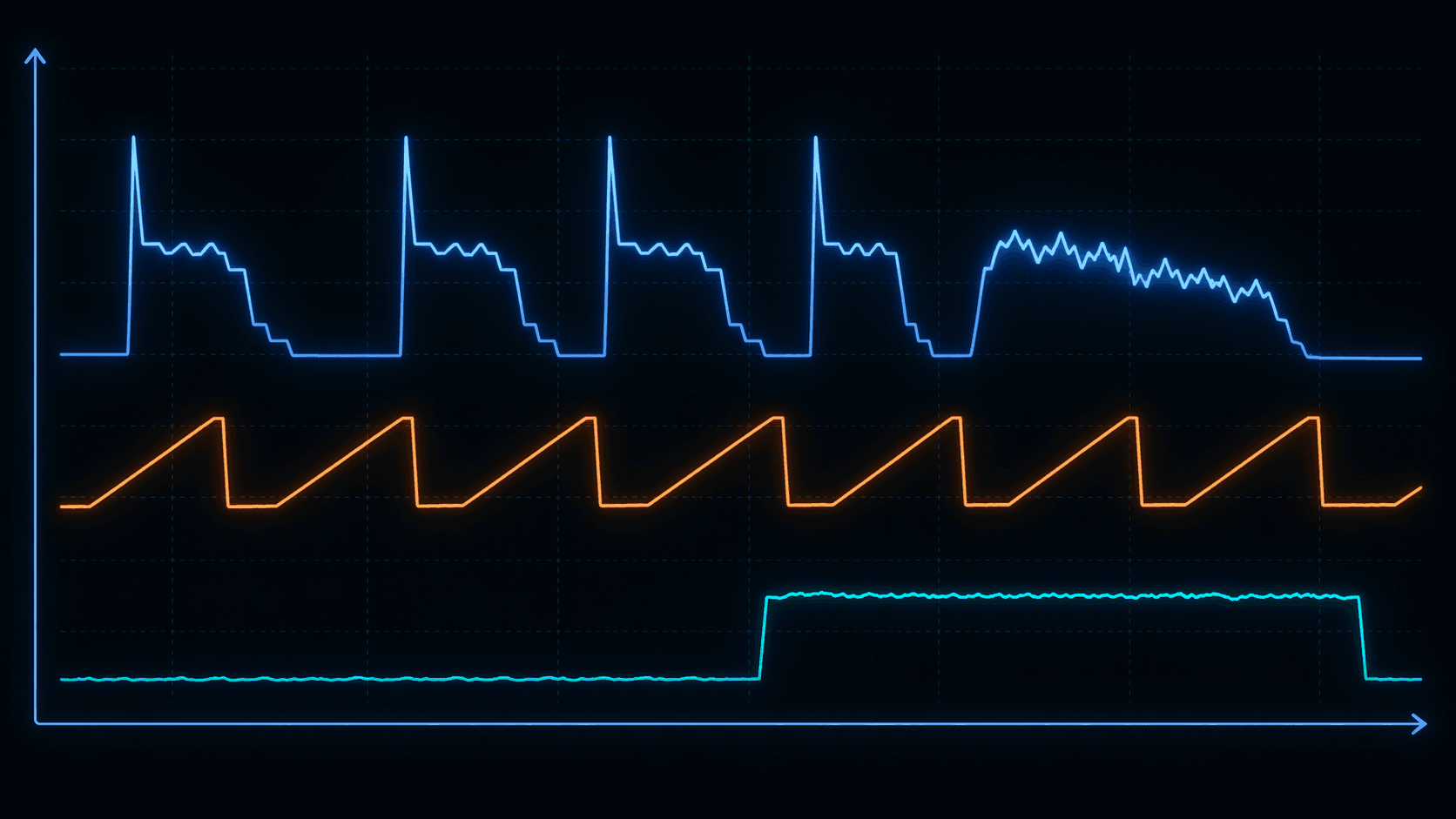
Before setting any threshold, run the appliance normally and look at its history graph. The same recipe can work across a washer, dishwasher, refrigerator, desktop PC, or heater, but the actual numbers will not be universal. A washer that idles at 2 W and heats water above 500 W needs different thresholds than a compact dishwasher that has a higher standby draw or a PC that never drops below 18 W because a dock remains powered.
| Recipe | Primary signal | Reliability condition |
|---|---|---|
| Appliance-cycle completion | Power drops from active draw to standby | Low draw must persist for 2-3 minutes |
| Vampire-power cutoff | Sustained low draw during an overnight window | Only allowed for devices safe to disconnect |
| Appliance health monitoring | Daily kWh compared with rolling baseline | Alert only on a meaningful deviation, such as 15%+ |
| Dynamic home office | Computer sleep/wake power level | Delay filters short idle dips and boot spikes |
| Peak-demand load shedding | High-draw device state plus rate schedule | Override and exclusion conditions prevent bad shutdowns |
Community discussion around Home Assistant smart plugs repeatedly comes back to this practical friction: which plug exposes the right entities, which protocol behaves predictably, and how to turn wattage into an automation that does not fire at the wrong time.[4] The answer is rarely a single brand name. It is usually a threshold, a delay, and one condition that prevents the clever idea from becoming annoying.
1. Appliance-Cycle Completion Notification
This is the recipe that proves the point. A washer, dryer, or dishwasher has a visible active cycle. It draws real power while motors, pumps, or heating elements run, then eventually drops back to a low standby level. The automation should watch that transition, not a timer.
Start with the power sensor, not the energy sensor. The trigger is a drop from an active range to a standby range. A common starting point for a washer or dishwasher is active power above 500 W at some point during the cycle, followed by power below 5 W for 2 to 3 minutes.[4] The high threshold confirms that a real cycle happened. The low threshold says the machine is no longer doing work. The delay keeps a short pause between stages from becoming a false “done” notification.
The automation needs memory. If the dishwasher is already sitting idle at 2 W, a simple “below 5 W” trigger will fire at the wrong time after a restart or Home Assistant reload. Use an input boolean, helper, or trigger sequence to mark the appliance as “running” only after it has crossed the active threshold. The done notification is allowed only if that running state is true and the power sensor has stayed below standby for the delay period.
| Part | Starting logic |
|---|---|
| Running detection | Power rises above the appliance's active threshold, such as >500 W for a washer or dishwasher |
| Completion detection | Power falls below standby, such as <5 W |
| False-positive filter | Standby condition must remain true for 2-3 minutes |
| Action | Send a notification, then clear the running state |
The numbers are starting points. Some dishwashers pause between fill, wash, heat, and dry stages. Some washers spend a long time tumbling at modest wattage and only briefly cross a high heating threshold. If the graph shows that the appliance rarely reaches 500 W, lower the active threshold to match the real cycle. If it idles at 7 W, a 5 W standby threshold is too low. The graph wins.
The notification can be modest: “Dishwasher finished” or “Washer is done.” The important part is that the person receiving it can trust it. A late notification is usually better than a false one, so err toward a longer below-threshold delay if the appliance has a noisy curve.
2. Vampire-Power Cutoff During a Defined Overnight Window
The vampire-power recipe is simpler, but it is less forgiving because the action is power removal. The plug watches for a low, persistent draw during a time window when nobody should need the device. If an entertainment center, printer, speaker dock, or kitchen appliance stays below 10 W for more than 30 minutes between 1 AM and 6 AM, Home Assistant can turn off the plug.
The condition matters more than the trigger. The low-draw threshold only says the device is not doing much right now. The overnight window says it is probably safe to cut. Add any household-specific exclusions: guest mode, vacation mode, media player currently active, or a manual override helper. A smart plug should not cut power to a router, modem, refrigerator, freezer, medical device, or anything that performs updates or maintenance while idle.
This is also where local reliability becomes visible. If the plug goes unavailable at night and then returns with stale power data, the automation may make a decision from a bad reading. For devices that get switched off automatically, prefer integrations that expose sensor state locally and predictably. Zigbee routing and local Wi-Fi integration choices are worth more here than another app feature you will never open.[2][3]
3. Appliance Health Monitoring From Daily Energy
Power tells you what is happening now. Accumulated energy tells you whether the device is behaving differently over days. That is why the health-monitoring recipe uses the kWh sensor, not just the current wattage sensor.
A refrigerator is the cleanest example. Its compressor cycles on and off all day, so a single high-wattage moment is not useful by itself. What matters is whether the refrigerator used meaningfully more energy today than it normally uses. Track average daily consumption over a rolling 7-day window, then alert if a day rises 15% or more above that baseline. The possible causes include dirty coils, a door seal problem, a door left ajar, a warmer room, heavier use, or compressor trouble. The alert suggests inspection; it does not diagnose a failing compressor.
| Signal | How to read it | What not to claim |
|---|---|---|
| Daily kWh | Compares one day against recent normal use | It does not identify a failed part |
| Rolling 7-day baseline | Smooths out normal day-to-day variation | It is not a permanent factory specification |
| 15%+ increase | Flags a meaningful anomaly worth checking | It is not proof of impending failure |
Home Assistant’s Energy Dashboard can help with this because it already organizes individual device energy sensors and supports device-level views when the entity is configured properly.[1] For automation logic, many users will still want helpers, statistics sensors, utility meters, or template sensors so the comparison is explicit and inspectable. The dashboard is good for seeing the pattern; the automation needs a clean entity to compare.
Do not run this alert on day one. Give the appliance time to establish a baseline. Also avoid judging a refrigerator during abnormal household periods: immediately after grocery loading, during a heat wave, after a long door-open cleaning session, or while recovering from a power outage. A condition that suppresses alerts during known abnormal events is often the difference between useful maintenance signal and notification noise.
4. Dynamic Home-Office Power Management
A workstation has a surprisingly readable fingerprint. Sleep draw sits low. Active work draw is higher and steadier. Boot and wake events create a transition sharp enough for Home Assistant to use. That makes a power-monitoring plug a practical office-state sensor, especially when camera-based or motion-based occupancy would be clumsy.
Put the computer and core peripherals on a monitored plug or power strip where the power sensor represents the desk state. A starting rule is: if power drops below 30 W for 5 minutes, treat the workstation as asleep and turn off the monitor, desk lamp, speakers, or non-essential peripherals. When power rises above the calibrated wake threshold, restore the desk scene.
The main tuning job is separating real sleep from short idle dips. A desktop with multiple monitors may never sleep below 30 W. A laptop dock may sit below that even while the laptop is awake. Watch the history graph through a normal workday, then pick a sleep threshold that the desk crosses only when it is truly inactive. The 5-minute delay is there because computers do brief, irritating things: updates, display sleep, USB wakeups, and momentary load drops.
This recipe works best when the plug controls peripheral power, not the computer itself. Turning off the plug that powers a running desktop is a good way to create the very problem the automation was supposed to solve. Let the power sensor observe the computer state; let the action target devices that are safe to switch.
5. Peak-Demand Load Shedding
The last recipe adds an external schedule. Instead of asking only what the device is doing, Home Assistant also asks whether the current time is expensive. During a time-of-use peak period, such as 4 PM to 9 PM, it can pause or delay selected high-draw loads and resume them afterward.
The candidates are devices where interruption is acceptable: a plug-in space heater in a non-critical room, a dehumidifier with a humidity guardrail, a water heater where the control method is electrically appropriate, or an EV charging setup designed for managed charging. For outdoor loads such as fountains or holiday lighting, the same logic can be adapted with an outdoor-rated plug, but the device and enclosure rating matter before the automation does.
The safe version has three checks. First, the current time must be inside the peak-rate schedule. Second, the device must be drawing enough power to be worth shedding. Third, a comfort or safety condition must allow the action. A heater should not be disabled if the room is already below the minimum temperature. A dehumidifier should not be disabled if humidity is above the household’s limit. An EV charger should respect departure needs and any charging controls provided by the charger or vehicle.
This is where Home Assistant’s strength is less about the plug and more about coordination. The plug contributes the live load signal. The calendar, schedule helper, utility-rate sensor, or time condition contributes the price window. Temperature, humidity, presence, and manual override helpers keep the automation from being reckless.
Device Choice Still Has Consequences
A recipe article does not need to become a buyer guide, but the plug still has to expose the entities the recipe depends on. SmartHomeScene’s energy-monitoring plug coverage documents Zigbee models that expose combinations of voltage, current, power, power factor, and energy through ZHA or Zigbee2MQTT.[2] Vesternet’s Home Assistant smart plug guide separates common Wi-Fi setup paths from local-only and cloud-assisted approaches, which is the distinction that matters once a plug becomes an automation sensor instead of a remote-control accessory.[3]
US buyers will still run into mainstream Wi-Fi options. Wirecutter’s 2026 smart plug testing named the TP-Link Kasa EP25 its best indoor pick after testing more than 29 plugs, which is useful context for availability and general product quality, but it does not automatically settle the Home Assistant question.[5] For Home Assistant, ask the narrower questions: does the integration expose power and energy entities, does it update reliably enough for the automation, and does the device fit your preference for local control?
Manufacturer accuracy claims should also stay in their lane. If a vendor claims a particular energy accuracy, treat it as a vendor claim unless you have independent calibration. For these recipes, relative change is often more important than billing-grade precision. A refrigerator alert cares that today is materially above its own recent baseline. A dishwasher notification cares that the power fell from active to standby. Neither requires pretending the plug is a revenue-grade meter.
Community reports are useful for spotting integration pain, firmware surprises, and recurring preferences, but anecdotal failure reports are not controlled reliability studies.[4] Use them as caution, not proof. The more practical test is local: pair the plug, confirm the entities, watch the update interval, and inspect the graph for the appliance you actually plan to automate.
Calibrate Once, Then Let Home Assistant Read State
The strongest Home Assistant smart plug automations are not brand tricks. They are small interpretations of electrical behavior: a high draw that proves a cycle started, a low draw that persists long enough to prove it ended, a daily kWh total that drifts above baseline, a workstation that moves from sleep to work, or a high-draw load that can wait until the rate window passes.
There is no universal YAML that knows your dishwasher, refrigerator, office, or utility schedule. There is a dependable pattern: expose the right entity, watch the curve, choose a threshold from your own history, add a delay, and put one condition in the way of the most likely false trigger. That is where an energy-monitoring plug stops being a switch and becomes a useful Home Assistant sensor.
References
- Individual devices, Home Assistant
- Best Smart Plugs with Energy Monitoring EU Guide, SmartHomeScene
- Home Assistant Smart Plug Integration Guide, Vesternet
- Home Assistant Community thread on best smart plugs, Home Assistant Community
- Best Smart Plugs of 2026, Wirecutter
Implementation Notes
Share platform-specific tips, report that a recipe no longer works after a platform update, or contribute variations for different device combinations.
Comments
Join the discussion with an anonymous comment.