Using Kimi AI to control smart home devices is most interesting if you already run Home Assistant and do not want another weekend project. Kimi Claw, Moonshot’s cloud-hosted deployment of OpenClaw, can sit above Home Assistant as a natural-language control layer: you ask for a lamp, thermostat, lock, sensor reading, or scene, and the Home Assistant Skill turns that request into calls against your Home Assistant instance. The appealing part is the connection path: enable the skill, enter your Home Assistant URL, paste a long-lived access token, then test commands. One third-party walkthrough reports controlling more than 870 Home Assistant entities after about two minutes of configuration.[1]
The catch is not hidden in the wiring; it is in the operating model. Kimi Claw’s one-click cloud deployment requires an Allegretto membership, while the free route links to a locally run OpenClaw instance instead.[2] The Home Assistant Skill is also community-built rather than an official Moonshot Home Assistant integration, so long-term reliability depends on the OpenClaw and Home Assistant community around it.[3] That does not make it a bad idea. It just means this is a cloud AI command layer, not a new foundation for the house.
What Kimi Claw Adds to Home Assistant
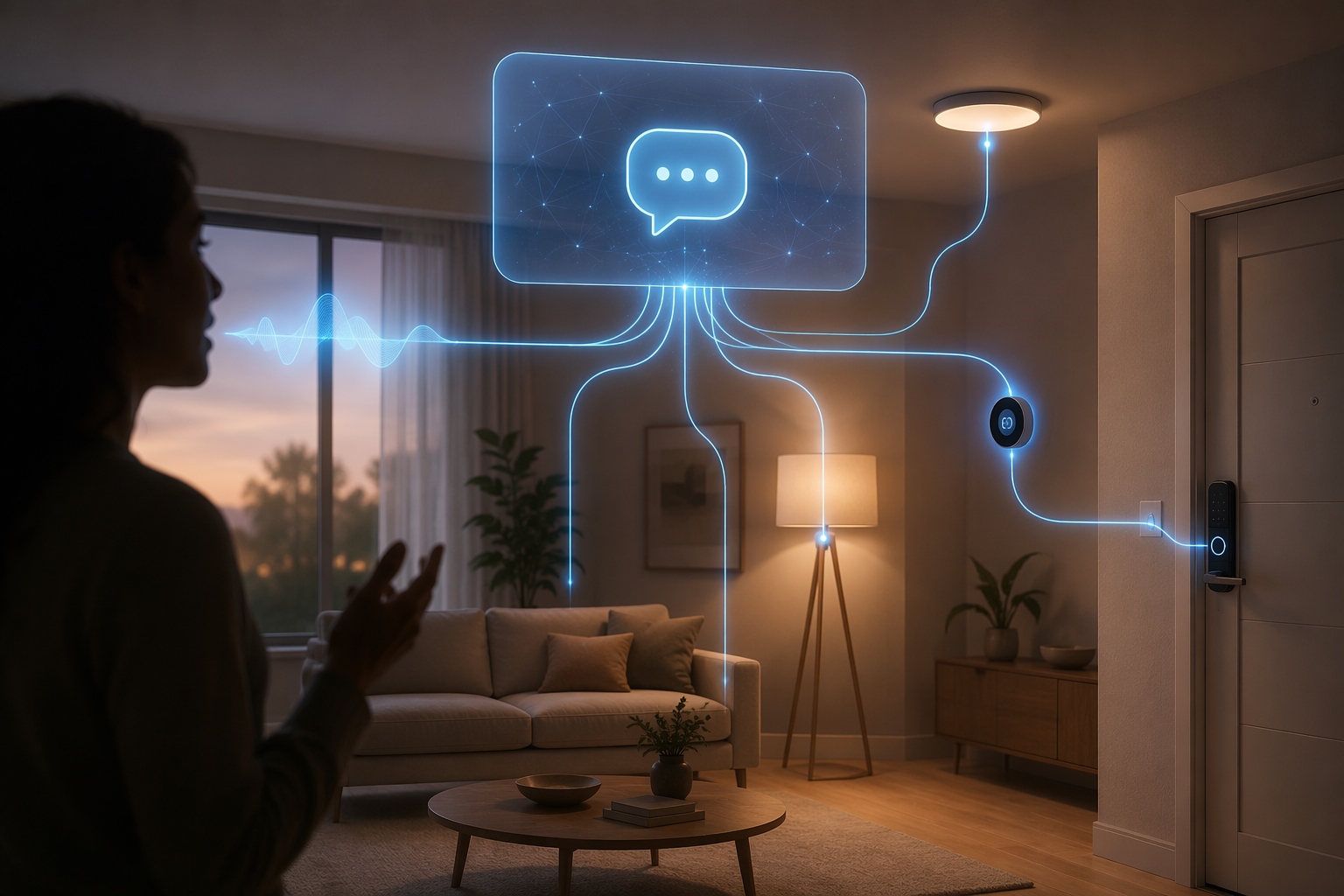
Home Assistant already knows the devices. That is the whole point. It has the entities, areas, scenes, automations, and device states. Kimi Claw does not replace that inventory. It gives OpenClaw a cloud runtime that is always available, with Moonshot describing Kimi Claw as a one-click cloud deployment of OpenClaw with 24/7 uptime, 40 GB of storage, and access to more than 5,000 ClawHub skills.[2]
For Home Assistant users, the useful promise is narrower and better: fewer custom intent rules, no hand-built API bridge, and no need to push the whole house through Alexa or Google Assistant just to say ordinary things in ordinary language. You are still relying on Home Assistant as the device layer. Kimi Claw becomes the conversational layer above it.
| Layer | What It Does | Where It Should Live |
|---|---|---|
| Home Assistant | Owns device integrations, entities, scenes, automations, dashboards, and local logic | Your Home Assistant server |
| Home Assistant Skill for OpenClaw | Connects OpenClaw to Home Assistant through the Home Assistant REST API | OpenClaw skill ecosystem |
| Kimi Claw | Runs OpenClaw in Moonshot’s cloud as an always-on agent | Moonshot cloud, with paid Allegretto membership |
| Your command | Asks for device control, status, scene execution, or a scheduled task in natural language | Chat or voice interface connected to the agent |
Before You Connect Anything
The setup is short only if the Home Assistant side is already sane. Kimi Claw can only work with what Home Assistant exposes cleanly: named lights, climate entities, locks, sensors, scenes, and scripts. If your entities are still called things like light.tuya_8392_switch_3, fix that first. Natural-language control is only as good as the names and areas underneath it.
- A working Home Assistant instance with the devices you want to control already integrated.
- A reachable Home Assistant URL, such as your remote access URL, reverse proxy URL, or another address that Kimi Claw can access.
- A Home Assistant user account that can generate a long-lived access token.
- An Allegretto membership if you want Moonshot’s hosted Kimi Claw deployment rather than a local OpenClaw setup.[2]
- A willingness to send smart home commands through a cloud service, including enough trust in the provider and the community skill.
If you are still building the Home Assistant base, start there. Matter, Thread, Zigbee, Z-Wave, Wi-Fi devices, and dashboards do not become less messy because an AI layer is attached. Kimi Claw is the last mile of interaction, not the first mile of device setup.
Connect Kimi Claw to Home Assistant
The Home Assistant Skill for OpenClaw is the bridge. The community thread describes it as a skill that lets OpenClaw control Home Assistant devices through the Home Assistant REST API.[3] In practice, the configuration is refreshingly plain: Kimi Claw needs to know where Home Assistant is and needs a token that Home Assistant will accept.
1. Open Kimi Claw and Find the Home Assistant Skill
From Kimi Claw, look for the Home Assistant Skill in ClawHub or the OpenClaw skill directory. The broader OpenClaw skills catalog lists a Smart Home & IoT category with 43 skills, including Home Assistant, Philips Hue, Google Nest, IKEA Dirigera, ecobee, Dyson, Govee, and LG ThinQ.[4] That matters because Home Assistant is not sitting alone as a one-off experiment; it is part of a larger smart home skill surface.
Enable or install the Home Assistant Skill, then open its configuration screen. If the skill asks for only a Home Assistant URL and token, that is the expected simple path. If it asks for more, check the skill’s current documentation or the community thread before guessing.
2. Enter Your Home Assistant URL
Use a URL that the cloud-hosted Kimi Claw agent can reach. A local-only address such as an internal LAN hostname may work for a browser on your laptop but fail from a cloud agent. Remote access needs to be configured before this step can succeed.
This is also the point where security choices become real. If you expose Home Assistant remotely, do it deliberately: HTTPS, strong account security, and no casual port-forwarding just to make a demo work. Kimi Claw should be allowed into the house through a door you understand.
3. Generate a Long-Lived Access Token
In Home Assistant, open your user profile and create a long-lived access token. Give it a recognizable name, such as Kimi Claw, so you can revoke it later without wondering what it was for. Copy the token once Home Assistant shows it; you will not be able to retrieve the same token again after leaving the screen.
Paste that token into the Home Assistant Skill configuration in Kimi Claw. This is the credential that allows the skill to call Home Assistant’s API. Treat it like a password. Do not paste it into forum posts, screenshots, public issue trackers, or shared chat logs.
4. Save, Then Test With Low-Risk Entities
Start with devices that are visible and reversible. A lamp is better than a lock. A temperature question is better than a garage door command. Ask Kimi Claw to do something small, then verify the Home Assistant entity state changes correctly.
- “Turn on the living room lamp.”
- “Set the thermostat to 72 degrees.”
- “What is the bedroom temperature?”
- “Run the goodnight scene.”
- “Turn off all downstairs lights.”
The Easton Dev walkthrough describes the same basic pattern: connect the skill with the Home Assistant URL and long-lived token, then test commands across lights, thermostats, locks, sensors, and scenes.[1] That is enough to make this feel less like a lab demo and more like a practical control surface, provided your entity names are clean.
What to Test After the First Successful Command
A first lamp toggle proves the connection. It does not prove the setup is ready for daily use. The next round of testing should answer three questions: can Kimi Claw understand your naming conventions, can it act across multiple entities without surprising you, and does it fail safely when a command is ambiguous?
| Test Area | Example Command | What You Are Checking |
|---|---|---|
| Single device control | Turn on the office lamp | Whether the right entity changes state |
| Device status | Is the back door locked? | Whether Kimi Claw can read sensor or lock state without inventing an answer |
| Climate control | Set the upstairs thermostat to 72 degrees | Whether the correct climate entity receives the target temperature |
| Area control | Turn off the kitchen lights | Whether Home Assistant areas and entity names are clear enough |
| Scene execution | Run goodnight | Whether Kimi Claw triggers an existing Home Assistant scene rather than improvising a risky sequence |
| Ambiguous command | Turn off the lamp | Whether it asks for clarification when more than one lamp could match |
The safest pattern is to keep complex outcomes inside Home Assistant scenes or scripts, then let Kimi Claw trigger them. “Run goodnight” is cleaner than asking an AI agent to independently decide which lights, locks, fans, thermostats, and media players should change every night. Home Assistant remains the source of truth; Kimi Claw becomes the convenient way to request the thing.
Where Kimi Claw Fits Well
Kimi Claw is strongest where phrasing varies but the intent is ordinary. People do not always remember exact scene names, entity names, or dashboard locations. They do remember that the room is too dark, the thermostat should be lower, or bedtime should start.
- Natural-language device control: lights, plugs, fans, thermostats, and other everyday entities.
- Status checks: room temperature, door lock state, sensor readings, or whether a device is on.
- Scene-style commands: goodnight, movie mode, work mode, dinner lighting, or away mode.
- Multi-device orchestration: commands that touch several Home Assistant entities at once.
- Scheduled proactive tasks: OpenClaw can use cron-style scheduling, with examples such as brightening lights and reporting weather every morning at 7 AM.[1]
That last category is useful but should not swallow the whole setup. Cron-based tasks are good for predictable routines, especially ones that benefit from a spoken or written report. They are less compelling for automations Home Assistant already handles perfectly with time helpers, calendars, triggers, and conditions.
What Should Stay Inside Home Assistant
The dividing line is not whether AI can perform the action. It is whether the action should depend on cloud availability, natural-language interpretation, and an external skill staying maintained.
- Motion-triggered lighting should stay native, because latency is noticeable and the logic is simple.
- Leak, smoke, freeze, or security alerts should stay native, because they need dependable local execution and clear notification paths.
- Locks, garage doors, gates, and alarm routines deserve extra caution, especially if commands could be misunderstood or issued from a shared interface.
- Energy-saving automations with precise conditions should stay in Home Assistant, where triggers, thresholds, and exceptions are explicit.
- Anything that must work during an internet outage should not depend on cloud-hosted Kimi Claw.
This is where the cloud trade-off matters most. Kimi Claw processes commands in Moonshot’s cloud when you use the hosted deployment. For many households, “turn on the kitchen lights” is not a privacy crisis. For others, device names, occupancy clues, schedules, and lock-related commands are sensitive enough to avoid a hosted agent. The concern is not theatrical; smart home commands describe how a home is used.
How It Compares With Alexa, Google Assistant, and Local AI
Kimi Claw’s appeal is not that it is the only way to talk to a smart home. It is that it can operate on top of Home Assistant without making Alexa or Google Assistant the main abstraction layer. If your devices already converge in Home Assistant, that is a meaningful difference: you are exposing one mature control hub to an AI agent rather than rebuilding device relationships across several consumer ecosystems.
The official Home Assistant project has also been moving toward AI-assisted smart home control, with its own framing around building an AI-powered local smart home.[5] That context matters because Kimi Claw is not arriving in a vacuum. It is one option in a fast-moving group of approaches: cloud assistants, Home Assistant’s own voice and AI work, local LLM experiments, and agent platforms such as OpenClaw.
If you want the shortest path and accept the hosted model, Kimi Claw is the cleaner route. If you want more control over privacy and infrastructure, the local OpenClaw path with Kimi K2 via Ollama is the better direction, though it moves you back toward local setup work. That is the usual bargain: the more local you go, the more you own the maintenance.
Troubleshooting the Boring Stuff First
Most failures are not mysterious AI failures. They are ordinary integration failures with a more glamorous front end.
| Symptom | Likely Cause | What to Check |
|---|---|---|
| Kimi Claw cannot reach Home Assistant | The URL is local-only, blocked, or not available from the cloud | Use a reachable remote URL and confirm HTTPS access from outside your network |
| Authentication fails | The long-lived access token was copied incorrectly or revoked | Create a new token, label it clearly, and paste it again |
| Wrong device responds | Entity names or areas are ambiguous | Rename entities and assign areas in Home Assistant |
| A scene does not run as expected | The scene itself has old entities or broken assumptions | Run the scene directly in Home Assistant before blaming Kimi Claw |
| Commands feel slow | Cloud round-trip and Home Assistant response time add latency | Keep instant-response automations native to Home Assistant |
| A command is too broad | The request gives the agent too much room to interpret | Create a Home Assistant scene or script and ask Kimi Claw to run that named routine |
The community-built nature of the Home Assistant Skill also changes how troubleshooting works. If a Home Assistant update, OpenClaw change, or skill update breaks behavior, the fix may come from community discussion rather than an official vendor support channel. That is familiar territory for Home Assistant users, but it should be priced into expectations.
A Practical Recommendation
Use the cloud Kimi Claw route if you already have Home Assistant running, want natural-language control without writing YAML or API glue, and are comfortable paying for Allegretto plus accepting cloud processing. It is especially credible for households that mostly want conversational control, scene launching, status checks, and occasional scheduled routines.
Consider local OpenClaw with Ollama instead if privacy is the main requirement, if you dislike cloud dependencies, or if you would rather spend time maintaining local infrastructure than send home-control commands to a hosted agent. That path is less frictionless, but it better matches homes where device names, routines, and occupancy patterns should stay local.
Keep core automations in Home Assistant either way. Motion lights, safety alerts, lock logic, alarms, climate safeguards, and outage-sensitive routines belong in the system that already owns the devices. Kimi Claw is best treated as an intelligent command layer: useful, surprisingly low-friction, and worth trying if the paid cloud model fits, but not something that should become the only brain in the house.
References
- OpenClaw with Home Assistant: Local Smart Home Control — Easton Dev.
- Kimi Claw Introduction — Kimi.
- A new Home Assistant Skill for OpenClaw — Home Assistant Community.
- awesome-openclaw-skills — GitHub.
- Building the AI-powered local smart home — Home Assistant Blog.
Implementation Notes
Share platform-specific tips, report that a recipe no longer works after a platform update, or contribute variations for different device combinations.
Comments
Join the discussion with an anonymous comment.