
Why a Wi-Fi Change Silently Breaks Smart Devices
Every smart home device stores its Wi-Fi credentials at the moment of pairing — the exact SSID string and password, character for character. When the device powers on or reconnects, it looks for a network that matches those stored values precisely. It has no mechanism to detect that you changed your router, switched providers, or updated your password. From the device's perspective, the network it was paired with simply no longer exists.
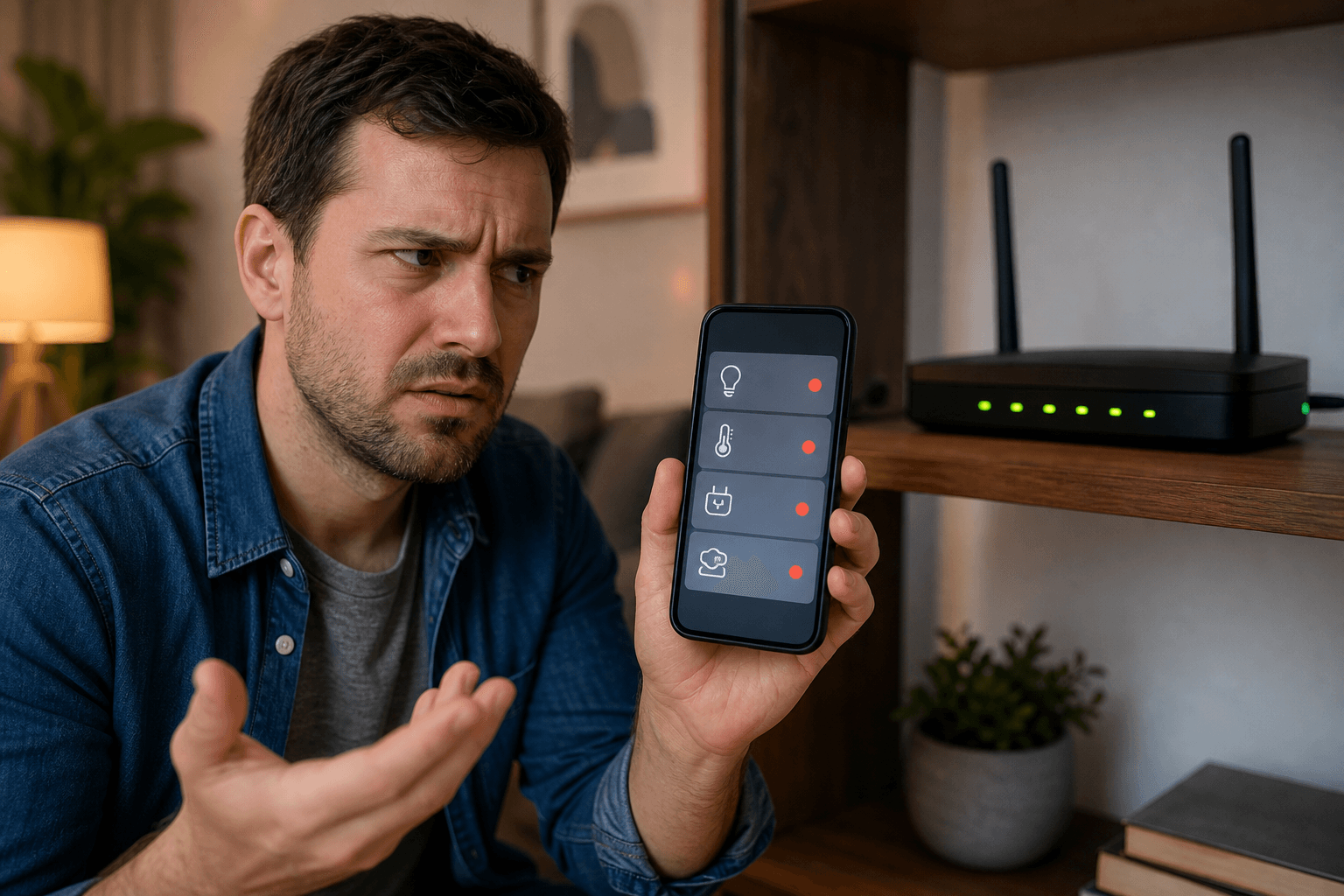
This is why your router can show every light green while your smart home app shows every device offline. The router is working. Your internet connection is fine. The problem is that your devices are searching for a network name and password combination that no longer matches what your router is broadcasting.
The failure is almost always a diagnosis problem, not a hardware problem. The devices themselves are not broken. They are waiting for the right credentials, blocked by a router security setting, or confused by a band configuration change on a newer router. In most cases, you can restore connectivity without a factory reset — but you need to identify the correct root cause first.
Five-Question Diagnostic Checklist
Before attempting any fix, run through these five questions. Each one maps to a specific root cause covered in the next section. Answering them takes two minutes and tells you exactly where to focus.
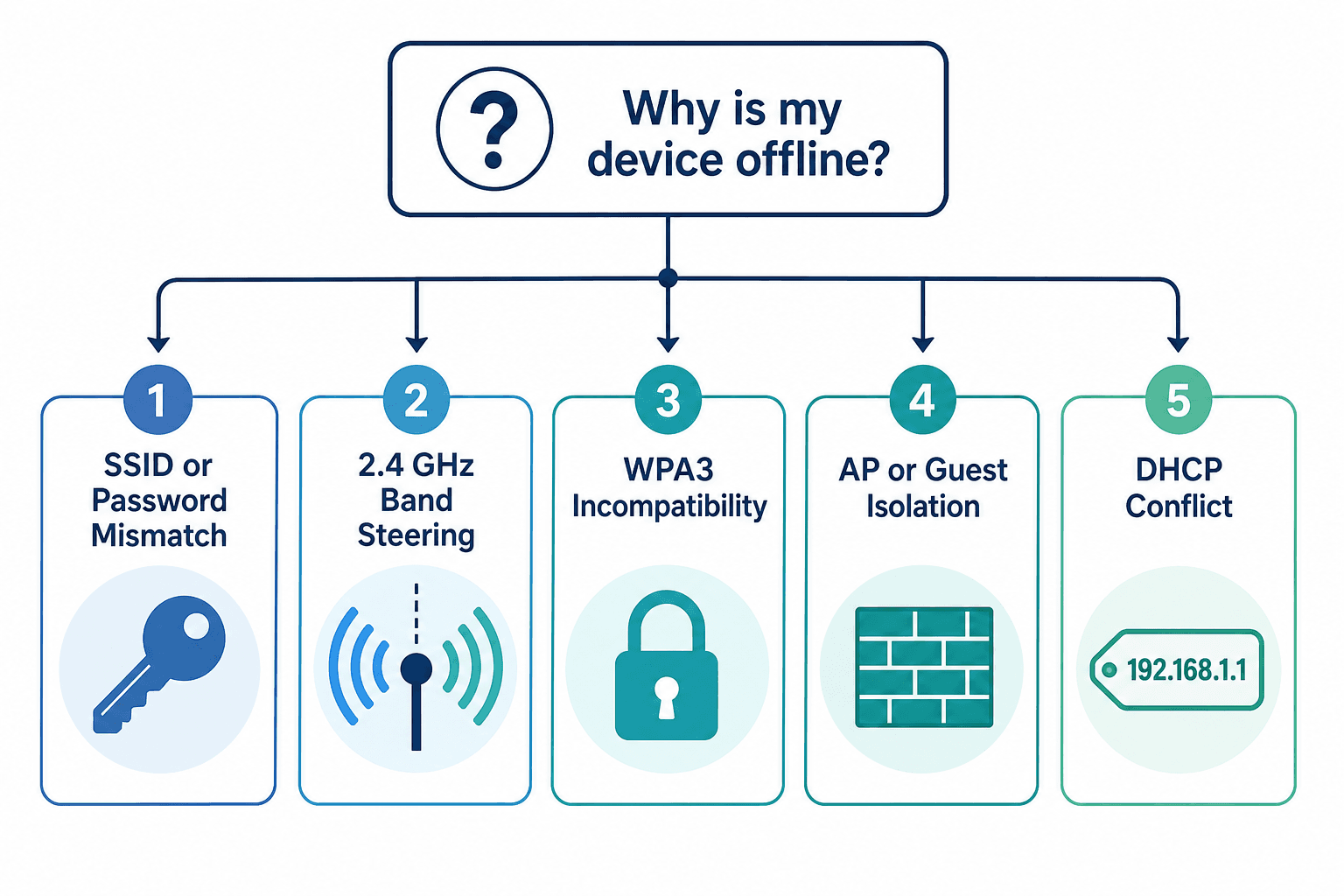
- Did the SSID or password change at all, even slightly? This includes capitalisation differences, trailing spaces, or a single character substitution. If yes, this is the most likely cause. → Root Cause 1.
- Does the device appear in your router's connected-client list? If the device is listed as connected but still shows offline in the app, the problem is on the app-discovery or local-network side, not the Wi-Fi join itself. → Root Cause 4.
- Does your control app have Local Network permission on iOS or Android? On iOS, check Settings → [App name] → Local Network. If this permission is off, the app cannot discover devices even when they are connected. → Root Cause 4.
- Is band steering or Smart Connect enabled on your router? This is common on Wi-Fi 6 and Wi-Fi 7 routers that present a single unified SSID for both 2.4 GHz and 5 GHz. If enabled, 2.4 GHz-only smart devices may fail setup or drop intermittently. → Root Cause 2.
- Is your router set to WPA3-only or WPA2/WPA3 mixed mode? If your new router defaulted to WPA3 security, older smart devices may not even display the network as available. → Root Cause 3.
Root Cause 1: SSID or Password Mismatch
This is the most common cause and the easiest to overlook. Smart devices store the exact SSID and password string they were paired with. Any change — a capital letter where there was a lowercase one, a space added or removed, a special character difference, or a completely new network name — prevents the device from rejoining.
The symptom pattern is straightforward: after the router change, the device does not appear in the router's connected-client list at all, or it briefly connects and immediately drops. In the app, it shows as offline or unreachable.
The fix depends on which direction is easier. If you can configure your new router to use the exact same SSID and password as the old one — preserving capitalisation and every character — your devices will reconnect automatically without any re-pairing. This is the approach described in the Prevention section below and is the lowest-effort path when setting up a new router.
If the new SSID and password are already set and cannot be changed to match the old ones, use the platform-specific reconnection walkthrough in the next major section to update the device's credentials through the app rather than performing a factory reset.
Root Cause 2: 2.4 GHz Band Steering and Smart Connect
Most smart home devices — plugs, bulbs, sensors, older cameras, and budget hubs — use only the 2.4 GHz radio. They have no 5 GHz capability. Wi-Fi 6 and Wi-Fi 7 routers commonly ship with a feature called band steering or Smart Connect, which presents a single unified SSID for both 2.4 GHz and 5 GHz bands and automatically pushes capable devices toward 5 GHz for better performance.
The problem is that during the pairing process, band steering can direct a 2.4 GHz-only device toward the 5 GHz band, where it cannot operate. The device may appear in the router's connected-client list — sometimes with an IP address — but remain permanently offline in the control app. The connection attempt stalls at a layer the router cannot see.
This issue is significantly more common after upgrading to a Wi-Fi 6 or Wi-Fi 7 router because these devices are more aggressive about band steering than older Wi-Fi 5 hardware. If your smart devices worked fine on your old router and stopped working immediately after switching to a newer model with the same SSID, band steering is a strong suspect even if the SSID and password are identical.
Root Cause 3: WPA3 Incompatibility
Wi-Fi 6 and Wi-Fi 7 routers often default to WPA3 security or a WPA2/WPA3 mixed mode. Devices manufactured before approximately 2018–2019 frequently have no WPA3 support. When a WPA3-only SSID is the only option, these devices cannot see the network at all — it simply does not appear in their available networks list during setup.
WPA2/WPA3 mixed mode is designed to be backward-compatible, but in practice it also causes failures on some older IoT devices and clients. The symptom can look identical to a wrong-password error: the device cannot join, shows no network found, or fails silently during pairing.
This is a generational issue rather than a universal one. Matter-certified devices and Wi-Fi 6-capable smart home products released from 2022 onwards are more likely to support WPA3. If your devices are recent, WPA3 incompatibility is less likely. If you have a mix of older and newer devices where only the older ones are offline, WPA3 is worth checking.
Root Cause 4: AP Isolation and Guest Network Blocking
Guest network AP isolation is a security feature that prevents devices on the same network from communicating with each other. It is designed to stop a guest's laptop from accessing your printer or NAS — but it also prevents your control app from discovering smart devices on the same network. The device is connected to Wi-Fi. The app is connected to Wi-Fi. But the router is blocking them from talking to each other.
This pattern also appears when smart devices are placed on a guest network rather than the main network. Some users do this intentionally for security segmentation, but the result is that local discovery — which most smart home apps rely on — fails completely.
On the software side, iOS enforces a Local Network permission that controls whether an app can communicate with devices on the local network. If this permission was reset by an iOS update or a fresh app install, the app will behave as if the devices do not exist even when they are fully connected.
- Check that smart devices are on your main network, not a guest network.
- In your router settings, confirm AP isolation is disabled on the network your devices use.
- On iOS: go to Settings → [App name] → Local Network and confirm the permission is enabled for every smart home control app.
- On Android: check that the app has not been restricted from accessing local network resources in battery or data settings.
Root Cause 5: DHCP Conflict or IP Exhaustion
When you replace a router, the new router's DHCP server starts issuing IP addresses from its own pool, which may overlap with addresses that devices were previously assigned. If two devices end up with the same IP address, both may behave erratically or drop offline intermittently. This is less common than the four causes above, but it becomes more likely in larger smart home setups with many devices.
IP pool exhaustion is a related issue. ISP-supplied routers often have a limited default DHCP range — sometimes configured for only 20 to 30 simultaneous connections. A household with a large number of smart devices, phones, tablets, and computers can hit this ceiling, causing newer devices to fail to obtain an IP address and appear offline.
Platform-Specific Reconnection Walkthroughs
Each major platform has a non-destructive path to update a device's Wi-Fi credentials through the app. Try these before considering a factory reset. The platform you use determines which path is available and how much re-setup is involved if the non-destructive path is not sufficient.
Google Nest and Google Home
The reconnection path varies by device type within the Google ecosystem.
- Nest speakers and displays (Nest Hub, Nest Audio, Nest Hub Max): Open the Google Home app → tap the device tile → Settings → Device information → Wi-Fi → Forget this network. Then re-add the device through Home → Add Device. This is a non-destructive path that does not remove the device from your home or reset its settings.
- Nest Learning Thermostat (3rd gen and Nest Thermostat E): Use the on-device ring menu: press the ring → Settings → Network → select the new SSID and enter the password. This is done directly on the thermostat without needing the app.
- Nest Cam and Nest Doorbell: These devices do not have a Forget Network option. Tapping Remove Device in the Home app triggers an automatic factory reset of the camera. After removal, re-add the camera with the new Wi-Fi details. Plan for a full re-setup including any activity zones or settings.
Amazon Alexa Echo Devices
Amazon Echo devices have a Wi-Fi change path built into the Alexa app. Navigate to the device's settings page in the app and look for the Wi-Fi network option, which allows you to update the network credentials without removing the device from your account. The device will restart and attempt to join the new network.
Apple HomeKit and Matter
Apple's support guidance separates two scenarios based on how many devices are affected.
If accessories from a single manufacturer are not responding: turn on Bluetooth on your iPhone or iPad, restart the affected accessories and all home hubs (HomePod, HomePod mini, Apple TV). If Thread accessories are involved, disconnect them from power for five minutes before restarting. If the accessory is still unresponsive after this, remove it from the Home app and re-add it.
If accessories from several manufacturers are not responding — which is the typical pattern after a router change — this indicates a network-wide issue. Connect your iPhone or iPad to the same Wi-Fi network as the accessories, restart your modem and router, restart all home hubs and any third-party bridges, and check whether a VPN or third-party security software on your phone is blocking local network communication. Remote control of HomeKit accessories requires a home hub to be active and connected.
TP-Link Kasa and Tapo
The Kasa and Tapo apps do not support in-app Wi-Fi network switching. You cannot update a device's Wi-Fi credentials through the app after it has been paired. There are two paths available.
- Match the new router exactly to the old credentials: Configure your new router with the same SSID, encryption type (WPA2), and password as the previous router. Kasa and Tapo devices will reconnect automatically without any re-pairing. This is the preferred path.
- Reset and reconfigure each device: If matching the old credentials is not possible, factory reset each device and run through the setup process again using the relevant guide for that device type — plug, bulb, camera, hub, or door lock. Each device type has a slightly different reset procedure.
Samsung SmartThings
For SmartThings, the key is to reconnect the SmartThings hub to the new Wi-Fi network first. Once the hub is back online, all Zigbee and Z-Wave devices connected through the hub remain unaffected — they communicate with the hub directly, not with the router. You do not need to re-pair any sub-devices.
The hub reconnection process is done through the SmartThings app. If the hub has a direct Ethernet connection option, using a wired connection during the transition eliminates the Wi-Fi credential problem for the hub itself.
Home Assistant
Home Assistant runs on a host device — typically a Raspberry Pi, a dedicated mini PC, or a Home Assistant Green or Yellow device. The Wi-Fi change only affects the host device's network connection. Once the host is reconnected to the new network (via the host's network settings or by connecting via Ethernet during the transition), all Zigbee and Z-Wave devices connected through a coordinator remain fully operational. Wi-Fi-based integrations within Home Assistant may need their connection settings updated in the integration configuration.
Standalone Wi-Fi Devices vs. Hub-Dependent Devices
Understanding this distinction determines how much work a Wi-Fi change actually creates for your specific setup.
| Device Type | Examples | Impact of Wi-Fi Change | What Needs Reconnecting |
|---|---|---|---|
| Standalone Wi-Fi devices | Wi-Fi plugs, Wi-Fi bulbs, Wi-Fi cameras, Wi-Fi doorbells | Each device must be reconnected individually | Every device — one by one |
| Hub-dependent Zigbee devices | Zigbee sensors, Zigbee bulbs paired to a hub, Zigbee locks | Only the hub needs reconnecting | Hub only — sub-devices are unaffected |
| Hub-dependent Z-Wave devices | Z-Wave locks, Z-Wave sensors, Z-Wave switches | Only the hub needs reconnecting | Hub only — sub-devices are unaffected |
| Hybrid setups (e.g., Tapo Hub + Tapo sensors) | Tapo Hub H200 with Tapo sensors | Only the hub needs reconnecting | Hub only — paired sensors remain connected to the hub |
| Cameras and smart locks (any platform) | Nest Cam, Ring Doorbell, smart deadbolts | Typically require remove-and-re-add even on Google and Alexa | Full remove and re-add cycle in most cases |
If your smart home is built primarily around a Zigbee or Z-Wave hub — SmartThings, a Home Assistant Zigbee coordinator, or a Tapo Hub — a router change is significantly less disruptive than it is for a setup built entirely on standalone Wi-Fi devices. Reconnecting the hub is the only required step. All sub-devices remain paired to the hub and come back online automatically once the hub is connected.
Advanced Router Fixes for Persistent Problems
If your diagnostic points to a router-side cause — band steering, WPA3 incompatibility, AP isolation, or DHCP conflicts — these configuration changes resolve the problem at the source rather than working around it device by device.
- Split 2.4 GHz and 5 GHz into separate SSIDs. Give each band a distinct name — for example, "HomeNetwork" for 5 GHz and "HomeNetwork_IoT" for 2.4 GHz. Connect all smart home devices to the 2.4 GHz SSID. This eliminates band steering confusion entirely.
- Set the 2.4 GHz SSID to WPA2-Personal only. In your router's wireless security settings, select WPA2 (not WPA3, and not WPA2/WPA3 mixed) for the 2.4 GHz band or dedicated IoT SSID. This resolves WPA3 incompatibility for older devices without affecting your 5 GHz band.
- Disable band steering or Smart Connect. This setting is usually found in the wireless or advanced wireless section of your router's admin interface. The label varies by manufacturer: Asus calls it "Smart Connect," Netgear calls it "Band Steering," TP-Link calls it "Smart Connect" or "Band Steering" depending on the model.
- Disable AP isolation on your main network. AP isolation should be off on the network where your smart devices live. It is appropriate to leave it enabled on a true guest network, but smart devices should not be on a guest network.
- Set DHCP reservations for hub MAC addresses. In your router's DHCP settings, assign a fixed IP address to your SmartThings hub, Home Assistant host, or other central hub by its MAC address. This prevents IP conflicts and ensures the hub is always reachable at the same address.
- Expand your DHCP pool if needed. If you have more than 20–25 smart devices plus phones and computers, check your router's DHCP range and expand it to accommodate your total device count. ISP-supplied routers may have a limited default range.
When a Factory Reset Is Actually Needed
Factory reset is a valid resolution for specific situations, but it should not be a reflex. Every factory reset means re-pairing the device, re-entering it into your platform, and potentially rebuilding automations and schedules that referenced it. In a large smart home, that is a significant time investment.
Factory reset is genuinely required in these situations:
- Nest Cam and Nest Doorbell: the Google Home app's Remove Device option triggers an automatic factory reset. There is no alternative path for these devices.
- A device cannot be discovered by any method — it does not appear in the router's client list, does not respond to the app's discovery, and has no on-device reconnection option.
- The platform's non-destructive reconnection path has been attempted and failed after confirming the router-side configuration is correct.
- The device's firmware is in an unknown state following a power interruption during a router change.
Prevention: The Same-SSID Migration Strategy
The single most effective way to prevent this problem entirely on a future router upgrade is to reuse your exact previous SSID and password on the new router. Smart devices check for a matching network name and correct password — they do not check the router's hardware identity, MAC address, or brand. If the SSID and password match, every device reconnects automatically.
This approach works across different router brands and models. A device paired to a TP-Link router's SSID will reconnect to an Asus or Netgear router broadcasting the same SSID with the same password without any intervention. The strategy scales to any size of smart home — the more devices you have, the more time it saves.
- Note your current SSID and password before starting any router replacement — including exact capitalisation and any special characters.
- During new router setup, configure the SSID and password to match the old values exactly before connecting any devices.
- Set the 2.4 GHz band to WPA2-Personal if you have older smart devices, or create a dedicated 2.4 GHz SSID with WPA2 for IoT devices.
- Disable band steering or Smart Connect before powering on smart devices for the first time on the new router.
- Power cycle your smart devices after the new router is fully configured — unplug and replug — to trigger a fresh network connection attempt.
Thread and Matter-over-Thread devices follow different rules. Thread end devices communicate through a Thread border router — typically a HomePod mini, Apple TV 4K, or a dedicated Thread border router — rather than directly through your Wi-Fi router. If you change your Wi-Fi network, the Thread border router needs to be reconnected to the new network, but Thread end devices do not need to be re-paired individually. They remain connected to the Thread mesh and come back online once the border router is back on the network.
Community Notes & Edge Cases
Has this fix worked for you? Is it still valid after a recent firmware or app update? Share firmware-specific variations, platform quirks, or edge case solutions below. Substantive corrections can also be submitted via the contact page for editorial review.
Comments
Join the discussion with an anonymous comment.