
Why Zigbee Devices Keep Dropping Offline
Zigbee offline events are not random. Every time a device drops and comes back — or stays offline until you re-pair it — something specific caused that failure. The problem is that most guides treat re-pairing as the solution, when it is only a recovery step that leaves the underlying cause intact.
Five root causes account for the overwhelming majority of repeated Zigbee drops: a sparse mesh with too few router nodes, 2.4 GHz channel interference from Wi-Fi, poor coordinator placement or USB 3.0 electromagnetic interference, battery or mains power failure, and platform software bugs. Each cause has a distinct symptom pattern, affects specific device types, and has a concrete fix.
This guide works through those five causes in priority order — starting with the most common and easiest to verify — and provides platform-specific fixes for Home Assistant (ZHA and Zigbee2MQTT), SmartThings, and Hubitat. If you apply the fixes in sequence rather than jumping straight to re-pairing, you will resolve most cases permanently.
Zigbee Network Roles: Coordinator, Router, and End Device
Understanding three device roles is enough to diagnose most Zigbee offline problems. You do not need deep protocol knowledge — you need to know which role your offline device plays and what that role requires to stay connected.
| Role | Device types | Power requirement | Can route traffic | Sleep behavior |
|---|---|---|---|---|
| Coordinator | Zigbee USB dongle, hub-integrated radio | Always mains-powered | No (manages network only) | Never sleeps |
| Router | Smart plugs, mains-powered bulbs, hardwired sensors | Always mains-powered | Yes — relays messages for other devices | Never sleeps |
| End device | Battery sensors, battery buttons, battery bulbs | Battery or intermittent mains | No | Sleeps between check-ins to save power |
The coordinator is the network's single control point. All devices must be able to reach it, either directly or through one or more router hops. When the coordinator is unreachable — because of EMI, a software lockup, or physical placement — every device on the network goes offline simultaneously.
Router devices are the backbone of the mesh. They stay on continuously and relay messages between end devices and the coordinator. If a router loses power — even briefly — every end device that was routing through it loses its parent relationship and goes offline until it finds a new parent or the router comes back.
End devices are the most fragile link. They sleep between check-ins to preserve battery life, which means they cannot be pinged on demand. When a battery-powered sensor appears offline, the platform has missed several expected check-ins. That can mean a dead battery, a lost parent router, or a channel interference problem preventing the check-in from reaching the coordinator.
The Five Root Causes: Symptom Patterns and Affected Device Types
Use the table below to match your situation to a root cause before reading the fix sections. The symptom pattern column is the fastest way to narrow down which fix to apply first.
| Root cause | Symptom pattern | Most affected device types | Fix section |
|---|---|---|---|
| Sparse mesh — too few router nodes | End devices far from any router drop repeatedly; drops worsen after any mains-powered device is unplugged | Battery sensors, battery buttons, devices in rooms with no smart plugs or hardwired bulbs | Fix 3 |
| Wi-Fi channel interference | Drops occur in bursts; all devices in one area of the home affected; improves temporarily after Wi-Fi router reboot | Any device within 10–15 ft of a Wi-Fi access point or router | Fix 2 |
| Coordinator placement / USB 3.0 EMI | All devices drop simultaneously or intermittently; coordinator USB dongle is plugged directly into a USB 3.0 port or placed next to a Wi-Fi router | All devices on the network | Fix 1 |
| Battery or mains power failure | Single device drops; low battery reported before drop; device in cold location; device on switched outlet or power strip | Battery sensors, thermostats, any router device on a switched outlet | Fix 4 |
| Platform software bug | All devices drop at the same time; drops correlate with a hub update or restart; some devices recover, others do not | All devices, or a specific brand/model cluster | Fix 5 |
If multiple devices across different rooms are dropping at the same time, start with Fix 1 (coordinator) and Fix 5 (platform software). If drops are isolated to one room or one device type, start with Fix 3 (mesh) or Fix 4 (power). If drops correlate with Wi-Fi activity or occur in bursts near an access point, start with Fix 2 (channel).
Fix 1 — Coordinator Placement and USB 3.0 Interference
USB 3.0 ports generate broadband electromagnetic interference in the 2.4 GHz range — the same frequency Zigbee uses. A Zigbee USB coordinator plugged directly into a USB 3.0 port on a NAS, server, or modern PC can experience significant signal degradation, causing intermittent drops across the entire network even when the coordinator appears active in software.
The fix is straightforward: use a shielded USB extension cable (1–2 meters is enough) to move the coordinator away from the USB 3.0 port and any nearby Wi-Fi hardware. Connect the extension cable to a USB 2.0 port if one is available on the host machine. USB 2.0 ports do not generate the same interference pattern.
- Use a shielded USB extension cable, not an unshielded one — an unshielded cable can act as an antenna and worsen interference.
- Connect to a USB 2.0 port on the host machine. If only USB 3.0 ports are available, the extension cable alone usually resolves the problem by creating physical distance.
- Position the coordinator at least 1 meter away from the host machine's USB ports, and at least 2–3 meters away from your Wi-Fi router or access point.
- Avoid placing the coordinator inside a metal enclosure, behind a metal panel, or inside a media cabinet with dense cabling — metal attenuates the 2.4 GHz signal significantly.
- For hub-integrated coordinators (SmartThings Hub, Hubitat Elevation, Home Assistant Yellow), the radio is internal and cannot be repositioned. Place the hub itself away from Wi-Fi access points and metal surfaces, and ensure it is not stacked on top of a router.
Fix 2 — Zigbee Channel Selection and Wi-Fi Interference
Zigbee and Wi-Fi both operate in the 2.4 GHz band, and their channel numbering schemes overlap in a way that causes real interference. Wi-Fi channels 1, 6, and 11 are the standard non-overlapping channels used by most home routers. Each Wi-Fi channel occupies approximately 22 MHz of bandwidth. Zigbee channels 11 through 24 sit within the same frequency range, and several of them fall directly under Wi-Fi channel blocks.
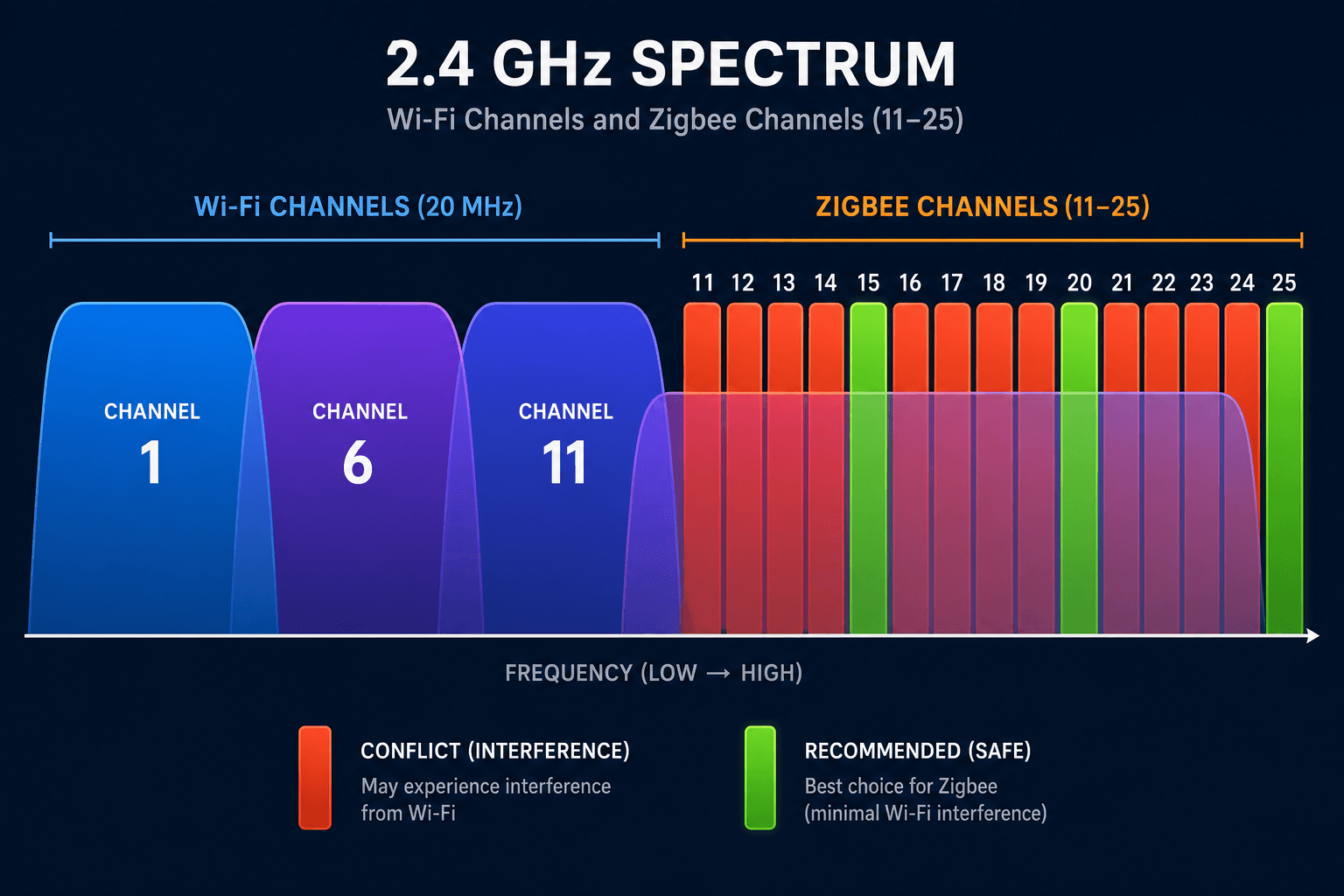
| Zigbee channel | Overlaps Wi-Fi channel | Interference risk | Recommended? |
|---|---|---|---|
| 11 | 1 | High | No |
| 12 | 1 | High | No |
| 13 | 1 / 6 | High | No |
| 14 | 6 | High | No |
| 15 | None (gap between 1 and 6) | Low | Yes |
| 16 | 6 | Medium | No |
| 17 | 6 | Medium | No |
| 18 | 6 / 11 | High | No |
| 19 | 11 | High | No |
| 20 | None (gap between 6 and 11) | Low | Yes |
| 21 | 11 | Medium | No |
| 22 | 11 | Medium | No |
| 23 | 11 | Low–Medium | Acceptable |
| 24 | 11 | Low–Medium | Acceptable |
| 25 | Above 11 | Low | Yes |
| 26 | Above 11 | Very low | Limited device support — see note |
The best default choices are Zigbee channels 15, 20, or 25. Channel 25 is the most widely recommended because it sits above Wi-Fi channel 11's upper edge and most devices support it. If your Wi-Fi router uses a non-standard channel or you have multiple access points on different channels, use a Wi-Fi analyzer app to confirm which Wi-Fi channels are active before selecting a Zigbee channel.
How to Change the Zigbee Channel by Platform
- ZHA (Home Assistant): Go to Settings → Devices & Services → Zigbee Home Automation → Configure → Change Channel. Select the new channel and confirm. ZHA will attempt a channel migration — if migration fails (some coordinators do not support it), remove and re-add the ZHA integration and re-pair all devices.
- Zigbee2MQTT: Stop Zigbee2MQTT. Edit configuration.yaml and add or update the channel value under the zigbee_herdsman adapter section. Restart Zigbee2MQTT. Note that changing the channel will invalidate existing device pairings — all devices must be re-paired after the channel change.
- SmartThings: SmartThings does not expose manual Zigbee channel selection in the standard app UI. The hub selects a channel automatically during setup. If you suspect channel interference, contact SmartThings support or perform a hub reset, which triggers a new channel scan. Some users have had success temporarily disabling the Wi-Fi router to force the hub to select a cleaner channel during reset.
- Hubitat Elevation: Go to Zigbee Details in the Hubitat UI. The current channel is displayed. To change it, use the Change Zigbee Channel option and select the new channel. Hubitat will attempt a network-wide channel migration. If devices do not follow the migration, re-pair them individually.
Fix 3 — Mesh Topology: Router Density and Always-On Coverage
Sparse mesh is the most common structural cause of repeated Zigbee drops. A network with too few router nodes forces end devices to maintain long-range connections to the coordinator or to route through a single overloaded router. When that router loses power — even briefly — every end device behind it goes offline.
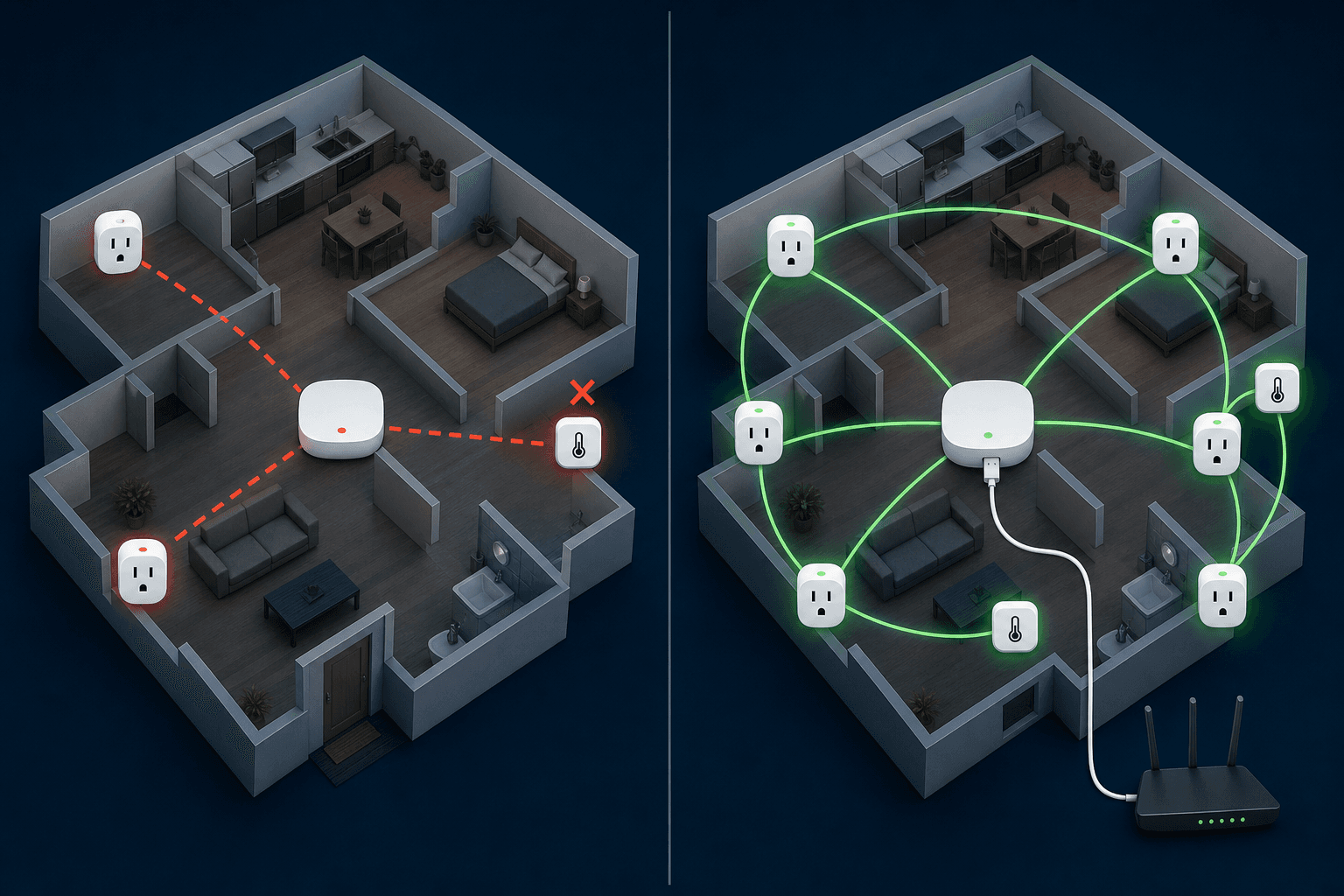
The practical rule is: place a mains-powered Zigbee device — a smart plug, a hardwired bulb, or a dedicated repeater — in every room where you have battery-powered sensors or other end devices. In a multi-story home, each floor needs its own router coverage. A single router on the ground floor cannot reliably serve sensors on the second floor through ceilings and structural walls.
- Aim for at least one mains-powered Zigbee router device per room that contains end devices. Two per room is better in larger spaces.
- In multi-story homes, place router devices on each floor — ideally near staircases or central hallways to maximize overlap between floors.
- Router devices must be always on. A smart plug used as a router that is connected to a switched outlet or a power strip with an on/off switch will break the mesh every time the outlet is switched off.
- Battery-powered devices cannot act as Zigbee routers. Motion sensors, door/window sensors, buttons, and temperature sensors are all end devices regardless of brand. Do not count them toward your router density.
- Dedicated Zigbee repeater plugs (devices whose only function is to extend the mesh) are useful in rooms where you do not need a controllable outlet. They consume minimal power and provide a stable, permanent router node.
- When a router device loses power — for any reason — all end devices that were routing through it will attempt to find a new parent. If no alternative router is in range, those end devices go offline. They will reconnect automatically once the router comes back, but this can take 10–30 minutes depending on the platform and the device's check-in interval.
Fix 4 — Battery and Mains Power Failures
Battery failure is the simplest root cause but also the easiest to overlook because it often produces intermittent drops before the device goes fully offline. A battery at 20–30% charge may still power the device's sensor circuitry but lack the burst current to transmit a Zigbee message reliably. The result is a device that appears online in the platform UI but misses check-ins, triggers automations inconsistently, or drops offline in cold conditions.
- Check the battery voltage reading in your platform's device page, not just the percentage. Many devices report inaccurate percentages but accurate voltage. For AA and AAA cells, a reading below 1.2V per cell indicates a cell that needs replacement even if the percentage shows 30% or higher.
- Replace batteries with fresh alkaline or lithium cells from a reputable brand. Cheap no-name batteries have inconsistent internal resistance and often cause intermittent drops before the voltage even drops significantly.
- Cold environments accelerate battery discharge. Outdoor sensors, garage sensors, and devices in unheated spaces may need battery replacement two to three times more frequently than indoor devices. Lithium cells perform significantly better than alkaline cells in cold conditions.
- Check whether any mains-powered Zigbee device — a smart plug, a hardwired switch, or a bulb — is connected to a switched outlet, a power strip with a physical switch, or a circuit that is occasionally turned off. These devices will silently drop out of the mesh every time power is interrupted, taking any end devices routing through them offline as well.
- Verify that smart plugs used as router nodes are plugged directly into wall outlets, not into extension leads or power strips that can be switched off.
Fix 5 — Platform-Specific Software Issues
Platform software bugs cause a specific symptom pattern: multiple devices — or all devices — drop offline at the same time, often immediately after a hub update or restart. Individual device drops that are staggered across time and location are almost never a software issue. Simultaneous drops across the entire network, or drops that correlate with a specific platform event, usually are.
| Platform | Common software cause | Diagnostic signal | Resolution |
|---|---|---|---|
| ZHA (Home Assistant) | Coordinator lockup or ZHA integration crash | All Zigbee devices offline simultaneously; ZHA shows as unavailable in integrations | Restart the ZHA integration; if unresolved, power-cycle the coordinator USB dongle and restart HA |
| Zigbee2MQTT | MQTT broker disconnect loop; device availability timeout misconfiguration | Devices marked unavailable in MQTT topics; Z2M log shows repeated reconnect attempts | Verify MQTT broker is running; check device availability timeout setting in Z2M configuration |
| SmartThings | Zigbee secure mode enforcement bug; hub firmware regression | Devices paired before a hub update stop responding; new pairings work but old ones do not | Check SmartThings community forums for active firmware issues; try hub reboot; in some cases, re-pairing affected devices is required |
| Hubitat Elevation | Mesh database corruption; hub memory pressure from large device/rule count | Devices drop after hub restarts; Zigbee details page shows unexpected topology | Run Zigbee mesh rebuild from Settings → Zigbee Details; reduce hub load by disabling unused apps |
ZHA Coordinator Lockup and Reset
ZHA can enter a state where the coordinator USB dongle stops responding without producing a clear error in the Home Assistant log. The symptom is all Zigbee devices showing unavailable simultaneously while the ZHA integration itself appears loaded. The first step is to reload the ZHA integration from Settings → Devices & Services without restarting Home Assistant. If that does not restore devices, physically unplug the coordinator USB dongle, wait 10 seconds, and plug it back in. If the problem recurs after updates, check the Home Assistant GitHub issue tracker for known ZHA regressions in the current release.
Zigbee2MQTT Device Availability Configuration
Zigbee2MQTT has a device availability feature that marks devices as offline if they do not check in within a configured timeout. The default timeout is often too short for battery-powered devices with long sleep intervals, causing sensors to appear offline in the platform even when they are functioning normally. Review the availability settings in your Zigbee2MQTT configuration.yaml and set per-device or global timeouts appropriate for each device's check-in interval. Battery-powered sensors may only check in every 30–60 minutes.
availability:
  active:
    timeout: 10        # minutes; for mains-powered router devices
  passive:
    timeout: 1500      # minutes; for battery-powered end devices (~25 hours)
Spammy Tuya and Aqara/Xiaomi Device Behavior
Certain Tuya-based devices and some older Aqara and Xiaomi sensors do not fully comply with the Zigbee specification. They may transmit messages at abnormally high rates, clog the coordinator's message queue, and cause neighboring devices to miss their own transmissions. The symptom is widespread instability — multiple devices dropping intermittently — that begins after adding a specific device and resolves after removing it.
Additionally, some older Aqara and Xiaomi devices will only route through other Aqara/Xiaomi devices and will reject routing through third-party Zigbee routers. If you have a mixed network and Aqara sensors keep dropping, verify whether the nearest router node is a non-Aqara device — the sensor may be refusing to use it as a parent.
When Re-Pairing Is Actually the Right Step
Re-pairing is appropriate in a small number of specific situations. Outside of those situations, it is a symptom mask, not a fix. Use the checklist below to decide whether re-pairing is warranted.
- You have identified and fixed the underlying root cause (mesh, interference, power, or software) and the device still does not reconnect after 30–60 minutes.
- You have replaced the coordinator hardware or changed the coordinator's IEEE address — all devices lose their network association and must be re-paired.
- You have changed the Zigbee channel — channel changes invalidate all existing pairings.
- The device's internal pairing state appears corrupted — it responds to factory reset but does not rejoin the network after multiple attempts even when held close to the coordinator.
- The device is a known non-compliant device (some older Tuya or Xiaomi models) that requires a specific pairing procedure to function correctly on your platform.
Long-Term Prevention Checklist
Once your network is stable, the following practices will keep it that way as your device count grows and your home environment changes.
- Router device count: maintain at least one mains-powered Zigbee router per room with end devices. Add a router before adding more end devices to that room.
- Channel monitoring: if you add a new Wi-Fi access point or change your router's channel settings, re-verify that your Zigbee channel still has adequate separation from active Wi-Fi channels.
- Coordinator cable hygiene: use a shielded USB extension cable permanently. Do not plug the coordinator directly into a USB 3.0 port even temporarily.
- Battery replacement schedule: replace batteries in outdoor and cold-environment sensors every 6–12 months regardless of reported level. Replace indoor sensor batteries when reported voltage drops below 1.2V per cell.
- Platform updates: review release notes before applying major hub firmware or Home Assistant updates. If a Zigbee-related regression is reported in the community, delay the update until a fix is confirmed.
- Outlet discipline: never plug a Zigbee router device into a switched outlet, a power strip with a physical switch, or any outlet that is controlled by a wall switch or automation.
- New device testing: when adding a new brand or model to your network, add one device first and monitor for 24–48 hours before adding more. This isolates spammy or non-compliant devices before they affect the broader network.
| Maintenance task | Frequency | Priority |
|---|---|---|
| Check battery voltage on outdoor/cold sensors | Every 6 months | High |
| Verify router device count per room after any device changes | After any addition or removal | High |
| Review Wi-Fi channel assignments vs. Zigbee channel | After any Wi-Fi hardware change | High |
| Review platform release notes before major updates | Before each update | Medium |
| Inspect coordinator USB cable and port connection | Annually or after any physical move | Medium |
| Run mesh rebuild / topology check in platform UI | After any widespread drop event | Medium |
Frequently Asked Questions
Why do all my Zigbee devices drop offline after a hub restart?
This is normal behavior for the first 5–15 minutes after a hub restart. End devices that were sleeping during the restart need to wake up, attempt a check-in, and re-establish their parent relationship. Mains-powered router devices reconnect faster. If devices are still offline after 20–30 minutes, check whether the coordinator is functioning correctly and whether the ZHA or Zigbee2MQTT integration has fully loaded.
Can Matter devices act as Zigbee routers and extend my Zigbee mesh?
No. Matter devices operate on Thread (for battery-powered devices) or Wi-Fi and Ethernet (for mains-powered devices). Matter and Zigbee are entirely separate protocols. A Matter smart plug cannot route Zigbee traffic. If you are adding Matter devices to your home, they will not improve or affect your Zigbee mesh in any way.
How do I identify which device is causing mesh instability?
Start by reviewing your platform's Zigbee network map or topology view. ZHA has a built-in network visualization; Zigbee2MQTT has a map tab in its web UI; Hubitat shows topology in the Zigbee Details page. Look for devices with unusually high message counts, devices that show as routing through unexpected paths, or devices that were added shortly before instability began. Remove the suspect device and monitor for 24 hours. If stability returns, that device is the likely cause.
Will a Zigbee range extender (repeater plug) fix my drops?
A dedicated Zigbee repeater plug will fix drops caused by sparse mesh topology — specifically, end devices that are too far from any router node. It will not fix drops caused by Wi-Fi channel interference, coordinator EMI, battery failure, or platform software bugs. Identify the root cause first. If the cause is sparse mesh, a repeater plug placed in the gap between the offline device and the nearest existing router will resolve it.
I have applied all the fixes and devices are still dropping. What next?
If you have addressed coordinator placement, channel selection, mesh density, power stability, and platform software issues and drops persist, work through these additional checks:
- Verify the coordinator hardware itself is not failing. Try a different USB dongle or coordinator model if possible. Coordinator hardware can degrade, particularly cheap no-name dongles.
- Check whether drops correlate with a specific time of day — this can indicate a scheduled task on the hub (backup, database maintenance) that temporarily overloads the coordinator's message queue.
- Review whether a recently added device is spamming the network. Use your platform's Zigbee log or message rate view to identify any device with an abnormally high transmission rate.
- For Home Assistant users, check the GitHub issue tracker for known ZHA or Zigbee2MQTT regressions in your current version. Community forums for your specific platform are the most reliable source of current bug reports.
- As a final step, consider a clean network rebuild: remove all devices, reset the coordinator, select a clean channel, and re-pair devices starting with router nodes before adding end devices.
Does the number of Zigbee devices on my network affect stability?
Yes, but primarily in two ways. First, a Zigbee coordinator can manage a limited number of direct children — devices that connect directly to the coordinator rather than through a router. This limit is typically 32 direct children for most coordinator firmware. As your network grows, ensure that end devices are connecting through router nodes rather than all connecting directly to the coordinator. Second, on platforms like Hubitat, very large device counts (200+ devices with many automations) can create memory pressure that affects Zigbee processing. Monitoring hub memory usage and disabling unused apps helps maintain stability on large networks.
Community Notes & Edge Cases
Has this fix worked for you? Is it still valid after a recent firmware or app update? Share firmware-specific variations, platform quirks, or edge case solutions below. Substantive corrections can also be submitted via the contact page for editorial review.
Comments
Join the discussion with an anonymous comment.