
Why Your Lock Went Silent — and Why It's Almost Always Recoverable
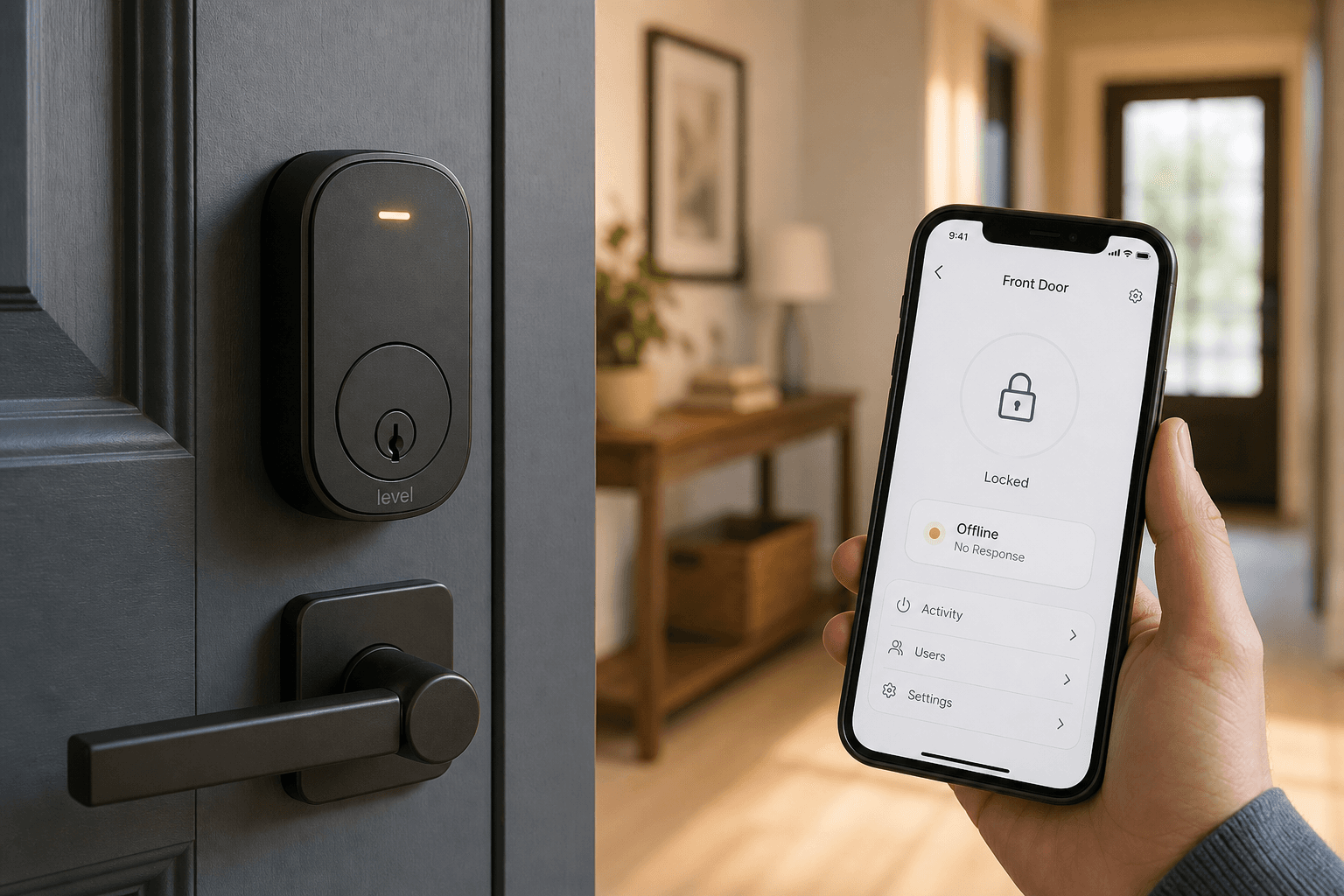
A smart lock that stops responding immediately after a firmware update feels alarming. The keypad is dark, the app shows "No Response," and your first instinct is that something is permanently broken. It almost never is.
Over-the-air firmware updates work by pushing new code to the lock's processor while it runs on battery power, connected to your phone or hub. When something interrupts that process — a Bluetooth dropout, a voltage dip, a Wi-Fi hiccup — the lock can end up in a state where its communication stack is confused, its connection to the app is severed, or its hub no longer recognizes it. None of those outcomes mean the hardware is damaged. The lock itself is almost certainly fine.
This guide is structured around your specific symptom and your lock's protocol. Identify what you're seeing, follow the path for your connection type, and work through the escalation steps in order. The goal throughout is to restore full function without a factory reset and without losing stored access codes.
What Actually Goes Wrong: Five Root Causes
Understanding why post-update unresponsiveness happens helps you pick the right fix. There are five common failure modes:
- Bluetooth drop mid-transfer: The BLE connection between your phone and the lock broke during the update. The lock's firmware may have installed correctly, but the app never received the confirmation and now shows a stale error state.
- Battery voltage collapse during OTA install: Firmware installs are power-intensive. If batteries were already low, the voltage dip during installation can cause the lock's processor to reset or enter a low-power mode mid-update.
- Wi-Fi stack crash: On Wi-Fi-connected locks, the network stack can crash during or immediately after a firmware flash, leaving the lock unable to reconnect to your router or bridge.
- Hub or bridge session mismatch: After a firmware update, the lock may present a different device signature to your hub (SmartThings, Home Assistant, Z-Wave controller). The hub still has the old session cached and the two can no longer communicate.
- App-cached stale state: Your phone app has cached the lock's previous status and is not reflecting the current state. The lock itself may be functioning normally while the app continues to display "Offline" or "No Response."
Identify Your Symptom Before You Do Anything
The fix depends on what you're actually seeing. Match your symptom to the table below, then jump to the corresponding section.
| What you're seeing | What it likely means | Where to go |
|---|---|---|
| Lock is completely silent — keypad does not light up, no response to button presses | Battery voltage collapse or processor reset during install | Universal First Steps, then Protocol-Specific Recovery |
| Keypad works and accepts codes physically, but app shows the lock as offline or unavailable | Wi-Fi/BLE stack crash or hub session mismatch — hardware is fine, connection is broken | Protocol-Specific Recovery for your connection type |
| App shows 'No Response' or 'Unavailable' but lock may still work locally | App-cached stale state or home hub lost its session with the lock | App and Hub Reconnection by Ecosystem |
| Update progress bar is stuck at a specific percentage and has not moved for more than 10 minutes | Active transfer stall — different problem from post-update unresponsiveness | Do not pull batteries yet. Force-close the app, reopen, and check whether the firmware version updated. If it did, proceed to Universal First Steps. |
Universal First Steps (Apply to All Lock Types)
Complete these four steps before doing anything protocol-specific. They apply to every smart lock regardless of brand or connection type, and none of them erase stored access codes.
- Replace batteries with fresh alkaline AA or AAA cells. Do not use rechargeable NiMH batteries during or immediately after a firmware update. Rechargeables output approximately 1.2V per cell versus 1.5V for alkalines. That 20% voltage difference is enough to cause erratic processor behavior during the power-intensive firmware install process. Fresh alkalines are the correct choice here.
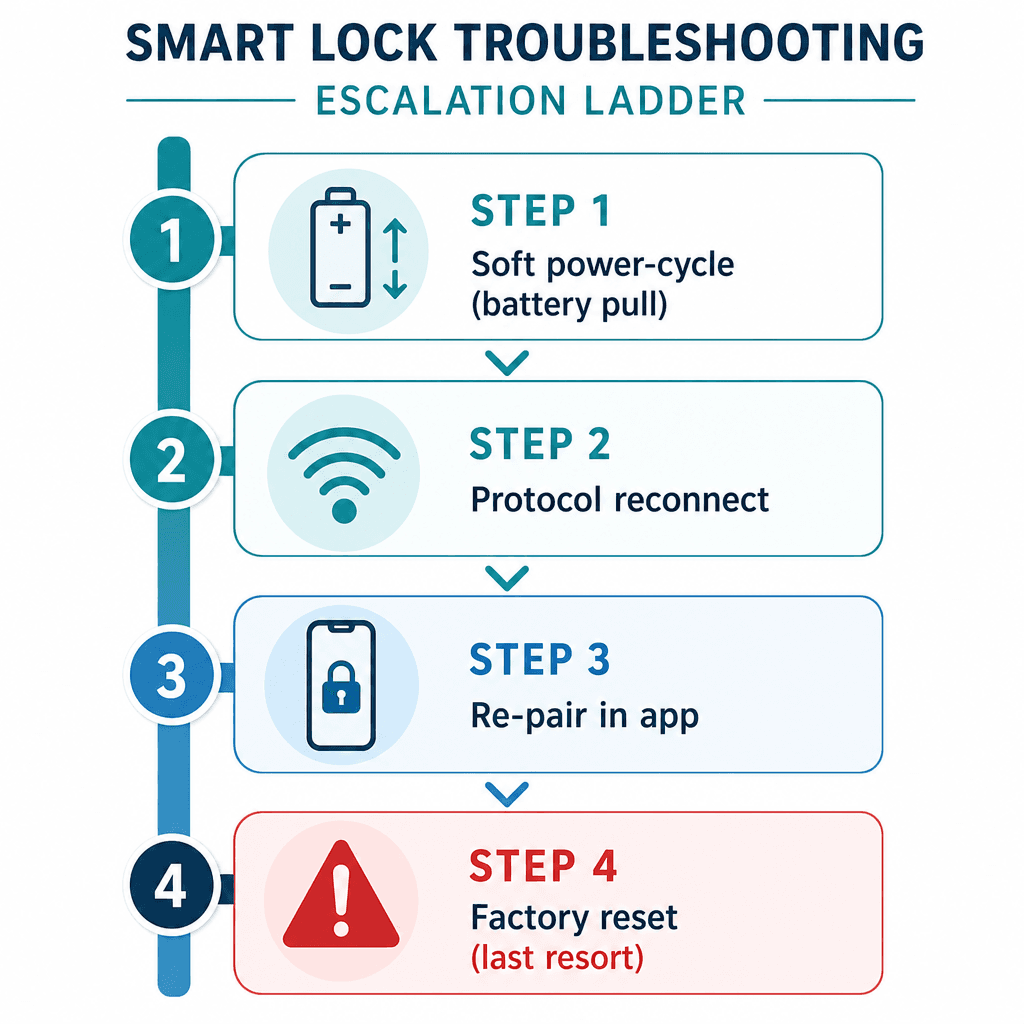
- Perform a 30-second battery pull soft reset. Remove all batteries, wait a full 30 seconds, then reinsert them. This clears the lock's RAM and forces the communication stack to restart from scratch. It is the single most effective first step for post-update unresponsiveness and does not affect stored user codes.
- Check the firmware version in the app. After the battery pull, open the manufacturer app and navigate to the lock's settings. Look for a firmware version or software version field. If the version number matches the update you were installing, the update completed successfully. You're now troubleshooting a connection problem, not a failed update.
- Toggle Bluetooth off and back on on your phone. Go to your phone's settings and disable Bluetooth completely, wait 10 seconds, then re-enable it. This clears your phone's BLE connection cache and forces it to rediscover the lock fresh. On iOS, toggling Bluetooth in Control Center does not fully reset the stack — go to Settings → Bluetooth and use the toggle there.
Protocol-Specific Recovery Paths
After completing the universal first steps, the next action depends entirely on how your lock connects. Wi-Fi, Bluetooth, Z-Wave, and Matter/Thread fail in different ways and require different fixes. Do not apply the Z-Wave recovery path to a Wi-Fi lock, or the Matter path to a Bluetooth-only lock.
Wi-Fi Locks
Wi-Fi locks (such as the Schlage Encode or August Wi-Fi) connect directly to your router or through a bridge device. After a firmware update, the lock's Wi-Fi stack may have crashed or the lock may have received a new IP address it cannot reach.
- Confirm your 2.4 GHz network is active. Most smart locks connect only to 2.4 GHz Wi-Fi, not 5 GHz. Open your router admin page or app and verify the 2.4 GHz band is broadcasting. Also confirm the network is using WPA2-PSK security — WPA3 or mixed WPA2/WPA3 modes cause connection failures on many lock firmware versions.
- Power-cycle the bridge or hub. If your lock uses a bridge device (such as the August Connect or a Schlage Wi-Fi bridge), unplug it from power, wait 30 seconds, and plug it back in. Wait 2 minutes for it to fully reconnect before checking the app.
- Set a DHCP reservation for the lock. In your router settings, assign a fixed local IP address to the lock's MAC address. This prevents the lock from receiving a different IP after a reboot, which is a common cause of post-update connectivity loss.
- Re-add the lock to Wi-Fi in the app. If the lock still does not appear online, navigate to Wi-Fi settings in the manufacturer app and run through the Wi-Fi setup process again. This re-establishes the lock's connection to your network without removing it from the app entirely.
Bluetooth-Only Locks
Bluetooth-only locks (such as the Nuki Smart Lock or Level Lock) communicate directly with your phone via BLE. Post-update unresponsiveness in this category is almost always a BLE stack or app cache problem.
- Force-close the manufacturer app completely. On iOS, swipe up from the app switcher to close it. On Android, use the recent apps view to close it. Reopen the app and check whether the lock appears online.
- Clear the app cache or reinstall the app. On Android, go to Settings → Apps → [Lock App] → Storage → Clear Cache. On iOS, delete the app and reinstall it from the App Store. Your account and lock configuration are stored server-side, so reinstalling does not remove the lock from your account.
- Run the BLE re-pair sequence. In the app, navigate to the lock's Bluetooth settings and look for an option to "forget" or "unpair" the Bluetooth connection, then re-pair. This is not the same as removing the lock from your account — it only resets the BLE pairing.
- Try a second phone. This is a counterintuitive but highly effective step. Some phones have device-specific BLE stack bugs that can prevent a successful firmware update connection or block post-update reconnection. If a second phone running the same app connects to the lock without issues, the problem is your primary phone's Bluetooth implementation, not the lock. Log in to your account on the second phone, connect to the lock, and verify the firmware version.
Z-Wave Locks
Z-Wave locks receive firmware updates via Bluetooth or the manufacturer app — not through the Z-Wave hub. This is a common source of confusion. If your Z-Wave lock stopped responding to your hub after a firmware update, the Z-Wave radio itself is almost certainly fine. The problem is typically a hub session mismatch or a firmware-induced deep sleep state.
- Check battery level first. Some Z-Wave lock models enter a deep sleep mode when batteries drop below approximately 50%. This can make the lock appear unresponsive to Z-Wave commands even though the hardware is functional. Replace with fresh alkalines before proceeding.
- Restart the Z-Wave hub. Power-cycle your Z-Wave hub or controller (SmartThings, Home Assistant with a Z-Wave stick, Hubitat, etc.) by unplugging it, waiting 30 seconds, and replugging. After it restarts, check whether the lock appears responsive.
- Exclude and re-include the lock from the hub. If the hub restart does not restore communication, the correct fix is to exclude the lock from the Z-Wave network and re-include it. In your hub's Z-Wave settings, run the exclusion process, then put the lock in exclusion mode per the manufacturer's instructions (typically a button press sequence on the lock). Once excluded, run the inclusion process and re-add the lock with S2 security if your hub supports it. This resolves ghost node and session mismatch issues without requiring a factory reset of the lock itself.
Matter and Thread Locks
Matter locks that use Thread for their radio connection (such as the Aqara U100 or Yale Assure Lock 2 in Thread mode) can lose their Thread network mesh position after a firmware update. The lock needs time to re-establish its place in the Thread network before it will respond to commands.
- Disconnect the lock from power for 5 minutes. Remove the batteries completely and wait a full 5 minutes. Then reinsert the batteries and wait an additional 10 minutes before testing. This allows the Thread network to stabilize and the lock to re-join the mesh. This timing guidance comes from Apple's published guidance for Thread accessories not responding.
- Restart all home hubs. Unplug every HomePod, HomePod mini, or Apple TV on your network, wait 30 seconds, then plug them all back in. For Google Home or SmartThings, restart the hub device from the app or by power-cycling it. Wait 2 minutes for hubs to fully restart before testing the lock.
- Remove and re-add via the Matter QR code. If the lock still does not respond after the hub restart, remove it from the Home app and re-add it using the Matter QR code on the lock or in the manufacturer app. This is the correct escalation path for Matter devices — do not attempt a factory reset before trying this step.
App and Hub Reconnection by Ecosystem
Once the protocol-level fix is complete, you may still need to reconnect the lock within your ecosystem app. The steps vary by platform.
- HomeKit: Ensure Bluetooth is enabled on your iPhone — HomeKit uses BLE for local lock communication even on Wi-Fi locks. Restart all home hubs (HomePod, HomePod mini, Apple TV) by unplugging and replugging them. If the lock still shows "No Response," navigate to the lock in the Home app, scroll to the bottom, and use the option to remove the accessory. Then re-add it using the manufacturer app's HomeKit setup flow. Removing and re-adding a HomeKit accessory does not erase stored user codes on the lock hardware.
- Google Home: Open the Google Home app, navigate to the lock device, and look for a "relink" or "reconnect" option in the device settings. If the lock is not visible, remove it from Google Home and re-add it through the manufacturer's Google Home integration.
- Amazon Alexa: Open the Alexa app and navigate to the lock's skill under More → Skills & Games → Your Skills. Disable the skill, wait 30 seconds, and re-enable it. This re-links the lock to Alexa and refreshes the device connection. If the lock still does not appear responsive, run device discovery in the Alexa app.
- SmartThings: Open the SmartThings app, navigate to the lock device, and use the refresh option in the device detail view. If the lock remains offline, remove it from SmartThings and re-add it through the standard device addition flow.
Re-Pairing Without a Factory Reset
If protocol-level fixes and ecosystem reconnection steps have not restored the lock, the next escalation is to remove the lock from the app and re-add it. This step concerns most users because of a reasonable fear: will I lose my stored access codes?
The answer for most locks: no. Stored user codes live in the lock's hardware memory, not in the app. Removing the lock from the app and re-adding it is a software-layer action that does not touch the lock's internal code storage. Your codes will still be there after re-pairing.
Here is what to do and what to avoid:
- Before removing the lock from the app, note which user codes are stored and their slot numbers if the app displays them. This is a precaution, not a requirement.
- In the manufacturer app, navigate to the lock's settings and find the option to remove or delete the lock from your account. Confirm the removal.
- In your ecosystem app (HomeKit, Google Home, Alexa, SmartThings), remove the lock accessory or device if it is still listed.
- Re-add the lock through the manufacturer app's standard setup flow. Keep your phone within Bluetooth range of the lock throughout this process.
- After the lock is re-added to the manufacturer app, re-add it to your ecosystem app using the standard pairing process (HomeKit QR code, Google Home device search, Alexa skill, or SmartThings scan).
- Verify stored access codes are still present in the app. On most platforms they will be. If the app does not display them, test them physically at the keypad — the codes are typically still in the lock hardware even if the app does not show them immediately.
Factory Reset: The Documented Last Resort
A factory reset erases all stored access codes, returns the lock to its out-of-box state, and removes all app and ecosystem pairings. It is not a routine troubleshooting step. Reach this section only after completing all prior steps without success.
Before initiating a factory reset, complete these pre-steps without exception:
- Record your programming or admin code. This is the master code used to add and delete user codes. If you do not have this code after a factory reset, you may be permanently locked out of the lock's programming interface. Check the original documentation, the back of the lock, or the manufacturer app's settings to find it.
- Confirm you have a physical key for the lock. A factory reset does not affect the physical lock cylinder — you can still use a key — but confirm this before proceeding.
- Perform the factory reset with the door open and unlocked. This prevents any possibility of locking yourself out of your home if something goes wrong during the reset process.
- Write down all stored access codes before resetting. These will be erased and will need to be re-entered after setup.
A factory reset does not mean the lock is permanently broken. It returns the lock to a clean state and allows a fresh setup. Most locks that appear bricked after a firmware update respond normally to a factory reset and subsequent re-pairing.
When to Contact the Manufacturer or Pursue a Warranty Claim
DIY recovery is exhausted when you have worked through every step in this guide — universal first steps, protocol-specific recovery, ecosystem reconnection, re-pair, and factory reset — and the lock still does not respond. At that point, the issue is likely a hardware-level failure caused by the firmware update itself, which is a manufacturer responsibility.
Contact the manufacturer when you see any of the following:
- The lock fails to update or connect across multiple phones and multiple Bluetooth devices, ruling out a device-specific BLE stack problem.
- The same error code (such as Error Code -1 on Aqara locks) persists through every escalation step including factory reset and re-pair.
- The lock's keypad is completely unresponsive even after fresh batteries and a 30-second battery pull — no lights, no beeps, no response to any button press.
- The lock was functioning correctly before the firmware update and has not responded to any recovery step since.
When contacting support, have the following ready to reduce back-and-forth:
- The firmware version the lock was on before the update (if known) and the version it was attempting to install.
- Any specific error codes displayed in the app during the update or afterward.
- A summary of the steps you have already completed, in order.
- Your lock's serial number, which is typically on the back of the interior assembly or in the original packaging.
Pre-Update Safety Checklist for Next Time
Most post-firmware-update failures are preventable. Before starting any future firmware update on a smart lock, run through this checklist:
- Install fresh alkaline batteries before starting the update. Do not begin a firmware update if the battery indicator shows less than 50% remaining.
- Keep a physical key accessible and on your person during the update. Do not leave it inside the home.
- Pause any automations that depend on the lock — door-lock-triggered lights, away-mode routines, or scheduled locking — for the duration of the update.
- Stay within Bluetooth range of the lock for the entire update process. Do not leave the room or allow your phone to sleep.
- On Android, enable a "keep screen on" or "developer options: stay awake" mode during the update to prevent the phone from sleeping mid-transfer.
- After the update appears to complete — whether the app shows success or failure — check the firmware version number in the lock's settings before taking any other action. This is the only reliable confirmation that the update succeeded.
Community Notes & Edge Cases
Has this fix worked for you? Is it still valid after a recent firmware or app update? Share firmware-specific variations, platform quirks, or edge case solutions below. Substantive corrections can also be submitted via the contact page for editorial review.
Comments
Join the discussion with an anonymous comment.