
What 'Alexa Routine Not Triggering' Actually Means
When an Alexa routine stops firing automatically, it almost never produces an error message. The routine simply does nothing — the lights don't turn on, the announcement doesn't play, the thermostat doesn't adjust. From the outside, it looks like the routine disappeared.
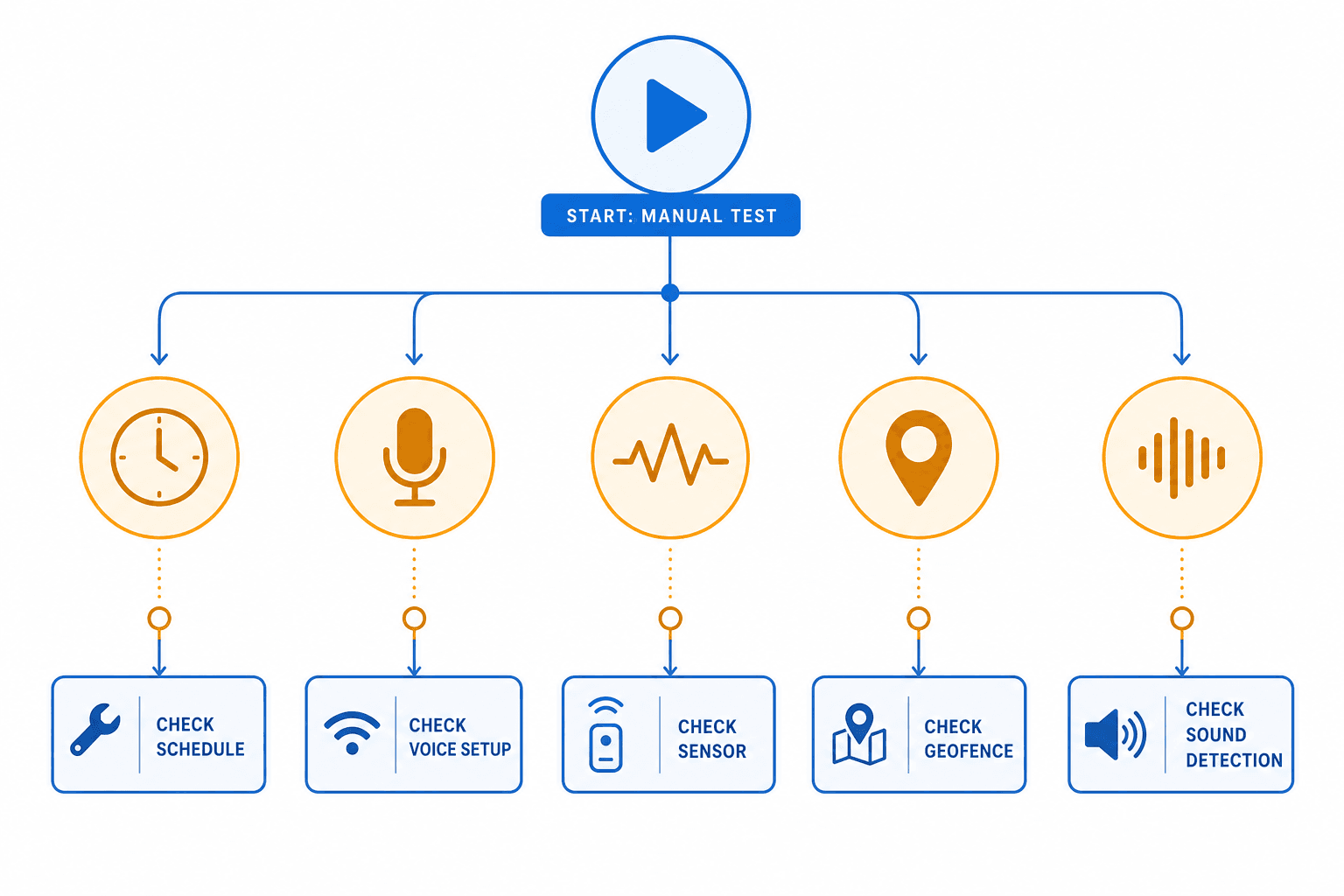
The failure is almost always in the trigger layer, not the action layer. The routine itself is intact — the schedule, voice command, sensor signal, location event, or sound detection that was supposed to kick it off is what broke. Understanding which trigger type is failing is the fastest path to a fix, and that is exactly what this guide is organized around.
Step 0: Run the Manual Test First
Before doing anything else, open the Alexa app, navigate to More → Routines, find the routine that is not working, and tap the play icon to run it manually. This single test tells you almost everything you need to know about where the fault is.
- Routine runs correctly via manual play: The fault is in the trigger. The routine logic and all connected devices are working. Skip to the trigger-specific section that matches your routine type.
- Routine fails or partially fails via manual play: The fault is in the action or a device the routine is trying to control. Check whether the target device is online in the Alexa app, and verify the device is still linked to your account.
- Play icon is missing or grayed out: The routine is disabled. Tap into the routine and toggle it on.
Cross-Cutting Fixes to Check Before Going Deeper
Several causes can break any routine regardless of trigger type. Work through this checklist before spending time on trigger-specific diagnosis — these are fast to check and rule out.
| Potential Cause | How to Check | Fix |
|---|---|---|
| Routine is disabled | Open routine in Alexa app — look for the toggle at the top | Toggle the routine on |
| Wi-Fi or internet outage | Check other internet-dependent devices on the same network | Restore network connection; routines requiring cloud processing will not run offline |
| Alexa app out of date | Check app store for pending update | Update the Alexa app to the current version |
| Echo firmware out of date | Settings → Device Settings → [your Echo] → About — check firmware version | Firmware updates install automatically when the Echo is idle and connected; leave it plugged in overnight |
| Echo device needs a power cycle | Unplug the Echo, wait 30 seconds, plug back in | Reconnects the device to Amazon's servers and clears transient state issues |
Scheduled Trigger Failures: Timezone and Daylight Saving Time
Scheduled routines are the most common failure type reported by Alexa users, and the two dominant causes are timezone mismatch and missed daylight saving time adjustment. Both produce the same symptom: the routine fires at the wrong time, or not at all.
The timezone setting that matters is on the Echo device itself, not on your phone. Even if your phone's timezone is correct, the Echo can be set to a different zone — and that is the timezone Alexa uses to evaluate scheduled triggers.
To verify and correct the Echo's timezone:
- Open the Alexa app and go to More → Settings → Device Settings.
- Select the Echo device your routine is assigned to.
- Tap Time Zone and verify it matches your current local timezone.
- If it is wrong, select the correct timezone and save. Alexa will automatically recalculate scheduled trigger times.
Daylight saving time failures are common in the days immediately following a DST transition. Amazon typically pushes automatic timezone updates, but some devices on older firmware or those that were offline during the transition may retain the old offset. Checking the timezone setting after each DST change takes thirty seconds and prevents hours of confusion.
Voice Trigger Failures: Mic Mute, Phrase Errors, and Wrong Device
Voice-triggered routines fail silently in three specific ways. Each has a distinct fix and none requires rebuilding the routine.
- Solid red ring on the Echo: The microphone is muted. Alexa cannot hear any wake word or trigger phrase. Press the microphone button on top of the device to unmute it. The ring will turn blue when the mic is active.
- Trigger phrase has a typo or unusual word: Alexa's speech recognition struggles with uncommon proper nouns, compound words, or phrases that sound like other commands. Open the routine, tap the trigger phrase, and read it aloud slowly. If Alexa misrecognizes it during testing, simplify the phrase to common words.
- Routine is assigned to the wrong Echo device: By default, Alexa routines respond on whichever device hears the trigger phrase. However, some routines are explicitly assigned to a specific device. If you are speaking near one Echo but the routine is pinned to a different one, it will not fire. Open the routine, tap the trigger, and check whether a specific device is selected — change it to 'Any Echo device' if appropriate.
Smart Home and Sensor Trigger Failures: Skill Token Expiry and Device Offline
Routines triggered by smart home devices — motion sensors, contact sensors, camera events, smart plugs — break most frequently because of expired third-party skill authorization tokens, not because the routine itself is misconfigured. The routine looks fine in the app, but the skill that connects the sensor to Alexa has silently lost its authorization.
Work through this sequence in order before attempting anything more disruptive:
- Verify the triggering device is online in the Alexa app (Devices tab). An offline device cannot send trigger events.
- Open More → Skills & Games → Your Skills. Find the skill that controls the triggering device.
- Disable the skill, wait 30 seconds, then re-enable it. This forces a fresh authorization token exchange.
- Open the routine and confirm the trigger device is still correctly selected — re-enabling a skill sometimes clears device assignments.
- Run the manual test again. If the routine now fires automatically, the token expiry was the cause.
- If the routine still does not trigger automatically after the skill re-enable, delete the routine and recreate it. This is a last resort, not a first step.
| Third-Party Skill | Known Issue (as of Q2 2026) | Recommended Action |
|---|---|---|
| Wyze | New routines using Wyze camera person detection fail to trigger due to Alexa's updated smart home event model for new skill connections | Disable and re-enable the Wyze skill; if the issue persists, check the Wyze community forum for current status — this may be resolved by a skill update |
| Tapo (TP-Link) | Similar new-routine trigger failure pattern documented in June 2026 | Disable and re-enable the Tapo skill; recreate the routine trigger after re-enabling |
| SmartThings | Routine triggers using SmartThings virtual switches occasionally lose sync after SmartThings platform updates | Re-link the SmartThings skill and verify device states in the SmartThings app before testing |
| Home Assistant (via Nabu Casa) | Skill token expiry more frequent than first-party skills; HA entity state changes may not propagate to Alexa | Re-enable the Home Assistant skill; verify Alexa integration is active in HA Settings → Integrations |
Location and Geofence Trigger Failures: Background Location Permissions
Location-based routines — those set to trigger when you arrive home or leave — fail silently after iOS or Android OS updates that reset app location permissions. The Alexa app requires Always Allow location access to detect geofence events. If the permission was downgraded to 'While Using' or 'Ask Every Time' during an OS update, the routine will never fire.
| Platform | Where to Check | Required Setting |
|---|---|---|
| iOS 17 / 18 | Settings → Privacy & Security → Location Services → Alexa | Always — and enable Precise Location |
| Android 13 / 14 / 15 | Settings → Apps → Alexa → Permissions → Location | Allow all the time |
- Navigate to your phone's location settings for the Alexa app using the paths in the table above.
- Confirm the setting matches the required value. If it does not, change it.
- Open the Alexa app and go to More → Settings → Your Profile & Family. Confirm your home address is set correctly — an incorrect or missing home address disables geofencing entirely.
- Test by walking away from your home address beyond the geofence boundary (typically 150–500 meters) and then returning.
Sound Detection Trigger Failures: Mic Sensitivity and Echo Model Requirements
Sound detection triggers — routines that fire when Alexa detects a smoke alarm, CO alarm, baby crying, dog barking, snoring, or appliance beep — have two specific failure modes that do not apply to other trigger types.
- Microphone sensitivity set too low: Open the Alexa app, go to More → Settings → Device Settings → [your Echo] → Sounds → Sound Detection. Increase the sensitivity slider. If the target sound is quiet or the Echo is far from the sound source, higher sensitivity is required.
- Echo model does not support sound detection: Sound detection is not available on all Echo devices. If the Sound Detection option does not appear in your device settings, the Echo model assigned to the routine does not support this trigger type.
Alexa+ Migration Edge Cases
The 2025–2026 Alexa+ rollout introduced a change in how routine trigger phrases are stored for some accounts. A subset of users — primarily those with routines created before 2024 — found that long-running routines silently stopped firing after their account was migrated to Alexa+. The routines appeared intact in the app but did not respond to their trigger conditions.
To identify whether Alexa+ migration is the cause:
- Check whether the failure affects routines created before 2024 specifically, while newer routines continue to work.
- Look for a banner or notification in the Alexa app indicating an Alexa+ account migration or upgrade.
- Check the Amazon Digital and Device Forum for current reports of post-migration routine failures — this is the fastest way to confirm whether others are experiencing the same issue on the same timeline.
If Alexa+ migration is confirmed as the cause, the recommended resolution is to open each affected routine, tap the trigger, re-save it without changing anything (this forces the trigger to be re-written in the new storage format), and then test. In some cases, deleting and recreating the trigger — not the entire routine — is required.
When All Routines Break at Once: Amazon Server-Side Changes
If multiple routines stop working simultaneously — especially across different trigger types — the cause is almost certainly an Amazon server-side change, a skill disconnection event, or a platform outage. This is not something you can fix by reconfiguring individual routines.
Before spending any time rebuilding routines, check the Amazon Digital and Device Forum for active threads about routine failures. If others are reporting the same issue on the same day, it is a server-side event and you should wait for Amazon to resolve it — rebuilding routines will not help and may create duplicate configurations when the platform recovers.
- Check the Amazon Digital and Device Forum for active outage or routine failure reports matching your timeline.
- Check the Alexa app's Activity feed — if Alexa is logging trigger events but not executing actions, the issue is action-side. If no trigger events appear at all, the trigger processing layer is affected.
- Wait 2–4 hours before taking further action. Most server-side routine disruptions resolve within this window.
- If routines remain broken after 24 hours and no forum threads indicate a broader outage, contact Amazon customer support via the Alexa app (More → Help & Feedback → Contact Us).
Frequently Asked Questions
Why does my routine work when I tap play in the app but not automatically?
This is the most common pattern, and it always means the fault is in the trigger, not the routine. The action sequence is working correctly. Go to the trigger-specific section for your routine type and follow the fix steps there. Common causes: timezone mismatch for scheduled triggers, expired skill token for sensor triggers, revoked location permission for geofence triggers, muted microphone for voice triggers.
How many routines can an Alexa account have?
Amazon does not publish a hard limit, but accounts with very large numbers of routines — typically above 100 — have reported slower routine processing and occasional trigger failures. If you have accumulated many unused routines over time, archiving or deleting inactive ones can improve reliability. There is no documented per-account cap as of Q2 2026.
Can Alexa routines run without an internet connection?
No. Alexa routines require an active internet connection to process trigger events and execute actions. Even routines that control local Zigbee or Z-Wave devices through a hub still require the Alexa cloud to evaluate the trigger condition. If your internet connection drops, all routines will stop firing until connectivity is restored. This is a fundamental architectural limitation of the Alexa platform, not a configuration issue.
Community Notes & Edge Cases
Has this fix worked for you? Is it still valid after a recent firmware or app update? Share firmware-specific variations, platform quirks, or edge case solutions below. Substantive corrections can also be submitted via the contact page for editorial review.
Comments
Join the discussion with an anonymous comment.