
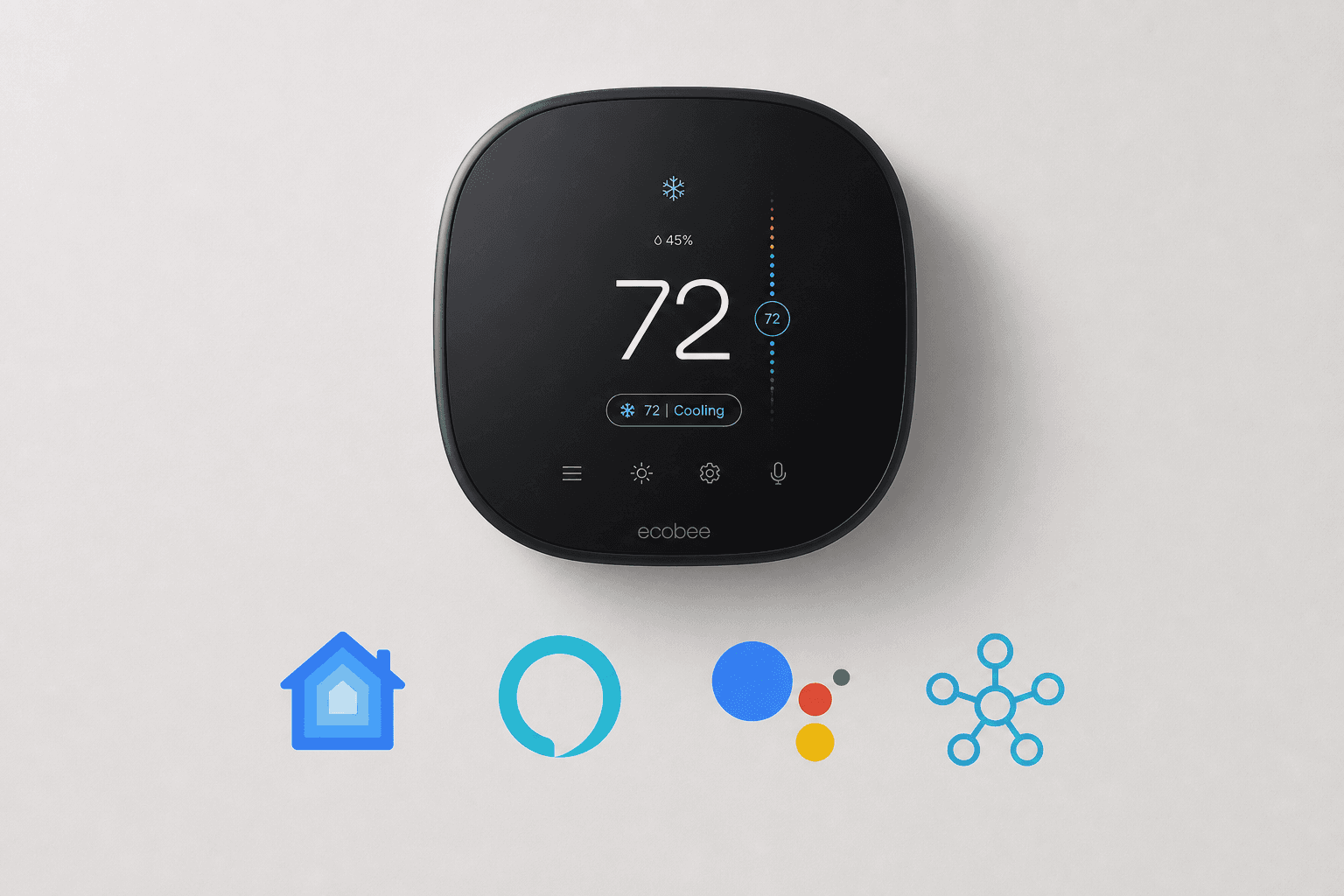
If you've already mounted the Ecobee SmartThermostat Premium and connected the wires, the hardware part is done. What's left is activating the smart home integrations that make this thermostat worth its price. The device supports four major platforms — Apple HomeKit with Siri, Alexa Built-in, Google Assistant, and Samsung SmartThings — but each one has a different activation path, different hardware prerequisites, and different limits on what it can actually control. This guide covers all four, in the order most households need them.
Supported Platforms at a Glance
The table below summarizes how each platform connects, whether it requires additional hardware, and what type of integration it is — built-in assistant or account-linked service.
| Platform | Activation Method | Hub Required | Integration Type | What It Controls |
|---|---|---|---|---|
| Apple HomeKit + Siri | Home app pairing via QR code | Yes — HomePod or HomePod mini (software v15+) | Built-in assistant (on thermostat) | Temperature, mode, humidity, occupancy; Siri voice commands |
| Alexa Built-in | ecobee app → Voice Assistants → Alexa | No | Built-in assistant (on thermostat) | Thermostat commands, smart home devices, music, general Alexa skills |
| Google Assistant | Google Home app → account linking | No | Account-linked (via Google Home app) | Thermostat temperature and mode via voice or routines |
| Samsung SmartThings | SmartThings app → account linking | No | Account-linked (via SmartThings app) | Thermostat controls within SmartThings automations |
HomeKit Pairing Walkthrough
HomeKit is the most capable integration for Apple households, but it has a hard prerequisite that trips up many new owners: you must have a HomePod or HomePod mini acting as a home hub, running software version 15 or later. Without a home hub, the thermostat cannot be added to the Home app.
Once your HomePod is confirmed as an active home hub in the Home app, follow these steps to pair the thermostat:
- Open the Home app on your iPhone or iPad.
- Tap the + icon in the top-right corner, then select Add Accessory.
- Scan the HomeKit QR code printed on the thermostat's installation card or on the back of the device.
- Follow the on-screen prompts to assign the thermostat to a room and confirm the pairing.
- Once paired, the thermostat will appear in your Home app as a thermostat accessory. Temperature control, mode changes (heat/cool/auto/off), and current humidity will be visible.
- Siri activation on the thermostat itself is automatic once the HomePod home hub is present — no separate step is required in the ecobee app to enable Siri.
After pairing, you can ask Siri on the thermostat to adjust the temperature, change the mode, or check the current reading. Siri requests spoken to the thermostat are passed through the device and processed securely on the HomePod — not on ecobee's servers or any external cloud.
HomeKit exposes the thermostat's temperature sensor, humidity sensor, and occupancy sensor as separate accessories. This means you can build automations in the Home app that respond to occupancy — for example, switching to Eco mode when no motion has been detected for 30 minutes.
Alexa Built-In Activation
Alexa is the simpler of the two built-in voice assistant options. No Echo device, no Alexa-enabled speaker, and no additional hardware is required. The thermostat itself functions as a full Alexa device — it has a speaker, a microphone, and runs Alexa natively.
To activate Alexa Built-in:
- Open the ecobee app on your phone.
- Go to Main Menu → Voice Assistants.
- Select Alexa and follow the on-screen sign-in steps to link your Amazon account.
- Once linked, say "Alexa" to wake the thermostat and issue commands.
With Alexa active on the thermostat, you can control the thermostat itself by voice, control other Alexa-compatible devices in your home, play music through the thermostat's speaker, set timers and reminders, and access any Alexa skill you have enabled in the Alexa app. The thermostat shows up in the Alexa app as a registered Alexa device.
Google Assistant Account Linking
Google Assistant is not a built-in assistant on this thermostat — it doesn't run natively on the device and there's no microphone wake word for Google. Instead, Google Assistant support works through account linking: you connect your ecobee account to Google Home, and then your Google Assistant devices (Nest speakers, phones, displays) can control the thermostat.
To link Google Assistant:
- Open the Google Home app on your phone.
- Tap the + icon, then select Set up device → Works with Google.
- Search for "ecobee" and select it from the list.
- Sign in with your ecobee account credentials to authorize the connection.
- Once linked, the thermostat will appear in Google Home and be controllable via any Google Assistant device.
After linking, you can ask Google Assistant to set the temperature, change the heating or cooling mode, and check the current temperature. Google Assistant controls the thermostat through the linked ecobee account — commands go through Google's cloud and then to ecobee's cloud, so this integration requires an active internet connection.
SmartThings Integration
SmartThings integration also works through account linking, similar to Google Assistant. Once connected, the thermostat becomes available as a device within SmartThings automations and scenes.
- Open the SmartThings app on your phone.
- Tap the + icon to add a device, then select By Brand.
- Search for and select ecobee.
- Sign in with your ecobee account to authorize the SmartThings connection.
- The thermostat will appear in your SmartThings device list, where you can view its status and include it in automations.
Within SmartThings, you can control thermostat temperature setpoints and modes, and incorporate the thermostat into multi-device automations — for example, adjusting the setpoint when a SmartThings-connected door sensor detects that a door has been left open.
Choosing Between Alexa and Siri as Your Built-In Voice Assistant
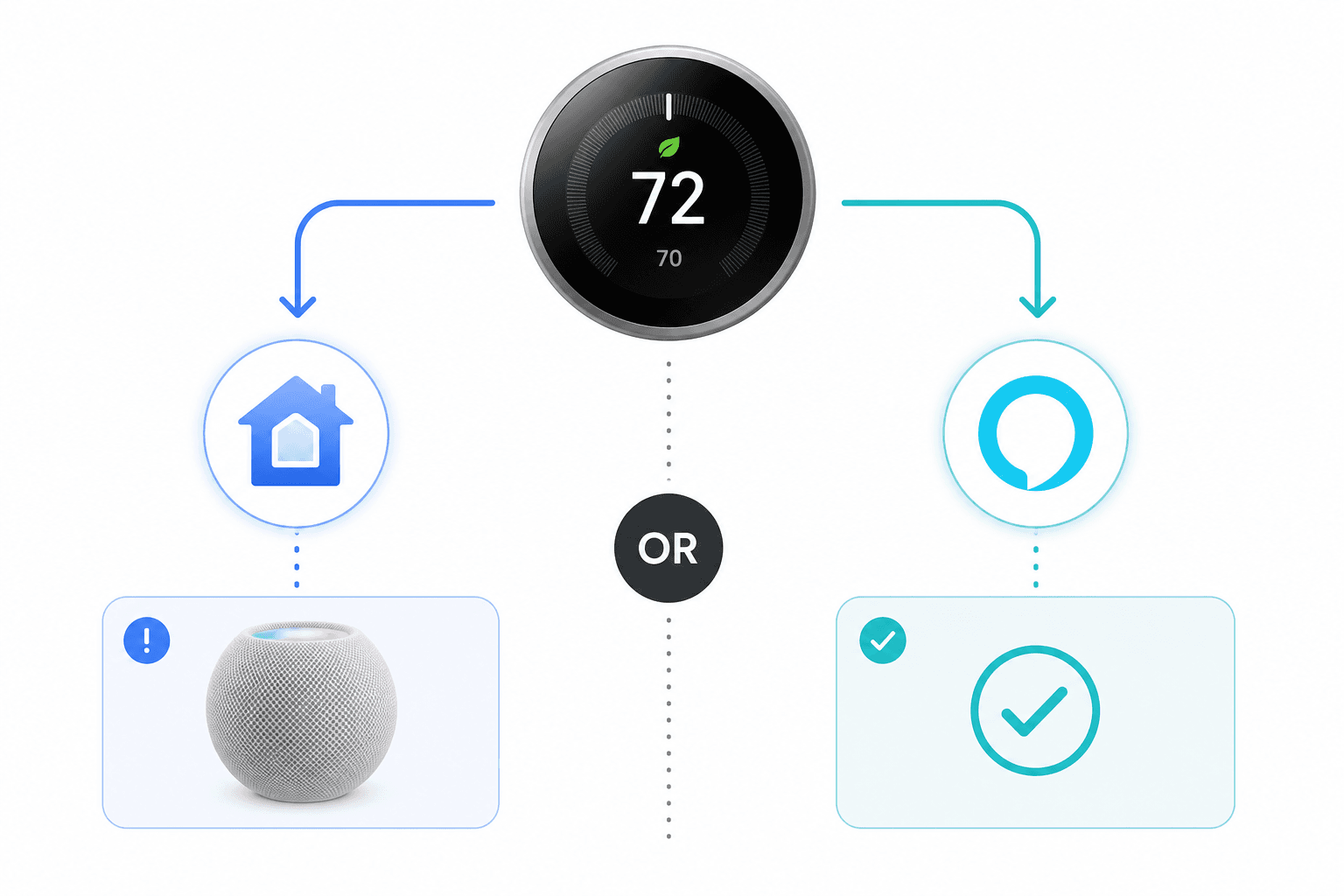
The thermostat has one speaker and one microphone. It can run Alexa or Siri as the active built-in assistant — not both at the same time. This is a hardware constraint, not a software limitation that future firmware can remove.
You'll need to choose one over the other — you can't use both at the same time — and using the latter requires an Apple HomePod or HomePod mini in the house.
The right choice depends on your household's primary ecosystem. Use this comparison to decide:
| Factor | Choose Alexa | Choose Siri |
|---|---|---|
| Hub required | No — activates immediately | Yes — HomePod or HomePod mini required |
| Primary ecosystem | Amazon / Alexa household | Apple / HomeKit household |
| Smart home control scope | All Alexa-compatible devices | All HomeKit-compatible devices |
| Music playback | Amazon Music, Spotify, etc. via Alexa | Apple Music via AirPlay (requires HomePod nearby) |
| Privacy architecture | Alexa cloud processing | Processed on HomePod, locally within home |
| Works alongside Google Assistant | Yes — Google links separately via app | Yes — Google links separately via app |
Using SmartSensor with HomeKit
The ecobee SmartSensor is a separate accessory that pairs with the thermostat via the ecobee app. Once paired in the ecobee app, the SmartSensor's motion and temperature readings automatically appear as distinct accessories in the Home app — you don't need to do anything additional in HomeKit.
This matters because HomeKit treats each SmartSensor as a first-class occupancy and temperature sensor. You can use it as a trigger for HomeKit automations involving other devices in your home — not just the thermostat.
- Pair the SmartSensor in the ecobee app first (Main Menu → Sensors → Add Sensor). The sensor must be registered in ecobee before it appears in HomeKit.
- After pairing, open the Home app. The SmartSensor appears as a separate accessory with motion and temperature capabilities.
- In the Home app, go to Automations and create a new automation triggered by the SmartSensor's occupancy state.
- Example: trigger a hallway light to turn on when the SmartSensor detects motion, or switch the thermostat to Eco mode when no motion has been detected in the living room for 20 minutes.
Platform Limitations to Know Before You Automate
Two limitations affect what you can build with this thermostat across platforms. Both are worth understanding before you spend time designing automations that won't work.
- Air quality data is not available in HomeKit. The thermostat includes VOC and CO2 sensors that display readings in the ecobee app. These readings do not appear in the Home app and cannot be used as triggers for HomeKit automations. You cannot ask Siri what the air quality is via the thermostat, and you cannot build an automation that, for example, turns on a fan when CO2 rises above a threshold. This limitation is confirmed and has not changed since the device launched.
- Matter support is not officially confirmed as of mid-2026. Some third-party sources have claimed Matter was added via firmware, but ecobee's official product page and specification materials do not list Matter as a supported protocol. Until ecobee officially announces Matter support, it should not be treated as an available integration. Do not attempt to pair this thermostat as a Matter device — it is not confirmed to work.
For a complete list of confirmed protocols and compatibility data for this device, see the Ecobee SmartThermostat Premium full device profile and specs.
Voice Command Cheat Sheet
| Task | Alexa | Siri | Google Assistant |
|---|---|---|---|
| Set temperature to 70°F | "Alexa, set the thermostat to 70 degrees." | "Hey Siri, set the thermostat to 70 degrees." | "Hey Google, set the thermostat to 70 degrees." |
| Increase temperature by 2°F | "Alexa, increase the thermostat by 2 degrees." | "Hey Siri, turn up the heat by 2 degrees." | "Hey Google, raise the temperature by 2 degrees." |
| Switch to cooling mode | "Alexa, set the thermostat to cool." | "Hey Siri, set the thermostat to cool." | "Hey Google, set the thermostat to cool." |
| Check current temperature | "Alexa, what's the temperature?" | "Hey Siri, what's the temperature inside?" | "Hey Google, what's the thermostat set to?" |
| Set to Eco / Away mode | "Alexa, set the thermostat to Away mode." | "Hey Siri, set the thermostat to Away." | "Hey Google, set the thermostat to Away." |
| Turn off the thermostat (HVAC off) | "Alexa, turn off the thermostat." | "Hey Siri, turn off the thermostat." | "Hey Google, turn off the thermostat." |
Troubleshooting Common Connection Failures
HomePod home hub not recognized during HomeKit pairing
If the Home app says no home hub is found when you try to pair the thermostat, the HomePod may not be set up as a home hub. Open the Home app, go to Home Settings, and confirm that the HomePod appears under Home Hubs with a status of Connected. If it shows as Not Responding, restart the HomePod and wait for it to reconnect before attempting to pair the thermostat again.
Alexa skill not linking in the ecobee app
If the Alexa activation screen in the ecobee app stalls or returns an error, check that you are signed into the correct Amazon account in the ecobee app. Sign out of the Amazon account link, force-close the ecobee app, reopen it, and attempt the link again. If the thermostat's Wi-Fi connection is unstable, the OAuth flow may time out — verify the thermostat shows a solid Wi-Fi indicator before retrying.
SmartSensor not appearing as a HomeKit accessory
The SmartSensor only appears in HomeKit after it has been successfully paired in the ecobee app. If the sensor is paired in ecobee but still not visible in the Home app, remove the thermostat from HomeKit, re-pair it using the QR code, and wait up to five minutes for accessories to populate. If the sensor still doesn't appear, confirm it is showing as active in the ecobee app's Sensors list.
Google Assistant account link failing
If the ecobee account link in Google Home fails or the thermostat doesn't appear after linking, unlink the ecobee account in Google Home (Settings → Works with Google → ecobee → Unlink), then re-link it. Confirm you are using the same email address for both your ecobee account and your Google account's linked services. If the thermostat appears in Google Home but Google Assistant doesn't recognize it by name, rename the device in Google Home to something simple and try the voice command again.
Corrections & Community Notes
Spotted an outdated spec, changed compatibility, or new firmware behavior? Submit a correction below to help keep this profile current. For formal editorial updates, use the contact page.
Comments
Join the discussion with an anonymous comment.