
AT&T Outage Today? How to Fix Smart Home Devices Not Working
An AT&T outage can take your smart home offline. This guide explains what still works during the outage and the exact recovery steps to avoid factory resetting everything when service returns.
Last updated
If AT&T is out today and your smart home suddenly looks dead, do not start factory-resetting bulbs, locks, cameras, plugs, or hubs. On July 24, 2026, Downdetector is showing a live AT&T outage signal, with reports concentrated in New Mexico and a report mix led by mobile signal problems, followed by 5G Home Internet and mobile internet issues. That is a useful outage indicator, not an official AT&T map or a count of every affected customer. [1]
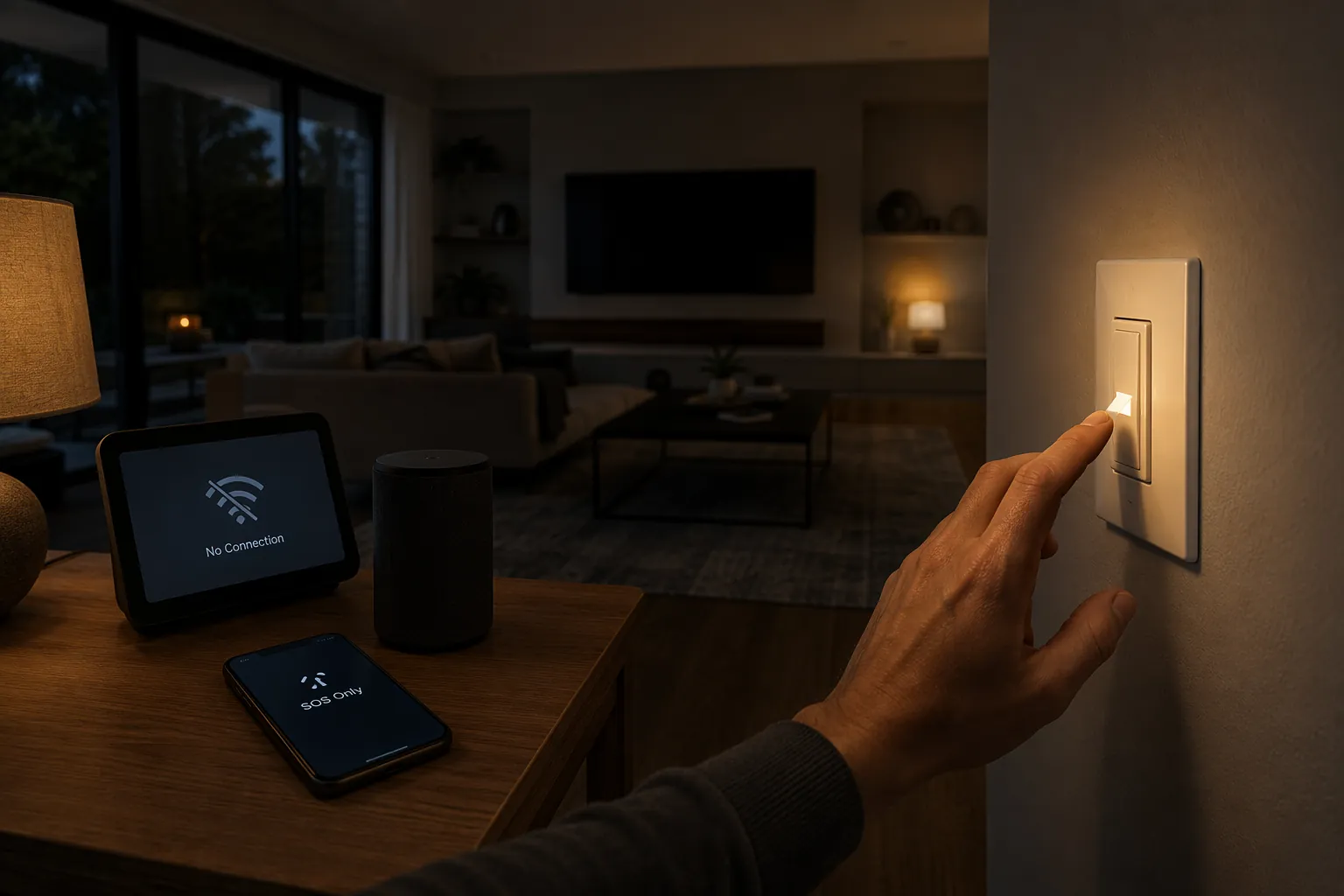
The practical point is simpler: an AT&T outage can make cloud-dependent smart home devices appear broken even when the devices themselves are fine. Voice assistants may stop answering, camera feeds may disappear, Wi-Fi plugs may show offline, and apps may sit there spinning. Meanwhile, some very unglamorous parts of the house may still work: the physical wall switch, the local hub automation, the Bluetooth lock, or a Thread device controlled through a local Apple Home hub.
First, Confirm Whether AT&T Is Still Down
Before touching any smart home device, check the service layer. Downdetector can tell you whether other users are reporting AT&T trouble nearby, but AT&T’s own outage checker is the official route for account-specific status and restoration information. AT&T’s public support page says the outage checker requires sign-in for personalized details. [2]
If you can get into AT&T Smart Home Manager, use it to check for confirmed outages and gateway status before you start pulling devices off the network. AT&T says Smart Home Manager can check for outages and restart the gateway; it can also show connected home network devices, which is useful when the local network is alive but the WAN is not. [3]
- If phones show limited service or SOS-style behavior, treat app failures and voice assistant failures as outage symptoms until AT&T status improves.
- If your gateway shows a red status light, the connection has failed; if it shows green or yellow during setup, wait for the startup process to finish; if the light becomes steady/solid, the gateway is likely back online. [4]
- If AT&T Smart Home Manager still reports an active outage, stop troubleshooting individual smart devices. They are waiting on the network.
- If AT&T says service is restored but devices remain offline, move to the gateway-first recovery sequence instead of deleting devices from apps.
What Still Works While AT&T Is Out
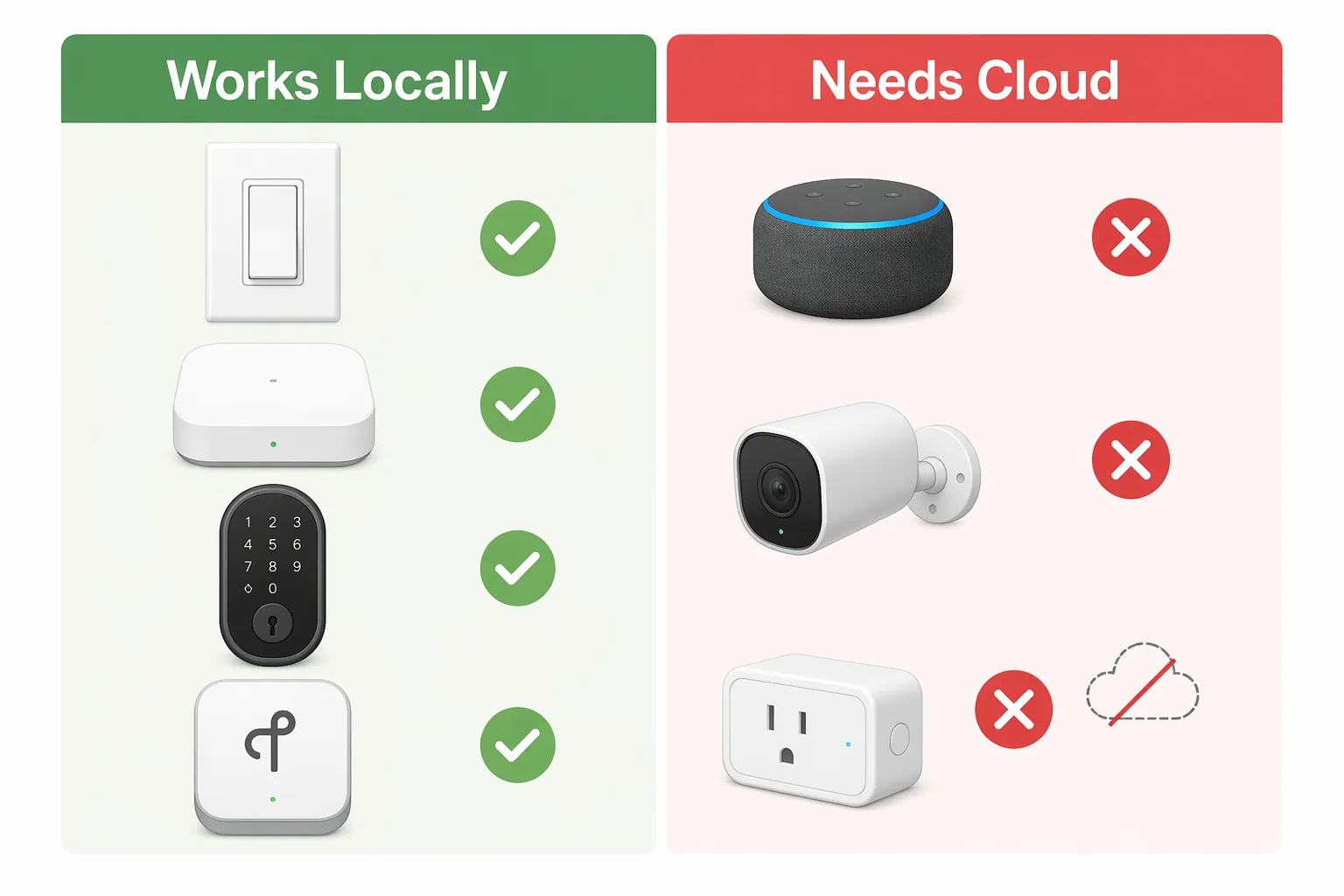
The fastest way to triage a smart home during an AT&T outage is to stop sorting devices by brand and start sorting them by control path. If a device needs the internet to receive the command you are giving it, expect trouble. If it has a local path, test that path directly.
| Device or control path | Likely behavior during AT&T outage | What to do now |
|---|---|---|
| Physical wall switch or physical button | Still works for basic on/off control if the device has power | Use the switch. Do not reset the smart module just because the app is offline. |
| Zigbee or Z-Wave devices on a local hub | Stored local scenes and schedules may continue if the hub and mesh are powered | Use the hub’s local controls if available; leave paired devices alone. |
| Bluetooth-direct smart lock | May still unlock locally from a nearby phone or keypad | Use Bluetooth, keypad, key, or manual thumb turn rather than cloud remote unlock. |
| Apple Home with a local hub and Thread devices | Local automations may continue when the home hub can still reach devices locally | Use the Home app locally if the phone is on the same network. |
| Wi-Fi plug, bulb, thermostat, or appliance that depends on a vendor cloud | May show offline until AT&T and the vendor cloud session recover | Wait for WAN restoration, then recover in sequence. |
| Voice assistant command | Often fails because speech processing and command routing depend on remote services | Use switches, apps with local control, or hub dashboards instead. |
| Cloud security camera or video doorbell | Live view, recording, alerts, or remote access may go dark | Use local physical security checks until service returns. |
CNET’s smart home troubleshooting guidance makes the boring but important point that smart switches with physical toggles keep basic manual control even when the app side misbehaves. That is the first thing to try in a hallway, kitchen, garage, or nursery, because it answers the real question: can the light still turn on? [5]
The local-control pattern is also consistent across smart home outage writeups. How-To Geek’s AWS outage analysis describes cloud voice assistants stopping during WAN loss, Ring-style cameras going dark, cloud sessions expiring, and Apple Home with a local Thread hub continuing local automations. Vendor and affiliate explainers from MOES and Digital Horizons make the same architectural distinction for cloud Wi-Fi devices versus Zigbee/Z-Wave devices running through a local hub, though their product-friendly framing should not be mistaken for independent lab testing. [6][7][8]
Do Not Reset Individual Devices During the Outage
A factory reset is tempting because it feels like action. It is also how a temporary AT&T problem turns into a Saturday spent re-pairing bulbs, rebuilding rooms, reassigning automations, and finding QR codes that were thrown away with the packaging.
During the outage, the smart plug that says offline may not be misconfigured. The camera that will not load may not have failed. The voice assistant that says it cannot reach the internet is not asking to be deleted from your home. If AT&T is still down, the device cannot complete the cloud handshake you are asking it to complete.
The exception is basic safety and access. If a lock, garage door, alarm, medical device, or required light has a manual path, use it. If it does not have a safe local fallback, treat that as an immediate household problem, not a smart home optimization problem.
When AT&T Comes Back, Recover in This Order
Once AT&T status looks restored, the order matters. CNET’s broader cure-all sequence recommends working through the app, phone, router, and smart devices rather than resetting devices one by one. For an AT&T outage, tighten that into a gateway-first sequence. [5]
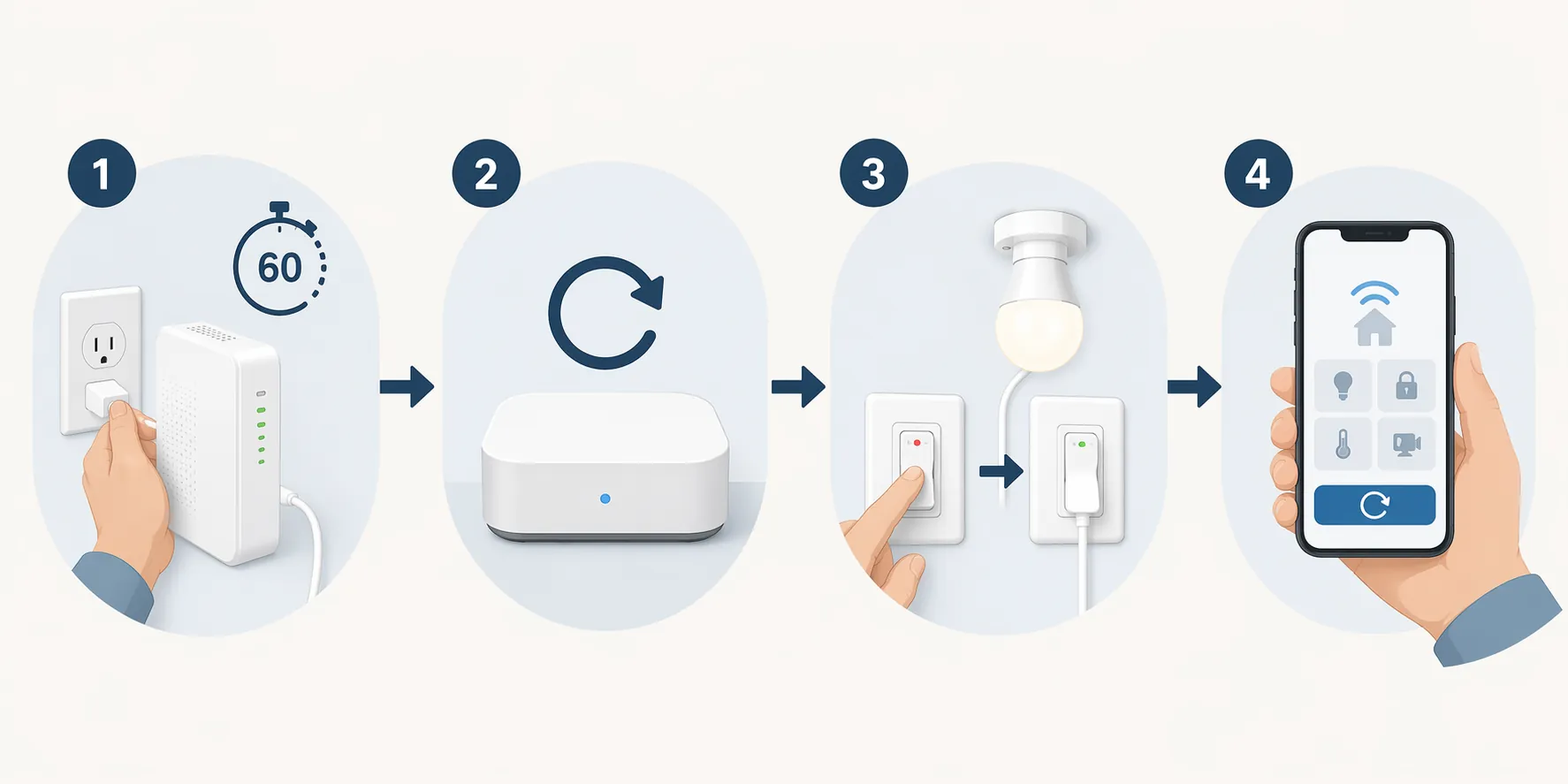
- Confirm AT&T is no longer reporting an outage for your account or area.
- Restart the AT&T gateway first. Unplug it for 60 seconds, plug it back in, and wait until the status light is steady before touching smart home hubs or devices.
- Restart the main smart home hub next: SmartThings hub, Hubitat hub, Home Assistant box, Apple TV/HomePod used as a Home hub, or another bridge that coordinates devices.
- Power-cycle stubborn Wi-Fi smart devices only after the gateway and hub are stable. Start with devices that still show offline after several minutes.
- Open the vendor app and re-authenticate only if the app asks, the device remains offline, or cloud control still fails after the local network is stable.
- Factory reset only after the gateway, hub, device power-cycle, and cloud login steps have all failed.
HighSpeedInternet.com’s AT&T outage guide describes gateway light states that are useful here: red means the connection failed, green or yellow can mean setup is still in progress, and a steady solid light indicates the gateway is online. It also says AT&T Internet Air 5G gateways can take 5–15 minutes to re-establish after tower recovery. Treat that timing as source-reported guidance, not a stopwatch guarantee for every home. [4]
Why the Gateway Comes Before the Hub
The gateway hands out local network addresses, maintains the WAN connection, and gives Wi-Fi devices a route back to their cloud services. If a hub or camera wakes up while the gateway is still negotiating service, it may reconnect to Wi-Fi but fail the cloud session. Then the app shows a half-recovered device: connected enough to confuse you, not connected enough to work.
That is why restarting the hub before the gateway is stable often wastes time. The hub may try to rebuild its cloud connection against a network that is not fully back. The individual Wi-Fi devices are even less patient. Some will keep retrying cleanly; others need a hard power-cycle once the router is actually ready.
Why Cloud Apps May Still Need a Login
Cloud sessions can expire while the internet is unavailable. How-To Geek’s outage analysis specifically notes cloud session expiry as one reason smart home systems may not automatically reconnect after service returns. If the app asks you to sign in again, do that before assuming the device needs to be removed and re-added. [6]
A practical recovery estimate is that this gateway-first sequence prevents most post-outage dropouts without factory resets; the rough “about 80%” figure should be read as a field synthesis from multi-device reboot guidance, cloud-session behavior, and user-reported recovery patterns, not as a controlled lab statistic. The useful part is not the exact percentage. It is the order.
If Only Some Devices Come Back
Partial recovery is normal after a broadband or cellular outage. A hub can be back while a few Wi-Fi devices remain stuck. A camera app can require a new login while lights recover on their own. A lock can work by Bluetooth while remote access is still unavailable.
- One Wi-Fi device offline: power-cycle that device at the wall or breaker, then wait for the app to refresh.
- Several Wi-Fi devices offline: restart the gateway again, wait for a steady online state, then restart the hub.
- Hub devices offline but Wi-Fi devices working: restart the hub or bridge, not every paired Zigbee or Z-Wave device.
- Voice assistant still failing: check whether its app account is signed in and whether the assistant service is reachable before blaming bulbs or switches.
- Camera still dark: check the camera app login, power-cycle the camera, and confirm the Wi-Fi network name did not change.
Do not remove a device from its app just because it missed the first reconnect wave. Removal often discards the pairing relationship you are trying to preserve. If the device is still visible in the app or hub, even as offline, treat that as a sign to keep working through power and session recovery first.
The Factory Reset Line
Factory reset belongs at the end of the AT&T outage recovery path. Use it only after AT&T service is confirmed restored, the gateway has been restarted and is steady, the smart hub has been restarted, the stubborn device has been power-cycled, and the relevant app account has been re-authenticated.
If all of that is done and one device still refuses to respond, then reset that one device according to the manufacturer’s instructions. Not the whole room. Not the hub. Not every bulb on the mesh. One failed device, one reset, after the network is clean.
References
- AT&T outage reports, Downdetector, July 24, 2026, link
- Check for internet outages, AT&T, link
- AT&T Smart Home Manager support page, AT&T, link
- Is AT&T Internet Down?, HighSpeedInternet.com, link
- My 8 Cure-All Troubleshooting Tricks for Faulty Smart Home Devices, CNET, link
- Why Your Smart Home Went Dumb Last Night, How-To Geek, link
- Will Your Smart Home Survive an Internet Outage?, MOES, link
- What Happens to Your Smart Home During a Power or Internet Outage?, Digital Horizons, link
Corroborating context
For protocol background on why this failure happens, see Compatibility & Protocols.
Not currently linked to a known regression. Background on the underlying protocol lives in Compatibility & Protocols.