A reliable live stream soccer on smart TV setup is not about one setting. It is four things lining up before kickoff: the connection is fast enough, the service actually carries the match, the TV can run the app, and the picture mode is not fighting the ball every time it moves across the grass.
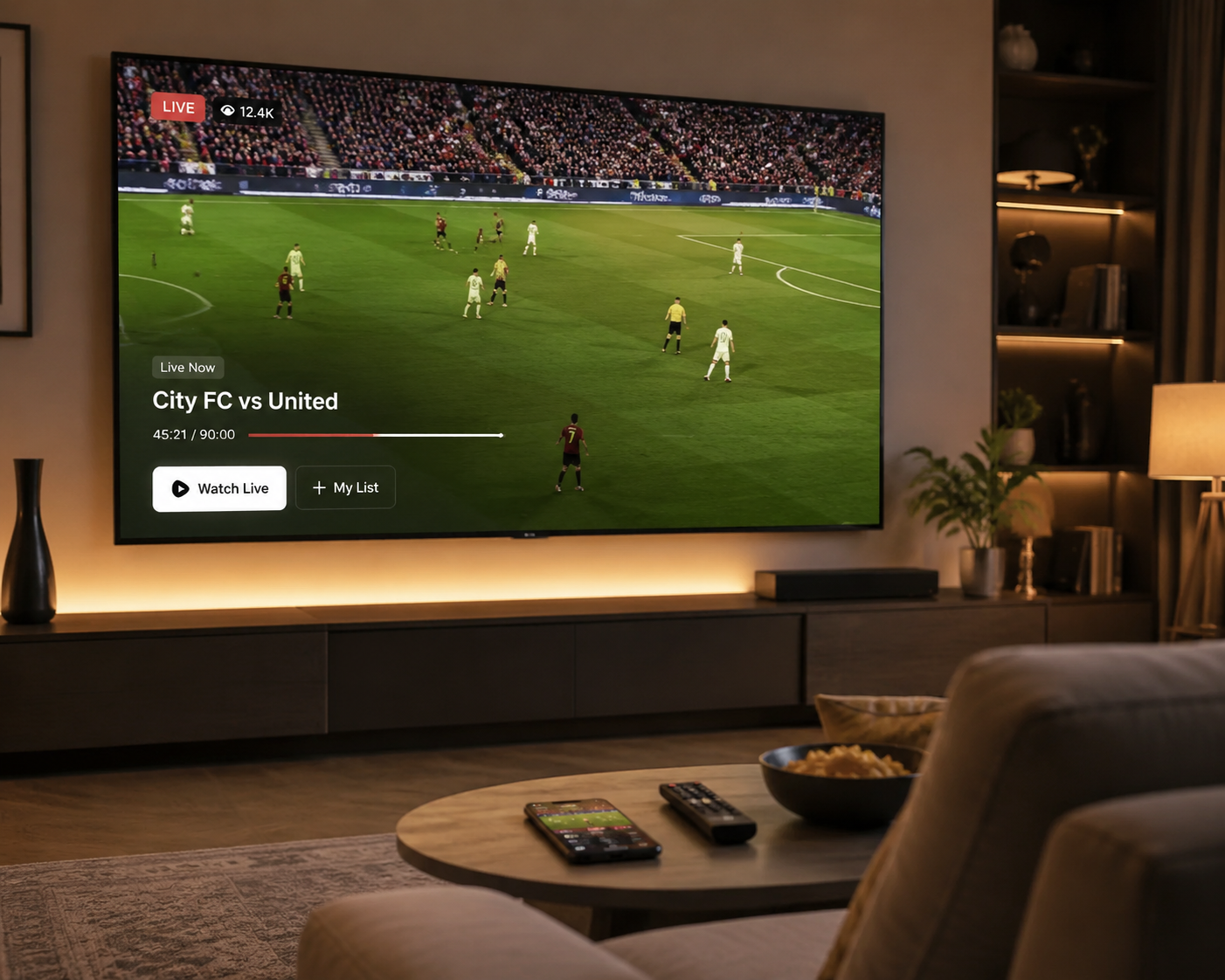
The before-kickoff check
Do this from the couch, near the TV, not from a laptop sitting beside the router. The point is to test the setup where the stream will actually run.
| Layer | What to verify | Good enough for tonight |
|---|---|---|
| Internet | Run a speed test near the TV or on the TV if it has a browser or speed-test app. | At least 25 Mbps for HD; 50 Mbps is the safer target for 4K. |
| Service | Confirm the service carries the league or competition you want, not just “sports.” | Fubo for broad soccer coverage, Peacock for EPL, ESPN+ for La Liga, Bundesliga, and Serie A. |
| TV app | Search your TV’s app store before paying, or confirm you can sign in on that platform. | The app installs, opens, and reaches a live-event page before match time. |
| Picture | Leave Vivid mode, turn down heavy processing, and use Sports or Standard as a starting point. | Players stay clear in motion, grass looks natural, and the ball does not smear. |
| Fallback | Have casting, AirPlay, Chromecast, DLNA, or a streaming stick ready if the built-in app is missing. | The backup is tested before kickoff, not during the anthem. |
Start with the connection, but test the right connection
For live soccer, speed is the floor, not the whole house. Asurion’s streaming guidance puts the practical HD minimum at 25 Mbps and recommends Ethernet over Wi-Fi when possible for a steadier connection.[1] If you are aiming for 4K, use 50 Mbps as the minimum target for this setup, especially if other people are streaming, gaming, or backing up photos on the same network.
The useful test is simple: stand near the TV, connect to the same Wi-Fi network the TV uses, and run a speed test. If the number is comfortably above the target, move on. If it is close or unstable, plug the TV into Ethernet if the router is nearby. A long Ethernet cable across the room is ugly, but it is also the fastest way to learn whether the problem is Wi-Fi or the streaming service.
If Ethernet fixes buffering, the TV was probably not getting a clean wireless signal. If Ethernet does not help and the speed test still falls below the target, the issue is upstream: the internet plan, congestion, or a service outage. Do not start deleting apps or changing picture modes until this checkpoint passes.
Pick the service by league, not by the word “soccer”
The most common wrong turn is subscribing to a general sports package and then discovering the match is somewhere else. Soccer rights are split. A service can be excellent for one league and irrelevant for another.
Prices below are verified as of July 2026 from CNET’s 2026 sports streaming service guide, but streaming bundles and rights change often. Check the service’s own match schedule before paying for a month.[2]
| If you mainly watch | Start with | Why it matters |
|---|---|---|
| Broad soccer coverage across many channels | Fubo, listed by CNET at $56-$74 per month | It is the broadest first stop when you do not follow only one league. |
| English Premier League | Peacock, listed at $11 per month | It is the direct answer for many EPL viewers. |
| La Liga, Bundesliga, or Serie A | ESPN+, listed at $11 per month | It maps cleanly to several major European leagues. |
| A wider live-TV replacement with sports channels | YouTube TV, listed at $83 per month | It can make sense if soccer is part of a larger household TV bundle. |
| One match or a short viewing window | Sling day passes, listed at $4.99 | Useful when the match is on a channel Sling carries and you do not want a full month. |
The practical order is: identify the league, confirm the match is on that service’s schedule, then check whether your smart TV supports that app. Do not reverse it. A beautiful app on your TV is not useful if it does not carry the league you are trying to watch.
For a mixed household, Fubo is often the first service to compare because CNET describes it around broad sports and soccer coverage, with plans listed at $56-$74 per month.[2] For someone who mainly wants EPL, Peacock at $11 per month is the cleaner place to start.[2] For La Liga, Bundesliga, and Serie A, ESPN+ at $11 per month is the more direct check.[2]
YouTube TV and Sling belong in the conversation, but not as automatic answers. YouTube TV’s $83 monthly price makes more sense when it replaces a broader cable-style lineup.[2] Sling’s $4.99 day-pass option is more tactical: good for a specific day if the needed channel is included, not a universal soccer solution.[2]
Install the app before you subscribe if your TV is older
On a newer Samsung, LG, Sony, Roku TV, Fire TV, or Google TV set, the app search is usually boring in the best way: open the app store, search the service name, install, sign in, and check the live-sports page. Older and less common smart TV platforms are where this gets annoying. An app can exist for “smart TVs” and still skip your model year, region, or operating system.
- Open the TV’s app store and search for the exact service name: Fubo, Peacock, ESPN+, YouTube TV, or Sling.
- Install the app before match day if the TV allows it.
- Sign in and open the live or upcoming match screen, not just the home page.
- Start any live channel or preview stream long enough to confirm audio, video, and remote control behavior.
- Update the TV software if the app appears but will not open or sign in.
This is also where the separate streaming stick earns its keep. If the service carries the match but the TV cannot install the app, a Roku, Fire TV, Apple TV, or Chromecast-style device is usually cleaner than fighting an abandoned TV app store. You are not buying it because the TV is bad; you are buying it because app support ages faster than the screen panel.
Tune the picture after the stream works
Once the match is playing, the next problem may look like a bad stream even when the internet is fine. Soccer exposes poor TV processing quickly: wide green fields, fast lateral camera pans, small players, and a ball that can cross half the screen in a second.
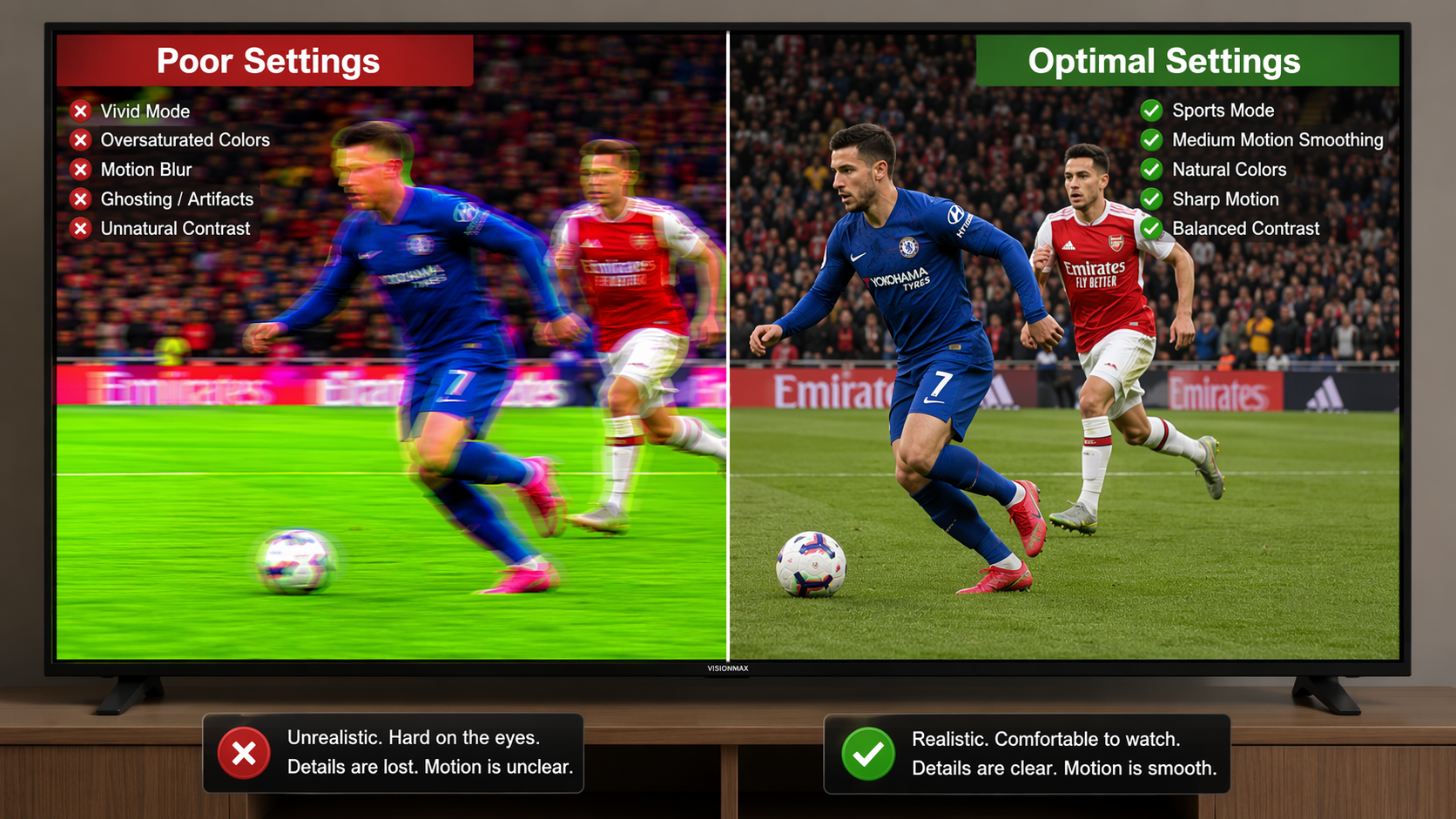
Curacao’s June 2026 smart TV soccer settings guide recommends starting with Sports or Standard mode, using motion blur reduction around Medium, and turning off dynamic contrast and dynamic color; it also warns that Vivid mode can oversaturate grass and crush detail.[3] That matches what you see in the room: Vivid can look impressive in a store aisle, then make a live match look radioactive at home.
The exact menu names vary by brand and model year. Curacao points to Sony MotionFlow, LG TruMotion, and Samsung Auto Motion Plus as the motion-control areas to check, but the path on your TV may differ by region or software version.[3] Look for those names, then adjust the setting while a real match or replay is moving on screen.
| Setting | Start here | What you are watching for |
|---|---|---|
| Picture mode | Sports or Standard | Natural grass color and enough brightness without blown-out highlights. |
| Vivid mode | Off | Avoid neon grass, harsh contrast, and lost jersey detail. |
| Motion smoothing / blur reduction | Medium | Sharper players and ball movement without the game looking artificially glossy. |
| Dynamic contrast | Off | Stable brightness during quick camera cuts and shadowed areas. |
| Dynamic color | Off | More believable pitch color and skin tones. |
Do not over-tune during the first two minutes. Set the mode, turn off the obvious exaggerations, put motion handling around the middle, and watch one full attacking sequence. If the ball still smears on long passes, increase blur reduction one step. If players start to look like they are floating over the pitch, back it down.
A quick brand translation
- Samsung: look for Auto Motion Plus or similar motion settings, then avoid maxing it out.
- LG: look for TruMotion, then test a moderate setting during a live camera pan.
- Sony: look for MotionFlow and adjust while the ball is moving, not on a pause screen.
- Any brand: if Vivid is on, turn it off before judging the stream quality.
Use casting as a fallback, not the first plan
Casting is useful when the TV does not have the app, but it is not all the same thing. The best fallback is the broadcaster’s own Cast, Chromecast, or AirPlay button inside the official app, because the service is designed to authorize that playback. Screen mirroring is the emergency version: it may work, but it can add delay and create more things to fail.
CastBrowser’s live-football casting guide says DLNA support is available on Samsung Tizen TVs from 2015 onward, LG webOS TVs from 2014 onward, and Sony Google TV models, while screen mirroring can add roughly 200-800 ms of latency compared with zero-added-latency DLNA.[4] That delay is not always disastrous for watching alone, but it is noticeable if your phone notifications, group chat, or neighbors react before your TV does.
There is one hard limit: DRM-protected streams using systems such as Widevine, FairPlay, or PlayReady often cannot be re-cast through third-party tools.[4] If the stream is protected, use the official broadcaster app’s built-in casting option, use the smart TV app, or plug in a supported streaming device.
- Try the smart TV app first.
- If the app is missing, try the official mobile app’s built-in Chromecast or AirPlay button.
- If your TV supports DLNA and the content is not blocked by DRM, test DLNA casting.
- Use screen mirroring only when latency is acceptable.
- If none of those paths are stable, use a dedicated streaming stick that supports the service.
A 15-minute setup order that actually works
If the match starts soon, do not browse every setting menu on the TV. Work in the order that removes the biggest failure points first.
- Run a speed test near the TV. If it is below 25 Mbps for HD or 50 Mbps for 4K, fix the connection before touching apps.
- Confirm the league and match are on the service you plan to use.
- Install the app on the TV, sign in, and open the live-event page.
- Start playback and confirm audio, video, subtitles if needed, and remote control navigation.
- Switch the TV out of Vivid mode, start with Sports or Standard, set motion handling around Medium, and turn off dynamic contrast and dynamic color.
- If the app is missing or unstable, test the official casting path or plug in a streaming stick before kickoff.
That order matters because it keeps you from solving the wrong problem. A motion-blur setting will not fix a weak Wi-Fi signal. A faster internet plan will not make Peacock carry a match that belongs on ESPN+. A premium TV will not install an app its platform does not support.
When the connection clears the speed floor, the subscription matches the league, the app runs on the TV, and the picture mode is tuned for motion, the setup is ready. If one layer fails, the next action is narrow: improve the connection, switch to the correct rights holder, add a supported streaming device, or use an official casting path.
References
- How to stream football on TV, Asurion, asurion.com/connect/tech-tips/how-to-stream-football-on-tv-tt/
- Best Sports Streaming Service for 2026, CNET, May 2026, cnet.com/tech/services-and-software/best-sports-streaming-service/
- Optimize Smart TV for Live Soccer, Curacao, June 2026, blog.icuracao.com/optimize-smart-tv-for-live-soccer/
- Cast Live Football to Smart TV, CastBrowser, castbrowser.tv/guides/cast-live-football-to-smart-tv
Community Tips
Share platform-specific variations, steps that have changed after app updates, or tips that helped your installation succeed.
Comments
Join the discussion with an anonymous comment.