
How to Watch ViX Streaming Service on Your Smart TV
Get ViX running on your smart TV with per-platform install steps, supported model and region checks, and what to try first when the app is missing from your TV's store.
Before you search the TV app store, check whether this TV is eligible
If you are standing in front of the TV right now wondering how to watch ViX streaming service on a smart TV, start with the part that saves the most time: compatibility. Sourced from ViX Help Center pages in August 2026, ViX lists Android TV, Fire TV, Roku, Samsung TV, LG TV, Apple TV, VIDAA Smart TV, and Vizio Smart TV as supported smart-TV platforms, but the details are not identical across brands.[1] LG support is limited to webOS 5.0, 6.0, or 22 on 2018-or-newer models in the United States, Mexico, and Puerto Rico.[2] Vizio works through SmartCast, has no download step, and is listed for the United States and Puerto Rico only.[3]
That means the ViX app being missing from the store is not automatically a broken store, a bad internet connection, or something you did wrong. Very often, the TV is simply outside the platform, operating-system, model-year, or country rules that decide whether the app appears.
Before you type “ViX” into the TV search box, get these three facts from the TV or from the person who bought it:
- TV platform: Roku TV, Fire TV, Android TV, Google/Android-based TV, Samsung Tizen, LG webOS, Vizio SmartCast, Apple TV, or VIDAA.
- TV software or model year: This matters most for LG, where ViX names specific webOS versions and 2018+ models.
- Country or region set on the TV account/store: LG and Vizio have explicit country limits in ViX’s own help pages.
Quick platform picker
Use this as the short map. The longer notes below are for the platforms where people most often get stuck.
| Your TV or device | Where to start | Important eligibility note |
|---|---|---|
| Android TV | Open the TV’s app store, search for ViX, then install/open it if it appears.[1][4] | ViX lists Android TV as supported; if it does not appear, check country/store settings before resetting the TV.[1] |
| Amazon Fire TV | Home → Apps → search “ViX” → Download/Get → Open.[5] | Use the exact ViX name in search; Fire TV has a normal app-download path.[5] |
| Roku TV or Roku player | Home → Streaming Channels → Search Channels → search for ViX.[4] | If the channel does not appear, treat it as an availability or account/store-region problem first. |
| Samsung TV | Search for ViX in the Samsung TV app area. | ViX lists Samsung TV, but its help pages also say Tizen is “not 100% compatible,” so a missing app may not behave like an ordinary app-store problem.[1][6][7] |
| LG TV | Search for ViX only after checking the webOS version, model year, and country. | ViX names webOS 5.0, 6.0, and 22; 2018+ models; United States, Mexico, and Puerto Rico.[2] |
| Apple TV | Open the app store, search for ViX, then install/open it if available.[1][4] | ViX lists Apple TV as supported.[1] |
| VIDAA Smart TV | Use the TV’s app store/app area and search for ViX.[1][4] | ViX lists VIDAA Smart TV as supported.[1] |
| Vizio Smart TV | Do not look for a download button; open SmartCast and look for ViX there.[3] | ViX says no download is needed, and lists availability for the United States and Puerto Rico.[3] |
Install ViX on Fire TV
Fire TV is one of the cleaner setup paths because ViX gives a direct sequence. From the Fire TV home screen, go to Home, open Apps, search for “ViX,” choose Download or Get, and then Open once the app is installed.[5]
If you are helping someone else and the TV interface is not in English, do not overthink the search term. The app name is still “ViX.” Type that first, with the capital letters if the keyboard makes it easy, and wait for the store results rather than searching a longer phrase inside the TV app store.
Install ViX on Roku
On Roku, start from the Roku Home screen. Go to Streaming Channels, choose Search Channels, and search for “ViX.” When the ViX channel appears, select it and follow the Roku prompt to add or open it.[4]
If Roku search returns nothing, do not jump straight to unplugging the TV three times. First check whether the Roku account and channel store are set to a country where ViX is available for that device. Roku search is only useful after the store is looking in the right place.
Install ViX on LG TV
LG is where the precheck matters the most. ViX’s own LG page does not describe all LG smart TVs as eligible. It says ViX is available on LG TVs with webOS 5.0, webOS 6.0, or webOS 22; on 2018-or-newer models; and only in the United States, Mexico, and Puerto Rico.[2]
So if the family LG in the living room is older, running a different webOS version, or using a store region outside those countries, the app may simply not show up. In that case, repeating the same search is not troubleshooting. It is just making the same compatibility check louder.
If the LG TV does match the webOS, model-year, and country requirements, then use the TV’s app area to search for “ViX” and install it from there. If it still does not appear after the requirements are met, check the TV’s region/account settings and software update screen before assuming the app itself is down.
Watch ViX on Vizio Smart TV
Vizio is different because there is no normal download step. ViX says the app is available through SmartCast, and that you do not need to download it.[3] Open the Vizio SmartCast interface and look for ViX among the available apps.
This is one of those setup moments where the wording matters. If someone says, “I can’t find the ViX download on Vizio,” the answer may be that there is no download to find. The better question is whether ViX appears in SmartCast for that TV and region. ViX lists Vizio SmartCast availability for the United States and Puerto Rico.[3]
Samsung TV: install if it appears, but do not ignore ViX’s Tizen warning
For Samsung TV, search for ViX from the Samsung apps area the same way you would search for another streaming app. The caution is that ViX’s own help material lists Samsung TV while also using the wording that Tizen is “not 100% compatible.”[1][6][7]
That wording is worth taking seriously. If ViX does not appear on a Samsung TV, do not spend the whole evening treating the TV like it is hiding the app from you. Check the Samsung model, software, region, and ViX’s current help page first. If the app opens but shows a loading image, black screen, or a Samsung-specific error, treat that as a separate troubleshooting issue and reread ViX’s current support page before following any old forum steps.
Android TV, Apple TV, and VIDAA Smart TV
For Android TV, Apple TV, and VIDAA Smart TV, the setup is the ordinary app-store version: open the TV or device’s app store, search for “ViX,” install it if it appears, and open it when the installation finishes. ViX lists these smart-TV platforms as supported.[1][4]
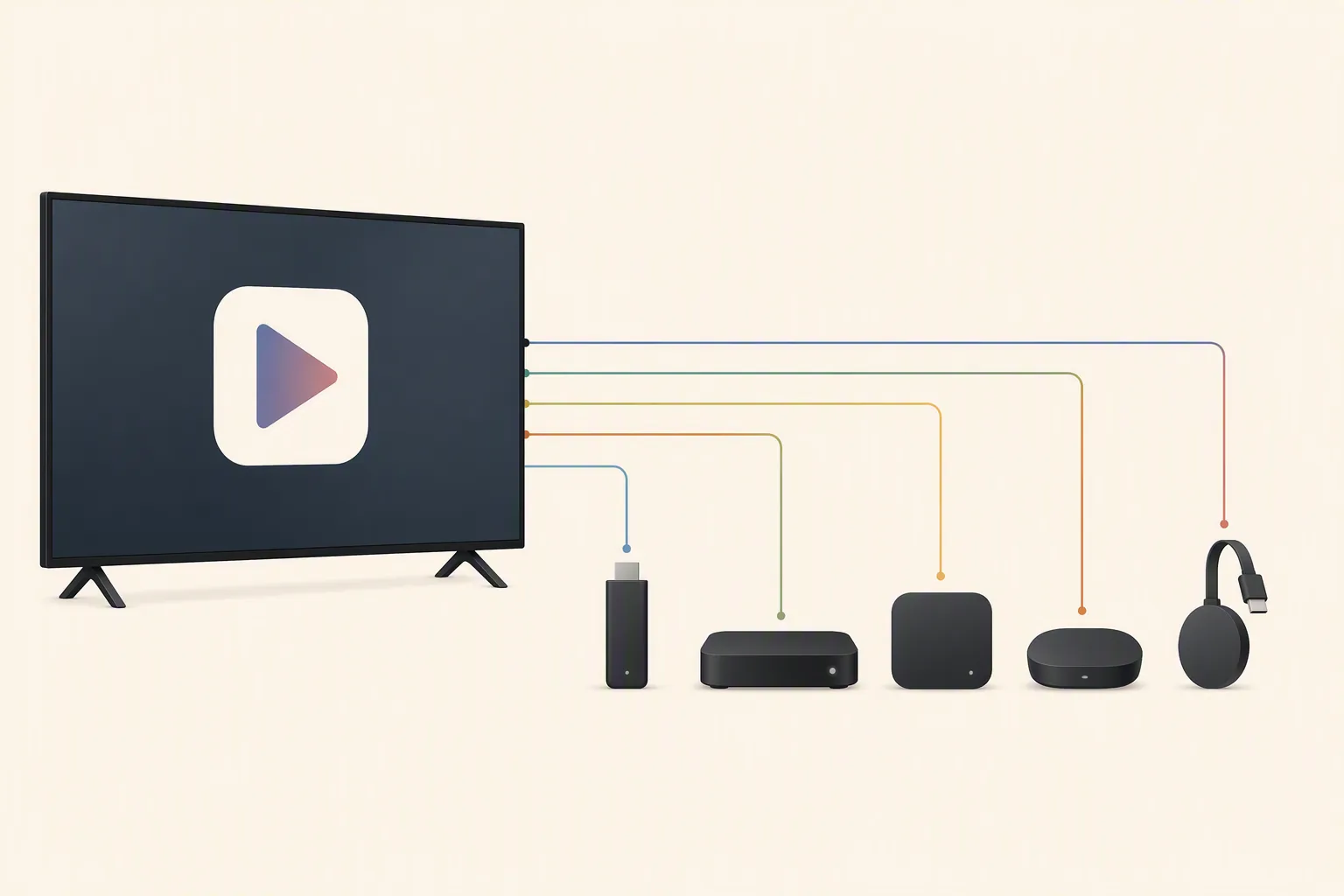
If your actual television is not eligible but you have a supported external device attached to it, use the external device’s app store instead of the TV’s built-in store. In practice, that means a Roku player, Fire TV device, Android TV box, Apple TV, or another supported platform may be the easier route than fighting an older built-in smart-TV system.
If the ViX app is missing, slow down before reinstalling or resetting
A missing app is the setup branch that causes the most wasted time. ViX has a help page specifically for not being able to find the app on a device, and the useful first move is to verify eligibility instead of trying random reset rituals.[6]
- Check the country or region. LG is listed for the United States, Mexico, and Puerto Rico; Vizio SmartCast is listed for the United States and Puerto Rico.[2][3]
- Check the TV platform. The box saying “smart TV” is not enough. You need to know whether it is Roku, Fire TV, Android TV, Samsung Tizen, LG webOS, Vizio SmartCast, Apple TV, or VIDAA.[1]
- Check the OS version and model year when ViX gives one. For LG, webOS 5.0, 6.0, or 22 and a 2018-or-newer model are part of the ViX-stated requirement.[2]
- Search the app name, not a sentence. Inside the TV store, use “ViX.” For web searching or helping a Spanish-speaking household member, it can also help to search phrases such as “cómo ver ViX en mi smart TV,” but the TV app store itself usually wants the app name.
- Use a supported external device if the TV itself is the problem. If the living-room TV is outside the ViX rules but a supported streaming device is connected, install ViX on that device’s platform instead of trying to force the built-in TV store.
The important distinction is whether the app is missing before installation or failing after it opens. Missing before installation points first to platform, OS/model, or region. Crashes, black screens, loading screens, and error messages after launch belong to a different troubleshooting path.
After the app opens: sign in, choose access, and expect Spanish-language context
Once ViX opens on the TV, follow the on-screen prompts to sign in or create an account. ViX’s help material distinguishes general download/account access from Premium access, so expect some content to be available without the same access level as paid Premium content.[4]
ViX is a Spanish-language streaming service, so the service framing, titles, and household expectations may be Spanish-first even if the person holding the remote is not.[8] If you are setting it up for someone else, it is worth pausing once the app opens and asking whether they want you to leave it signed in, change any language/account settings that appear, or show them where the live channels and search area are.
Be careful with pricing while setting up. Third-party pages can lag or disagree, and the official ViX plans page should be checked at the moment you subscribe. For installation, you do not need to solve the billing question first; you need the eligible app open on the eligible device.
Where this setup should end
You are done with this setup path when one of two things is true: ViX is open on the smart TV or connected streaming device, or you have a clear compatibility reason it is not available on that TV. The second outcome is not a failure. It is the answer that keeps you from resetting a perfectly fine television because an app was never eligible to appear there.
References
- On which devices can I watch ViX? — ViX Help Center
- Downloading the ViX app on your LG TV — ViX Help Center
- Downloading the ViX app on your Vizio Smart TV — ViX Help Center
- How can I download ViX? — ViX Help Center
- How to Install ViX on Amazon Fire Devices — ViX Help Center
- I can't find the app on my device — ViX Help Center
- Why am I seeing a loading image or a black Screen? Why do I see Error in my screen — ViX Help Center
- Vix (streaming service) — Wikipedia