
Smart Thermostat Settings for DC Heat and Humidity
DC summers are humid enough that lowering the setpoint alone won't fix comfort. This recipe gives exact Nest and ecobee settings — fan on AUTO, indoor RH kept below 60%, and the dehumidify-with-AC features enabled — so a DC homeowner can cut indoor humidity faster than just dropping the temperature.
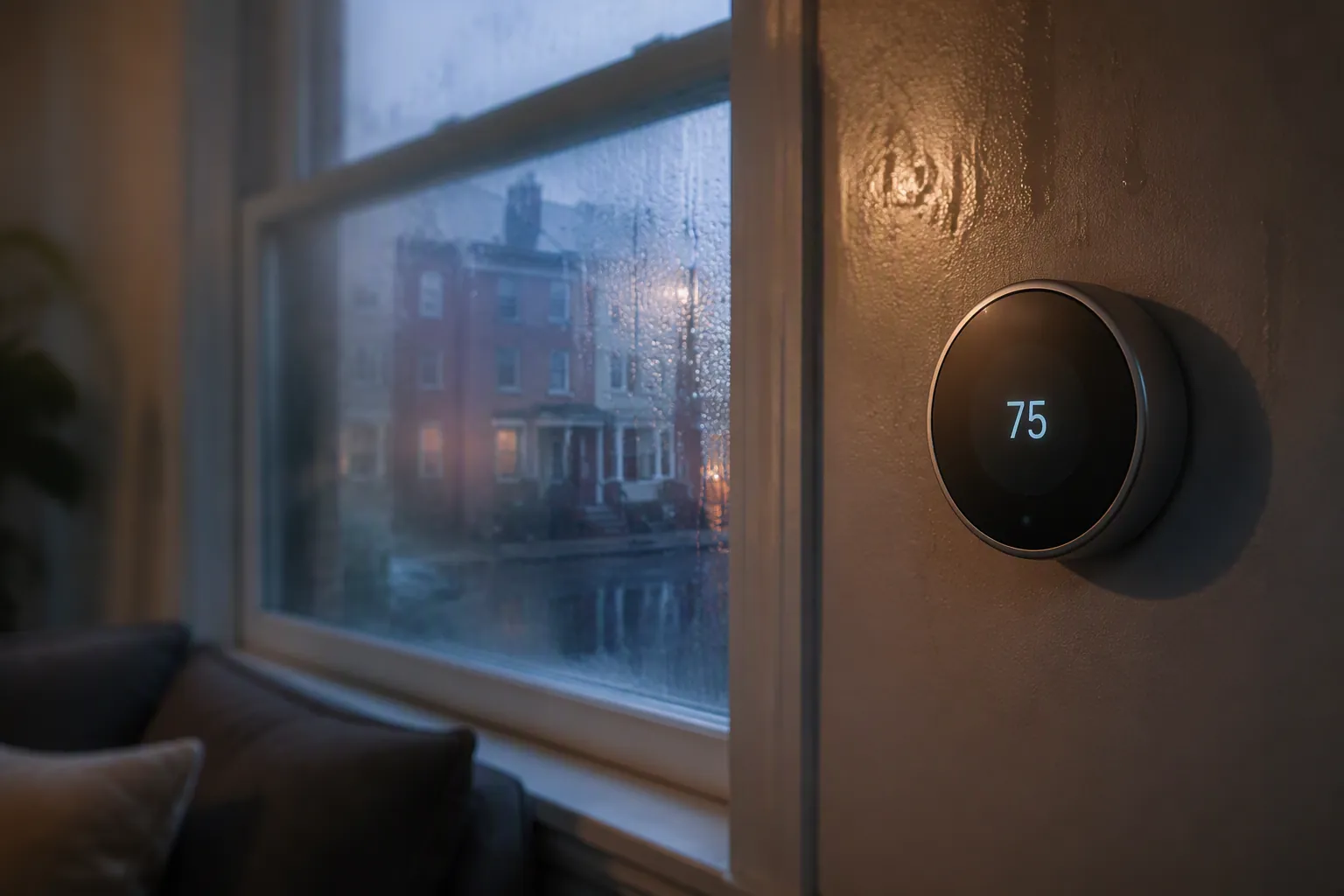
A D.C. summer room can feel wrong even when the thermostat says it is doing its job. The display may read 74°F, the system may say “cooling,” and the sofa still feels clammy because the air is holding too much moisture. That is the setting problem to fix first.
Washington has the right weather for that mismatch. The NOAA 1961–1990 humidity and dew-point rows shown in the Washington, D.C. climate table put mean relative humidity at 66.9% in July and 69.3% in August, with mean dew points around 66°F; those are older normals, so they are useful context rather than a current-climate claim.[1] The more vivid recent example is July 2025, when WTOP reported more than 650 hours with dew points above 70°F at Reagan National since June 1, compared with about 276 hours in a typical period.[2]
So the quick recipe for D.C. heat-and-humidity smart thermostat settings is not “drop the setpoint two more degrees.” Do this in order: set the fan to AUTO, aim to keep indoor RH below 60%, then enable the thermostat’s dehumidify-with-AC feature with a modest overcool limit.
| Thermostat | Five-minute setting pass | Use this target | Status note |
|---|---|---|---|
| Nest | Fan: AUTO. Enable Cool to Dry if available. On 4th-gen Nest Learning Thermostat, check Humidity Helper. | Keep indoor RH below 60%; let Cool to Dry use AC only within Google’s limits. | Vendor-documented, not firsthand NestGrid-tested. Current Google support governs over older blog numbers. |
| ecobee | Fan: AUTO. Enable Dehumidify with AC. Set AC Overcool Max conservatively, commonly within the 0.5–5°F range. Check eco+ Adjust for Humidity if you use eco+. | Keep indoor RH below 60%; start with the smallest overcool that moves RH downward. | Vendor-documented and HVAC School-corroborated. Exact live menu paths should be re-verified in the ecobee app/support pages as of 2026-08-25 because captured support content was snippet-based. |
| Any smart thermostat | Do not run the blower continuously during muggy cooling weather unless you have a specific ventilation reason. | Comfort band: roughly 40–60% RH; below 60% is the practical ceiling. | Supported by indoor-humidity guidance and fan-mode testing, but your ductwork, sizing, and runtime still matter. |
The first setting is fan AUTO, not a colder number
Air conditioning removes heat and moisture at the coil. When the compressor stops, that coil is still wet. If the thermostat fan is set to ON, the blower can keep pushing air across the wet coil and send some of that moisture back into the house. If the fan is set to AUTO, the blower stops with the cooling cycle and gives water a better chance to drain away.
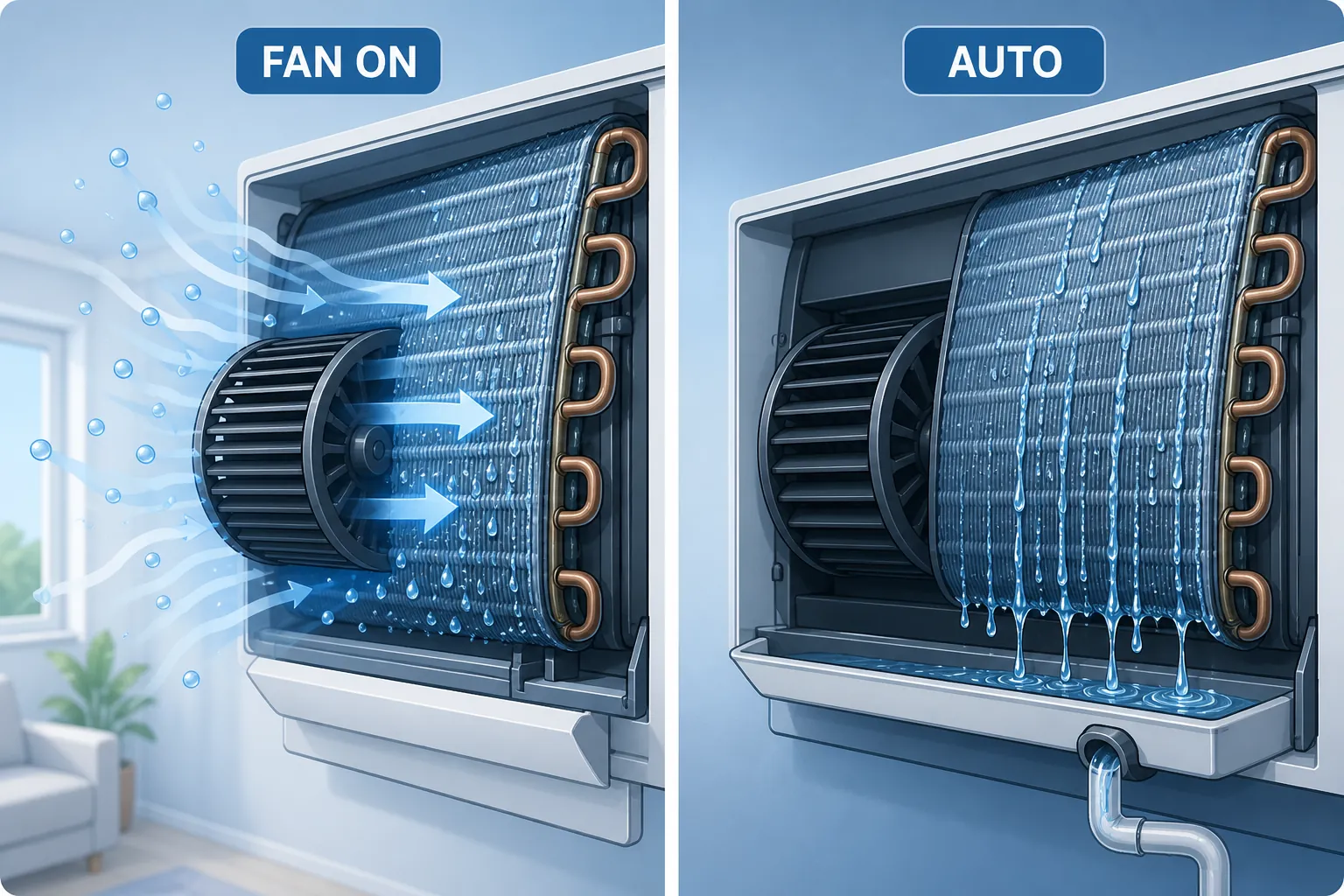
That mechanism shows up clearly in Energy Vanguard’s logged experiment. With the thermostat fan set to ON, indoor relative humidity averaged about 70%; with the fan set to AUTO, it averaged about 58–59%.[3] That is not a small comfort difference in a D.C. rowhouse bedroom in August. It is the difference between air that may feel merely cool and air that feels damp no matter how low the temperature display goes.
This is also why “circulate” modes deserve caution in humid weather. They can even out temperatures in some houses, but if they run the blower over a wet coil after a cooling call, they can work against moisture removal. For the normal D.C. summer recipe, start with AUTO. If a room is uneven, solve that after the humidity is under control.
Use indoor RH as the comfort check
The number to watch after the fan setting is indoor relative humidity. The practical ceiling is below 60% RH, because keeping humidity below that level helps limit mold risk; a 40–60% band is commonly treated as the indoor comfort zone.[4][5] If your thermostat or room sensor shows 63–68% RH while the temperature looks reasonable, the house is not failing to cool first. It is failing to dry.
A good first target is not heroic. Set the system up so RH trends below 60% over a few normal cooling cycles. If it settles in the mid-50s without making rooms too cold, that is usually a more useful summer win than forcing the setpoint down to 70°F and still letting the blower re-wet the air.
Nest: Cool to Dry without chasing old numbers
For a Nest thermostat, make the basic pass first: cooling mode on, fan set to AUTO, schedule set to something you can live with, then check whether Cool to Dry is available. Google’s current support page says Cool to Dry can use the air conditioner to reduce excessive humidity when the thermostat detects high indoor humidity. It triggers above 75% RH when someone is home and above 65% RH when the home is in Eco mode.[6]
The important guardrails are built in. Google says Cool to Dry can cool at most 3°F below the temperature setpoint, will never cool below 75°F for humidity control, and pauses the AC every 10 minutes to help protect the coils.[6] It is also off by default if the AC does not have its own dehumidification mode, which is exactly the sort of small app setting that gets missed when everyone is staring at the temperature number.[6]
- Set the Nest fan to AUTO. Do not leave it on continuous fan for muggy cooling weather unless you have a separate reason and are watching RH.
- Open the humidity or equipment settings for your Nest model and look for Cool to Dry.
- Enable Cool to Dry if your equipment supports it and you accept the modest overcooling behavior.
- After two or three cooling cycles, check whether indoor RH is moving below 60% without the house becoming uncomfortably cold.
If you have the 4th-gen Nest Learning Thermostat, also check Google’s Humidity Helper documentation. Google describes Humidity Helper as a feature for managing indoor humidity with compatible equipment, separate from the older Cool to Dry behavior.[7] The practical point is the same: do not assume the thermostat is managing moisture just because it is managing temperature.
Use Google’s current support thresholds, not old Cool to Dry blog figures. Older third-party posts have cited different trigger and overcool numbers, but the current official Google page is the safer source for what the thermostat is supposed to do now.
ecobee: Dehumidify with AC and a small Overcool Max
On ecobee, the setting to look for is Dehumidify with AC, paired with AC Overcool Max. ecobee describes AC Overcool Max as a way to let the air conditioner cool below the temperature setpoint to reduce humidity; the commonly referenced adjustable range is 0.5°F to 5°F.[8] HVAC School’s ecobee dehumidification writeup also notes a useful behavior after the humidity target is reached: ecobee pauses the blower for 5 minutes to help prevent moisture on the coil from re-evaporating into the air stream.[9]
Start small. If the house is set to 74°F and RH is 64%, an AC Overcool Max of 1°F or 2°F is a reasonable first test. A larger overcool limit can make the house colder than you wanted, and in a D.C. condo with uneven rooms, the bedroom that already runs cold will be the one that complains first.
- Set the ecobee fan control to AUTO.
- Find Dehumidify with AC in the thermostat or app settings. Re-check the live ecobee menu path as of setup time; ecobee support pages are JavaScript-rendered and captured references may not show the full current path.
- Set your humidity target below 60% RH.
- Set AC Overcool Max conservatively, then increase only if RH remains high after several normal cooling cycles.
- If you use eco+, check Adjust for Humidity so the thermostat is allowed to account for moisture in perceived comfort.
The ecobee settings are worth checking even if the temperature schedule already looks sensible. In humid weather, the blower pause and overcool limit are doing different work from a standard cooling setpoint. One decides whether moisture stays removed; the other decides how much extra runtime you will tolerate to pull more moisture out.
Where the temperature schedule fits
Once fan mode and humidity control are handled, then set the temperature schedule. ENERGY STAR’s familiar summer schedule is 78°F when home, 82°F when sleeping, and 85°F when away.[10] Pepco’s local efficiency tips advise at least 78°F during the day and 80°F at night in summer.[11]
Treat those as guardrails, not proof that 78°F will feel the same in every D.C. house. A well-dried 76–78°F room can feel better than a 72°F room with RH in the mid-60s. In an older rowhouse, a top-floor bedroom may still need a different schedule than the first floor. The mistake is letting the schedule become the whole comfort plan.
If the heat index is pushing into more dangerous territory, use this as the normal D.C. summer setup and then move to the companion recipe for smart AC thermostat settings for triple-digit heat index. That article is the extreme-condition version; this one is for the ordinary D.C. pattern where dew point and indoor RH quietly ruin comfort before the thermostat looks alarming.
Pepco event caveat for smart thermostats
If your thermostat is enrolled in Pepco Energy Wise Rewards, remember that summer conservation events can change what you feel on peak days. The program FAQ describes events from June through October and participating thermostats cycling air conditioning during peak periods.[12] Because the FAQ page was not reliably crawlable in the research capture, re-verify the current event rules and thermostat behavior directly with Pepco before assuming a hot-afternoon change is a thermostat fault.
That caveat matters because it changes the troubleshooting order. If the home suddenly drifts warmer during a peak event, check the utility-event notice before undoing humidity settings that were otherwise working.
What to check after a few cooling cycles
Give the settings a little runtime before judging them. You are looking for three signs: indoor RH trending below 60%, the fan not running continuously after the cooling call ends, and the dehumidify feature enabled without an overcool limit that makes rooms too cold.
| What you see | Likely setting issue | Next move |
|---|---|---|
| Temperature is fine, RH is still above 60% | Fan may be running too much, or dehumidify-with-AC is off | Confirm fan AUTO, then check Cool to Dry or Dehumidify with AC |
| Fan keeps blowing after cooling stops | Continuous fan or circulate behavior may be re-evaporating coil moisture | Return fan to AUTO for humid weather and watch RH |
| Rooms get too cold while RH improves | Overcool limit may be too aggressive | Reduce AC Overcool Max or review Nest Cool to Dry behavior |
| A participating thermostat changes behavior on a peak summer afternoon | Possible Pepco conservation event | Check event notices before changing the recipe |
If RH stays high after that pass, the next questions are equipment sizing, airflow, coil performance, insulation, and whether the home needs dedicated dehumidification. But those are later questions. The first pass is free, quick, and often missed: AUTO fan, RH below 60%, and the thermostat’s moisture-removal feature actually turned on.
References
- Washington, D.C. — Wikipedia. https://en.wikipedia.org/wiki/Washington,_D.C.#Climate
- D.C.’s soupy weather marks one of the most humid summers ever recorded — WTOP, July 2025. https://wtop.com/dc/2025/07/d-c-s-soupy-weather-marks-one-of-the-most-humid-summers-ever-recorded/
- This Thermostat Setting Can Cost You Money and Make You Sick — Energy Vanguard. https://www.energyvanguard.com/blog/This-Thermostat-Setting-Can-Cost-You-Money-and-Make-You-Sick
- Managing Humidity Levels — Center for Energy and Environment. https://www.mncee.org/managing-humidity-levels
- What humidity should my house be at? — Carrier. https://www.carrier.com/us/en/residential/hvac-resources/humidifiers/what-humidity-should-my-house-be-at/
- Control humidity with your Nest thermostat — Google Nest Help. https://support.google.com/googlehome/answer/9294957?hl=en
- Learn about Humidity Helper — Google Nest Help. https://support.google.com/googlehome/answer/15262141?hl=en
- How to use AC Overcool Max to reduce humidity — ecobee Support. https://support.ecobee.com/s/articles/How-to-use-AC-Overcool-Max-to-reduce-humidity
- Ecobee Thermostats and Dehumidification — HVAC School. http://www.hvacrschool.com/ecobee-thermostats-dehumidification/
- Recommended Thermostat Settings for Your Home — ENERGY STAR. https://www.energystar.gov/products/energy_star_home_upgrade/smart_thermostats
- Energy Efficiency Tips — Pepco. https://pepco.getwise.org/energy-efficiency-tips
- Energy Wise Rewards FAQ — Pepco. https://energywiserewards.pepco.com/dc/faq/