On a standard phone, smart-home control often turns into a stack of tiny interruptions: open SmartThings, back out of a camera feed, pull down quick controls, jump to Google Home, return to the setup video, then remember which screen you just lost. The practical reason to use the Samsung Galaxy Z Fold 8 for smart-home control is not that it folds for its own sake. It is that the bigger inner screen, hinge positions, and Samsung’s device-control shortcuts can keep more of the job visible at once.
There is one necessary caveat. As of July 18, 2026 UTC, the Galaxy Z Fold 8 has not officially launched; current reporting points to a July 22, 2026 reveal, and details such as the wider cover screen, 7.6-inch inner display shape, and One UI 9 multitasking changes are still based on pre-release reporting rather than Samsung’s final device documentation.[1][2] The workflows below lean on existing Galaxy, Android Device Control, SmartThings, Flex Mode, App Pair, and DeX behavior where those features are already documented, then mark Z Fold 8-specific claims as unconfirmed where needed.
Start With The Workflow, Not The Spec Sheet
The Fold’s smart-home advantage is easiest to see as a set of repeated household moves. Some should take one swipe. Some deserve the full SmartThings app. Some are awkward enough on a slab phone that the foldable layout finally earns its keep.
| Household moment | Best Fold setup | Why it matters |
|---|---|---|
| Turn off a light, unlock a door, change brightness | Quick Settings Device Control | No need to leave the app or screen already in use |
| Check a camera while adjusting lights or a lock | Flex Mode or split screen | Camera view and controls stay visible together |
| Follow a setup video while pairing a device | SmartThings beside YouTube | Instructions and pairing screen do not fight for the same space |
| Compare SmartThings and Google Home controls | Multi-window or Device Control source switching | Useful for homes that are not fully standardized on one platform |
| Clean up rooms, automations, and device names | Samsung DeX | A monitor, keyboard, and mouse make maintenance less fiddly |
That order matters. SmartThings is broad enough to justify this kind of phone-level control: Samsung says the platform works with more than 4,700 device models across more than 390 partner brands, with support for up to 300 devices per location and 10 locations per account.[3] But scale is only useful at the counter, doorway, or laundry room if the next action is reachable without turning a small emergency into app archaeology.
Make Quick Settings Your Fast-Control Layer
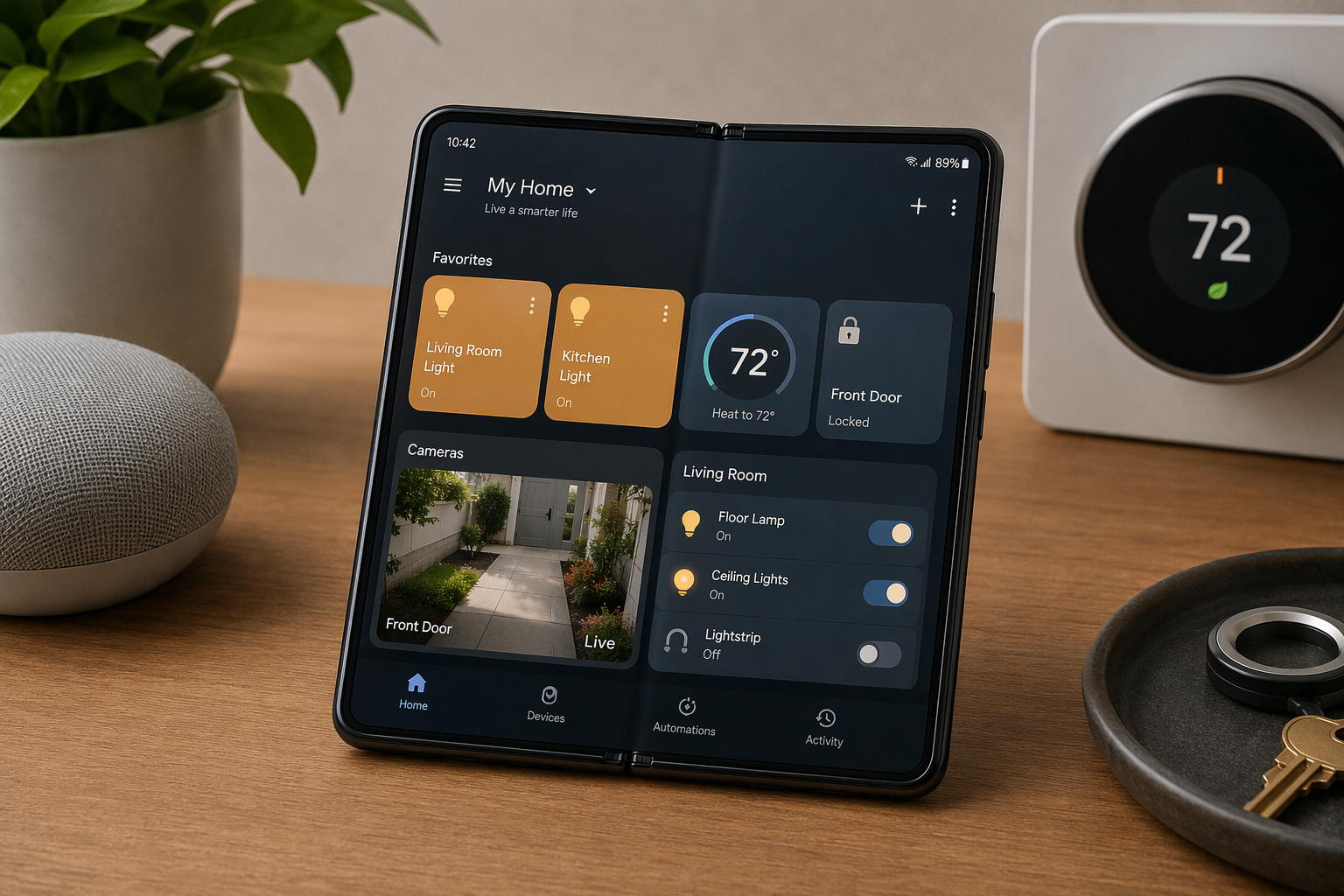
The first setup worth doing is not glamorous: put smart-home controls where your thumb can reach them from anywhere. On Samsung phones, the Device Control panel is available through Quick Settings by swiping down from the top of the screen and using the Devices button; it can show smart-home tiles without opening the full SmartThings app.[4] That is the difference between pausing a recipe video to hunt for a light and dragging down a panel while the video stays exactly where it was.
In daily use, this panel is for simple commands: turn a lamp on or off, change a light’s brightness, check whether a device tile is available, or reach a familiar control without navigating room lists. It is not where you should build a complex automation or troubleshoot a stubborn Matter device. It is where you remove the most common app launch.
- Swipe down from the top of the screen to open Quick Settings, then swipe again if the full panel is not visible.
- Tap Devices to open the Device Control panel.
- Choose SmartThings as the control source if your devices are organized there.
- Arrange the tiles so the devices you actually touch every day are near the top.
- Enable lock-screen access only for controls you are comfortable exposing before the phone is fully unlocked.
The Google Home switch matters more than it sounds. SmartThings has supported switching between SmartThings and Google Home from the phone’s Quick Settings menu, so a mixed household does not have to pretend every bulb, speaker, and plug lives in one perfect ecosystem.[5] If one room is still better organized in Google Home while your Samsung appliances and routines live in SmartThings, Quick Settings can become the neutral landing pad.
There is a security tradeoff with lock-screen access. A tile that turns on the porch lights is low-risk for many homes. A tile that unlocks a door or opens a garage deserves more caution. The useful rule is to put convenience controls on the lock screen and keep access controls behind authentication unless there is a strong reason to do otherwise.
What Quick Settings Replaces
Quick Settings replaces the small, repeated trips into an app. It does not replace the app itself. Use it when the decision is already made: dim the kitchen, turn off the office, open the thermostat tile, run a familiar control. Open SmartThings when you need context: device history, room organization, automations, energy data, pairing, firmware prompts, or deeper settings. Samsung’s own setup guidance still treats the SmartThings app as the place to add, manage, and organize connected devices on a Galaxy phone.[6]
Use SmartThings As The Home Base, Then Stop Treating It Like The Only Screen
SmartThings should be the home base for rooms, devices, scenes, and routines, especially if your household already includes Samsung appliances, TVs, sensors, plugs, lights, or Matter devices. The mistake is treating SmartThings as a single full-screen destination every time something happens. On a Fold, the app is more useful when it becomes one pane in a larger working surface.
For initial setup, keep the basics boring. Add devices in SmartThings, assign them to rooms, give them names that make sense out loud, and place the daily devices where they are easy to reach. A foldable screen will not rescue a home where three lamps are called “Light,” “Light 2,” and “New Device.” The Fold’s advantage starts after the home is organized enough that tiles and dashboards have meaning.
- Put high-frequency controls first: entry lights, thermostat, locks, garage, camera shortcuts, and evening scenes.
- Separate rooms by how people move through the house, not by how devices were installed.
- Keep troubleshooting devices visible until they behave reliably, then move them out of the way.
- Avoid turning every possible action into a tile; crowded dashboards are just another form of app switching.
Build The Foldable Layouts That A Slab Phone Cannot Hold Comfortably
The Z Fold 8 becomes interesting when the screen is doing more than showing a larger version of the same app. Current reporting describes a wider, more palm-friendly Fold 8 with a 5.5-inch cover screen and a 7.6-inch inner display with a roughly 4:3 shape, though those details remain unconfirmed until Samsung publishes final specifications.[1][2] If that shape holds, it is well suited to side-by-side controls because neither pane has to collapse into a narrow strip.
A practical first layout is SmartThings on one side and a camera feed on the other. When someone rings the bell, the useful screen is not just the feed. It is the feed plus the porch light, entry lock, hallway light, and maybe a speaker or intercom control. Keeping those together reduces the little sequence of watch, leave, tap, return, check again.
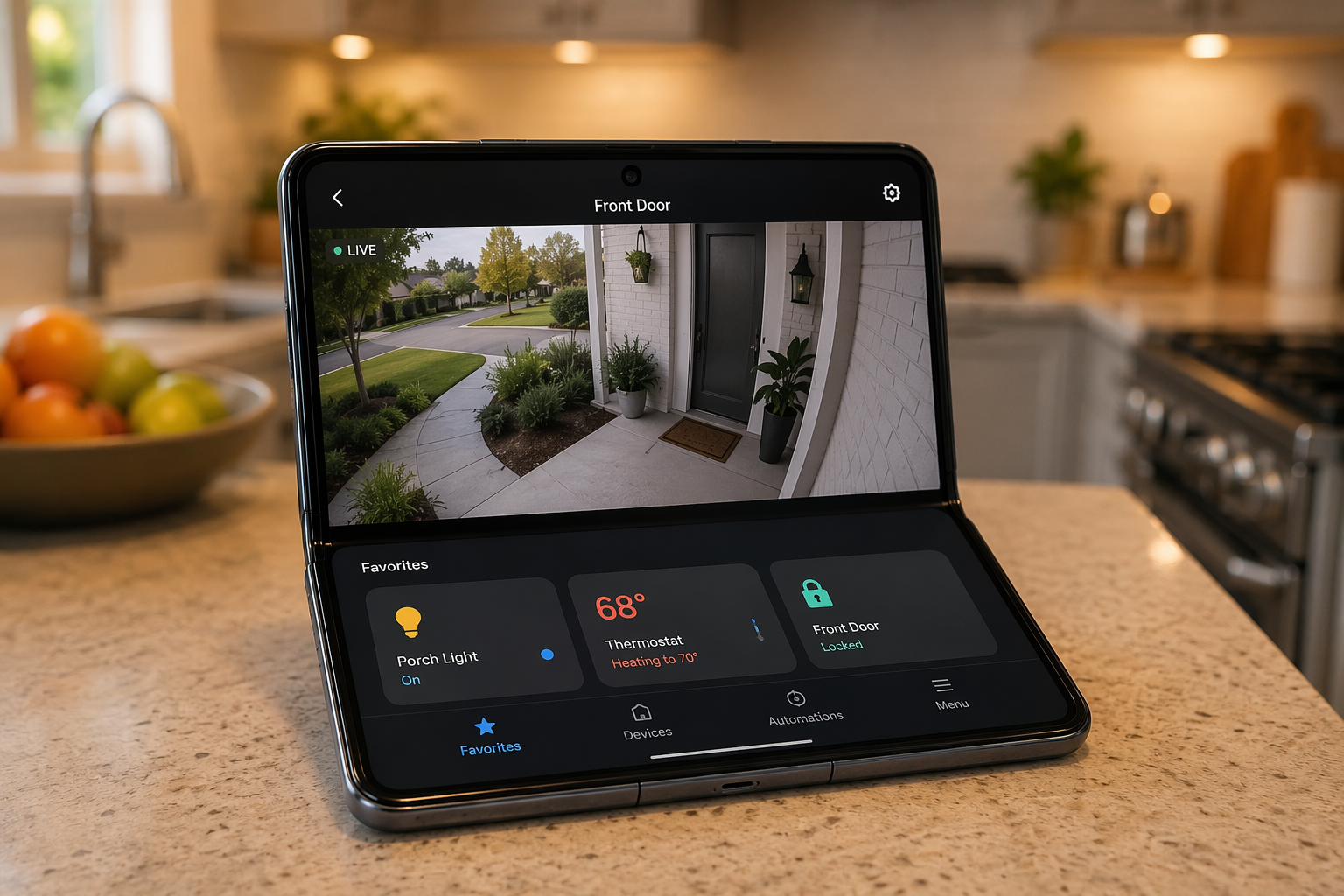
Flex Mode is the more physical version of the same idea. Samsung describes Flex Mode as the layout that appears when a supported foldable is partially folded, with the app content and controls adapting across the two halves of the display.[7] For smart-home use, the helpful arrangement is simple: camera or video on the top half, controls on the bottom half, phone standing on its own while both hands are free.
That matters in the places where phones are usually balanced badly: a kitchen counter, a hallway table, a laundry shelf, the edge of a desk while you reset a device. A partially folded phone showing the front door above and device controls below is not a futuristic command center. It is a screen that stops falling over while you decide whether to turn on the porch light or unlock the door.
Good Split-Screen Pairings
| Pairing | Use it when | What to avoid |
|---|---|---|
| SmartThings + camera app | You need to see a doorway, nursery, garage, or yard while changing nearby devices | Putting low-trust lock controls beside a live feed without authentication |
| SmartThings + Google Home | Your home is split across both ecosystems | Duplicating every control in both apps instead of choosing the cleaner source |
| SmartThings + YouTube | You are following a reset, pairing, or installation walkthrough | Letting the video hide the pairing prompt or confirmation code |
| SmartThings + browser | You need a device manual, router page, or support article open while testing | Copying serial numbers or setup codes into the wrong device screen |
App Pairs turn these layouts from clever demos into habits. On recent Galaxy Z Fold models, users can create paired multitasking shortcuts so two apps open together in the same split-screen arrangement.[8] For smart-home control, that means “front door mode” can be one tap instead of opening the camera, launching SmartThings, splitting the display, and resizing panes while someone waits outside.
- Create one App Pair for the entry: camera feed plus SmartThings room controls.
- Create one App Pair for device setup: SmartThings plus YouTube or a browser.
- Create one App Pair for mixed ecosystems: SmartThings plus Google Home.
- Keep App Pairs few enough that choosing one is faster than rebuilding the layout manually.
The rumored One UI 9 multitasking changes, including reports of new floating pill menus and enhanced split-screen layouts on the Z Fold 8, could make this easier, but those specifics are not yet documented by Samsung for the unreleased phone.[1][2] The safer assumption is that the Fold 8 will inherit the Galaxy foldable multitasking logic users already know, with final One UI 9 behavior to verify after launch.
Use DeX For Maintenance Sessions, Not Every Light Switch
Samsung DeX is overkill for turning off a lamp. It is exactly the right tool for the chores people postpone because they are annoying on a phone: renaming devices, cleaning up rooms, checking automations, comparing device manuals, or reorganizing a home after adding several products at once. Samsung describes DeX as a way to connect a Galaxy device to a monitor or display for a desktop-like experience with keyboard and mouse support.[9]
For a smart home, the DeX session is the Saturday maintenance bench. Put SmartThings on the large display, keep a browser open for manuals or compatibility notes, and use the phone as the source instead of dragging a laptop into a closet or garage. The improvement is not that DeX makes SmartThings smarter. It gives the boring administrative work enough room that you are less likely to abandon it halfway through.
Matter And Samsung Hubs Widen The Device Pool, With Some Camera Caution
The Fold is only as useful as the devices it can reach. SmartThings’ broad compatibility gives Samsung a real advantage here, and Matter support has made the platform more relevant for households that do not want every device decision tied to one brand. Samsung announced that SmartThings was the first platform to support Matter cameras, with the announcement in December 2025 and rollout beginning in March 2026.[10]
That does not mean every camera you can buy today will behave perfectly in every SmartThings layout. The practical limit is narrower: Matter camera support exists in SmartThings, and partner availability was still something to verify device by device during rollout. Before buying a camera specifically for a Fold-based dashboard, check current SmartThings compatibility and the camera maker’s own Matter support notes.
Samsung also has an ecosystem shortcut that is easy to miss: some Samsung TVs can act as SmartThings hubs. Samsung’s Matter partner information says Samsung TVs Q60 and above from 2022 onward include a SmartThings hub for Matter, Thread, and Zigbee, which can remove the need for a separate hub purchase in some homes.[11] If that TV is already in the living room, the Fold can become the portable controller while the TV quietly handles hub duties.
Energy Data Belongs In The Dashboard, But It Is Not The Whole Argument
SmartThings Energy is worth placing on a Fold dashboard if your household uses compatible Samsung appliances, because energy information is easier to act on when it sits beside the controls you already use. Samsung says AI Energy Mode can reduce washing machine energy use by up to 60%, drying energy use by up to 30%, and refrigerator energy use by up to 10% in supported scenarios.[12]
Those percentages are not a universal promise that a Fold will save a household a specific amount of money. They show the kind of appliance-level information SmartThings can surface. On the Fold, the better use is practical: keep energy status visible while managing laundry, checking appliance state, or deciding whether a routine is worth changing.
A Sensible Setup Order
If you are setting this up from scratch, do not start by designing the perfect dashboard. Start with the controls that remove the most interruptions, then add the foldable layouts once the basics work.
- Set up SmartThings first: add devices, assign rooms, clean up names, and confirm each important device responds reliably.
- Enable Quick Settings Device Control and place daily controls near the top.
- Decide whether lock-screen controls are appropriate, separating convenience actions from access actions.
- Create two or three App Pairs around real tasks, not theoretical dashboards.
- Test Flex Mode in the places you actually need it: kitchen counter, entry table, laundry area, desk, or garage.
- Use DeX later for cleanup once you know which devices, rooms, and routines are messy.
A good setup should make the Fold feel less like a universal remote and more like a set of prepared work surfaces. The quick panel is for immediate touches. SmartThings is for full control. Flex Mode is for watch-and-act moments. App Pairs are for repeat jobs. DeX is for maintenance.
Where The Fold 8 Advantage Ends
The Galaxy Z Fold 8 will not automatically make a smart home easier to run. If the same cluttered SmartThings screen is simply stretched across a larger display, the result is a bigger version of the old problem. The advantage appears when the owner does a little preparation: Quick Settings for fast controls, App Pairs for repeat layouts, Flex Mode for camera-plus-control moments, and DeX for the occasional cleanup session.
The unconfirmed pieces are also worth keeping in their lane. Z Fold 8 hardware dimensions, One UI 9 multitasking refinements, and launch-specific software behavior need verification after Samsung’s official announcement. Existing SmartThings compatibility, Quick Settings Device Control, Flex Mode, App Pairs on recent Fold models, and DeX are the sturdier foundation for planning now.
For someone who only turns on one lamp from bed, a standard phone is enough. For the person who checks a camera while unlocking a door, follows setup instructions while pairing a device, or manages a mixed SmartThings and Google Home household, the Fold’s larger canvas can remove real friction. It becomes a better smart-home controller when the fold is used as a layout tool, not as decoration.
References
- Samsung Galaxy Z Fold 8: everything you need to know about Samsung’s palm-friendly foldable phone, Digital Trends
- Samsung Galaxy Z Fold 8: Everything to know, SamMobile
- Smart home with Samsung SmartThings, Samsung
- How to Control Your Smart Home from Samsung Quick Settings, How-To Geek
- Easily Switch Between SmartThings and Google Home From the Quick Settings Menu of Your Phone, SmartThings Blog
- Set up SmartThings on Galaxy phone, Samsung Support
- Flex Mode on Galaxy foldables, Samsung Support
- Best Samsung Galaxy Z Fold 6 multitasking tips, Android Police
- Samsung DeX, Samsung
- Samsung SmartThings Becomes the Industry’s First to Support Matter Cameras, Samsung Global Newsroom, Dec. 2025
- Connect Matter devices with SmartThings, SmartThings Partners
- SmartThings Energy, Samsung SmartThings
Corrections & Community Notes
Spotted an outdated spec, changed compatibility, or new firmware behavior? Submit a correction below to help keep this profile current. For formal editorial updates, use the contact page.
Comments
Join the discussion with an anonymous comment.