
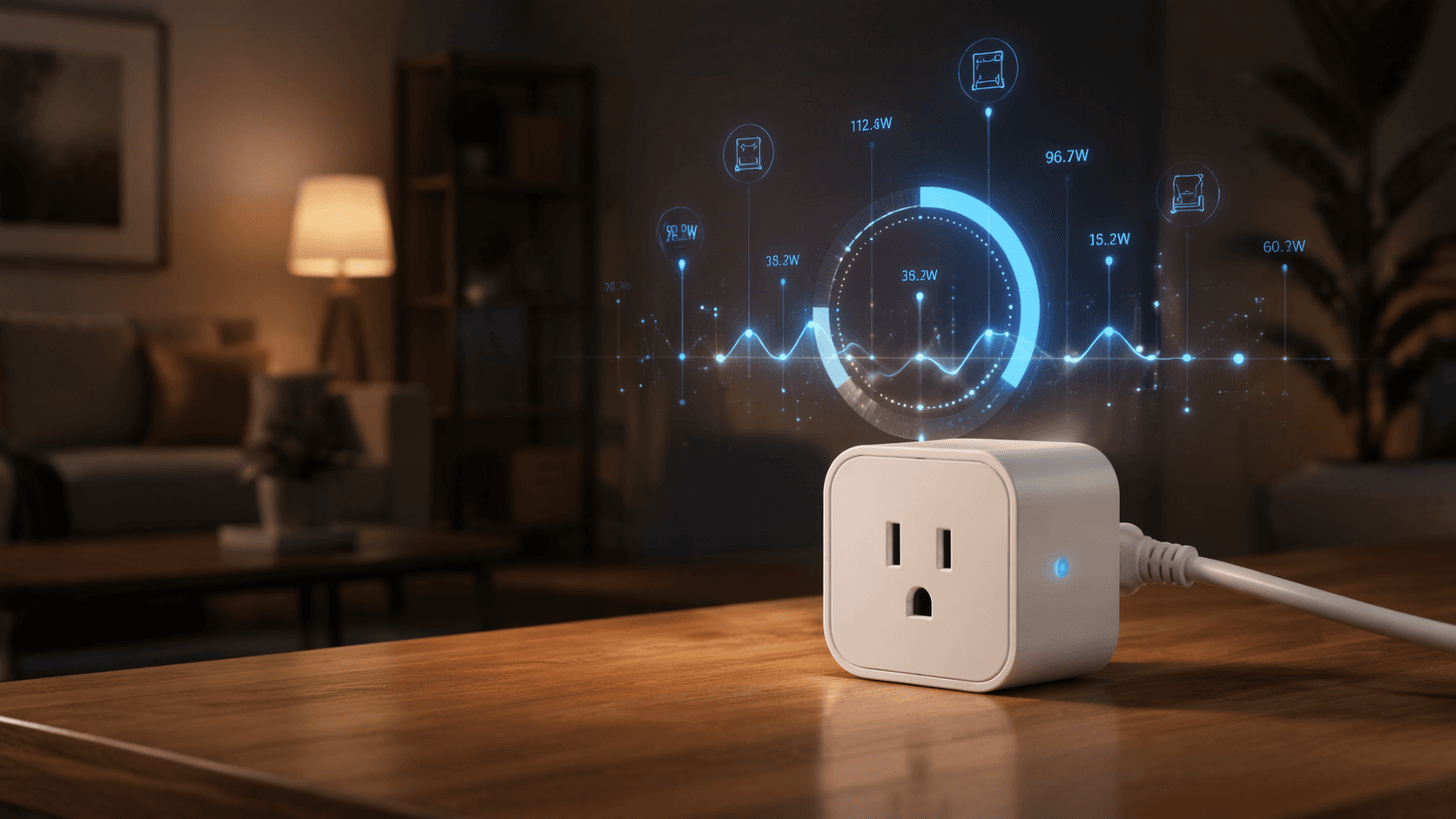
If your home assistant smart plug only turns a lamp on at sunset, you are leaving the useful part unused. These recipes assume your plug exposes at least a real-time power sensor in watts, and preferably a cumulative energy sensor in kWh, inside Home Assistant. They also assume you are comfortable editing YAML, renaming entities, and watching history graphs long enough to choose thresholds for your own appliance.
A non-energy plug will not work for these automations. A smart plug that exposes only switch.washer_plug can be scheduled, but it cannot tell Home Assistant when a washer enters spin, when a computer monitor falls asleep, or when a TV is sitting in standby for half the night. For those jobs, Home Assistant needs the plug’s wattage readings.
Before the YAML: check what your plug reports
Protocol matters less than data quality. Wi-Fi, ESPHome, Zigbee, and Z-Wave plugs can all be useful if they report current wattage reliably into Home Assistant. Cumulative energy is helpful for trend charts and cost estimates, but the five automations below mostly depend on live wattage.
| Requirement | Why it matters in these recipes |
|---|---|
| Real-time wattage sensor | Required for numeric-state triggers such as above 1 W, below 10 W, or weekly average comparison. |
| Cumulative energy sensor | Useful for dashboards, historical review, and checking whether an automation is changing behavior over time. |
| Reasonable reporting latency | Laundry and office automations tolerate small delays, but very slow reporting makes state changes feel unreliable. |
| Safe electrical rating | Do not put high-load appliances on underrated plugs. Check the plug and appliance ratings before automating shutoff. |
| Sane reporting frequency | Do not make every plug in the house report every second unless your network can handle it. |
Matter energy-monitoring support has changed across firmware, bridges, and certification rounds, so verify the exact device and integration status before buying for these recipes. The practical test is simple: after pairing, Home Assistant should show a wattage entity such as sensor.washer_plug_power. If it does not, the YAML below has nothing useful to read.
The five recipes at a glance
| Recipe | Main sensor logic | Best first test |
|---|---|---|
| Laundry or dishwasher finished notification | Detect running above 1 W, then finished below 0.1 W, with a helper state machine | Send notifications only; do not switch power off |
| Phantom-load killer | If device stays below 10 W for 30 minutes during a night window, turn off the plug | Notify first for a few nights before enabling shutoff |
| Appliance health alert | Compare weekly average power against a stored baseline and alert above 15% increase | Chart the sensor for several weeks before trusting alerts |
| Office power management | Use computer wattage to infer active, idle, or asleep state | Control monitor or desk lamp after sleep is stable |
| Vacation presence simulation | Run selected plug patterns only while away mode is enabled | Keep it modest; this is routine simulation, not a security guarantee |
Recipe 1: washer or dishwasher finished notification that does not lie
The common bad version of this automation fires whenever power drops. That works until the washer pauses between phases, the dishwasher heats water intermittently, or the plug misses a report. The better version gives the appliance a tiny state machine: idle, running, finished. Home Automation Guy’s washer notification walkthrough uses this helper-based pattern, while EdgeAnt documents the same kind of numeric-state approach for energy-monitoring plugs: above 1 W for 1 minute means running, and below 0.1 W for 1 minute means finished.[1][2]
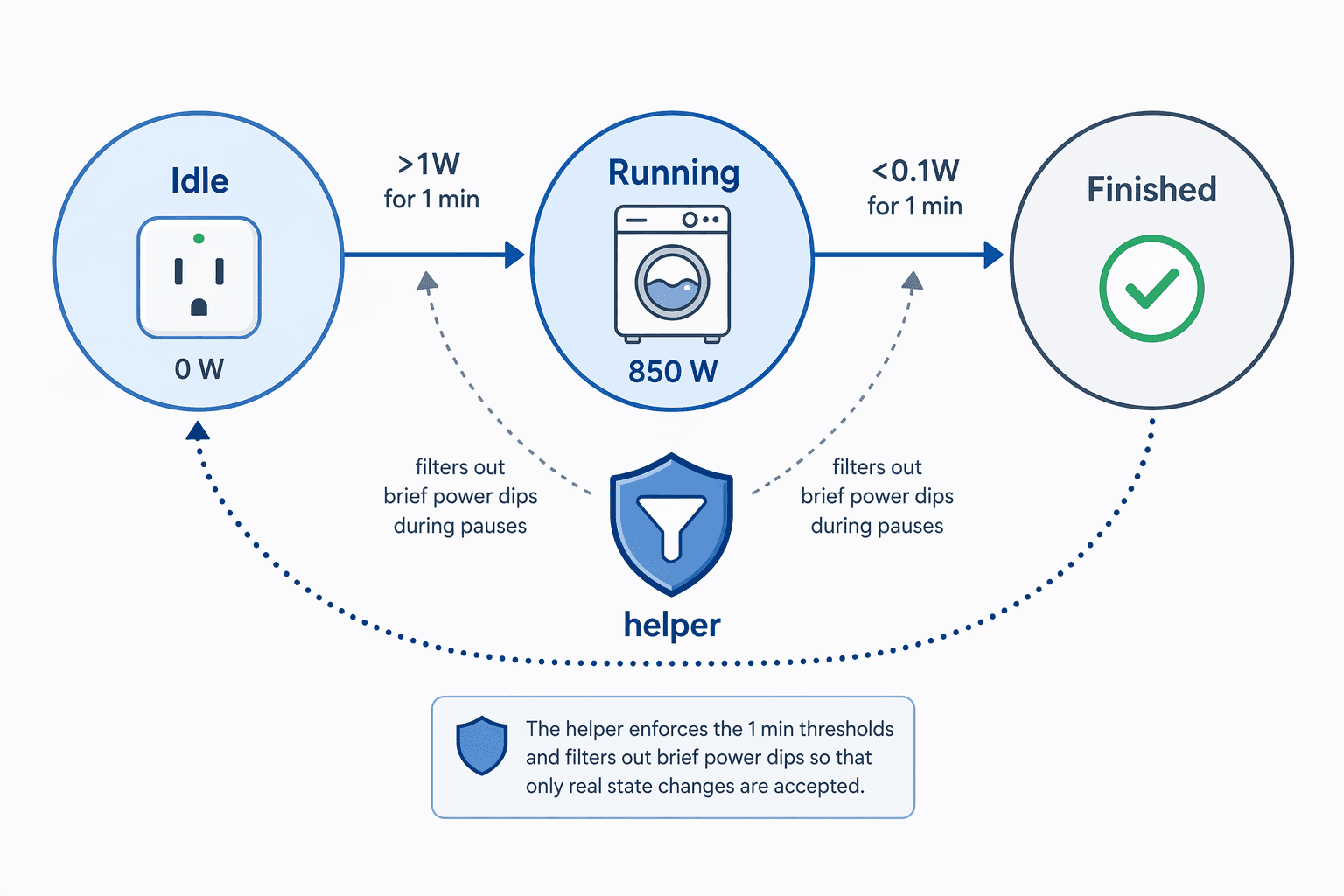
Rename the entities before pasting. In this example, the plug’s power sensor is sensor.washer_plug_power, and the notification service is notify.mobile_app_your_phone.
input_select:
  washer_state:
    name: Washer State
    options:
      - idle
      - running
      - finished
    initial: idle
    icon: mdi:washing-machine

automation:
  - alias: Washer - mark cycle running
    id: washer_mark_cycle_running
    mode: single
    trigger:
      - platform: numeric_state
        entity_id: sensor.washer_plug_power
        above: 1
        for:
          minutes: 1
    condition:
      - condition: state
        entity_id: input_select.washer_state
        state: idle
    action:
      - service: input_select.select_option
        target:
          entity_id: input_select.washer_state
        data:
          option: running

  - alias: Washer - notify cycle finished
    id: washer_notify_cycle_finished
    mode: single
    trigger:
      - platform: numeric_state
        entity_id: sensor.washer_plug_power
        below: 0.1
        for:
          minutes: 1
    condition:
      - condition: state
        entity_id: input_select.washer_state
        state: running
    action:
      - service: input_select.select_option
        target:
          entity_id: input_select.washer_state
        data:
          option: finished
      - service: notify.mobile_app_your_phone
        data:
          title: Washer finished
          message: The washer cycle appears to be complete.

  - alias: Washer - reset state when door opened or manually cleared
    id: washer_reset_state
    mode: single
    trigger:
      - platform: state
        entity_id: binary_sensor.washer_door
        to: "on"
      - platform: event
        event_type: washer_state_reset
    condition:
      - condition: state
        entity_id: input_select.washer_state
        state: finished
    action:
      - service: input_select.select_option
        target:
          entity_id: input_select.washer_state
        data:
          option: idle
If you do not have a door sensor, remove that reset automation and add a dashboard button that fires washer_state_reset, or reset the helper manually after unloading. The important part is the condition on the finished notification: the plug must have already seen a real running state. That one line is what keeps an idle washer from announcing “done” every time Home Assistant restarts or the sensor updates near zero.
Calibrate the thresholds before trusting the alert
Run one normal cycle and watch the power graph. Some washers never settle below 0.1 W because the control board idles higher. Some dishwashers drop below 1 W during pauses and then climb again. If your appliance idles at 0.6 W, make the finished threshold 1 W and the running threshold something comfortably above the highest idle value. The numbers from the source pattern are a starting point, not a moral law.
Recipe 2: phantom-load killer with a night window
This is where an energy-monitoring plug starts paying attention when people stop paying attention. EdgeAnt’s phantom-load pattern uses a standby threshold below 10 W for more than 30 minutes, then turns off the plug and sends a notification.[1] The time window matters. A game console below 10 W at 2:00 p.m. may be updating, waiting for a controller, or simply between uses. The same draw at 1:00 a.m., after 30 minutes, is a better candidate for shutoff.
input_boolean:
  phantom_load_automation_enabled:
    name: Phantom Load Automation Enabled
    icon: mdi:power-sleep

automation:
  - alias: Media Center - turn off phantom load overnight
    id: media_center_turn_off_phantom_load_overnight
    mode: single
    trigger:
      - platform: numeric_state
        entity_id: sensor.media_center_plug_power
        below: 10
        for:
          minutes: 30
    condition:
      - condition: state
        entity_id: input_boolean.phantom_load_automation_enabled
        state: "on"
      - condition: time
        after: "23:00:00"
        before: "06:00:00"
      - condition: state
        entity_id: switch.media_center_plug
        state: "on"
    action:
      - service: switch.turn_off
        target:
          entity_id: switch.media_center_plug
      - service: notify.mobile_app_your_phone
        data:
          title: Phantom load stopped
          message: Media center plug was below 10 W for 30 minutes overnight, so Home Assistant turned it off.
Test this one in notification-only mode first. Comment out the switch.turn_off action for a few nights and see what would have happened. If the alert appears while someone is still using the device, the threshold is too high, the time window is too broad, or the device has a low-power active state that you need to exempt.
There is a real savings argument here, but it needs to stay honest. An XDA case study reported almost $250 per year in total Home Assistant-driven energy savings, with smart plug automations described as a major contributor.[3] That figure should not be read as a guaranteed smart-plug-only result, because the case also included changes outside ordinary plug automation. The useful takeaway is narrower and stronger: measured standby behavior gives Home Assistant something better than a bedtime schedule.
Recipe 3: appliance health alert based on weekly average drift
This recipe is an early-warning pattern, not a diagnosis. A freezer drawing more power than usual may have dirty coils, a failing seal, warmer room conditions, a door left ajar, or just a different usage week. EdgeAnt’s methodology uses rolling consumption and alerts when the weekly average rises more than 15% above baseline.[1] That is enough to justify a look, not enough to declare the compressor guilty.
input_number:
  freezer_weekly_power_baseline:
    name: Freezer Weekly Power Baseline
    min: 0
    max: 500
    step: 0.1
    unit_of_measurement: W
    mode: box

sensor:
  - platform: statistics
    name: Freezer Weekly Average Power
    entity_id: sensor.freezer_plug_power
    state_characteristic: mean
    max_age:
      days: 7
    sampling_size: 10000

template:
  - sensor:
      - name: Freezer Power Deviation Percent
        unit_of_measurement: "%"
        state: >
          {% set baseline = states('input_number.freezer_weekly_power_baseline') | float(0) %}
          {% set current = states('sensor.freezer_weekly_average_power') | float(0) %}
          {% if baseline > 0 %}
            {{ (((current - baseline) / baseline) * 100) | round(1) }}
          {% else %}
            0
          {% endif %}

automation:
  - alias: Freezer - alert on weekly power increase
    id: freezer_alert_on_weekly_power_increase
    mode: single
    trigger:
      - platform: numeric_state
        entity_id: sensor.freezer_power_deviation_percent
        above: 15
        for:
          hours: 6
    condition:
      - condition: numeric_state
        entity_id: input_number.freezer_weekly_power_baseline
        above: 0
    action:
      - service: notify.mobile_app_your_phone
        data:
          title: Freezer power use changed
          message: >
            The freezer weekly average power is more than 15% above its stored baseline.
            Check door seal, airflow, coils, room temperature, and recent usage before assuming a fault.
Set the baseline only after you have observed a normal week. If you set it during a heat wave, after a grocery run, or while the appliance is half empty and cycling differently, the alert will inherit that bad assumption. For a freezer, this is also a good place to keep the first automation boring: notify, chart, and inspect. Do not automatically cut power to cold-storage appliances because a power average changed.
Recipe 4: office power management from computer sleep state
A computer’s wattage curve is usually more informative than a clock. If the desktop drops into a stable low-power state, Home Assistant can turn off the monitor plug, desk lamp, speakers, or a USB charger bank. This is especially useful in a home office where “working hours” and actual work stopped being the same thing years ago.
input_select:
  office_computer_state:
    name: Office Computer State
    options:
      - active
      - idle
      - asleep
    initial: active
    icon: mdi:desktop-tower-monitor

automation:
  - alias: Office - mark computer active
    id: office_mark_computer_active
    mode: restart
    trigger:
      - platform: numeric_state
        entity_id: sensor.office_computer_plug_power
        above: 45
        for:
          minutes: 2
    action:
      - service: input_select.select_option
        target:
          entity_id: input_select.office_computer_state
        data:
          option: active
      - service: switch.turn_on
        target:
          entity_id:
            - switch.office_monitor_plug
            - switch.desk_lamp_plug

  - alias: Office - mark computer idle
    id: office_mark_computer_idle
    mode: restart
    trigger:
      - platform: numeric_state
        entity_id: sensor.office_computer_plug_power
        below: 35
        above: 10
        for:
          minutes: 15
    action:
      - service: input_select.select_option
        target:
          entity_id: input_select.office_computer_state
        data:
          option: idle

  - alias: Office - power down accessories when computer sleeps
    id: office_power_down_accessories_when_computer_sleeps
    mode: single
    trigger:
      - platform: numeric_state
        entity_id: sensor.office_computer_plug_power
        below: 10
        for:
          minutes: 10
    condition:
      - condition: time
        after: "18:00:00"
        before: "07:00:00"
    action:
      - service: input_select.select_option
        target:
          entity_id: input_select.office_computer_state
        data:
          option: asleep
      - service: switch.turn_off
        target:
          entity_id:
            - switch.office_monitor_plug
            - switch.desk_lamp_plug
            - switch.office_speakers_plug
      - service: notify.mobile_app_your_phone
        data:
          title: Office powered down
          message: Computer power stayed below 10 W for 10 minutes, so office accessories were turned off.
The thresholds above are intentionally plain. Your desktop may sleep at 4 W, idle at 28 W, and compile code at 160 W. A laptop dock may blur those lines completely. Watch the graph for one workday, then set the active, idle, and asleep bands far enough apart that one sensor update cannot bounce the room between states.
Recipe 5: vacation presence simulation with energy-aware plugs
Presence simulation is usually written as a random lamp timer. That is fine as far as it goes, but an energy-monitoring plug can make the routine less clumsy. Home Assistant can check whether a plug is already drawing power before toggling it, avoid turning off something that appears active, and keep the pattern tied to an explicit away-mode helper.
input_boolean:
  vacation_mode:
    name: Vacation Mode
    icon: mdi:bag-suitcase

automation:
  - alias: Vacation - evening living room presence
    id: vacation_evening_living_room_presence
    mode: single
    trigger:
      - platform: time
        at: "19:15:00"
    condition:
      - condition: state
        entity_id: input_boolean.vacation_mode
        state: "on"
      - condition: numeric_state
        entity_id: sensor.living_room_lamp_plug_power
        below: 1
    action:
      - delay:
          minutes: "{{ range(0, 35) | random }}"
      - service: switch.turn_on
        target:
          entity_id: switch.living_room_lamp_plug

  - alias: Vacation - late evening lamp off if only lamp load remains
    id: vacation_late_evening_lamp_off_if_only_lamp_load_remains
    mode: single
    trigger:
      - platform: time
        at: "22:35:00"
    condition:
      - condition: state
        entity_id: input_boolean.vacation_mode
        state: "on"
      - condition: numeric_state
        entity_id: sensor.living_room_lamp_plug_power
        above: 2
        below: 25
    action:
      - delay:
          minutes: "{{ range(0, 45) | random }}"
      - service: switch.turn_off
        target:
          entity_id: switch.living_room_lamp_plug

  - alias: Vacation - morning radio pattern
    id: vacation_morning_radio_pattern
    mode: single
    trigger:
      - platform: time
        at: "07:10:00"
    condition:
      - condition: state
        entity_id: input_boolean.vacation_mode
        state: "on"
      - condition: numeric_state
        entity_id: sensor.kitchen_radio_plug_power
        below: 1
    action:
      - delay:
          minutes: "{{ range(0, 20) | random }}"
      - service: switch.turn_on
        target:
          entity_id: switch.kitchen_radio_plug
      - delay:
          minutes: "{{ range(20, 55) | random }}"
      - service: switch.turn_off
        target:
          entity_id: switch.kitchen_radio_plug
Do not make this theatrical. A few ordinary loads at ordinary times are more believable than every lamp in the house performing a randomized light show. The energy checks are there to avoid fighting with real device state, not to make a security promise.
A few deployment habits save more time than clever YAML
- Rename entities first.
sensor.plug_power_2will be funny exactly once, then miserable six months later. - Use notifications before shutoff. Any automation that cuts power should prove itself quietly before it gets authority.
- Prefer state machines when an appliance has phases. Washers, dishwashers, and computers all pause. A helper remembers the story instead of reacting to one wattage sample.
- Do not deploy chatty reporting everywhere at once. Start with one or two plugs, then watch Home Assistant and network behavior before tightening update intervals across a Zigbee or Z-Wave mesh.
- Keep dangerous loads boring. Refrigerators, freezers, heaters, pumps, and medical equipment deserve alerts and dashboards before automatic power cuts.
The remote switch is the least interesting part of an energy-monitoring plug. The useful part is the witness: a stream of wattage readings that Home Assistant can turn into state, timing, and restraint. Once the thresholds are calibrated and the helpers are doing their quiet work, the house stops asking you to check whether the washer is done, whether the office is still awake, or whether a forgotten device is sipping power until morning.
References
- The Ultimate Guide to a Smart Plug with Energy Monitor for Home Assistant, EdgeAnt
- Get notified when your Washing Machine has finished its wash cycle, Home Automation Guy
- How I saved almost $250 per year by using Home Assistant, XDA, September 2025
Implementation Notes
Share platform-specific tips, report that a recipe no longer works after a platform update, or contribute variations for different device combinations.
Comments
Join the discussion with an anonymous comment.