
What You Need to Get Started
Before you install a single bulb, you need to make one decision: which hardware path are you on? That choice determines what you buy and how you set it up. Everything else — the app, the bulbs, the voice assistant links — follows from it.
At minimum, any Philips Hue setup needs three things:
- One or more Philips Hue bulbs or fixtures. The 2025 Essential and flagship bulbs include Zigbee, Bluetooth, and Thread — so they work on all three setup paths.
- The Philips Hue app, available free on iOS and Android. This is the primary interface for setup and daily control.
- A free Philips Hue account, which you create inside the app during first-time setup.
If you are using a Bridge or Bridge Pro, you also need an active home Wi-Fi network and a free Ethernet port on your router (or, for the Bridge Pro, the option to connect via Wi-Fi instead).
Philips Hue sells starter kits that bundle a Bridge with two or four bulbs — a good entry point if you do not already own any Hue hardware. Buying components separately makes more sense if you are expanding an existing setup or targeting a specific room.
Choosing Your Setup Path: Bridge Pro vs. Standard Bridge vs. Bridgeless
As of mid-2026, there are three distinct ways to run a Philips Hue system. Each has a different price, device ceiling, and feature set. Picking the wrong one before you buy is the most common source of frustration.
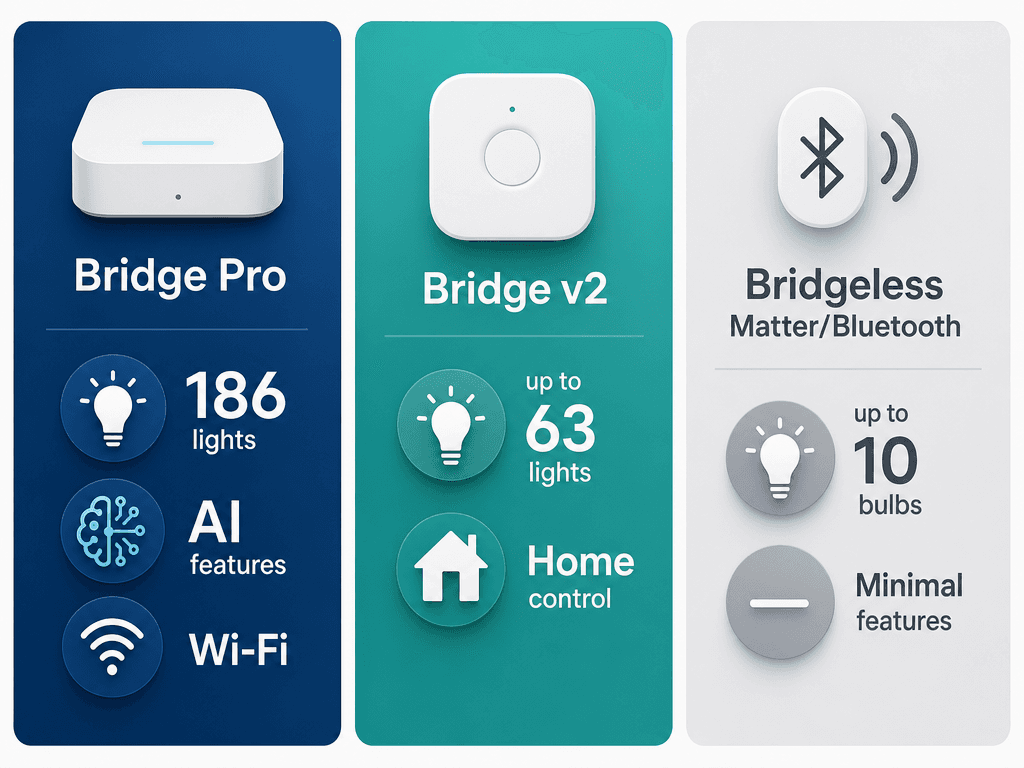
| Bridge Pro | Standard Bridge v2 | Bridgeless (Matter/Bluetooth) | |
|---|---|---|---|
| Price | $139.99 | $69.99 | No bridge cost |
| Max lights | 186 (technical limit) | 63 | 10 (Bluetooth) or varies by controller (Matter) |
| Connection | Ethernet or Wi-Fi | Ethernet only | Bluetooth or Thread Border Router |
| Remote access | Yes | Yes | No (Bluetooth only) |
| Full automations | Yes | Yes | Basic timers only (Bluetooth) |
| Gradient / Entertainment scenes | Yes | Yes | No |
| MotionAware | Yes (3+ bulbs) | No | No |
| SpatialAware | Yes (app v5.66.0+) | No | No |
| AI assistant automations | Yes | No | No |
| Best for | Large homes, design-focused setups, full feature access | Most homes under 50 devices | Renters, minimal installs, trial setups |
The standard Bridge v2 remains the right call for most households. It handles up to 63 lights, supports all automations, scenes, and voice assistant integrations, and costs less than half the Bridge Pro price.
The Bridge Pro makes sense if you are lighting more than 50 devices, want MotionAware or SpatialAware, or plan to use the AI-powered automation assistant. It also supports Wi-Fi connectivity, which matters if your router is not near the installation area.
Setting Up the Hue Bridge or Bridge Pro
Physical setup for both Bridge models takes under five minutes. The process is nearly identical, with one key difference: the Bridge Pro can connect via Wi-Fi, so an Ethernet cable is included but not required.
First-time Bridge setup
- Place the Bridge near your router. For Bridge v2, connect the included Ethernet cable between the Bridge and an open router port. For Bridge Pro, use Ethernet or configure Wi-Fi during app setup.
- Connect power. The Bridge Pro uses USB-C (max 5W, 0.1W standby). The standard Bridge uses its included power adapter.
- Wait for the first two indicator lights on the Bridge to turn solid. The third light will blink until the Bridge connects to the Philips Hue cloud.
- Download the Hue app and make sure your phone is on the same Wi-Fi network as the Bridge.
- Open the app and follow the on-screen prompts. The app will search for and find your Bridge automatically. Tap the physical button on top of the Bridge when prompted to authorize the connection.
- Create or sign in to your Philips Hue account when the app asks. This is required for remote access and cloud features.
Migrating from Bridge v2 to Bridge Pro
If you are upgrading from an existing Bridge v2, the Hue app includes a migration assistant that transfers your lights, rooms, zones, scenes, and automations.
- Power on the Bridge Pro and connect it to your network.
- In the Hue app, go to Settings > Hue Bridges > Add Bridge and scan the QR code on the back of the Bridge Pro.
- Select 'Migrate from existing Bridge' when prompted.
- Press the physical button on your old Bridge v2 to authorize the transfer.
- Wait for the migration to complete. The app moves all lights, rooms, zones, scenes, and automations.
Adding Bulbs and Fixtures
Every Philips Hue product uses the same QR code pairing method. The process is the same whether you are adding a single bulb or a dozen at once — with one important preparation step.
Adding bulbs with a Bridge (primary method)
- Make sure each bulb is powered on (installed in a switched-on fixture or lamp).
- In the Hue app, tap the three dots (…) icon on the Home tab, then tap 'Add devices'.
- Select or create a room for these lights.
- Point your phone camera at the QR code on the bulb packaging or the bulb itself and scan it.
- If the QR code is missing or damaged, tap 'No QR code' and enter the serial number printed on the bulb.
- Repeat for each bulb. The app confirms each addition with a brief blink from the light.
Adding bulbs via Bluetooth (bridgeless)
- Open the Hue app and select 'Set up without Hue Bridge' during initial setup, or go to Settings > Devices.
- Enable Bluetooth on your phone and ensure you are within roughly 10 meters of the bulb.
- Tap the blue plus icon and scan the QR code. Bluetooth setup pairs bulbs one at a time.
Adding bulbs via direct Matter pairing (bridgeless)
The 2025 Hue Essential and flagship bulbs support Matter over Thread natively, meaning you can pair them directly to a compatible smart home controller without a Hue Bridge.
This requires a Thread Border Router already on your network. Confirmed compatible devices include Apple HomePod Mini, Google Nest Hub (2nd gen), and Amazon Echo (4th gen). This list may expand over time.
- If the bulb is already paired to a Hue Bridge, remove it from the Bridge first before attempting direct Matter pairing.
- Scan the Matter QR code on the bulb's installation guide, or enter the 11-digit pairing code, using your smart home platform's add-device flow. See the official Philips Hue Matter guide for platform-specific steps.
Organizing Your Hue System: Rooms and Zones
After adding bulbs, the Hue app asks you to assign them to rooms. Getting this structure right from the start saves significant rework later — especially once you add voice assistants.
Rooms are physical spaces. Each light belongs to exactly one room. When you say 'turn off the living room,' every light assigned to that room responds. Zones are cross-room groupings — for example, a 'Downstairs' zone that includes Living Room, Kitchen, and Hallway. A light can belong to multiple zones but only one room.
- Use plain, consistent room names that match how you speak naturally: 'Living Room,' 'Kitchen,' 'Bedroom 1.' Voice assistants use these names verbatim.
- Avoid abbreviations or compound names like 'LR' or 'Main BR' — voice assistants handle full words better than abbreviations.
- Create zones for multi-room control you use regularly: 'Downstairs,' 'Upstairs,' 'All Lights.'
- If you rename a room after linking to a voice assistant, update the name in the assistant's app as well — the Hue app change does not always sync automatically.
Creating Scenes and Automations
Scenes are saved lighting states — a specific combination of brightness, color temperature, and color for all lights in a room or zone. Automations trigger scenes or individual actions on a schedule, a sensor event, or a voice command.
Scenes
- The Scene Gallery is the fastest starting point. Open a room, tap 'Scenes,' and browse hundreds of pre-built moods. Tap to apply instantly.
- To save a custom scene, adjust your lights to the desired state, then tap the scene edit button and choose 'Save as new scene.' Give it a name you would use naturally with a voice assistant.
- Scenes apply per room or zone. A scene saved for the Living Room will not appear as an option in the Kitchen.
Automations and schedules
- Go to the Automations tab to create time-based schedules. You can set lights to turn on at sunset, dim at 10 pm, or run a wake-up routine that gradually brightens over 30 minutes.
- Wake-up routines are under Automations > Wake up. Choose the target room, the end brightness, and the ramp duration.
- On Bridge Pro, the AI assistant (accessible from the Automations tab) lets you describe what you want in plain language. For example: 'Wake me up at 6:45 am every day except Wednesdays.' The assistant creates the automation from your description without requiring you to configure each parameter manually.
Connecting to Voice Assistants and Smart Home Ecosystems
All voice assistant and ecosystem connections are made from a single location in the Hue app: Settings > Smart Home. Each platform has its own linking flow.
| Platform | Connection method | Key notes |
|---|---|---|
| Amazon Alexa | Hue Skill via Alexa app, or Settings > Smart Home > Amazon Alexa in Hue app | Enable the Philips Hue skill, sign in with your Hue account, then discover devices in Alexa. |
| Google Home | Works-with-Google via Settings > Smart Home > Google Home in Hue app | Sign in with your Google account. Rooms sync from Hue; you may need to assign devices to Google Home rooms manually. |
| Apple Home (HomeKit) | Matter pairing via Settings > Smart Home > Apple Home in Hue app | iOS 18+ users do not need a HomePod or Apple TV as a hub. Follow the in-app QR code pairing flow. |
Adding Hue to a second ecosystem (multi-admin)
Matter supports multi-admin pairing, which means your Hue lights can be controlled by more than one platform simultaneously — for example, both Google Home and Apple Home — without resetting any devices.
- Open the Hue app (the platform where the device is already paired).
- Go to Settings > Smart Home and select the second platform you want to add.
- The app generates a new setup code. Use that code in the second platform's add-device flow.
- Both platforms can now control the same lights independently.
New 2025–2026 Features: MotionAware and SpatialAware
Both features are exclusive to the Bridge Pro and represent the clearest practical reason to choose it over the standard Bridge for a new setup.
MotionAware
MotionAware turns the Zigbee radio signals between your existing bulbs into a presence and motion detection system — no separate motion sensor required, and no extra cost for automation use.
- Requires at least three compatible Hue lights in the same room.
- To set up: open the room in the Hue app, go to room settings, and enable MotionAware. The app will ask you to confirm with a light blink, then step out of the room while it calibrates the baseline signal.
- After calibration, configure what happens when motion is detected: lights on, an alert, or both.
- MotionAware can optionally integrate with Hue Secure for push notifications or alarms, but that integration requires a Hue Secure subscription.
SpatialAware
SpatialAware was announced in January 2026 and became available in Hue app version 5.66.0 on April 28, 2026. It uses your smartphone's camera and AR technology to map the physical position of each light in a room, then distributes scene colors realistically based on where each light sits — for example, placing warm sunset tones on lamps near a window and cooler shades on ceiling lights on the opposite side.
- Update the Hue app to version 5.66.0 or later.
- Open the room you want to map in the Hue app.
- Tap Edit Room, then tap Edit Spatial Map (bottom left on Android; similar location on iOS).
- Follow the on-screen instructions to scan the room gradually with your smartphone camera, capturing the position of each light.
- Once the scan is complete, the app applies optimized scene versions automatically. If you add more lights later, rescan only the updated area.
Common Setup Problems and Fixes
Bridge not found during app setup
- Confirm your phone is connected to the same Wi-Fi network as the Bridge. The Hue app cannot find a Bridge on a different subnet (including guest networks).
- Check that both indicator lights on the Bridge are solid, not blinking. A blinking third light is normal during initial cloud connection — wait 30 seconds.
- If the Bridge still is not found, unplug it, wait 10 seconds, and reconnect. Then restart the Hue app and try again.
- On Bridge Pro with Wi-Fi: if Ethernet is not connected, the Bridge Pro will broadcast its own temporary Wi-Fi network for initial configuration. Connect your phone to that network, complete the Wi-Fi setup in the app, then reconnect your phone to your home network.
Bulb not responding during QR scan
- Confirm the bulb is powered on. The bulb must be receiving power — it will not appear during a scan if the switch controlling it is off.
- If the bulb was previously paired to a different Bridge or app, it may need to be factory reset. The standard reset is to switch the bulb on and off five times in quick succession (approximately one second on, one second off). The bulb will flash to confirm the reset.
- For Matter-enabled bulbs being paired directly (without a Bridge), remove them from any existing Bridge or app before attempting Matter pairing.
QR code lost or damaged
In the Hue app's add-device flow, tap 'No QR code' to switch to serial number entry. The serial number is printed on the bulb itself — check the base of E26/E27 bulbs or the side of strip lights and fixtures.
Adding Hue to a second app or account after initial setup
If you want to control your Hue lights from a second smartphone or a household member's phone, they need to sign in to the same Philips Hue account in the Hue app — not create a new account. The Hue system is account-based, not device-based. For adding to a second smart home platform (e.g., adding Google Home after already being in Apple Home), follow the multi-admin steps in the voice assistant section above.
Round gen-1 Bridge (discontinued 2020)
The original round Hue Bridge is no longer supported by the current Hue app and cannot be used with any features described in this guide. If you have one, you will need to replace it with a Bridge v2 or Bridge Pro. Your existing bulbs will work with the new Bridge after being re-paired.
Community Tips
Share platform-specific variations, steps that have changed after app updates, or tips that helped your installation succeed.
Comments
Join the discussion with an anonymous comment.