
Why Connect Ecobee to Apple HomeKit
Pairing your Ecobee thermostat with Apple HomeKit gives you more than a second way to adjust the temperature. It brings your thermostat into the same control layer as your lights, locks, and other HomeKit devices — so you can build automations that span all of them from a single app.
- Control temperature with Siri voice commands on iPhone, iPad, Mac, and Apple Watch.
- Include your thermostat in Home app scenes — for example, a "Good Night" scene that dims the lights and drops the temperature at once.
- Trigger heating and cooling changes based on your location using HomeKit geofencing, so the house is comfortable when you arrive and not heating an empty home.
- Check and adjust temperature from your Apple Watch without picking up your phone.
- Use Ecobee's occupancy sensor to trigger other HomeKit devices — for example, turning off lights when no motion is detected.
All current Ecobee models support native HomeKit pairing — no bridge, no Homebridge, no third-party hub required. The steps below cover every model and both pairing methods.
Compatible Ecobee Models and HomeKit Feature Differences
Ecobee currently sells three thermostat models. All three pair natively with Apple HomeKit. The differences lie in which HomeKit features each model unlocks, particularly around Siri.
| Model | Native HomeKit Pairing | On-Device Siri | Built-in Mic + Speaker | Air Quality Sensor | HomeKit Pairing Path |
|---|---|---|---|---|---|
| Essential ($139.99) | Yes | No | No | No | Thermostat touchscreen only |
| Enhanced ($199.99) | Yes | No | No | No | Thermostat touchscreen or ecobee app |
| Premium ($259.99) | Yes | Yes (requires home hub) | Yes | Yes (not exposed to HomeKit) | Thermostat touchscreen or ecobee app |
Before You Start: Prerequisites Checklist
Verify every item below before attempting pairing. Most mid-install failures trace back to one of these conditions not being met.
- iPhone or iPad running a current version of iOS or iPadOS. HomeKit requires a reasonably up-to-date iOS release — check Settings > General > Software Update and install any pending updates before starting.
- Ecobee app installed on your iPhone and your ecobee account registered and signed in. You need an active account even if you plan to use the touchscreen pairing method.
- Your iPhone and your Ecobee thermostat are on the same Wi-Fi network. HomeKit pairing requires both devices to be reachable on the same local network.
- Wi-Fi signal strength at the thermostat location is above 75%. Weak signal is a leading cause of No Response errors after pairing. Check signal strength in the ecobee app under About > Wi-Fi.
- The thermostat is powered on and has completed its initial setup. The thermostat must be running its current firmware — check the ecobee app for any pending firmware updates and allow them to complete before pairing.
- You have access to the Apple Home app on your iPhone. It is installed by default on iOS — if you have deleted it, reinstall it from the App Store before proceeding.
Method A: Pair via the Ecobee App (Enhanced and Premium)
The Enhanced and Premium models support pairing directly through the ecobee app on your iPhone. This is the quickest path if your phone is already open and the ecobee app is installed.
- Open the ecobee app on your iPhone and make sure you are signed in to your account.
- Tap the menu icon and navigate to Settings.
- Tap HomeKit. If HomeKit is not yet enabled, the app will prompt you to enable it.
- Tap Add to HomeKit. The app will hand off to the Apple Home app.
- In the Apple Home app, follow the on-screen prompts. You will be asked to scan the QR code displayed on your thermostat's touchscreen, or to enter the 8-digit setup code manually.
- Assign the thermostat to a room in your home when prompted. This determines how it appears in the Home app and which automations it can participate in.
- Tap Done. The thermostat will appear in the Home app within a few seconds.
Method B: Pair via the Thermostat Touchscreen (All Models)
All current Ecobee models — including the Essential — support pairing through the thermostat touchscreen itself. This is the only pairing path for the Essential, and it works equally well for the Enhanced and Premium if you prefer to start from the thermostat.
- On the thermostat, press the main menu button (the three horizontal lines at the bottom of the screen).
- Navigate to Settings.
- Tap HomeKit.
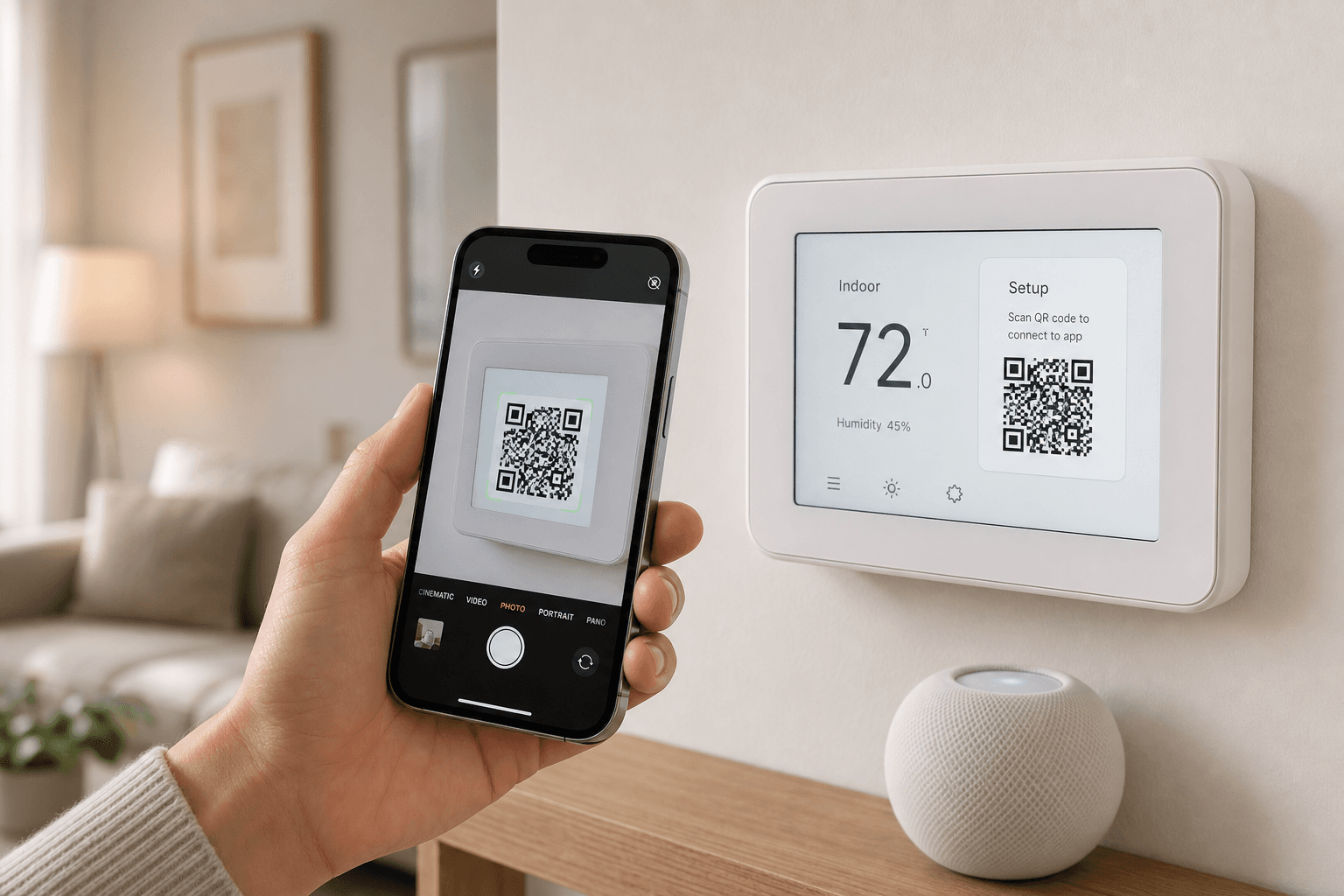
- Tap Enable HomeKit Pairing. The thermostat will display a QR code on screen.
- On your iPhone, open the Apple Home app.
- Tap the + icon in the upper right corner, then tap Add Accessory.
- Point your iPhone camera at the QR code on the thermostat screen. The Home app will recognize it automatically.
- Follow the prompts to assign the thermostat to a room and complete setup. Tap Done when finished.
Setting Up a Home Hub for Remote Access and Siri
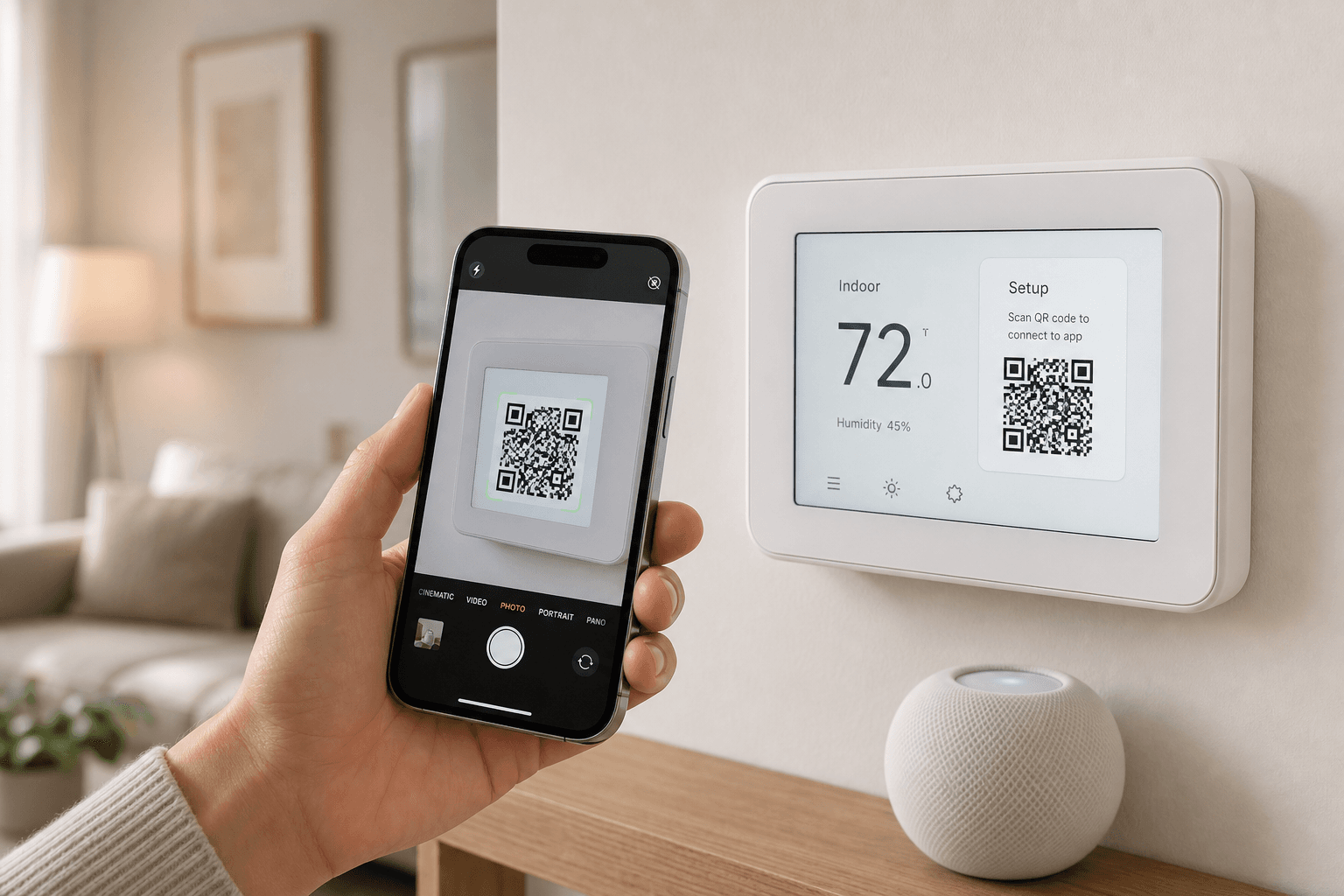
Once your Ecobee is paired, it works on your home Wi-Fi network. But to control it when you are away from home — or to activate on-device Siri on the Smart Thermostat Premium — you need a HomeKit home hub.
A home hub is an Apple device that stays at home, connected to your network, and acts as the bridge between HomeKit and the internet. Without one, your thermostat will show as "Not Responding" when you try to control it from outside your home Wi-Fi.
| Device | Enables Remote Access | Enables On-Thermostat Siri (Premium) | Notes |
|---|---|---|---|
| HomePod (full size) | Yes | Yes | Siri requests processed on the HomePod within your home |
| HomePod mini | Yes | Yes | Same Siri capability as full-size HomePod; more compact |
| Apple TV 4K | Yes | No | Valid home hub for remote access; does not enable on-thermostat Siri processing |
To verify your home hub is active, open the Home app on your iPhone and tap the house icon in the upper left. Tap Home Settings, then scroll down to see your home hub listed under "Home Hubs & Bridges." It should show as Connected.
What HomeKit Exposes — and What It Does Not
After pairing, the Apple Home app shows your Ecobee as a tile you can interact with. But not every feature of the thermostat is accessible through HomeKit. Knowing the boundaries upfront prevents frustration.
| Feature | Visible in Apple Home App | Notes |
|---|---|---|
| Current temperature | Yes | Displayed on the thermostat tile |
| Target temperature | Yes | Adjustable from the Home app |
| HVAC mode (heat/cool/auto/off) | Yes | Switchable from the Home app |
| Occupancy sensor | Yes | Can trigger HomeKit automations; updates are slower than a dedicated motion sensor |
| Humidity | No (not as a tile) | Data exists on the thermostat but is only visible in third-party HomeKit apps such as Eve, Home+, or Controller |
| Air quality (Premium only) | No | The Premium's built-in air quality monitor is not exposed to HomeKit |
| Ecobee Comfort Settings | No (directly) | Accessible via scenes created in the ecobee app and mapped to HomeKit scenes |
| SmartSensor data | Partial | Occupancy from SmartSensors can appear; temperature from individual SmartSensors is not a separate HomeKit tile |
Creating Scenes and HomeKit Automations
HomeKit integration becomes most useful when you connect your thermostat to automations. There are two layers here: scenes created in the ecobee app that map to HomeKit, and automations built directly in the Apple Home app.
Creating Ecobee Scenes in the Ecobee App
Ecobee Comfort Settings (Home, Away, Sleep, and any custom settings you have created) do not appear directly as HomeKit controls. To use them in HomeKit automations, you map them to scenes through the ecobee app.
- Open the ecobee app and go to Settings > HomeKit > Add Scene.
- Tap New Scene and give it a name (for example, "Ecobee Away" or "Ecobee Sleep").
- Toggle the thermostat and choose an action: a Comfort Setting (such as Away or Sleep), Resume Schedule, or a custom temperature.
- Save the scene. It will now appear in the Apple Home app and can be included in any HomeKit automation.
Setting Up Geofencing in the Ecobee App
Ecobee's HomeKit geofencing triggers a scene when you enter or leave a defined radius around your home. This is configured in the ecobee app, not the Home app.
- In the ecobee app, go to Menu > Manage HomeKit > Geofence.
- Enable geofencing and set your preferred radius.
- Assign a scene to trigger when you leave home (typically an Away or energy-saving Comfort Setting).
- Assign a scene to trigger when you arrive home (typically your Home Comfort Setting).
Building Time-Based Automations in the Home App
Once your Ecobee scenes are created, you can trigger them from the Apple Home app based on time, sunrise/sunset, or other HomeKit device states. Open the Home app, go to the Automation tab, tap the + icon, and choose your trigger. Select the Ecobee scene as the action. This lets you coordinate thermostat changes with other HomeKit devices in a single automation.
Understanding Hold Mode: How HomeKit and Ecobee Share Control
This is the most important section for anyone running both Ecobee schedules and HomeKit automations. Most guides skip it, and it is the most common source of confusion after setup.
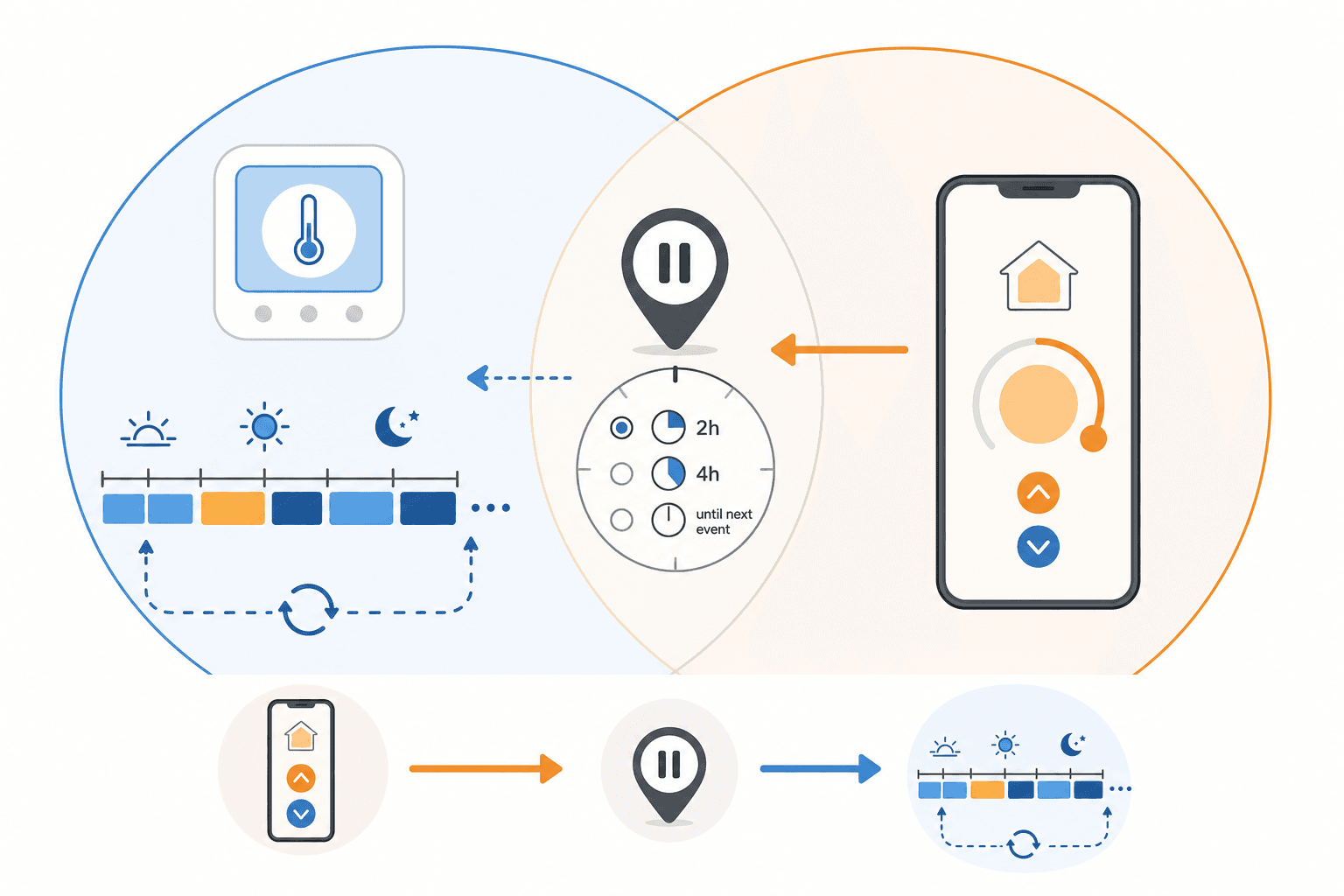
When you adjust the temperature through the Apple Home app — or when a HomeKit automation changes the thermostat setpoint — Ecobee treats that change as a manual override. It immediately enters Hold mode, which suspends your Ecobee schedule until the hold expires or is cleared.
In practice, this means a HomeKit automation that sets a temperature at 10 PM can prevent your Ecobee's scheduled Sleep Comfort Setting from activating — or vice versa. Understanding hold duration is how you control which system wins.
Hold Duration Options
Ecobee offers five hold duration settings. You can configure the default in the ecobee app under Preferences > Hold Duration.
- 2 hours — Hold expires after 2 hours, then Ecobee resumes its schedule.
- 4 hours — Hold expires after 4 hours.
- Until next scheduled activity — Hold expires at the next transition in your Ecobee schedule (for example, when Sleep is scheduled to begin).
- Until I change it — Hold is indefinite until you manually clear it. This setting gives HomeKit full control but can permanently override your Ecobee schedule.
- Decide at time of change — Ecobee prompts you each time you make a manual adjustment.
Troubleshooting Common Pairing and Connection Failures
Most pairing failures have a specific cause and a specific fix. Work through the symptom that matches your situation.
QR Code Does Not Appear, or the Wrong Thermostat Shows in the Add Device Screen
- This is a known issue acknowledged by Ecobee. The fix is a factory reset of the thermostat using the Reset All option. On the thermostat, go to Main Menu > Settings > Reset > Reset All. After the reset, complete the initial thermostat setup again, then retry HomeKit pairing.
- Do not use a partial reset (such as Reset Schedule or Reset Preferences) — only Reset All clears the HomeKit pairing state that causes this issue.
First Pairing Attempt Shows "Failed Due to Unknown Error"
- This error on the first attempt is a known behavior, not a permanent failure. Exit the Home app, wait 10–15 seconds, and repeat the pairing process from the beginning. The second attempt succeeds in most cases.
- If the second attempt also fails, verify that both your iPhone and the thermostat are on the same Wi-Fi network and that the thermostat has a strong signal (above 75%).
Thermostat Shows "No Response" in the Home App After Pairing
- Check your home hub status first. Open the Home app, tap the house icon, go to Home Settings, and verify your home hub shows as Connected. If it shows as Not Responding, restart the HomePod, HomePod mini, or Apple TV acting as the hub.
- Check Wi-Fi signal strength at the thermostat. In the ecobee app, go to About > Wi-Fi and verify signal strength is above 75%. If it is lower, move your router closer or add a Wi-Fi extender.
- Restart your router. Many No Response errors resolve after a router restart, particularly if the thermostat's DHCP lease has expired or the router's ARP table is stale.
- If the thermostat shows No Response only when you are away from home, the issue is your home hub — not the thermostat or its Wi-Fi connection. Remote access requires the home hub to be active.
"Pairing Not Allowed" Error
- This error occurs when a previous partial pairing attempt left the thermostat in a locked pairing state. The thermostat believes it is already paired, but the pairing was never completed.
- The fix requires a factory reset using Reset All, the same process as the QR code issue above. After the reset, complete initial thermostat setup and retry pairing from scratch.
Siri Does Not Respond on the Thermostat (Premium Only)
- On-device Siri on the Premium requires a HomePod or HomePod mini acting as the home hub. An Apple TV 4K provides remote access but does not enable on-thermostat Siri processing. If you are using only an Apple TV 4K as your home hub, Siri on the thermostat will not work.
- Verify that your HomePod or HomePod mini is set as the home hub in the Home app under Home Settings > Home Hubs & Bridges. It should show as Connected.
- If the HomePod is connected but Siri on the thermostat still does not respond, try restarting the HomePod by unplugging it for 10 seconds and plugging it back in.
Community Tips
Share platform-specific variations, steps that have changed after app updates, or tips that helped your installation succeed.
Comments
Join the discussion with an anonymous comment.