
Z-Wave vs. Wi-Fi Locks: Why Z-Wave Requires a Hub and What You Gain
A Z-Wave smart lock does not connect to your home Wi-Fi network. It communicates on a dedicated 908.42 MHz radio frequency in North America — a separate mesh network that has no overlap with your 2.4 GHz or 5 GHz Wi-Fi bands. That means it cannot pair directly with your phone. It requires a compatible Z-Wave hub to bridge the lock to the internet and your smart home platform.
That hub is a one-time purchase — typically around $100 — not an ongoing subscription. And the tradeoff is substantial.
| Feature | Z-Wave Lock | Wi-Fi Lock |
|---|---|---|
| Battery life | 12–18 months typical | 3–6 months typical |
| Hub required | Yes (~$100 one-time) | No |
| Security protocol | S2 Access Control (strongest) | Varies by manufacturer |
| Local control | Yes — works without internet | Usually cloud-dependent |
| Wi-Fi interference | None (908.42 MHz) | Competes with 2.4 GHz band |
| Mesh network | Yes — range extends with devices | No mesh; direct to router |
The battery life difference alone is significant for most homeowners. Because Z-Wave operates at a low frequency and uses a sleep-based communication model called FLiRS (Frequently Listening Routing Slave), the lock's radio wakes up only when the hub needs to communicate with it — roughly once per second for a brief listen — rather than maintaining a constant wireless connection. That efficiency is why Z-Wave locks typically deliver 12–18 months per battery set compared to 3–6 months for most Wi-Fi models.
Before You Start: Pre-Install Checklist
Most Z-Wave smart lock installations go smoothly on standard residential doors. Run through this checklist before opening the box to catch any compatibility issues before you are mid-install.
- Door material: Solid wood or solid-core doors. Hollow-core interior doors are not suitable for a deadbolt-style smart lock.
- Bore hole size: Standard 2-1/8" diameter main bore and 1" cross bore (where the latch bolt passes through). Most US exterior doors are pre-drilled to this spec.
- Door thickness: Between 1-3/8" and 2". Measure the door edge before ordering if you are unsure.
- Hub compatibility: Confirm your hub supports Z-Wave and specifically lists your lock model as compatible. Check the manufacturer's Z-Wave certification page or your hub's device compatibility list.
- Fresh batteries: Have a new set of AA or AAA batteries (check your lock's manual) ready before starting. Low batteries are one of the top causes of pairing failures.
- Existing deadbolt removal: If replacing an existing lock, have the old deadbolt fully removed before you start the new installation.
- Hub location: Plan to bring the hub within 3 feet of the lock during initial pairing. You will move it back to its permanent location after pairing is complete.
Tools and Parts: What You Need (Probably Just a Screwdriver)
The physical installation requires minimal tools. In most cases, a single Phillips screwdriver is all you need. Everything else ships in the lock box.
- Phillips screwdriver (medium size, #2 tip)
- Fresh batteries (AA or AAA — quantity and type specified in your lock's manual; do not install until the final step)
Before starting, open the box and verify all parts are present. A typical Z-Wave smart lock box includes:
- Exterior keypad assembly
- Interior assembly (motor unit and battery compartment)
- Deadbolt latch with faceplate
- Connecting spindle or wire harness
- Strike plate and screws
- Mounting screws for interior assembly
- Quick-start guide or installation manual
Phase 1 — Physical Installation: Step-by-Step Deadbolt Swap
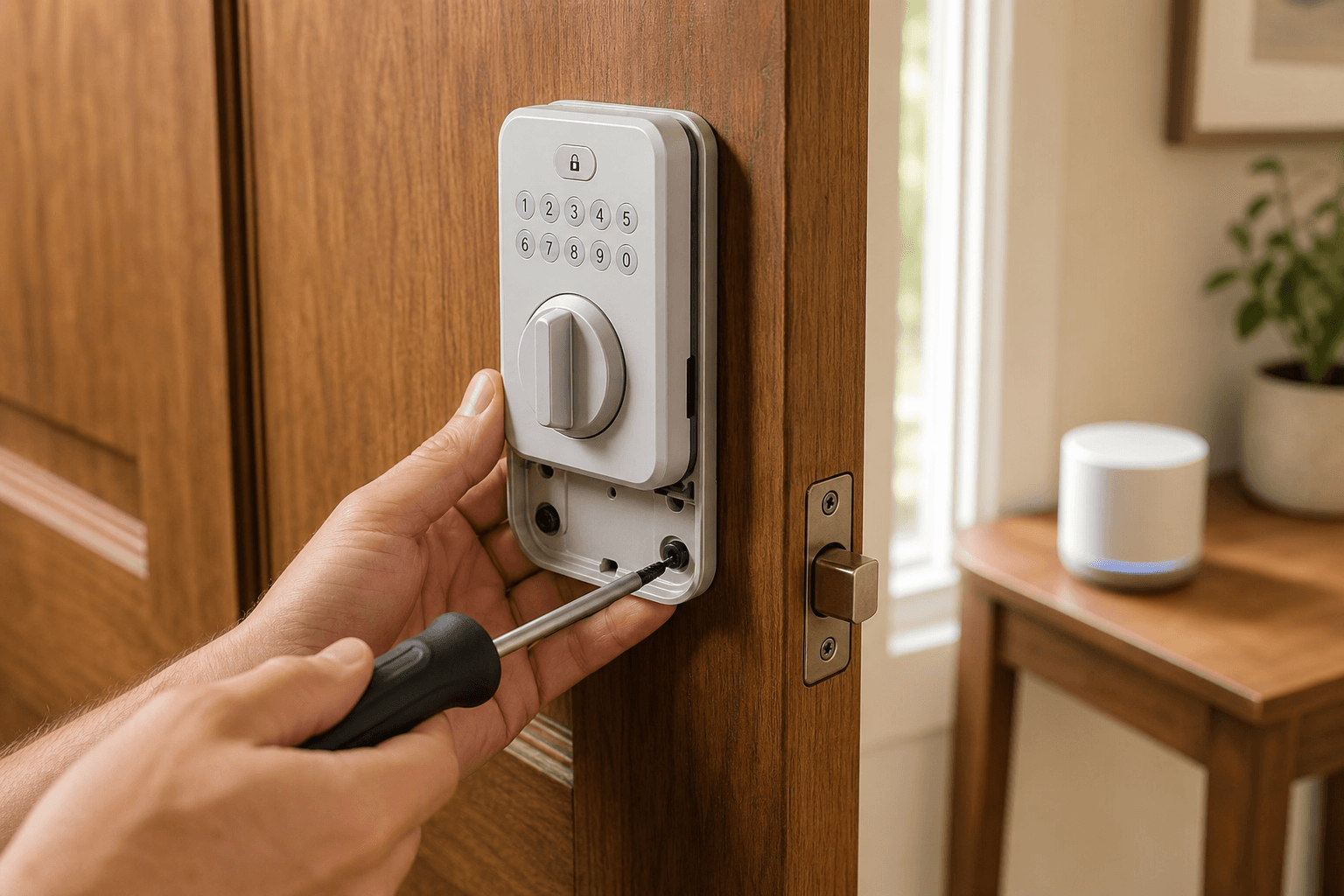
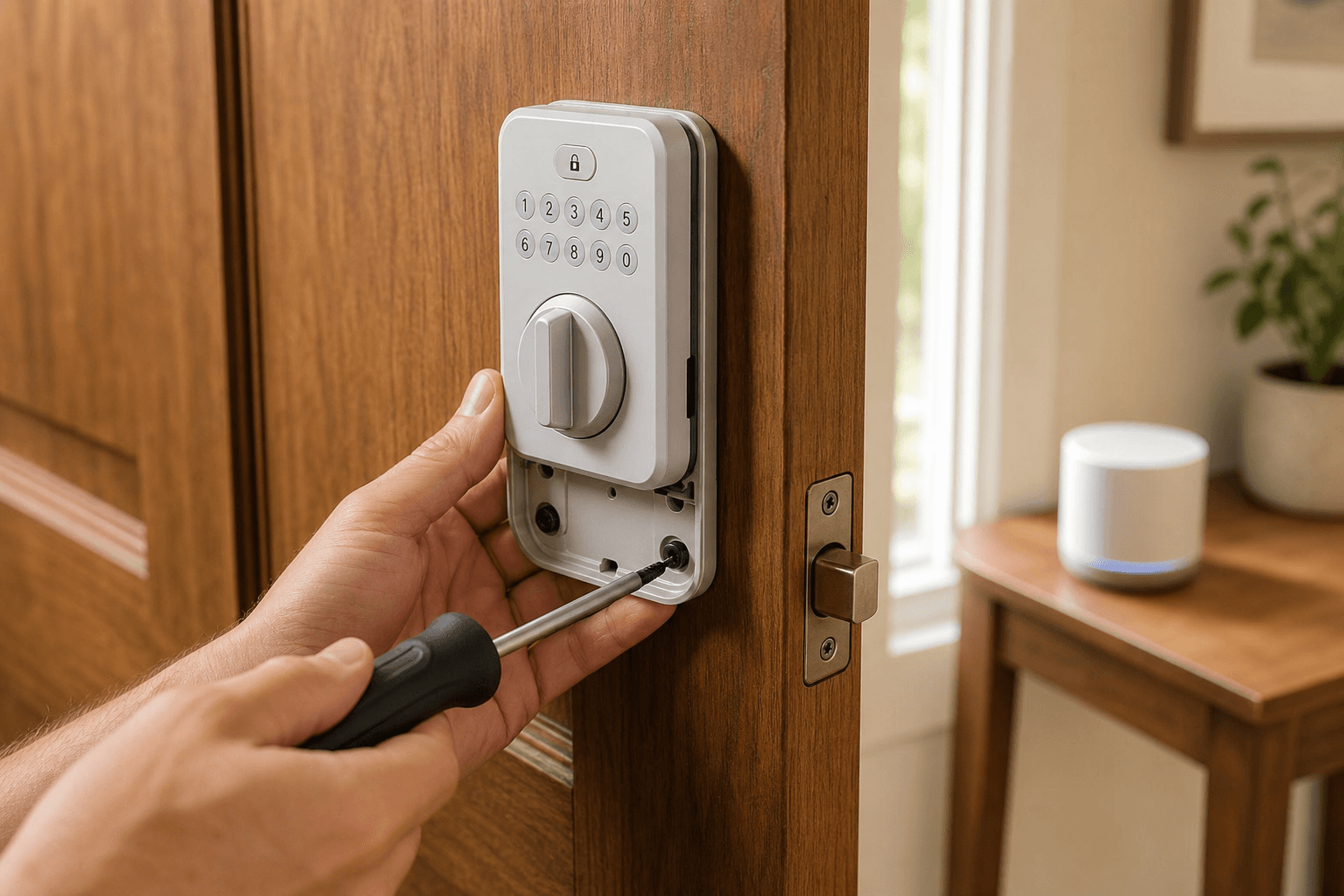
The physical installation follows a specific sequence. The order is not arbitrary — testing the bolt manually before inserting batteries lets you catch alignment problems without power, and keeping screws hand-tight until the final step prevents the most common mechanical failure: overtightening.
Work through these steps in order:
- Check the strike plate alignment first. Before installing the new lock, extend the new deadbolt latch by hand and hold it against the door frame to verify it lines up with the existing strike plate opening. If the bolt is off by more than 1/8", adjust the strike plate position now. This is the most common cause of bolt binding after installation — and it is far easier to fix before the lock is mounted.
- Insert the latch into the door edge bore. Slide the latch bolt assembly into the horizontal bore hole in the door edge, with the angled face of the latch pointing toward the door frame (so it compresses when the door closes). The metal faceplate should sit flush with the door edge. Secure it with the two provided screws — snug but not yet fully tightened.
- Feed the spindle or wire harness through the main bore hole. Most Z-Wave locks use a connecting spindle that passes through the large bore hole in the door face to link the exterior and interior assemblies. Some models use a wire harness instead. Route whichever connector your lock uses through the bore hole before mounting either assembly.
- Mount the exterior keypad assembly. Position the exterior keypad over the bore hole on the outside of the door, ensuring the spindle or connector is properly seated. Hold it in place — it will be secured by the interior assembly mounting screws.
- Attach the interior assembly. Align the interior motor unit with the mounting posts or screw holes, engage the spindle connection, and hand-tighten the mounting screws. Once hand-tight, give each screw one additional quarter-turn with the screwdriver — no more. Do not overtighten. Overtightening warps the interior cover and creates drag on the bolt mechanism.
- Test the bolt manually. Turn the interior thumb turn by hand to extend and retract the deadbolt several times. The bolt should move smoothly in both directions without binding or resistance. If you feel friction, check the strike plate alignment and verify the mounting screws are not overtightened before proceeding.
- Install the batteries last. Only after the manual bolt test passes, insert fresh batteries into the interior battery compartment. The lock should power on and run a brief self-test sequence (usually indicated by a beep or LED flash pattern — consult your manual for the expected behavior).
Phase 2 — Z-Wave Pairing: The Exact Sequence That Prevents 90% of Failures
Z-Wave pairing has a specific order of operations that is different from Bluetooth or Wi-Fi device setup. Skipping any step — or doing them out of order — is the source of nearly every pairing failure reported by DIY installers.
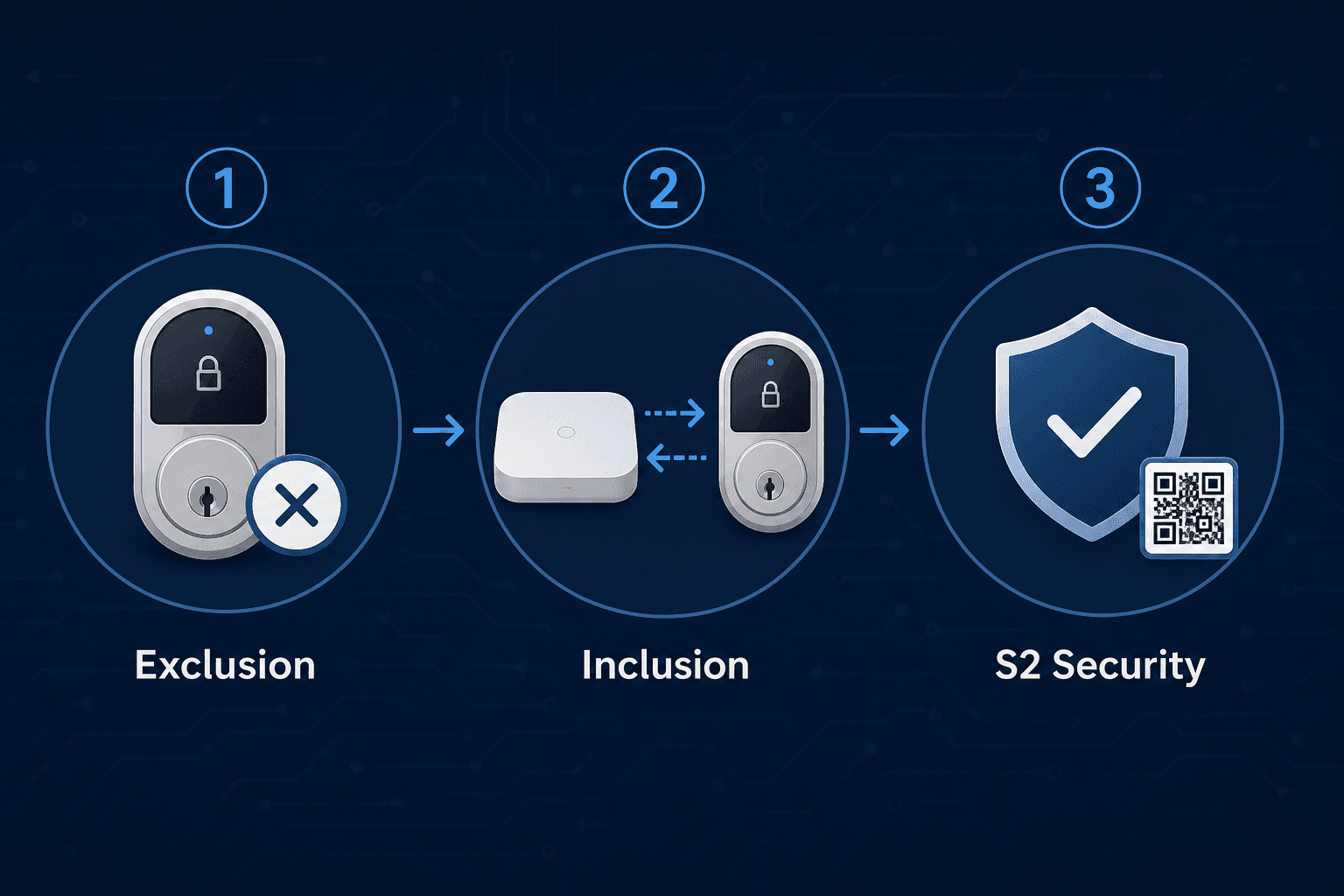
Step 1: Run Exclusion First — Even on a Brand-New Lock
Before attempting to add the lock to your network, run a Z-Wave exclusion (also called "remove device" or "forget device") from your hub. Trigger the exclusion mode on the hub, then perform the lock's exclusion button sequence (typically the same sequence as inclusion — check your manual).
This step is not optional, even for a lock straight from the factory. Z-Wave locks can ship with residual network enrollment data from factory testing. A lock that is already enrolled — even in a non-existent test network — will refuse a new inclusion request. Running exclusion clears that state.
Step 2: Bring the Hub Within 3 Feet of the Lock
Z-Wave mesh range applies after pairing, not during it. During initial inclusion, the lock and hub must communicate directly — no repeaters in between. Bring your hub (or your laptop running Home Assistant) to within 3 feet of the installed lock before starting inclusion. After pairing completes, move the hub back to its permanent location.
Step 3: Put the Hub into Inclusion Mode, Then Trigger the Lock
Start inclusion mode on your hub first, then trigger the lock's pairing sequence. The lock's button sequence is model-specific — consult your manual for the exact steps. As a general reference:
- Yale Assure Lock 2 (Z-Wave): Enter your master entry code, press the gear icon, press 7 + gear, press 1 + gear. (Exclusion uses the same sequence with 3 instead of 1.)
- Schlage Connect (BE468/BE469): Press the Schlage button, enter your 6-digit programming code, press 0. The same sequence is used for both inclusion and exclusion.
- Kwikset SmartCode (888 and similar): Refer to your current model's manual for the exact button sequence — Kwikset inclusion steps vary between SmartCode generations.
Step 4: Confirm S2 Access Control — Do Not Accept S0 Fallback
When the lock is detected by the hub, you will see a security class dialog. For door locks, the correct choice is S2 Access Control — the highest security class in the Z-Wave specification and the one required for locks.
S2 uses Diffie-Hellman elliptic curve key exchange, with an out-of-band DSK (Device Specific Key) used to authenticate the lock. Your hub will display a DSK entry dialog or a QR code scanner. The DSK is printed on a label inside the lock's battery compartment or on the box. Enter the first five digits of the DSK when prompted, or scan the QR code if your hub supports it.
If the hub offers S0 as an alternative, decline it. S0 is slower, uses more battery power, and is cryptographically weaker than S2 because it exchanges the network key using a known encryption key rather than an ephemeral Diffie-Hellman exchange. Accepting S0 is a meaningful security and battery-life downgrade.
Step 5: Wait for Secure Enrollment to Complete
After DSK confirmation, the hub and lock exchange security keys and the lock fetches its initial configuration. This can take 30–90 seconds. Do not move the hub, close the hub's inclusion dialog, or interact with the lock during this process. Wait until the hub reports the device as fully added and shows a device name or model number in the interface.
Hub-Specific Pairing Instructions: SmartThings, Hubitat, and Home Assistant
The pairing sequence above applies across all Z-Wave hubs. The following notes cover platform-specific details that affect how inclusion is initiated and how the lock behaves after pairing.
SmartThings (Aeotec Hub)
- Open the SmartThings app and navigate to the hub's device list.
- Tap the + icon to add a device, then select "Scan nearby" or search for your lock model by name.
- SmartThings will enter Z-Wave inclusion mode. Trigger the lock's pairing button sequence.
- After the lock is discovered, SmartThings creates a native lock tile with lock/unlock status, battery level, and built-in lock code management accessible from the device detail screen.
- Use SmartThings' built-in lock code manager (accessible from the lock tile) to add and manage access codes — do not program codes directly on the keypad.
Hubitat Elevation
Hubitat requires one additional piece of hardware that SmartThings and Home Assistant do not: a Z-Wave beaming-capable repeater positioned near the lock for reliable ongoing communication. This is not optional for stable lock operation.
Z-Wave locks use FLiRS — they wake up briefly once per second to listen for a "wakeup beam" from the hub or a nearby node. Standard non-beaming Z-Wave repeaters (many in-wall switches) cannot send this beam. If the lock is not near a beaming-capable device, commands from the hub will frequently time out. The Aeotec Range Extender 6 is a commonly recommended beaming-capable repeater for this purpose. Place it within 20–30 feet of the lock, on the same floor, before pairing.
- Secure join setting: Before pairing, navigate to Settings > Z-Wave Details and verify the secure join setting is set to "Locks/Garage Doors" — not "All Secure Z-Wave." The "All Secure" setting can cause inclusion failures with some lock models.
- Pairing: Go to Devices > Add Device > Z-Wave Inclusion. Trigger the lock's pairing sequence. Confirm S2 Access Control when the DSK dialog appears.
- Code fetch: After pairing, Hubitat's Lock Code Manager app will fetch all existing code slots from the lock (typically 30 slots). Watch the Hubitat logs for the fetch to complete before adding new codes or creating automations. Starting other activity before the fetch finishes can result in incomplete code sync.
- Lock Code Manager app: Install the Lock Code Manager built-in app from the Apps section. All access code management should go through this app, not the lock keypad directly.
Home Assistant Z-Wave JS
Home Assistant requires a physical Z-Wave USB stick to communicate with Z-Wave devices — the hub software alone is not sufficient. The Zooz ZST39 (800 series) is a widely used option. Connect the stick to your Home Assistant host before proceeding.
- Navigate to Settings > Integrations and search for "Z-Wave JS." Follow the prompts to configure the integration with your USB stick's device path.
- Once Z-Wave JS is running, open the Z-Wave JS integration and click "Add Node."
- When prompted for the security key, scan the QR code printed on the lock (usually inside the battery compartment or on the box) or manually enter the DSK string to authenticate S2 Access Control.
- Trigger the lock's inclusion button sequence. Home Assistant will discover the lock and create entities for lock state, battery level, and user code slots.
- Access codes are managed via the user code slot entities on the lock's device page, or through the Z-Wave JS integration panel.
Programming and Managing Access Codes from Your Hub
After pairing, you should add and manage all access codes through the hub interface — not by typing them directly into the lock keypad.
Here is why this matters: codes entered directly on the keypad are stored in the lock's memory but may not be visible to the hub. The hub cannot read their slot assignments, cannot use them as automation triggers, and cannot remotely delete them. If you want a specific code to trigger a rule — such as logging who unlocked the door or disarming an alarm — that code must be programmed through the hub, not directly on the lock.
- SmartThings: Open the lock's device tile in the SmartThings app. Tap "Manage Codes" to add, edit, or delete user codes. Each code is assigned to a named slot and synced to the lock over Z-Wave.
- Hubitat: Use the Lock Code Manager built-in app. Add codes by slot number, assign names, and set optional schedules. Wait for the code to sync — Hubitat logs will show the sync confirmation.
- Home Assistant: Navigate to the lock's device page and find the user code slot entities (e.g., "Code Slot 1", "Code Slot 2"). Set the value of the desired slot to your code number using the entity's service call or the UI input field.
Troubleshooting: Root Causes and Fixes for the Most Common Z-Wave Lock Problems
Most Z-Wave lock frustration traces back to a small number of root causes. Identifying which root cause applies to your situation is faster than trying fixes at random.
| Symptom | Most Likely Root Cause | Fix |
|---|---|---|
| Lock won't pair / not discovered by hub | Residual network enrollment from factory or previous hub | Run Z-Wave exclusion on the hub, trigger the lock's exclusion sequence, then retry inclusion |
| Lock won't pair after exclusion | Batteries below reliable threshold | Replace with fresh batteries before retrying inclusion |
| Lock discovered but inclusion fails or times out | Lock too far from hub during pairing | Bring hub within 3 feet of lock; mesh range does not apply during initial inclusion |
| Lock paired but codes won't sync (Hubitat) | Secure join set to 'All Secure Z-Wave' instead of 'Locks/Garage Doors' | Change setting in Settings > Z-Wave Details, then exclude and re-include the lock |
| Lock paired but codes not syncing (any hub) | Code fetch still in progress | Wait for the full code fetch to complete in logs before adding new codes or creating rules |
| Bolt binding or stiff after install | Strike plate misalignment or overtightened mounting screws | Adjust strike plate position; loosen mounting screws to snug-only torque |
| Frequent command timeouts (Hubitat) | No beaming-capable repeater near lock | Add a beaming-capable Z-Wave repeater (e.g., Aeotec Range Extender 6) within 20–30 feet |
| Low battery alert not appearing | Battery threshold notification not configured in hub | Set a battery level alert in your hub's notification or automation settings (typically 20% threshold) |
Post-Install Verification Checklist
Before considering the installation complete, verify each of the following:
- Bolt extends and retracts smoothly via the keypad without binding or grinding.
- The hub shows the lock's current status (locked/unlocked) in real time — lock and unlock from the hub UI and confirm the status updates within a few seconds.
- At least one access code programmed through the hub successfully unlocks the door.
- The lock's device details in the hub show S2 Access Control as the security class — not S0 or unsecured.
- Battery level is visible in the hub and reads above 80% (expected with fresh batteries).
- A battery low notification or automation is configured to alert you when battery drops below 20%.
- A test automation or notification (e.g., "notify me when the front door is unlocked") triggers correctly when you use an access code.
Community Tips
Share platform-specific variations, steps that have changed after app updates, or tips that helped your installation succeed.
Comments
Join the discussion with an anonymous comment.