
What This Routine Does — and Why It's Worth One Afternoon of Setup
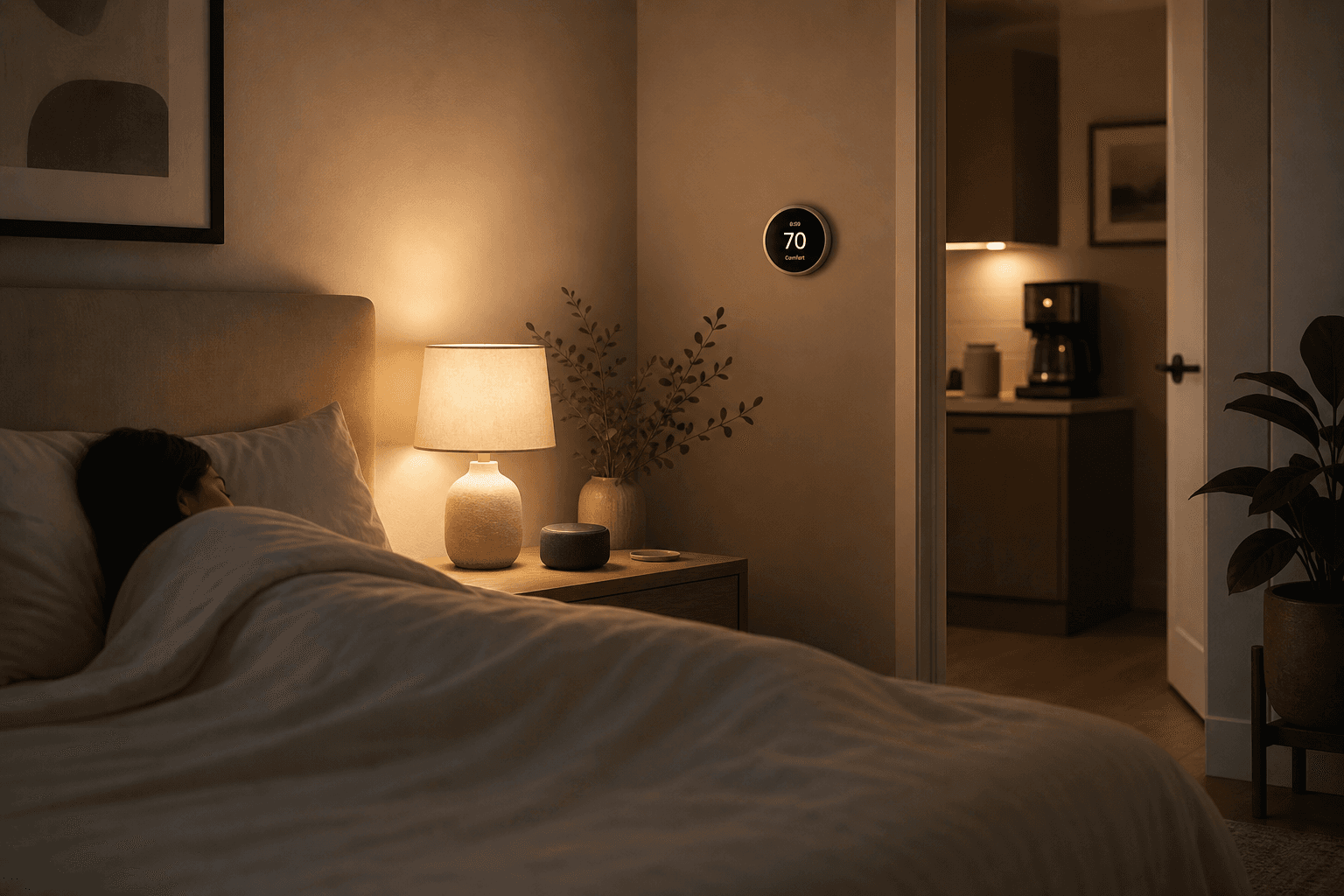
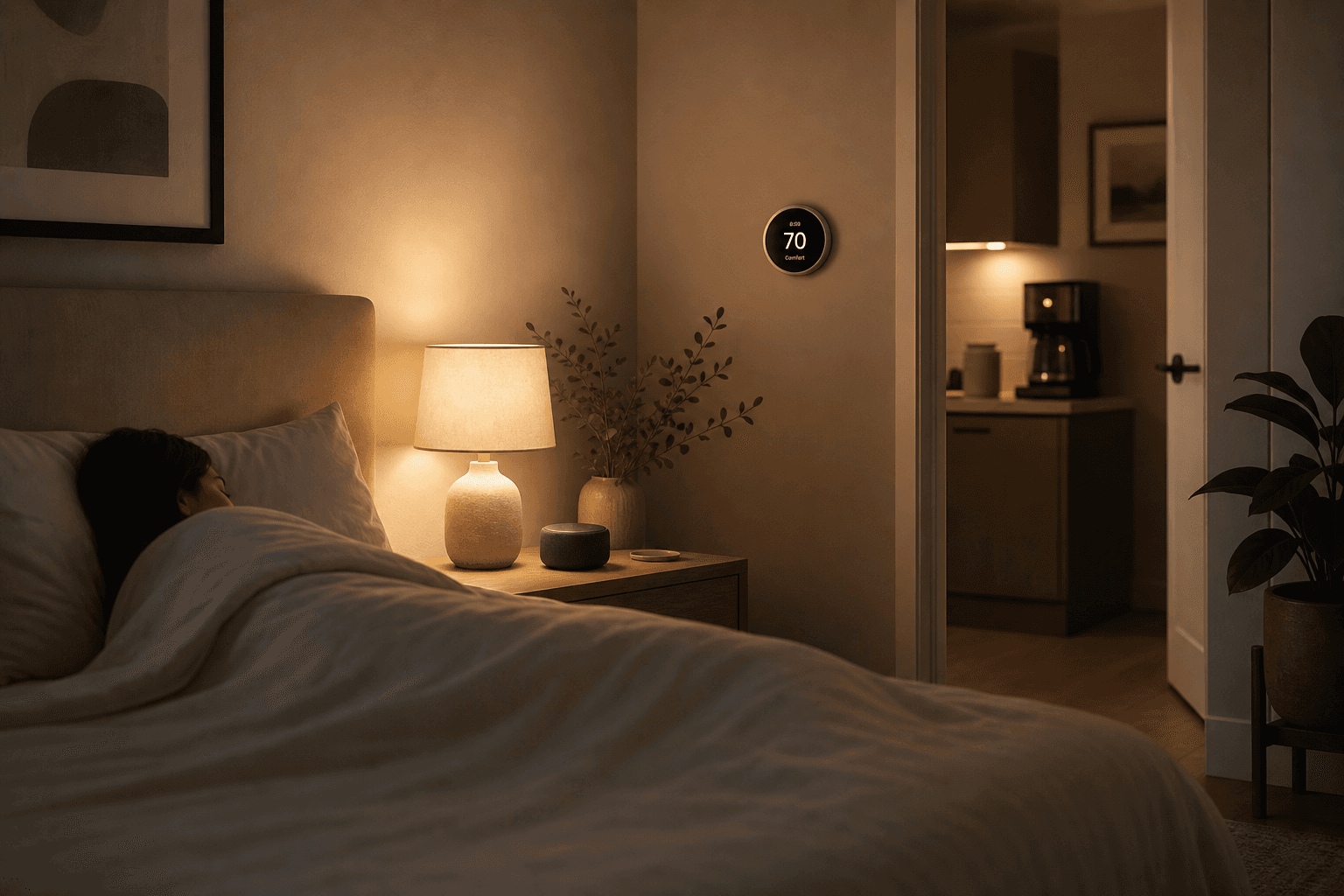
By 6:00 a.m., three things have already happened in your home. Your bedroom light has climbed from 1% amber warmth to a comfortable 40% white — slowly enough that your body registered it as sunrise rather than an alarm. Your thermostat has shifted from its overnight setback temperature to 70°F, so the room is warm before you put your feet on the floor. And your coffee maker started brewing eight minutes ago, which means a full pot is waiting. You did none of it. You built one Alexa Routine on a Sunday afternoon, and it has run every weekday morning since.
That is the concrete end state this recipe delivers. The three manual tasks — turning on lights, adjusting the thermostat, starting the coffee maker — are each small. But they happen at the moment your day is hardest: before you are fully awake. Automating them removes the friction entirely.
The setup takes one to two hours the first time, mostly because of the Alexa app's routine builder and making sure each device is correctly linked. Once it's running, you maintain it only when something changes — a new device, a schedule shift, or a firmware update that breaks a skill link. This guide walks you through the full build, including the sequencing logic and the three failure modes that trip up most people.
Prerequisites: What You Need Before You Start
Check these before opening the Alexa app. Missing any one of them will block a step mid-build.
- An Alexa-enabled device — any Echo, Echo Dot, Echo Show, or third-party speaker with Alexa built in. The device does not need to be in the bedroom; it just needs to be on the same Amazon account.
- The Alexa app installed on iOS or Android, signed into the same Amazon account as your Echo device.
- At least one Alexa-compatible smart bulb or light strip already set up in the Alexa app under a named device or group.
- At least one Alexa-compatible smart thermostat already linked via its manufacturer skill in the Alexa app. The thermostat must appear under Devices → Thermostats before you can add it as a routine action.
- A way to automate coffee: either a dedicated smart coffee maker with Alexa support, or a standard drip coffee maker with a toggle-style power switch paired with a smart plug.
- A stable 2.4 GHz or dual-band Wi-Fi network. Most smart bulbs and budget thermostats connect only to 2.4 GHz — confirm this before buying.
Compatible Device Picks for 2026 — Lights, Thermostat, and Coffee
These are the devices verified as Alexa-compatible for a morning routine as of mid-2026. Prices are approximate retail ranges. If you already own a compatible device in any category, skip that row — you do not need to upgrade to run this routine.
| Category | Budget | Mid-Range | Premium |
|---|---|---|---|
| Smart Bulb | Wyze Bulb Color (~$8–$12) | LIFX A19 (~$30–$40) | Philips Hue White & Color Ambiance (~$45–$55) |
| Thermostat | Amazon Smart Thermostat (~$55–$65) | Wyze Thermostat (~$65–$75) | Ecobee Smart Thermostat Premium (~$190–$220) |
| Coffee Automation | TP-Link Kasa Smart Plug EP25 + toggle-switch drip maker (~$15–$20 for plug) | TP-Link Kasa Smart Plug + mid-range drip maker | Hamilton Beach Smart Coffee Maker (~$60–$80, native Alexa support) |
Step-by-Step: Building the Routine in the Alexa App
The following steps reflect the Alexa app UI as of mid-2026. Amazon updates the app regularly; if a menu label has shifted slightly, the underlying structure — Routines → + → Trigger → Actions — remains the same.
- Open the Alexa app and tap the More tab in the bottom navigation bar.
- Tap Routines from the list.
- Tap the + icon in the upper-right corner to create a new routine.
- Tap Enter routine name and give it a clear label — for example, Weekday Morning. You will reference this name if you create a separate weekend variant later.
- Tap When this happens → Schedule → At time. Set your target time — typically 20 to 30 minutes before your alarm, so the light ramp completes before you need to get up.
- Under Add action → Smart Home → Control device: select your smart bulb or light group. Set brightness to 1–5% and color temperature to warm white (2700K or the warmest available option on your bulb). This is the sunrise starting point.
- Add a second light action: same bulb or group, brightness raised to 40–60%, color temperature shifted toward neutral white (3000–4000K). This represents the mid-ramp state. You will add a Wait between these two actions in the next section.
- Add a thermostat action: Add action → Smart Home → Control device → select your thermostat → set the target temperature (e.g., 70°F). Confirm the thermostat appears in the device list — if it does not, see the troubleshooting section.
- Add the coffee action: Add action → Smart Home → Control device → select your smart plug or smart coffee maker → set to Turn on. Make sure your coffee maker is loaded with water and grounds the night before.
- Tap Save in the upper-right corner. The routine is now active. Add Wait actions between steps before saving if you want to stagger the sequence — covered in the next section.
Sequencing Logic: Why Action Order Matters and How to Use Alexa Wait
By default, Alexa executes all routine actions nearly simultaneously. For a single-device routine, that is fine. For a three-device morning routine, simultaneous execution causes problems: the thermostat and smart plug receive commands at the same instant the lights come on, creating a brief spike in Wi-Fi traffic that can cause one or more devices to miss their command. More practically, your coffee maker powering on at the same moment as your lights means the coffee is done long before you are out of bed — and sitting on a warming plate for 25 minutes.
The Alexa Wait action solves this. You insert a Wait between actions in the routine builder, specifying a delay in minutes and seconds. The routine pauses at that point before executing the next action. This staggers the device commands across time, reduces simultaneous Wi-Fi load, and lets you time the coffee so it finishes close to when you actually get up.
To add a Wait: in the routine action list, tap Add action → Wait → enter the delay duration. Place it between each device action in the sequence.
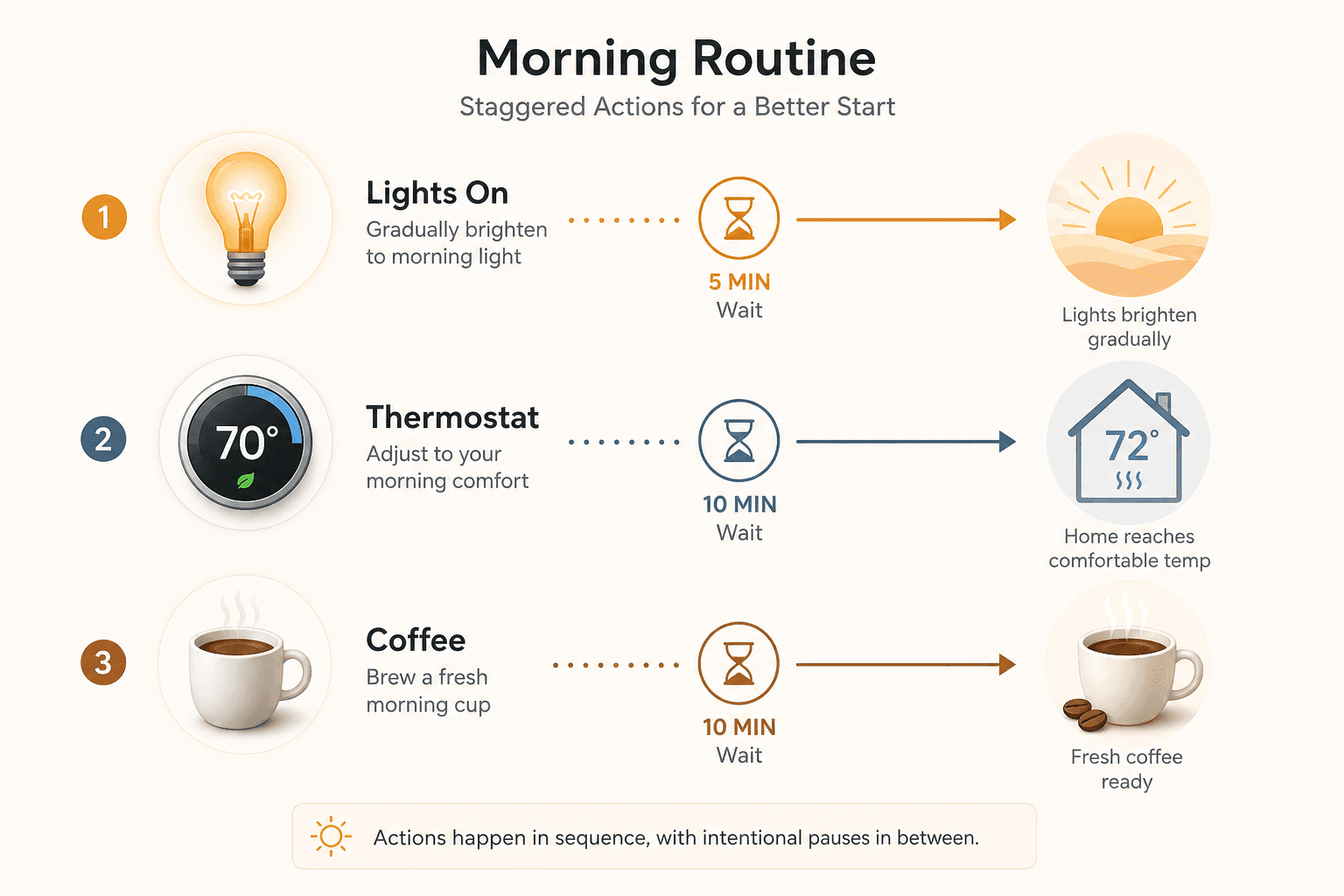
| Step | Action | Recommended Wait Before Next Step |
|---|---|---|
| 1 | Lights on at 1–5% warm amber | — |
| 2 | Wait | 5 minutes |
| 3 | Lights ramp to 40–60% neutral white | — |
| 4 | Wait | 5 minutes |
| 5 | Thermostat set to wake temperature (e.g., 70°F) | — |
| 6 | Wait | 10 minutes |
| 7 | Smart plug / coffee maker turns on | — |
Weekday-Only Scheduling and a Relaxed Weekend Variant
A 6:00 a.m. routine firing on Saturday is not a smart home feature — it is an alarm clock. Restrict the routine to weekdays using Alexa's day-of-week filter.
When setting the time trigger, tap the days selector below the time field. Deselect Saturday and Sunday. The routine will now fire only on Monday through Friday.
For a weekend variant, duplicate the routine by long-pressing it in the Routines list and selecting Duplicate (or recreate it manually — it takes under five minutes once you have done it once). Rename it Weekend Morning, set the trigger to 8:00 a.m. or later, select only Saturday and Sunday, and adjust the light ramp to be slower and gentler — starting at 1% and rising to 30% over a longer sequence. You can skip the thermostat action entirely if your weekend schedule does not require an early warm-up.
- Weekday routine: 6:00 a.m., Monday–Friday, full sequence with thermostat and coffee.
- Weekend routine: 8:00 a.m. (or your preferred time), Saturday–Sunday, slower light ramp, no thermostat change, coffee optional.
- Both routines live in the Routines list and can be individually enabled or disabled — useful for vacation weeks or schedule changes.
Troubleshooting the Three Most Common Failures
Most morning routine failures fall into one of three categories. Each has a clear fix.
Failure 1: Thermostat Not Appearing in the Alexa Devices List
- Symptom: When you try to add a thermostat action in the routine builder, your thermostat does not appear as a selectable device.
- Cause: The manufacturer's Alexa skill is not linked, or the skill link was broken by an app update or password change.
- Fix: In the Alexa app, go to More → Skills & Games → search for your thermostat brand (e.g., Ecobee, Wyze, Amazon Smart Thermostat). Open the skill and tap Enable to Use. Sign in with your thermostat account credentials. Then go to Devices → + → Add Device → Thermostat and run discovery. The thermostat should appear within 30 seconds.
Failure 2: Smart Bulbs Dropping Off Wi-Fi Overnight
- Symptom: The routine fires but the lights do not respond. Checking the Alexa app shows the bulb as offline or unresponsive.
- Cause: Most commonly, the router's band-steering feature is shifting the bulb between 2.4 GHz and 5 GHz bands overnight. Budget smart bulbs only support 2.4 GHz and lose connection when the router pushes them to 5 GHz.
- Fix: Separate your 2.4 GHz and 5 GHz networks into distinct SSIDs in your router settings (e.g., HomeNetwork and HomeNetwork_5G). Connect all smart bulbs to the 2.4 GHz SSID only. Alternatively, assign a static IP to each bulb in your router's DHCP reservation table — this does not prevent band-steering but reduces the frequency of dropped connections.
- Secondary check: If the bulb is on a Zigbee hub (e.g., Philips Hue Bridge), the Wi-Fi band issue does not apply — the hub handles the connection. In that case, check that the Hue Bridge is online and its Alexa skill is still linked.
Failure 3: Smart Plug Not Responding or Coffee Maker Not Starting
- Symptom: The smart plug receives the command (its indicator light changes) but the coffee maker does not start brewing.
- Cause: The coffee maker uses a momentary-press power button rather than a toggle switch. When the plug cuts and restores power, the machine powers on in a standby or off state — it does not automatically begin a brew cycle.
- Fix: Test your coffee maker before relying on this routine. Plug the machine in while it is switched to ON. Unplug it, wait five seconds, and plug it back in. If it starts brewing automatically, it is toggle-switch compatible. If it does not, you need a coffee maker with native smart functionality (such as the Hamilton Beach Smart Coffee Maker) or a model with a physical toggle switch.
- Secondary check: If the plug itself is unresponsive, confirm the plug's skill is linked in the Alexa app (same process as the thermostat skill link above) and that the plug is on 2.4 GHz Wi-Fi.
| Symptom | Likely Cause | Fix |
|---|---|---|
| Thermostat missing from routine builder | Manufacturer skill unlinked | Re-enable skill in Alexa app → Skills & Games; run device discovery |
| Smart bulb offline at routine time | Wi-Fi band-steering moving bulb to 5 GHz | Separate SSIDs; connect bulbs to 2.4 GHz only; or use Zigbee hub |
| Plug responds but coffee maker does not brew | Momentary-press power button on coffee maker | Confirm toggle-switch compatibility; replace with toggle-switch or native smart coffee maker |
| Routine fires at wrong time | Timezone or DST mismatch in Alexa app settings | Check Alexa app → More → Settings → Device Settings → your Echo → Time Zone; update if incorrect |
Optional Expansions: What to Add Once the Core Routine Is Stable
Run the core three-device routine for a week before adding anything else. Confirm the lights, thermostat, and coffee all execute reliably before layering on complexity. Once it is stable, these are the additions that make the most practical difference:
- Morning flash briefing: Add an Alexa Speak or Flash Briefing action at the end of the routine sequence. Alexa will read a short weather and news summary through your Echo — useful if you have an Echo in the kitchen. Add it as the final action after the coffee maker turns on.
- Smart blinds: If you have motorized blinds or shades with Alexa support (Lutron Serena, IKEA FYRTUR), add a blind-open action between the light ramp and the thermostat step. Natural light complements the artificial sunrise simulation and reduces how much the lights need to do.
- Kitchen Echo announcement: If your bedroom Echo is not audible from the kitchen, add a second Echo Dot in the kitchen and use the Alexa Announce action to say "Coffee is ready" approximately 10 minutes after the coffee maker turns on. This is a Speak action with a custom message, not a flash briefing.
- Auto-off for coffee maker: Add a second routine — or a second action later in the same routine — that turns the smart plug off 45 to 60 minutes after the morning trigger. This prevents the warming plate from running all day if you leave without noticing.
Implementation Notes
Share platform-specific tips, report that a recipe no longer works after a platform update, or contribute variations for different device combinations.
Comments
Join the discussion with an anonymous comment.