
What Away Mode Actually Does — and Why Geofencing Beats a Schedule
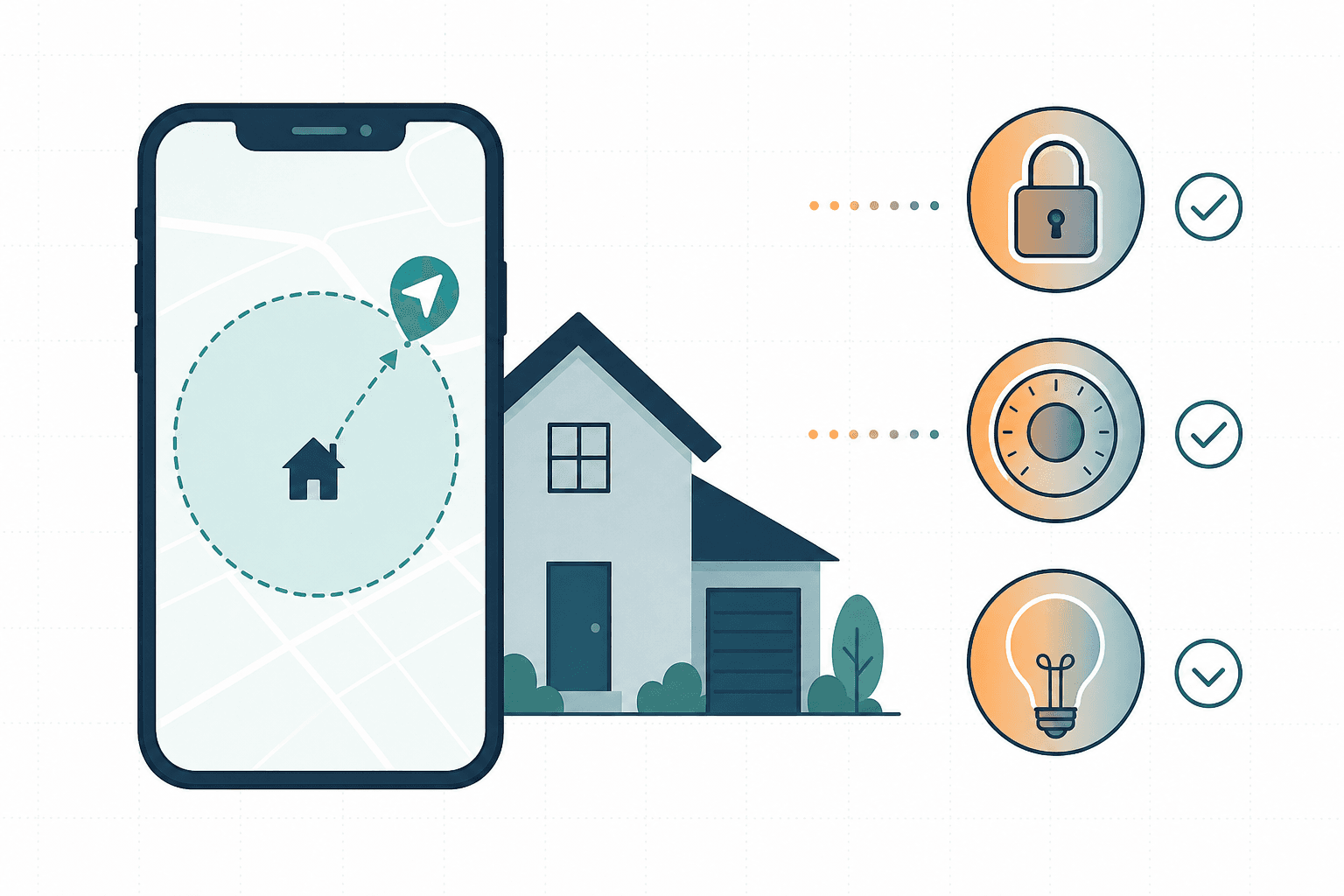
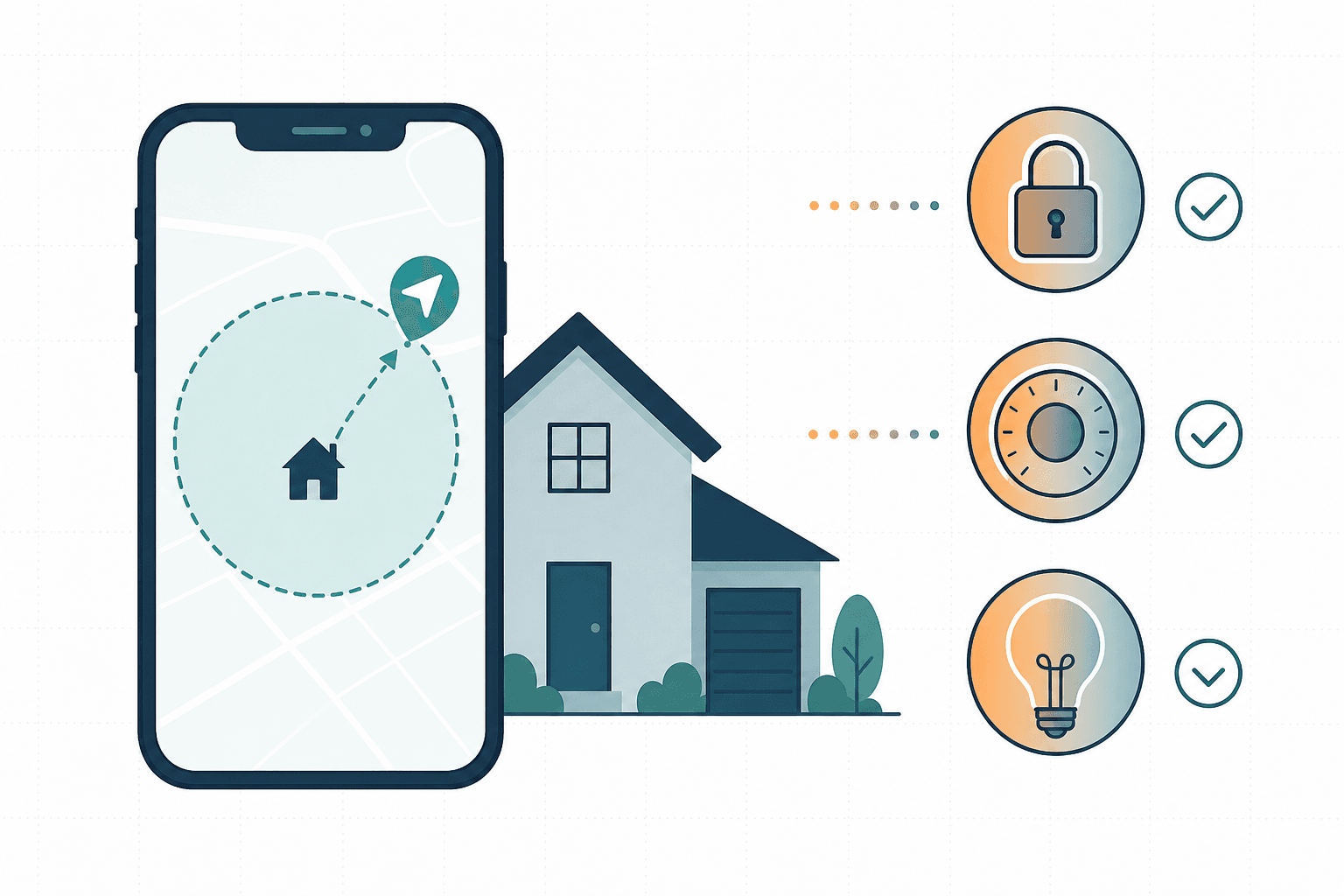
Away mode is not a single device feature. It is a coordinated state change across your entire home: the front door locks, the thermostat backs off to an energy-saving temperature, and every light turns off — all triggered by one event. Done right, it delivers both security and energy savings without you touching anything on your way out.
A fixed time schedule gets this wrong in two directions. Set it for 8 AM and you waste energy when you work from home. Set it for 9 AM and you leave the house unlocked and lit for an hour. Geofencing solves both problems by responding to where you actually are, not where a schedule assumes you are.
The reliability case for automation is real: industry data cited by Abode shows that over 40% of security system owners forget to arm their system regularly. A geofencing-triggered away mode removes the forgetting entirely.
Prerequisites: What You Need Before You Start
Geofencing works by drawing a virtual boundary around your home — typically 500 to 1,500 feet out — and detecting when your phone crosses it. Your platform app uses the phone's low-power location services (a combination of GPS, Wi-Fi, Bluetooth, and cellular signals) rather than continuous GPS polling. The additional battery drain is under 2% per day — a reasonable trade-off for hands-free automation.
- Smart lock on every exterior door (Wi-Fi or Z-Wave/Zigbee with a compatible hub)
- Smart thermostat with platform integration (Ecobee, Google Nest, Honeywell Home, or equivalent)
- Smart lights or smart switches covering interior rooms, decorative lamps, and under-cabinet lighting
- A compatible hub or platform app: Home Assistant, Google Home, Apple HomeKit, SmartThings, or Amazon Alexa
- Smartphone with location permission set to 'Always On' for the platform app
- Background app refresh enabled so the platform app can process location events when not in the foreground
The Core Recipe Logic: IF / THEN / DELAY
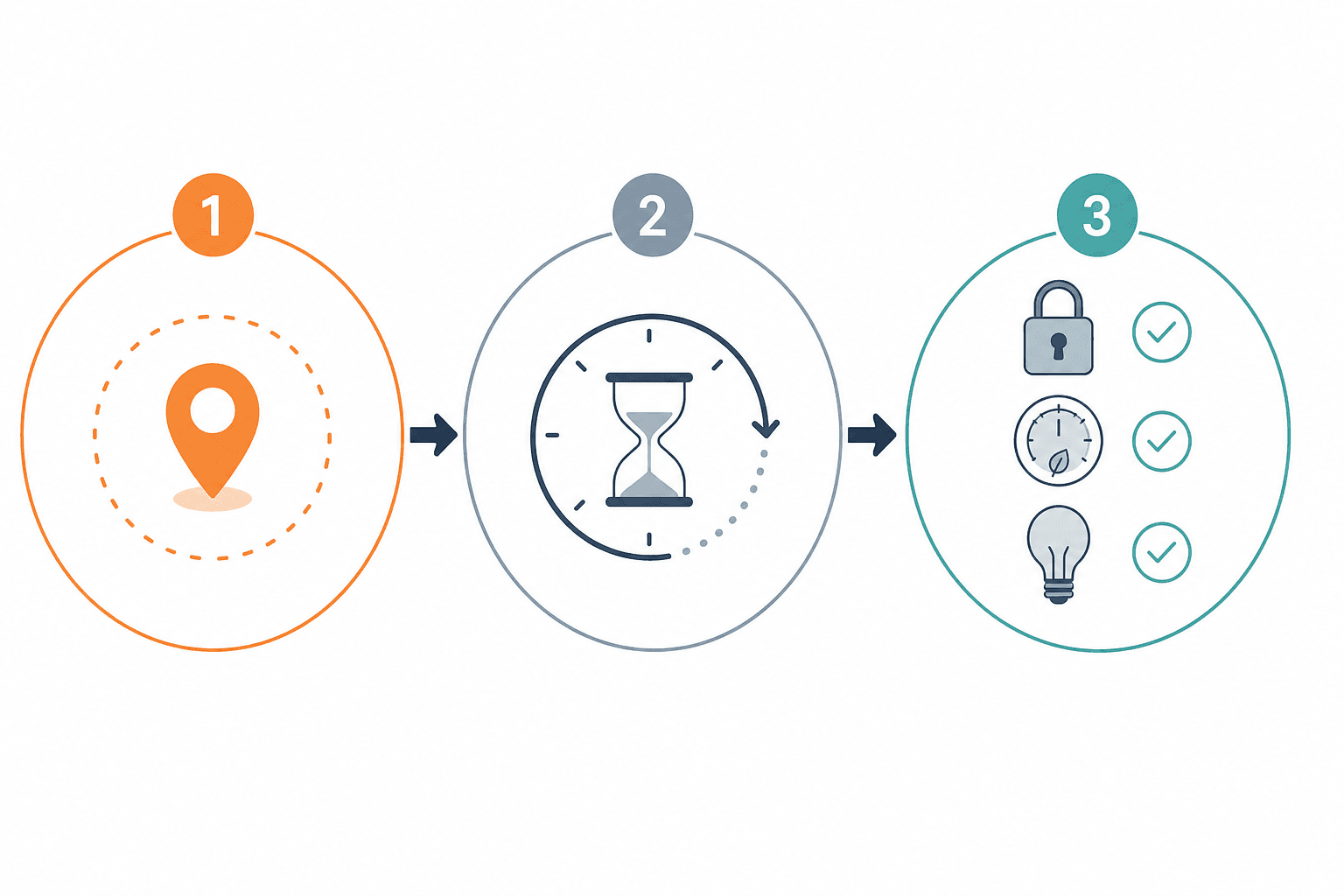
This is the structural anchor of the recipe. Every platform walkthrough below maps back to this same logic — the implementation steps differ, but the underlying IF/THEN/DELAY structure is identical.
| Stage | Setting | Value / Detail |
|---|---|---|
| Trigger | Geofence exit | Last tracked phone leaves the home zone |
| Delay | Wait before acting | 5–10 minutes |
| Condition 1 | All phones not home | Every tracked household member shows as away |
| Condition 2 | No recent motion | No motion detected in any room for 9+ minutes |
| Condition 3 (optional) | TV off | No active TV/media session |
| Action 1 | Lock all exterior doors | Smart lock → Locked state, confirm via notification |
| Action 2 | Set thermostat to eco | 60°F (15°C) heating / 78°F (26°C) cooling |
| Action 3 | Turn off all lights | Interior, decorative, under-cabinet — all off |
| Action 4 | Send confirmation | Single notification: lock confirmed + thermostat set + lights off |
Action Breakdown: Lock, Thermostat, and Lights in Detail
Each of the three core actions has a specific configuration target. Getting these right determines whether the automation saves meaningful energy and provides real security — or just runs in the background without effect.
| Action | Target State | Why This Value |
|---|---|---|
| Smart lock | Locked — all exterior doors | Confirms physical security; notification verifies the lock engaged rather than assuming it |
| Thermostat — heating season | 60°F / 15°C (eco setback) | Prevents pipes from freezing while cutting heating energy use; comfortable to recover from within 20–30 min |
| Thermostat — cooling season | 78°F / 26°C (eco setback) | Reduces AC load significantly; home cools back to comfort temperature within 15–20 min on return |
| Interior lights | Off — all rooms | Eliminates phantom energy draw; covers overhead fixtures and lamp circuits on smart switches |
| Decorative and accent lights | Off | Often left on unintentionally; including them in the recipe prevents wasted standby draw |
| Under-cabinet and task lights | Off | Kitchen and workspace lights are frequently forgotten; smart switch control makes them part of the same action |
| Confirmation notification | Single multi-action summary | One message confirming all three actions builds trust in the automation over time; separate per-device notifications create noise |
The confirmation notification is worth configuring carefully. A message that reads "Away mode active: front door locked, thermostat set to eco, all lights off" gives you immediate confidence that the automation ran completely — and a quick way to spot if one action failed (for example, if the thermostat didn't respond because it lost Wi-Fi).
Platform Walkthroughs: Setting This Up on Your System
The recipe logic is identical across platforms. The implementation steps are not. Each section below covers the current UI path for that platform as of mid-2026 — verify against your app version if steps appear different.
Home Assistant
Home Assistant implements away mode by watching the zone.home state. When all tracked persons have left the home zone, the person count drops to zero. You can trigger an automation on that state change and add a delay plus a motion condition before the actions fire.
alias: Away Mode — Geofencing
trigger:
  - platform: numeric_state
    entity_id: zone.home
    below: 1
condition:
  - condition: numeric_state
    entity_id: zone.home
    below: 1
  - condition: state
    entity_id: binary_sensor.motion_all_rooms
    state: "off"
    for:
      minutes: 9
action:
  - delay:
      minutes: 7
  - condition: numeric_state
    entity_id: zone.home
    below: 1
  - service: lock.lock
    target:
      entity_id: lock.front_door
  - service: climate.set_preset_mode
    target:
      entity_id: climate.main_thermostat
    data:
      preset_mode: away
  - service: light.turn_off
    target:
      area_id: all
  - service: notify.mobile_app
    data:
message: "Away mode active: door locked, thermostat eco, lights off."Home Assistant's local processing is a significant advantage here: the automation runs even if your internet connection drops, and trigger-to-action latency is typically under one second after the delay completes.
Google Home
Google Home's presence-based automations use a Home & Away Routines system. First, enable phone location for your household:
- Open the Google Home app and tap your profile picture or initial in the top right.
- Go to Home settings → Presence sensing.
- Turn on 'Allow this home to use phone locations.' Each household member must do this individually in their own app.
- In the main Google Home app, find the Automations section and create a new automation.
- Set the starter to 'Last person leaves home.'
- Add a Wait action of 10 minutes before the device actions.
- Add actions: lock your smart lock, turn off lights.
Apple HomeKit
- Open the Home app and go to Automations → Add Automation.
- Choose 'People Leave' as the trigger type.
- Select 'The Last Person Leaves' and choose your home location.
- Add a condition: time restriction or 'No motion detected' using a HomeKit-compatible motion sensor.
- Select actions: lock all door locks, set thermostat to Away/Eco mode, turn off all lights.
- Enable notification delivery for the automation to receive a confirmation when it runs.
Samsung SmartThings
SmartThings implements this recipe using a two-routine pattern: one routine that switches the hub to Away mode when presence is no longer detected, and a second routine that runs the device actions when Away mode is active.
- In the SmartThings app, go to Automations → Add Routine.
- Set the trigger to 'Everyone leaves' (requires all household members to have the SmartThings app with location enabled).
- Add a delay of 5–10 minutes before the action fires.
- Set the action to change the Location Mode to 'Away.'
- Create a second routine triggered by 'Mode changes to Away' with actions: lock doors, set thermostat to eco, turn off lights, send notification.
The two-routine pattern gives you flexibility: you can trigger Away mode manually (by switching the mode directly) without duplicating the device action logic.
Amazon Alexa
- Open the Alexa app and go to More → Routines → Create Routine.
- Set the trigger to 'Location' → 'Leaves' → select your home address.
- Add a 'Wait' action and set it to 10 minutes.
- After the wait, add actions: lock your smart lock, set thermostat to Eco/Away temperature, turn off all smart lights.
- Add a 'Send Notification' action as the final step.
Platform Comparison at a Glance
| Platform | Native Geofencing | Multi-User Last-Person Logic | Local Processing | Delay Support |
|---|---|---|---|---|
| Home Assistant | Yes (zone.home) | Yes (all persons entity) | Yes | Yes (native delay action) |
| Google Home | Yes (Presence sensing) | Yes (Last person leaves) | Partial (Nest devices) | Yes (Wait action) |
| Apple HomeKit | Yes (People Leave) | Yes (Last person leaves) | Yes (with home hub) | Limited (condition-based) |
| SmartThings | Yes (Everyone leaves) | Yes (Everyone leaves trigger) | Partial | Yes (delay in routine) |
| Amazon Alexa | Yes (Location trigger) | Per-account only (one phone) | No (cloud-dependent) | Yes (Wait action) |
Multi-User Logic: Making Sure the Last Person Triggers It
For a single-person household, any geofence exit can trigger away mode. For everyone else, you need last-person-leaves logic — the automation should fire only when all tracked phones show as outside the geofence, not just one.
Without this, away mode fires the moment the first person leaves for work while their partner is still home — locking the doors and cutting the heat with someone still inside.
- Every household member must install the platform app (Google Home, Home app, SmartThings, Alexa) and sign in with their own account.
- Each member must individually enable location sharing in their app — this cannot be done on their behalf from the primary account.
- In Home Assistant, add each person as a tracked device tracker entity and use a condition that checks all persons are outside zone.home.
- Google Home-specific: each household member can only share one phone's location at a time. If someone carries two phones, only the one with location sharing enabled counts for presence detection.
- Test the multi-user logic by having one person leave while another stays home — the automation should not fire.
False-Trigger Prevention: GPS Drift, Delays, and Motion Verification
GPS drift is the primary cause of false away-mode triggers. Your phone's location reading can briefly jump outside the geofence boundary — especially in dense urban areas or near buildings that reflect signals — even when you are sitting at home. The fix is layering three safeguards rather than relying on any single one.
- Time delay (primary layer): A 5–10 minute wait after geofence exit is the most effective single safeguard. GPS drift events are typically brief — a sustained 7-minute absence is almost always a real departure.
- Motion sensor verification (secondary layer): Add a condition requiring no motion in any room for 9+ minutes. This catches the case where someone is home but their phone briefly drifted outside the boundary.
- Door activity check (optional third layer): Require that no door has opened in the last 15 minutes. This prevents away mode from firing if someone just stepped outside briefly and came back in.
If false triggers persist after adding the delay and motion condition, increase your geofence radius to at least 750 feet. A radius that is too small amplifies the effect of GPS drift. The practical operating range is 500–1,500 feet; most homes work best at 750–1,000 feet.
- Voice override: 'Hey [assistant], cancel away mode' or 'Set home to occupied' — useful if the automation fires while you are still home.
- Physical button: a smart button near the door that manually sets the home to occupied mode and pauses geofencing for 30 minutes.
- App toggle: a manual 'I'm home' button in your platform app that overrides presence detection until the next geofence event.
Edge Cases: Kids, Guests, Dead Batteries, and Left-Behind Phones
The four scenarios below account for the majority of away-mode failures in real households. Each one has a practical workaround that does not require rebuilding the recipe from scratch.
- Kids without phones: Add a time-based condition that prevents away mode from activating during after-school hours — for example, 3:00 PM to 6:00 PM on weekdays. Alternatively, extend the motion-free timeout to 20+ minutes to account for a child who is home but staying still (watching TV, doing homework).
- Guests staying overnight: Create a 'Guest mode' input boolean or virtual switch that disables the away automation when toggled on. Set it to automatically turn off after 24 hours. This prevents locking out a guest who doesn't have the platform app.
- Dead phone battery: When a phone goes offline, most platforms treat it as 'unknown' rather than 'away.' Pair the geofence condition with multi-condition verification — motion sensor, door contact sensor, and time of day — so the automation doesn't fire on a dead battery alone.
- Phone left at home: If you leave without your phone, away mode won't trigger (the phone shows as home). Add a fallback: if the door opens and closes without any phone crossing the geofence, and no motion is detected for 30 minutes afterward, treat that as a departure event.
The Companion Arrival Routine: Reversing Away Mode When You Return
Away mode without an arrival routine leaves you returning to a cold, dark house and manually resetting every device. The arrival routine completes the recipe by reversing the away actions automatically.
- Pre-arrival (approaching zone at ~500 meters): Trigger the thermostat to begin returning to your comfort temperature. This gives the system 3–5 minutes to heat or cool before you walk in.
- On arrival (phone enters geofence): Turn on entry lights (foyer, hallway), set thermostat to the comfort schedule, and optionally unlock the front door if your lock supports auto-unlock on arrival.
- Confirmation: Send a notification confirming that home mode is active — useful for knowing that the automation ran without opening the app.
Apply the same multi-user logic to the arrival routine: 'First person arrives home' should be the trigger, not 'Any person arrives.' This prevents the thermostat from switching to comfort temperature when the second person comes home after the first has already done so.
Troubleshooting Quick Reference
| Symptom | Most Likely Cause | Fix |
|---|---|---|
| Away mode fires while someone is home | GPS drift or geofence radius too small | Increase geofence radius to 750+ ft; add motion sensor condition (no motion for 9+ min); extend delay to 10 min |
| Away mode never fires | Location permission not set to 'Always On'; background app refresh disabled | Check OS location settings for the platform app; re-enable background app refresh; verify each household member has location sharing on in their own app |
| Away mode fires for one person, not all | Multi-user logic not configured; one member hasn't enabled location sharing | Confirm all household members have the platform app installed and location sharing enabled individually |
| Thermostat doesn't respond to away mode | Thermostat not linked to the platform; eco mode not configured in device settings | Re-link the thermostat to the platform; for Google Home, configure Eco in device settings rather than the Away routine |
| Delayed activation (10+ min after leaving) | Cloud-dependent platform processing lag | Switch to a platform with local processing (Home Assistant); reduce delay timer; check platform server status |
| Away mode fires but lock doesn't engage | Lock firmware issue or Z-Wave/Zigbee signal drop | Check lock battery level; verify lock is reachable from hub; test lock command manually in the platform app |
Implementation Notes
Share platform-specific tips, report that a recipe no longer works after a platform update, or contribute variations for different device combinations.
Comments
Join the discussion with an anonymous comment.