When Spotify stops working on a smart speaker, the first useful question is not “what is wrong with Spotify?” It is “which part of the chain failed?” A Google Nest that vanishes only from Spotify is a different problem from an Echo that keeps choosing Amazon Music, and both are different from a Sonos speaker that appears to play but produces no sound.
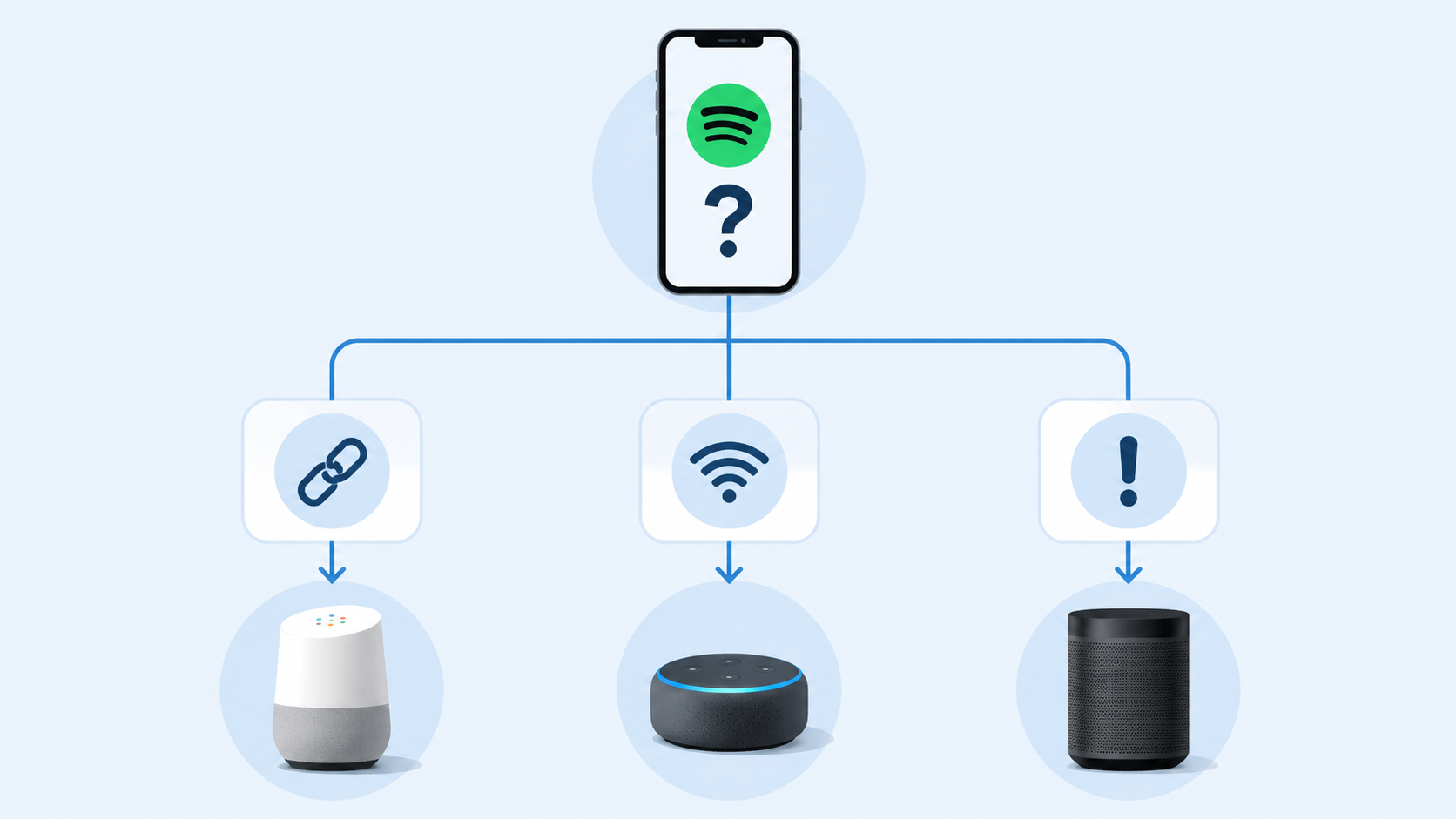
Use this as the short version before getting trapped in restart loops:
| What you see | Most likely class | Go there first |
|---|---|---|
| Speaker worked yesterday, now missing from Spotify but visible in YouTube Music, Tidal, Plex, or the speaker’s own app | Spotify-side discovery or known platform bug | Google Nest / Google Home or Sonos section |
| Alexa says it is playing, but starts Amazon Music or another service instead | Default music service or account-linking drift | Amazon Echo / Alexa section |
| Spotify shows the speaker, but tapping it does nothing or it disconnects | Local discovery, app state, or account mismatch | Universal checks, then the relevant platform section |
| No local speaker appears in any music app from any phone | Network isolation, multicast filtering, or speaker offline | Network and mDNS section |
| Sonos appears to play Spotify but there is no audio | Sonos service state, firmware, or a Sonos-side playback issue | Sonos section |
Do the universal checks once, not forever
Before choosing a platform branch, clear the boring failures that really do happen. The point is not to “reboot everything” as a lifestyle. The point is to avoid diagnosing a Spotify bug while the phone is on a guest network or the speaker is halfway through a firmware update.
- Confirm the phone and speaker are on the same Wi-Fi network, or at least on network segments that can see each other.
- Update the Spotify app and the speaker platform app: Google Home, Alexa, or Sonos.
- Check the speaker firmware or software update screen in its own app.
- Power-cycle the phone, speaker, and router once. If the same symptom returns, stop repeating this step.
- Open another app that can see the same speaker, such as YouTube Music, Tidal, Plex, Amazon Music, or the Sonos app, depending on the device.
- Try a second controller if one is available: another phone, tablet, or desktop Spotify app.
That last test matters. If every app on every phone loses the speaker, you probably have a network or speaker availability problem. If only Spotify loses it, the correct next move is not a factory reset.
Google Nest and Google Home: separate Cast failure from network failure
Google speakers create one of the easiest wrong turns in Spotify troubleshooting. A Nest Audio, Nest Mini, Chromecast, or Google TV device can look perfectly healthy in Google Home while disappearing from Spotify’s device picker. If another Cast app still finds the same speaker, that is evidence. Treat it that way.
In May 2026, Spotify moderators confirmed a bug affecting Google Cast devices where Chromecast and Nest speakers vanished from Spotify Connect on Android, while apps such as Tidal, YouTube Music, and Plex could still detect the same Cast targets normally.[1] That detail changes the job. You are no longer trying to prove that the kitchen speaker exists. Other apps already proved it.
For the Google branch, work in this order:
- Open Google Home and confirm the speaker is online, assigned to the expected home, and responsive to a simple command.
- Open a different Cast-capable app and check whether the speaker appears there.
- If other Cast apps cannot see it either, move to the network and mDNS section.
- If other Cast apps can see it but Spotify cannot, treat it as a Spotify-to-Cast problem rather than a router problem.
- If you are on Android and the timing matches the May 2026 reports, use the workaround options instead of resetting Google Home.
What to try when only Spotify loses Google Cast devices
The least invasive workaround is to start playback by voice: ask Google Assistant to play Spotify on the speaker, then use the Spotify app for queue control once playback has started. Reports around the May 2026 issue also identified downgrading the Android Spotify app to version 9.1.40.1486 or 9.1.42.1107 via APKMirror as a workaround.[2]
That downgrade is not official Spotify guidance. It is a community-verified workaround, and sideloading an APK means accepting the usual risks: getting the file from the wrong place, losing automatic update behavior, or installing a version that later stops working with account or service changes. It belongs in the “I understand why I am doing this” category, not the “support told me to do it” category.
What should you stop trying? If Google Home sees the speaker, another Cast app sees the speaker, and only Spotify on Android loses it, do not factory-reset the Nest speaker as your next serious move. That reset may cost you household time without touching the failure point.
Amazon Echo and Alexa: fix the defaults before blaming discovery
Alexa problems often sound like Spotify problems because the voice command is the visible part. Someone says “play my playlist,” Alexa answers confidently, and then the wrong service starts or nothing useful happens. The account may be linked, but linking alone is not the whole setup.
Spotify’s Alexa setup requires Spotify to be selected as the default in separate Alexa app categories: Music, Artist & Genre Stations, and Podcasts.[3] Missing one slot can make the system feel randomly broken because similar voice commands route to different services.
- Open the Alexa app.
- Go to More, then Settings, then Music & Podcasts.
- Check that Spotify is linked under services.
- Open Default Services.
- Set Spotify for Music, Artist & Genre Stations, and Podcasts where available.
- Test with a specific command such as “Alexa, play Spotify on Bedroom Echo.”
If Alexa still behaves as if Spotify is linked but unavailable, do a clean unlink from both sides. Remove Spotify inside the Alexa app, then go to the Spotify account page in a web browser and remove Alexa from approved app access before linking again.[3] That second half is the part people miss when the app UI says everything is fine.
When the Echo is missing from Spotify Connect
If the issue is not voice routing but device discovery, check the network shape. Spotify Connect depends on the controller and speaker being able to discover each other, and Spotify’s support material calls out local device discovery as part of Connect behavior.[4] A phone on 2.4 GHz and an Echo on a 5 GHz-only setup may be fine on some home networks and invisible on others, depending on how the router bridges traffic.
In Spotify, open Settings, then Devices, and look for “Show Local Devices Only.” Turning that off can help when the phone and speaker are reachable through the account or network but not appearing as a strictly local device.[4] This is not a magic switch for every Echo failure; it is useful when discovery is the symptom.
For Echo devices, the clean sequence is therefore: default services first, unlink and revoke access if linking seems stale, then discovery settings and network layout. Doing that in reverse wastes time because a perfectly discoverable Echo still will not obey a Spotify command correctly if Alexa’s default-service routing is wrong.
Sonos: use the Sonos app as the source of truth
Sonos sits in the awkward middle: it can appear in Spotify Connect, it has its own app, and many households treat it less like a smart assistant and more like plumbing. When Spotify fails on Sonos, do not only unlink things inside Spotify. The Sonos app owns part of the service relationship.
- Open the Sonos app and check for system updates first.
- Confirm the Sonos speaker or room plays another source from inside the Sonos app.
- Remove Spotify as a music service in the Sonos app.
- Add Spotify back in the Sonos app and authorize the account again.
- Then test from both the Sonos app and Spotify Connect.
Sonos community troubleshooting around Spotify connection problems has pointed to mDNS issues in some network setups, and the practical first-line fix remains removing and re-adding Spotify inside the Sonos app before tearing into router settings.[5] If the speaker is visible but silent, firmware is the next boundary line: update before assuming an old “playing with no sound” report still describes today’s bug.
A factory reset is a poor early Sonos move. It removes local configuration and can create a new setup problem while leaving the original Spotify service or network discovery issue untouched.
When the real problem is local discovery
The network explanation belongs here, after the platform checks, because now it has a job. If Spotify, Google Home, Alexa, Sonos, and other music apps all struggle to see local speakers, you are no longer chasing one bad login. You are looking at how devices announce themselves on the home network.
Spotify Connect discovery can rely on mDNS, or multicast DNS, which uses port 5353 and the multicast address 224.0.0.251.[6] In plain terms, devices shout small “I am here” messages on the local network. Some routers, mesh systems, guest networks, VLANs, and managed switches stop those messages from crossing the boundaries you have created.
- Guest network isolation can prevent a phone from seeing a speaker even when both have internet access.
- VLAN segmentation can separate phones, speakers, and media devices unless multicast forwarding is intentionally allowed.
- Multicast filtering, IGMP snooping, or “AP isolation” settings can block discovery while normal web browsing still works.
- Some routers bridge 2.4 GHz and 5 GHz clients cleanly; others create discovery oddities when the phone and speaker land on different bands.
A useful test is to put the phone and speaker temporarily on the same main Wi-Fi SSID, not the guest SSID, and disable VPN software on the phone. If the speaker reappears, the speaker did not heal itself. You removed a network boundary.
What to stop trying
The fastest fix is usually the one that stops the wrong work early. Use the symptom to draw the boundary:
- If only Spotify fails and other Cast apps see the Google speaker, wait for a Spotify-side fix or use a limited workaround; do not reset the whole Google Home.
- If Alexa is linked but voice commands choose the wrong service, fix all default-service slots before changing Wi-Fi settings.
- If Alexa linking repeatedly breaks, unlink in Alexa and revoke Alexa access from the Spotify web account page before relinking.
- If no local devices appear across multiple apps, inspect router isolation, guest networks, VLANs, and mDNS behavior.
- If Sonos plays silently after firmware updates and removing/re-adding Spotify, check current Sonos status or community notes before resetting the system.
Spotify smart-speaker failures are not one failure. They look similar because the same song fails to come out of the same box. The repair path is different once you know whether the break is account linking, local discovery, or a known platform-specific bug.
References
- “Spotify is broken for Google Cast devices, and there's no easy fix yet,” Android Authority.
- “Spotify Connect Bug Hides Popular Google Cast Devices,” Android Headlines.
- “Spotify on Alexa devices,” Spotify Support.
- “Spotify Connect,” Spotify Support.
- “Spotify connection issues from Sonos App - Fixed mDNS issue,” Sonos Community.
- “Spotify Connect - network requirements,” Spotify Community.
Community Notes & Edge Cases
Has this fix worked for you? Is it still valid after a recent firmware or app update? Share firmware-specific variations, platform quirks, or edge case solutions below. Substantive corrections can also be submitted via the contact page for editorial review.
Comments
Join the discussion with an anonymous comment.