Troubleshooting
Multiple devices offline during heat wave
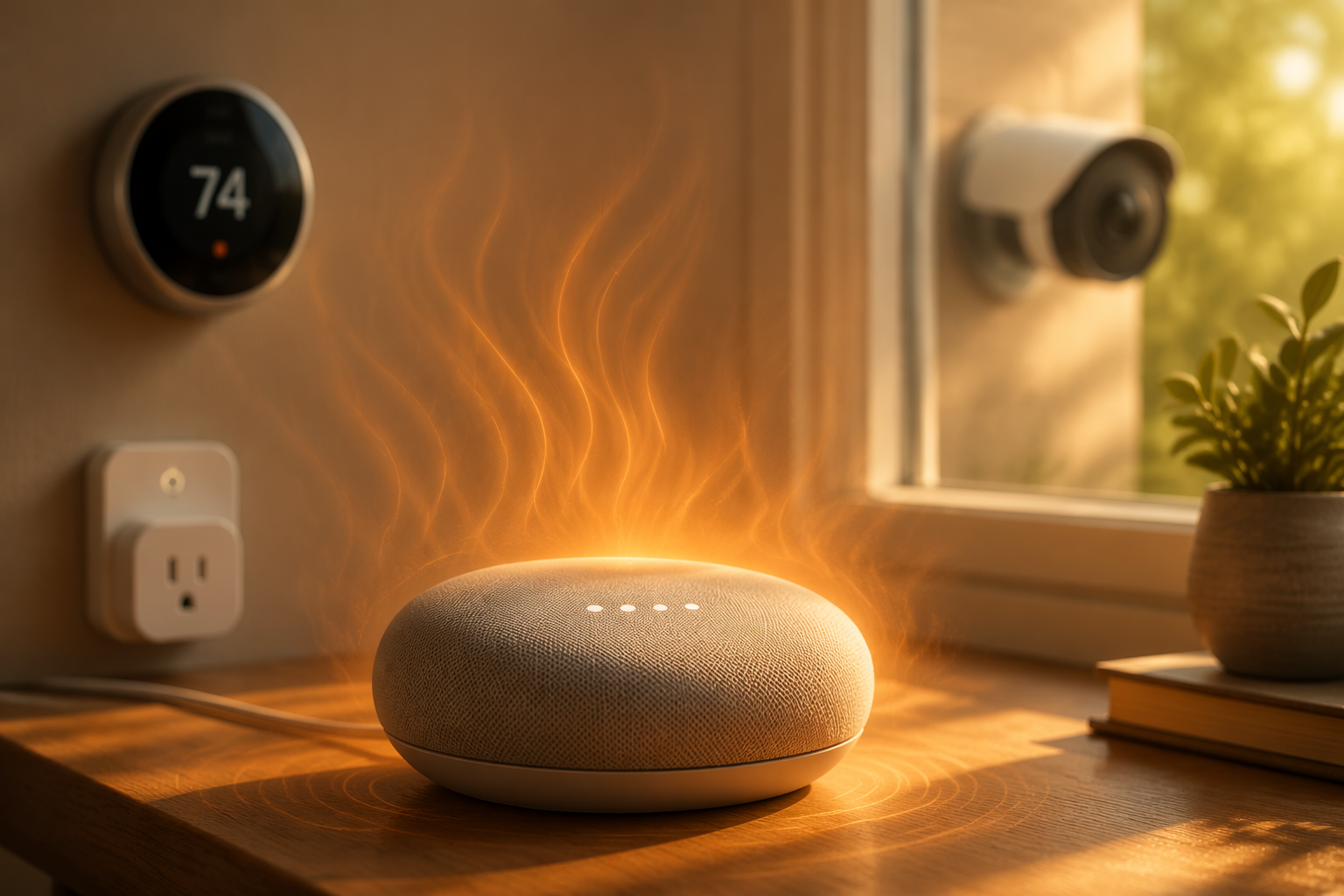
Heat waves cause smart hubs, outdoor cameras, smart plugs, and thermostats to fail in predictable, documented patterns. This troubleshooting guide walks through each symptom—hub reboots, camera offline, plug overheating, thermostat blank—with the exact fix ladder that doesn't require a factory reset.
If half the house went offline during a heat wave, do not start by factory resetting the hub, deleting devices, or re-pairing sensors. That is how a hot afternoon turns into a weekend rebuild. Start by matching the symptom. A hub that keeps rebooting, a camera that disappears at 3 p.m., a smart plug that feels hot, and a blank thermostat are different failures with different first moves.
| Symptom during the heat wave | Touch first | Do not do first | Likely fix ladder |
|---|---|---|---|
| Hub randomly reboots or drops all devices | Move the hub out of enclosed furniture and away from stacked electronics | Factory reset the hub or delete paired devices | Ventilate the hub, test Ethernet, inspect the power adapter, then wait for Zigbee/Z-Wave routes to settle |
| Outdoor camera goes offline in direct sun | Shade the camera and let it cool | Assume the Wi-Fi password or account is broken | Reduce sun exposure, confirm the camera is rated for the location, update firmware, then test at a cooler time of day |
| Smart plug is hot, discolored, smells odd, or has softened plastic | Unplug the load and stop using that plug | Keep testing it because the app still responds | Remove sustained high-load appliances, inspect the outlet and cord, replace damaged hardware, and use proper appliance-rated control |
| Thermostat display is blank | Check upstream power: breaker, furnace/air-handler switch, GFCI, condensate drain safety switch | Replace the thermostat before checking the power path | Restore HVAC control power, clear documented drain safety shutdowns, then test the thermostat |
| Zigbee or Z-Wave devices appear offline in waves after the hub comes back | Wait and watch the hub log or device status | Re-pair every sensor immediately | Give the mesh time to re-route after a hub thermal restart before deciding devices are lost |
The point of that table is not to be gentle with the hardware. It is to be careful with the diagnosis. Heat can expose bad placement, marginal power supplies, overloaded plugs, and HVAC safety cutoffs. None of those is repaired by wiping a working device from the network.
When the hub reboots, the whole house can look broken
A smart home hub is often blamed last because the failures look scattered. A motion sensor is missing. Then two lights ignore commands. Then the thermostat integration lags. Then everything returns for a few minutes and drops again. During a heat wave, that pattern can be one hot hub creating several downstream symptoms.
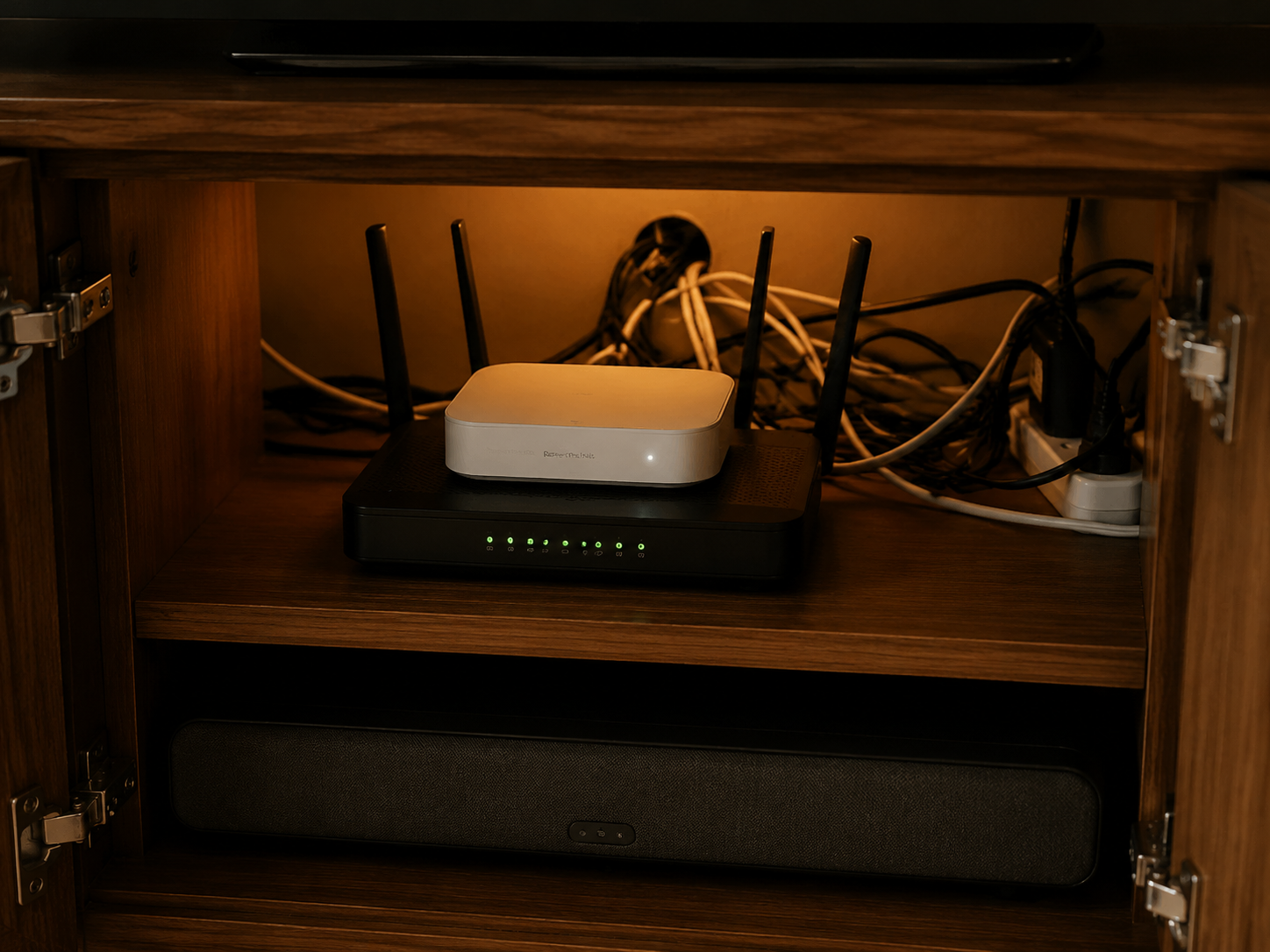
The worst hub locations are familiar: inside a closed media cabinet, stacked on a router, wedged behind an AV receiver, sitting in a sunlit window, or buried in cables with a warm power brick pressed against it. A documented Whizz-Experts support case used a practical ladder for this exact kind of failure: remove the hub from the enclosed cabinet, test with Ethernet to take Wi-Fi roaming out of the diagnosis, inspect the power adapter for heat damage, and allow time after restart for Zigbee/Z-Wave routing to recover. That transcript is a single AI-assisted support case, not manufacturer fleet data, but the sequence is useful because it avoids destructive steps and isolates one variable at a time.[1]
Start with placement because it is reversible and fast. Put the hub on an open surface with air around it. Do not stack it on a router, modem, NAS, receiver, game console, or power strip. If the hub has been sitting in a cabinet with other warm electronics, leave the cabinet door open while you test. A hub that stabilizes after being moved has already given you useful information.
Then test Ethernet, if the hub supports it. This is not because Ethernet magically cools electronics. It removes Wi-Fi roaming, weak signal retries, and access-point handoffs from the same pile of symptoms. If the hub stops rebooting or stops disappearing from the app while wired, you can troubleshoot wireless placement later without touching device pairings.
Check the power adapter before blaming the hub radio. A power brick that is unusually hot, buzzing, cracked, discolored, loose in the outlet, or connected through a questionable extension cord can mimic a failing hub. Use only the correct-rated adapter for that hub. Swapping in a random USB charger or barrel-plug adapter just adds a new fault.
After a thermal restart, do not immediately re-pair Zigbee or Z-Wave devices just because the app says they are offline. The Whizz-Experts case notes a 10–15 minute mesh re-routing period after thermal restart, during which devices may appear offline even though they are not damaged.[1] That waiting period matters. Battery sensors, bulbs, plugs, and repeaters do not all recover at the same instant, and forcing re-pairing while the coordinator is still settling can create duplicate entries or broken automations.
- Move the hub into open air and remove nearby heat sources.
- Power it from the correct adapter and a known-good outlet.
- Use Ethernet temporarily, if available, to separate hub stability from Wi-Fi behavior.
- Wait at least through the documented mesh recovery window before re-pairing devices.
- Only after repeated thermal failures should you consider hardware changes or a mesh redesign.
If the same devices repeatedly fall off after the hub has been cooled, powered correctly, and left to settle, then the conversation changes from emergency recovery to mesh hardening. That is where coordinator placement, antenna design, USB extension cables, and radio separation become worth studying. NestGrid’s Zigbee coordinator comparison for Home Assistant is a better next stop for that rebuild decision than a heat-wave panic reset.
Outdoor cameras fail on a schedule because the sun is part of the load
A camera that drops offline only in the hottest part of the afternoon is telling a different story from a camera that never powers on. Direct sun can push the device body well beyond the surrounding air temperature, especially on dark housings, brick walls, metal mounts, and south- or west-facing exposures.
A 0–40°C operating range is a common baseline for indoor smart devices, but it is not a universal law for every camera, sensor, or hub. Repenic’s operating-temperature explainer uses that range as a general reference point, while individual device specifications still decide the real limit for your model.[2] Tom’s Guide’s heat-related camera advice points to the practical fixes: shade the camera, make sure the IP rating and placement match the exposure, and keep firmware current.[3]
For a camera that fails only in heat, start with a timed observation. Note whether it drops when the sun hits the housing, when the wall behind it heats up, or when the Wi-Fi signal also weakens. Then shade it temporarily with something safe and nonflammable that does not block ventilation or the lens. If the camera remains online while shaded, you have a placement problem before you have a network problem.
- Move the camera out of direct afternoon sun if the mount allows it.
- Use a proper shade or hood that does not trap heat around the body.
- Confirm the camera is actually rated for outdoor use and for the temperature range it is seeing.
- Check firmware after the camera cools and reconnects; do not interrupt an update during thermal instability.
- If it is wired, inspect the power adapter, junction, and cable route for heat exposure.
Do not confuse an IP rating with immunity to heat. Weather resistance helps with dust and water exposure. It does not mean the camera can bake on a wall past its operating range all afternoon. If a device repeatedly exceeds its spec sheet in the same location, replacement with a better-rated model may be reasonable, but relocation or shading is still the first clean test.
A hot smart plug is a safety problem, not an app problem
A smart plug can be mildly warm in normal use. That is not the same as hot plastic, discoloration, a burnt smell, a softened case, crackling, intermittent power, or a plug that feels worse during long appliance runs. If any of those are present, stop using it. Do not keep cycling it from the app to see whether it still works.
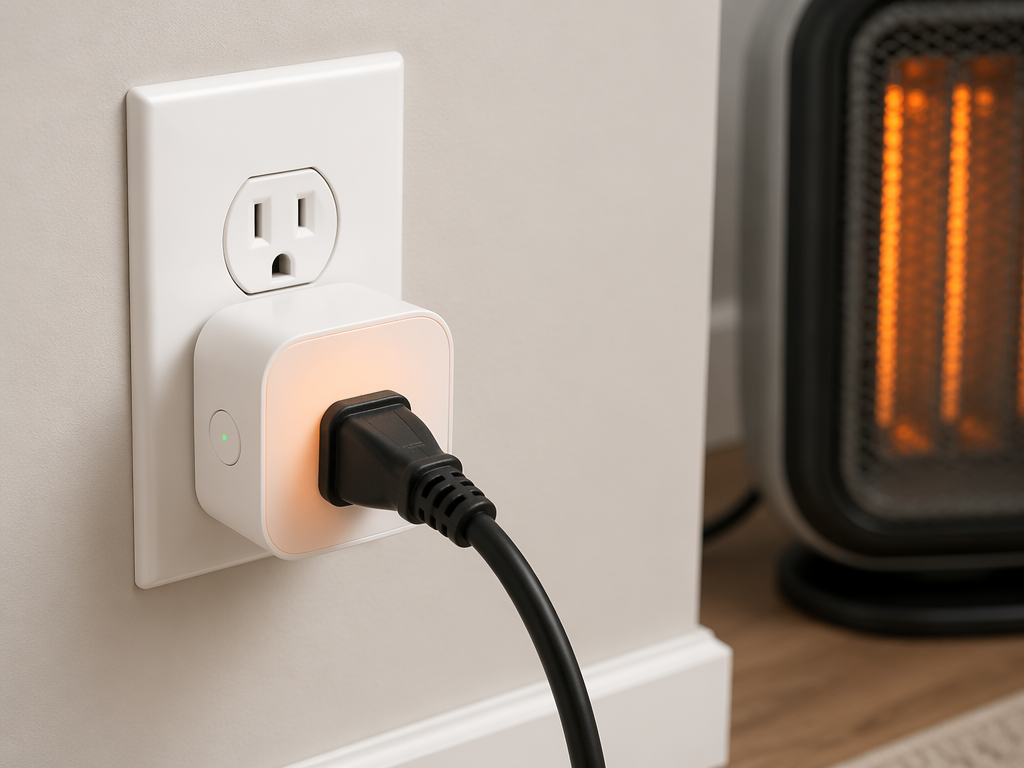
The common trap is reading only the maximum wattage on the smart plug label. A device can be under a printed maximum and still be the wrong load for an ordinary plug-in smart switch. SmartSMSSolutions frames the issue through industry practice under NEC guidelines: continuous loads should be treated more conservatively, commonly using an 80% rule, and heating devices such as space heaters or AC units should not be run through ordinary smart plugs even when the apparent wattage looks acceptable.[4]
The important word is continuous. A lamp that draws a modest load for a few hours is not the same thermal situation as a space heater, portable AC, dehumidifier, or other appliance pulling heavy current for long stretches. Sustained resistive loads can build heat at the relay, contacts, plug blades, outlet connection, and plastic housing. Heat-wave use makes that worse because the surrounding air and wall cavity may already be hot.
If the plug is hot, remove power at the safest point. If touching it is uncomfortable or you see melting, switch off the breaker before handling it. After it cools, inspect the plug, the appliance cord, and the wall outlet. Any sign of deformation, scorch marks, looseness, arcing, or odor moves this out of smart-home troubleshooting and into electrical repair territory.
| Load on the smart plug | Heat-wave judgment |
|---|---|
| Table lamp, small fan, low-load electronics | Usually reasonable if within the plug’s rating and the plug remains only mildly warm |
| Portable space heater | Do not use on an ordinary smart plug; sustained heating loads are the wrong application |
| Portable AC or high-draw cooling appliance | Do not assume label wattage is enough; use manufacturer-approved appliance controls or dedicated solutions |
| Dehumidifier or motorized appliance | Check startup current, duty cycle, plug rating, and appliance guidance; stop if the plug heats |
| Anything with discoloration, smell, buzzing, melting, or intermittent power | Stop using immediately and inspect the outlet and cord before restoring service |
Replacing the smart plug alone is not a fix if the load was the problem. A fresh plug placed on the same sustained appliance load may simply restart the same failure path. The safer correction is to remove that appliance from ordinary plug-in automation and use controls intended for the appliance type and circuit.
A blank thermostat is often missing power upstream
A blank thermostat during a heat wave feels urgent because the house is getting hotter while the one screen you need is dead. The wrong first move is to pull the thermostat off the wall and start replacing it before checking whether the HVAC system has stopped sending control power.
CNET published a July 2026 first-person troubleshooting story in which a blank thermostat was ultimately traced to a tripped GFCI outlet caused by an unrelated irrigation adapter in the garage, not to a dead thermostat or failed HVAC unit.[5] That is one reporter’s case, so it should not be treated as a frequency claim. It is valuable because it shows the diagnostic trap: a thermostat can look dead when the interrupted part is elsewhere in the power path.
There is also an official HVAC safety reason a thermostat may go blank. Honeywell’s support documentation explains that a clogged condensate drain can trigger a float switch or safety switch that shuts down the system, which can cut power to the thermostat.[6] In a long cooling run during a heat wave, condensate problems are not exotic. They are exactly the kind of boring upstream fault worth checking before condemning the thermostat.
- Check whether the HVAC breaker has tripped.
- Check the furnace or air-handler service switch; it may look like a normal light switch near the equipment.
- Look for a tripped GFCI outlet if the HVAC control equipment, condensate pump, or nearby accessory power depends on that circuit.
- Inspect the condensate drain pan and float switch area if you can do so safely.
- Only after upstream power is confirmed should you troubleshoot the thermostat display, wiring, or device hardware.
Heat waves also make thermostat problems cluster because cooling systems run longer and harder. USA Today’s heat-wave thermostat coverage gives useful context for why more people notice thermostat and AC-control issues during extreme heat, but that context should not distract from the immediate job: find whether the thermostat is unpowered, whether HVAC safety equipment has opened the circuit, or whether the thermostat itself has failed.[7]
When devices go offline in waves, watch the coordinator before blaming every endpoint
Wave failures are the ones that trick people into doing the most damage. Ten Zigbee sensors offline does not mean ten sensors overheated. It often means the hub or coordinator restarted, a powered repeater dropped, or the mesh is still finding routes.
The clean test is to separate battery endpoints from infrastructure. If battery sensors report missing but powered repeaters, bulbs, outlets, or the coordinator itself also show instability, start with the powered devices. A battery contact sensor in a shaded hallway is unlikely to be the root cause of a house-wide heat-wave outage. A hub in a cabinet, a repeater in a hot outlet behind furniture, or a smart plug carrying a heavy appliance load is much more interesting.
There is some industry discussion around placement-related mesh dropouts. Sensereo’s Matter/Thread offline-device page attributes 40% of Thread disconnections to router placement issues, but the claim is informally attributed and should be treated as an observation rather than a hard diagnostic rule.[8] The cautious takeaway is still useful: radio devices need sane placement, and heat-wave troubleshooting should include where the network hardware physically sits.
Give the network a quiet recovery period after you stabilize the hub. Do not move five repeaters, reboot the router, change channels, and re-pair sensors all at once. Make one reversible change, then wait long enough to see whether the same class of devices returns. If only the far edge of the house remains weak after the hub cools and the mesh settles, then you can look at repeater placement or coordinator upgrades without dragging the whole system back to zero.
When it is no longer a smart-home fix
Some heat-wave failures should leave the smart-home checklist immediately. A melted smart plug, scorched outlet, repeatedly tripped breaker, buzzing adapter, wet condensate pan near electrical components, or HVAC system that will not restart after basic power checks is not a scene for app troubleshooting. Stop, remove load if safe, and bring in the appropriate electrician or HVAC technician.
For the failures that do stay in your hands, keep notes. Write down which devices failed, the time of day, whether direct sun was involved, whether the hub restarted, which plug carried which appliance, and what came back after cooling or power-path checks. That record is more useful than a factory reset because it shows the repeat offenders.
The heat-wave recovery rule is simple enough: stabilize the environment around the hub, remove unsafe loads from smart plugs, restore the thermostat’s power path, shade or relocate cameras that exceed their conditions, and let the mesh settle before re-pairing anything. Heat-wave smart-home failures are real, but most are diagnosable thermal and power-path problems, not proof that the entire system is broken.
References
- Whizz-Experts support transcript on hub overheating, Whizz-Experts
- Operating temperature explainer, Repenic
- Expert tips on outdoor camera heat and operating ranges, Tom's Guide
- NEC 80% continuous-load guidance for smart plugs, SmartSMSSolutions
- July 2026 thermostat troubleshooting story, CNET, July 2026
- Drain clog and float switch thermostat shutdown support page, Honeywell
- Heat wave thermostat data, USA Today
- Matter/Thread offline devices page, Sensereo
Report an issue with this fix
If this fix didn't work, is out of date, or the status label looks wrong, tell us — we re-verify before changing a Confirmed label.