The fastest way to control a smart home with the Google Pixel 11 is not to open the Google Home app. It is to put your most-used devices in Android’s home panel, then reach them from the lock screen or Quick Settings when you are standing at the door, in bed, or halfway through turning off the house. On Android 15 and later, Google’s device controls let you access compatible lights, locks, thermostats, cameras, plugs, and other smart devices from those system surfaces without launching a separate app first.[1]
That matters more than it sounds. A hub on a shelf is useful only when you are near it. The phone is already in your hand, and the Pixel 11 is expected to arrive into a version of Android where these controls are part of the operating system rather than a buried shortcut. One important note before setting anything up: as of July 19, 2026, the Pixel 11 has not officially launched; current pre-launch reporting points to an August 12, 2026 announcement, so final hardware details can still change.[2]
Start With The Controls You Need At 11 P.M.
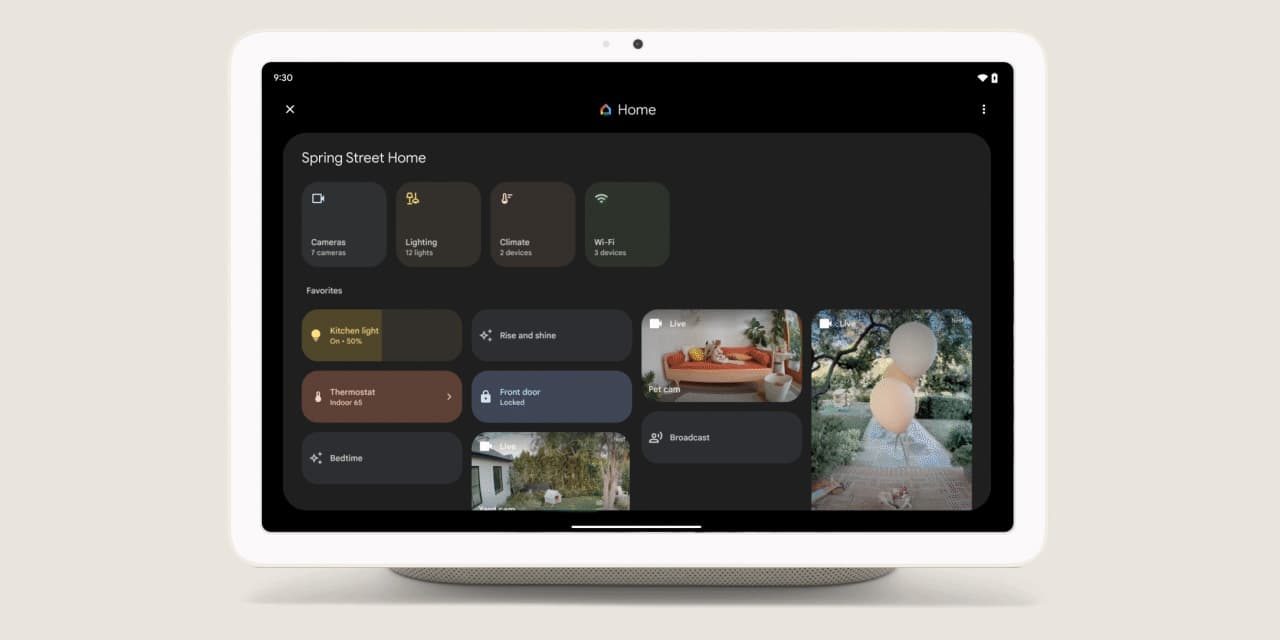
Do the boring setup first. Put the devices you actually touch every day into the Pixel’s home panel: the front door lock, the bedroom lights, the hallway light, the thermostat mode, the garage door if supported, and the camera you check before opening the door. Leave the novelty bulbs and seasonal plugs out of the first screen. A crowded control panel becomes another app drawer.
- Open the Google Home app and make sure your home, rooms, and devices are named cleanly. Use names you would say out loud, such as “front door,” “kitchen lights,” and “downstairs thermostat.”
- On the Pixel 11, open Quick Settings and look for the Home or Device Controls tile. Add it if it is not already visible.
- Open the home panel and choose the Google Home household you want it to control.
- Edit the panel so the first screen contains only the devices you would want in a hurry: locks, lights, thermostat, cameras, and key plugs.
- Enable lock-screen access if you want controls available before fully unlocking the phone, then test what your lock and camera devices require for authentication.
That last test is not optional. Some actions are harmless, like turning on a lamp. Others should make the phone ask for confirmation or unlock first. If the front door can be unlocked from the panel, check the behavior with the screen locked, with the phone on the charger, and with another household member’s account. The point is not to make every action one tap. The point is to make the common actions easy and the risky ones deliberate.
If you use Matter devices, keep expectations practical. Pixel plus Google Home can be the control surface, but device commissioning and reliability still depend on the device, platform support, network, and whether your home already has the right border router or controller for that product. If you are sorting out compatibility before moving more devices into Google Home, start with Matter 1.6 features rather than assuming the phone alone magically replaces every piece of radio hardware.
Make The Charging Pixel A Dashboard
Once the lock-screen and Quick Settings panel are clean, set up the Home Controls screen saver. On Android 15 and later, a charging phone can show home controls as a screen saver, turning a docked Pixel into a small always-on dashboard for the kitchen counter, nightstand, or desk.[1]
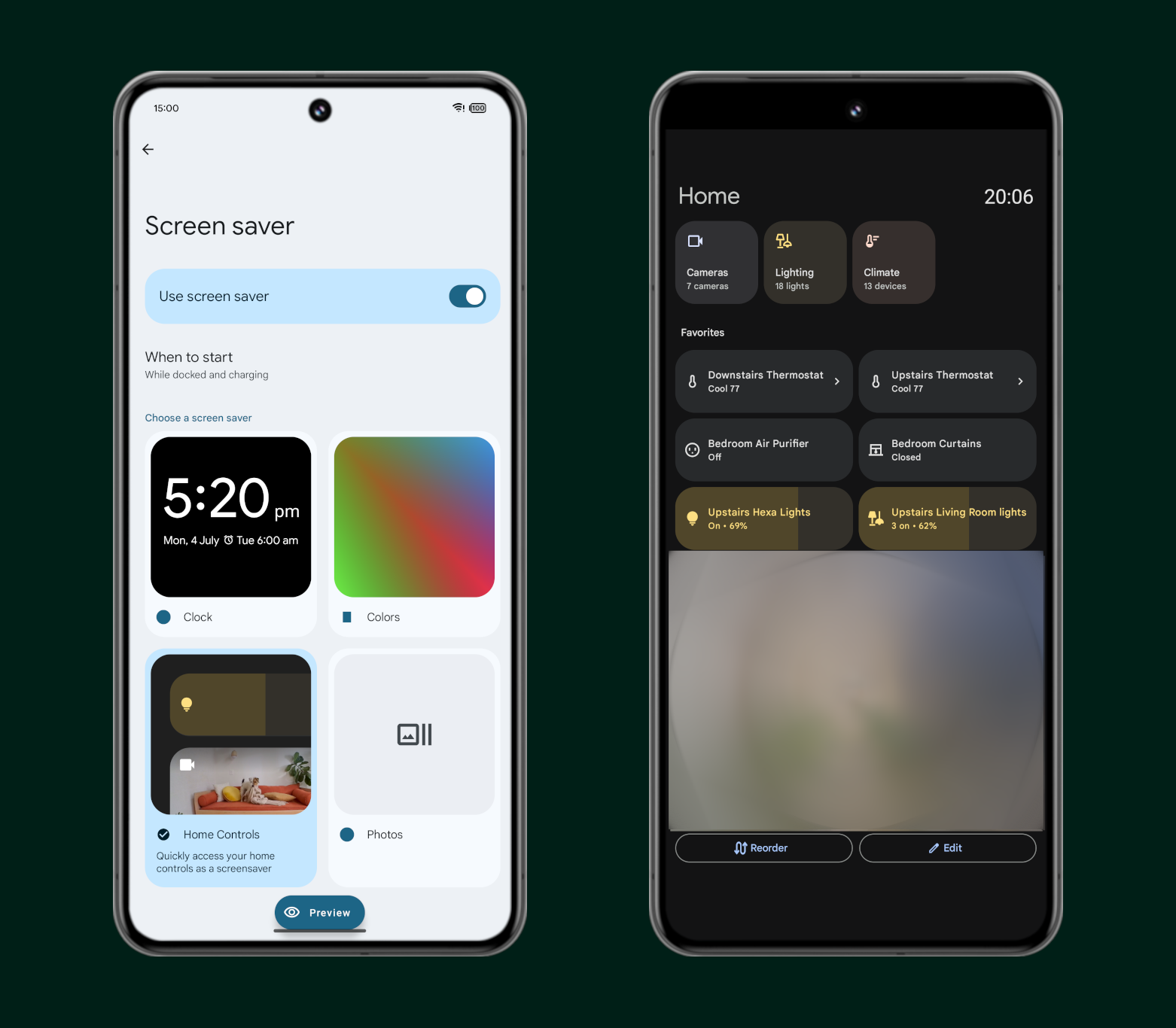
This is the part that can remove a separate display from a room. Put the Pixel 11 on a wireless charging stand, let the screen saver show the same high-value devices, and you have a bedside or kitchen control point without adding another microphone, speaker, or smart display. It is especially useful for the “one last check” routine: door locked, downstairs lights off, thermostat set, camera visible.
- Use a stand, not a flat pad, if the Pixel is meant to replace a countertop dashboard.
- Keep the dashboard room-specific if the phone lives in one place overnight.
- Avoid putting rarely used automations on the first screen; they slow down the checks you do every day.
- Test brightness and screen timeout behavior in the room where the phone will actually charge.
A Nest Hub or smart display still makes sense if you want a shared screen that never leaves the room. But if the real job is “show me the important controls while my phone charges,” the Pixel setup is cleaner than buying another device just to tap the same light switches.
Use Google Home For The Routines, Not Every Tap
The home panel is for direct control. The Google Home app is where you clean up the routine work so you do not have to keep tapping the same four tiles every night. In Google Home v4.20, Google began rolling out Suggested Automations in July 2026: pre-built routines for security, morning, and energy saving that appear at the top of the Automations tab.[3]
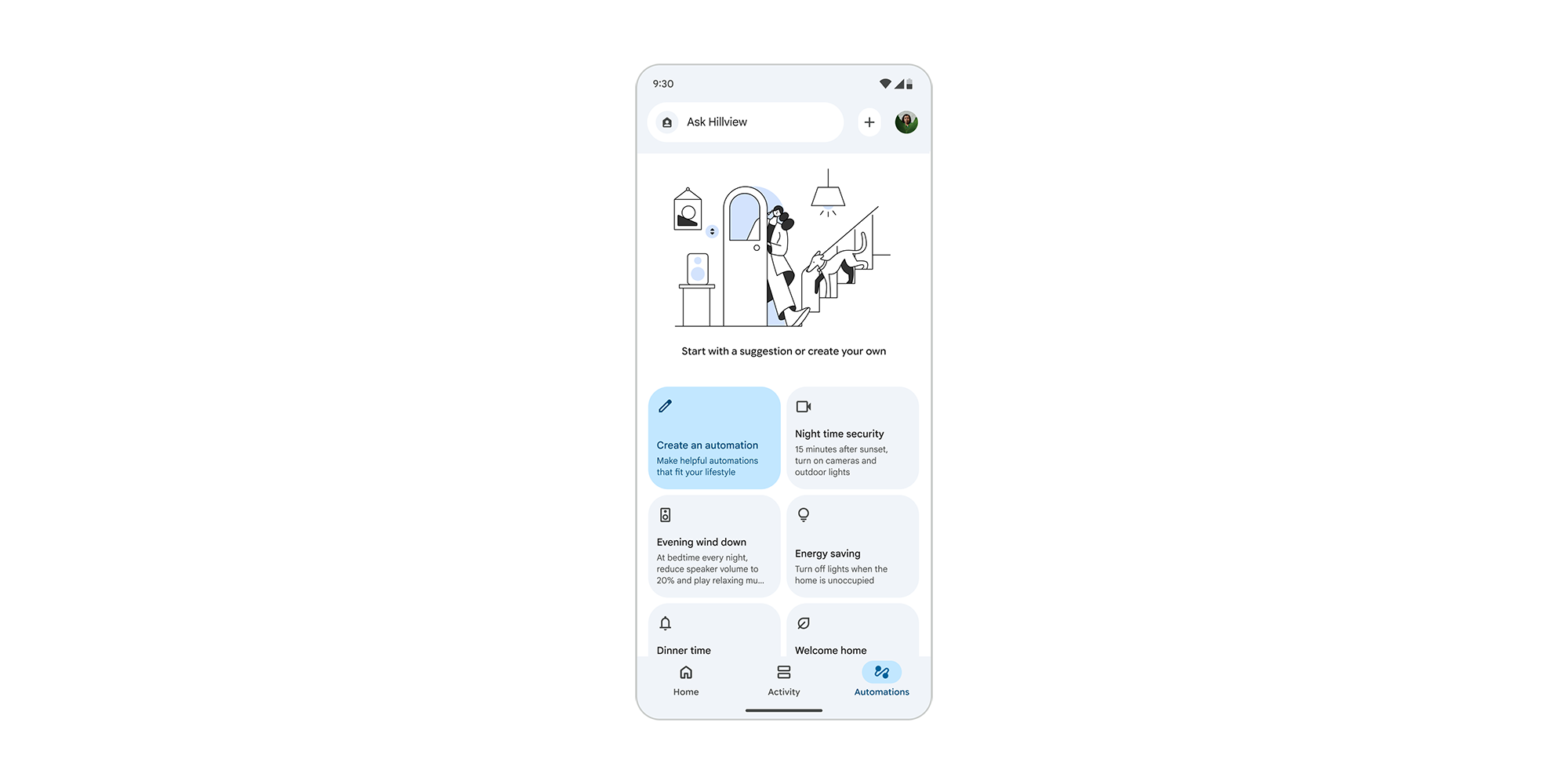
Suggested Automations are useful because they remove the blank-page problem. Most people do not fail at automations because they lack imagination. They fail because the app asks them to think like a flowchart after a long day. A suggested “security” routine gives you a starting point: lock the door, turn off selected lights, adjust the thermostat, and notify the right person if something does not look right.
| Pixel surface | Best use | What to avoid |
|---|---|---|
| Lock-screen home panel | Fast checks and one-off actions: lights, locks, thermostat, cameras | Stuffing it with every device in the house |
| Quick Settings home panel | Control while using the phone normally | Hiding the tile behind too many swipes |
| Google Home Automations tab | Repeatable routines for morning, security, energy, presence, and notifications | Building complex automations before names and rooms are cleaned up |
| Home Controls screen saver | Charging-stand dashboard for bedside, kitchen, or desk | Treating a phone as a permanent wall panel if it often leaves the room |
| Gemini | Natural-language commands and multi-step requests | Relying on voice before ordinary controls work |
The newer automation editor is the more important change for households that already have devices everywhere. It adds conditions such as time of day and presence, supports one-time automations, and can send notifications to specific household members — capabilities that Android Central described as previously unavailable in Google Home.[4]
That changes the shape of a useful routine. A night routine does not have to be a blunt “turn everything off at 10:30.” It can be closer to how people live: after a certain time, when everyone is home, turn off the common-area lights, set the thermostat to eco, lock the front door, and notify the person who actually cares about the garage. A one-time automation can handle a vacation evening or a guest arrival without leaving behind a permanent rule that fires again next week.
A Practical First Automation
Start with one routine you will notice immediately if it works. For most homes, that is the shutdown routine.
- Trigger: choose a time, a manual starter, or a presence condition depending on how predictable your household is.
- Actions: lock exterior doors, turn off common-area lights, set the thermostat to your preferred overnight or eco setting, and turn on one low-brightness path light if needed.
- Notification: send it only to the person who needs it, not every member of the home.
- Test: run it while people are awake, then check each device manually in the home panel.
Do not build ten automations on day one. Build one that replaces a walk through the house, then adjust it for a week. If it keeps firing at the wrong time, the problem is usually the trigger, not the idea.
Add Gemini After The Basic Controls Work
Gemini is useful when it sits on top of a clean Google Home setup. If your rooms are a mess and three devices are named “lamp,” voice control will faithfully expose that mess. Link Google Home to the Gemini mobile app only after the home panel and automations make sense.
With Google Home linked, Gemini can handle smart home commands from the mobile app, including multi-step requests such as “Lock the doors, turn off the lights, and set the thermostat to eco.” Google documents this kind of bundled control for the Gemini mobile app when it is connected to Google Home.[5]
- Open the Gemini app on the Pixel 11.
- Connect the same Google account used for Google Home.
- Allow Gemini to access Google Home smart home controls when prompted.
- Test one direct command first, such as “turn on the kitchen lights.”
- Then test one multi-step command with low-risk devices before adding locks or garage controls.
The safe order is lights, thermostat, plugs, then locks. If Gemini misunderstands a lamp command, you are annoyed. If it misunderstands a door command, you are checking logs and permissions. Keep security-sensitive devices in the home panel too, so you can verify state by touch after a voice command runs.
The Spring 2026 Google Home update also brought Gemini 3.1, a new Google Home web interface, and improved camera navigation, according to coverage of the update.[6] The web interface is not the reason to buy a Pixel, but it helps when you are doing cleanup work at a desk: renaming devices, checking cameras, or reorganizing a home that grew one plug at a time.
Know Where The Free Setup Ends
The free story is strong enough without pretending everything is included. Lock-screen controls, Quick Settings access, the Home Controls screen saver, ordinary Google Home controls, and basic automations are the foundation. The newer AI conveniences sit partly behind Google Home Premium.
Google says the $10 per month Google Home Premium Standard tier unlocks Ask Home and “Help me create,” while some AI camera features also require a subscription.[7] Ask Home is the natural-language layer for questions like camera history search or device-status queries. “Help me create” is the plain-text automation builder — the feature that lets you describe what you want instead of assembling every starter, condition, and action by hand.[7]
| Feature | What it does | Cost or availability caveat |
|---|---|---|
| Home panel | Controls devices from lock screen and Quick Settings | Built into Android 15+ device controls |
| Home Controls screen saver | Turns a charging Pixel into a dashboard | Built into Android 15+ device controls |
| Suggested Automations | Shows pre-built routines in the Google Home Automations tab | Rolling out over the coming weeks from July 2026; availability may vary |
| New automation editor | Adds conditions, one-time automations, and targeted household notifications | Depends on app rollout and account availability |
| Gemini multi-step control | Runs bundled smart home commands through the Gemini mobile app | Requires Google Home linking; device support and command handling vary |
| Ask Home | Answers natural-language home and camera-history questions | $10/month Google Home Premium Standard tier |
| Help me create | Creates automations from plain-text descriptions | $10/month Google Home Premium Standard tier |
This is where the Pixel 11 can feel like two different products. Without Premium, it can still be an excellent controller: fast device access, a docked dashboard, manual routines, and Gemini commands for supported devices. With Premium, it becomes more of a home assistant that can search, summarize, and draft automations. Those are different value propositions, and they should not be blended together as if they cost the same.
Check Rollout And Region Before You Remove A Hub
There are two separate availability questions. First, Google Home v4.20 Suggested Automations began rolling out globally in July 2026 over “the coming weeks,” so not every account should be assumed to have the feature on the Pixel 11’s launch day.[3] Second, Gemini for Home early access is limited to the U.S. and about 20 other countries, with wider rollout planned through 2026; global availability at launch is not confirmed.[8]
Before unplugging a dedicated hub or display, run a household audit from the Pixel itself:
- Can every daily device be reached from the home panel without opening its maker’s app?
- Can the charging screen saver show the controls needed in the room where the Pixel will sit?
- Do your automations run correctly when presence, time, and household members are involved?
- Do locks, cameras, and garage devices behave safely from the lock screen and Gemini?
- Are the AI features you expect available in your country and included in your plan?
If a Matter device does not appear in Google Home, do not rebuild the whole house around the phone. Work the pairing and platform problem directly with Matter Device Not Showing in Google Home? Start Here. If the setup became unreliable after an outage, use Smart Home Not Working After Power Outage? Fix It Step by Step before blaming the Pixel. For broader device-by-device cleanup, keep Use This Checklist to Troubleshoot Your Matter Smart Home handy.
The Setup That Usually Replaces The Extra Box
A Pixel 11 can be the primary smart home controller when the setup is disciplined: the home panel handles immediate control, the screen saver handles the docked dashboard, Google Home handles automations, and Gemini handles natural-language commands after the device names and rooms are clean. That combination is enough for many homes with lights, locks, cameras, plugs, and a thermostat.
It is not the same as saying every household can throw away every hub. Some devices still depend on platform-specific hardware, some features roll out by account or region, and the most interesting AI tools are part of Google Home Premium. Treat the Pixel 11 as the control surface first. If the free controls and automations cover the work you actually do every day, the extra display on the shelf has a much weaker case for staying there.
References
- Control smart devices with your Android phone or tablet, Google Help
- Google Pixel 11: Everything we know so far, Android Central
- Google Home is making automation easier, improving cameras, 9to5Google, July 8, 2026
- Google Home has a new automation editor, Android Central
- Control your smart home devices with the Gemini mobile app, Google Help
- Google Home Spring 2026 Update Adds Gemini 3.1, gHacks, May 6, 2026
- Gemini for Home: The helpful home gets an AI upgrade, Google Blog
- Get started with Gemini for Home features, Google Help