
How to Set a Cooler Weekend Schedule on Smart Thermostats
Set your thermostat cooler every weekend without redoing it each Friday. The fix is a recurring-schedule change rather than a one-time hold, with platform-specific tap paths for Honeywell/Resideo 5-2-day models, ecobee, and Nest — plus a verification checklist and undo steps.
Do you want this cooler temperature only this weekend, or every weekend? That answer decides whether you should use a hold or edit the schedule.
- Only this weekend: use a timed hold, vacation hold, or temporary hold and give it an end time. The thermostat should go back to its normal schedule after that.
- Every weekend: edit the recurring schedule. Do not just lower the current temperature on Friday night, because that can look fixed until the next scheduled period takes over.
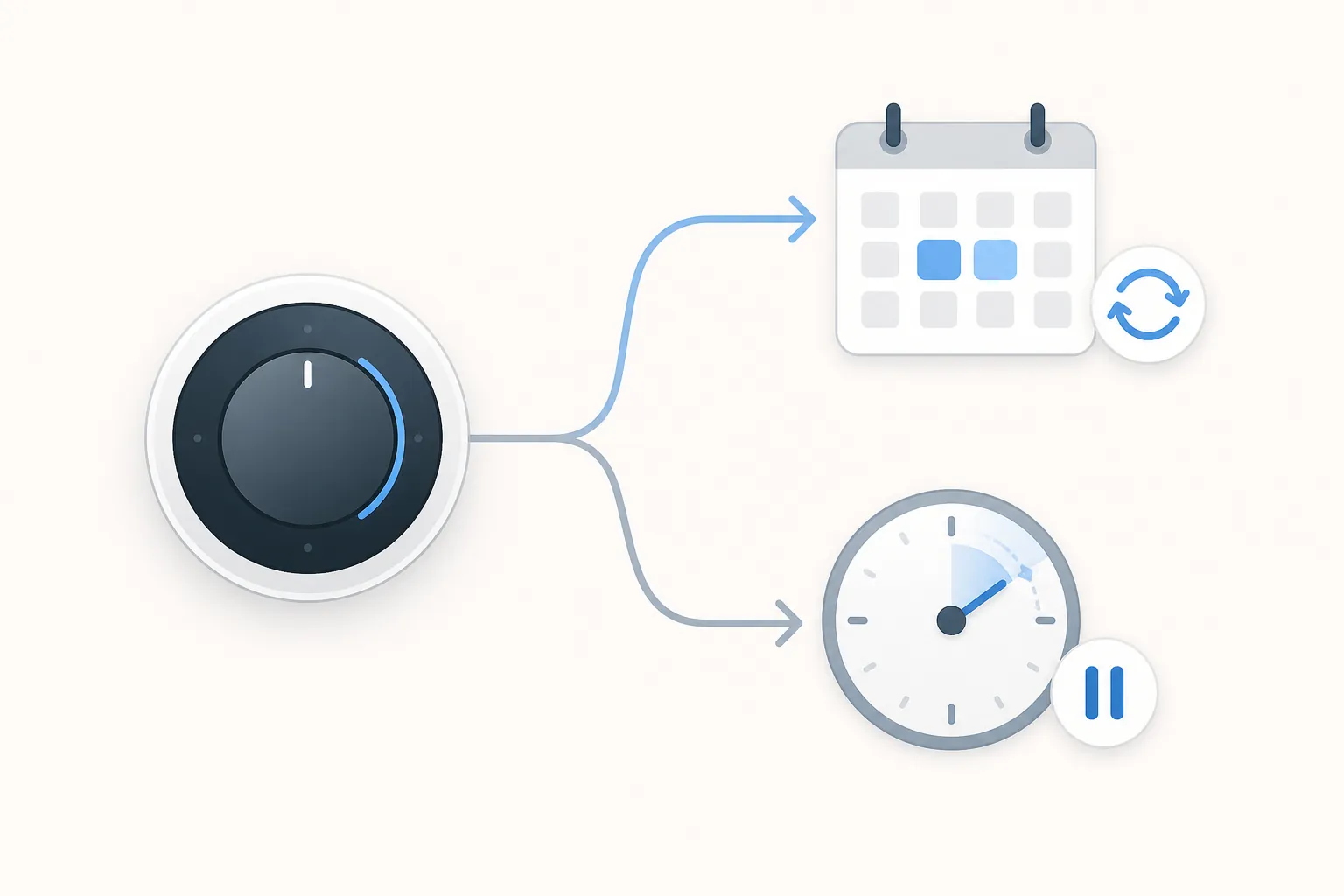
For a cooler weekend that repeats, the job is not “make the house cooler right now.” The job is “make Saturday and Sunday contain cooler scheduled setpoints.” Once that difference is clear, the platform matters: some thermostats expose a weekend block, while others make you edit Saturday and Sunday as separate days.
One small wording note before you tap through the menus: in cooling season, “cooler” usually means lowering the cooling setpoint. In heating season, “cooler” means lowering the heating setpoint. If your thermostat is in Auto mode, check both heat and cool limits so you do not accidentally create a narrow or conflicting range.
Pick the schedule model before you start tapping
| Thermostat type | What you are trying to change | Mistake to avoid |
|---|---|---|
| Honeywell / Resideo 5-2-day programmable models | The weekend block, usually Saturday–Sunday together | Editing the weekday block or changing only the current temperature |
| ecobee | Saturday and Sunday schedule entries, usually day by day | Changing a comfort setting that is also used on weekdays, or updating Saturday but forgetting Sunday |
| Nest | Saturday and Sunday schedule points, usually day by day | Dropping the temperature as a temporary hold instead of changing the schedule points |
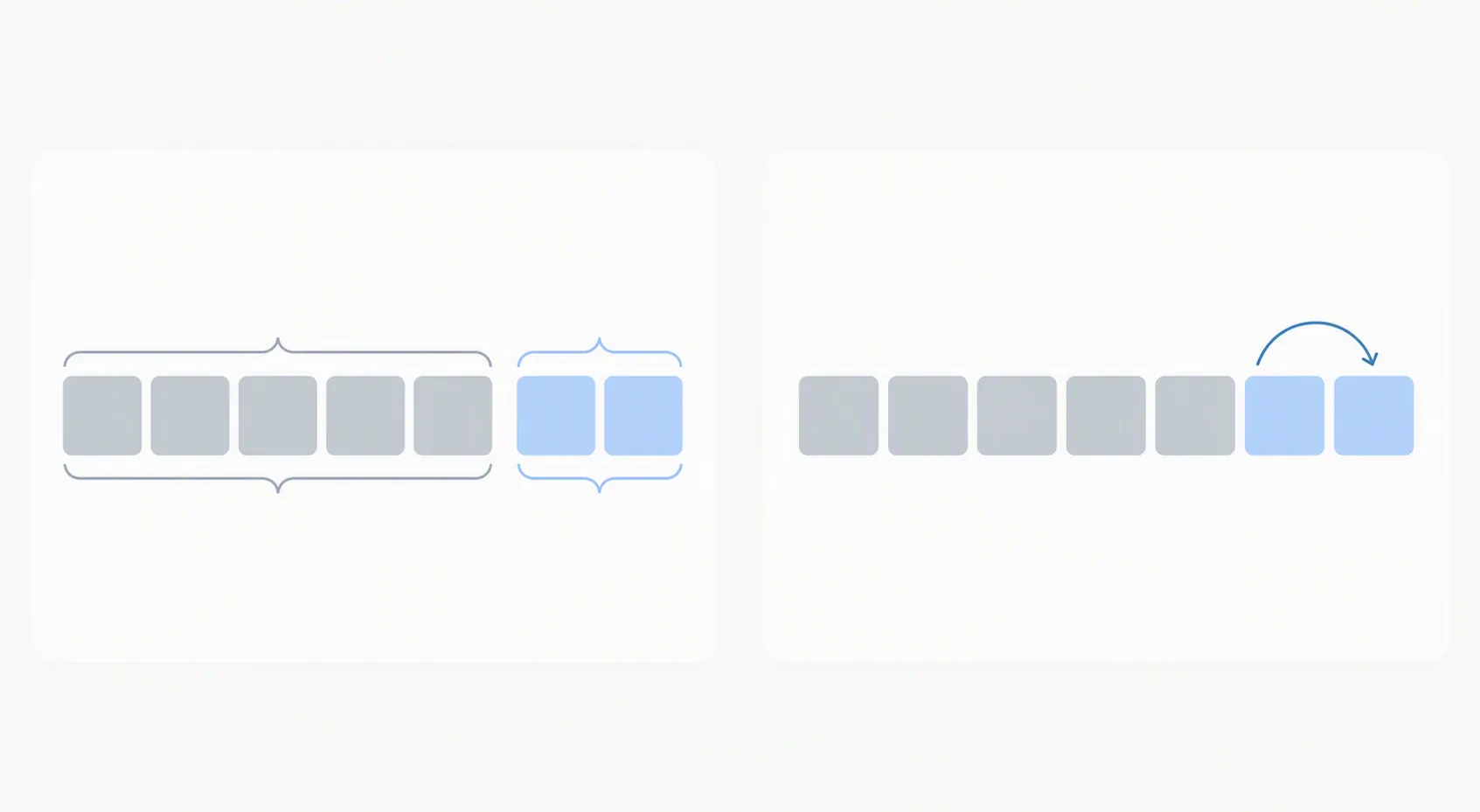
This is why one set of instructions rarely works cleanly across brands. A Honeywell / Resideo 5-2-day model is the neat case: weekdays and weekends are separated. ecobee and Nest are the more careful cases: the weekend result comes from the Saturday and Sunday entries matching each other, not from a single universal “weekend” switch.
If you only need it cooler this weekend, use a timed hold
A timed hold is the right tool when guests are coming for one weekend, someone is working from home for a couple of days, or you want to test a cooler setting before committing it to every Saturday and Sunday.
- Lower the current setpoint to the cooler temperature you want.
- Choose the hold option, if your thermostat asks. Look for wording such as Hold, Temporary Hold, Timed Hold, Hold Until, or Vacation.
- Set a clear end time, such as Sunday evening or Monday morning.
- Confirm the thermostat screen shows that the temperature is being held, not that the weekly schedule has been edited.
The upside is that you do not disturb the normal week. The downside is also the point: when the hold ends, the regular schedule resumes. If you lower the temperature Friday night without editing the recurring weekend schedule, the thermostat may obey for a while and then return to the next scheduled setpoint. That is the “it worked yesterday, then it changed back” moment.
Honeywell / Resideo 5-2-day models: edit the weekend block
On a 5-2-day Honeywell / Resideo schedule, the useful part is the “2”: Saturday and Sunday are treated as the weekend block. That means you usually do not need to build the weekend twice. You need to make sure you are editing the Sat–Sun block rather than the Mon–Fri block.
- Open the thermostat schedule. On button-based models, this may be a Set Schedule or Program menu. In an app, look for Schedule, Program, or Edit Schedule.
- Choose the weekend block, often shown as Sat–Sun, Saturday–Sunday, or Weekend.
- Find the period that covers the time you want cooler. The labels vary, but many schedules are divided into periods such as wake, leave, return, and sleep.
- Lower the cooling setpoint for that weekend period. If you want the whole day cooler, adjust every weekend period that would otherwise warm the house back up.
- Save or accept the schedule, then return the thermostat to Run Schedule or its normal scheduled mode.
The easy mistake is stopping after the first cooler period. Suppose Saturday morning is cooler but Saturday afternoon still has the old setpoint. The thermostat is not ignoring you; it is moving to the next period exactly as scheduled. For an all-weekend change, scan the full Sat–Sun block before you exit.
ecobee: make Saturday and Sunday match
ecobee scheduling is usually easier once you stop looking for one big weekend switch. Think in terms of day entries. Saturday has its own schedule, Sunday has its own schedule, and the cooler weekend works only if both days contain the cooler setting where you need it.
- Open the ecobee app or thermostat menu and go to Schedule.
- Select Saturday.
- Tap the schedule block or activity that covers the time you want cooler.
- Assign a cooler temperature or a weekend-specific comfort setting for that block.
- Repeat for any other Saturday blocks that should stay cooler.
- Copy Saturday to Sunday if your screen offers a copy-day tool. If not, open Sunday and enter the same cooler blocks manually.
- Save the schedule and return to the normal thermostat screen.
Be careful with comfort settings. If the same “Home” comfort setting is used Monday through Friday and you lower that comfort setting itself, weekdays may change too. If your goal is weekend-only comfort, either assign the cooler setting only to weekend blocks or create a separate weekend comfort setting and place it on Saturday and Sunday.
The copy-day shortcut is just a shortcut. It saves re-entering times and temperatures, but it does not turn Saturday and Sunday into a permanent grouped weekend block. If you later change Saturday again, check whether Sunday also needs the same change.
Nest: edit the schedule points, not the current temperature
Nest can make the Friday-night trap especially believable because turning the ring or dragging the temperature in the app feels decisive. For a recurring cooler weekend, go into the schedule view and change the points on Saturday and Sunday.
- Open your Nest thermostat in the Nest app, Google Home app, or on the thermostat itself.
- Open Schedule.
- Select Saturday.
- Add, move, or edit the temperature point for the time you want the house cooler.
- If an old warmer point occurs later in the day, adjust or remove it so the thermostat does not warm the house back up earlier than you intend.
- Copy Saturday to Sunday if that option is available. Otherwise, open Sunday and create the same points.
- Exit the schedule and check that the thermostat is following the schedule rather than sitting in a temporary hold.
With Nest, the important check is the timeline. A single cooler point at 8 a.m. will not necessarily keep the whole day cooler if another point later in the day raises the temperature. Read Saturday from left to right, then do the same for Sunday. The schedule is the instruction set; the current display is only the current moment.
What to check before you trust it
Do this verification while you are still standing there with the app open, not Saturday morning when the house is already warmer than expected.
- Saturday shows the cooler setpoint in the schedule view, not only on the main thermostat screen.
- Sunday also shows the cooler setpoint. On ecobee and Nest, do not assume Sunday changed just because Saturday looks right.
- Every weekend time period that matters is covered. If the schedule has morning, afternoon, evening, and sleep periods, check each one that could override the cooler setting.
- The thermostat is in its normal schedule-following mode, not a temporary hold that will expire.
- The HVAC mode matches what you changed: Cool for a lower cooling setpoint, Heat for a lower heating setpoint, or the correct heat/cool range in Auto.
- If you used a copy-day tool, open the copied day and confirm the times and temperatures actually appear there.
How to undo the cooler weekend
Undoing should be as controlled as the original change. Avoid clearing the whole schedule unless you truly want to rebuild the week.
- Go back to the same schedule area you edited.
- For Honeywell / Resideo 5-2-day models, open the Sat–Sun or Weekend block and restore the previous setpoints for the affected periods.
- For ecobee, open Saturday and Sunday, then remove the weekend-specific comfort setting or change the weekend blocks back to their previous setting.
- For Nest, open Saturday and Sunday in the schedule view and move, edit, or delete the cooler points you added.
- Save, then check the schedule view again for both weekend days.
A cooler weekend works when the mechanism matches the thermostat’s schedule model. If it is entered as a hold, it will eventually expire. If it is entered on Friday, Monday–Friday, or Saturday only, the thermostat may look obedient for a while and then follow the schedule you actually left behind.