
Troubleshooting
Camera moves or makes audio without user interaction
A symptom-based checklist to determine if your IP camera is compromised, followed by a step-by-step three-minute emergency lockdown protocol to contain the breach and secure your smart home.
If the camera moved and nobody touched it, start with containment, not speculation. Pull its power plug or block it in the router before you begin changing settings. You can sort out whether it was a bug, a family member, or a real compromise after the live connection is closed.
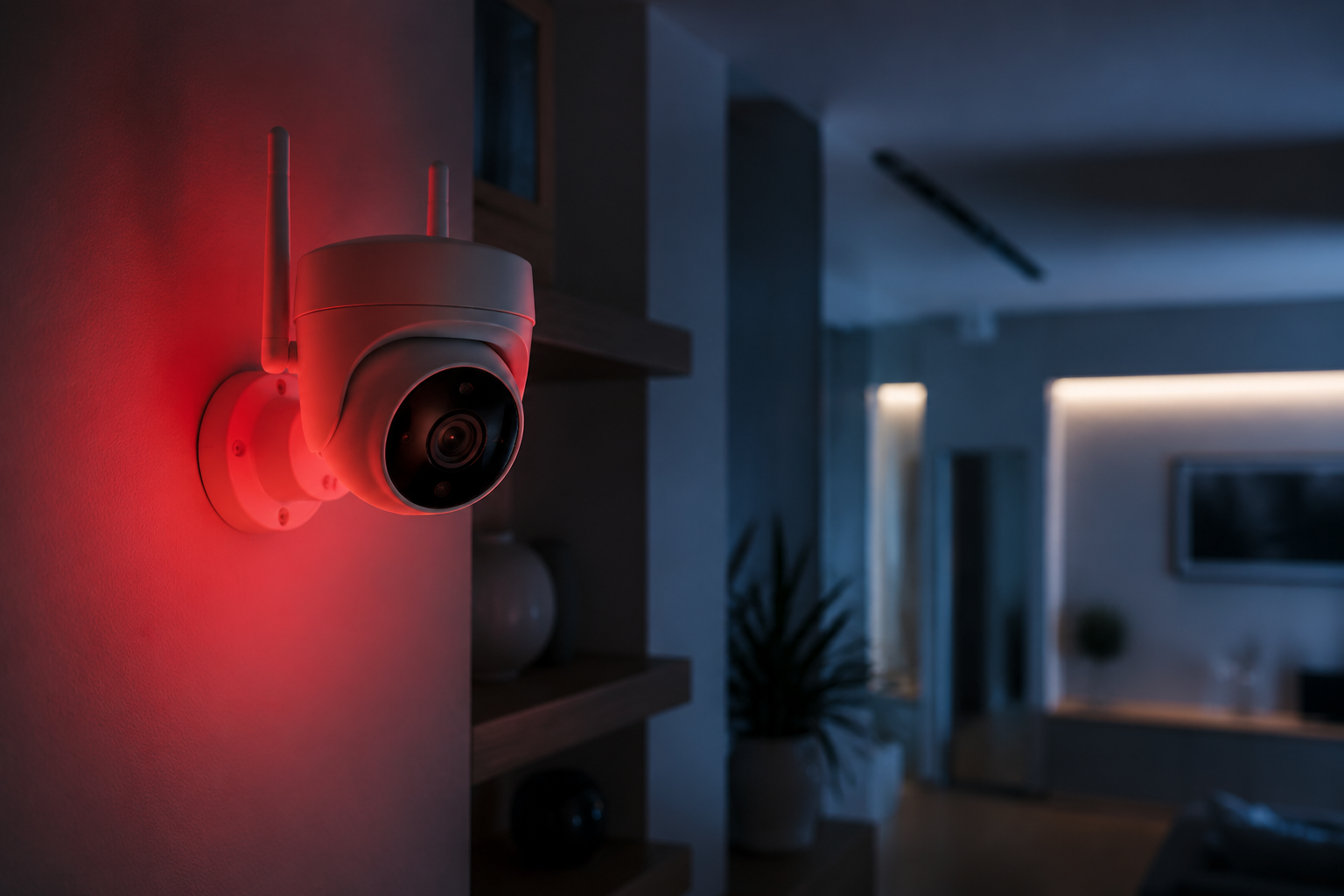
The six signs that deserve action
These signs are useful because they do not require packet captures, command-line tools, or guessing what a firmware log means. They come from the same practical warnings repeated across consumer camera-security guidance: unexplained camera behavior, changed login access, exposed feeds, weak or default credentials, and router-level clues that something is using the network when it should not be.[1][2][3][4]
| Sign | How strong it is | What to do first |
|---|---|---|
| Pan/tilt movement without user input | Strong if the camera physically turns while nobody in the household is using the app | Disconnect the camera immediately |
| Unexpected LED behavior | Suspicious; stronger if the recording or network LED shows activity while the camera is idle | Check household users, then disconnect if unexplained |
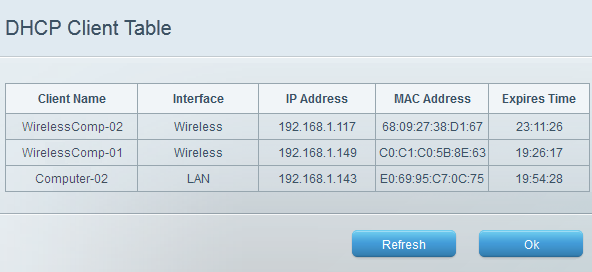
| Unknown device in the router DHCP lease table | Strong if the MAC address or device name matches the camera but appears under an unfamiliar name or address | Block the device or allow-list known devices |
| Strange camera audio | Strong if voices, clicks, or speaker output occur when two-way talk is not in use | Disconnect before opening the camera app again |
| Unexplained bandwidth drain | Suspicious; stronger when the camera uploads steadily while nobody is viewing or recording | Check router traffic, then isolate the camera |
| Credentials no longer work | Very strong if the admin password was changed without your action | Keep the camera offline and recover the account from the vendor or reset locally |
The first, fourth, and sixth signs are the ones I would treat as immediate lockdown events. A motorized camera that pans on its own, audio coming from a speaker that nobody opened, or a password that suddenly fails can indicate that someone else has an active session or administrative control.
The LED and bandwidth signs need a little more care. Cameras blink during firmware updates, cloud reconnection, motion-triggered recording, infrared mode changes, and app reconnects. Upload spikes can also come from normal cloud backup or a household member checking the feed from outside the home. Still, if the behavior continues after you close every known app session, it belongs in the suspicious pile.
The router lease table is often the cleanest clue because it shows what is actually connected. If your camera is supposed to be named “GarageCam” and you see a new device with the same vendor MAC prefix, a new IP address, or a name you do not recognize, do not spend the next hour renaming things. Block or unplug first, then verify.
Lock it down before you investigate
The emergency order matters. If you change the camera password while the camera is still online, an active session may continue long enough to fight you, change settings back, or watch what you are doing. If you reconnect the camera before securing the router, a compromised router account can put the same device right back where it was.
- Disconnect the camera. Pull power, unplug Ethernet, or block its MAC address in the router. For a battery camera, use the app only long enough to disable it or remove it from the network if you cannot physically reach it.
- Change the router admin password. This is the password for the router settings page, not the Wi-Fi password. If someone can log into the router, they can reopen ports, change DNS, or reassign devices after you think you are done.
- Rotate every camera credential while the device remains offline. Change the camera admin password, the ONVIF user password, and the RTSP stream password if your camera exposes those separately.
- Enable two-factor authentication if the camera platform supports it. Some budget or no-name systems do not offer 2FA; if yours does, turn it on before reconnecting.
- Reconnect only after the router and camera credentials are changed. Then confirm the camera appears in the router as the device you expect, on the network you expect.
This is the fastest way to keep a suspected IP camera hack from turning into a second cleanup. It does not depend on knowing the attacker’s method. It closes the session, removes the easiest persistence path, and replaces the passwords most residential attacks try first.
That credential focus is not glamorous, but it is earned. Nozomi Networks 2025 telemetry, summarized in an IoT security statistics report, found credential brute-forcing accounted for 7.4% of all detected IoT malicious actions, making it the leading detected technique in that dataset.[5] That does not prove every home-camera incident is brute force, and it does not measure whether each attempt succeeded. It does explain why the first useful move is usually not reinstalling firmware at midnight. It is taking away the password path.
What “rotate every camera credential” actually means
Many camera owners change only the password used in the phone app. That may not cover the local admin account, ONVIF account, or RTSP stream. Those are the boring labels that matter when a camera is being viewed by software outside the vendor app.
- Admin password: controls camera settings, users, firmware, and recording options.
- ONVIF password: allows compatible recorders and software to discover or control the camera.
- RTSP password: protects the direct video stream used by recorders, dashboards, and some third-party apps.
- Cloud account password: protects remote viewing through the manufacturer’s app or web portal.
If your app hides ONVIF or RTSP settings, look under “Advanced,” “Network,” “Local access,” “NVR,” or “Integration.” If the camera does not support those features, fine; there is nothing to rotate there. If it does support them and they still use a default or reused password, the camera is not cleaned up yet.
Check public exposure, but do not overtrust the result
After the passwords are changed and before you declare the camera safe, check whether the feed appears on Insecam or a similar public camera index. This is not a forensic test. It is a quick exposure check for cameras that are reachable from the public internet with no password or with default credentials.
Search by country, city, manufacturer, or any label that might identify the camera. If you recognize your room, driveway, porch, or timestamped feed, keep the camera offline. Change credentials again, close public access, and check the router for port forwarding or UPnP rules that expose the camera.
A negative Insecam result is not proof that the camera was never accessed. It only means the feed is not visible through that index at the time you checked. A camera can be compromised through a cloud account, a leaked password, a local account, or a private stream without appearing in a public directory.
Separate a hack from a bad app night
Camera apps produce plenty of false alarms. A firmware update can reboot the camera. A spouse can open the feed from work. A child can press the talk button. A motion event can wake the status LED. A cloud outage can make credentials appear broken even when the local camera is fine.
The difference is whether the event leaves a controllable trace. Ask the household who opened the app. Look at the camera’s user list. Check whether a password reset email arrived. Check the router lease table. Look for a newly enabled RTSP, ONVIF, UPnP, or port-forwarding setting. If the answer is “nobody did this” and the setting affects access, treat it as compromise until proven otherwise.
Do not use a single bandwidth spike as your only evidence. Use it as a prompt to look at the camera’s upload pattern. A steady outgoing stream while nobody is viewing, recording, or backing up video is more meaningful than one busy minute after motion detection.
After recovery, remove the easy paths back in
Once the camera is back online under new credentials, the job changes from emergency response to hardening. This part should be quick and specific. The goal is not to build a perfect lab network tonight. It is to remove the defaults and exposures that make cheap automated attacks worth running.
- Check the model against the IPVM Default Passwords Directory, which tracks documented default credentials for IP cameras.[6]
- Install available firmware updates from the manufacturer’s app or support site.
- Disable UPnP on the router if you do not need devices opening ports automatically.
- Turn off remote access methods you do not use, especially direct RTSP exposure to the internet.
- Move cameras to a separate network when you are ready for a cleaner setup.
Default-password handling varies by brand and firmware generation. Axis, Dahua, newer Hikvision firmware, Hanwha, and Bosch commonly force password creation during first setup. Reolink, Foscam, and Vivotek models have included blank or default credential patterns in documented directories. That is not a reason to shame the person who bought the camera. It is a reason to verify the exact model instead of trusting the box.
If you want to go beyond cleanup, put cameras on their own network so a camera problem does not become a laptop, NAS, or thermostat problem. NestGrid’s beginner smart-home VLAN setup is the next step when the emergency is over. If you are rethinking cloud access, retention, and local recording, use a privacy-first smart-home camera setup instead of rebuilding the same risky configuration with a new password.
When a reset is enough, and when replacement is cleaner
A factory reset can be the right move when you cannot recover admin access, cannot tell which users were added, or find settings you do not recognize. It wipes local configuration, including attacker-created accounts. It also restores defaults, which means the reset is not finished until you create new credentials again.
Reset, then immediately change the admin password, ONVIF password, RTSP password, cloud account password, and 2FA setting before placing the camera back into normal service. If the camera app tries to walk you through a cheerful first-run setup, slow down at every screen that says “remote access,” “sharing,” “UPnP,” “NVR,” or “stream.” Those are access decisions, not decoration.
Replacement is warranted when the camera cannot receive firmware updates, when administrative access likely persisted for more than 48 hours, or when the model appears in publicly documented backdoor CVE lists. At that point, you are no longer just removing a bad password. You are deciding whether you trust the device to enforce the new one.
For broader camera-security concerns beyond your own device, including how networked cameras intersect with neighborhood surveillance systems, NestGrid’s Flock Safety smart-home concerns piece is a better place to continue. For the camera in front of you, the decision is simpler: reconnect after credentials are rotated, public exposure checks are clean, and the router no longer shows suspicious access; reset or replace when you cannot verify those things.
References
- Can Home Security Systems & Cameras Be Hacked? Security.org
- Protect Your Home Security Cameras from Hackers SafeHome
- How To Secure Your Home Security Cameras FTC Consumer Advice
- You've Heard About Smart Home Hacking: Here's How It Works CNET
- IoT Hacking Statistics 2026 Dexpose.io
- IP Cameras Default Passwords Directory IPVM
Report an issue with this fix
If this fix didn't work, is out of date, or the status label looks wrong, tell us — we re-verify before changing a Confirmed label.