The Android battery screen makes this look like a Google Play Services problem. For smart home users, it usually is not. If the spike started after enabling Arrive/Leave routines, geofencing rules, presence detection, or Home Assistant background sensors, treat Google Play Services as the counter that is billing location work requested by those apps.
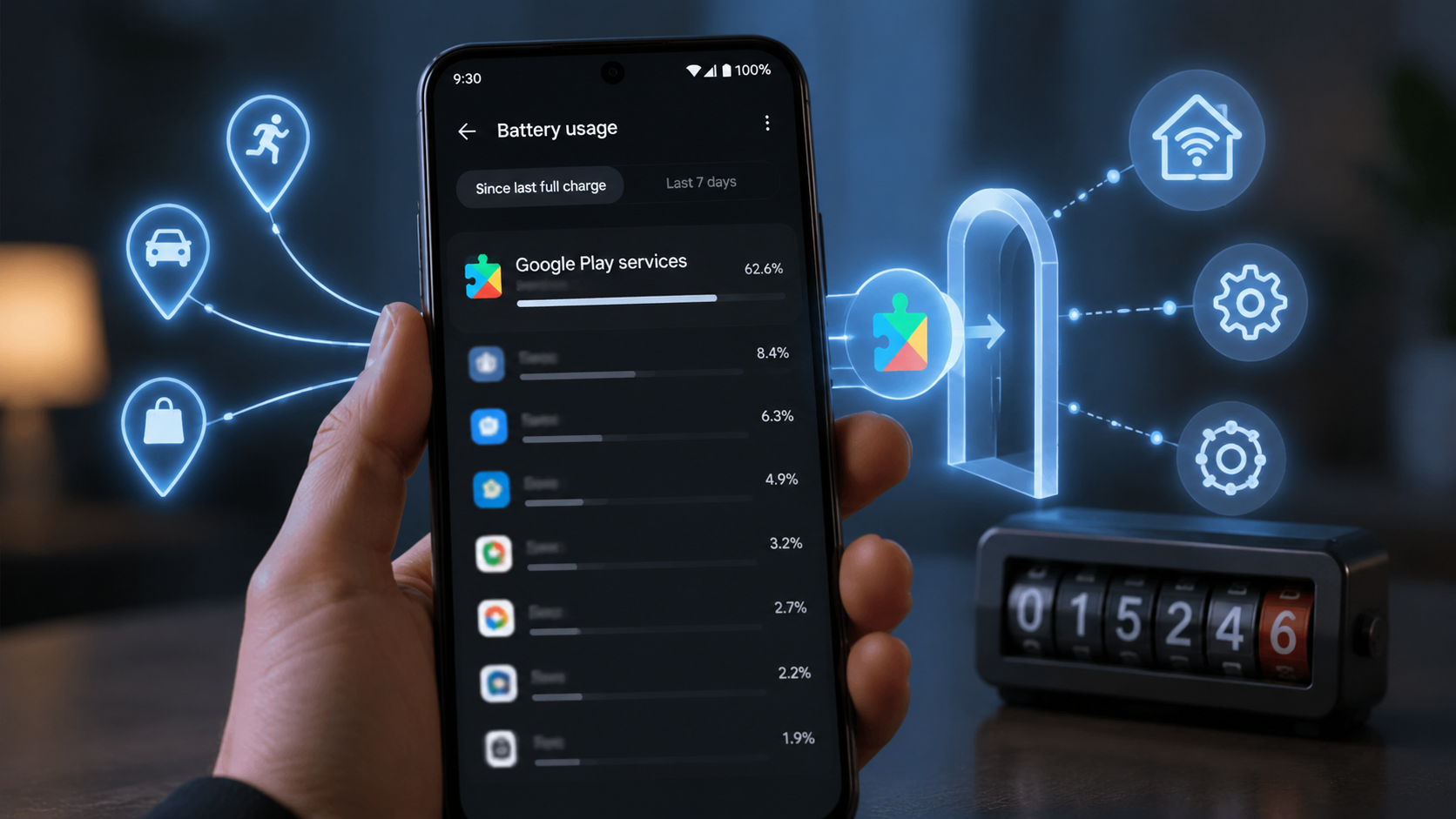
That distinction matters because the bad fix is obvious and dangerous: disable or mangle Google Play Services until half the phone behaves strangely. The useful fix is narrower: find which smart home app is asking Android to keep watching your location, then decide whether that app’s automation is worth permanent background access.
Android’s geofencing system is not supposed to be a constant battery tax. Google’s own Android documentation says geofencing was redesigned to batch updates around two-minute intervals instead of relying on continuous polling, with up to a 10× battery improvement compared with the older approach.[1] The problem starts when several apps each maintain their own boundary, request “Allow all the time,” wake for high-accuracy updates, or keep retrying a stale home/away state. Then the phone spends more time doing location work and less time settling into lower-power idle behavior.
Start with the timing, not the percentage
A scary Play Services percentage by itself does not identify the culprit. Battery percentages are relative: if the phone spent the day in your pocket with the screen off, background location can look enormous because little else was consuming power. The sharper clue is timing.
- If drain began after turning on a smart home arrival or leave routine, audit that app first.
- If drain began after adding a second smart home platform, look for overlapping presence detection.
- If drain began after enabling Home Assistant background sensors, check the companion app’s location sensor settings before clearing Play Services.
- If drain began immediately after a Play Services or OS update, keep a separate system-bug possibility open, but do not let it distract from newly enabled geofencing.
The practical test is simple: remove duplicate location listeners first, wait through a normal charge cycle, and see whether Play Services drops back into the background. You are not proving a laboratory cause. You are checking whether the phone can idle again once fewer apps are asking it to watch the same driveway.
Pick one app to own presence
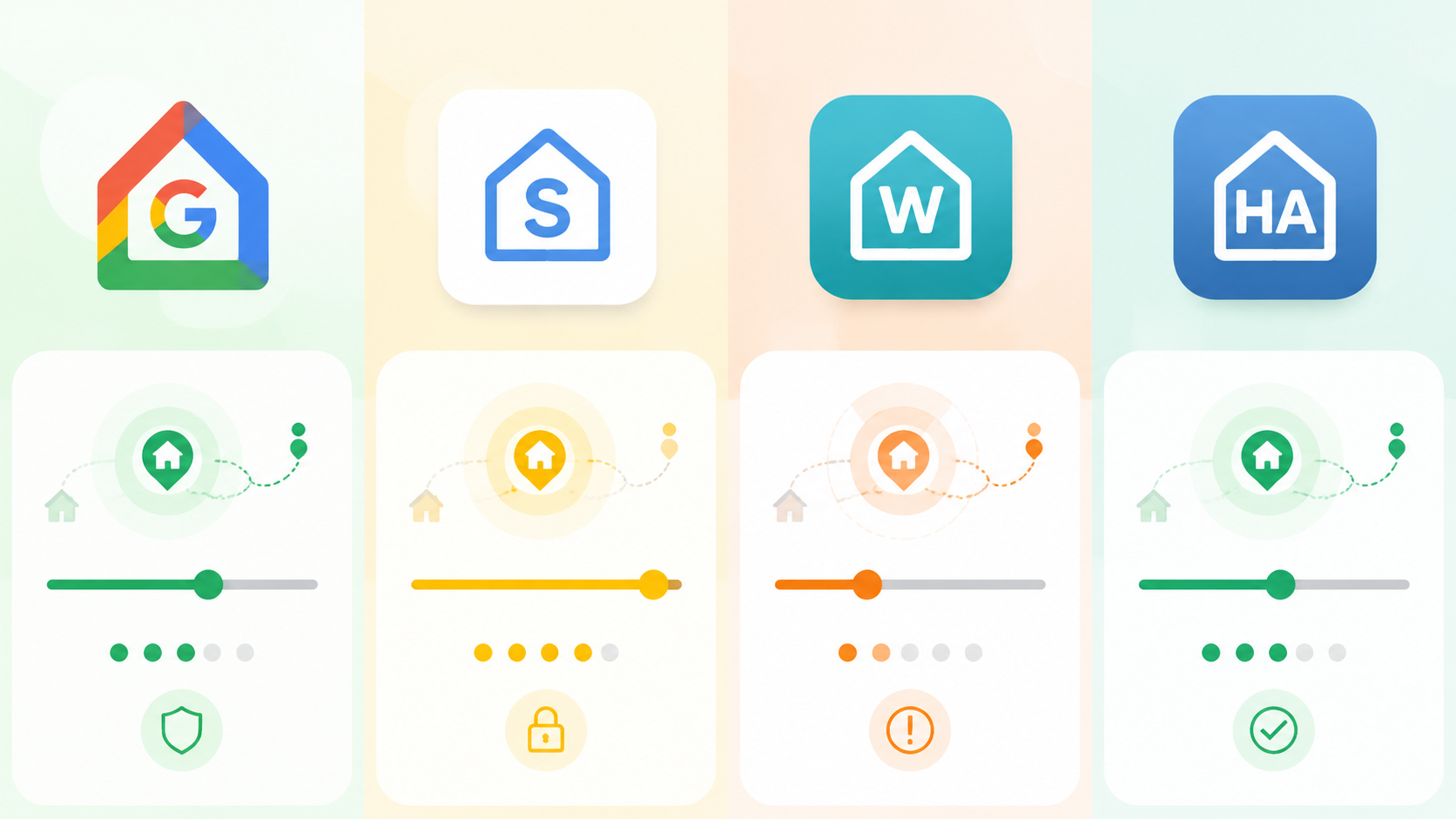
The cleanest smart home location setup usually has one presence owner. That might be Google Home if you only use household routines, SmartThings if your devices and automations live there, Wyze if the only location rule you care about is tied to Wyze cameras, or Home Assistant if it is already your automation brain.
What gets messy is letting all of them watch the same boundary. Google Home marks you away. SmartThings marks you away. Wyze arms a rule. Home Assistant updates a background sensor. Each app may be doing reasonable work in isolation, but together they turn one human action—leaving home—into several background location jobs.
| If this is the automation you actually need | Let this app own presence | Demote the others |
|---|---|---|
| Google Home Arrive/Leave household routines | Google Home | Switch other smart home apps to while-in-use location or disable their geofencing rules |
| SmartThings automations based on member presence | SmartThings | Accept its battery trade-off, then remove duplicate home/away rules elsewhere |
| Wyze camera arming or disarming by location | Wyze, only if the rule is essential | Disable Wyze geofencing if another platform can trigger the same action more efficiently |
| Home Assistant automations, including Matter or multi-platform logic | Home Assistant Companion App | Tune HA sensors, then turn off presence detection in single-vendor apps where possible |
This is the point where battery advice gets less glamorous and more effective. Do not start by changing every Android location toggle on the phone. Start by deciding which automation would actually fail if background location disappeared.
Google Home: keep Always location only for active Arrive/Leave routines
Google Home does not need permanent location access just because you own smart speakers or lights. The permission becomes relevant when you use presence-based household routines: arriving home, leaving home, switching Home/Away status, changing thermostats, locking doors, or running similar automations.
If you are not using those routines, set the Home app’s location permission to “While in use.” If you are using them, leave “Allow all the time” on for Google Home and remove duplicate presence jobs from other apps. The mistake is not giving one app the permission it genuinely needs; the mistake is giving four apps the same permission because each setup wizard asked nicely.
- Open Android Settings, then Apps, then Google Home, then Permissions, then Location.
- Use “Allow all the time” only if Arrive/Leave or Home/Away routines are active.
- If those routines are inactive, switch to “Allow only while using the app.”
- Check the Home app for stale Home/Away state loops, especially if routines repeatedly fire or fail to settle.
- After a major Home app update, clear the Home app cache if location behavior suddenly becomes erratic.
Geofence radius also matters. A tiny boundary can make a phone repeatedly cross in and out near the edge of home, especially in dense neighborhoods or apartments. A slightly more forgiving radius is often better than a precision boundary that keeps flipping the house between states.
SmartThings: presence detection has a real battery trade-off
SmartThings is the least satisfying entry in the audit because the answer is blunt: if you rely on SmartThings presence detection, it requires both “Allow all the time” location and Unrestricted battery behavior. Treat that as a feature requirement, not a broken setting to outsmart.
That does not mean SmartThings gets a free pass. It means the decision moves up a level. If SmartThings is the platform that actually runs your presence automations, keep the required permissions and remove overlapping presence routines from Google Home, Wyze, or Home Assistant. If another system can handle presence with less cost, turn SmartThings presence off rather than leaving it half-enabled.
- Keep “Allow all the time” only if SmartThings member presence drives real automations.
- Keep battery set to Unrestricted only when presence detection must work in the background.
- Disable High Accuracy location mode in SmartThings sensor settings if it is enabled and not needed.
- Consider a dedicated presence method or hub if phone battery matters more than phone-based SmartThings presence.
Wyze: treat geofencing as suspect until it proves itself
Wyze deserves a more cautious default. In a Wyze community forum thread running across Android user reports from 2022 through 2024, users described heavy battery drain when Wyze geofencing was enabled, including reports around 37% battery use attributed to the Wyze app compared with roughly 1–2% for normal location-aware apps.[2] Those are self-reported forum numbers, not a controlled battery lab result, but they are consistent enough to take seriously when the timing matches.
The awkward detail is that one escape hatch can break the feature. In the same discussion, switching to approximate location stopped the drain for some users but also broke geofencing.[2] That makes “just use approximate location” poor blanket advice for Wyze rules that depend on a boundary.
- Disable Wyze geofencing in rules if you do not actively use location-based arming, disarming, or notifications.
- Set Wyze location permission to “While in use” unless a specific geofencing rule is essential.
- If Wyze geofencing must stay on, remove equivalent location rules from Google Home, SmartThings, or Home Assistant.
- Look for stale rule loops, such as a rule repeatedly trying to arm or disarm when the phone is near the geofence edge.
Wyze can still be the right owner if the automation is uniquely tied to Wyze cameras or sensors. It just should not be left running background geofencing out of habit.
Home Assistant: tune the companion app instead of disabling it
Home Assistant is where the fix can be precise. The companion app has enough controls to keep useful presence automation without leaving the phone in high-effort tracking mode all day. The official Home Assistant Companion App battery-drain FAQ lists seven settings to check on Android, with High Accuracy mode in the Background Location sensor and sensor update frequency called out at the top of the list.[3]
Start here if your drain began after enabling Home Assistant sensors or after turning your phone into the presence source for a larger automation setup.
- Open the Home Assistant Companion App and go to Manage Sensors.
- Open Background Location and disable High Accuracy mode unless you have a specific automation that truly needs it.
- Set Sensor Update Frequency to Normal.
- Open Single Accurate Location and disable “Include in sensor updates.”
- If drain appeared right after an app update, force stop the companion app and clear its cache before changing unrelated Android settings.
Those are not random toggles. High Accuracy mode asks the phone to work harder for location. Frequent sensor updates give Home Assistant more data points than many automations need. Single Accurate Location is useful when requested deliberately, but including it in routine sensor updates can turn a targeted tool into background churn.
This advice applies to the full Play Store flavor of the Home Assistant Companion App. The F-Droid minimal flavor has different sensor profiles, so do not assume every menu or behavior maps one-to-one.[3]
If Home Assistant is already your Matter controller or central automation layer, it is often the cleanest presence owner because it can receive one location signal and decide what Google Home, lights, locks, climate, and sensors should do. That only works well if the companion app is tuned like a presence sensor, not like a live tracking device.
After the app audit, clean up Android location services
Once you have picked a presence owner and demoted the rest, the system-level settings are worth checking. They can reduce background location noise, but they are supporting cleanup, not the main diagnosis.
- Turn off Wi-Fi Scanning under Settings, Location, Location Services if you do not need apps to scan for Wi-Fi networks when Wi-Fi is off.
- Turn off Bluetooth Scanning if no nearby-device automation or accessory setup depends on it.
- Disable Google Location Accuracy if you can tolerate less assisted location behavior.
- Reboot after changing several location permissions so you start the next battery cycle from a clean state.
Be careful with the order. If four smart home apps still have all-the-time location and active geofences, turning off Bluetooth Scanning is not going to rescue the phone. Reduce the number of apps asking for location first; then trim the helpers around them.
When clearing Google Play Services cache is actually the right fix
Clearing Google Play Services cache is not useless. It is just overprescribed. If the drain began right after a Play Services update—rather than after enabling smart home geofencing—then cache and data cleanup can be relevant. Reports around 2026 Play Services update-triggered drain, including versions described as v11.7.46 or v26.12 in troubleshooting coverage, point to clearing Play Services cache and data as a fix for that update-specific path.[4][5]
That is a different problem from a phone doing legitimate location work for smart home apps. If the timeline is “I enabled Home/Away routines yesterday and Play Services is huge today,” clearing Play Services may temporarily shuffle symptoms while leaving the actual listener active.
- Use the cache fix when the drain lines up with a Play Services update and no new smart home location feature was enabled.
- Do the app audit first when the drain lines up with geofencing, presence detection, or Home Assistant sensor changes.
- Avoid disabling Google Play Services; too many Android features depend on it.
Do not wait for Play Store warnings to fix today’s phone
Google is putting more pressure on app developers. Starting in March 2026, Google began showing Play Store battery warnings for apps that accumulate at least two hours of cumulative wake lock or hit the threshold in at least 5% of sessions, according to coverage of the policy rollout.[6] That should push smart home apps toward better behavior over time.
It does not solve the phone in your hand today. The rollout is gradual, and a listing warning does not tell you whether your particular setup has Google Home, SmartThings, Wyze, and Home Assistant all watching the same boundary. Treat Play Store warnings as useful pressure on developers, not as a replacement for your own permission audit.
The small escape hatch: real system bugs do happen
Not every Play Services spike belongs to smart home geofencing. If battery drain continues in Airplane Mode, or with every smart home app’s background location disabled, the explanation has probably moved outside this diagnosis.
Two 2026 cases are worth separating from the smart-home diagnosis: a Pixel April 2026 OTA CPU Deep Doze issue acknowledged on April 14 and described as unpatched as of July 2026, and a Samsung March 20, 2026 Mainline update drain case. Those point toward OS or system-component behavior, not a normal geofence listener doing requested work.
Use that explanation only after the location audit fails. Otherwise, system-bug hunting becomes a way to avoid the dull but usually decisive question: which app did you authorize to keep tracking whether you are home?
The stable setup
A working smart home does not require turning every phone into a full-time location beacon for every platform. Keep one necessary presence system on Always location or Unrestricted battery if that is truly what the automation requires. Downgrade the rest to while-in-use location, disable their geofencing rules, or remove stale routines that duplicate the same home/away decision.
Then give the phone a normal day. If Google Play Services falls back into line, it was never the villain; it was the receipt. The fix is assigning background location access only to the smart home app that actually earns it.
References
- Optimize location for battery, Android Developers, https://developer.android.com/develop/sensors-and-location/location/battery
- Location Service Causing Battery Drain on Android, Wyze Forum, https://forums.wyze.com/t/location-service-causing-battery-drain-on-android/221678
- Android App Battery Drain, Home Assistant Companion Docs, https://companion.home-assistant.io/docs/troubleshooting/faqs/#android-app-battery-drain
- Google Play Services Battery Drain Fix Android, FixGeniusLab, https://fixgeniuslab.com/google-play-services-battery-drain-fix-android/
- Fixed: Google Play Services Battery Drain on Android, Help Desk Geek, https://helpdeskgeek.com/fixed-google-play-services-battery-drain-on-android/
- Google starts calling out Android apps that drain your battery before you download them, 9to5Google, March 5, 2026, https://9to5google.com/2026/03/05/google-starts-calling-out-android-apps-that-drain-your-battery-before-you-download-them/