
Watch Free Movies on Google TV With No Apps Needed
A click-by-click walkthrough for watching free movies and live TV on Google TV with zero app installs — everything runs through the built-in Freeplay feature, verified August 2026. Covers the on-demand library and channel tabs, plus the Google account, US-only, and ad-supported conditions that still apply.
Verified August 25, 2026: the zero-install way to watch free movies on Google TV is to use Freeplay, the built-in free TV area already on Google TV devices in the US. After Google’s August 11, 2026 expansion, Freeplay includes a dedicated “Free movies & shows” area with 10,000+ on-demand titles, plus 300+ live channels under “Live TV.” [1]
The important boundary is simple: Freeplay counts. Tubi, Pluto TV, Plex, Haystack News, and other free streaming apps do not count for this guide if they ask you to install or open their own app. They may appear near Google TV’s free live TV experience, but the “no apps needed” promise only applies to Freeplay’s own built-in catalog. [1]
- You need a Google TV device or TV using the Google TV interface, such as Google TV Streamer, Chromecast with Google TV, or a Google TV set from brands such as Sony, TCL, Hisense, Philips, or Onn.
- You need to be in the US. Freeplay is a US-only feature. [1]
- You need to be signed in with a Google account, connected to the internet, and running current Google TV software with the Google TV Home app updated.
- You should expect ads. Freeplay is free because it is ad-supported, and its movies, shows, and channels can rotate over time. [1]
The fastest path: open Freeplay, then choose Free movies & shows
Start from the Google TV home screen, not the Play Store. Pick up the remote, press Home if you are not already there, and look for the built-in Freeplay destination in the Google TV interface. The exact row placement can vary by device and software layout, but the word to look for is “Freeplay,” not the name of a separate streaming app.

Once Freeplay opens, choose the “Free movies & shows” tab. This is the part that changed the job from channel surfing to actual on-demand watching. Before the August 2026 expansion, Freeplay was mainly useful as a scheduled free channel area. Now the built-in destination has an on-demand library where you can pick a movie or show tile and start playback from Freeplay itself. [1]

The clean path looks like this:
- Press Home on the Google TV remote.
- Open Freeplay from the Google TV interface.
- Select “Free movies & shows.”
- Browse the on-demand rows or use the visible categories on-screen.
- Select a movie or show tile.
- Choose the available play or watch option.
If playback begins inside Freeplay, you stayed inside the no-install lane. If Google TV sends you to an app install screen, asks you to install Tubi, Pluto TV, Plex, Haystack News, or another service, or opens the Play Store, you have left Freeplay’s built-in catalog. Back out and return to the Freeplay destination.
How to tell on-demand Freeplay from live Freeplay
Freeplay now has two jobs, and mixing them up is where the living-room friction starts. “Free movies & shows” is the on-demand side: choose a title, start it, and watch it with ads. “Live TV” is the scheduled-channel side: choose a channel, join whatever is airing at that moment, and keep watching as the lineup continues.
| What you want to do | Where to go in Freeplay | What happens when you select something |
|---|---|---|
| Watch a specific free movie or show now | Free movies & shows | A title page or playback option opens for that on-demand item |
| Browse free channels like a cable-style guide | Live TV | The selected channel starts at its current scheduled point |
| Avoid installing third-party apps | Stay inside Freeplay | Back out if you see a Play Store or app-install prompt |
For movie night, start with “Free movies & shows.” The live side is still useful, especially when you do not care what starts first, but it is not the same as picking a specific film from the beginning.
Using the Live TV side without installing anything
From Freeplay, switch to “Live TV.” You should see a channel-style browsing screen rather than a movie-library grid. Select a channel, press OK or Select on the remote, and the live stream should begin without a third-party app install if the channel is part of Freeplay’s built-in lineup.
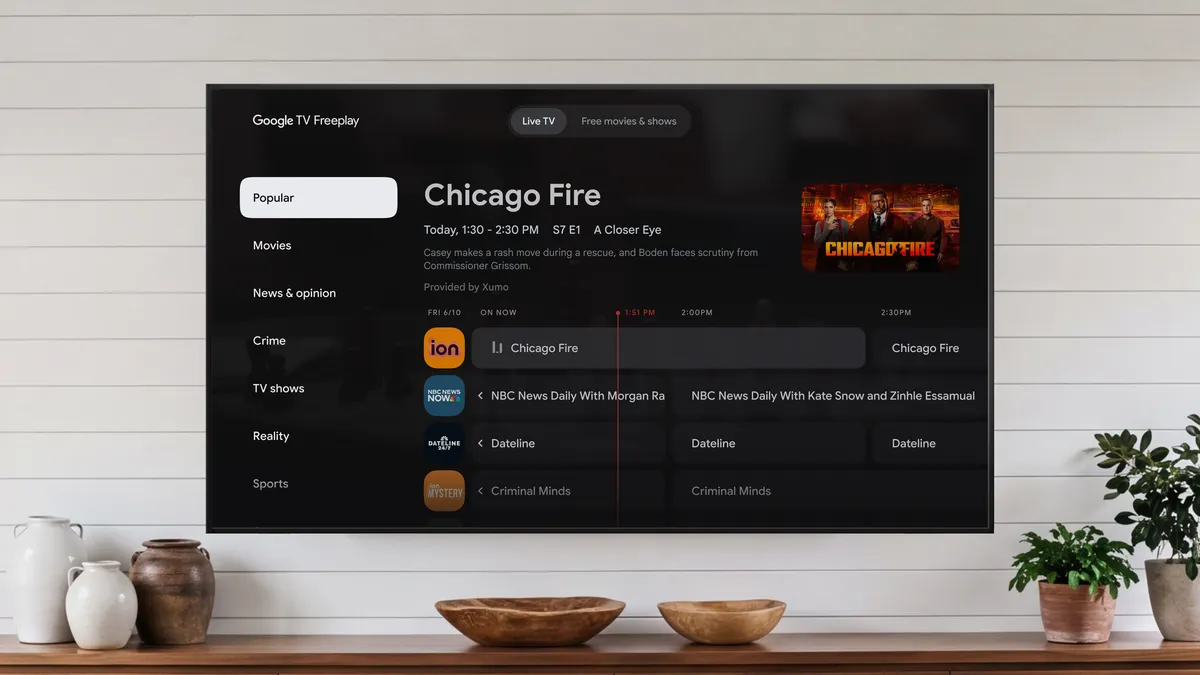
This is also where Google TV can get visually crowded. Free channels from other providers may sit nearby in the broader Live experience, and some of them are useful services. They are just not part of the no-install path if selecting them requires downloading a separate app. Google’s Freeplay expansion identifies Freeplay’s built-in offer as 300+ live channels alongside the new 10,000+ title on-demand library. [1]
What “no apps needed” still requires
No third-party app install does not mean no setup at all. It means you should not have to install a separate streaming app to play Freeplay’s own free movies, shows, or live channels. The device still needs the normal pieces that make Google TV work.
Google account
Use a Google account on the Google TV device. If you are setting up a new Google TV Streamer, Chromecast with Google TV, or Google TV television, finish the main device sign-in before judging whether Freeplay is missing.
US region
Freeplay is for users in the US. If the device, account, or location is outside that availability, the Freeplay path may not appear or may not behave the same way. [1]
Updated Google TV software and Google TV Home
If your screen still looks like an older layout, update the Google TV system software and update the Google TV Home app. The Freeplay expansion depends on the current Google TV experience, not just the age of the television or streaming dongle.
Internet and ads
Freeplay streams over the internet and is ad-supported. If the Wi-Fi is down, weak, or blocking streaming traffic, the fact that Freeplay is built in will not help. If you want free playback without installing apps, the trade is that ads are part of the session. [1]
Rotating catalog
Do not treat a Freeplay movie tile as permanent. Free ad-supported catalogs rotate, so a title that appears one week may not always stay available. The useful habit is to search or browse inside Freeplay first, then decide whether another app is worth installing only if Freeplay does not have what you want.
If you cannot find Freeplay
Work through the boring checks before chasing app-store suggestions. Most “I do not see it” problems come down to region, account, software, or looking at a third-party recommendation instead of the built-in Freeplay area.
- Confirm the device is using Google TV, not only a generic Android TV layout.
- Confirm you are signed in with a Google account.
- Confirm the device is being used in the US, where Freeplay is available. [1]
- Update the Google TV system software.
- Update the Google TV Home app.
- Restart the device after updating.
- Open Freeplay again from the Google TV home interface and choose “Free movies & shows” for on-demand titles or “Live TV” for channels.
One quick test usually settles the question: select a movie tile from “Free movies & shows.” If it plays with ads inside Freeplay, you are using the built-in zero-install path. If the next screen is an app download, subscription pitch, or external service launch, that item is outside Freeplay’s built-in no-install path.
Where the promise stops
For free movies on Google TV with no apps needed, stay inside Freeplay and use “Free movies & shows.” For free scheduled channels, stay inside Freeplay and use “Live TV.” The moment Google TV asks for a third-party app install, you may still be looking at free streaming, but you are no longer using the built-in no-install Freeplay path.
References
- Google TV Freeplay adds even more free TV, movies and shows, Google Blog, August 11, 2026.