The useful tropical storm smart home monitoring tips are the ones that still work when the house is noisy, wet, and half offline. Before the next storm band arrives, configure three automations: one that says whether mains power failed or returned, one that treats water as an immediate event instead of a dashboard badge, and one that turns an official weather alert into a visible storm posture.
| Automation | Best signal | Immediate action | Strongest platform fit |
|---|---|---|---|
| Power-outage alert | Battery-backed device reports mains disconnected or restored | Push notification, siren/chime, dashboard state | Home Assistant, SmartThings, Hubitat; Apple Home only if a compatible bridge exposes the event |
| Leak-response chain | Water sensor changes to wet | Notify, sound siren, close valve, turn on lights | Home Assistant, SmartThings, Apple Home if the sensor and valve are supported |
| Weather-alert routine | NWS alert for your area | Lights, announcements, blinds, storm mode | Home Assistant has the clearest documented path |
That order matters. A power event is binary. A leak is local and needs a response chain. A weather alert is contextual, so it belongs last: useful, but only if the alert source and platform can express the warning cleanly enough to automate.
Start With The Power Signal
The cleanest storm automation is also the least dramatic: when a plugged-in, battery-backed device loses mains power, the hub sends an alert. You are not asking a smart plug to infer an outage from missing power data, and you are not waiting for a cloud app to notice a device is unavailable. You are watching for a state change: mains power disconnected, then mains power restored.
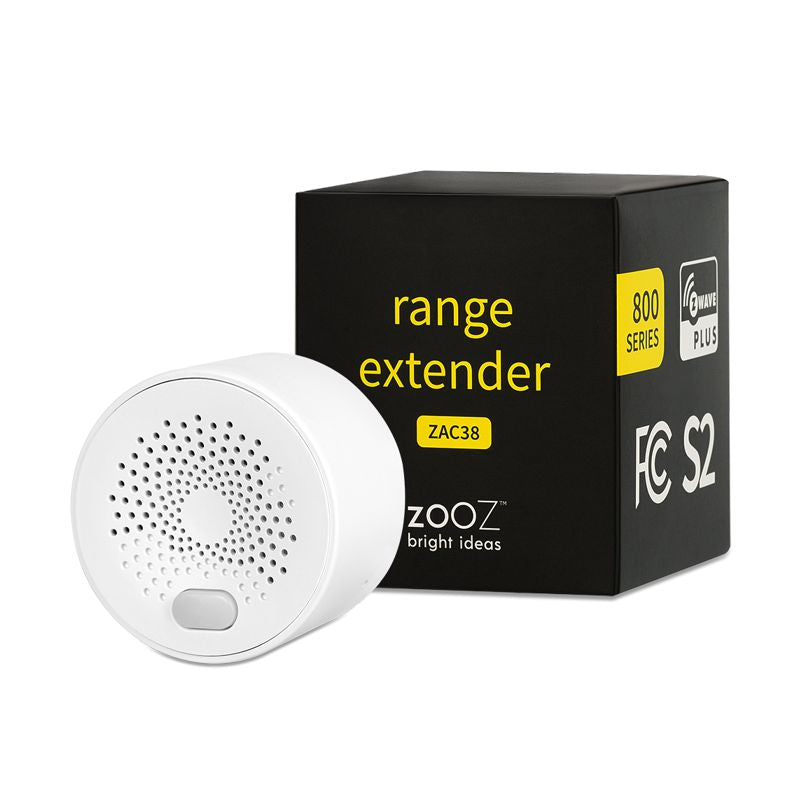
Zooz describes the ZAC38 800 Series Z-Wave Plus Range Extender as a Z-Wave range extender with a backup battery that reports “mains power disconnected” and “mains power restored” to the hub. Zooz’s own support documentation lists a 24–96 hour battery runtime on a full charge, 500+ charge cycles, and an approximate 10-year lifespan; those figures should be treated as manufacturer-sourced, not independent endurance testing.[1]
Place that kind of device where the signal means something. A garage outlet on the same circuit as the opener tells you something different from a utility-room outlet on the panel you care about. If the hub, router, and modem are on a UPS, a mains-disconnect event can still leave enough network alive to send the notification before the internet drops. If they are not, the local automation may fire but the remote alert may never leave the house.
Home Assistant: trigger on the mains-power attribute
In Home Assistant, include the Z-Wave device through Z-Wave JS, then inspect the entities it exposes. The exact entity names depend on how the device is included, but the automation should use the entity that changes when mains power disconnects or restores, not a generic unavailable state.
- Trigger: the ZAC38 power-management or mains-status entity changes to disconnected.
- Condition: optional storm mode, hurricane watch, or manual “away during storm” helper is on.
- Actions: send a high-priority mobile notification, set a persistent notification, turn one indoor light red if the local network is still up, and start a timer for delayed escalation.
- Restore trigger: the same entity changes to restored, then send a second notification and clear the dashboard warning.
A simple Home Assistant version can look like this, with entity IDs replaced by the ones your Z-Wave device actually exposes:
alias: Storm - Mains Power Lost
mode: single
trigger:
  - platform: state
    entity_id: binary_sensor.garage_zac38_mains_power
    to: "off"
action:
  - service: notify.mobile_app_your_phone
    data:
      title: "Power alert"
      message: "Garage mains power disconnected. Hub is still online."
      data:
        push:
          sound:
            name: default
            critical: 1
            volume: 1
  - service: persistent_notification.create
    data:
      title: "Storm power alert"
      message: "Garage mains power disconnected."
If you use smart plugs as a substitute power signal, build the automation around the plug’s power or availability behavior only after testing it. Some plugs stop reporting when power disappears, which is useful only if the hub can distinguish “power failed” from “device missed a check-in.” For Home Assistant users adapting energy-monitoring plugs instead of a ZAC38-style device, the YAML patterns in these smart-plug automation recipes are a better starting point than guessing from a dashboard graph.
SmartThings and Apple Home: use the exposed device state, not an assumption
In SmartThings, create a routine from the device state if the Z-Wave device exposes mains disconnected or power source as a selectable condition. The routine should send a member notification, optionally turn on a visible lamp, and create a separate restore routine when the state returns. If SmartThings only shows the device as online or offline, test carefully before trusting it as an outage signal; offline can also mean mesh or hub trouble.
Apple Home is more constrained because it depends on what a bridge or compatible device exposes to HomeKit. If Home only sees a plug or bridge accessory without a usable power-source state, do not paper over that gap with a fake outage routine. Use Apple Home for the visible response when another platform can provide the trigger, or keep this automation in the hub that can see the Z-Wave power event.
Add one local signal for people inside the house
A phone notification is not enough if someone is in the garage, asleep, or dealing with shutters outside. Zooz documents that its ZSE50 Siren & Chime can be programmed to emit a custom alert when it switches to battery power during an outage, using audible and LED notification.[2] That kind of local cue is worth configuring when the alert needs to reach whoever is physically present, not just whoever owns the app.
Then verify the ugly part. Unplug the monitored device. Confirm the hub sees the mains-disconnect state. Confirm the phone receives the alert on cellular data. Confirm the restore alert arrives when power returns. If any part only works while you are standing next to the router on Wi-Fi, it is a dashboard feature, not a storm alert.
Plan for Z-Wave recovery after the outage
Home Assistant community reports from 2022 through 2024 describe Z-Wave networks behaving poorly after power outages, including nodes that appear dead and recovery steps through Z-Wave JS or zwave-js-ui. Those reports are qualitative forum evidence, not a measurement of how often this happens, but they are enough to justify recovery thinking before a storm weekend.[3]
- Keep the hub and network gear on a UPS if you expect remote notifications during a short outage.
- Avoid relying on one mains-powered Z-Wave repeater as the only route to a critical leak sensor.
- Know where your Z-Wave JS heal, re-interview, and ping controls live before the storm, because UI paths can change.
- After power returns, check the Z-Wave device list for dead nodes before assuming all storm automations are healthy again.
Make Water Detection Do Something Immediately
A leak sensor that quietly changes from dry to wet is unfinished storm prep. During a tropical storm, water may enter from a washing-machine pan, garage threshold, water heater closet, window well, or low utility room. CNET’s 2026 hurricane-prep coverage notes that leak detectors can “pull double duty” during storms by catching rain-related leaks and early flooding.[4]
The practical chain is short: sensor goes wet, the house makes the event hard to miss, and any safe shutoff happens without waiting for someone to open an app. If you already have a smart shutoff valve, use it. If you do not, the automation can still turn on lights, sound a siren, and send a notification that names the room.
| Location | First response | Escalation |
|---|---|---|
| Laundry room | Notify and turn nearby lights blue or red | Close water valve if installed |
| Water heater pan | Notify with room name | Sound siren if wet for more than a few minutes |
| Garage threshold | Notify and turn on garage lights | Repeat notification while wet |
| Basement or low utility room | Notify, siren, and valve close | Trigger flood routine if multiple sensors are wet |
Home Assistant: separate detection from escalation
In Home Assistant, use the water sensor’s wet state as the first trigger. The first automation should be immediate and boring: notify, identify the sensor, and turn on a visible cue. A second automation can handle escalation if the sensor stays wet, because a wet sensor under a washing machine and a wind-driven puddle at a garage door do not deserve identical behavior forever.
alias: Storm - Laundry Leak Immediate Response
mode: single
trigger:
  - platform: state
    entity_id: binary_sensor.laundry_leak_sensor_water
    to: "on"
action:
  - service: notify.mobile_app_your_phone
    data:
      title: "Water detected"
      message: "Laundry room leak sensor is wet."
  - service: light.turn_on
    target:
      entity_id: light.laundry_room
    data:
      color_name: red
      brightness_pct: 100
  - service: siren.turn_on
    target:
      entity_id: siren.hallway_chime
If a valve is installed and tested, add it deliberately rather than as a reflex. Closing a main valve can protect the house from a plumbing leak, but it will not stop rainwater entering under a door. Use valve closure for sensors that indicate plumbing risk: water heater pan, laundry supply area, under-sink cabinet, refrigerator line. For more response patterns beyond this storm-focused chain, use these smart leak detector automation ideas as the companion recipe set.
SmartThings: build the routine as a response chain
In SmartThings, create a routine with the leak sensor as the “if” condition and keep the “then” actions concrete: send a notification to members, turn on selected lights, sound a compatible siren, and close a compatible water valve if one is installed. If you want repeat alerts, create a second routine that checks whether the sensor remains wet after a delay rather than relying on one notification sent during the loudest part of the storm.
Apple Home: use what Home can run locally
Apple Home can run a leak-triggered automation when the sensor and responder accessories are exposed to Home. Keep the action set small: turn on lights, send the Home notification that the sensor provides, and close a supported valve if your setup exposes one. If the siren or valve only exists in another ecosystem, do not assume Apple Home can operate it during a storm; put that part of the chain in the platform that owns the accessory.
Battery life and range claims are useful only after placement testing. CNET’s February 2026 coverage cites GoveeLife leak detectors with up to 5-year battery life and 1,800-foot range, but those figures describe a product claim in a particular device category, not proof that a sensor in your metal-sided shed will reach your hub in heavy weather.[5]
Verify with a wet towel, not a memory
Test each sensor where it will actually sit. Touch the contacts with a wet towel. Confirm the alert names the room. Confirm the siren is loud enough from the bedroom or garage. Confirm the valve closes only where that action makes sense. Then dry the sensor and make sure the system returns to normal without leaving the house in permanent alarm mode.
For homes where floodwater is a realistic hazard, the leak routine should not be the whole design. A storm leak automation catches local water; a flash-flood routine needs weather warnings, sensor grouping, and a different escalation path. The deeper flood-specific version is covered in this smart home flood alarm setup.
Turn Weather Alerts Into Storm Posture
The weather automation should not try to replace emergency alerts on your phone. Its job is narrower: when the weather service issues a relevant alert, the house moves into a state that is hard to miss. Lights change. A speaker announces the alert. Blinds close if that is part of your storm posture. Nonessential automations can pause.
Home Assistant has the clearest documented path here. The NWS Alerts custom integration pulls alerts from alerts.weather.gov and can be used to trigger automations such as flashing lights, voice announcements through Alexa or Google, or closing blinds when severe weather is detected.[6]
Home Assistant: filter before you automate
Install and configure the NWS Alerts integration for your zone, then look at the attributes it exposes before writing actions. The important choice is filtering. A coastal house does not need the same response for every advisory, watch, and warning. Start with the alert names you are willing to let control the house, then expand only after watching real alerts come through.
alias: Storm - NWS Alert Storm Posture
mode: single
trigger:
  - platform: state
    entity_id: sensor.nws_alerts
condition:
  - condition: template
    value_template: >-
      {{ 'Tropical Storm Warning' in state_attr('sensor.nws_alerts', 'title')
         or 'Hurricane Warning' in state_attr('sensor.nws_alerts', 'title')
         or 'Flash Flood Warning' in state_attr('sensor.nws_alerts', 'title') }}
action:
  - service: light.turn_on
    target:
      entity_id: light.living_room
    data:
      color_name: amber
      brightness_pct: 80
  - service: cover.close_cover
    target:
      entity_id: cover.front_room_blinds
  - service: notify.mobile_app_your_phone
    data:
      title: "Weather alert"
      message: "NWS alert matched storm posture rules. Check details now."
Treat that YAML as a shape, not a paste-and-forget answer. Your entity may not be called sensor.nws_alerts, and the attribute containing the alert title may differ by integration version. The verification step is to use Developer Tools while a test or real alert is present, confirm the exact state and attributes, and then test the action set with a temporary helper before letting a weather alert close blinds or trigger announcements.
SmartThings and Apple Home: keep the gap visible
SmartThings and Apple Home can run storm-posture routines from conditions they understand: time, mode, device state, manual scene, and supported weather-related triggers where available. What they do not provide, as cleanly as the Home Assistant NWS path, is a documented first-party recipe that turns specific NWS alert titles into local automation conditions. For those platforms, the honest version is a manual or semi-manual storm mode: tap one scene when the warning arrives from your normal weather app, then let the platform handle the house actions.
- Scene name: Storm Mode or Tropical Storm Prep.
- Actions: close selected blinds, turn key lights to a known color, raise thermostat setpoints if appropriate, and pause outdoor or nuisance automations.
- Companion trigger: power-outage and leak automations remain automatic, because those are device-state events.
- Verification: run the scene from cellular data and from another household member’s phone before the storm.
That is not second-rate; it is bounded. Weather alerts are public-safety messages with wording, geography, and timing that deserve careful filtering. If your platform cannot expose the alert with enough detail, a deliberate scene is safer than a vague automation that fires on the wrong condition.
Before The Storm, Test The Failure Modes
The test is not whether the automation looks elegant in the editor. The test is whether it changes the state of the house when attention is elsewhere. Unplug the power monitor. Wet the leak sensor. Run the storm scene. Put the phone on cellular. Make another household member receive at least one alert. Then restore everything and check that the system clears its warning states.
Also check the boring hardware layer: sensor batteries, hub UPS runtime, siren battery, valve operation, and Z-Wave mesh health after a controlled power cycle. If you still need the device foundation before building recipes, start with the thunderstorm safety device guide or compare sensor options in the 2026 flood sensor guide.
These three automations do not make a smart home stormproof. They do reduce the number of silent failures: power that went out without anyone knowing, water that sat unnoticed, and an official alert that never became a household action. That is a reasonable amount of setup for the next tropical storm, especially if you finish it while the lights are still steady.
References
- ZAC38 800 Series Z-Wave Plus Range Extender FAQ, Zooz Support Portal
- ZSE50 Siren & Chime documentation, Zooz Support Center
- Home Assistant Community Z-Wave outage recovery discussions, Home Assistant Community, October 2022–March 2024
- Hurricane Prep Guide, CNET, June 2026
- GoveeLife leak detector coverage, CNET, February 2026
- NWS Alerts custom integration, GitHub